
Changing a Student's Status
This guide explains how to update a student’s status in Achieve.
Apr 27, 2026●
1
Navigate to https://app.achieveiec.com/students
2
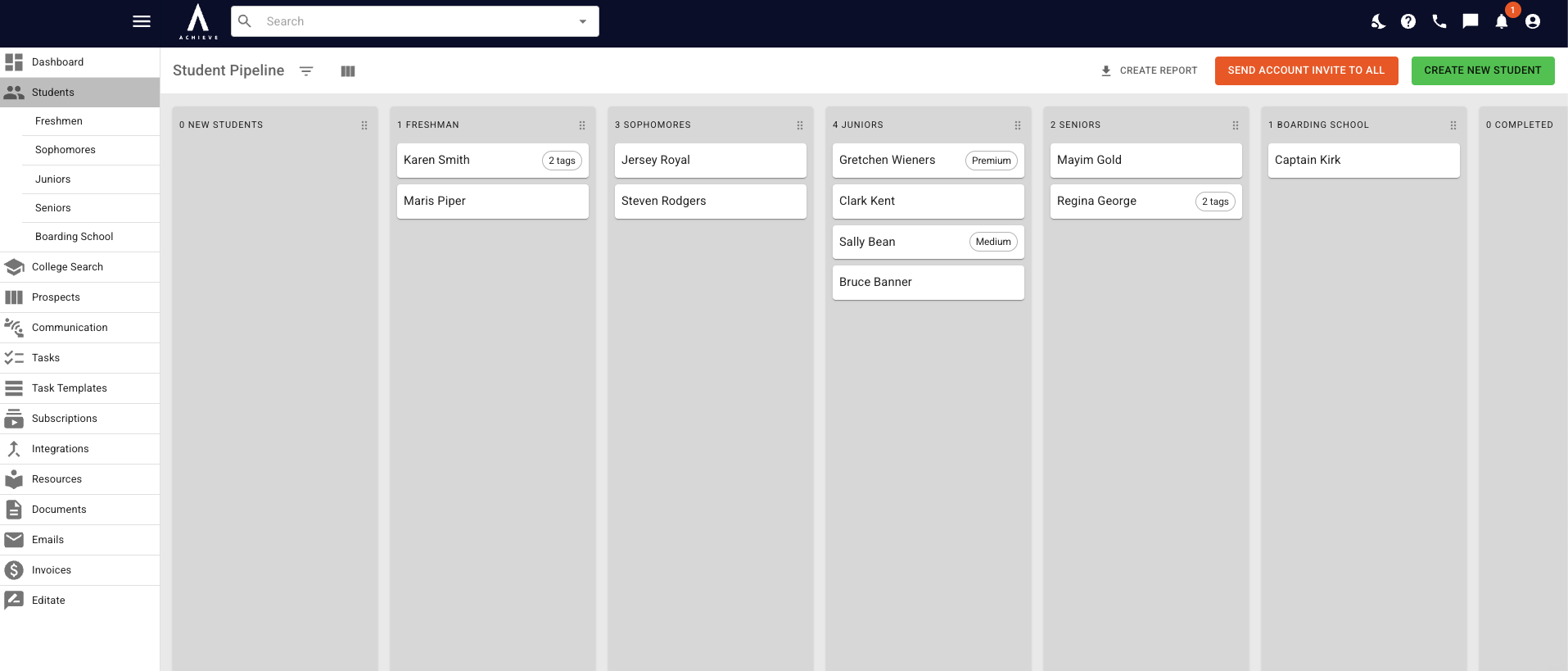
Click the student whose Status you want to change.
3
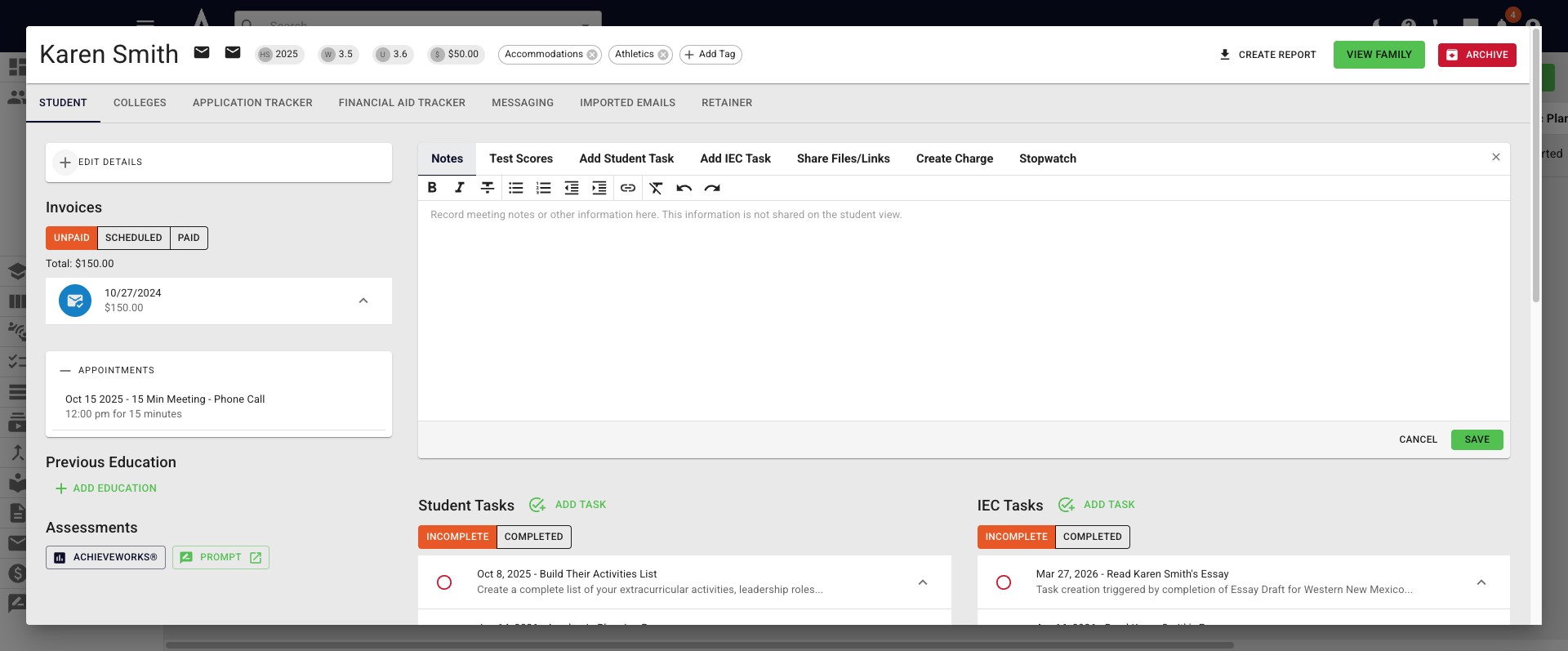
When their profile opens, click Edit Details.
4
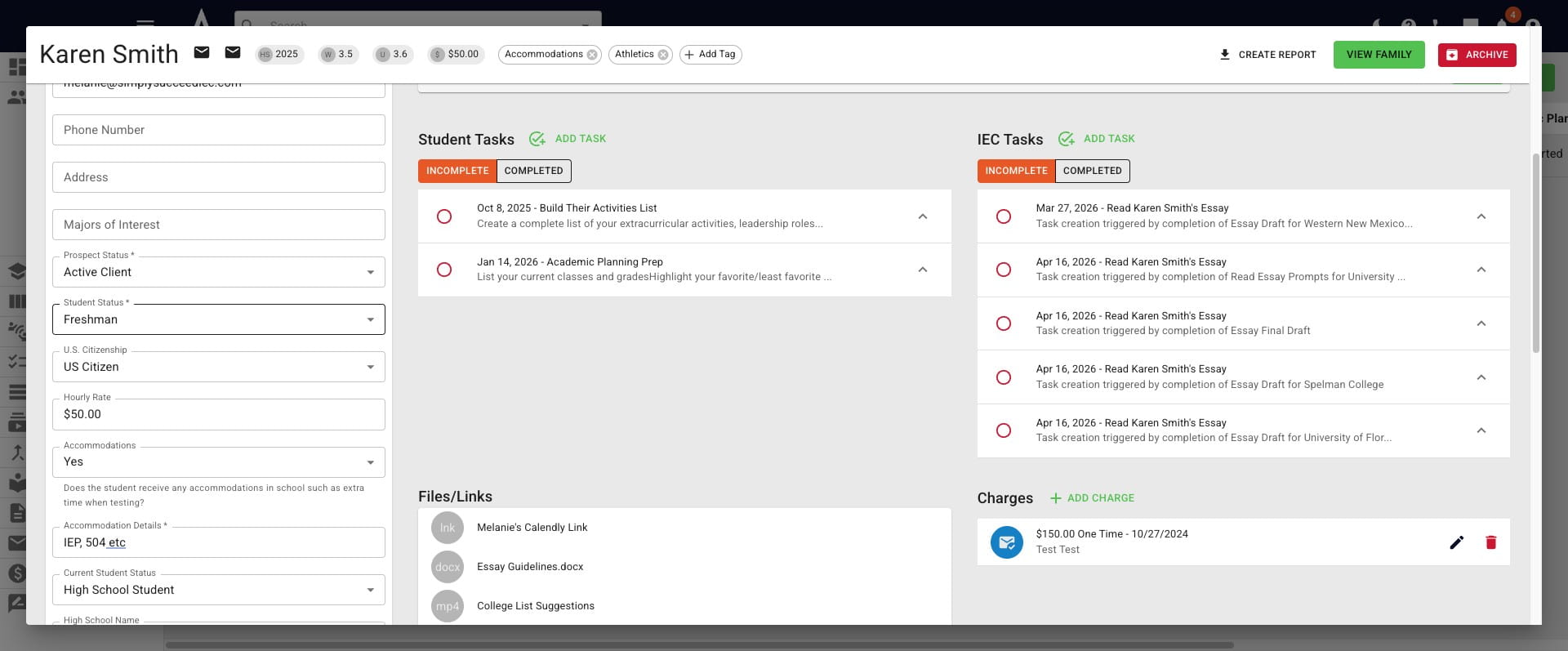
Click on the Student Status box and a drop-down menu will appear.
5
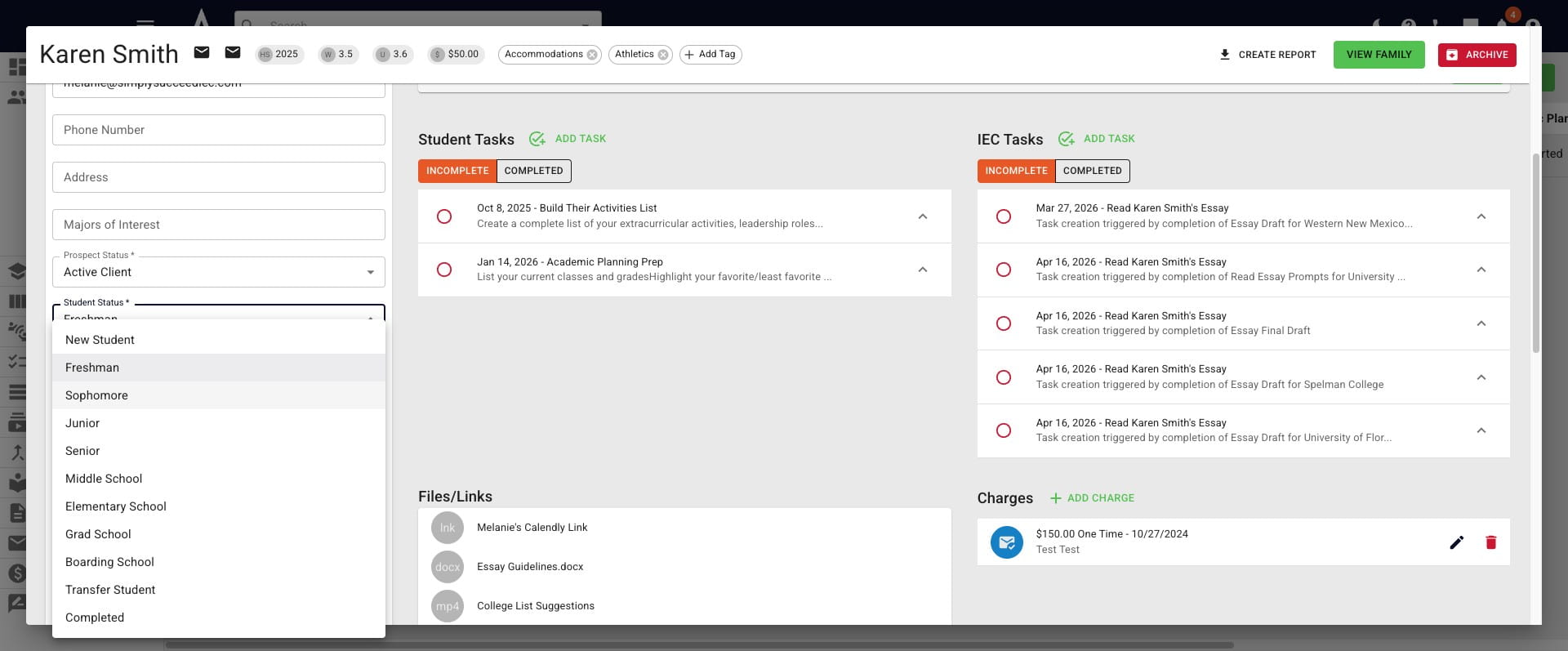
Choose the student's new Status from the drop down.
6
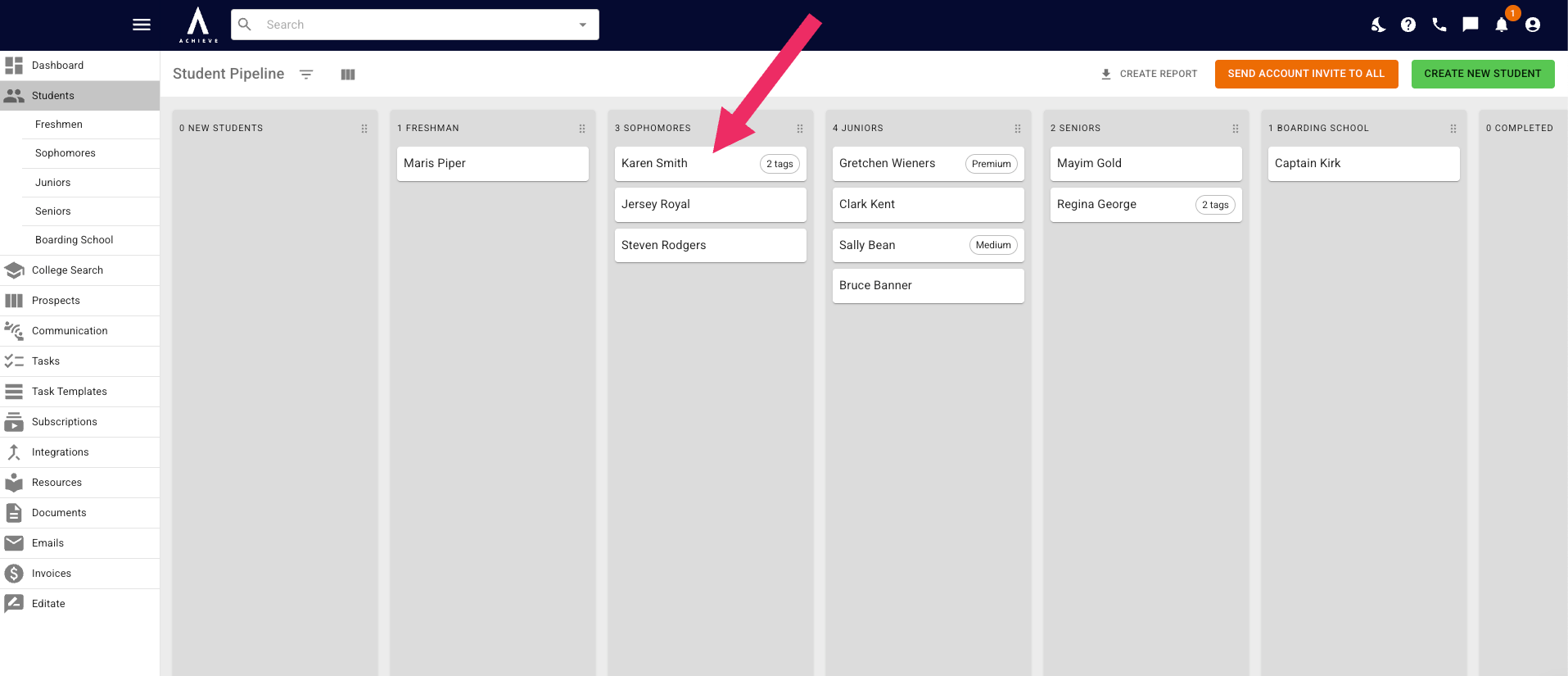
We can now see in the Student Pipeline that Karen Smith is now in the Sophomores column.
7
Another way to change a Student Status is to drag and drop their tile into a different column, as seen in the video below.
0:00 / 0:08
8
Done 🚀