Customizing College Lists
Hide or show specific colleges on a student's Achieve college list and choose which stats appear for each college.
Oct 28, 2026●
1
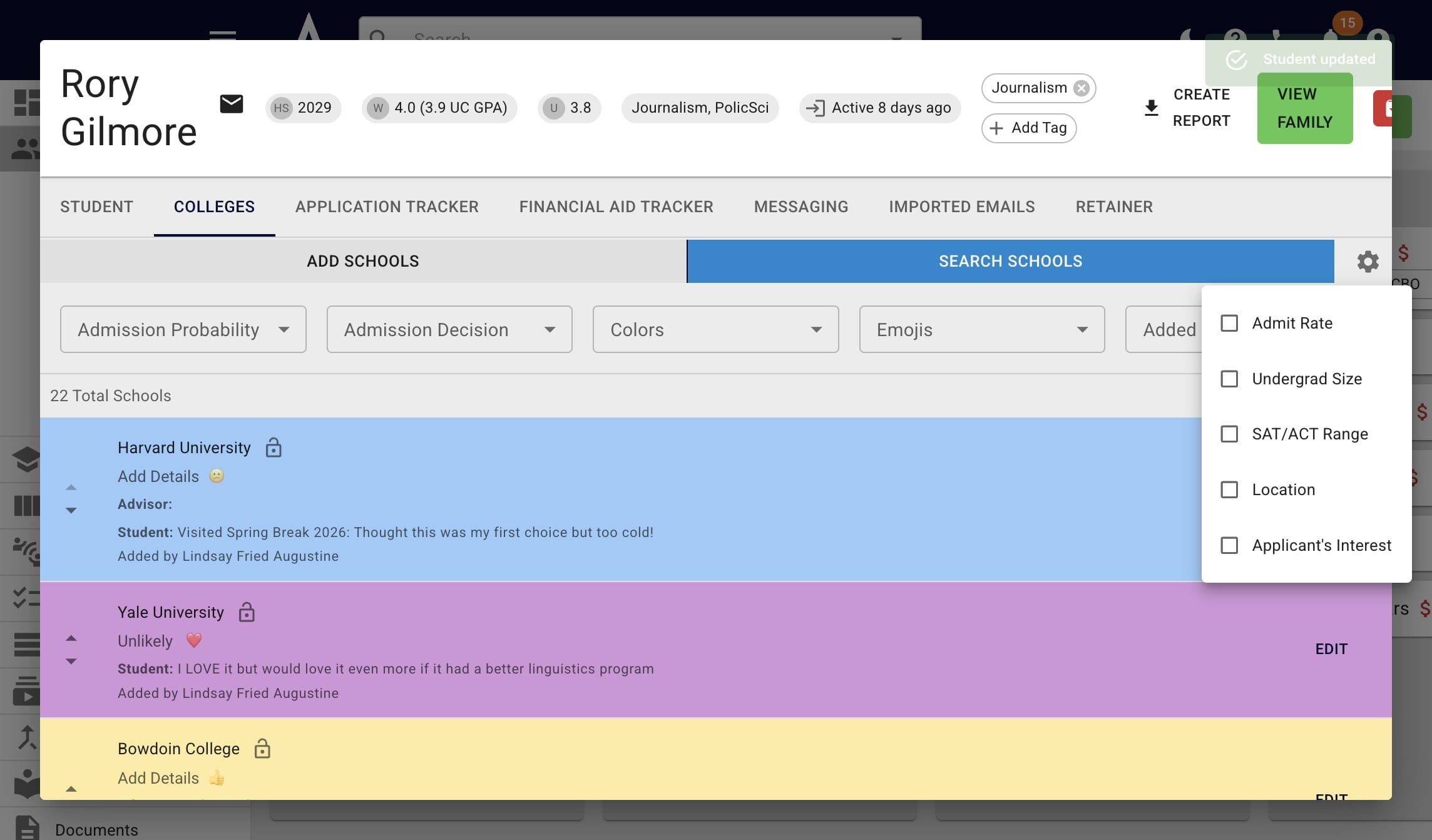
Open up a student's Achieve profile and click on Colleges.
2
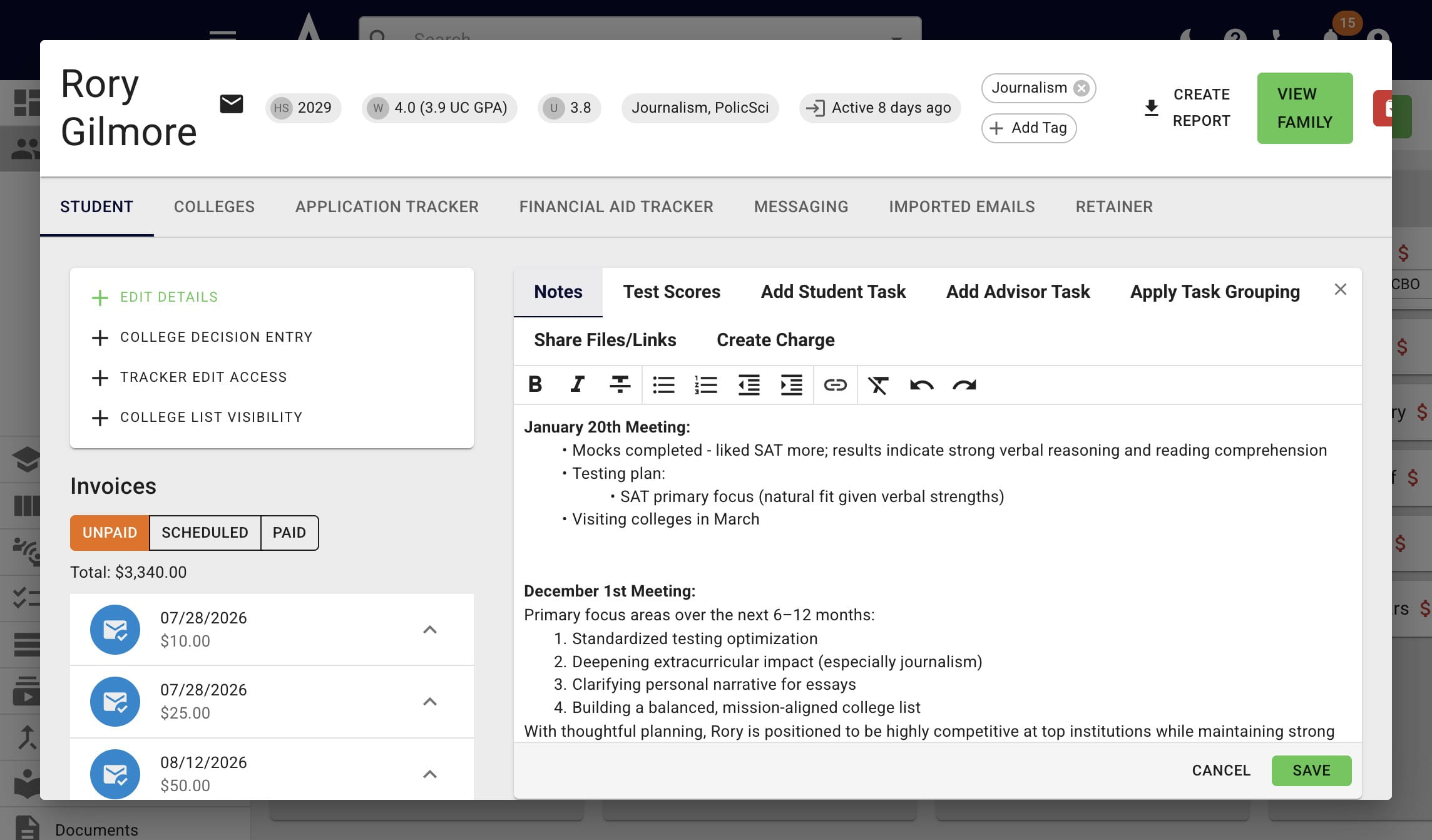
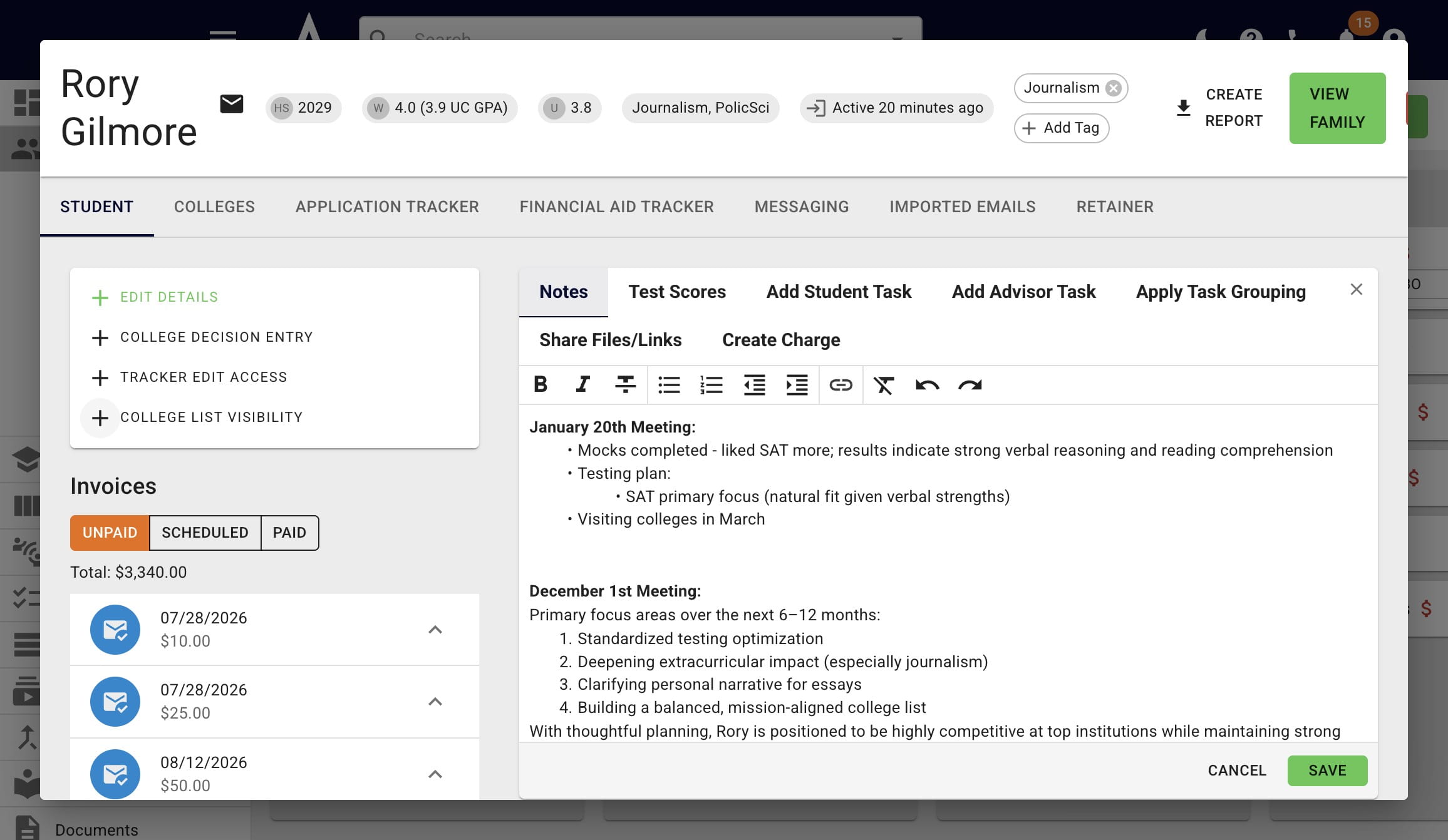
To hide admission probabilities, click the + symbol next to College List Visibility.
3
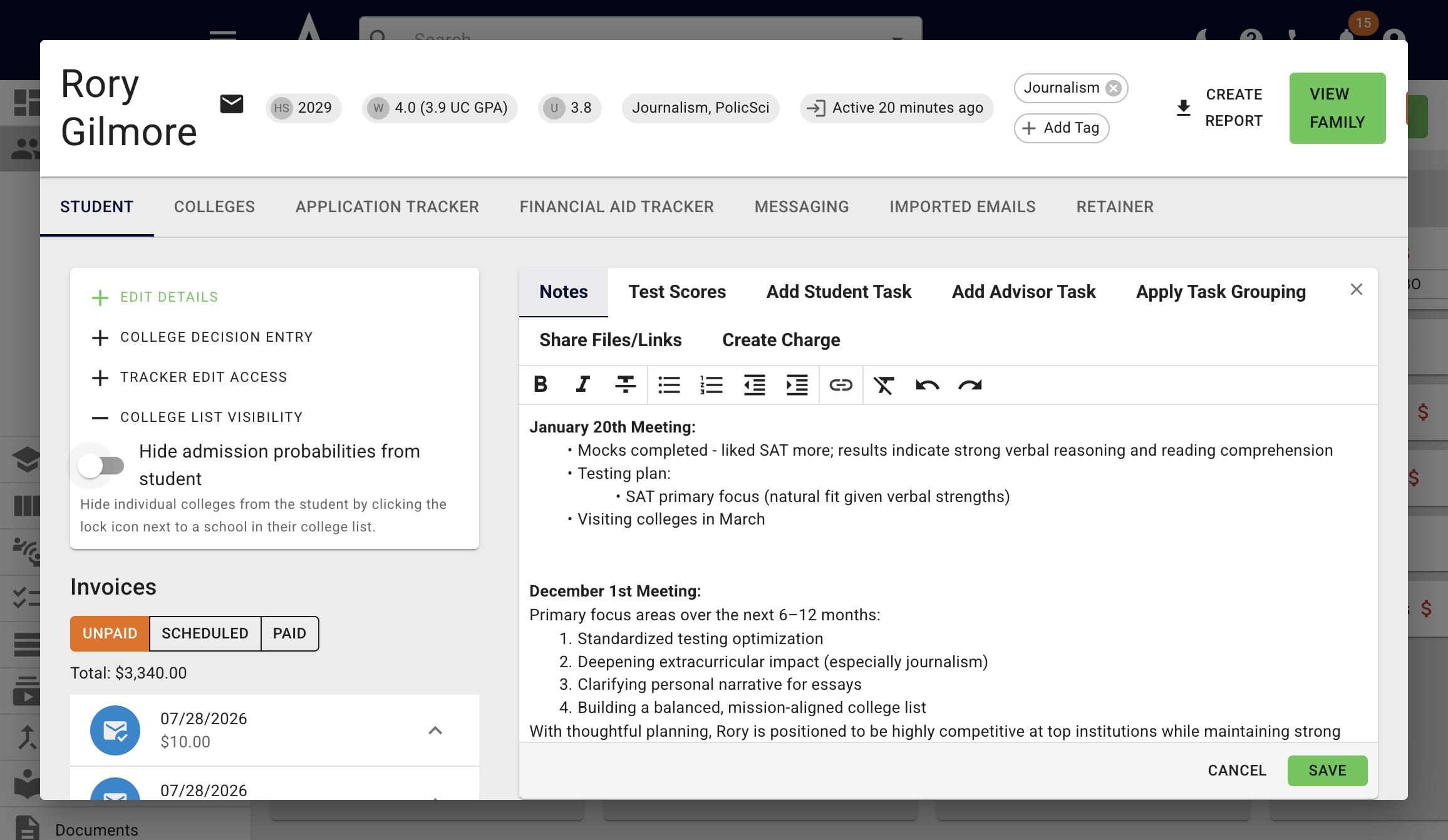
Toggle the preference on
4
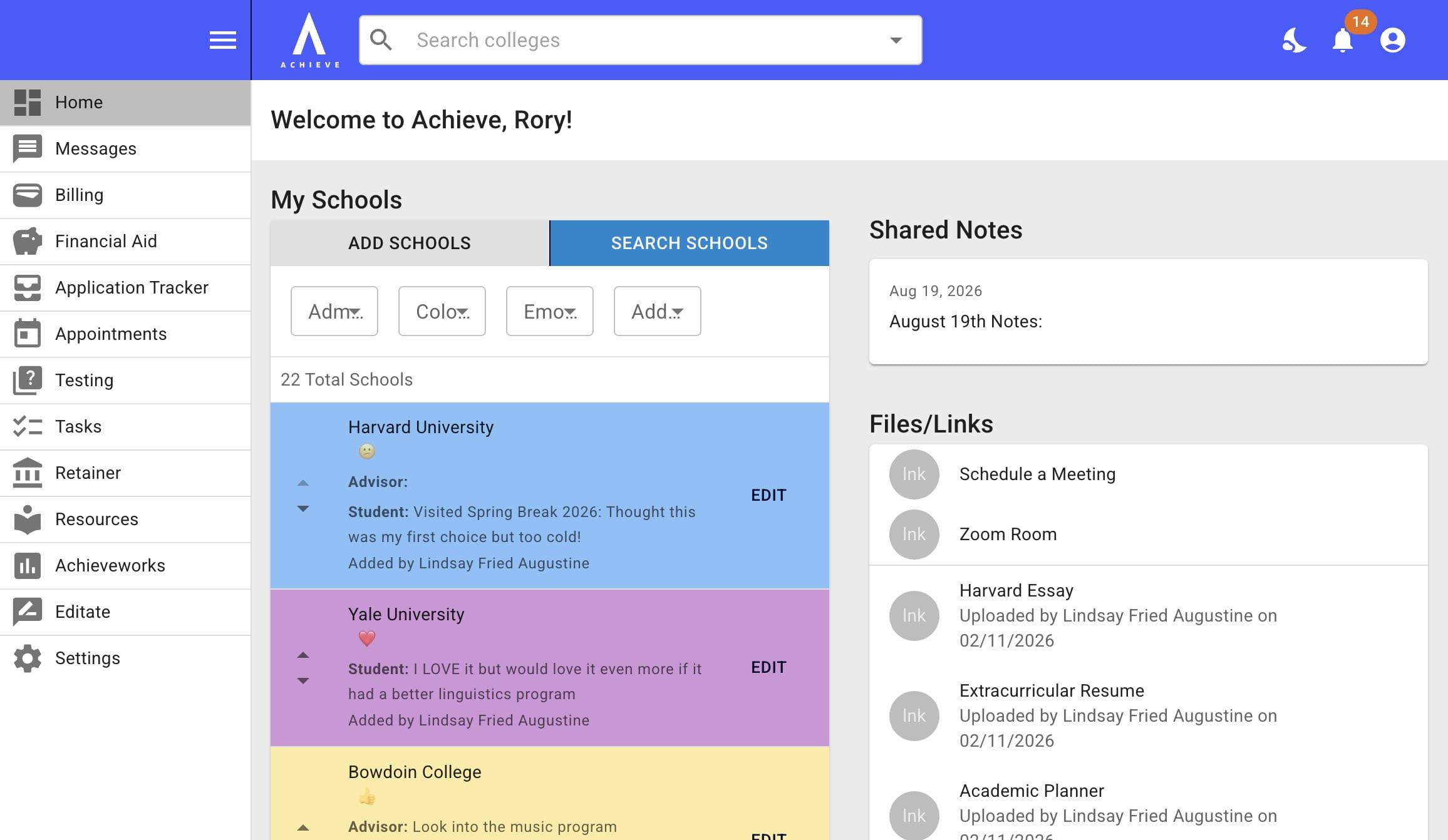
Then, as seen below, your student won't see the admission probabilities you set until you toggle the setting off.
5
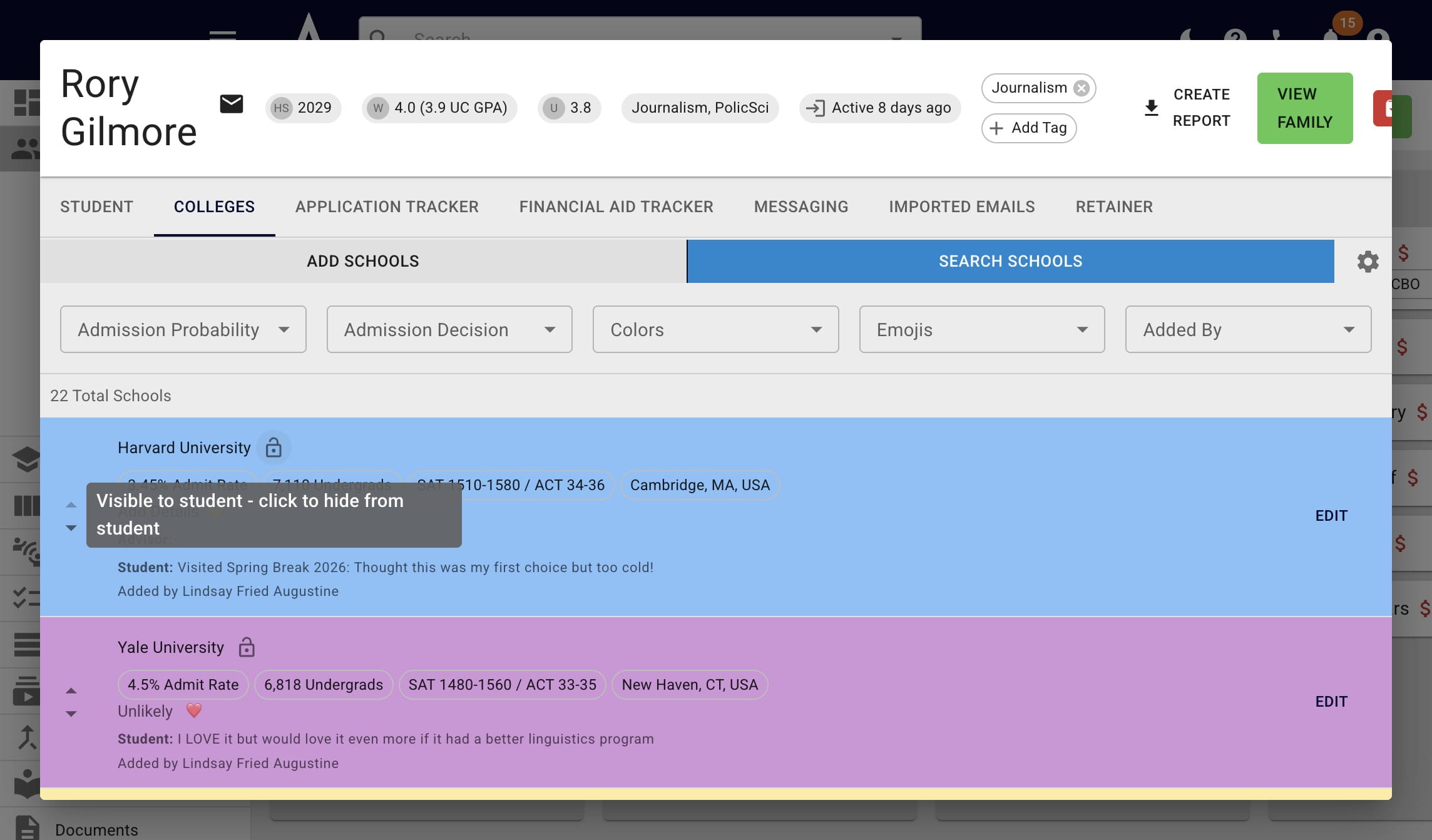
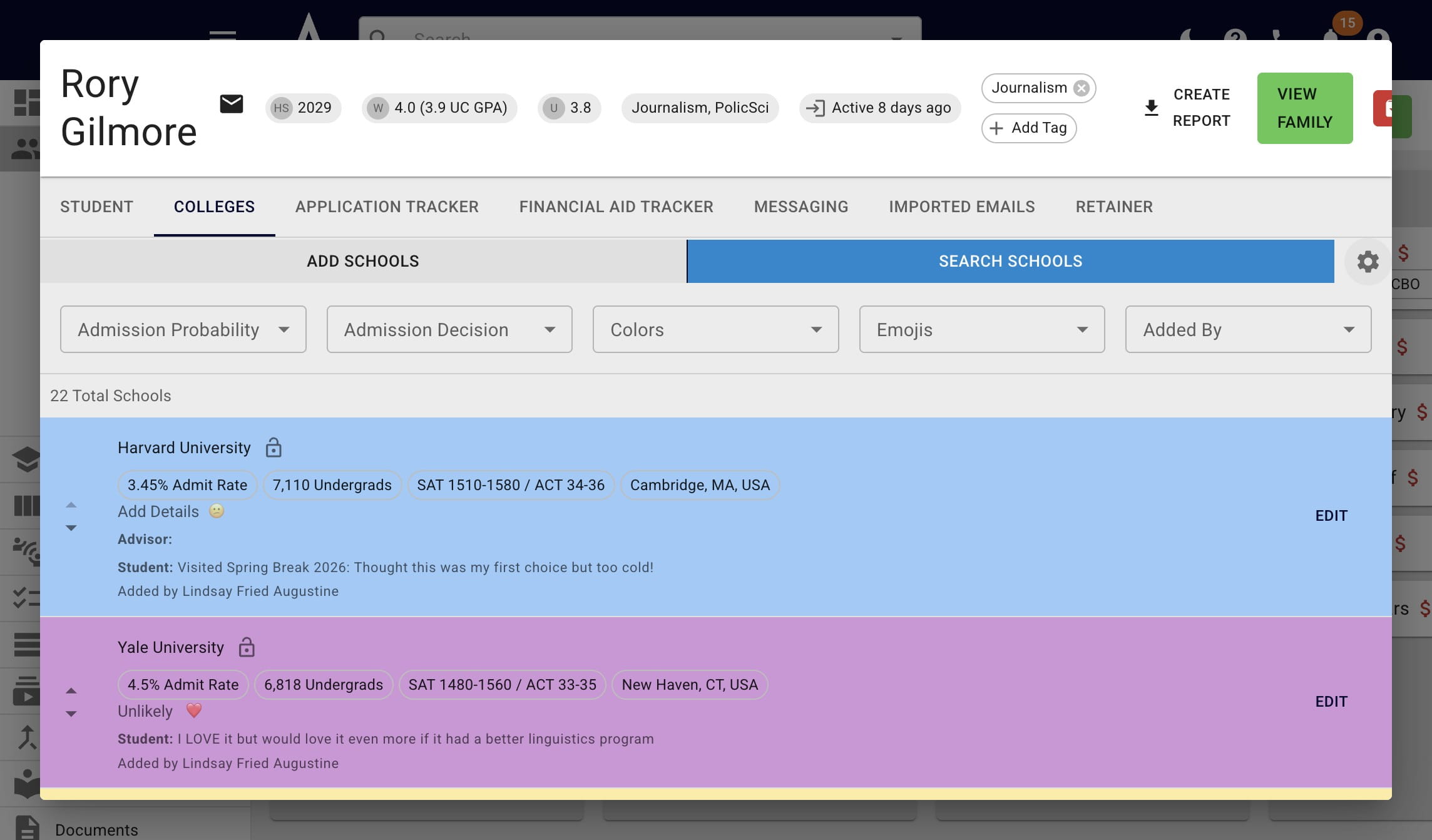
If there's a college you don't want the student to see, click on the lock icon.
6
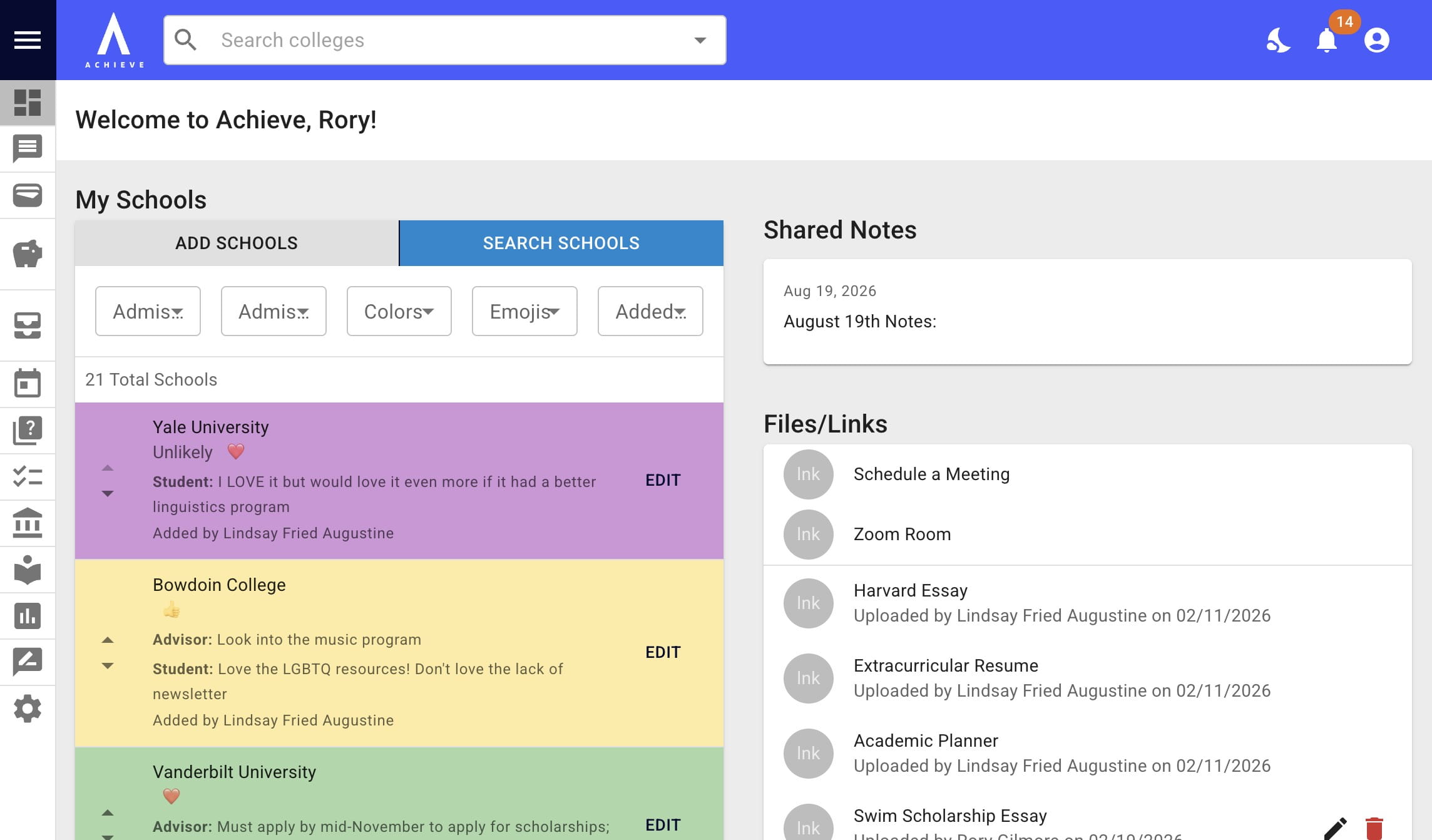
The student will then no longer see that college on their list.
7
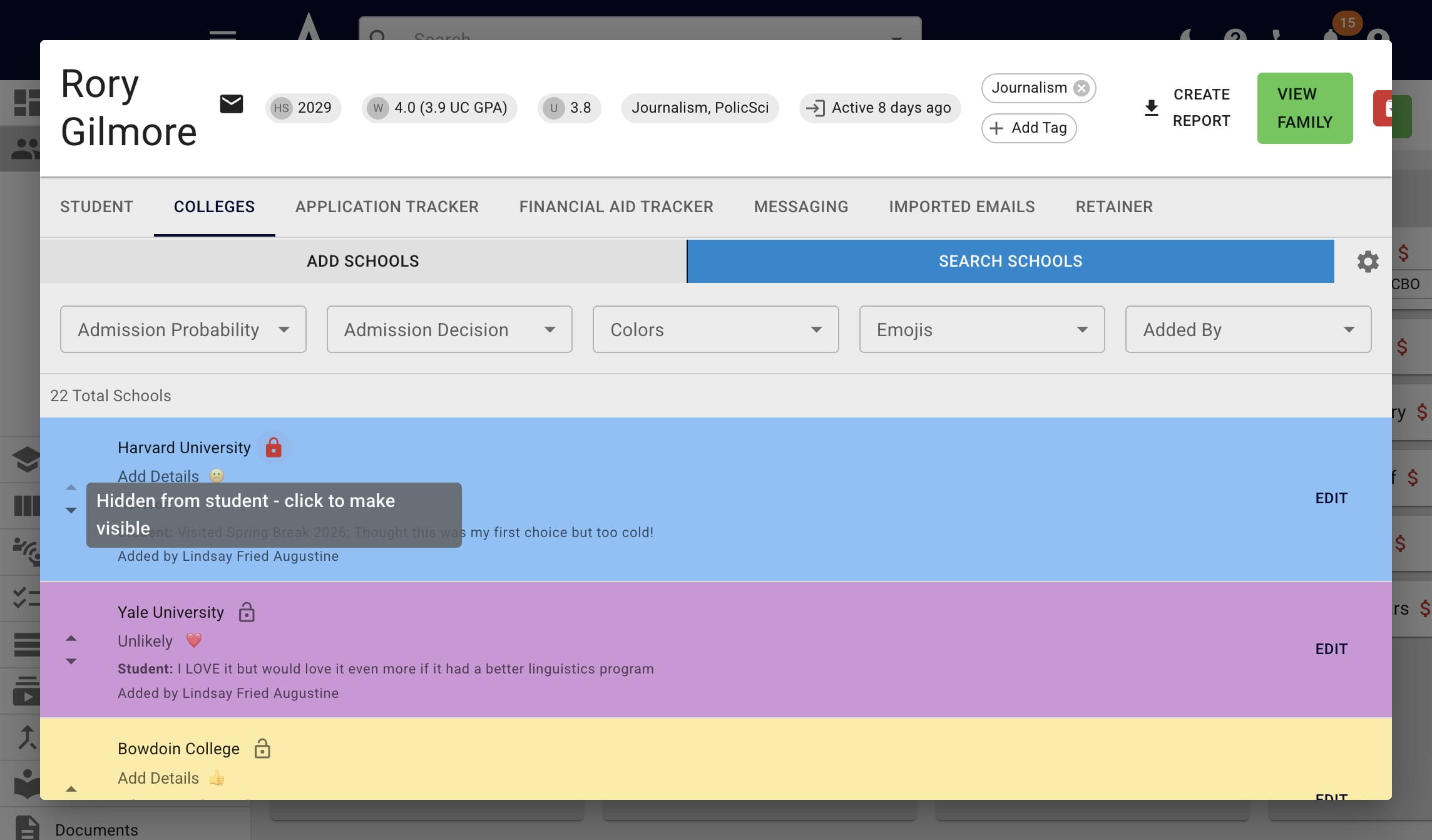
Click on the red lock icon to make the school visible to the student again.
8
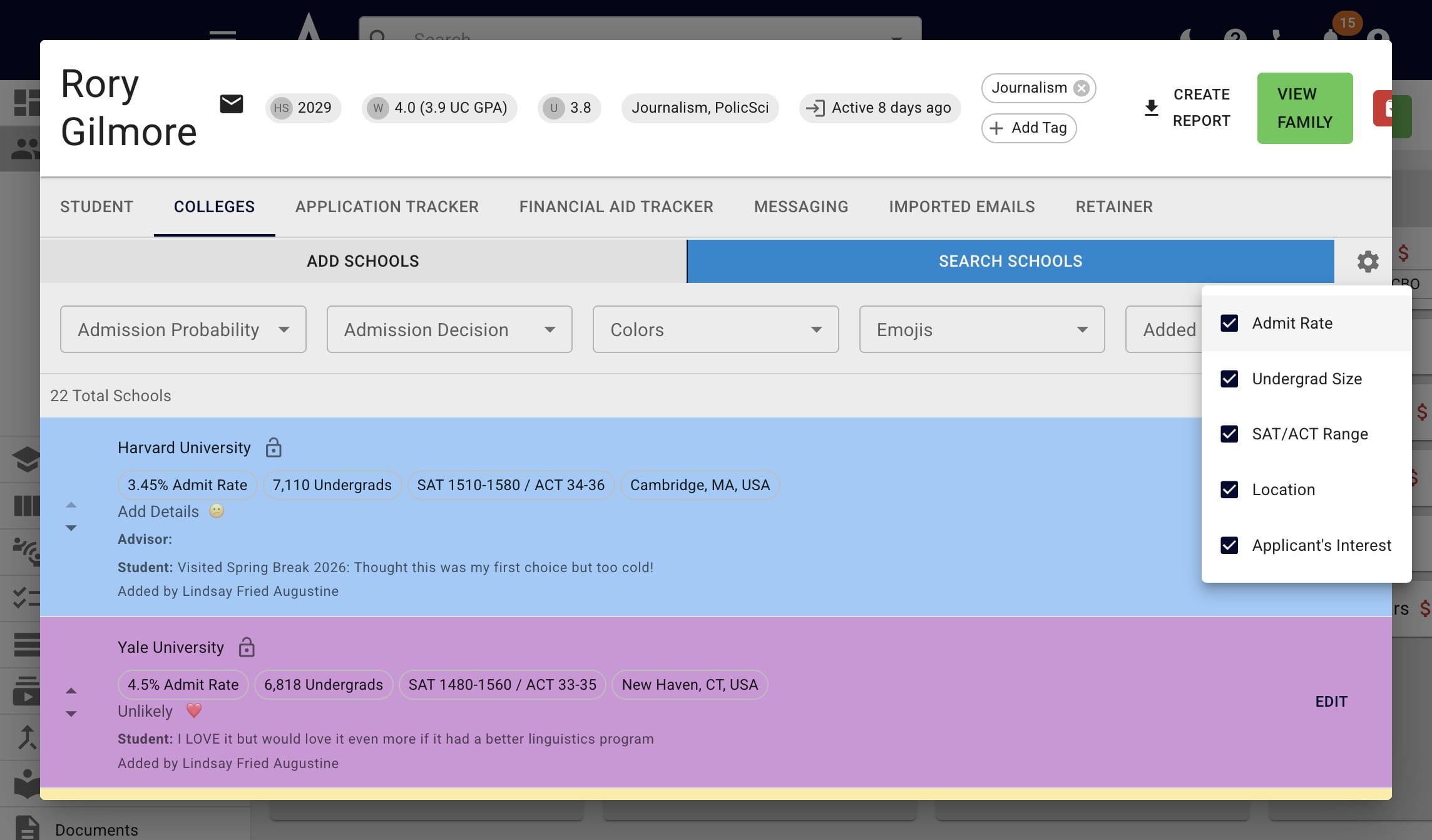
To change what stats show up under a college, click on the gear icon.
9
Uncheck and check the boxes as needed.
10
Done 🚀