
Adding a Sibling to Achieve
This guide explains how to add a new child to an existing family in Achieve, ensuring the sibling is properly linked to the family profile and the family record remains current.
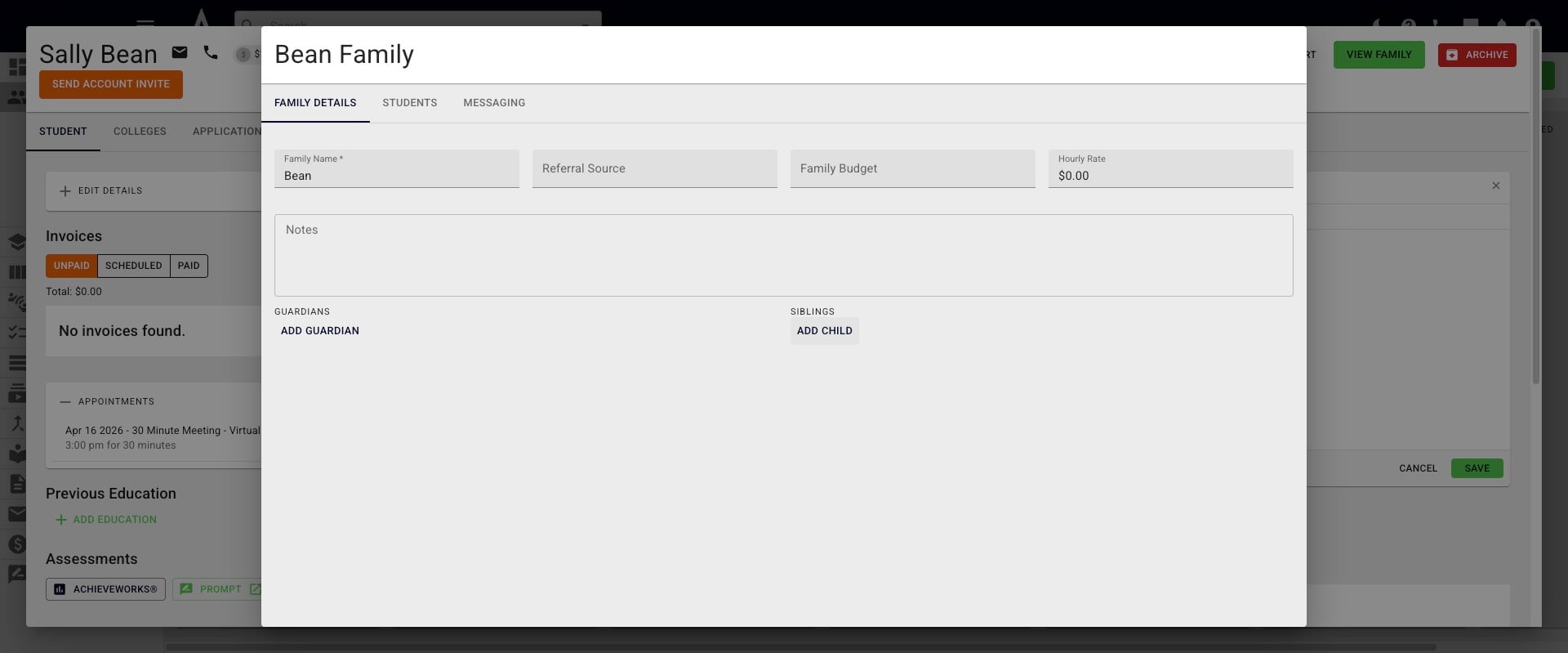
Open up the family profile in Achieve and click on Add Child under Siblings.
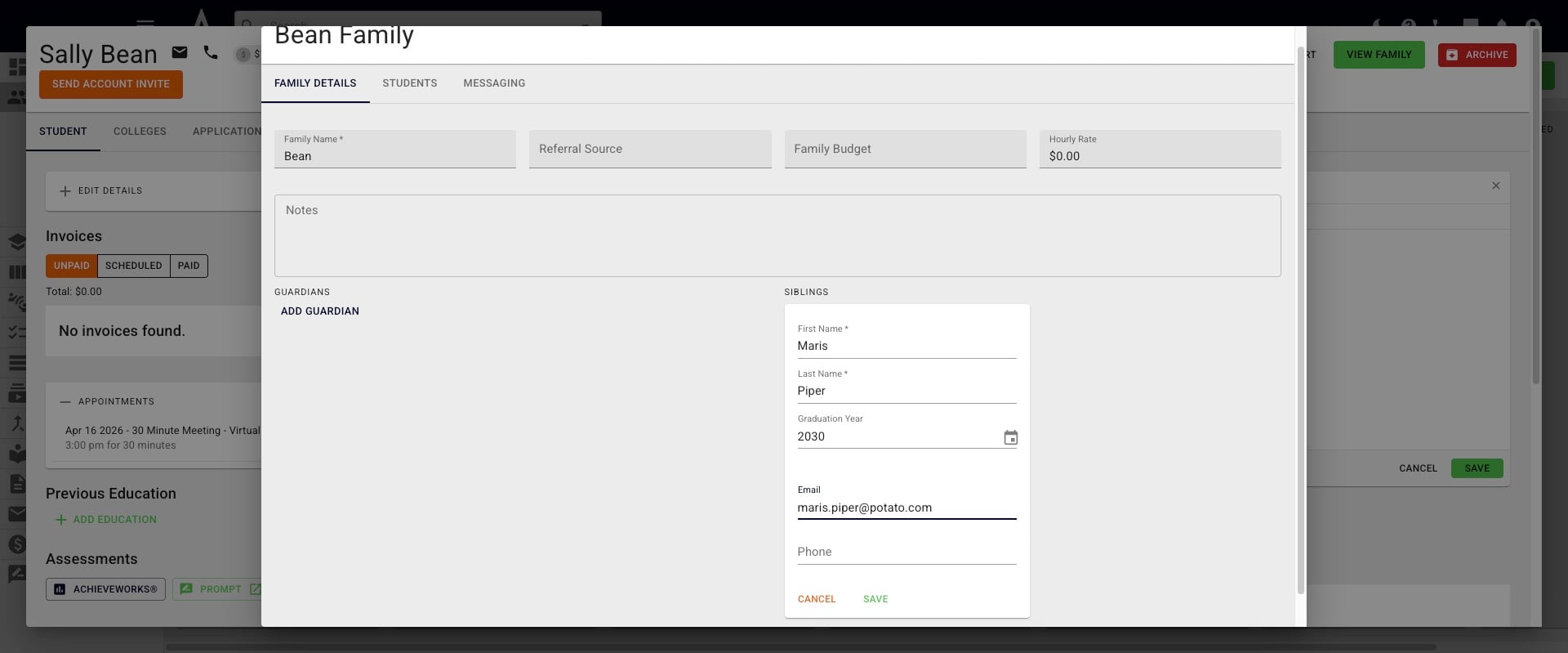
Add the sibling's information and click Save.
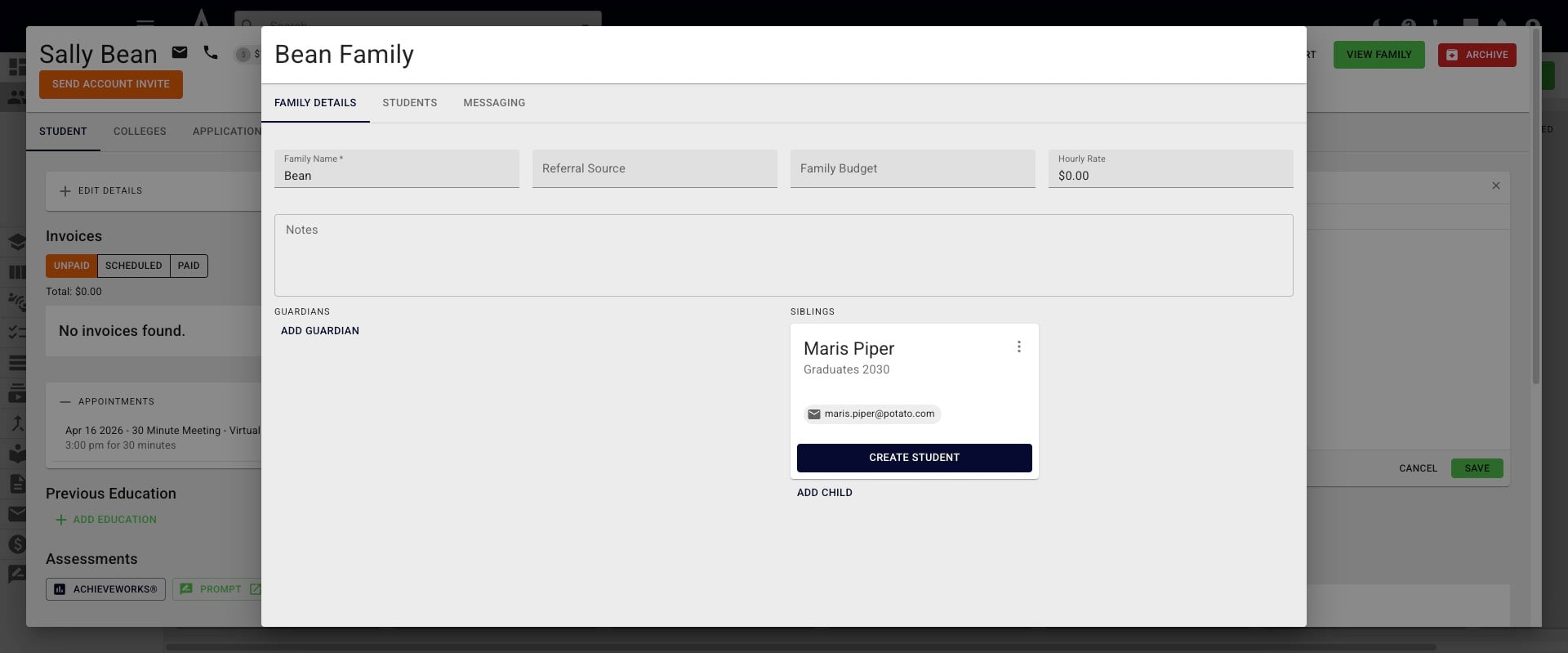
This student has now been added to the family profile. When you're ready to make them an active student, click Create Student.
The New Student pop-up will appear. On the first screen, only Prospect Status is required to add.
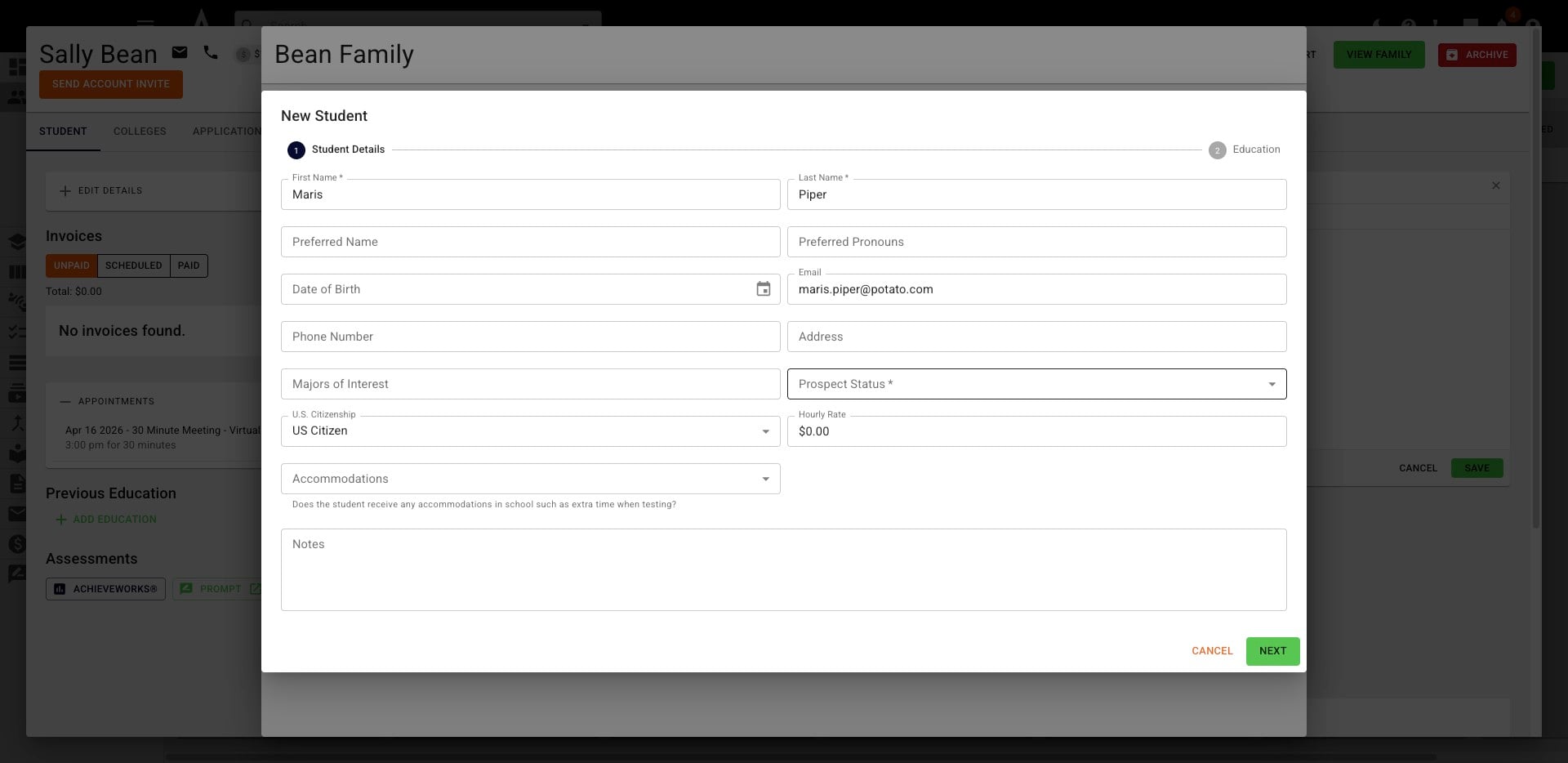
Click on the Student Status, once selected click Next
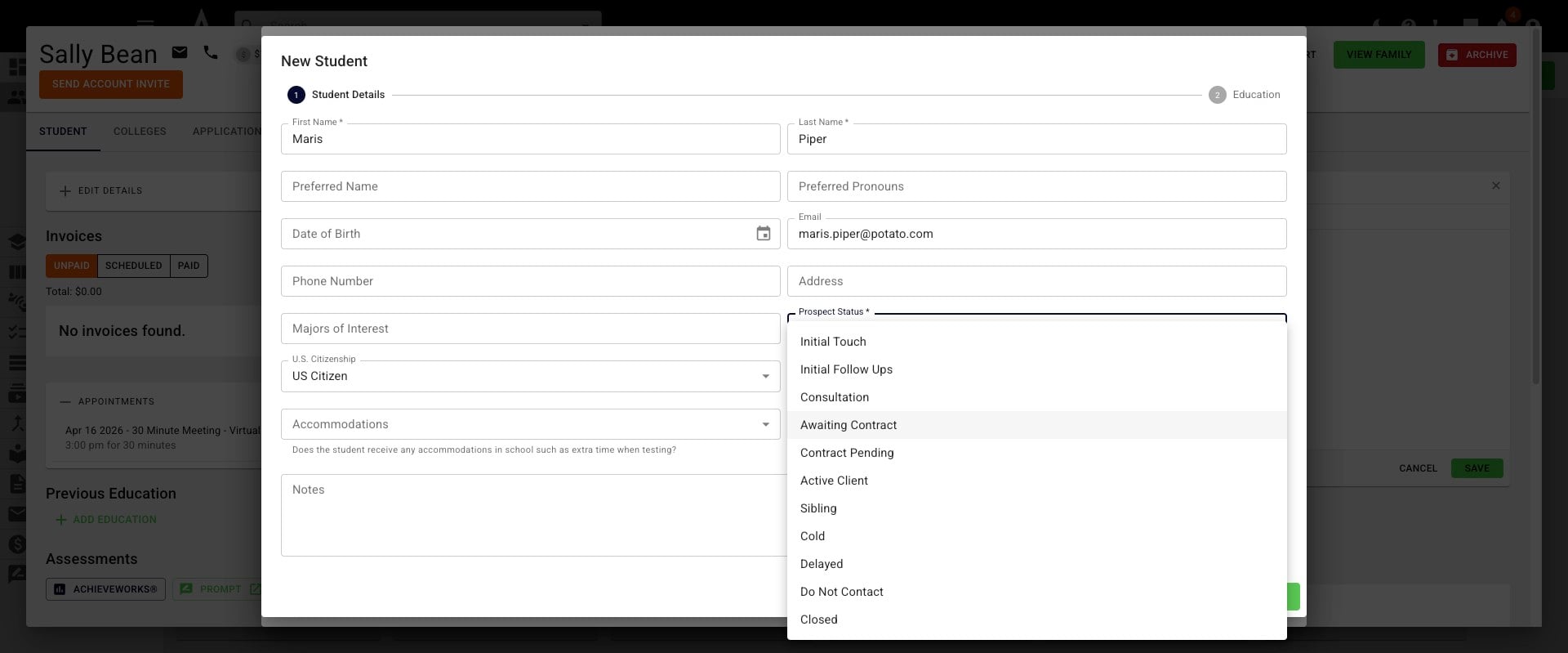
Fill in any information you have on this sibling. When you are done, click Create.
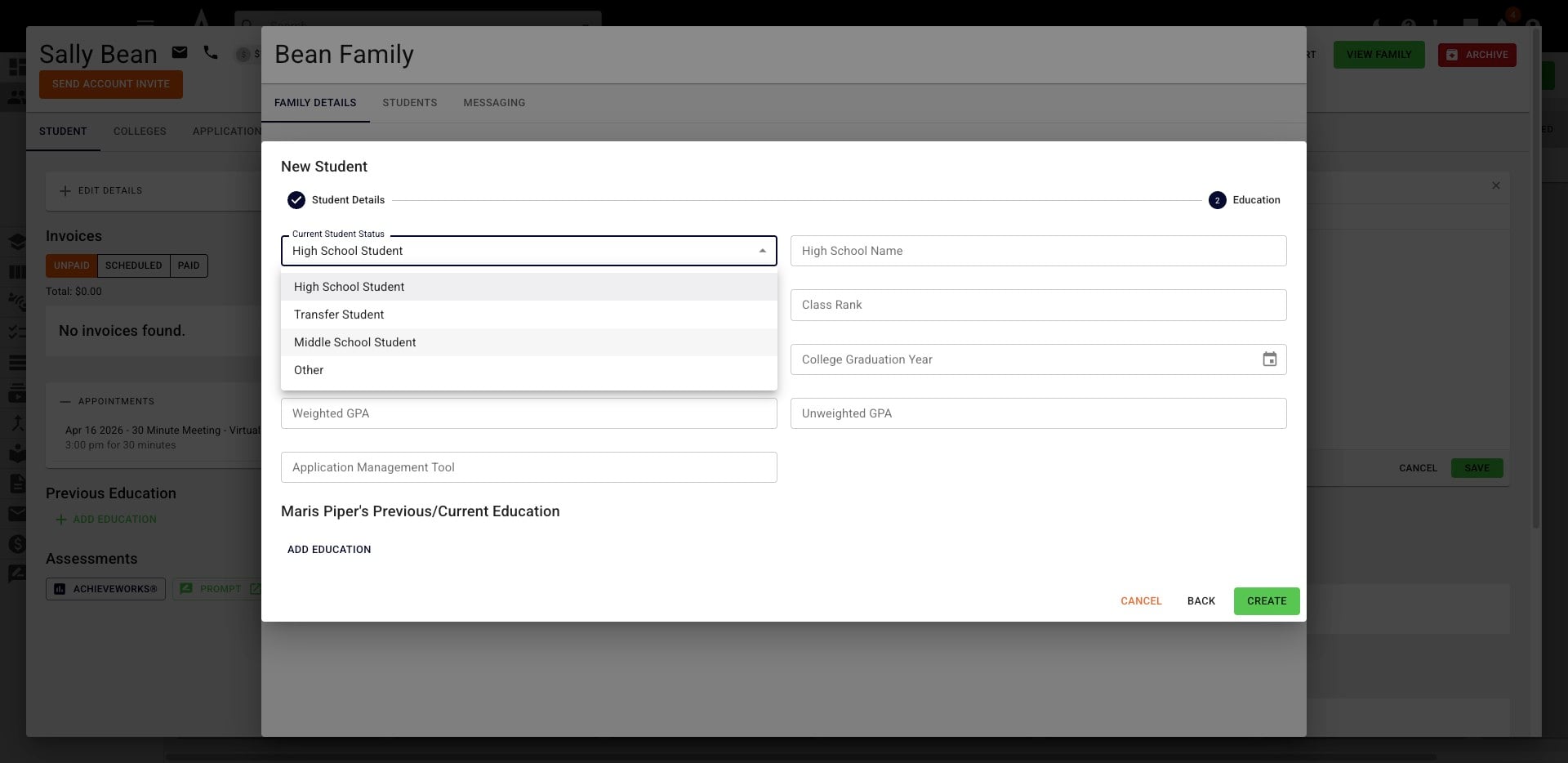
The student's profile is now created. You can now search for them in the Search Bar and will find them in the applicable Prospect or Student Pipeline column.
Done 🚀