Achieve Email Saver Google Chrome Extension
A guide to installing and using the Achieve Email Saver Chrome extension to save Gmail messages in Achieve.
Apr 23, 2026●
1
Navigate to the Google Chrome Web Store and search for the Achieve Email Saver.
 and search for the **Achieve Email Saver**.](https://assets.guidejar.com/uploads/4bbb6341-0abd-44b7-b361-ed2a7c715f48/pCjSrW6u3CRcEKYWdNFi0r5jIXy2/8619de7b-832f-4131-9194-6a21eae125f9/1775501561730.jpeg)
2
Press the Add to Chrome button
3
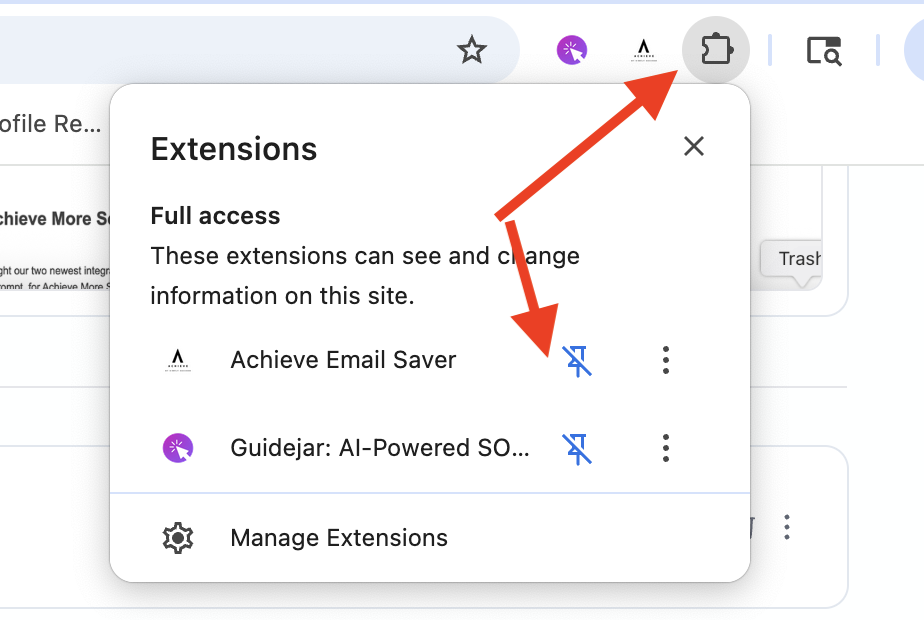
Press the Extension icon and then the thumbtack icon, which will pin the Chrome Extension to your browser
4
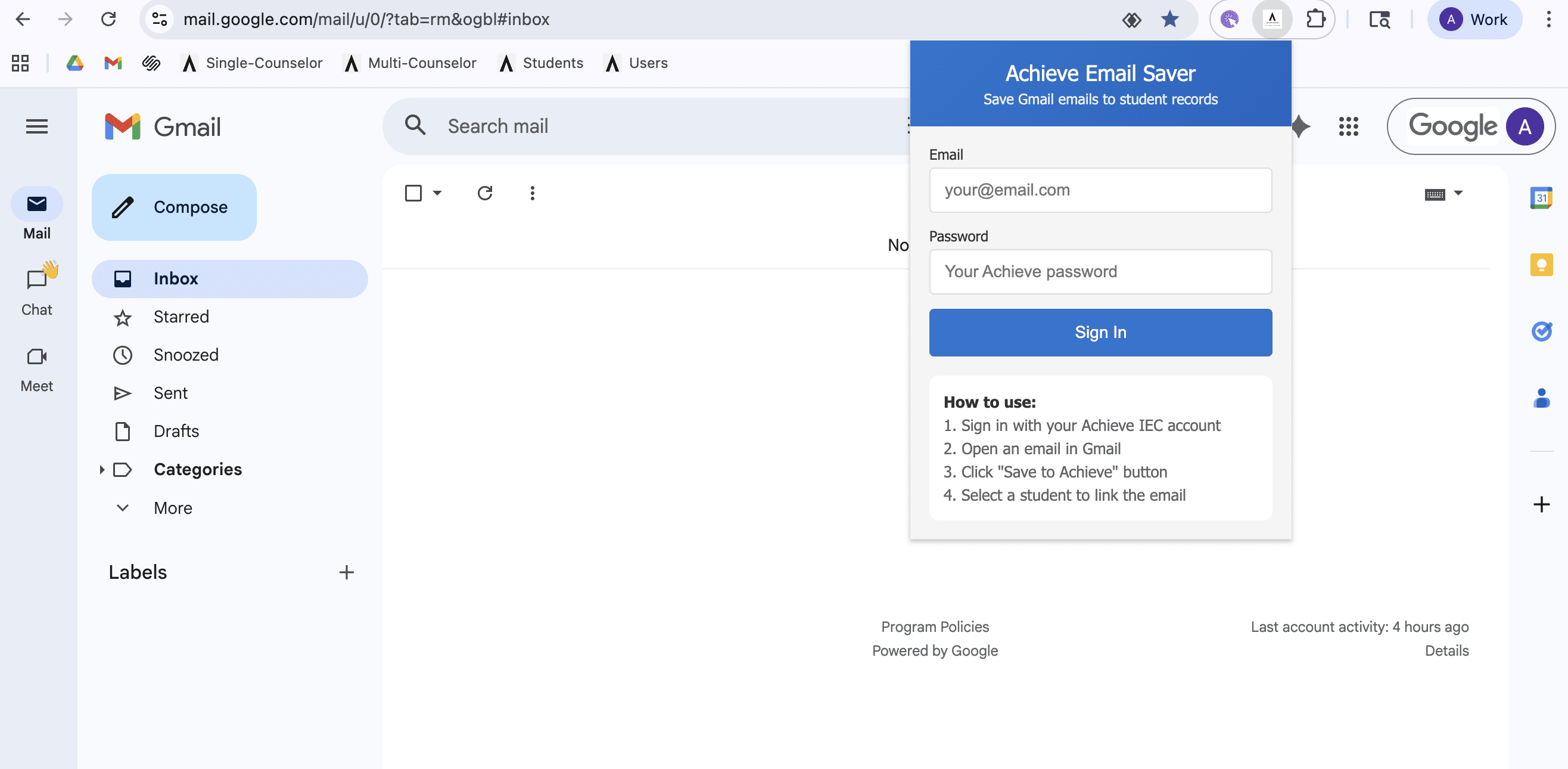
Click on the Achieve extension icon & sign into your Achieve account
5
Navigate to your Gmail inbox
6
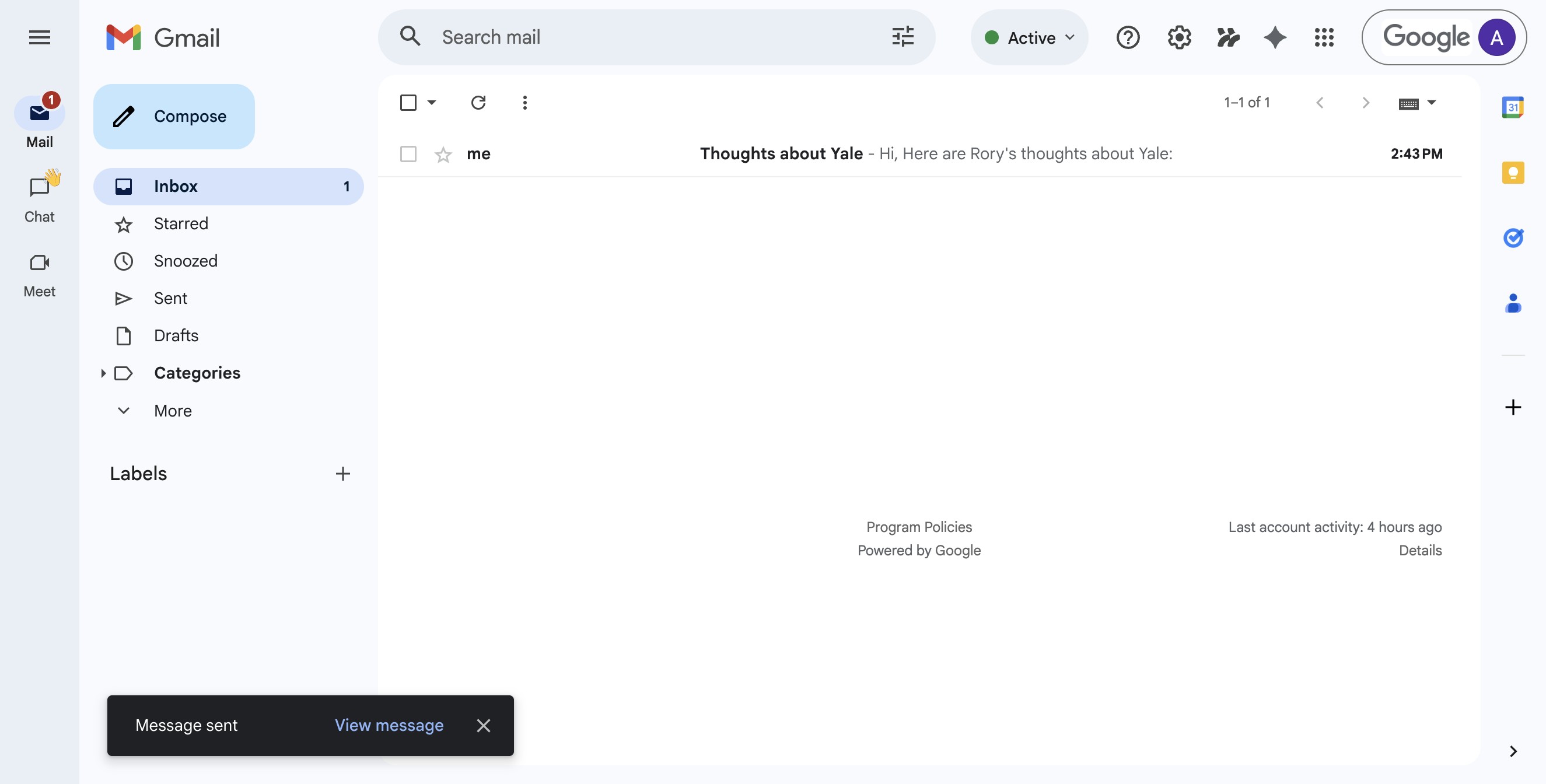
Open the email you want captured in Achieve
7
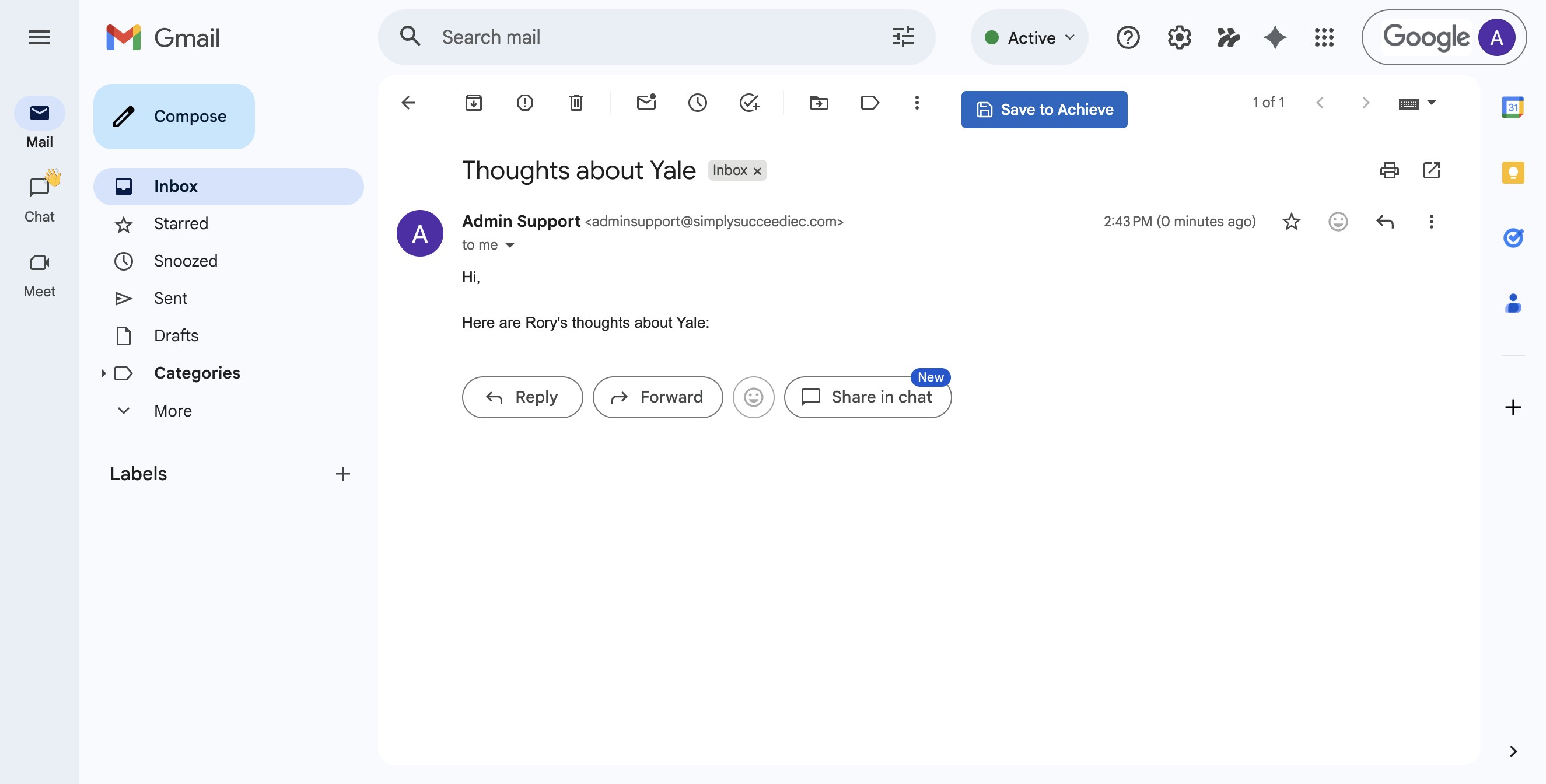
Click on the Save to Achieve button that appears once you open the email
8
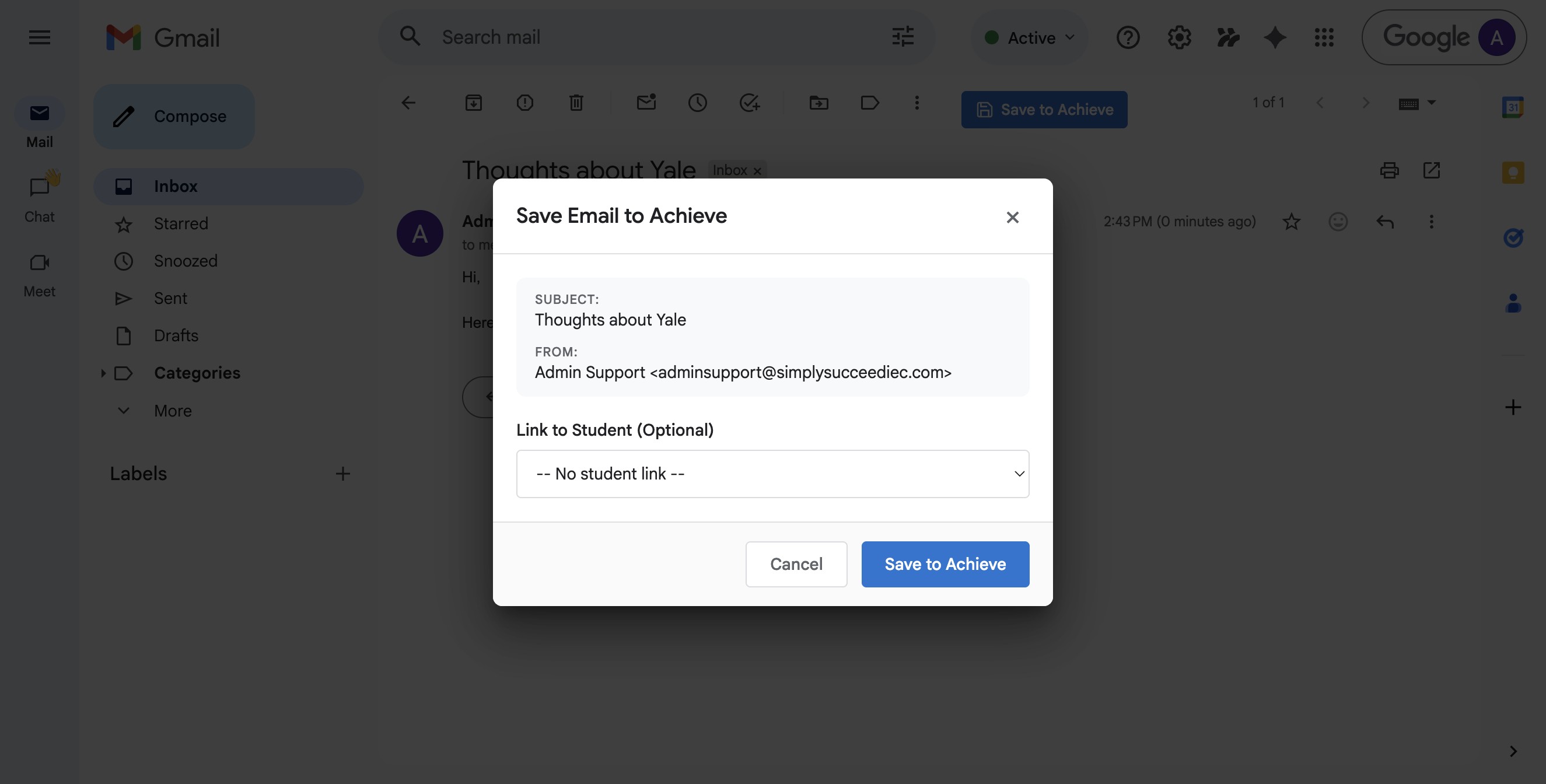
Click on No Student Link to open up the dropdown
9
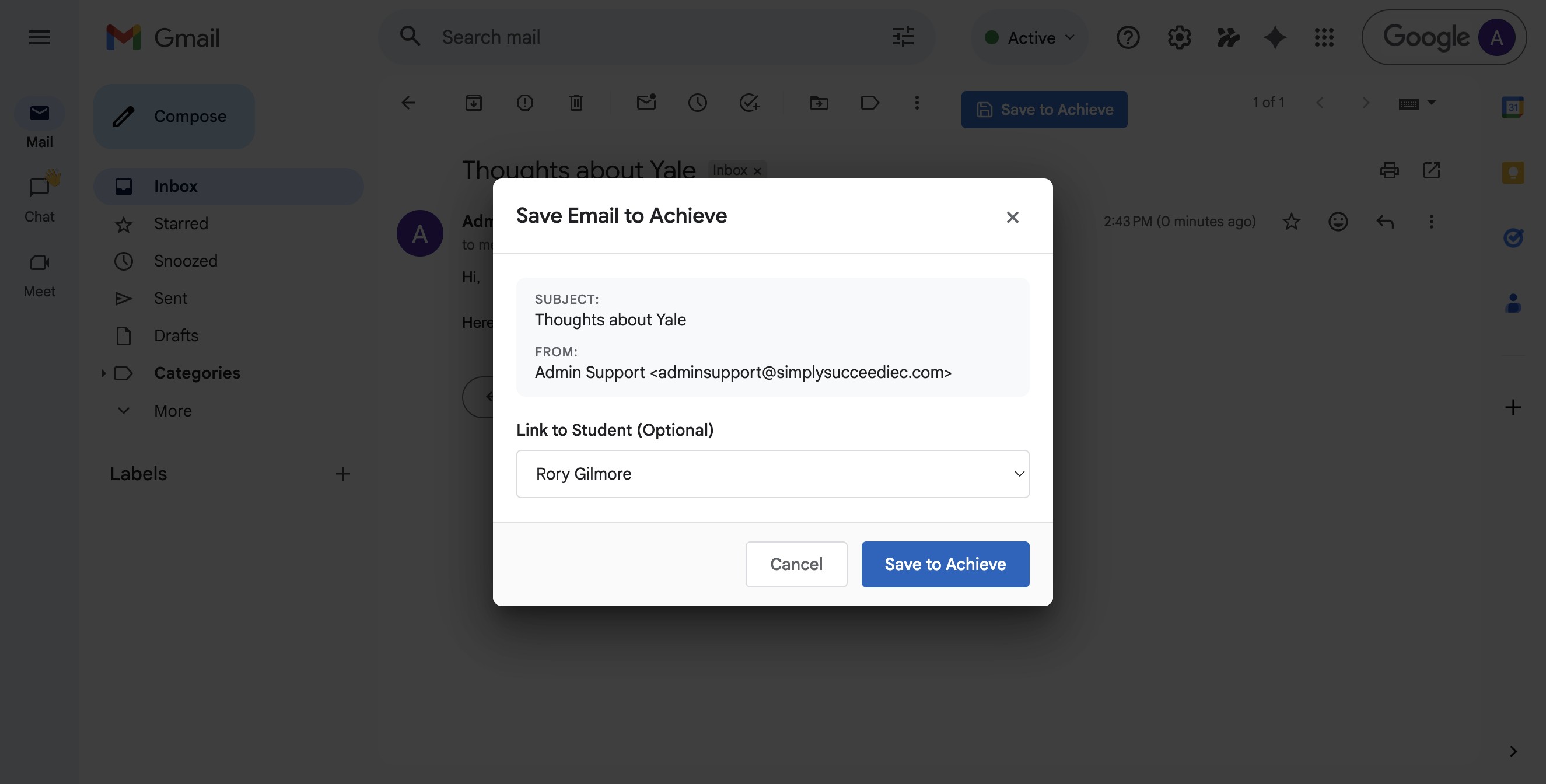
Start typing in your student's name, click on it once it appears, and then press Save to Achieve
10
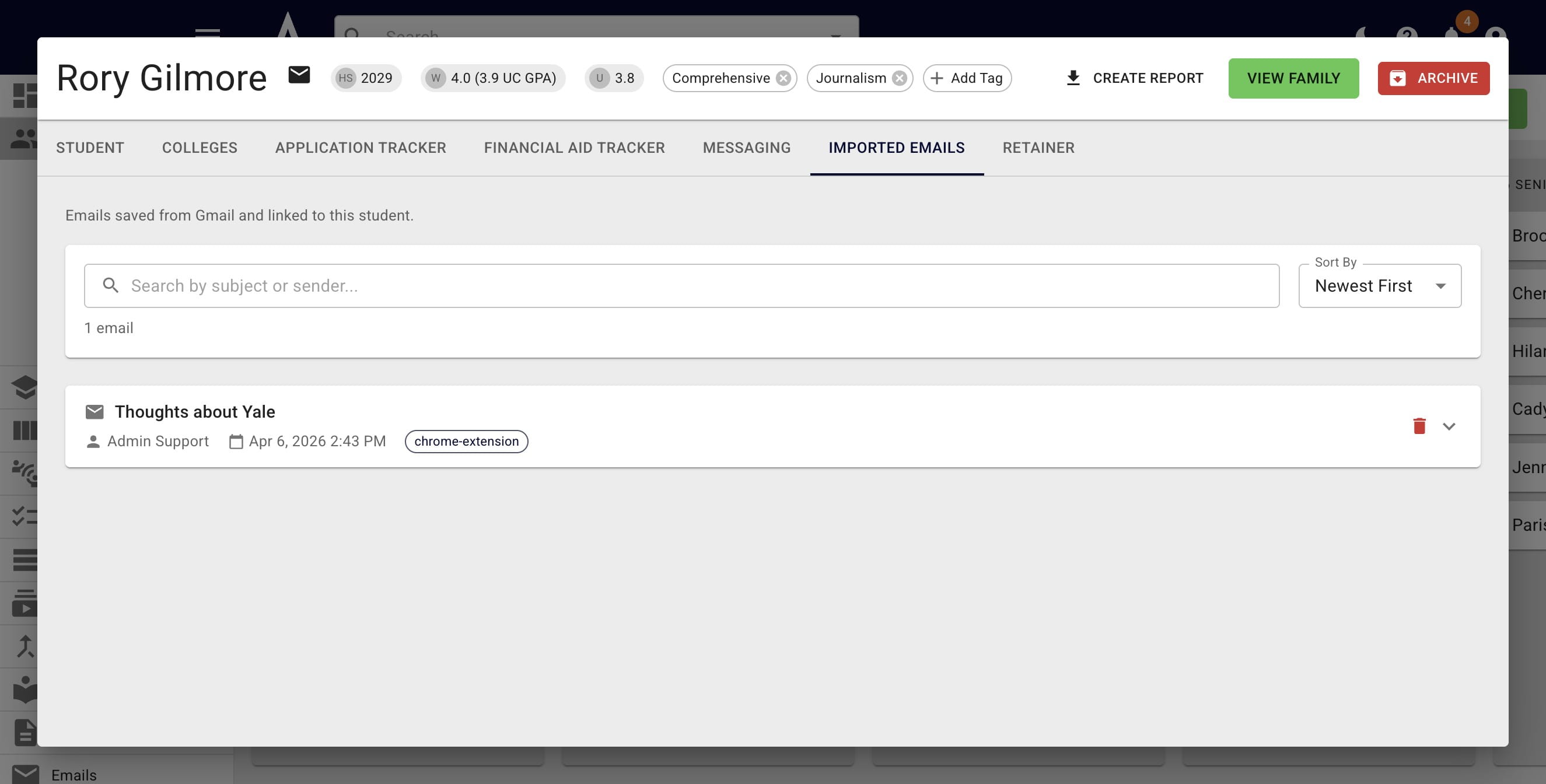
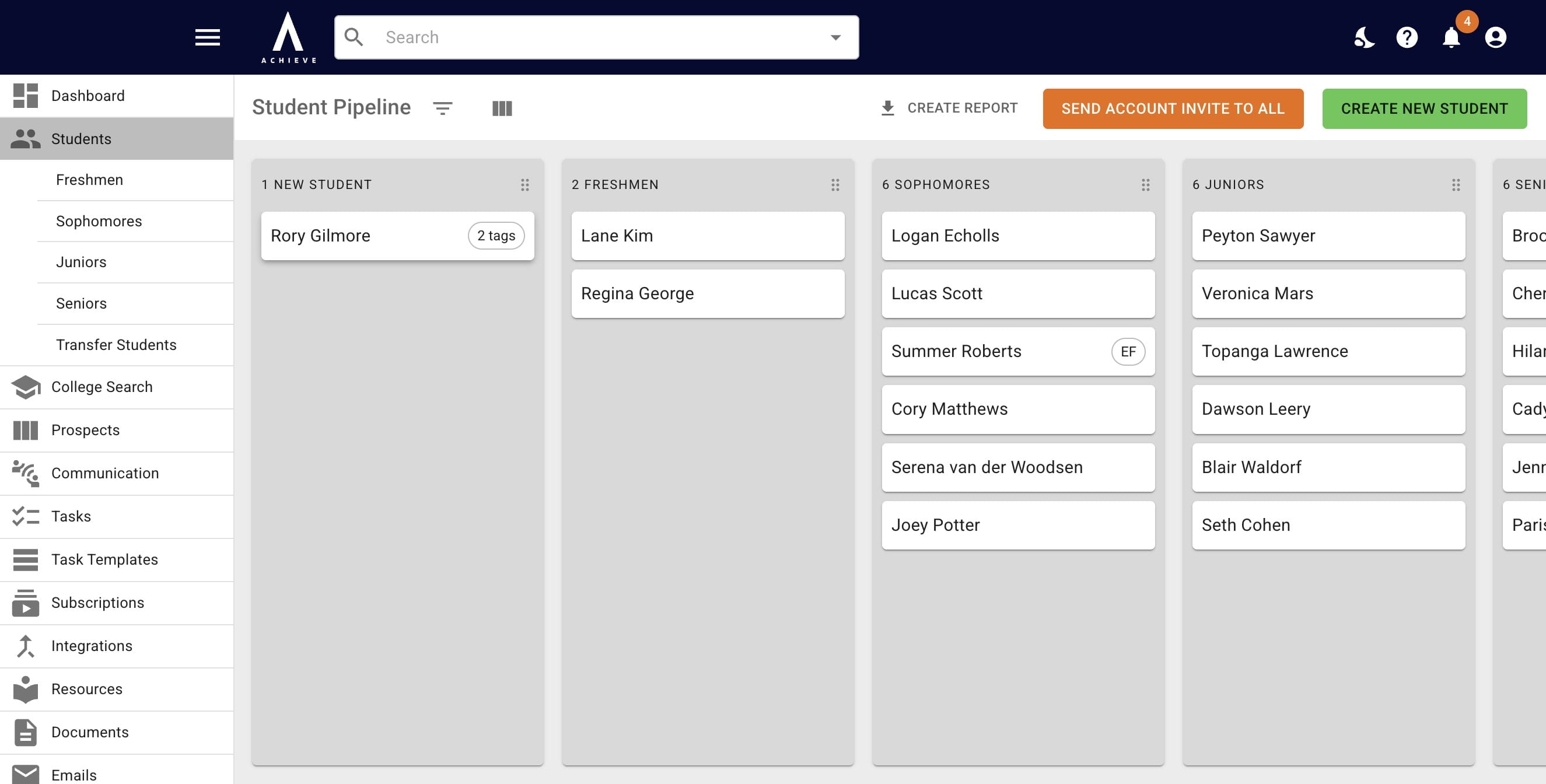
Open up the student in Achieve
11
Click on** Imported Emails**
12
Done🚀