
Achieve for Students Overview
A concise overview of using Achieve for Students.
Navigate to https://student.achieveiec.com/
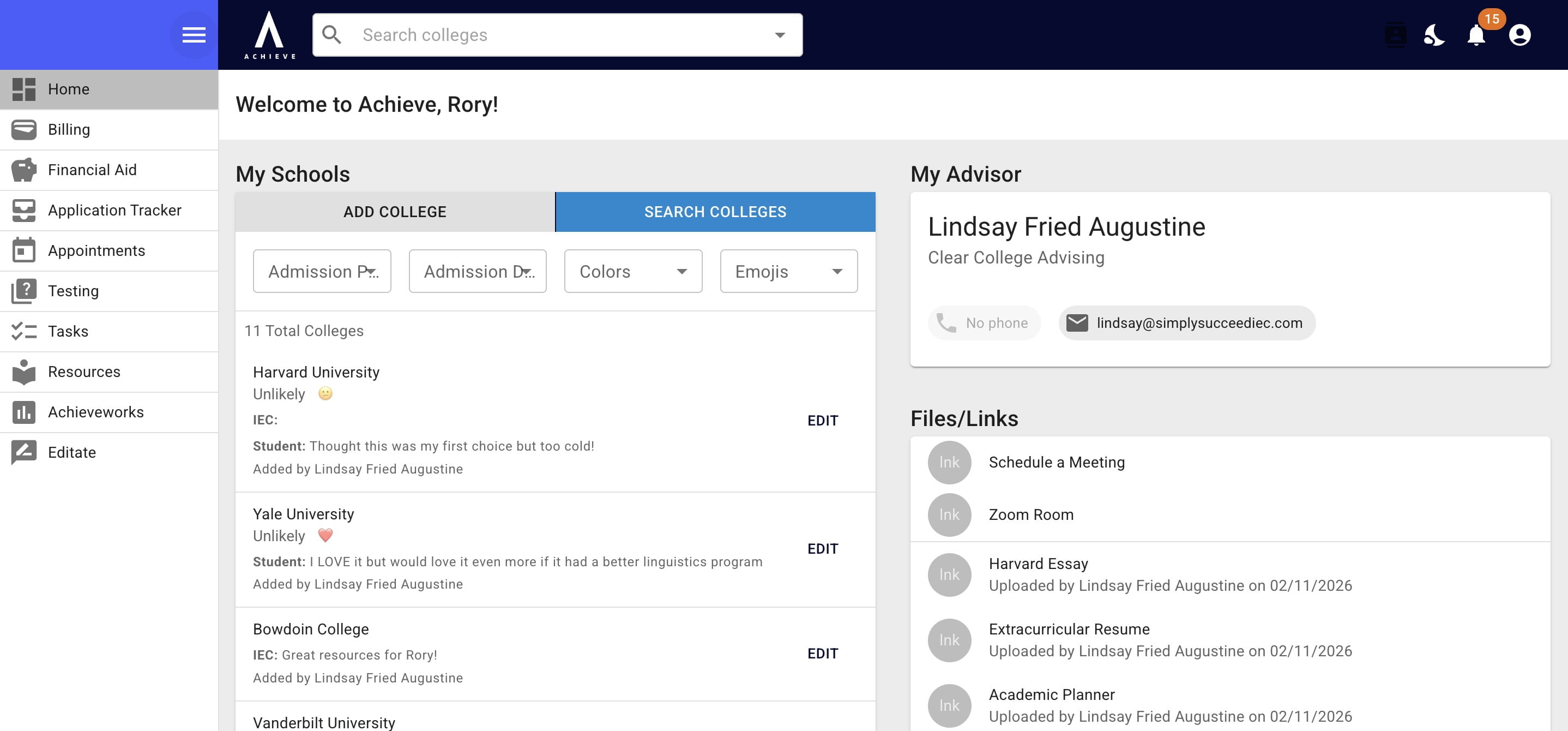
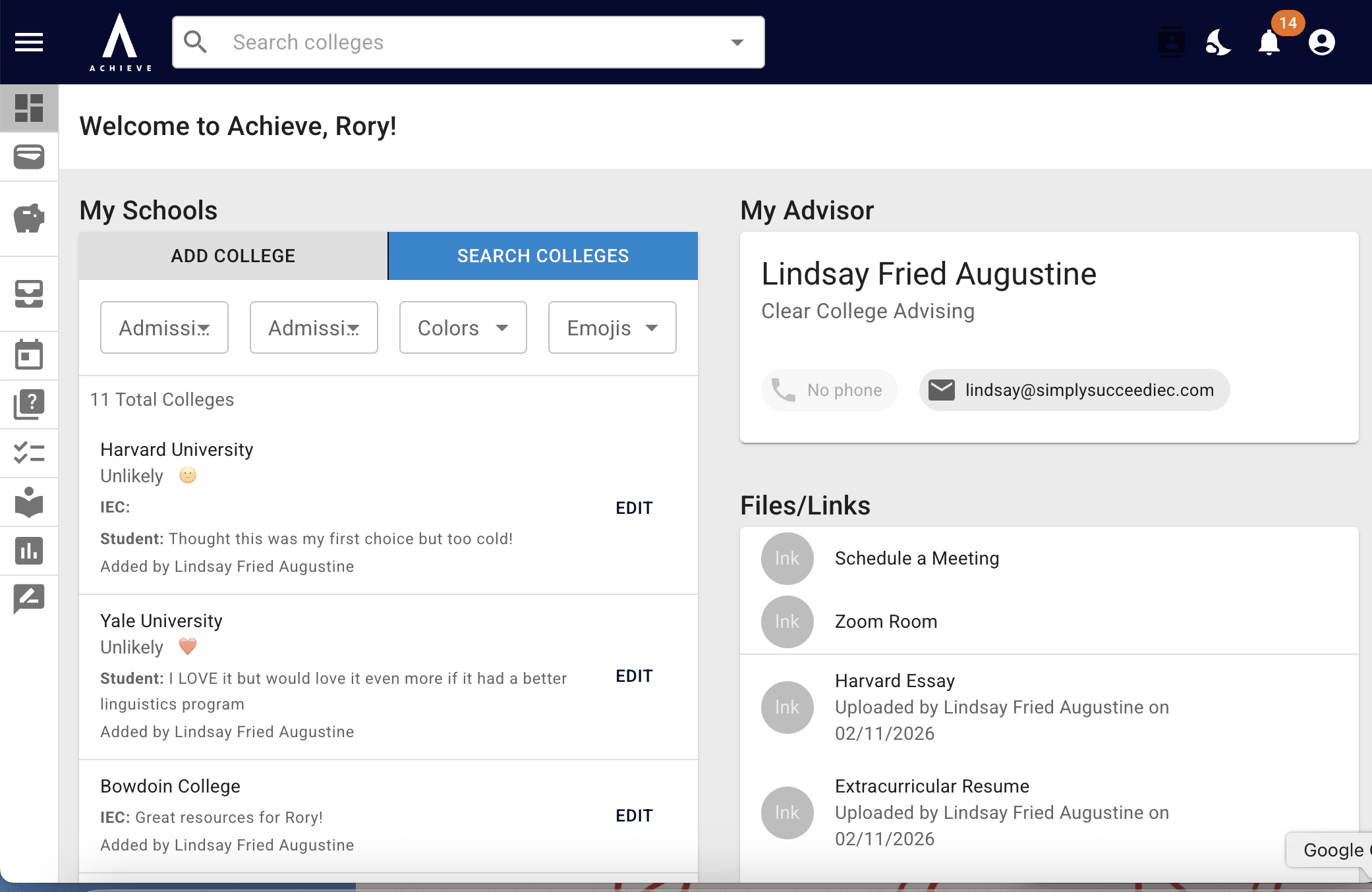
Within the dashboard, is the student's school list. Here student can add schools, search for schools, and view college profiles by pressing on the college's name.
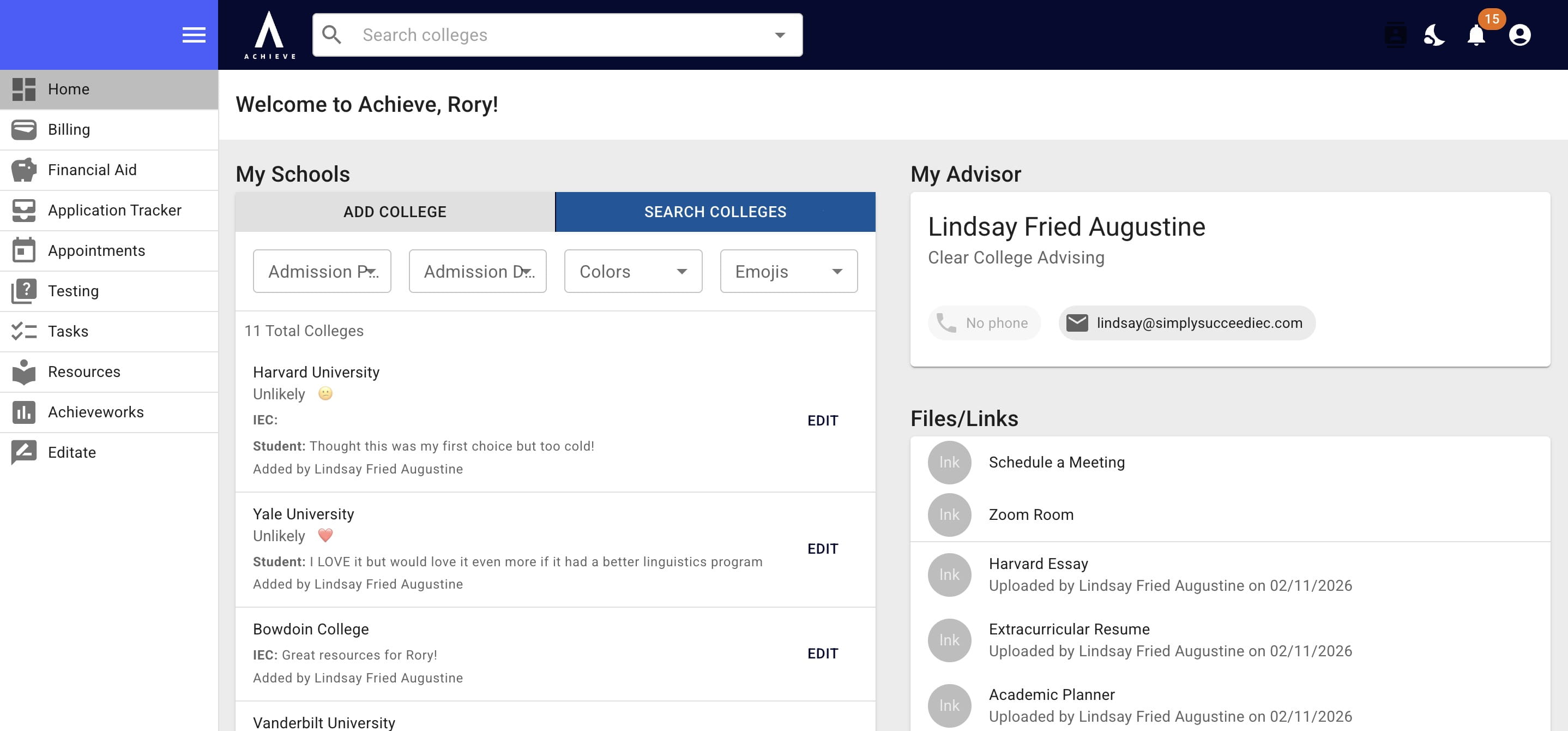
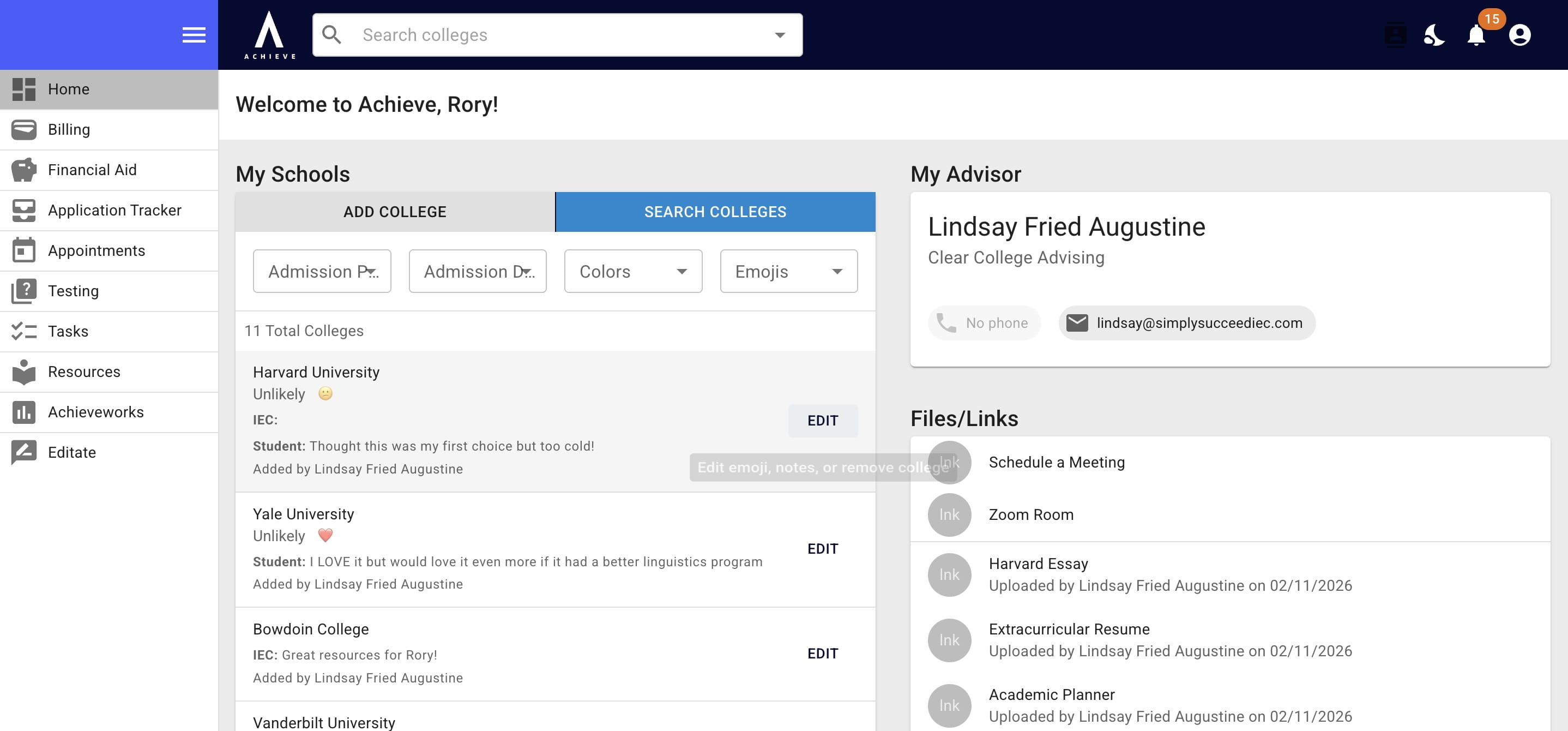
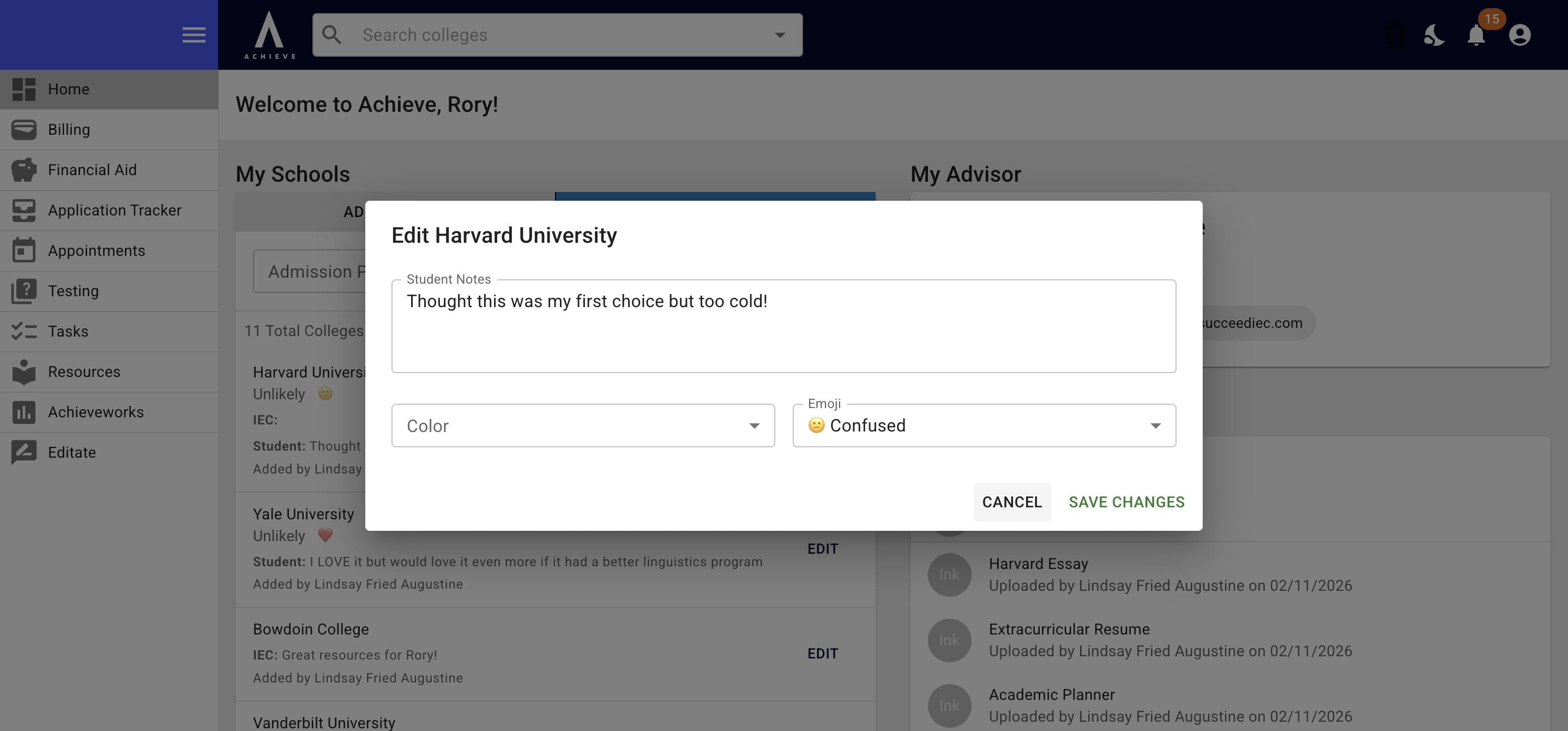
To add note about a school, change emojis/colors, and/or remove a school press Edit.
Press Save Changes to save any notes or color/emoji updates.
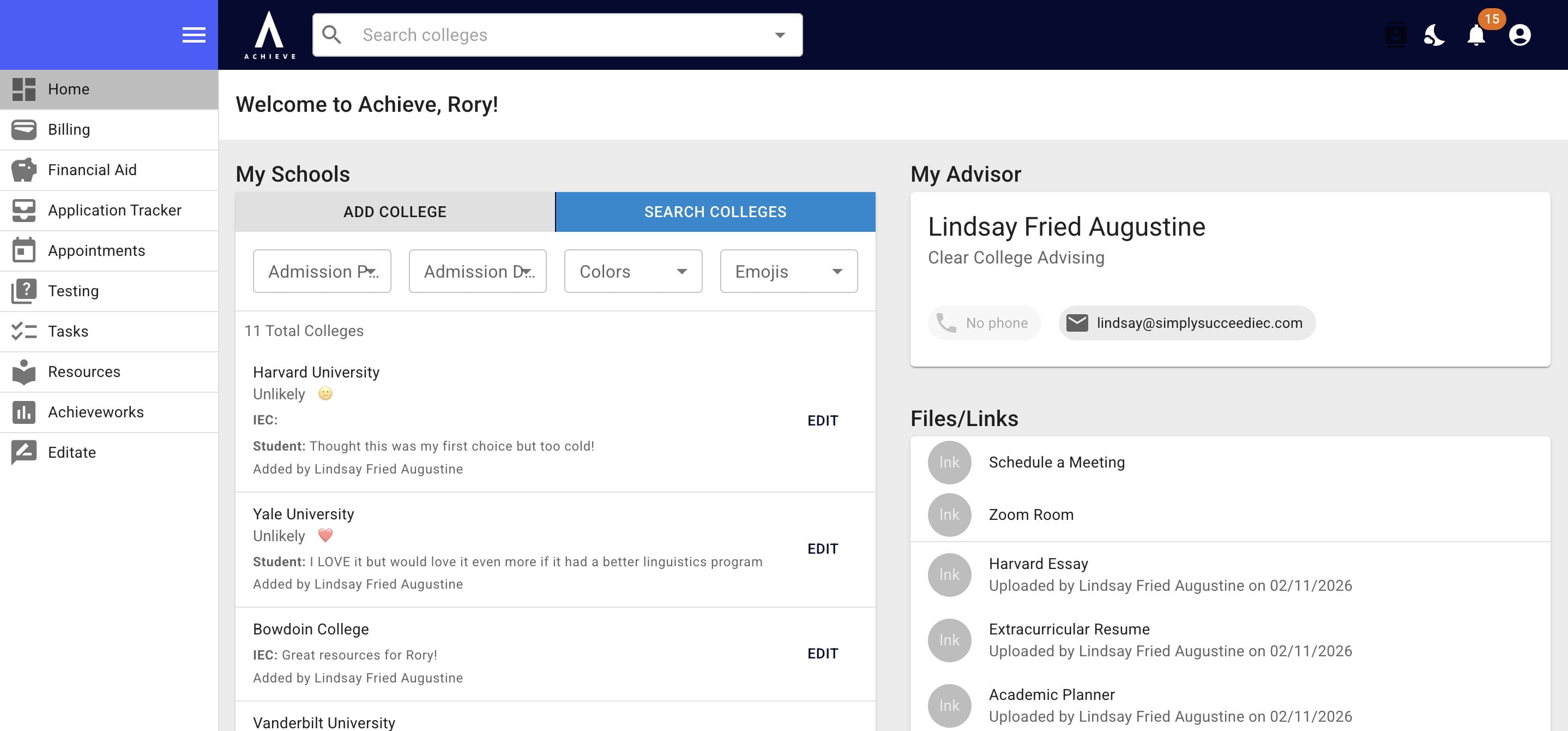
Towards the top right-hand side is the student's advisor's information.
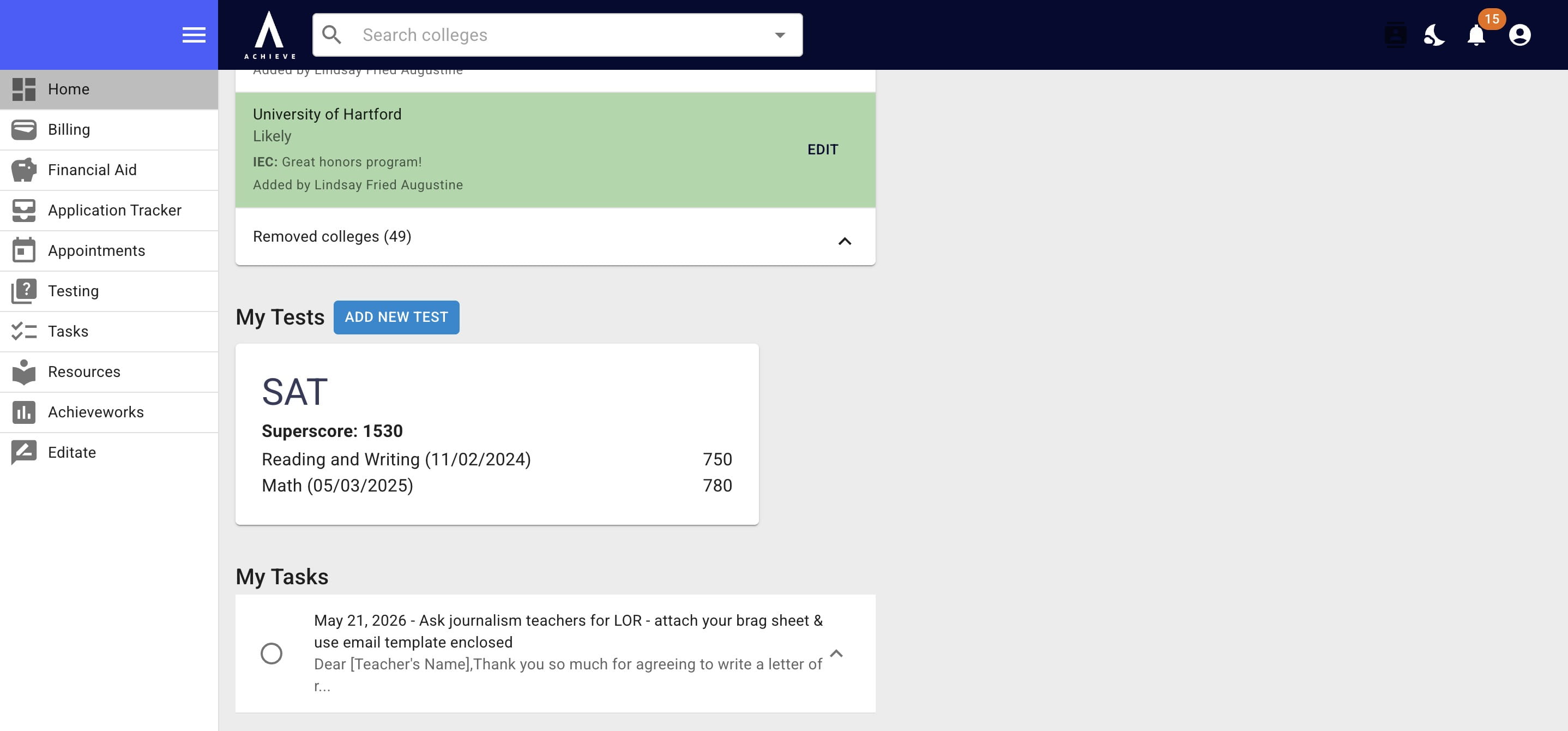
Towards the bottom of the dashboard are any superscores that have been added & the ability to add more scores.
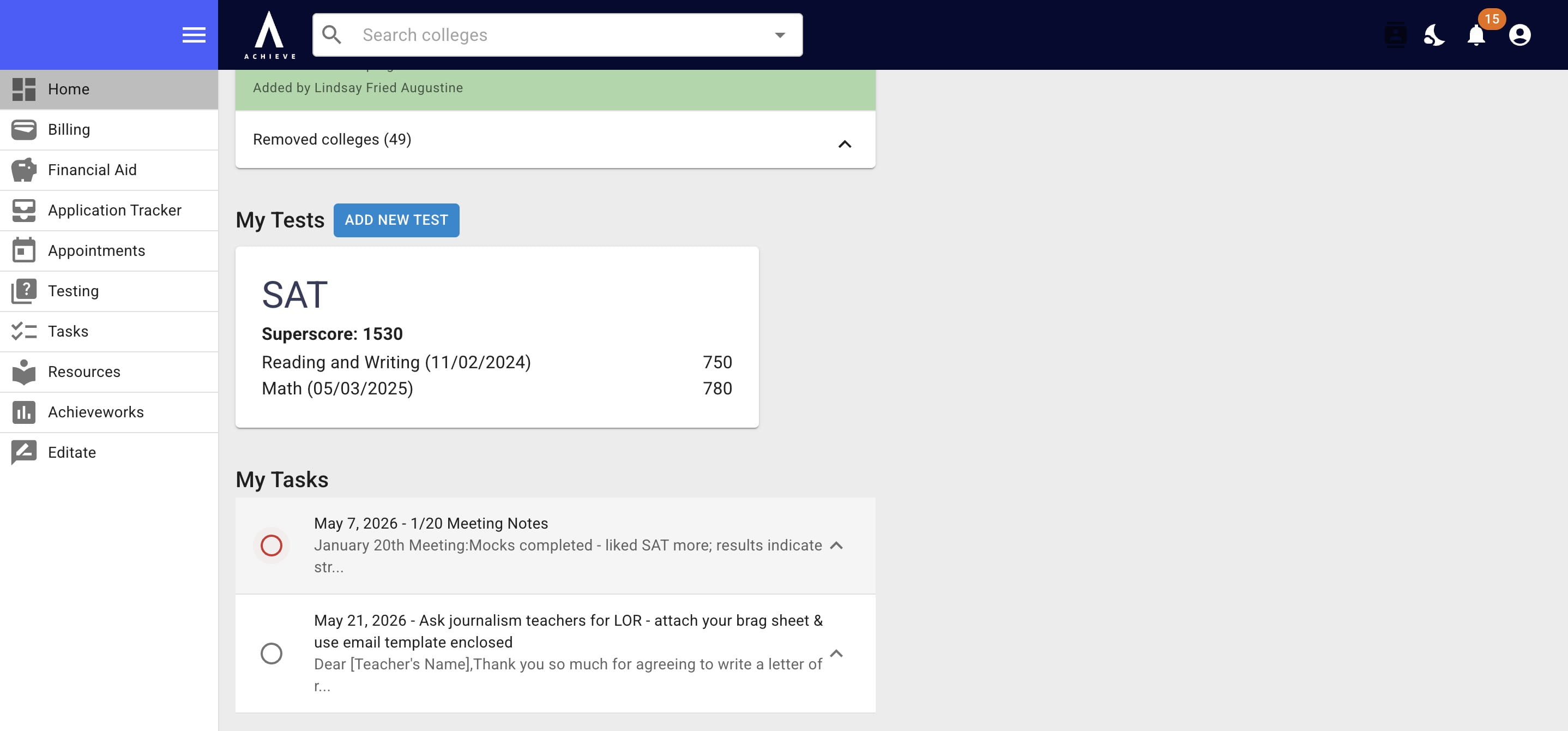
At the very bottom of the dashboard are the student's incomplete tasks. To mark a task as complete click on the circle to the right of the task.
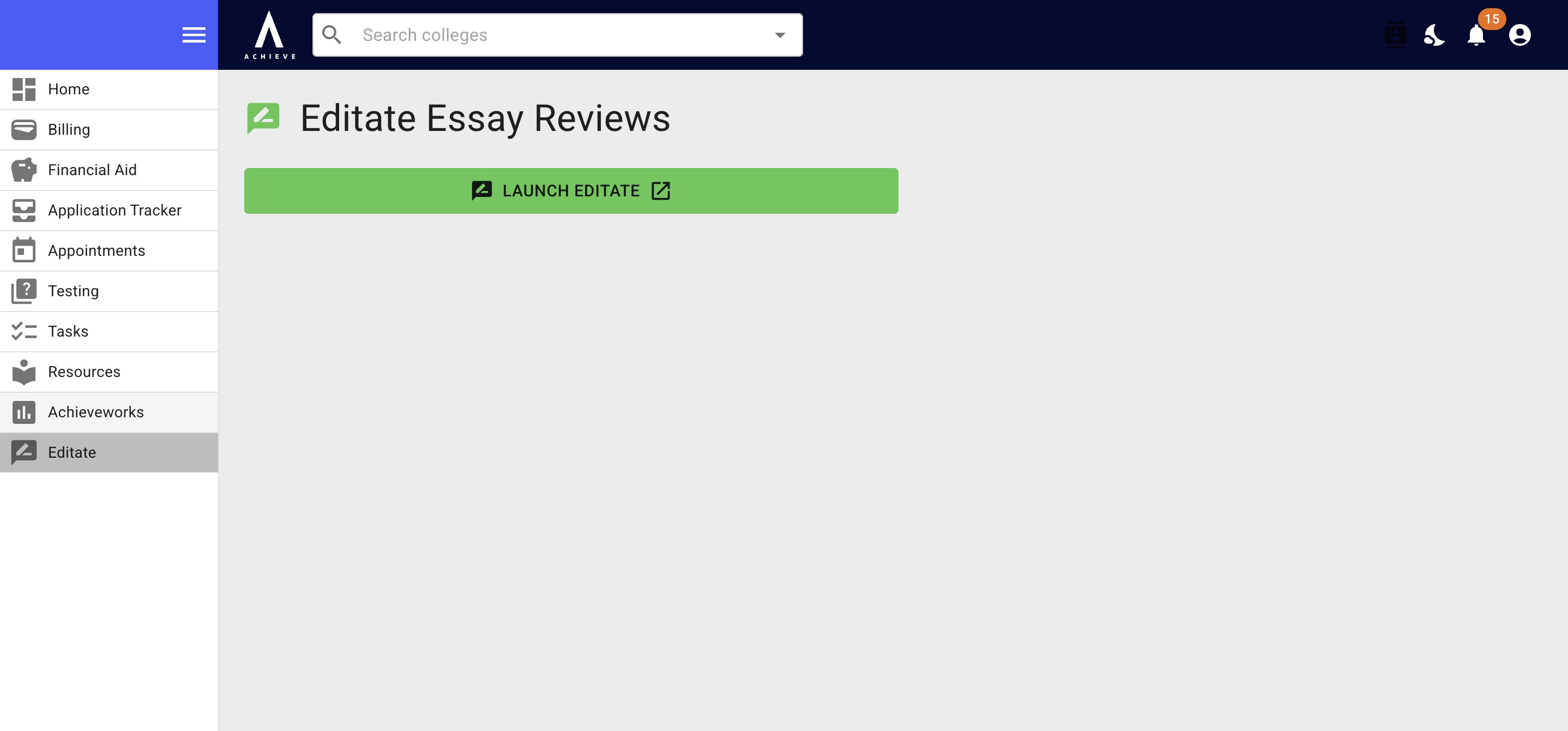
On the left-hand side is a navigation menu. At the bottom, is Editate, which is an essay review service advisors choose if they want to utilize with their students.
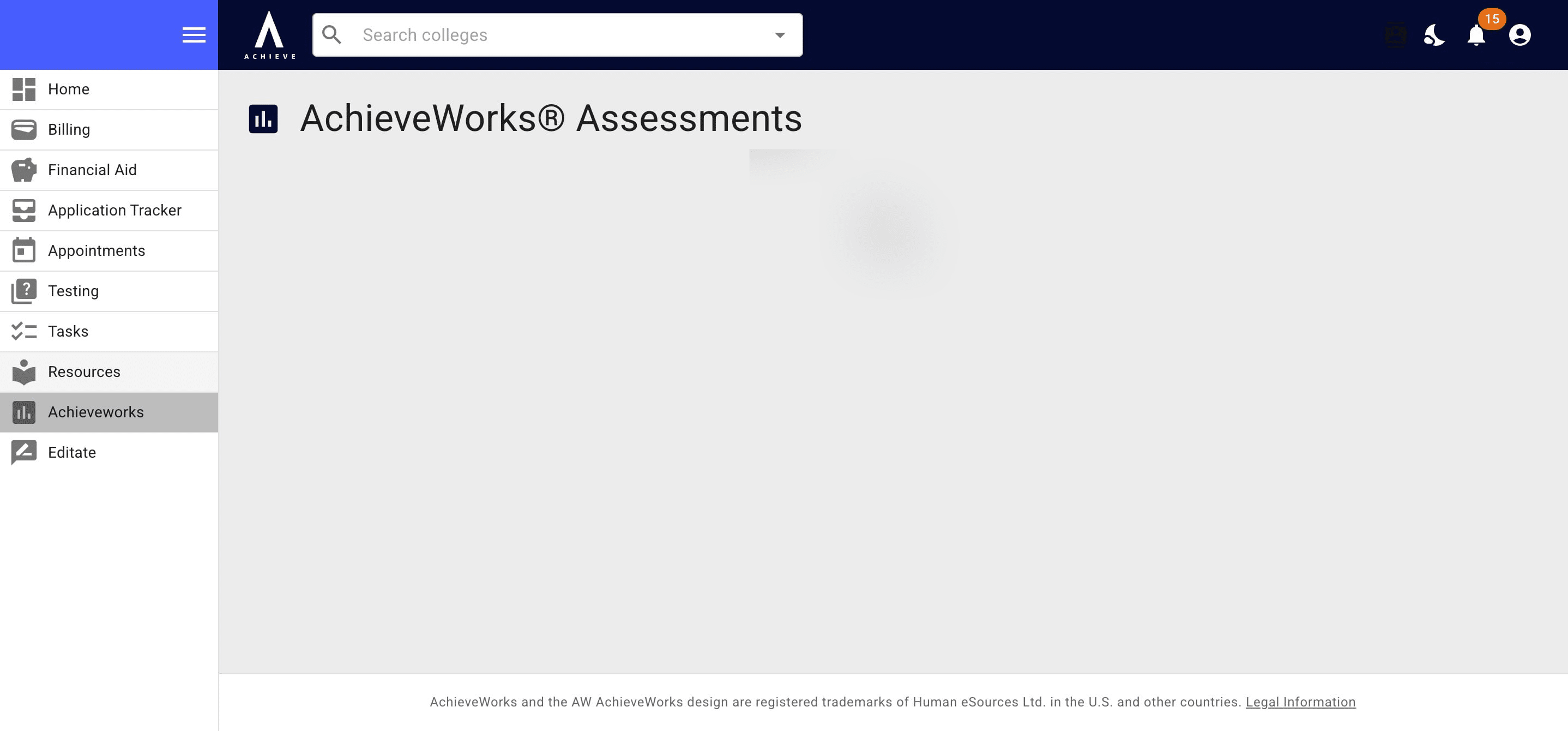
Next is AchieveWorks, which are personality & career-related assessment that some advisors use with their students.
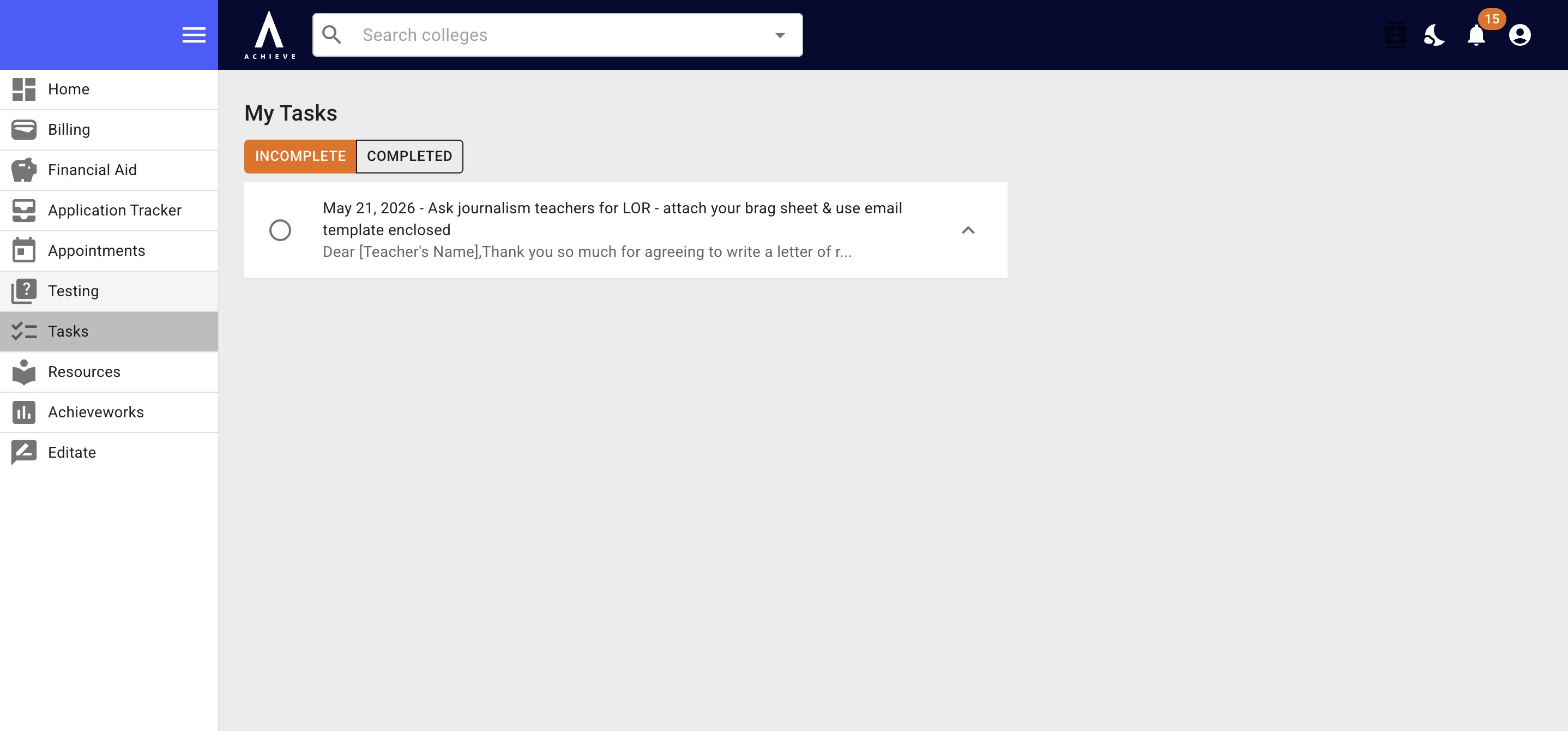
Tasks allow students to see both their incomplete & completed tasks.
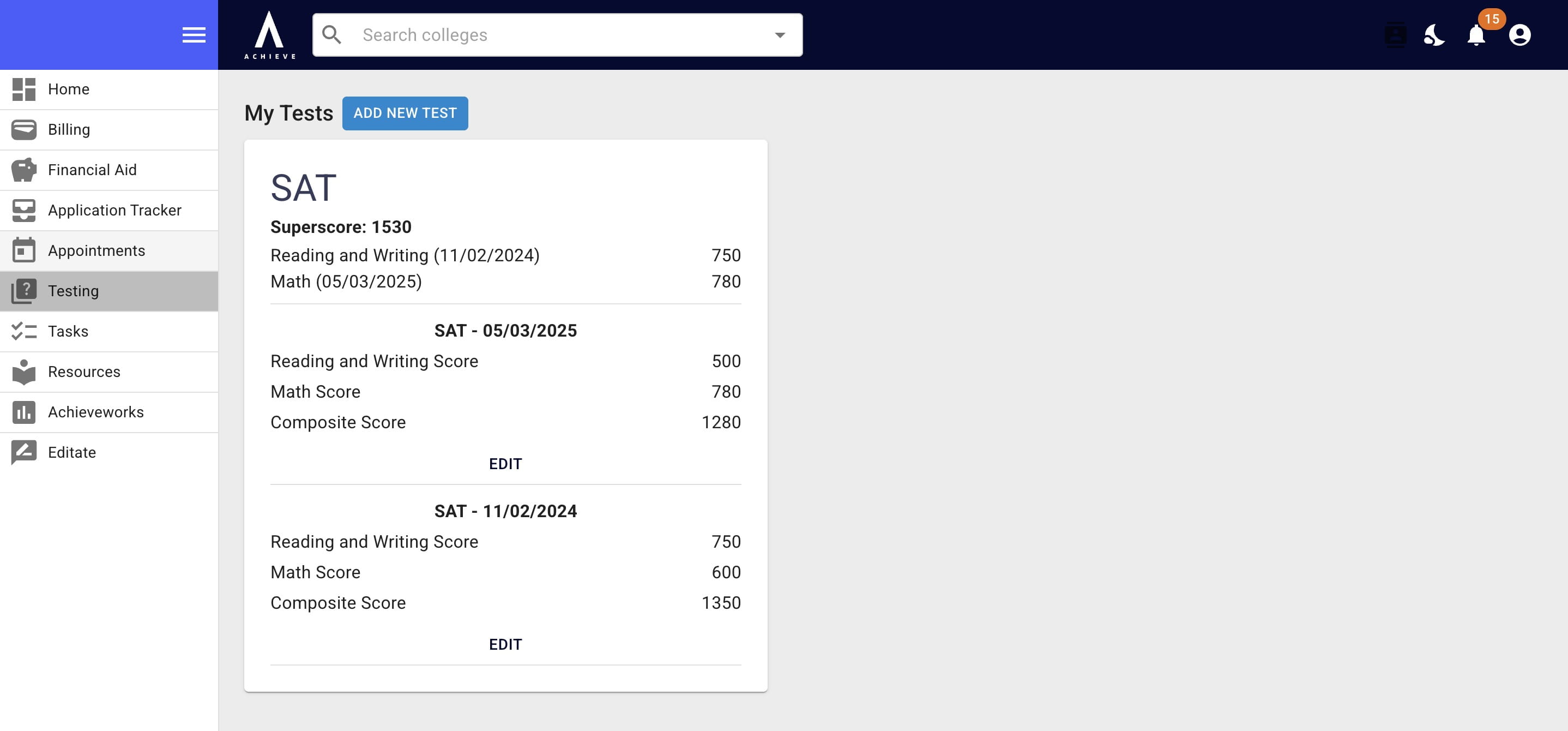
Testing is where students will see the full score breakdowns for all tests & add more.
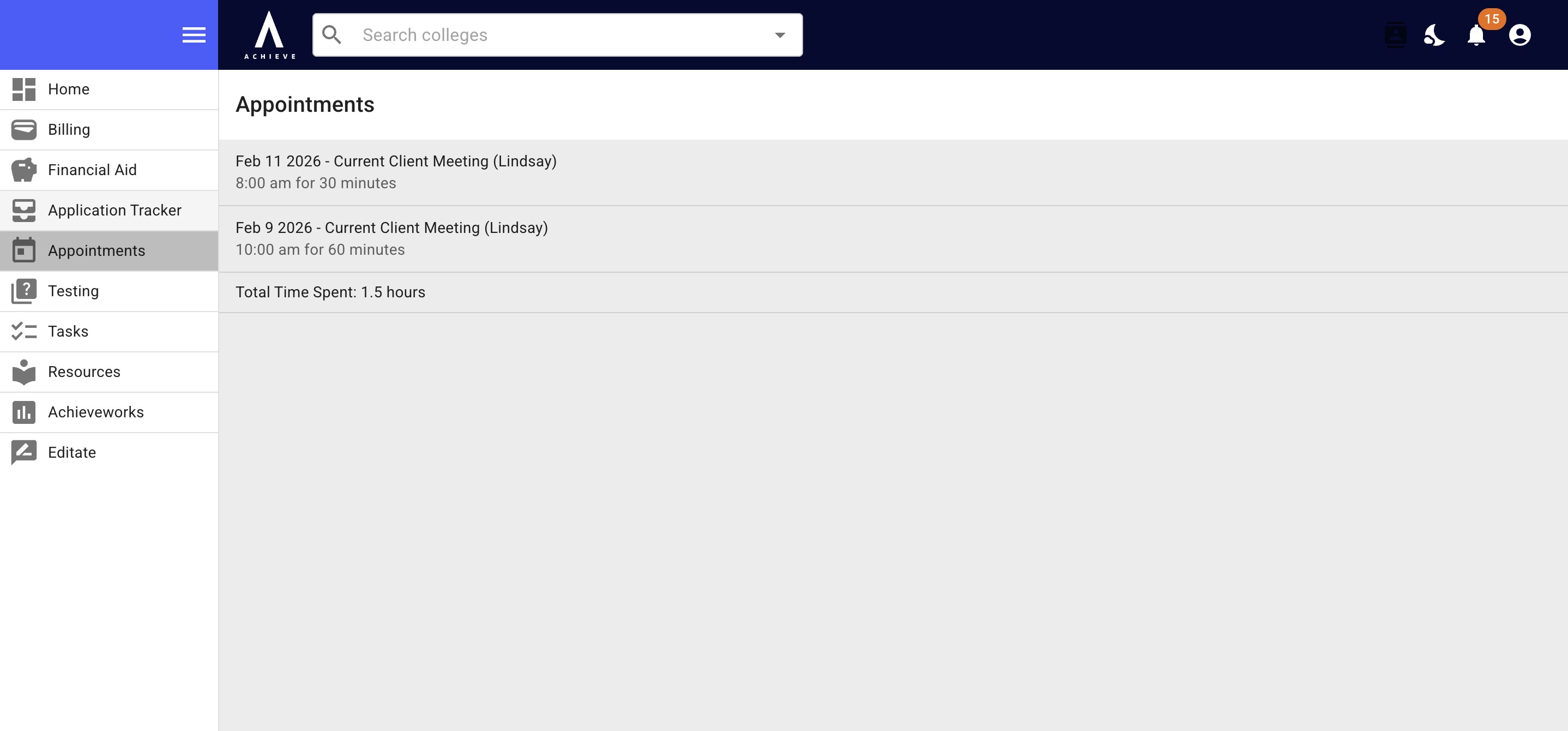
Under the Appointments section, students can see all previous & upcoming meetings with their advisor. This information is coming from Acuity or Calendly.
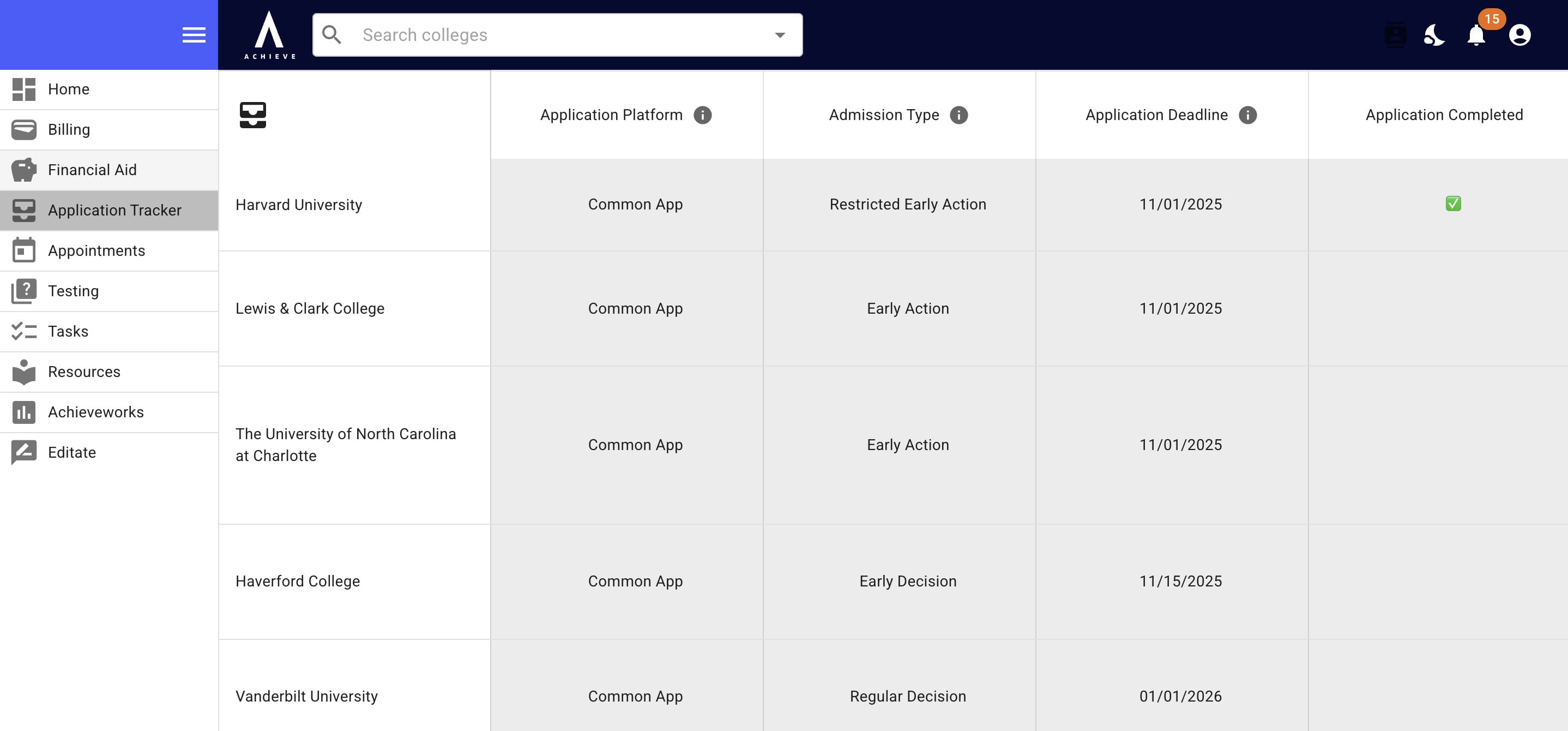
Application Tracker allows students to see all of the applicable college deadline & requirements.
The Financial Aid section will only appear once a student has been admitted to a school.
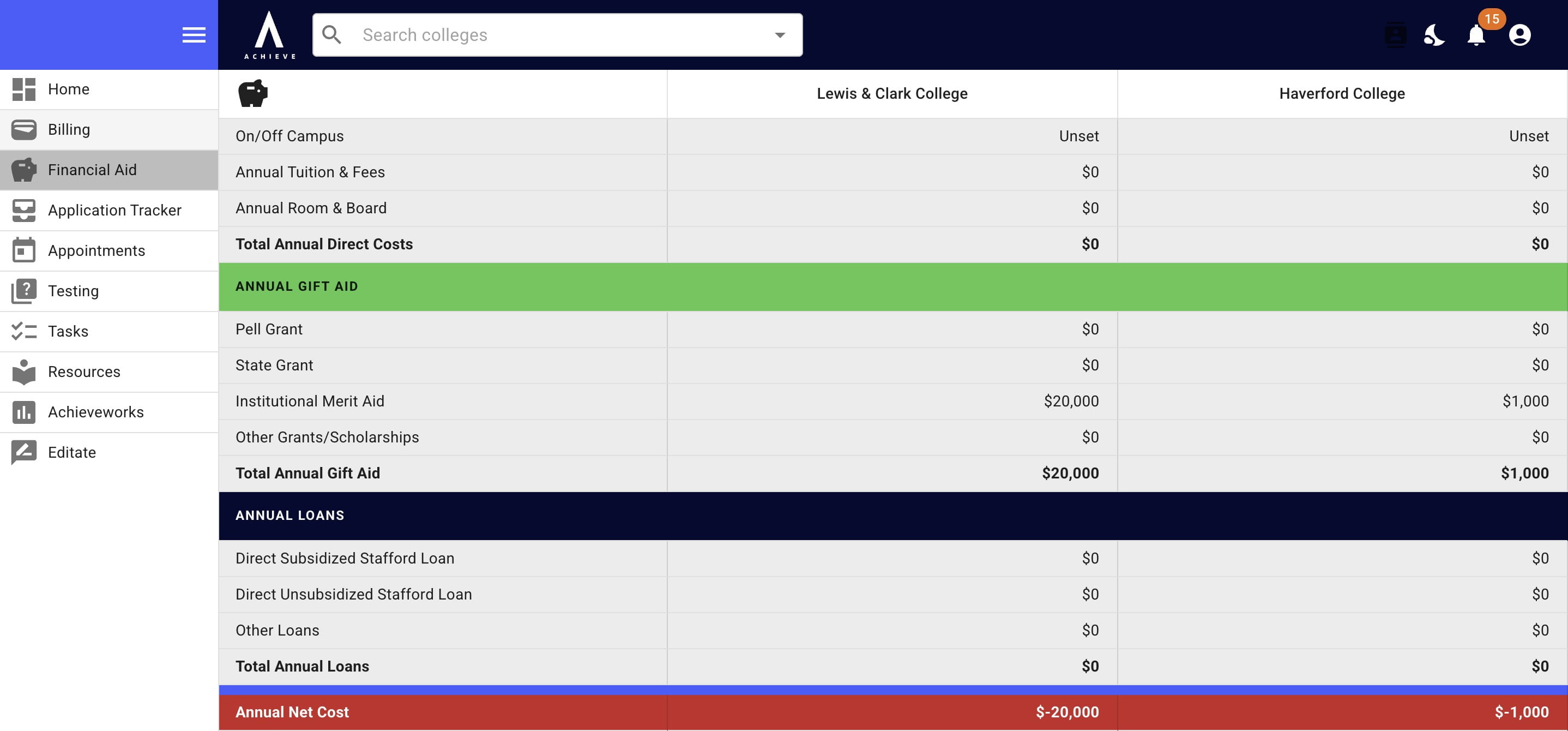
To minimize the left-hand navigation menu press the Menu icon.
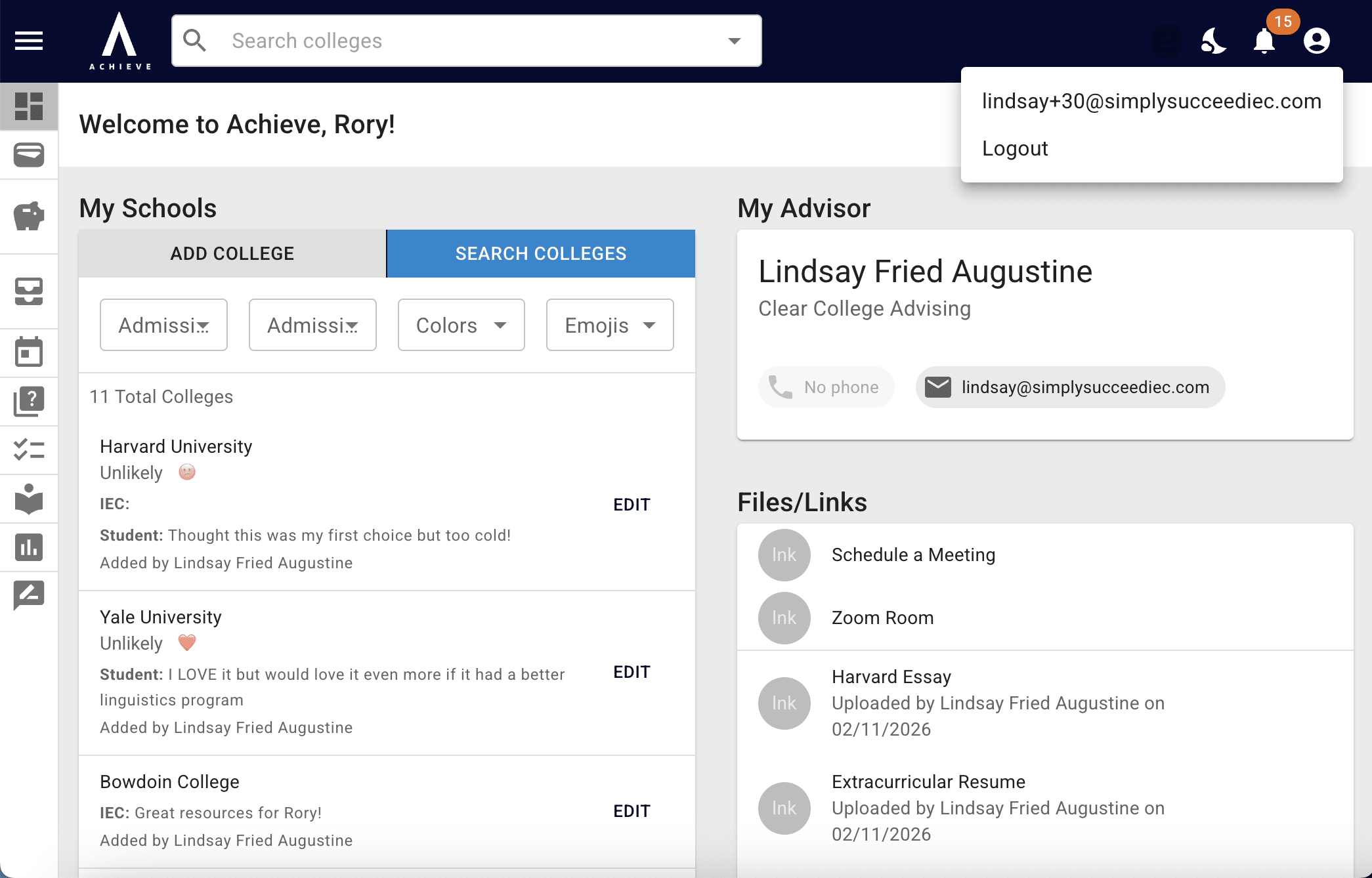
To log out of Achieve, press the Silhouette icon on the top right-hand side.
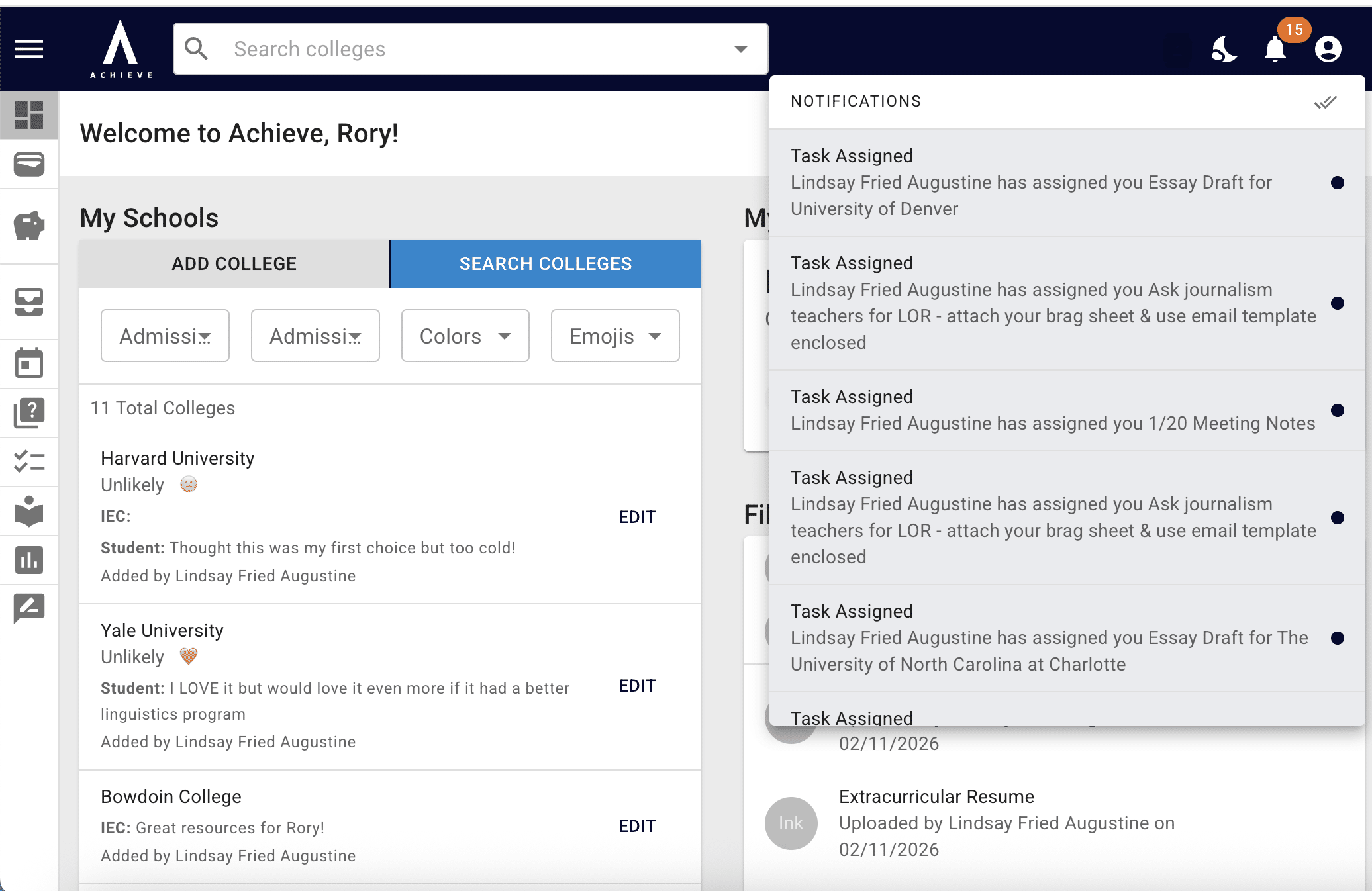
To view tasks and other updates press the Bell icon on the top right. The number in the red circle shows the number of unread notifications. To mark all notifications as red click on the Double Tick icon
To change to dark mode, press the Moon icon on the top right.
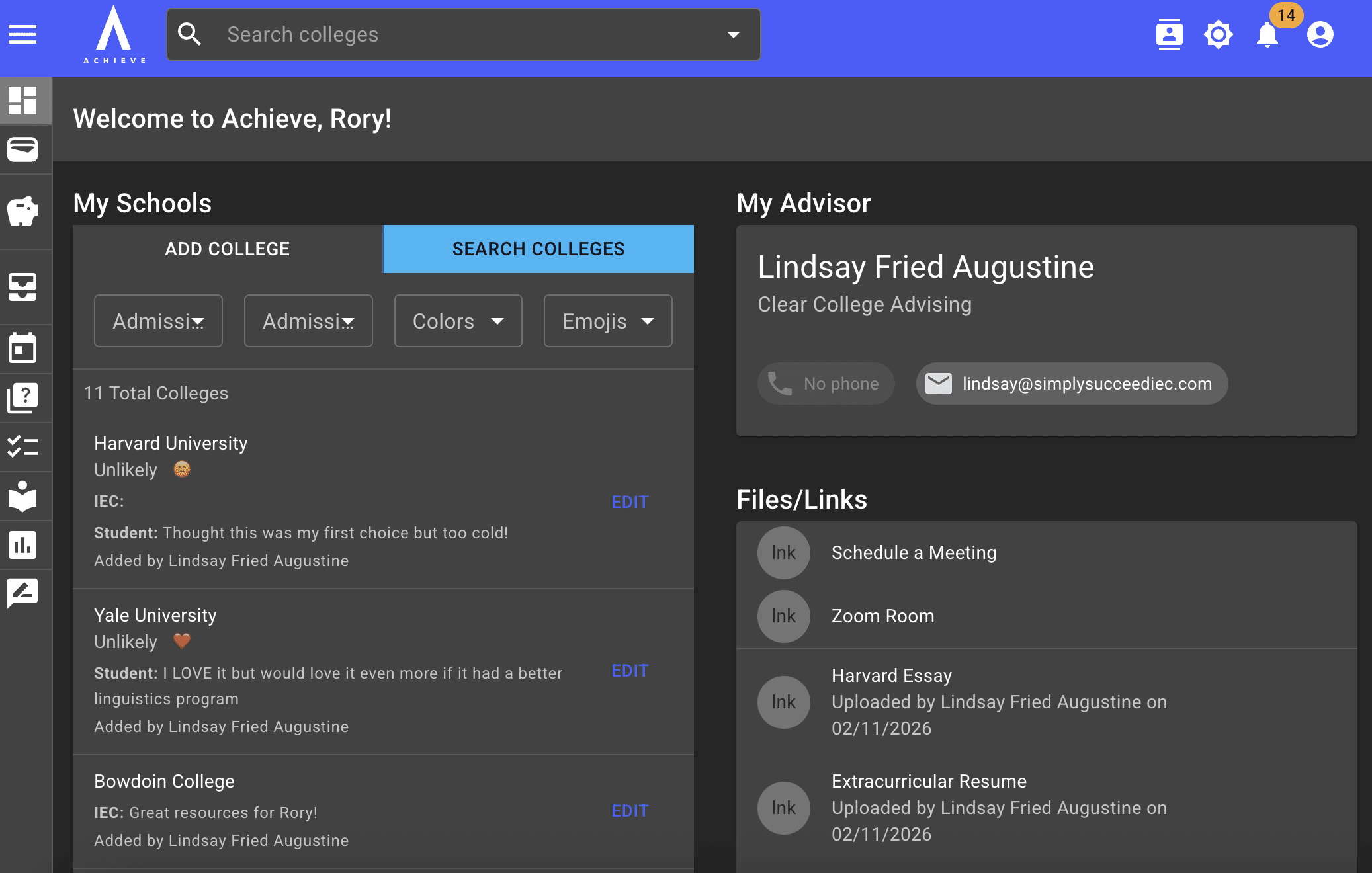
To change to light mode, press the Sun icon.
Done 🚀