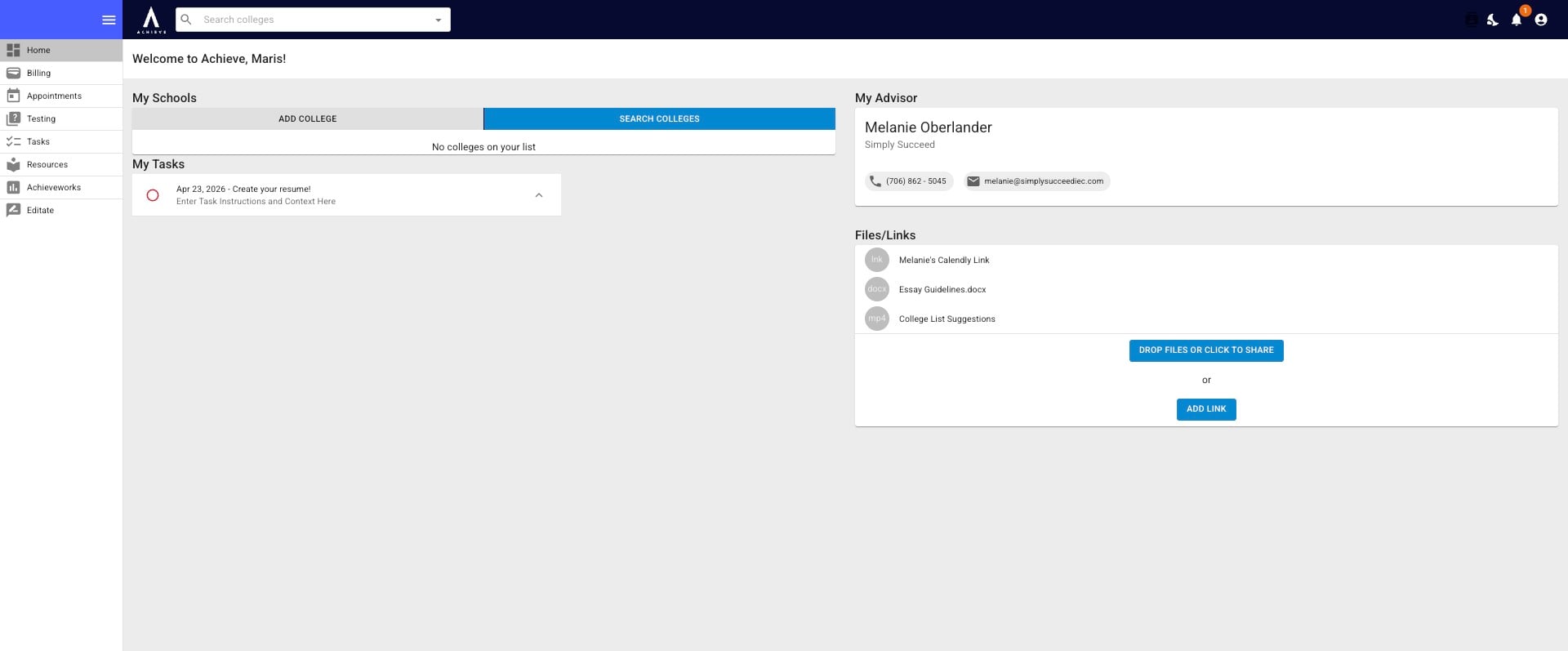
Activating a Student's Achieve Account
This guide explains the different ways to invite students to activate their Achieve accounts and how to track the invitation status.
Navigate to https://app.achieveiec.com/students
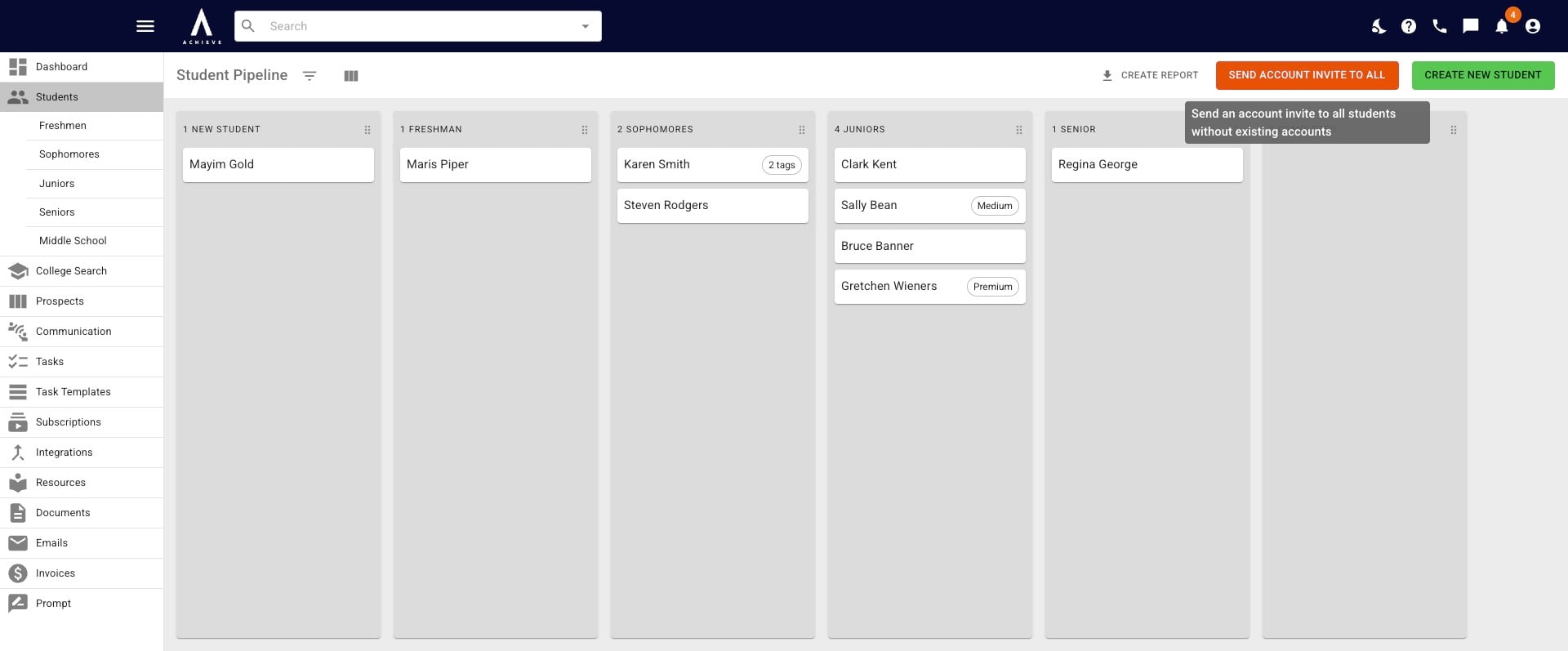
From the Student Pipeline, if you click on the Send Account Invite To All button, all students who haven't yet created their Achieve accounts will receive an invite email.
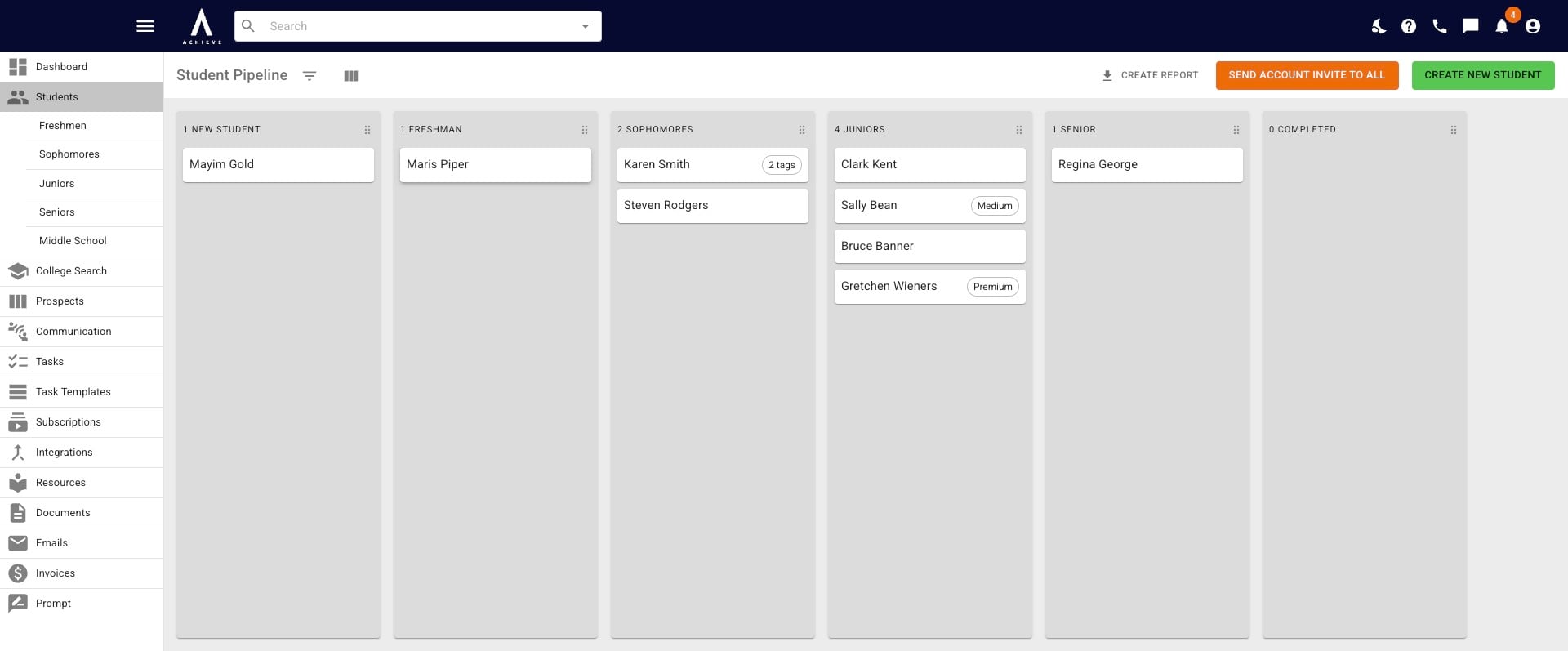
To send an invite to an individual student, open up the student's profile.
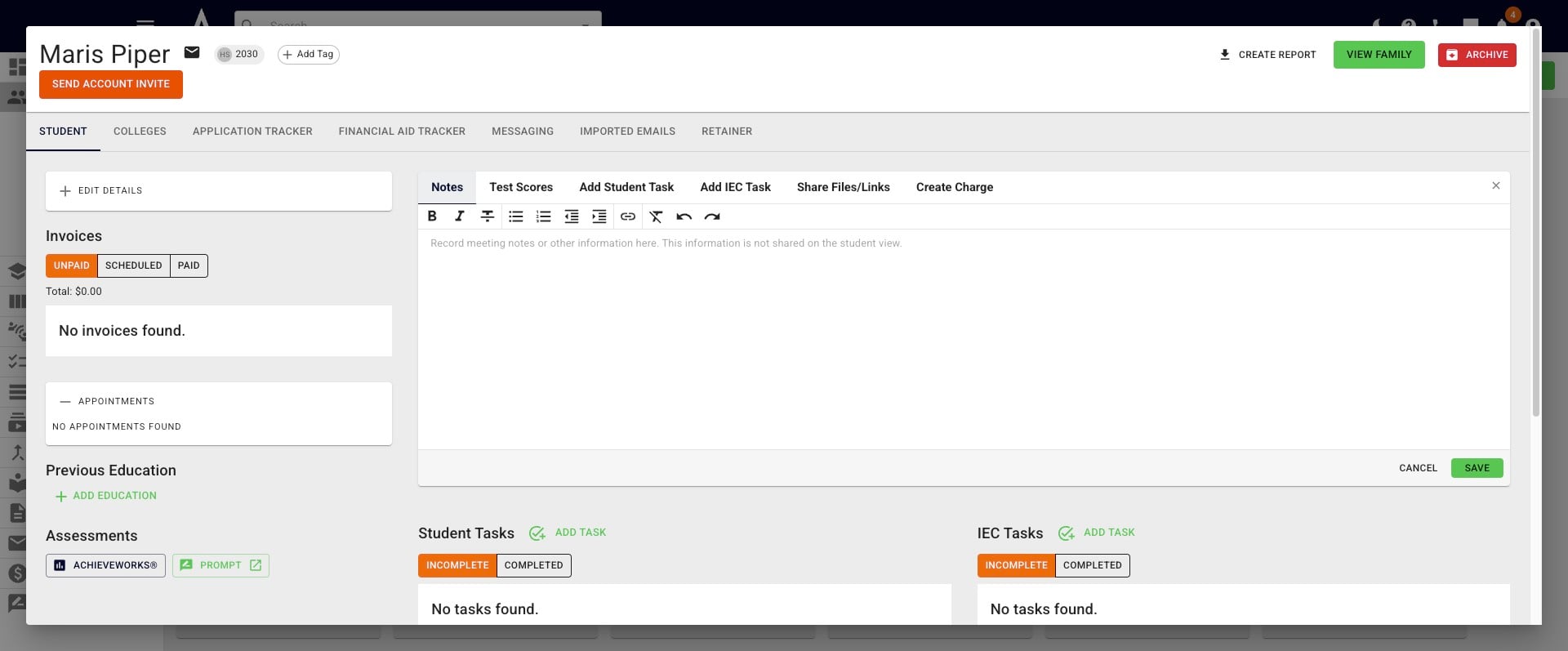
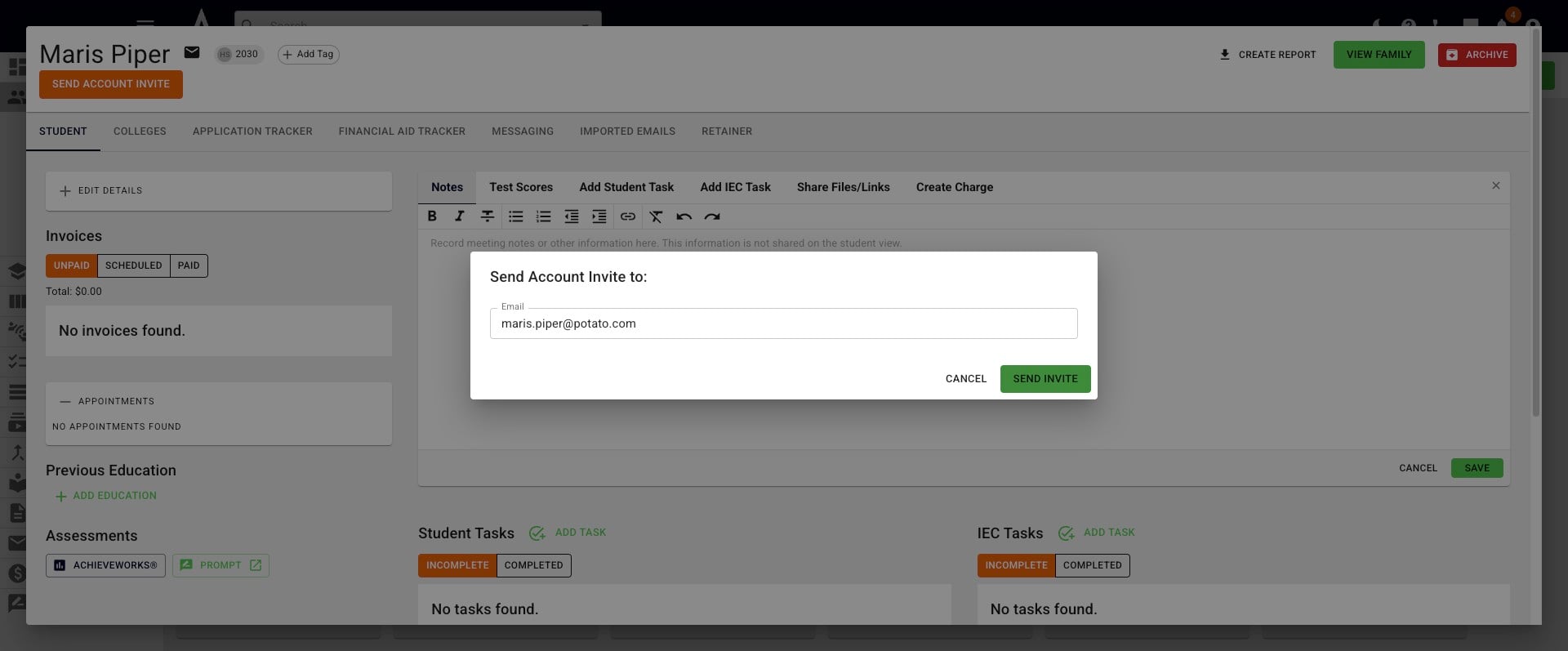
Click on the orange Send Account Invite button.
Confirm that the email address that populated is correct and click Send Invite.
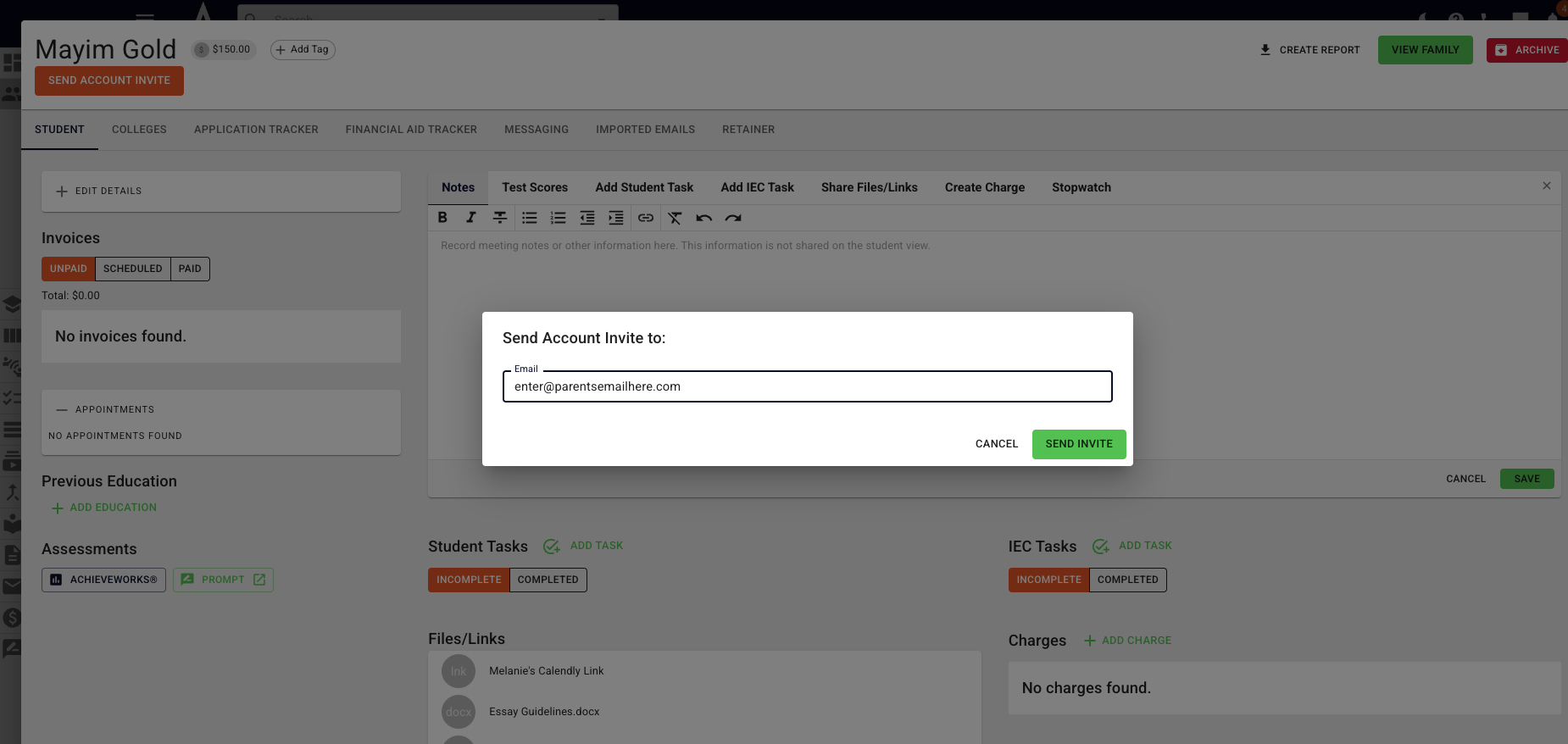
If needed, you can send the invite to a different email address (i.e. a parent) by pressing the Send Account Invite button again and entering the new email into the pop-up.
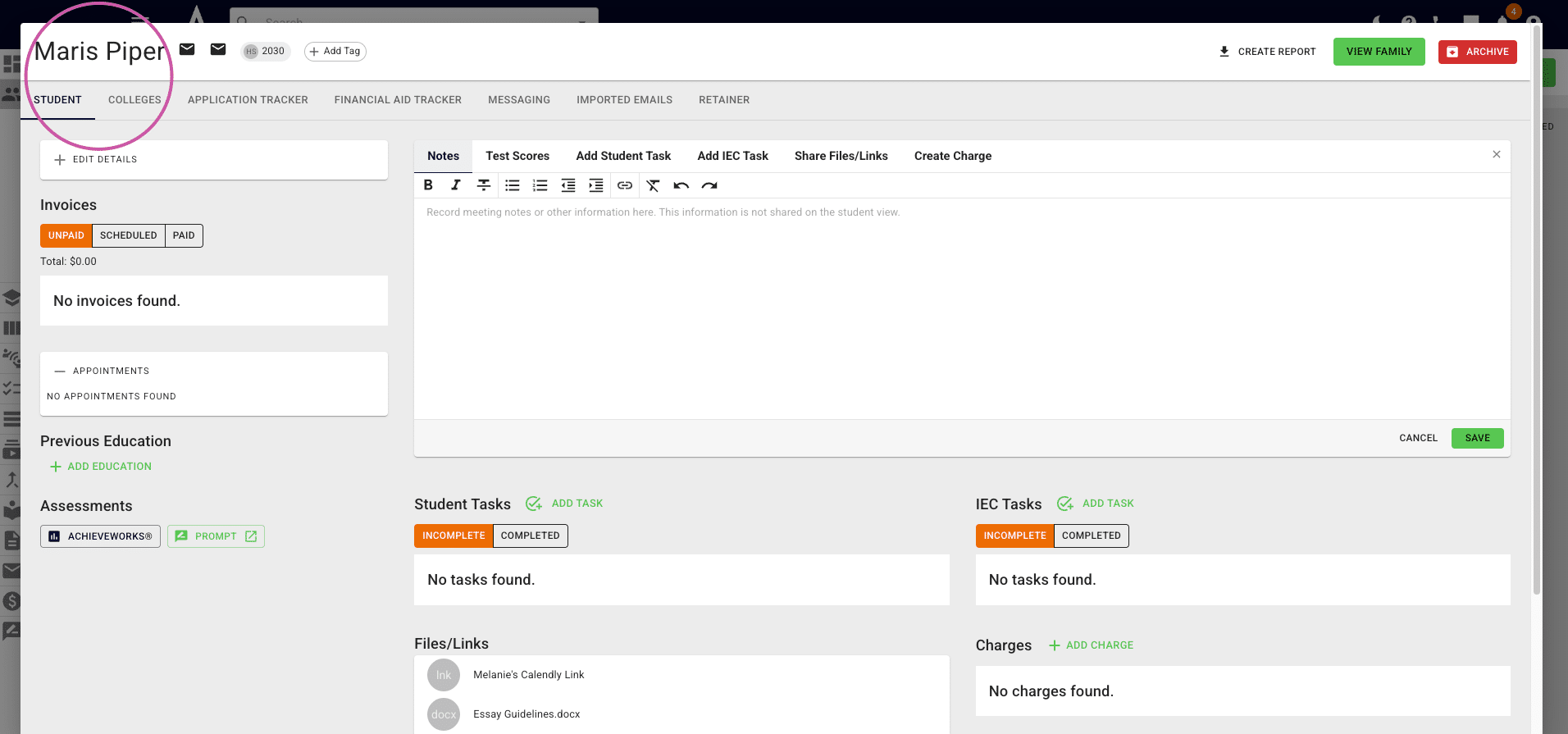
You can tell a student has completed setting up their Account when the orange Send Account Invite button no longer appears under the student's name.
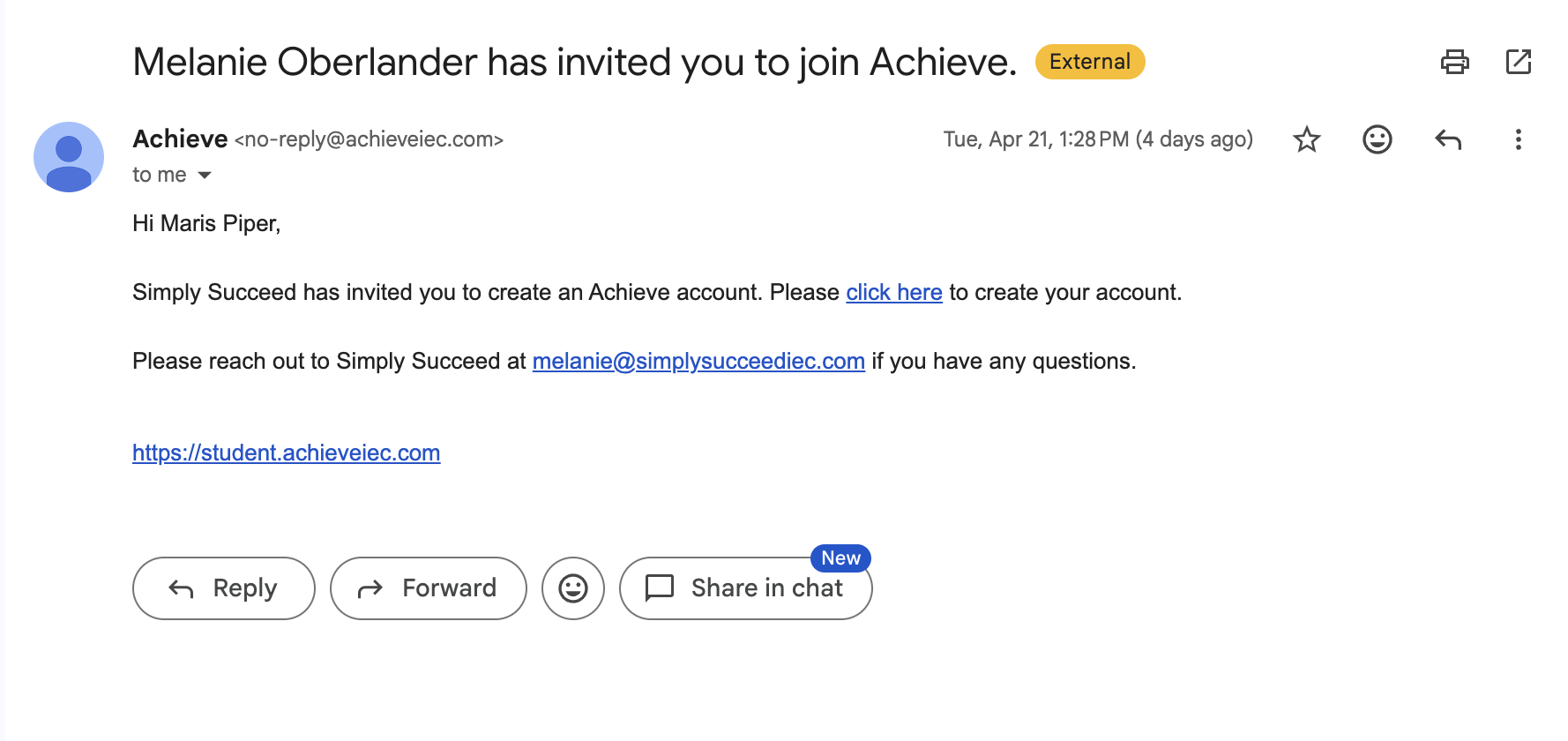
Below is an example of the email they'll receive. To set up their account, they'll click where it say click here.
The student will be taken to a webpage like the one below. Once all the student's information has been added, press Sign Up With Email.
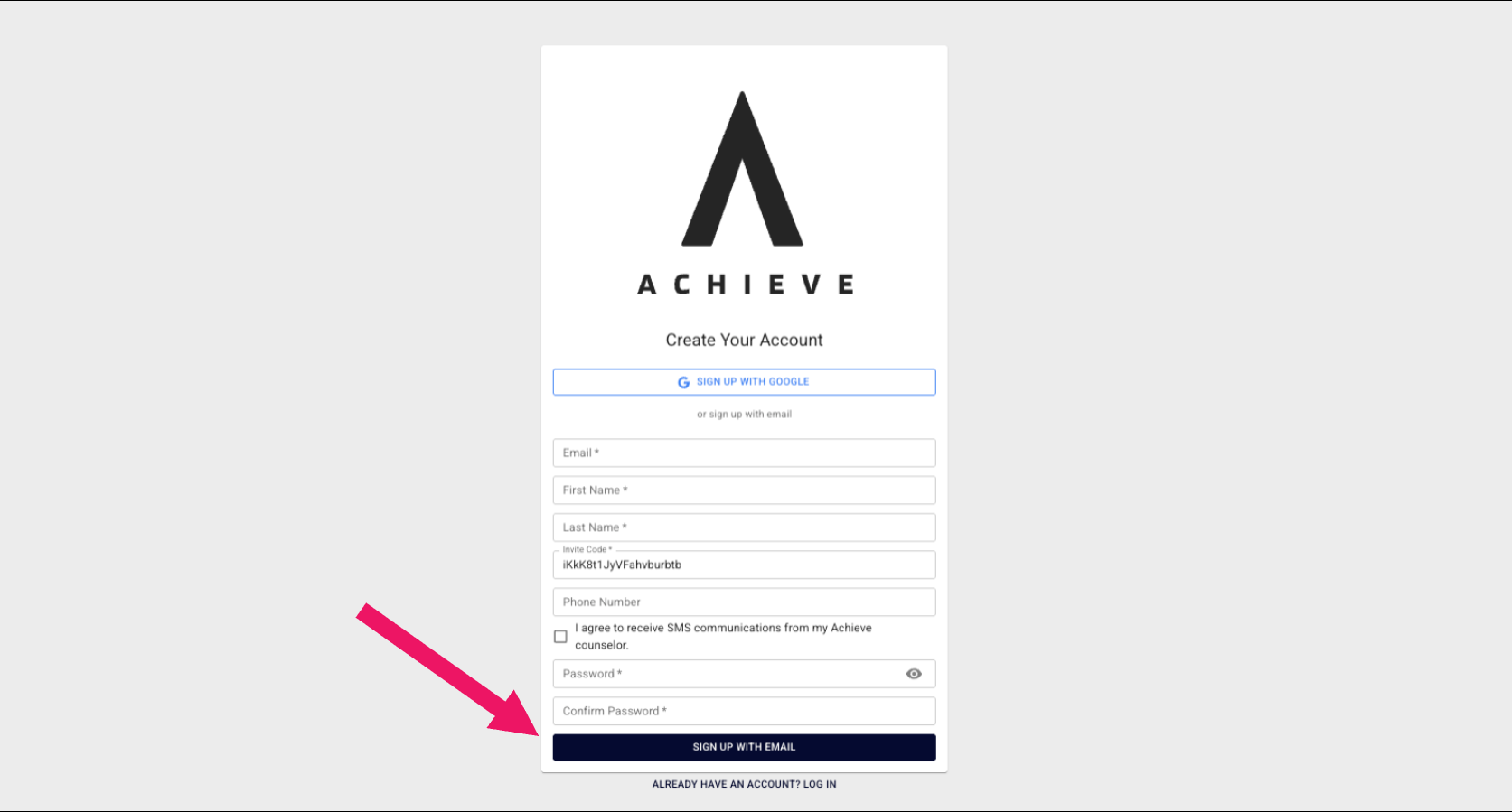
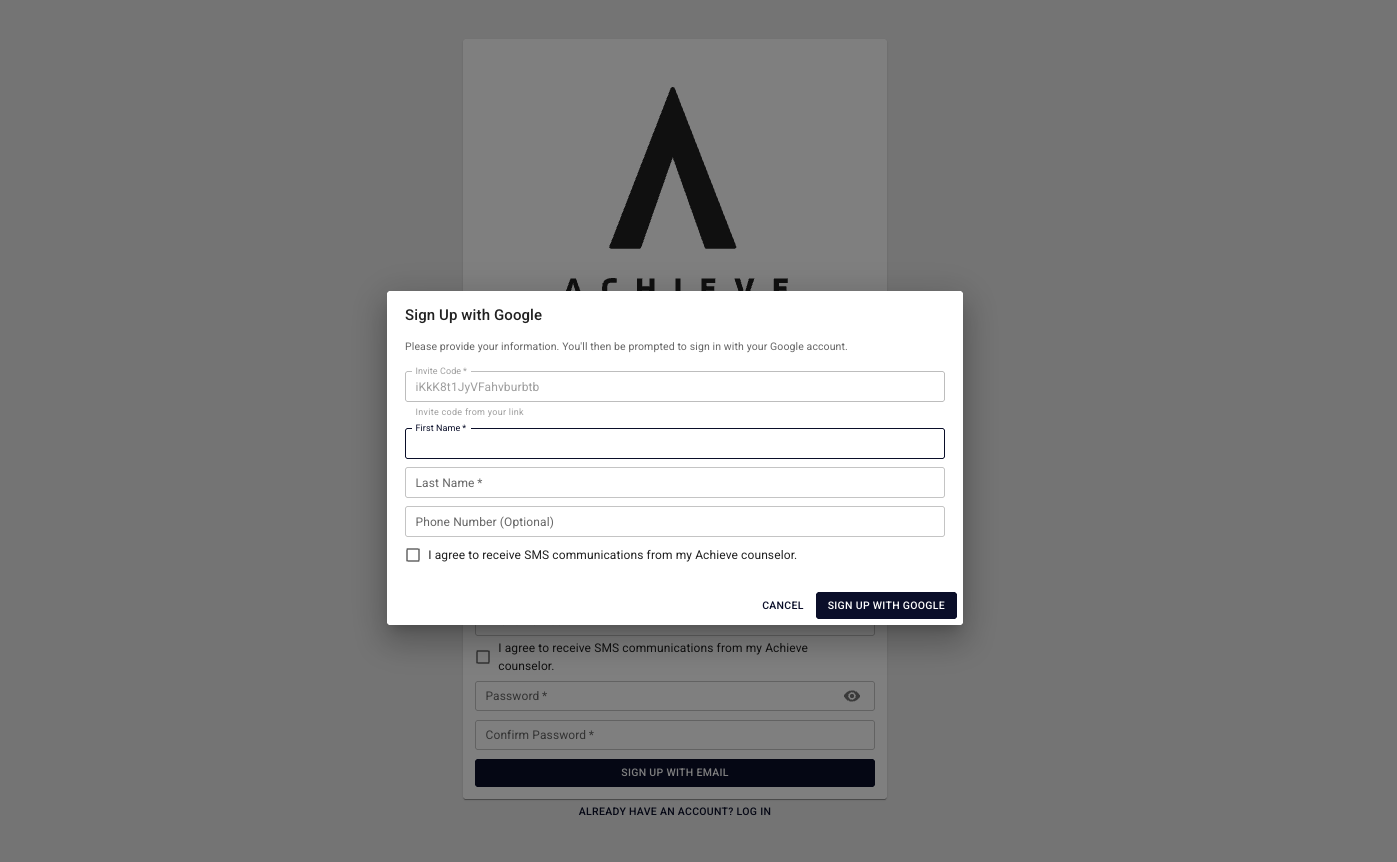
Alternatively, you can click on Sign Up With Google. Please note, your student will need to enable pop-ups on their browser and follow through with filling out all of the information in the pop up to use Google Single Sign On.

This is the Sign Up with Google pop-up that will will appear. Once the student fills in their information, they'll click Sign Up with Google.
Done 🚀