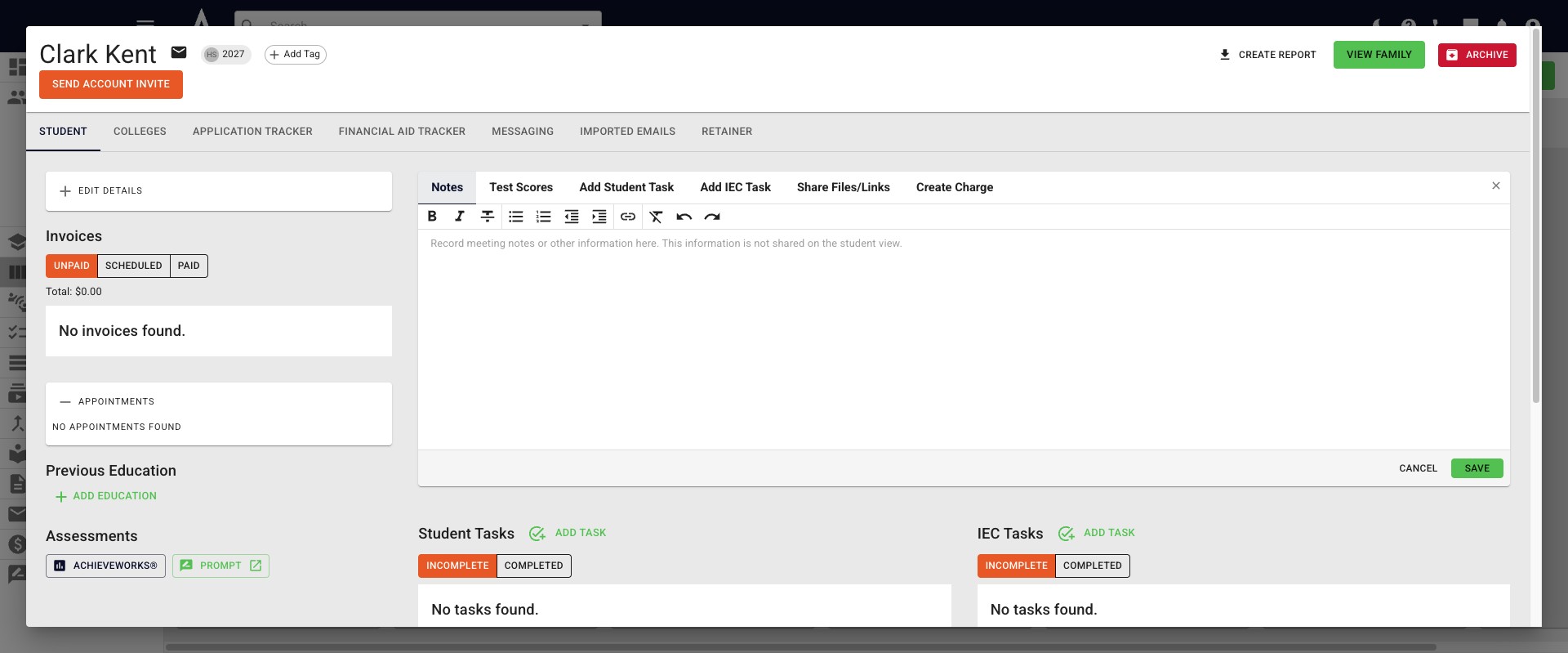
Adding a New Student to Achieve
This guide shows how to add a new student to Achieve.
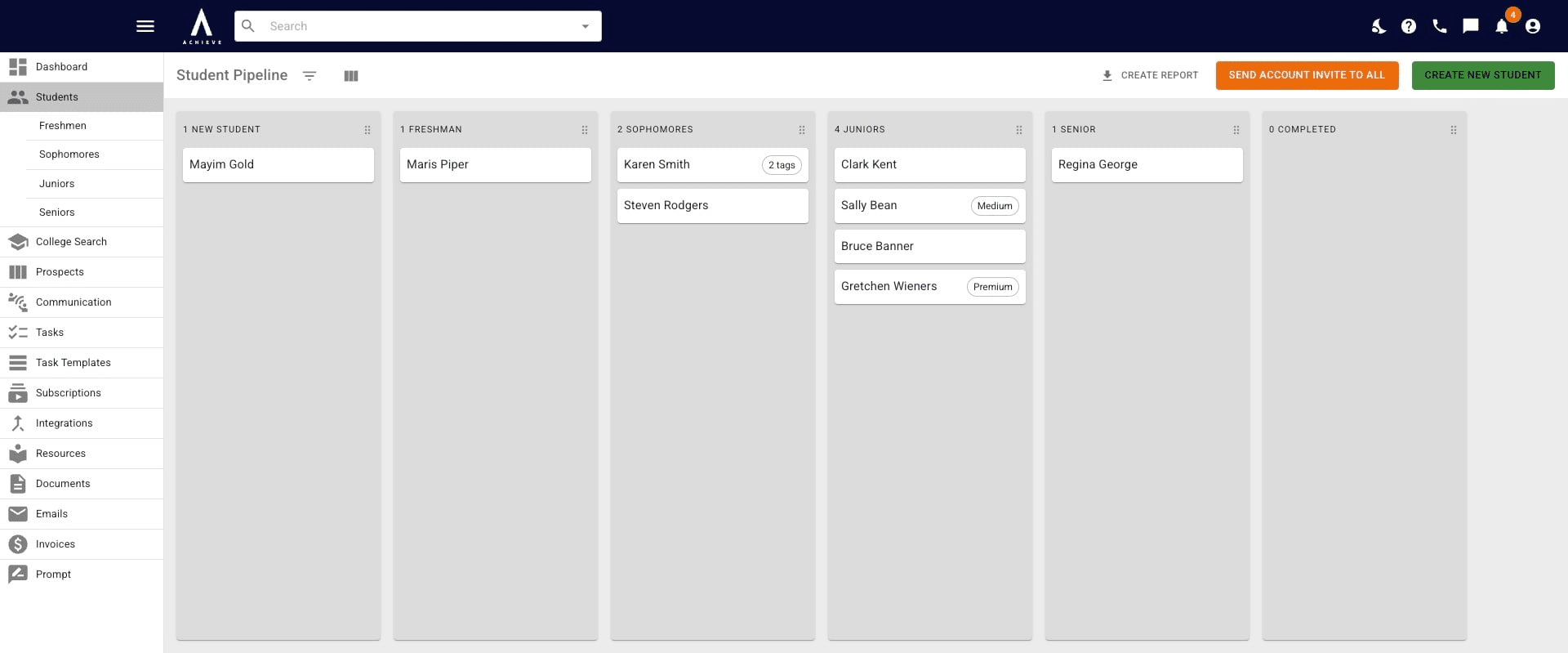
Navigate to https://app.achieveiec.com/student-pipeline
The Create New Student button can be found on the Student Pipeline, each Grade-Level Tracker, and the Prospect Pipeline. The button will always be green, as shown here.
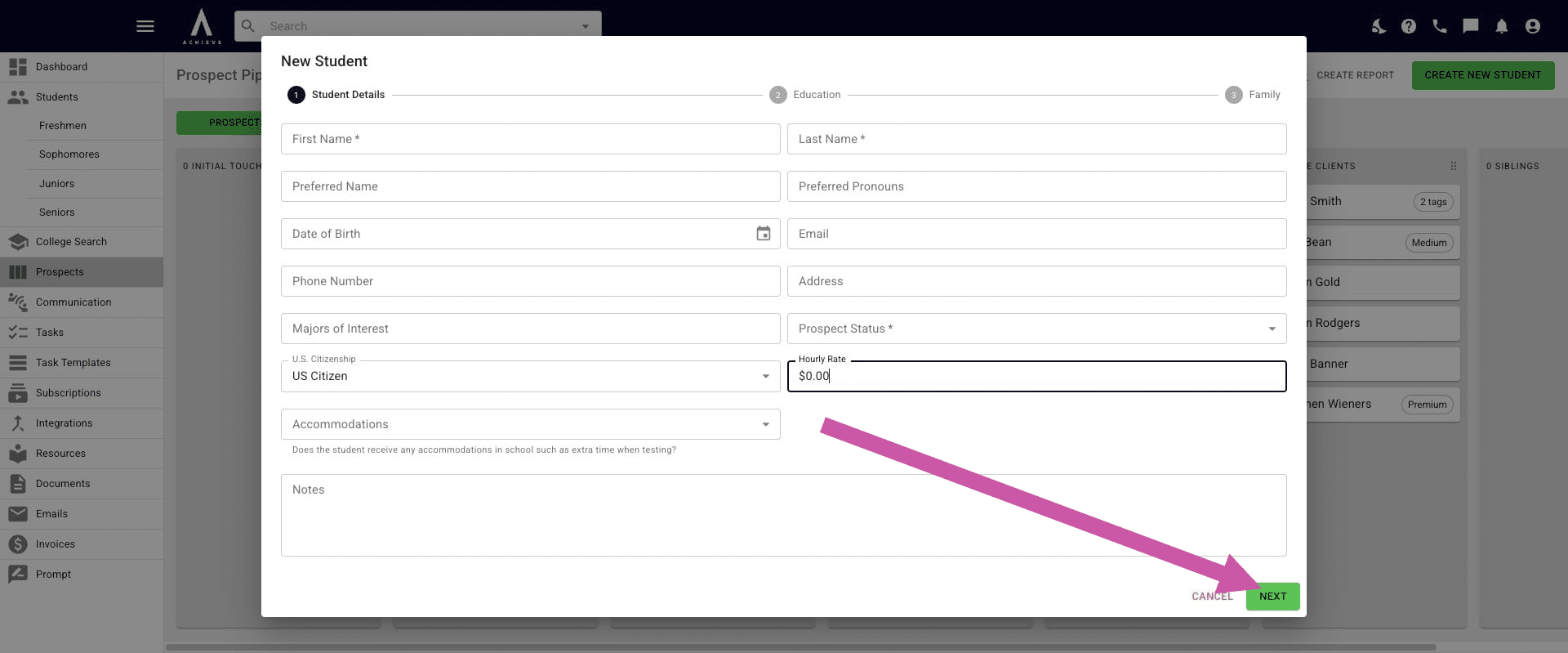
The New Student pop-up will appear. Fill in the required information, which is indicated by an asterisk. The Prospect Status you select determines what fields are required. Once you're done, press Next.
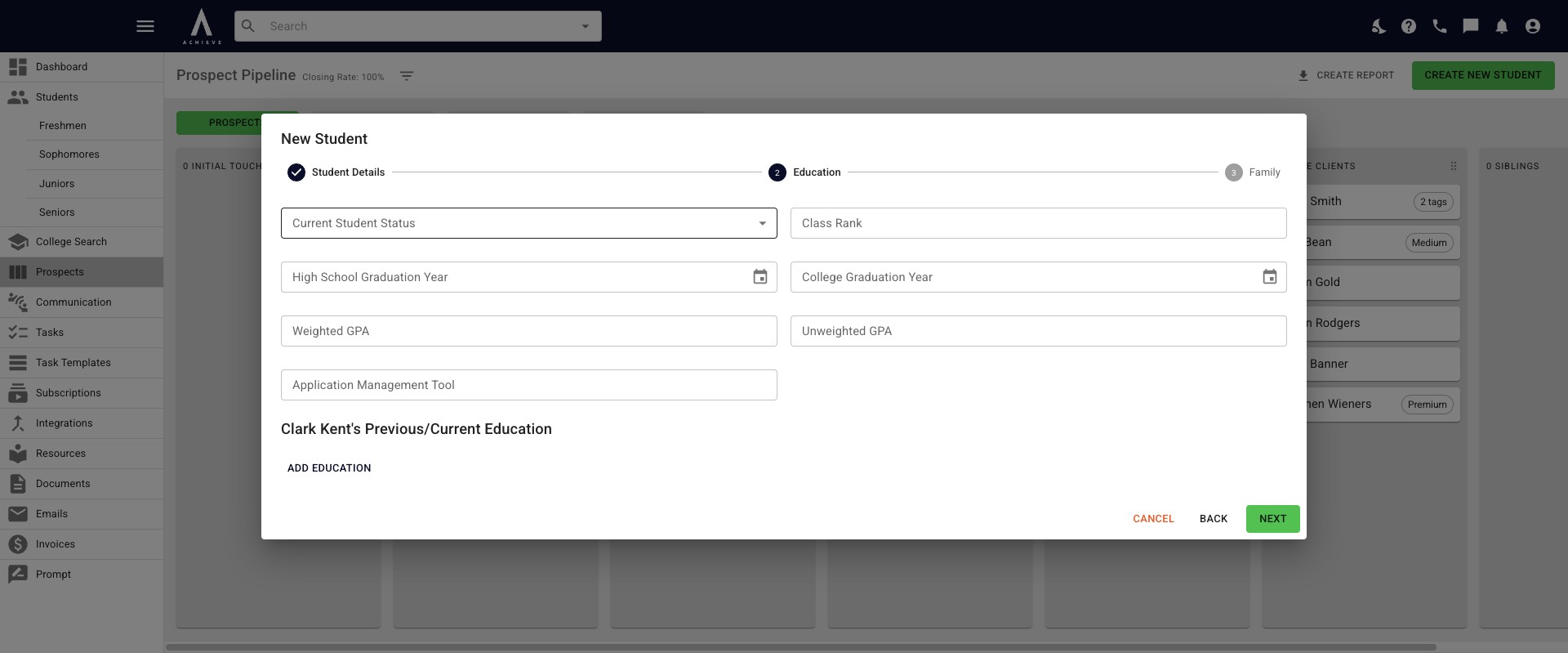
You will be taken to the Student Details page. Once you've added the applicable information, press Next.
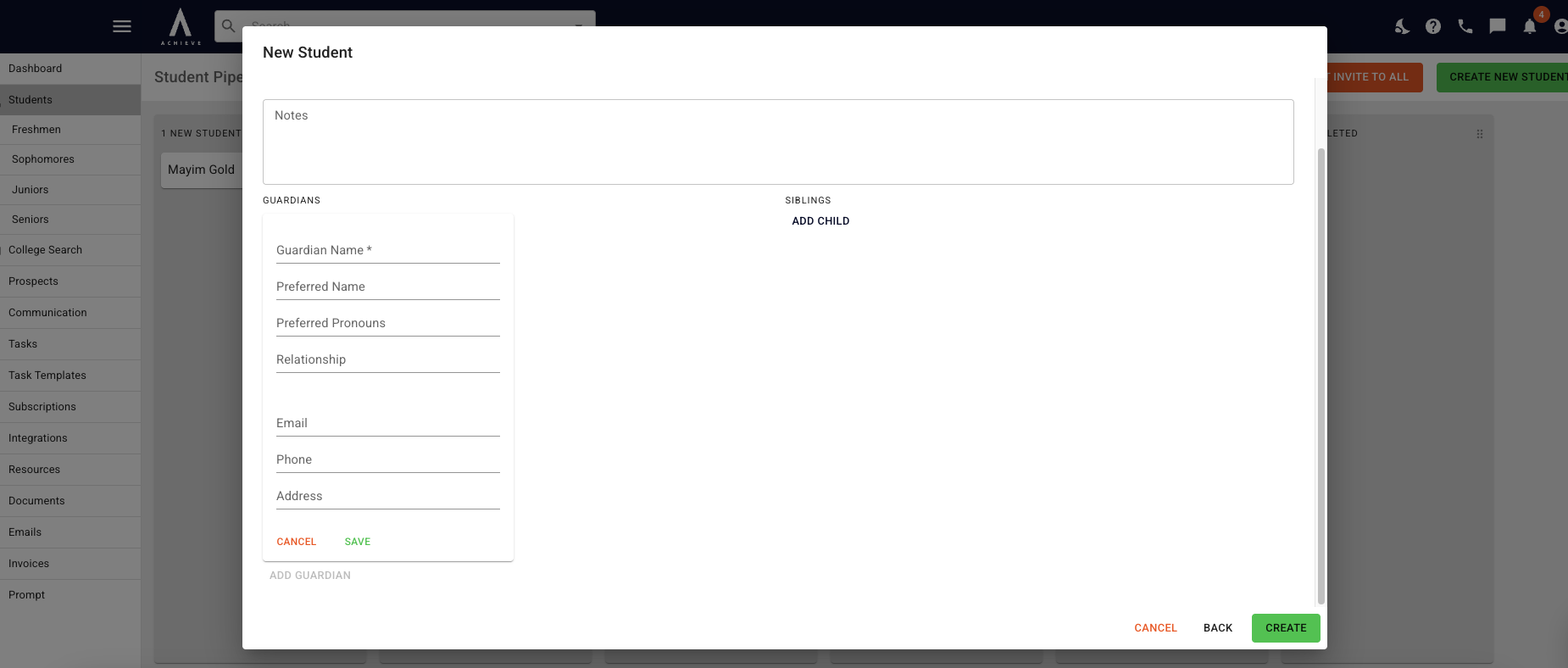
You will then be taken to the Family page. You an add up to 4 Parents/Guardians, all with different addresses & communication settings if needed.
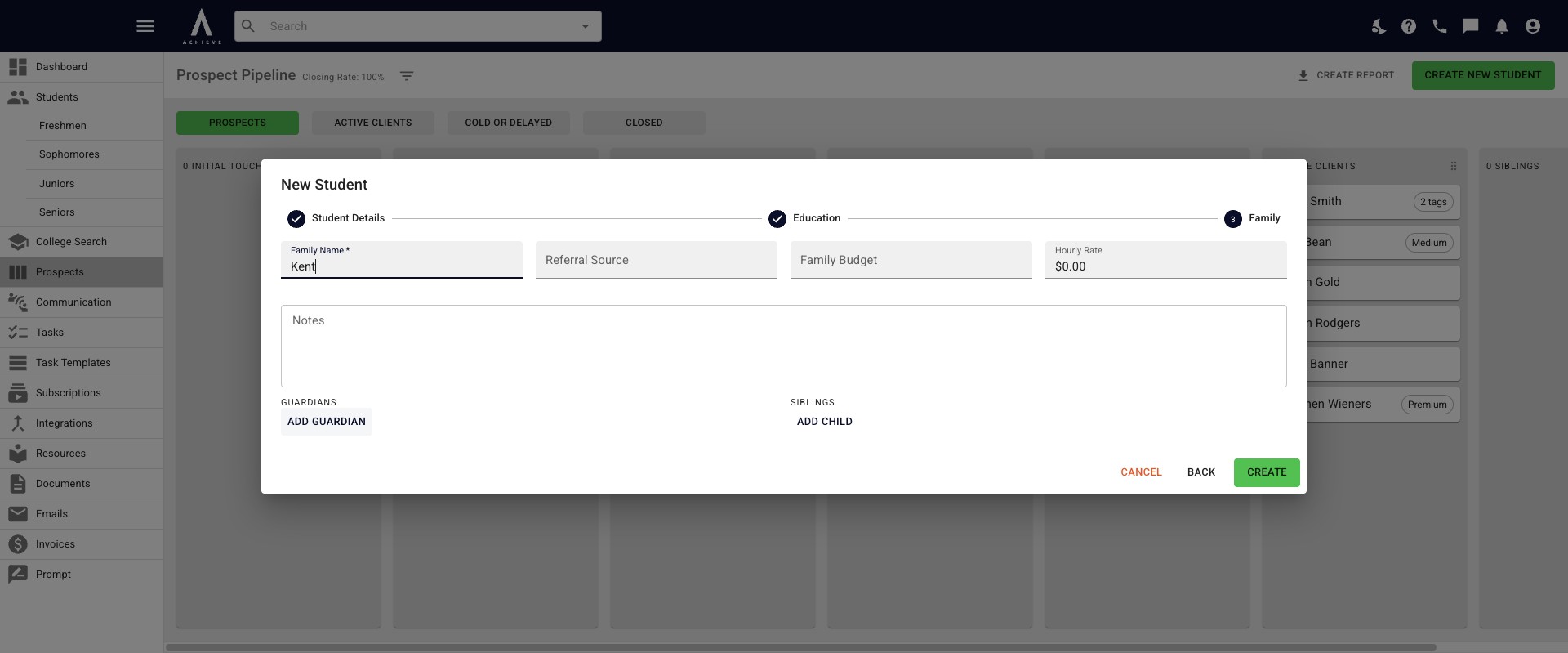
When you have entered a parent/guardian's information, be sure to press Save.
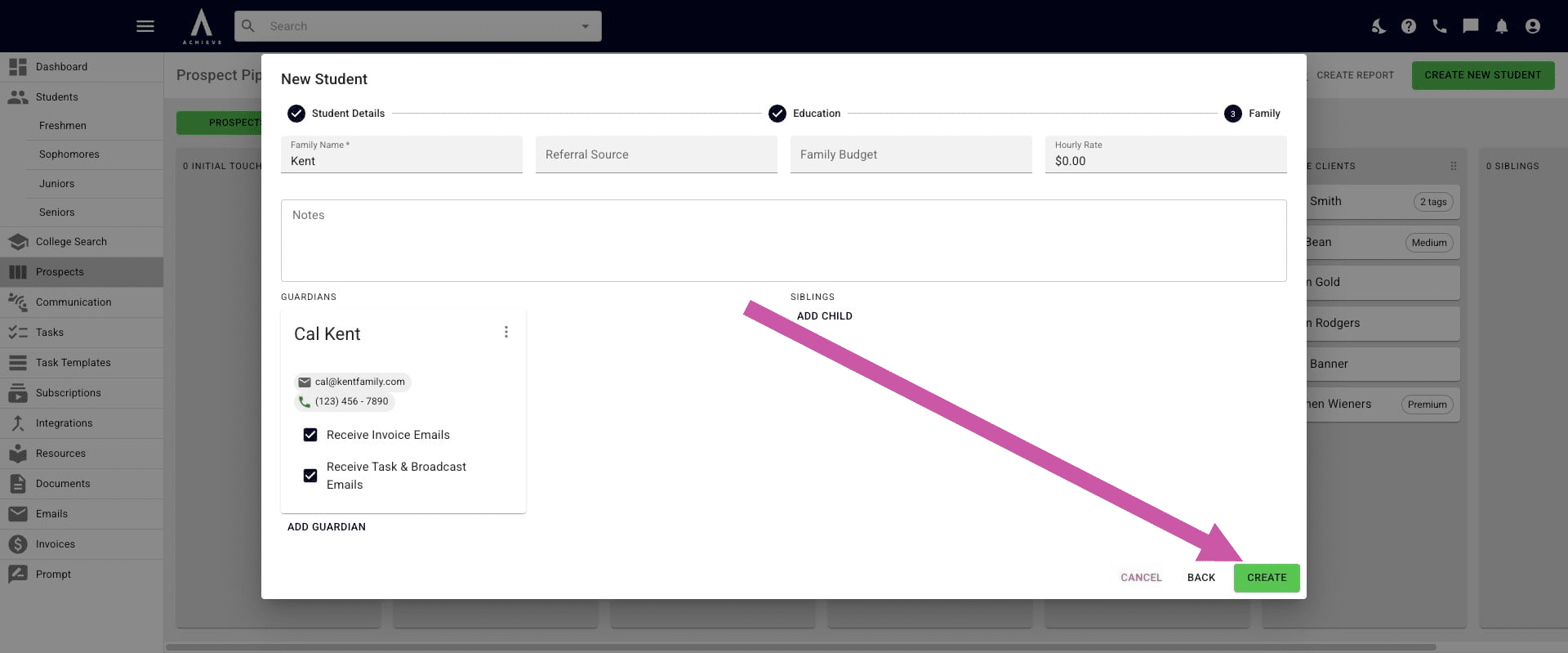
If the student has siblings, click on Add Child under Siblings and add their information. Press Save when you're done. Once you have added all the applicable information, click Create.
Done 🚀