
Adding a Signature to Your Achieve Emails
Learn how to configure and apply your email signature in Achieve.
Jun 02, 2026●
1
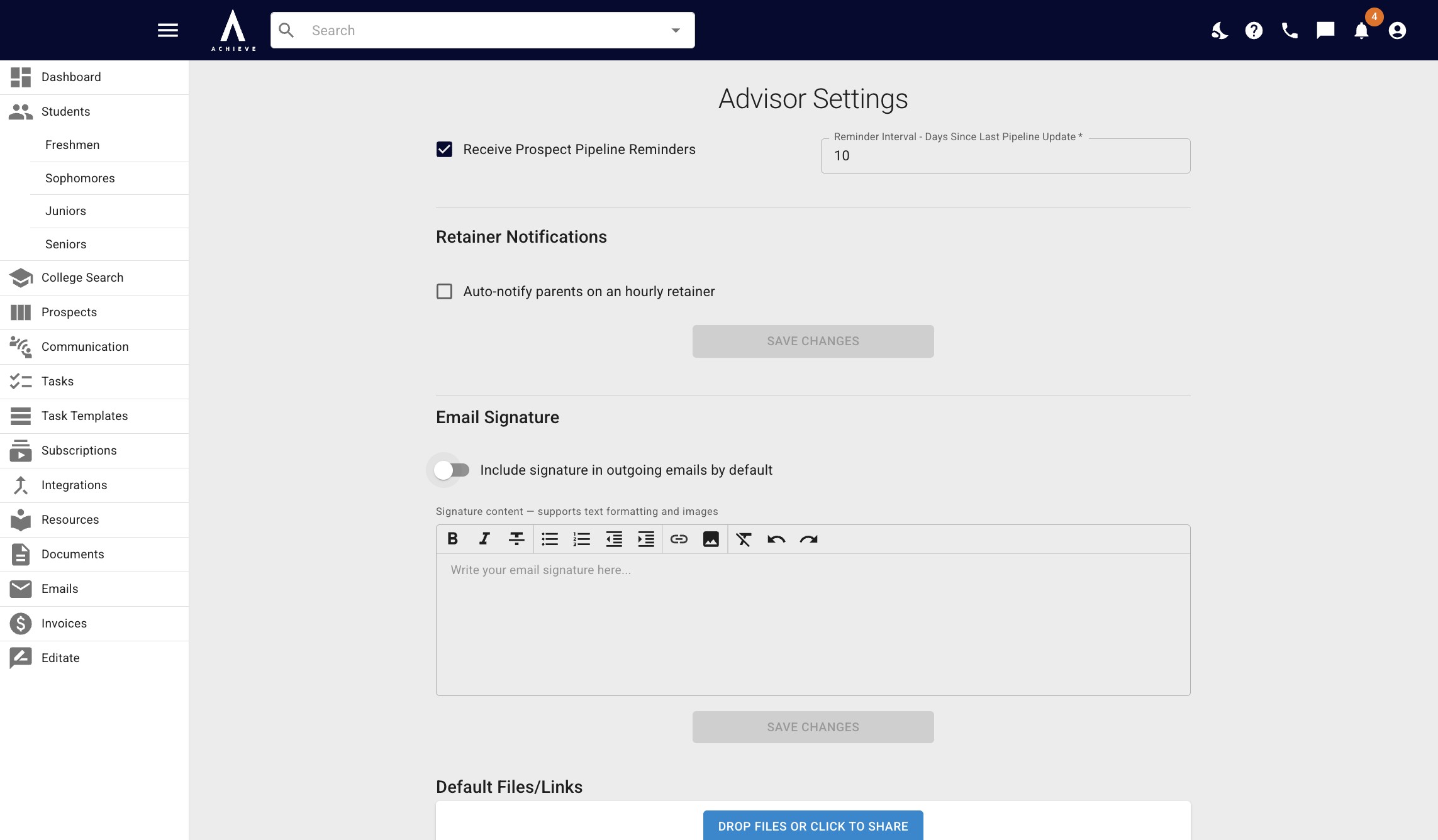
Navigate to https://app.achieveiec.com/settings
2
Toggle on Include signature in outgoing emails by default
3
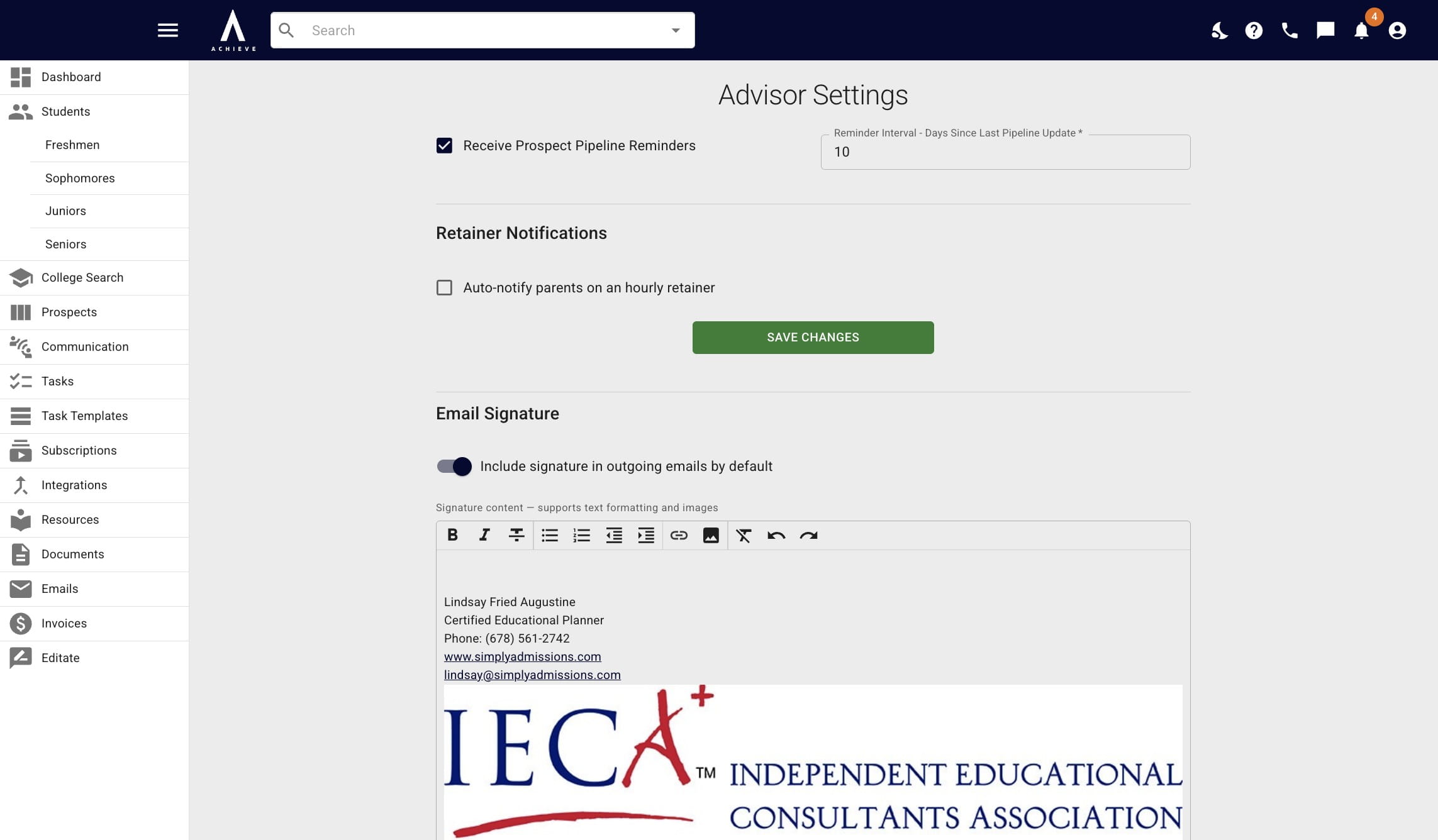
Paste in your signature
4
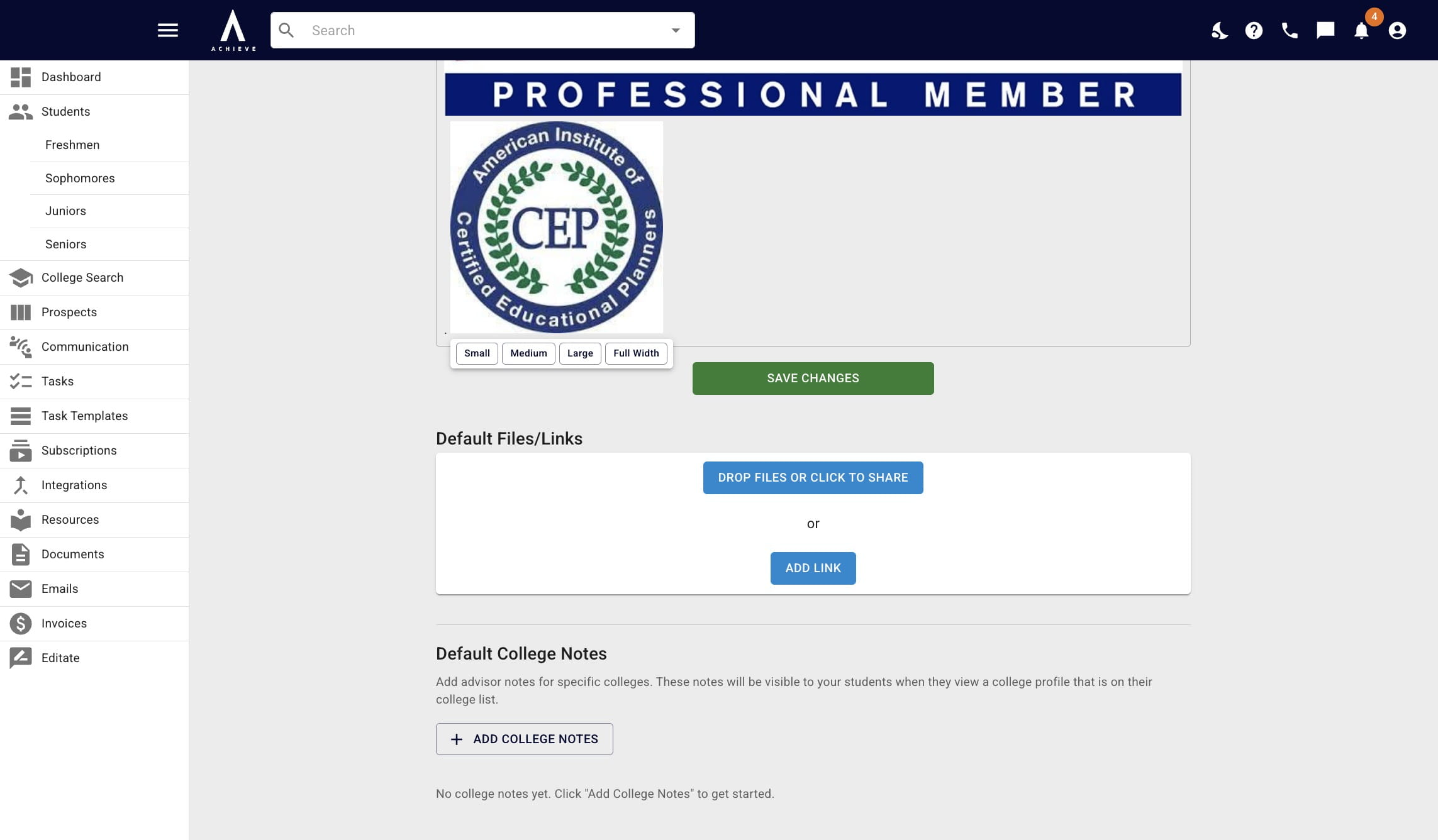
Double click on an image & resizing options will appear
5
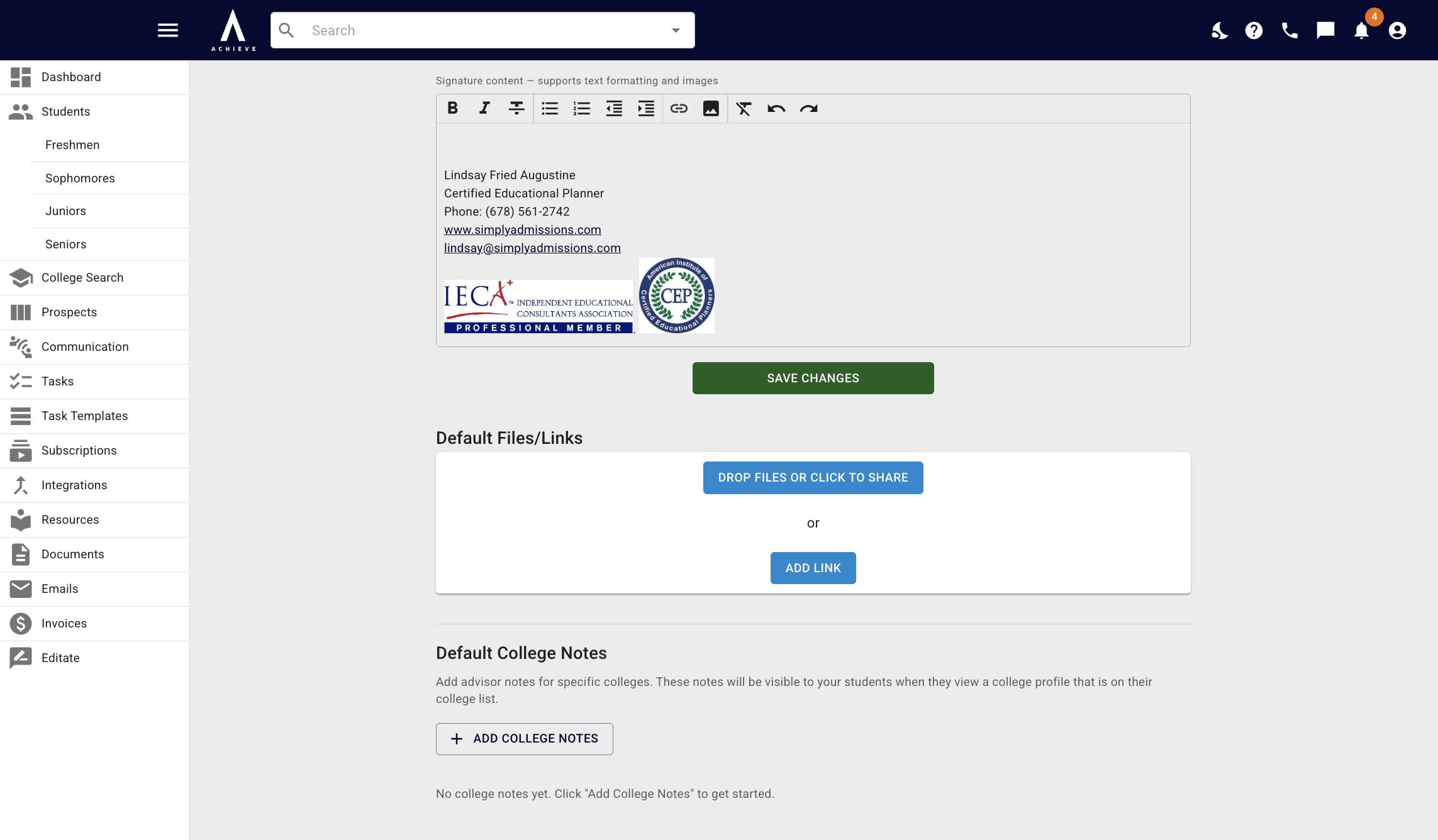
Click on Save Changes once you're done
6
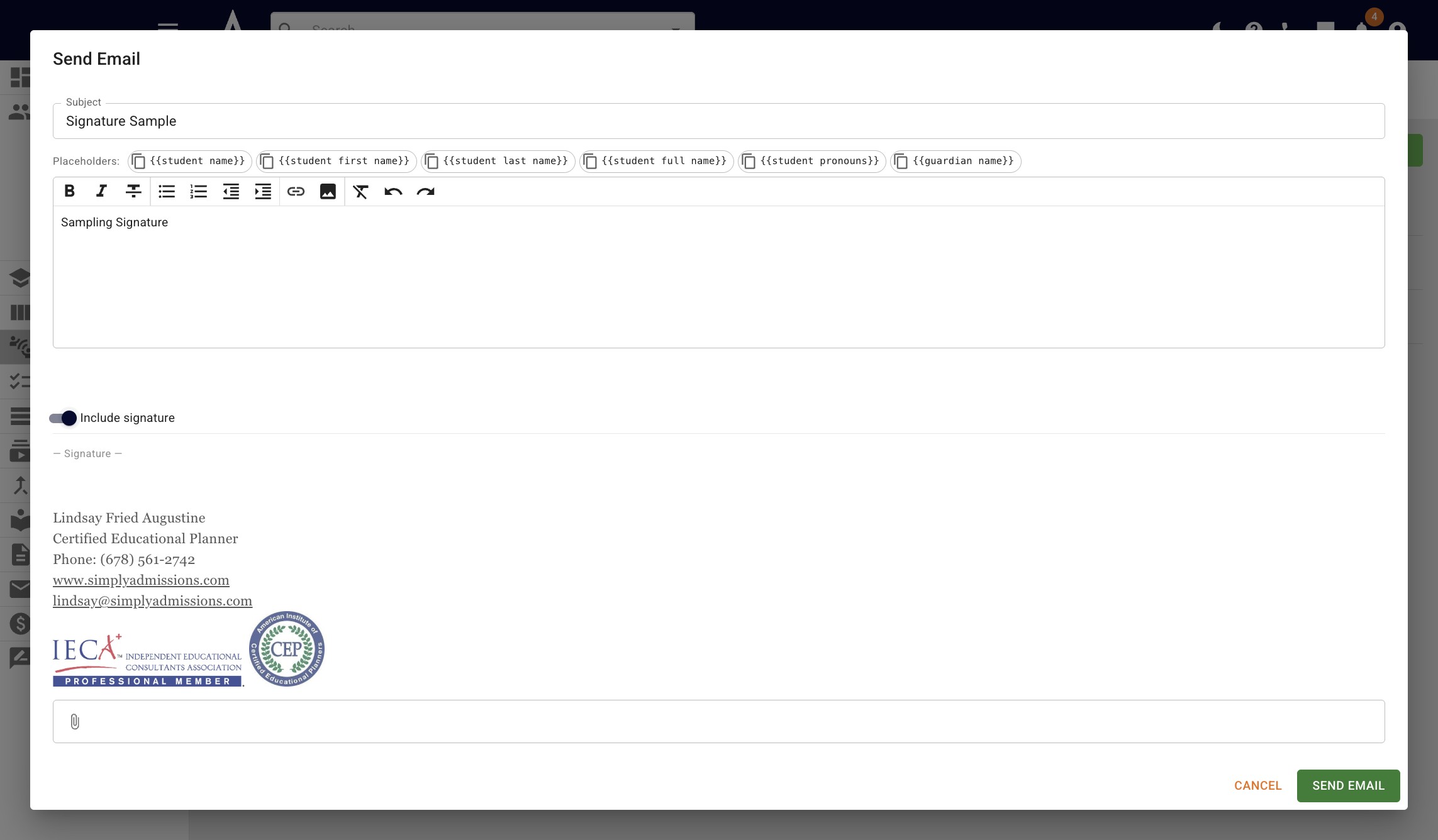
Going forward, when sending a one-off email or templates, the Include signature option will be toggled on by default
7
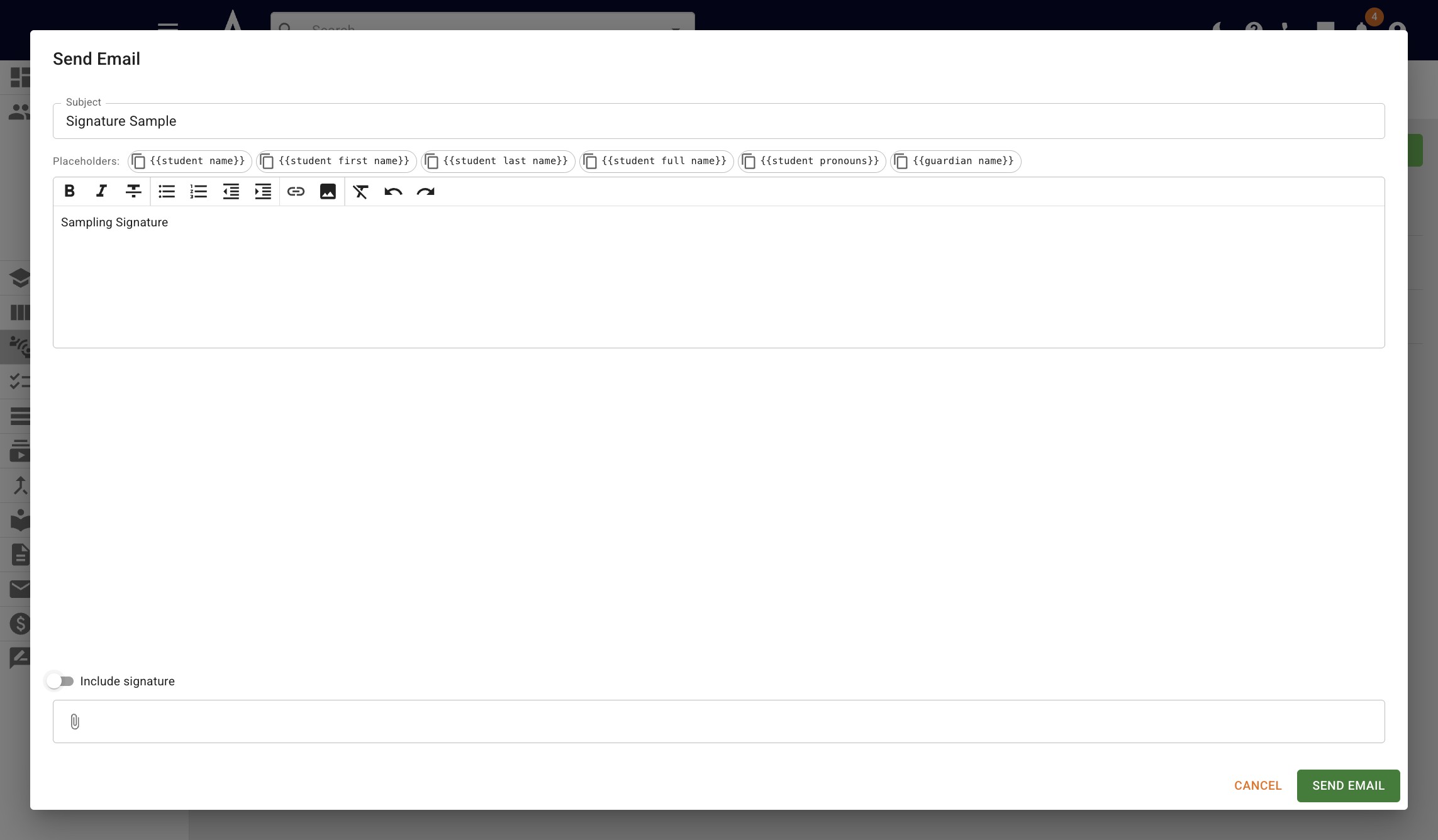
If you don't want to include your signature for a certain email or email template, you can toggle it off
8
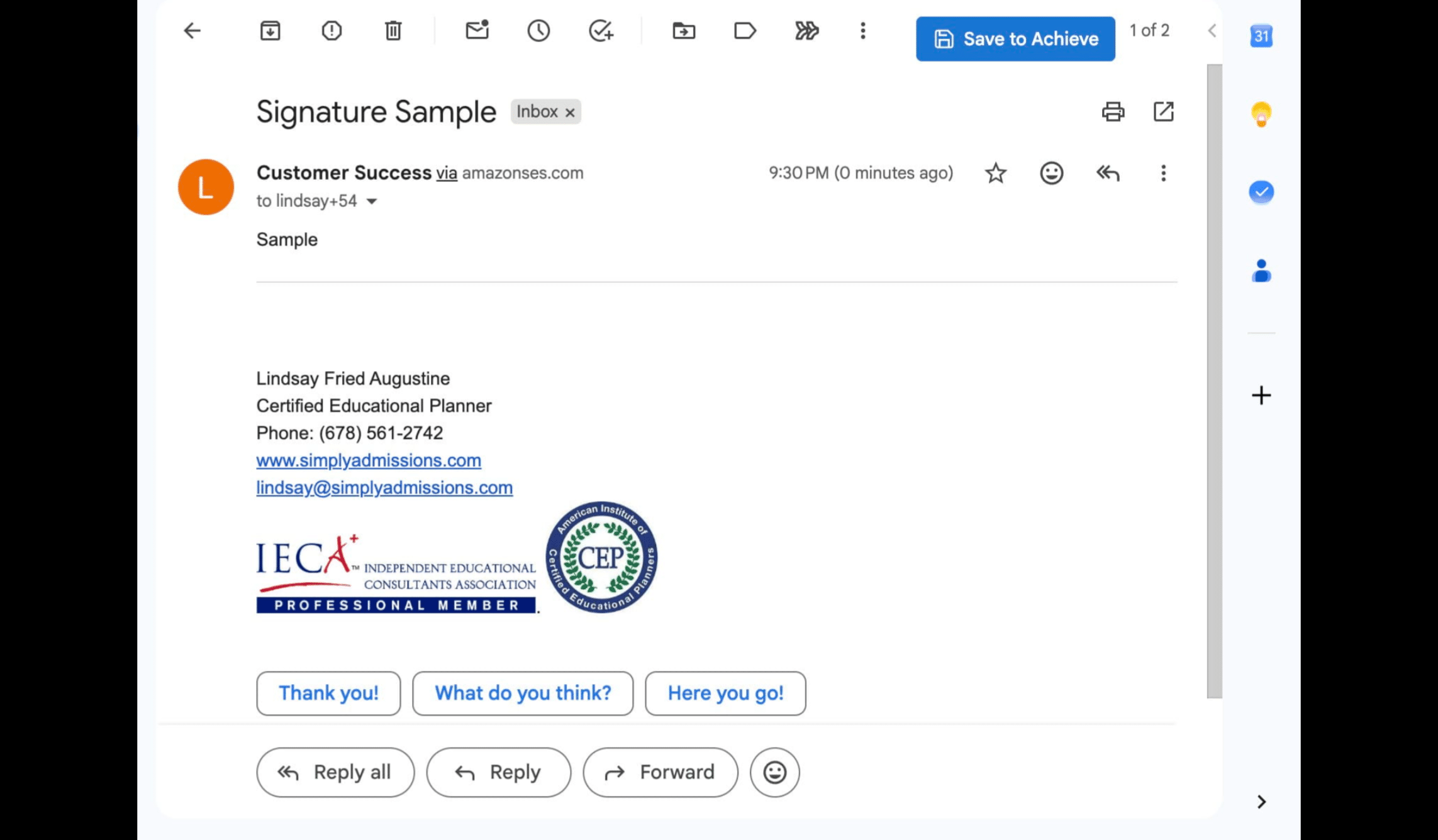
When toggled on, your signature will be included as seen below.
9
Done 🚀