
Creating Email Templates
Learn how to create and manage email templates in Achieve.
May 09, 2026●
1
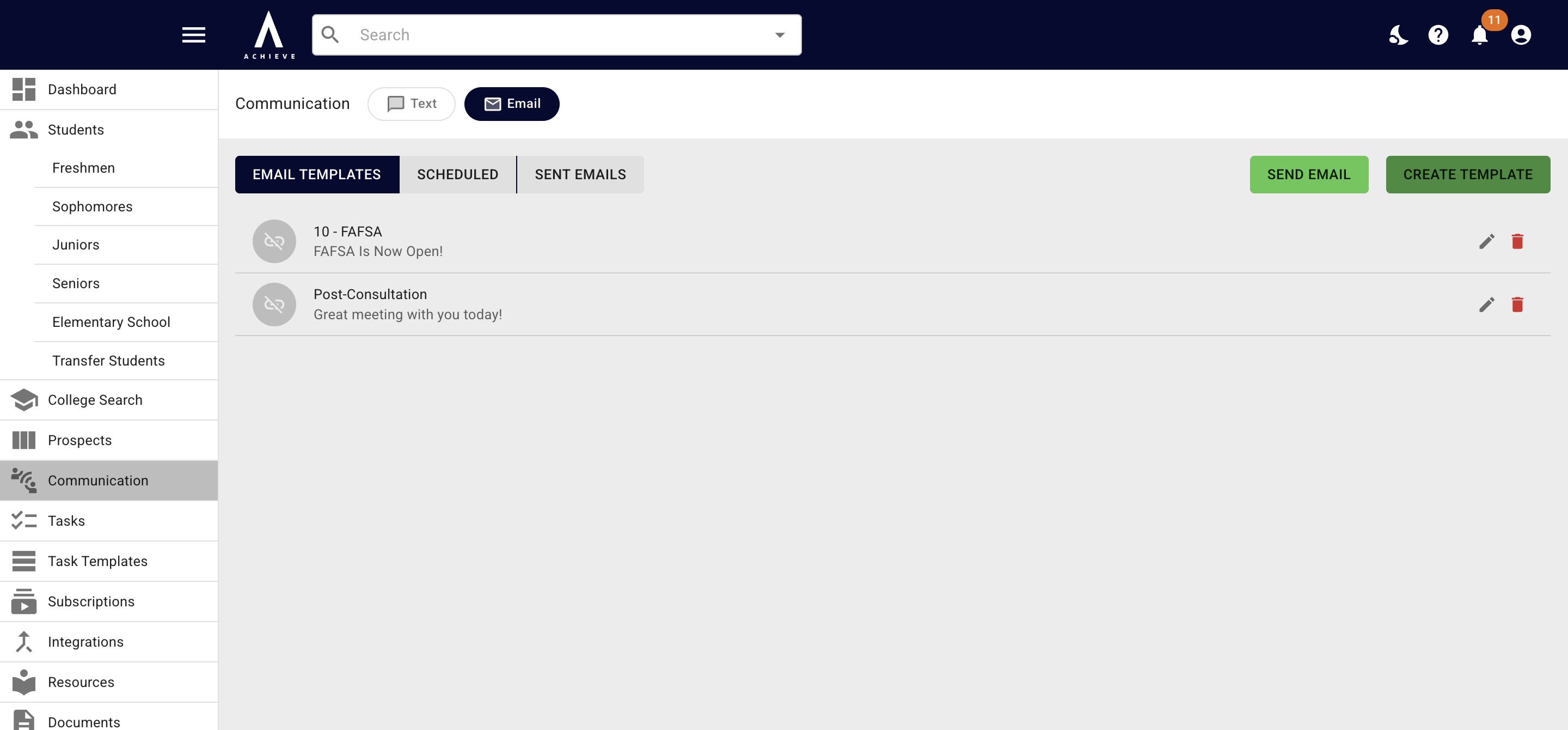
Navigate to https://app.achieveiec.com/communication/email
2
Click on Create Template.
3
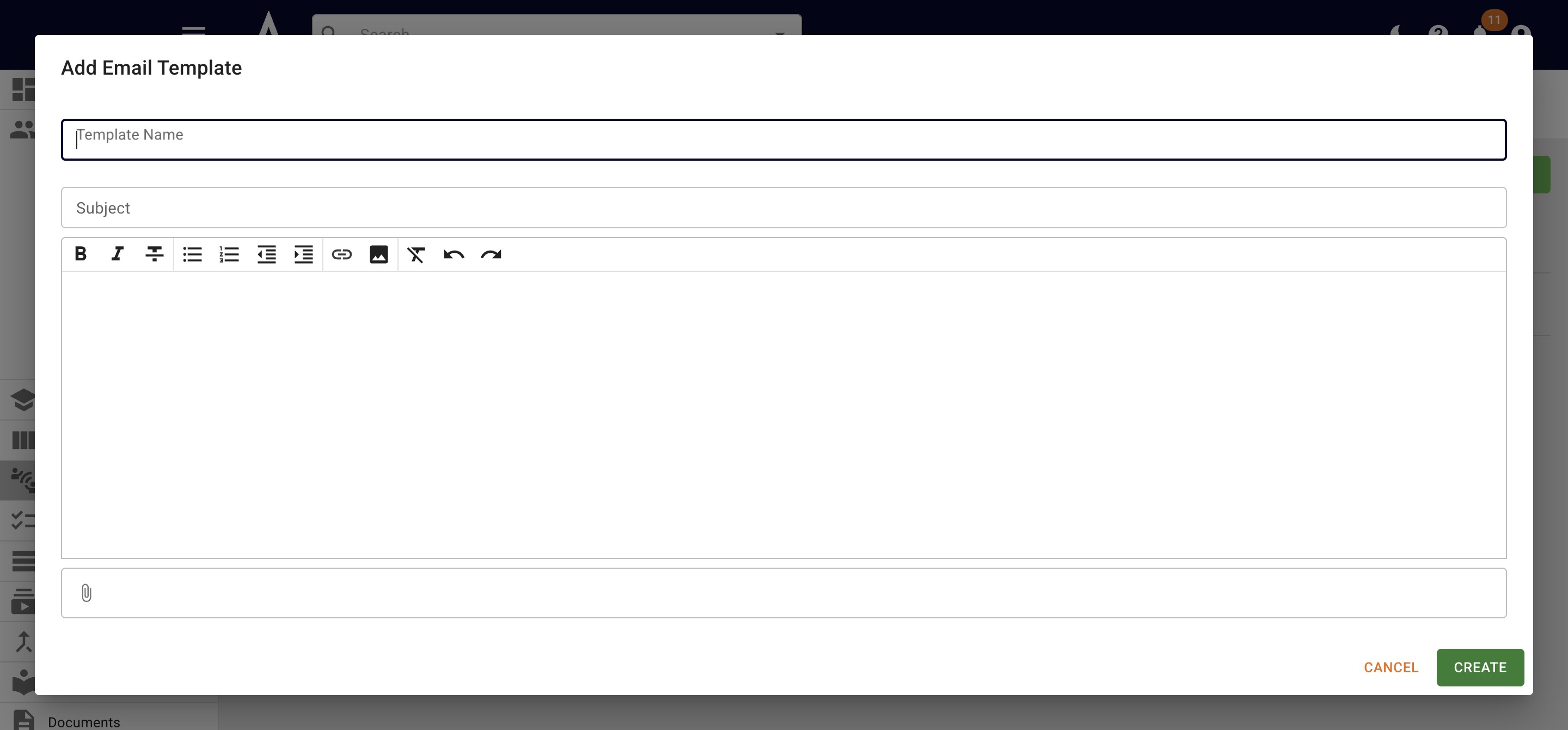
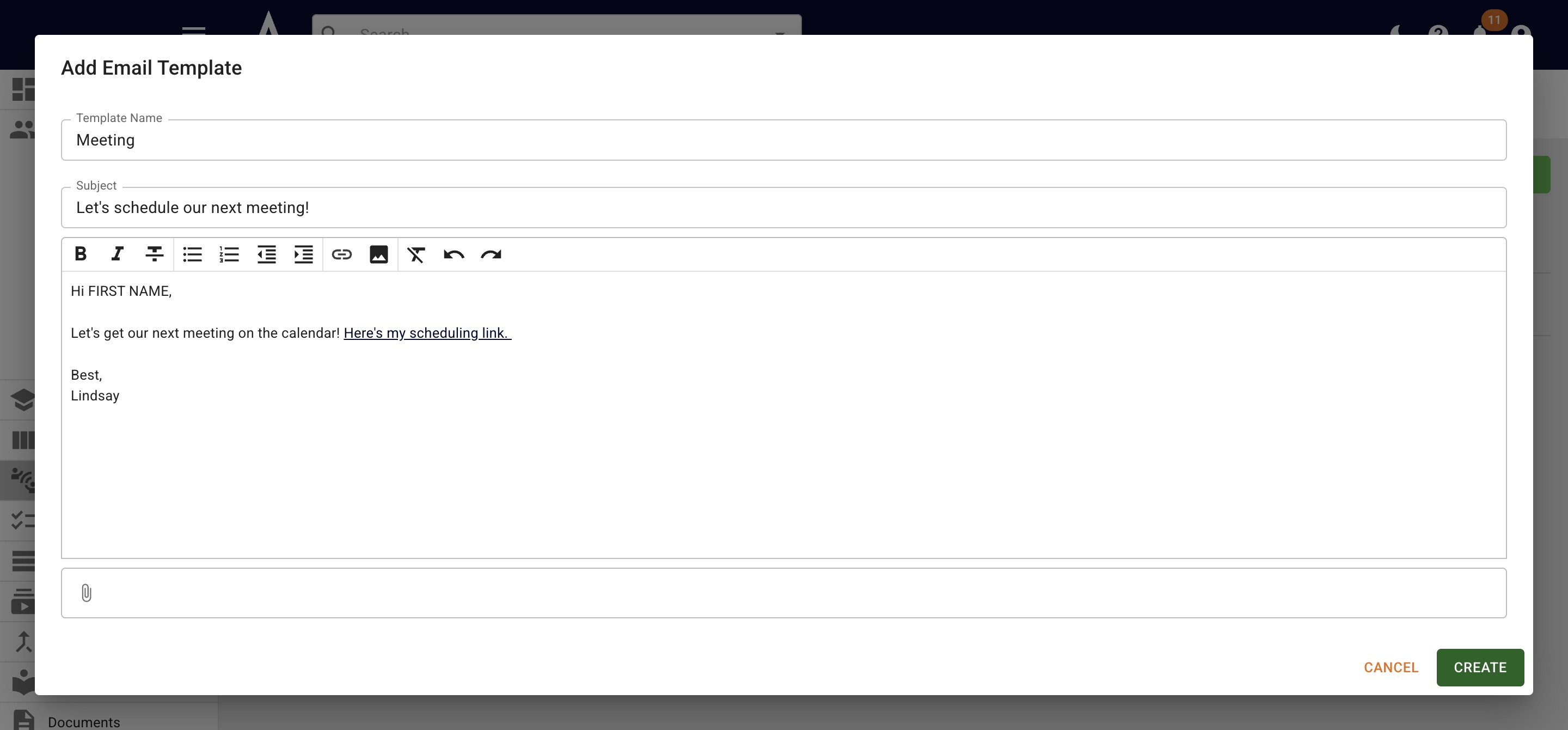
The Template Name is only for internal use - use something that will help you remember the purpose of the template!
4
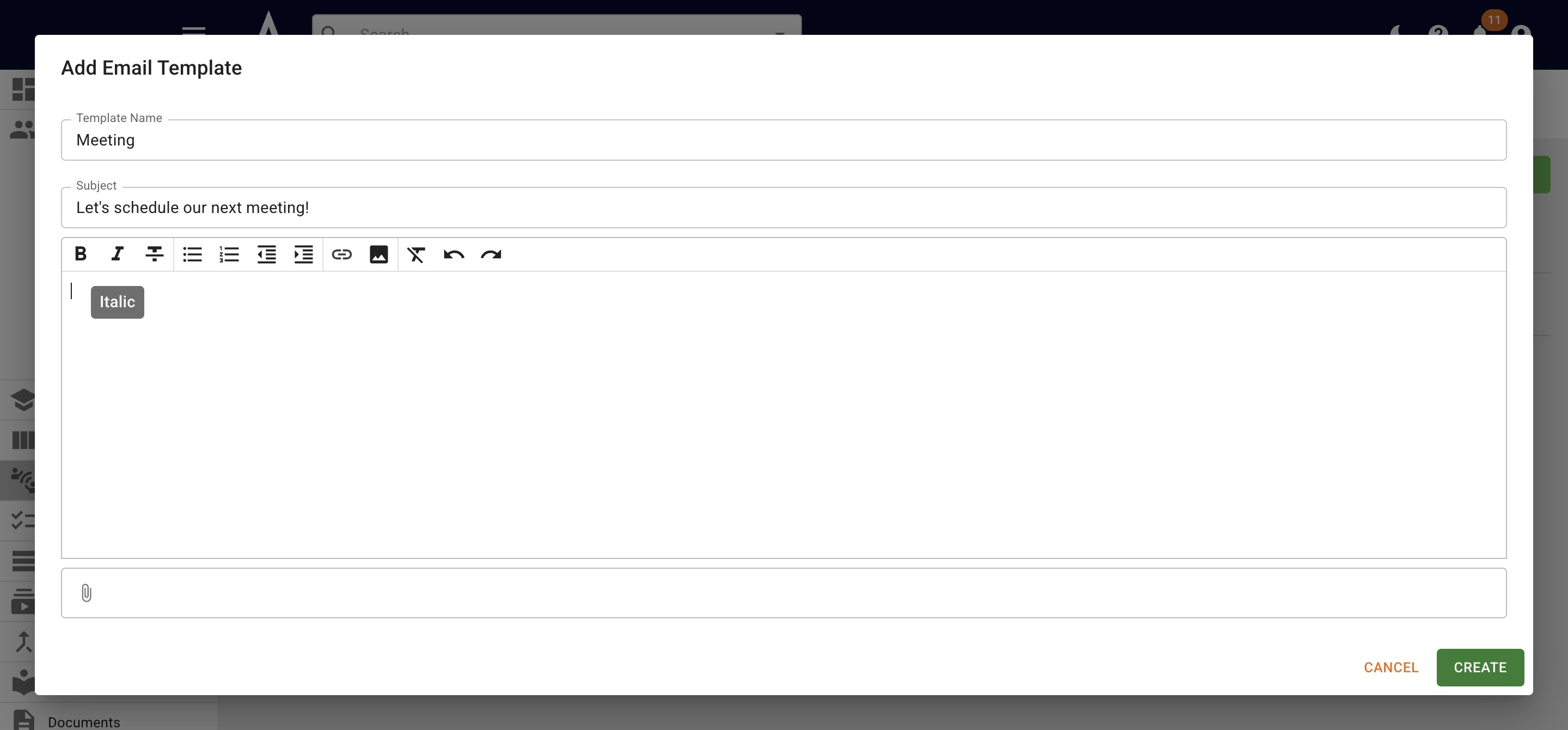
Add in your Subject, which will be the subject line the recipient(s) see.
5
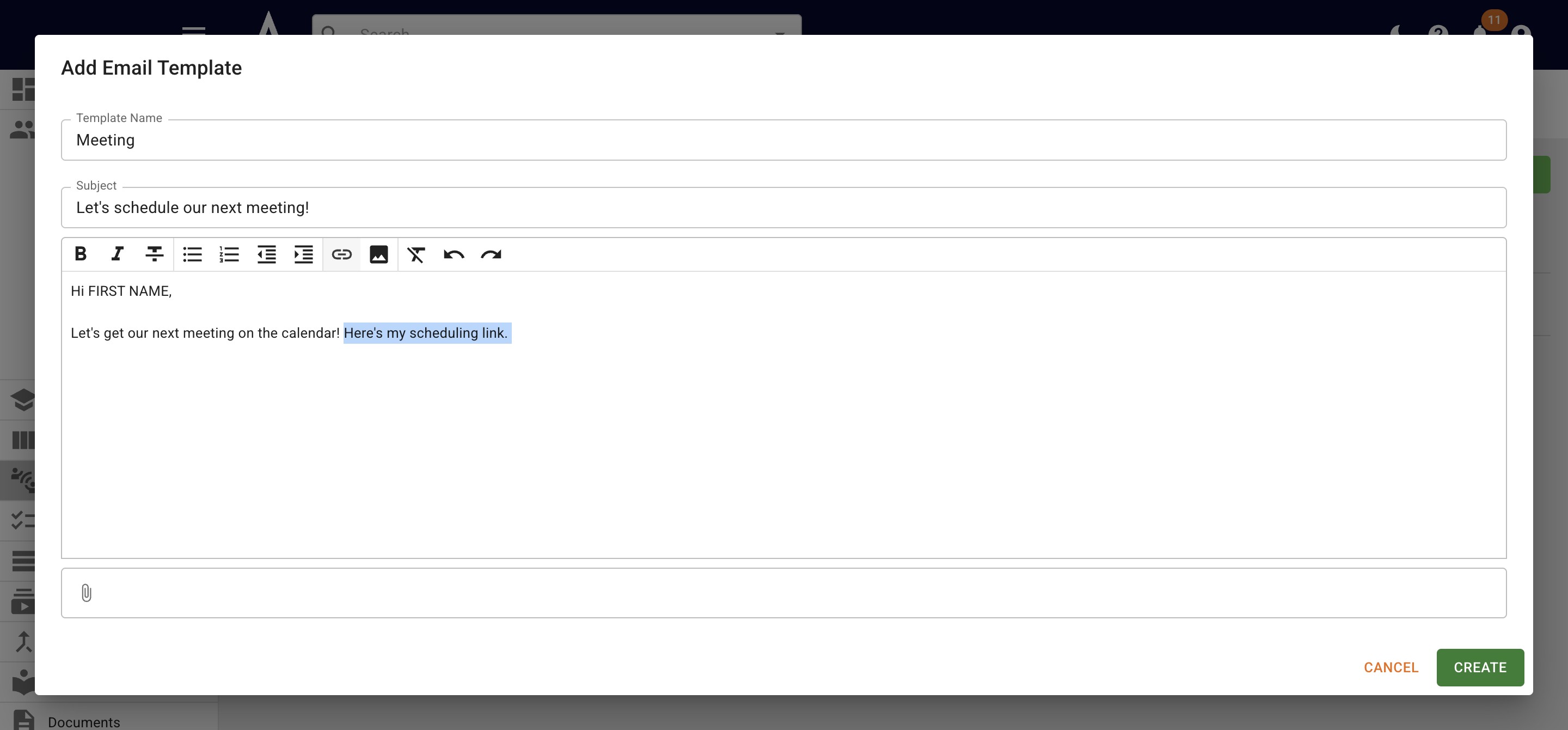
If you need to add a hyperlink to your template click on the Link icon.
6
Once complete, press Create.
7
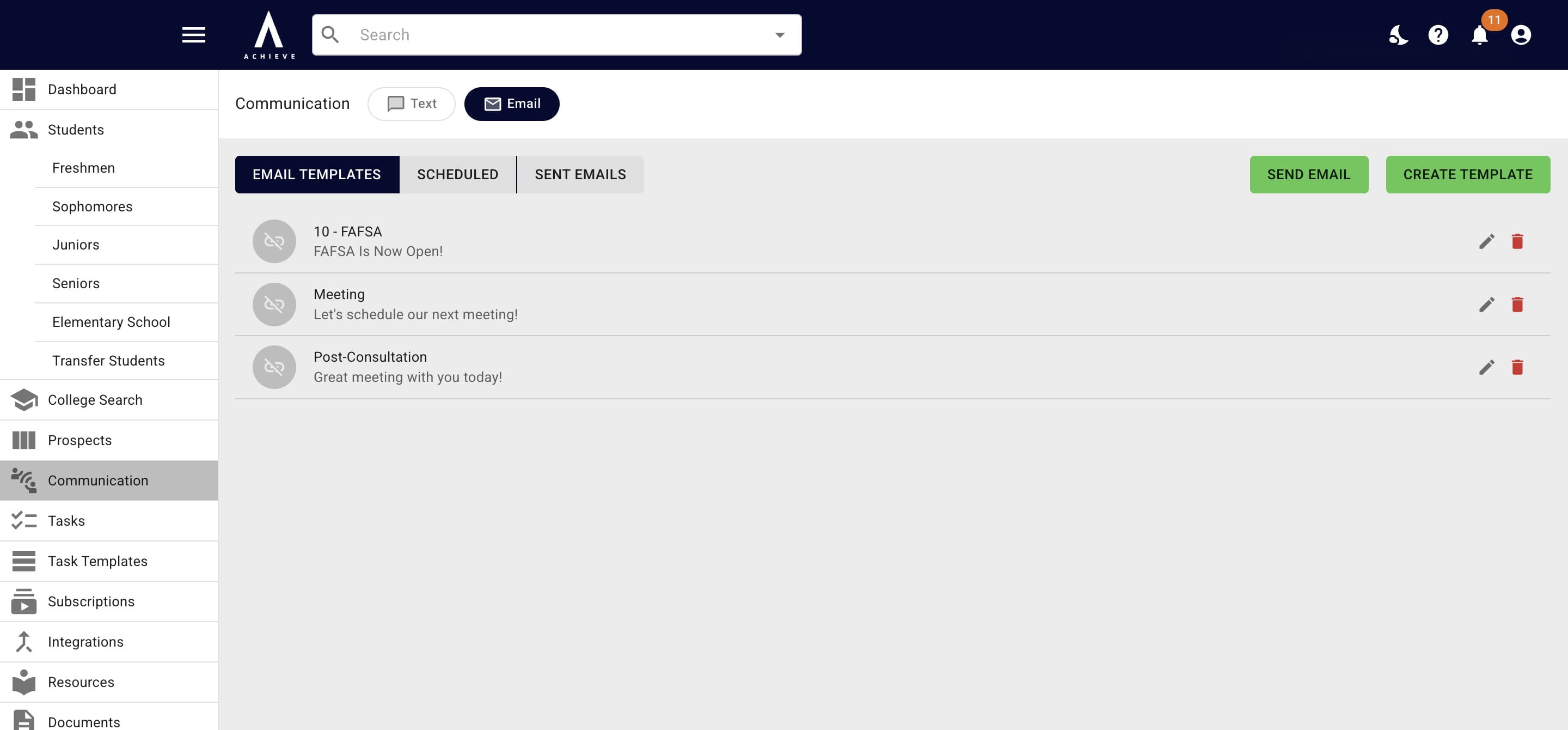
You will now see your new template listed under the Email Templates heading.
8
Click on the Trash Can icon to delete an existing template.
9
Click on the Pencil icon to edit an existing template.
10
Done 🚀