
Creating a Student Task Template
A concise guide for creating and saving a Student Task Template in Achieve.
Navigate to https://app.achieveiec.com/task-templates
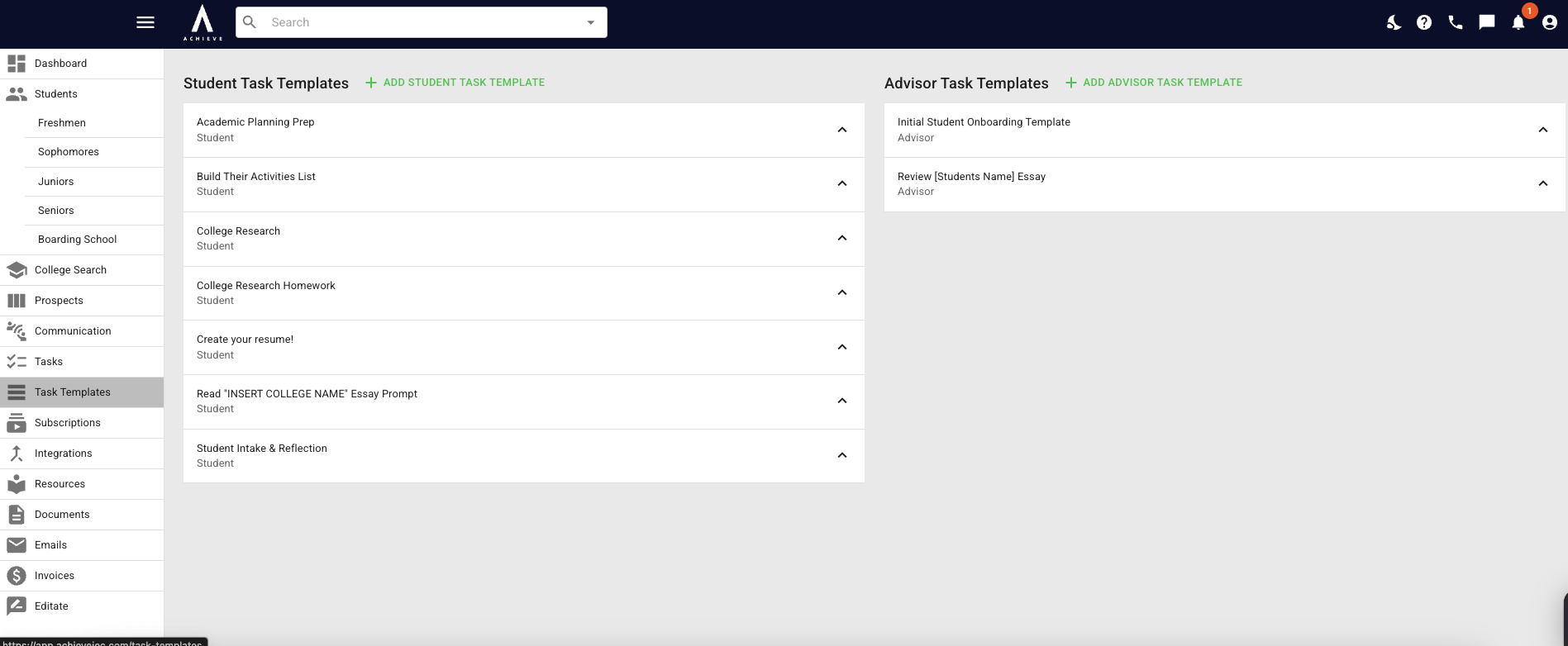
Click on Add Student Task Template.
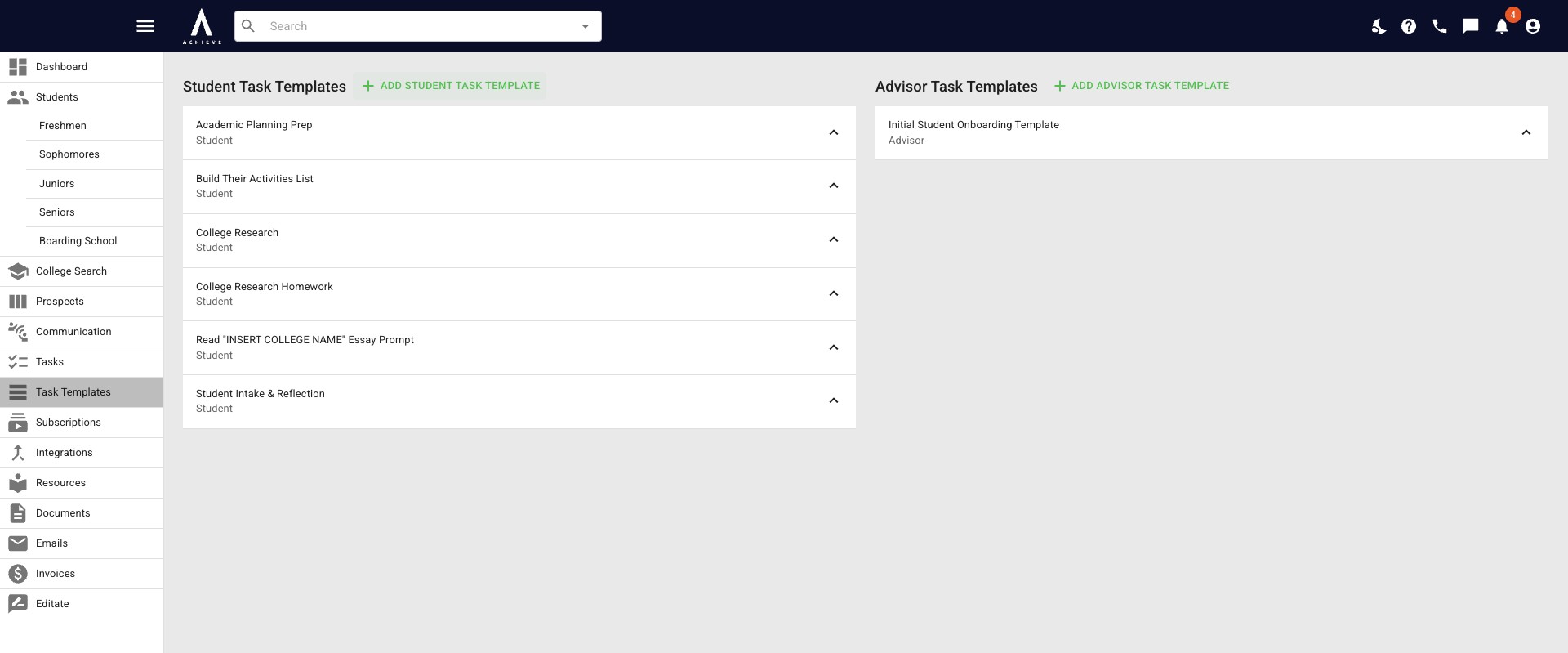
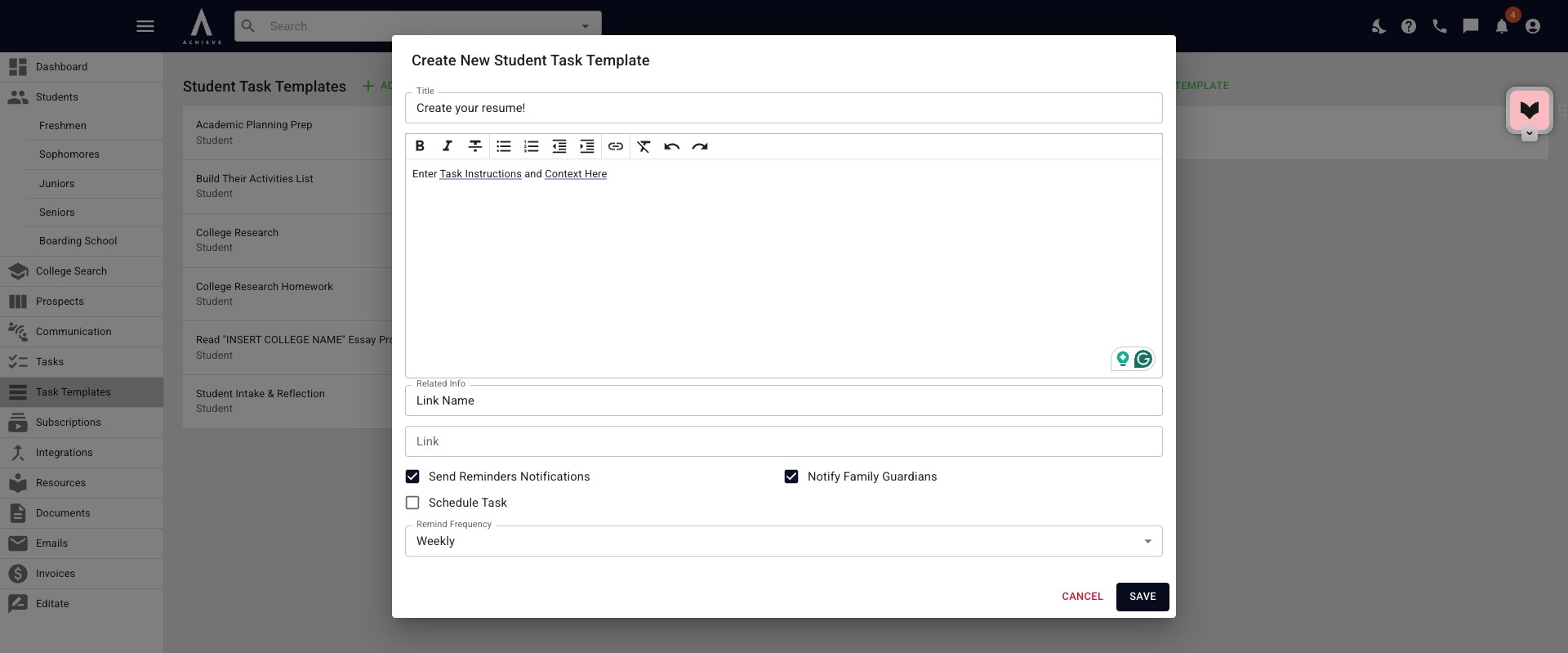
The Create New Student Task Template pop-up will appear. Click in the Title box and add the title of the task template.
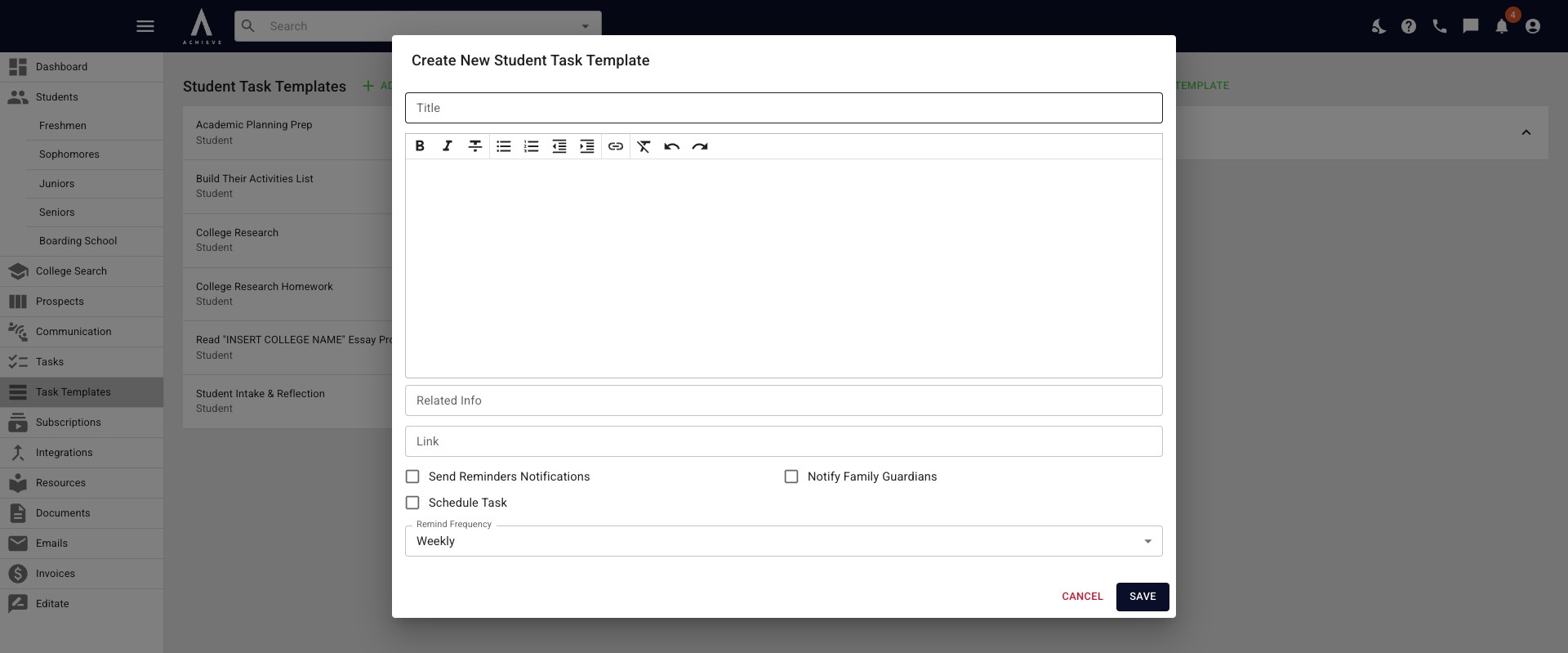
Next, click into the body of the task template and fill in any additional details.
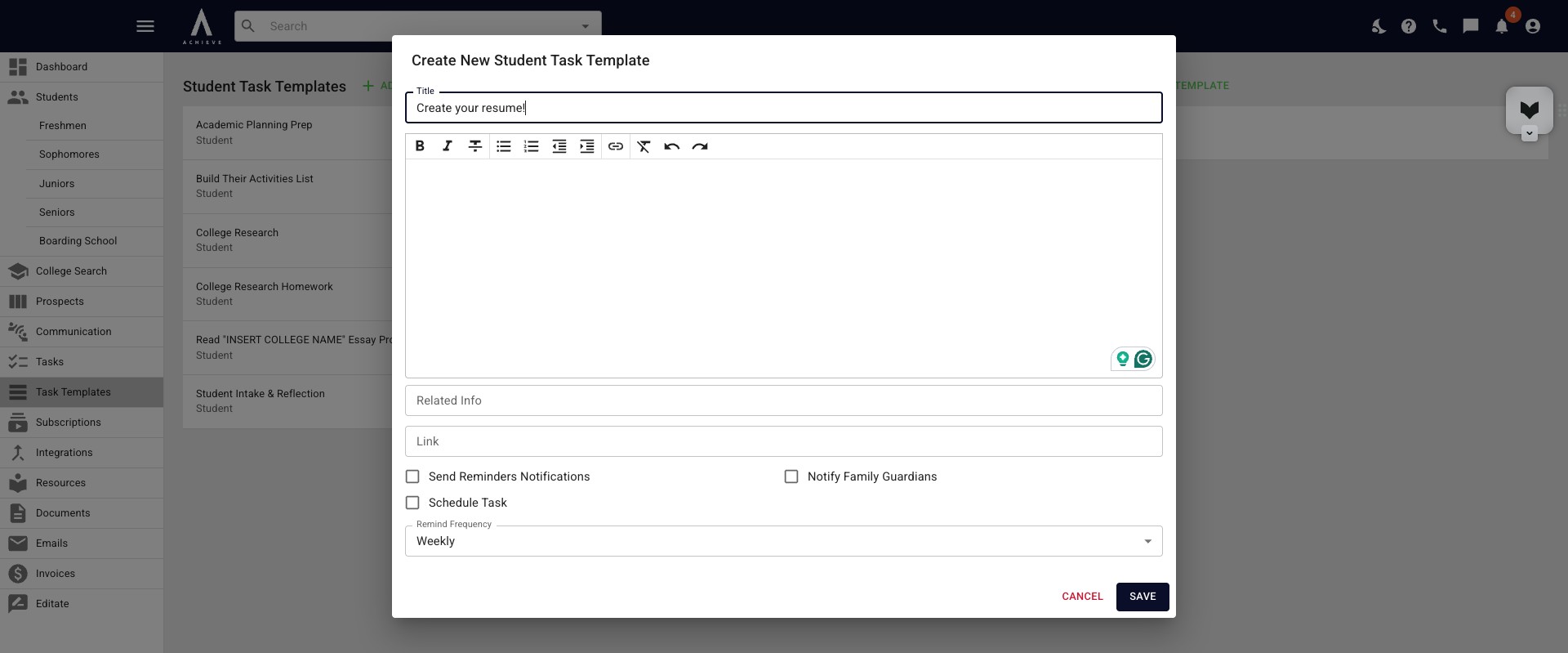
You can paste a URL into the Link field. Once the link's been added a new field will appear under it called Link Text. That's where you would add the link's title.
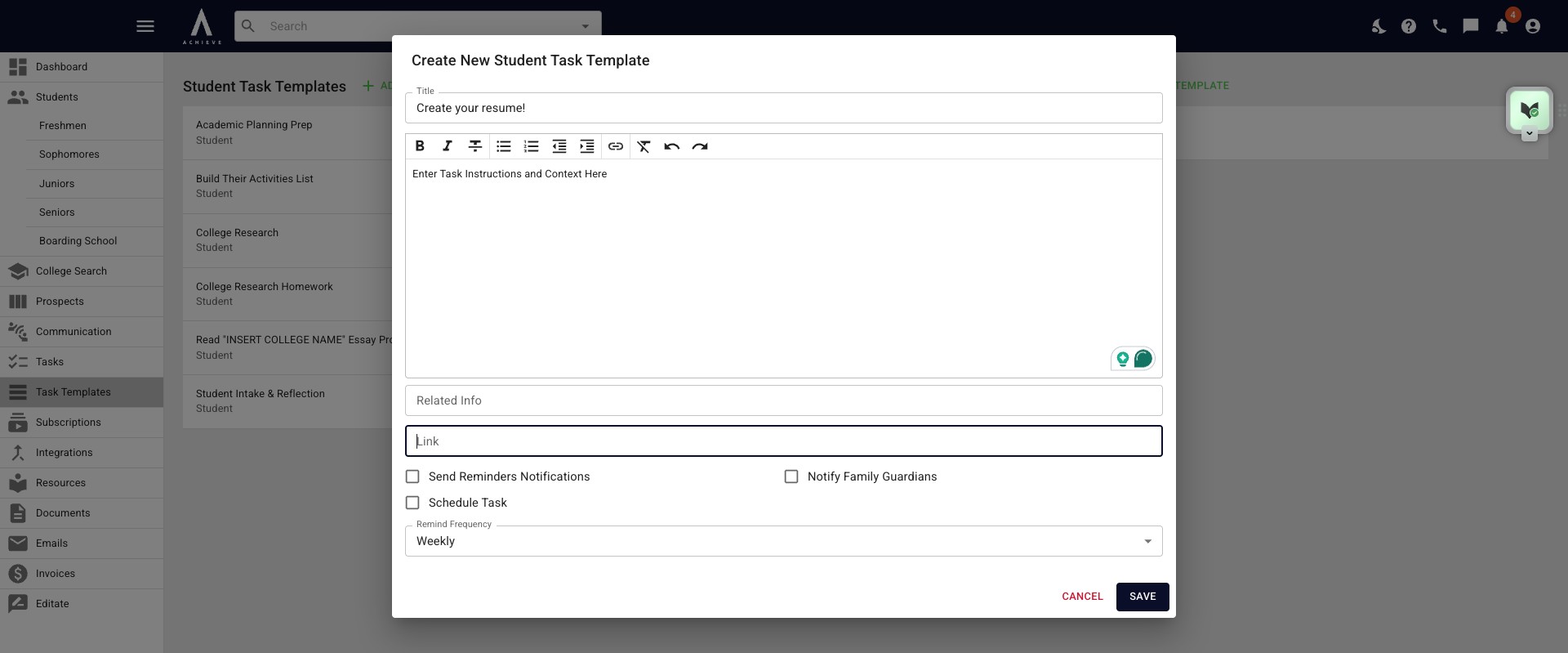
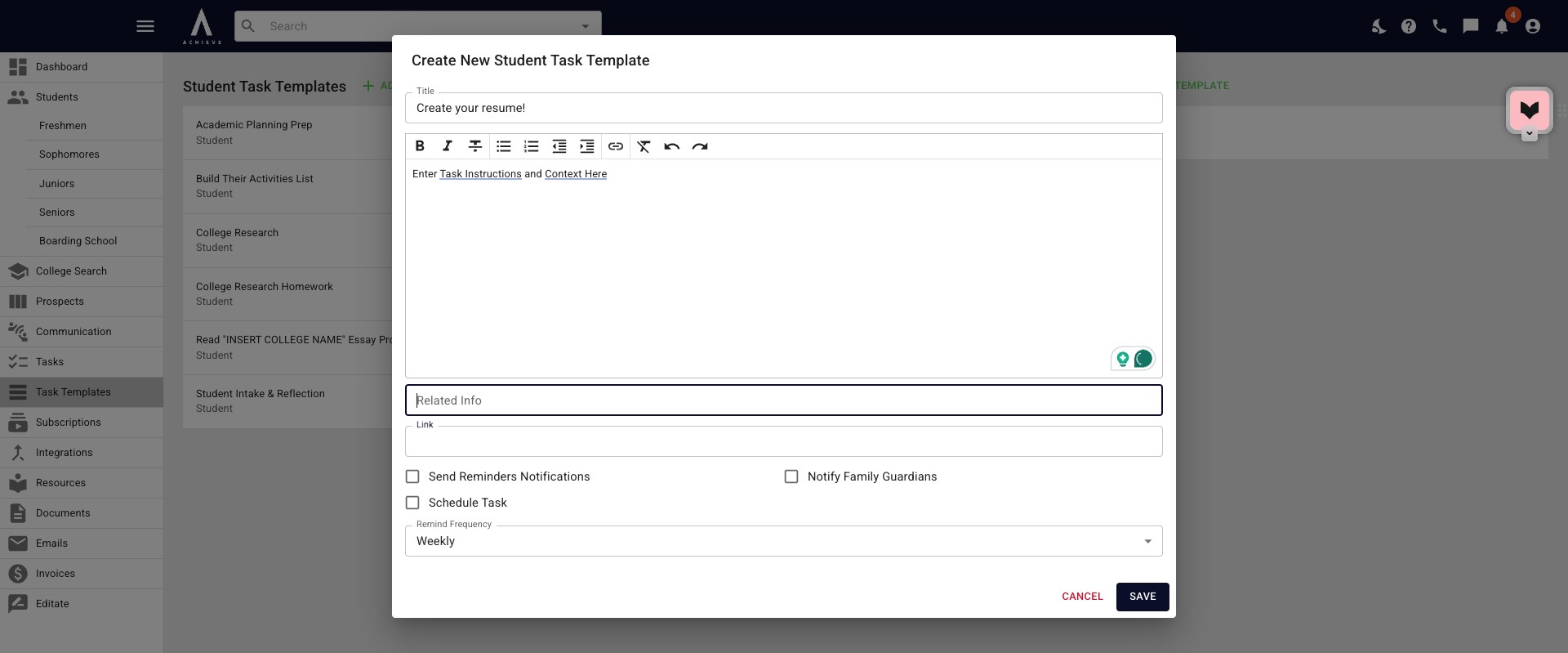
You can also add any other details or instructions in the Related Info field.
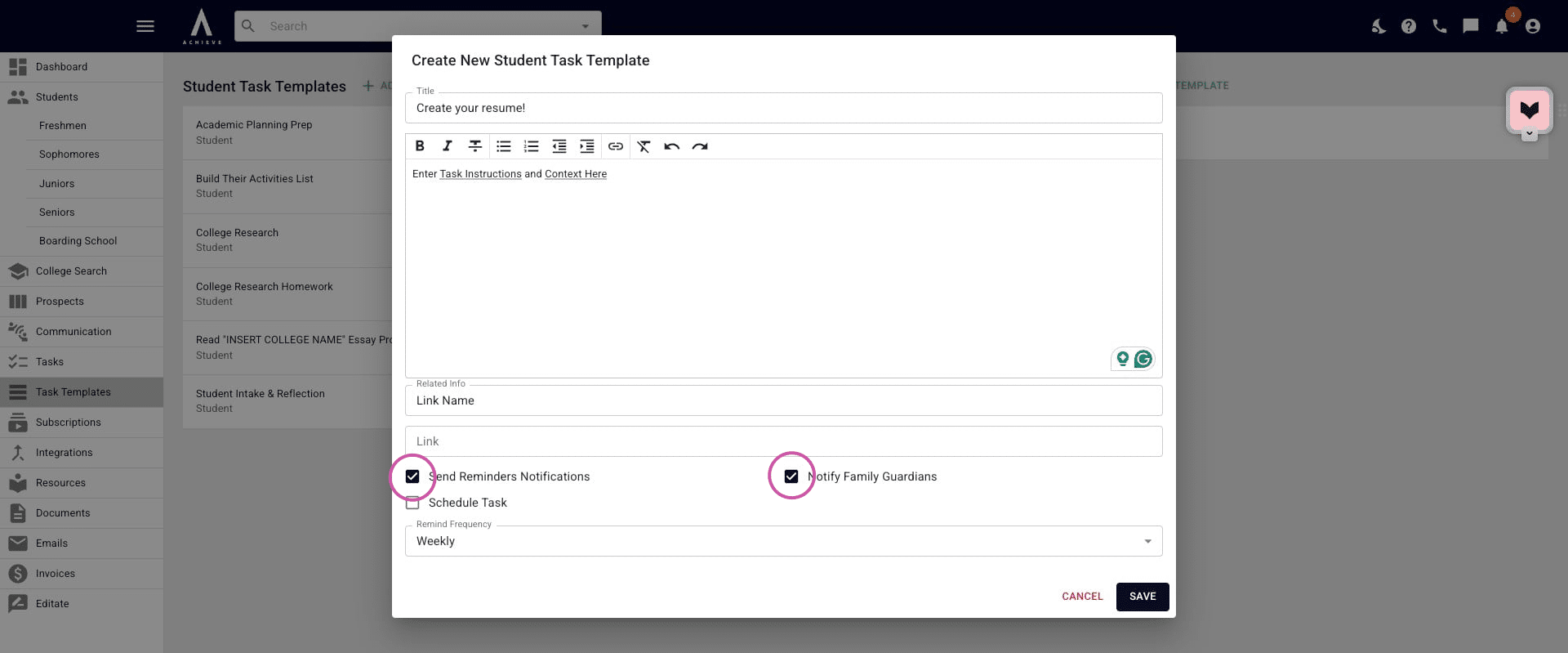
Next, you'll choose the default reminder settings for this task template. If you check the Send Reminders Notifications box, reminders will be automatically to your student. If you check the Notify Family Guardians box, reminders are also sent automatically to parent/guardians who have the Receive Task & Broadcast Emails box checked under the Family Profile.
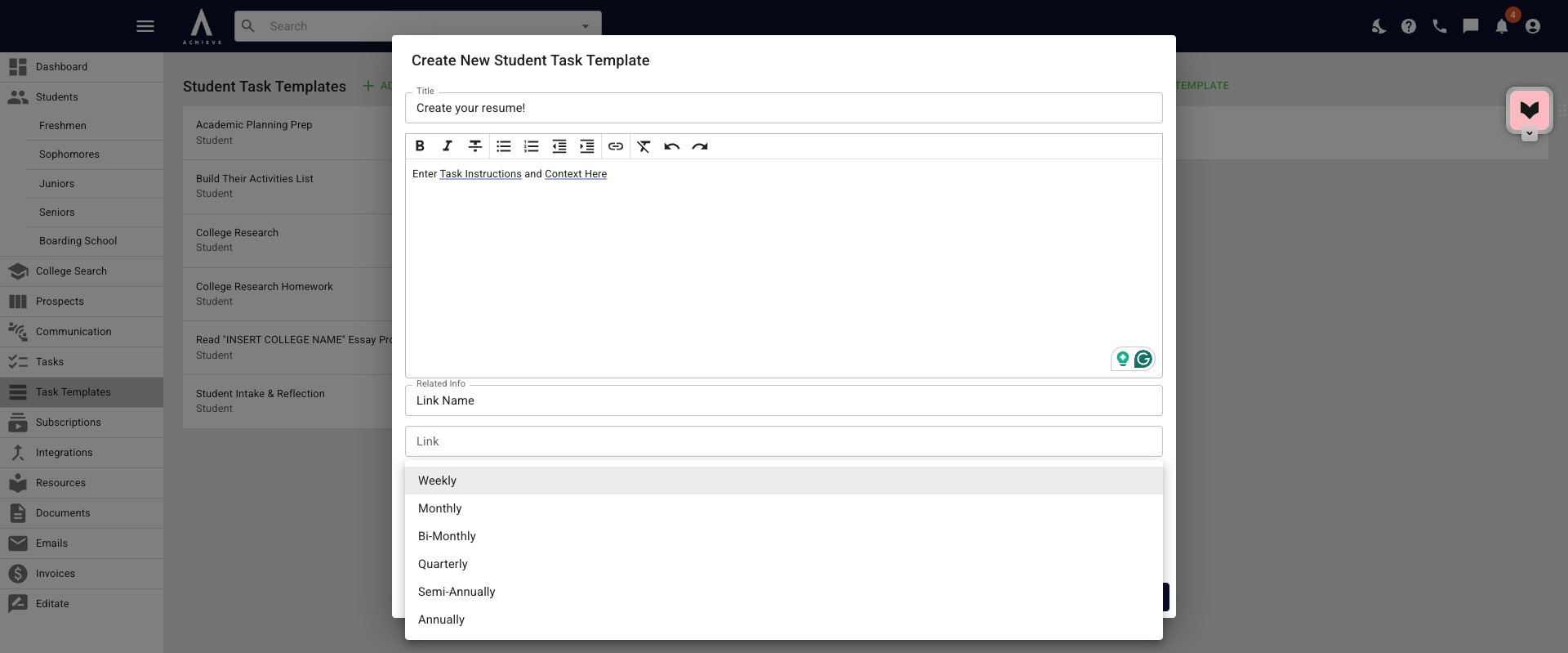
Clicking on Weekly will allow you to change the Remind Frequency as needed.
When you have added all the information you need, click Save.
Any task template added here can then be found under the advisor task bank under a student's profile. Check out our Adding a Task to a Student's Profile tutorial for next steps.
 tutorial for next steps.](https://assets.guidejar.com/uploads/d89893f0-2762-4d94-ab88-3bff1634c69d/YUz4bmbSoodPxUaEVwf4IJQD9uo1/1d7d86ba-f89d-4bcc-815d-c457a1332a64/1776875332244.jpeg)
Done 🚀