Creating an Advisor Task Template
This guide explains how to create a new advisor task template in Achieve.
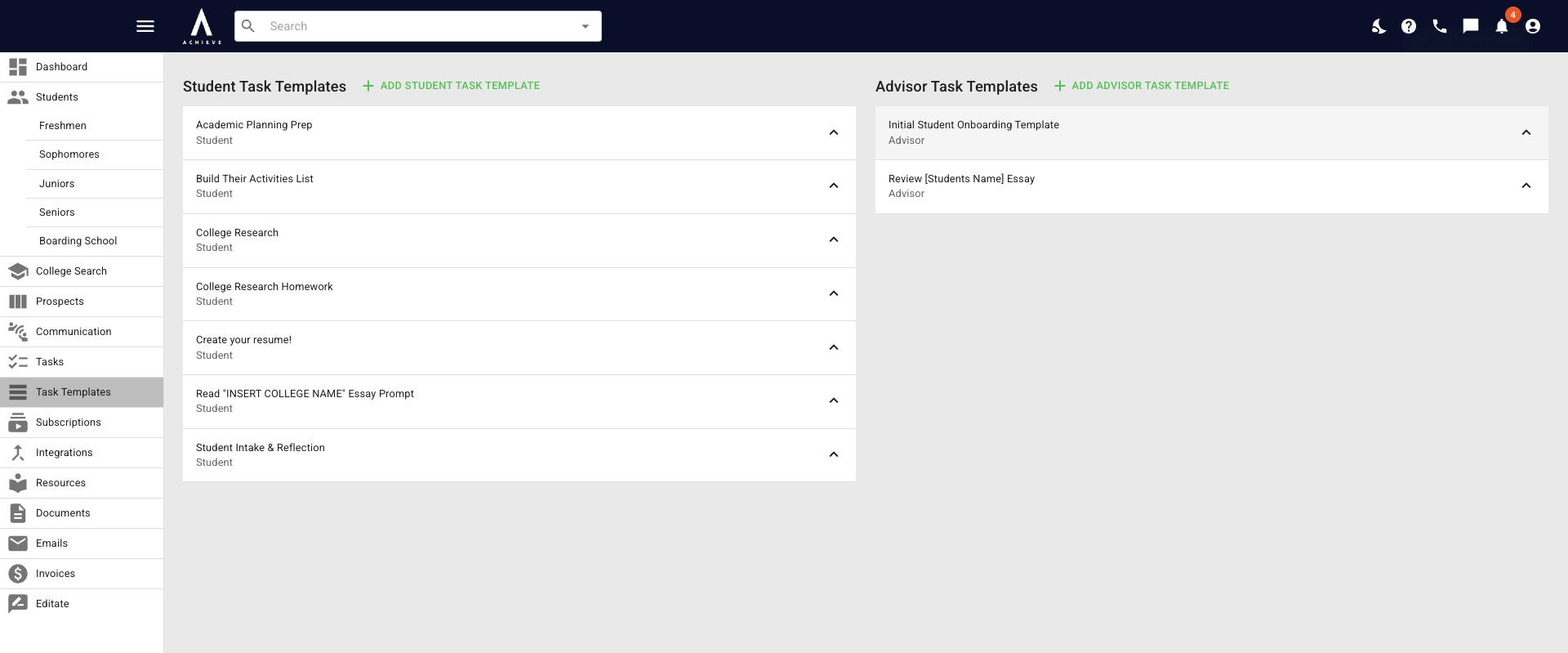
Navigate to https://app.achieveiec.com/task-templates
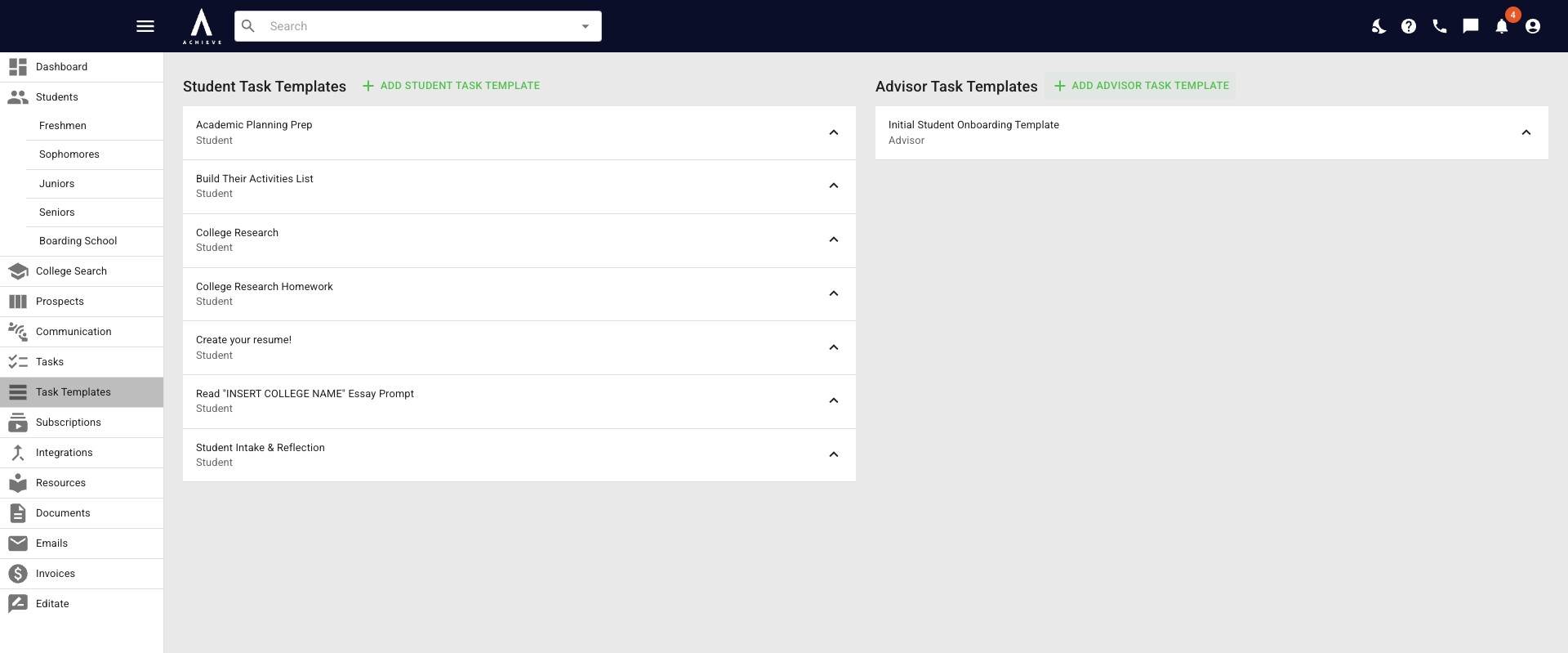
Click on Add Advisor Task Template.
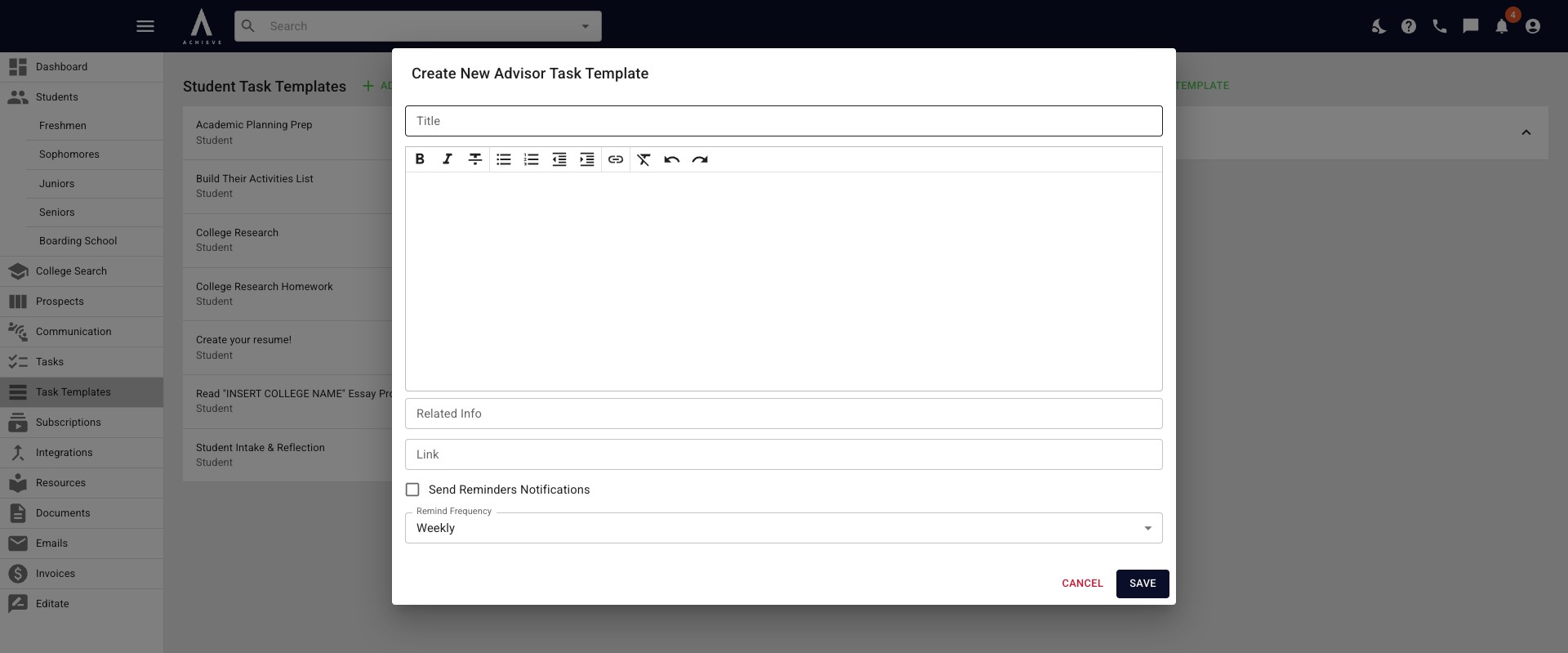
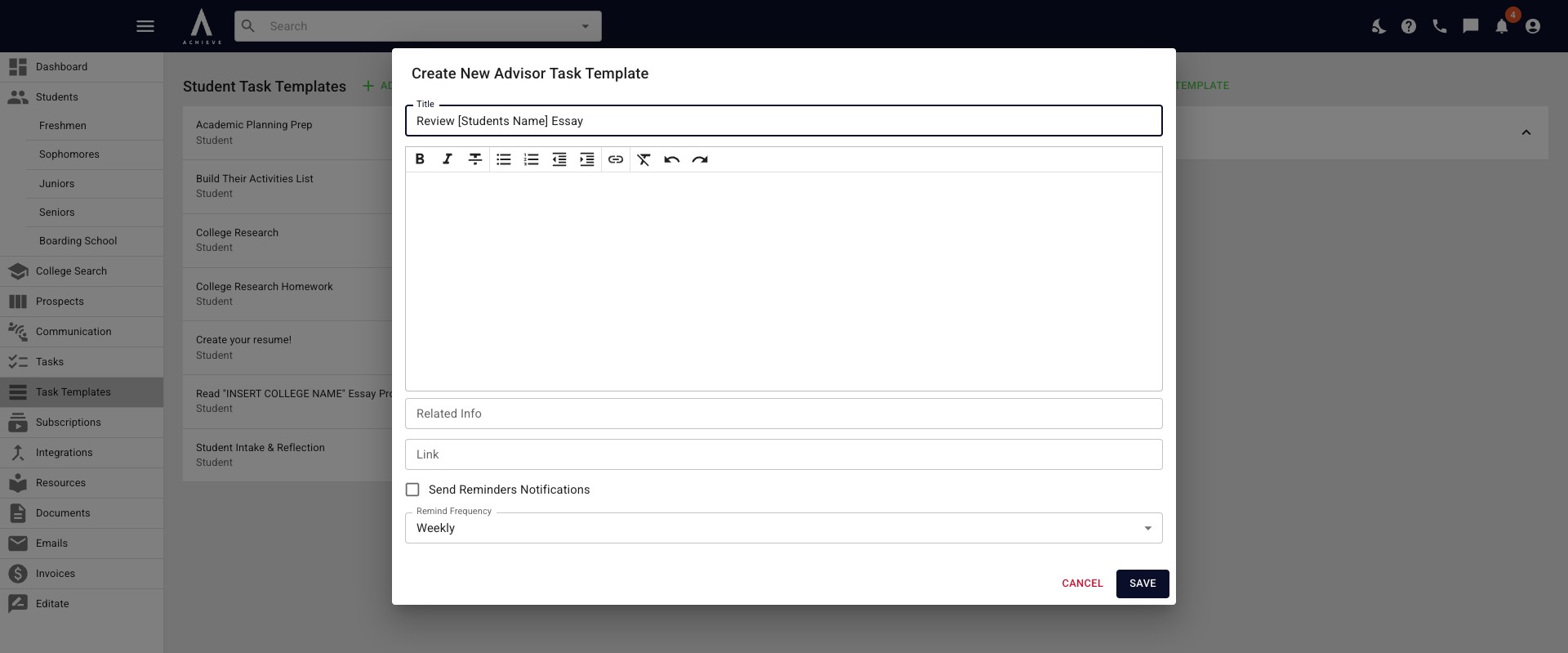
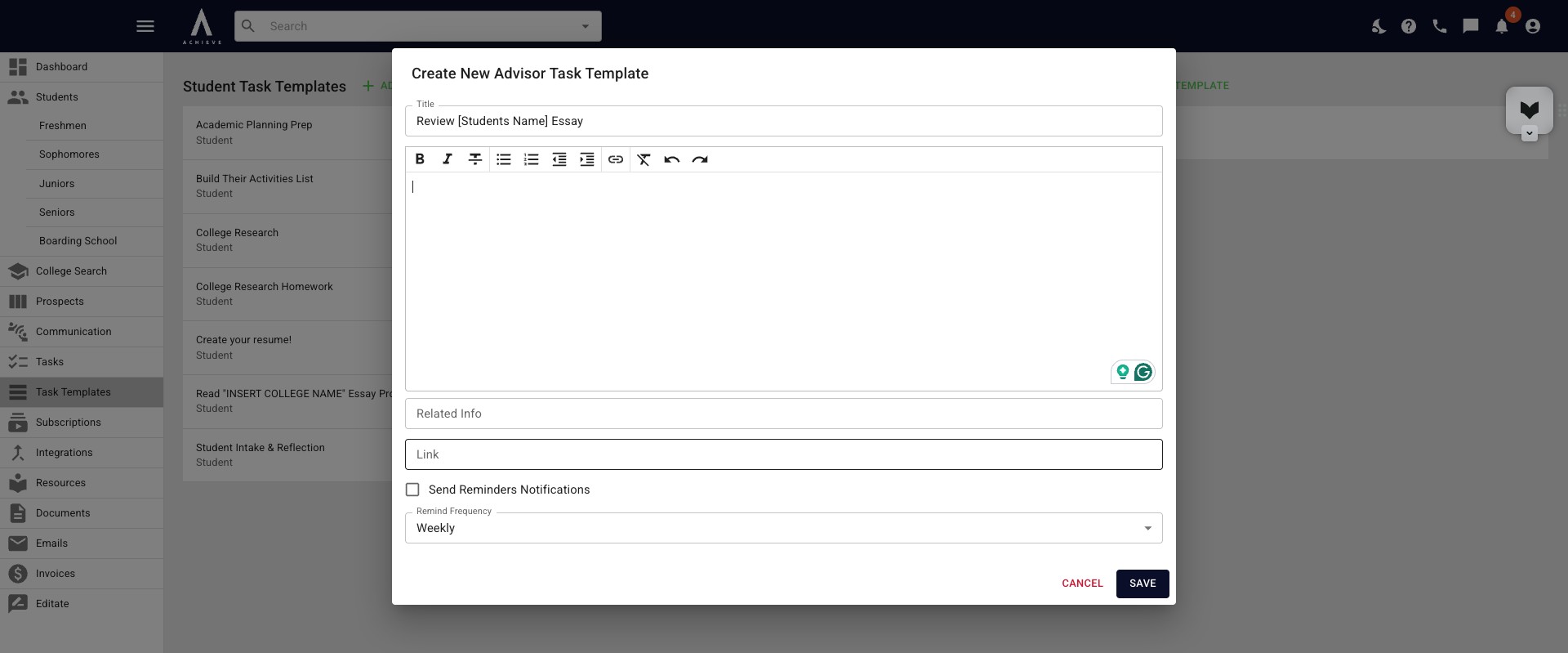
The Create New Advisor Task Template pop-up will appear. Click in the Title box and add the title of the task template.
Next, click into the body of the task template and fill in any additional details.
You can paste a URL into the Link field. Once the link's been added a new field will appear under it called Link Text. That's where you would add the link's title.
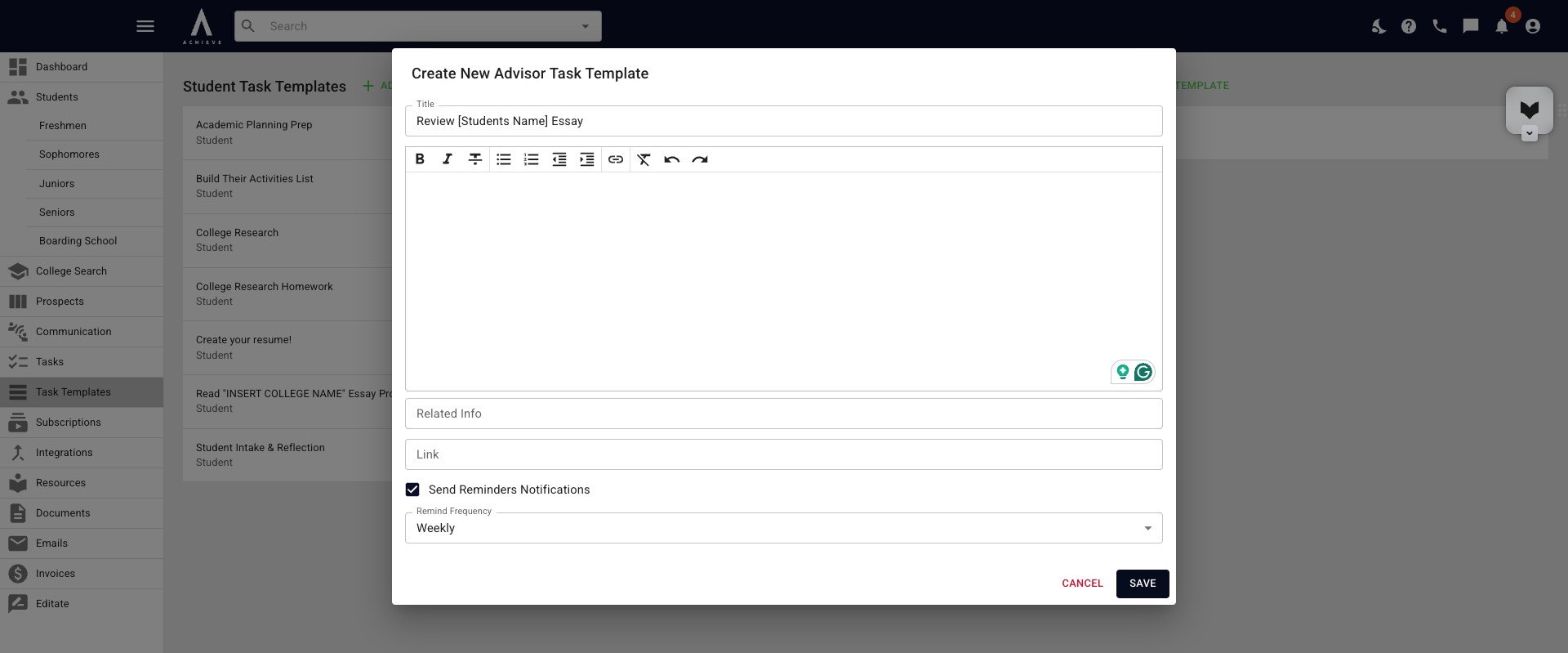
Click on Send Reminders Notifications if you would like to receive reminders until the task is marked as complete. You can then choose the Reminder Frequency in the below field.
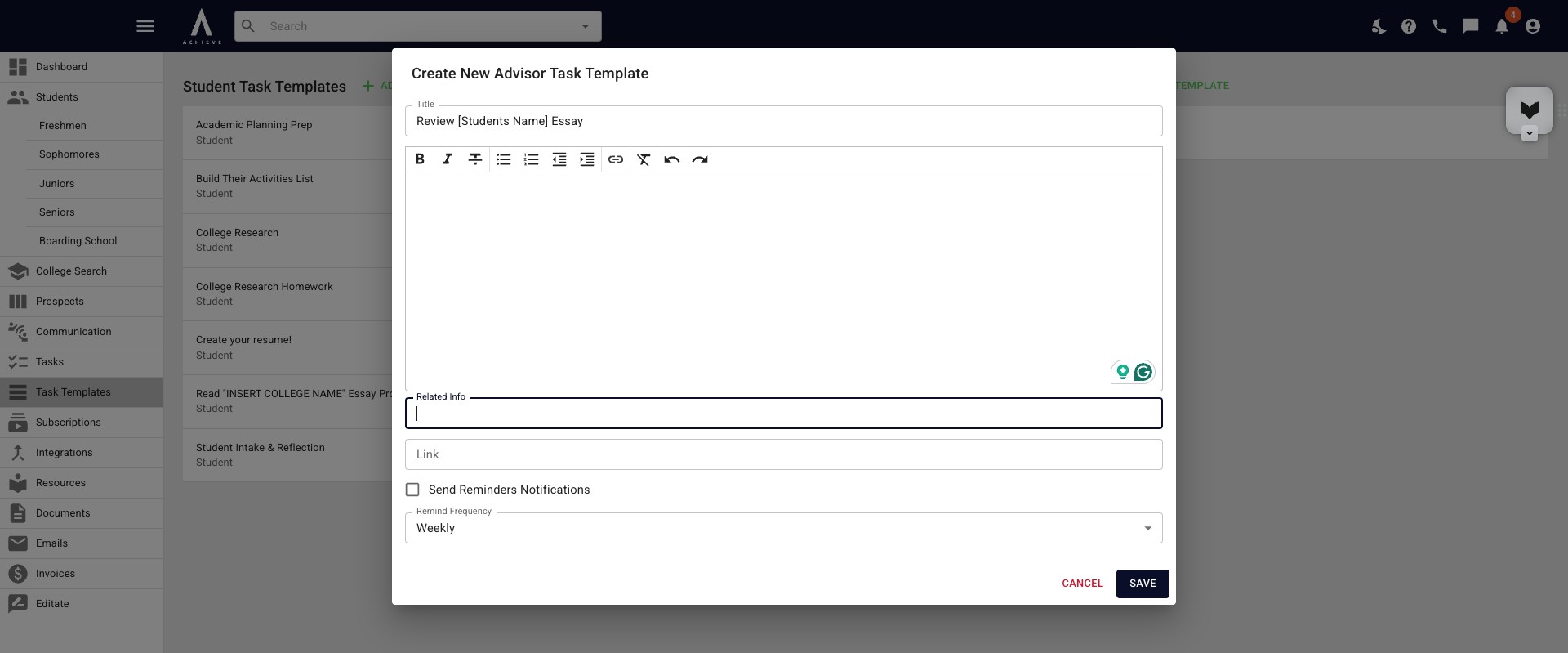
Once you have entered all the relevant information click Save. Any task template added here can then be found under the advisor task bank under a student's profile.
Done 🚀