
Creating Email Templates with Placeholders
A concise guide to creating and using email templates with dynamic placeholders in the Achieve platform.
Jun 02, 2026●
1
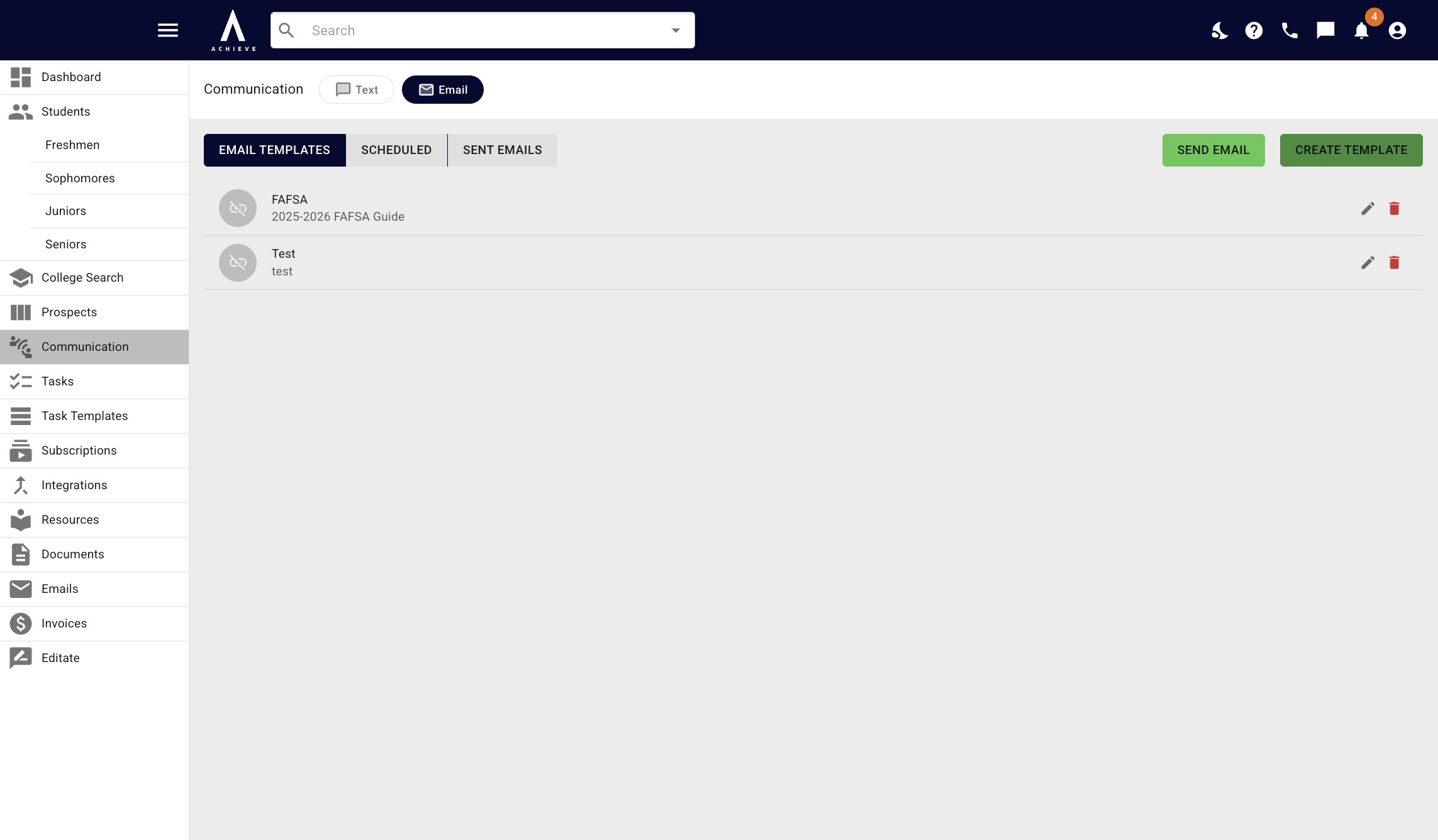
Navigate to https://app.achieveiec.com/communication/email
2
Click on Create Template
3
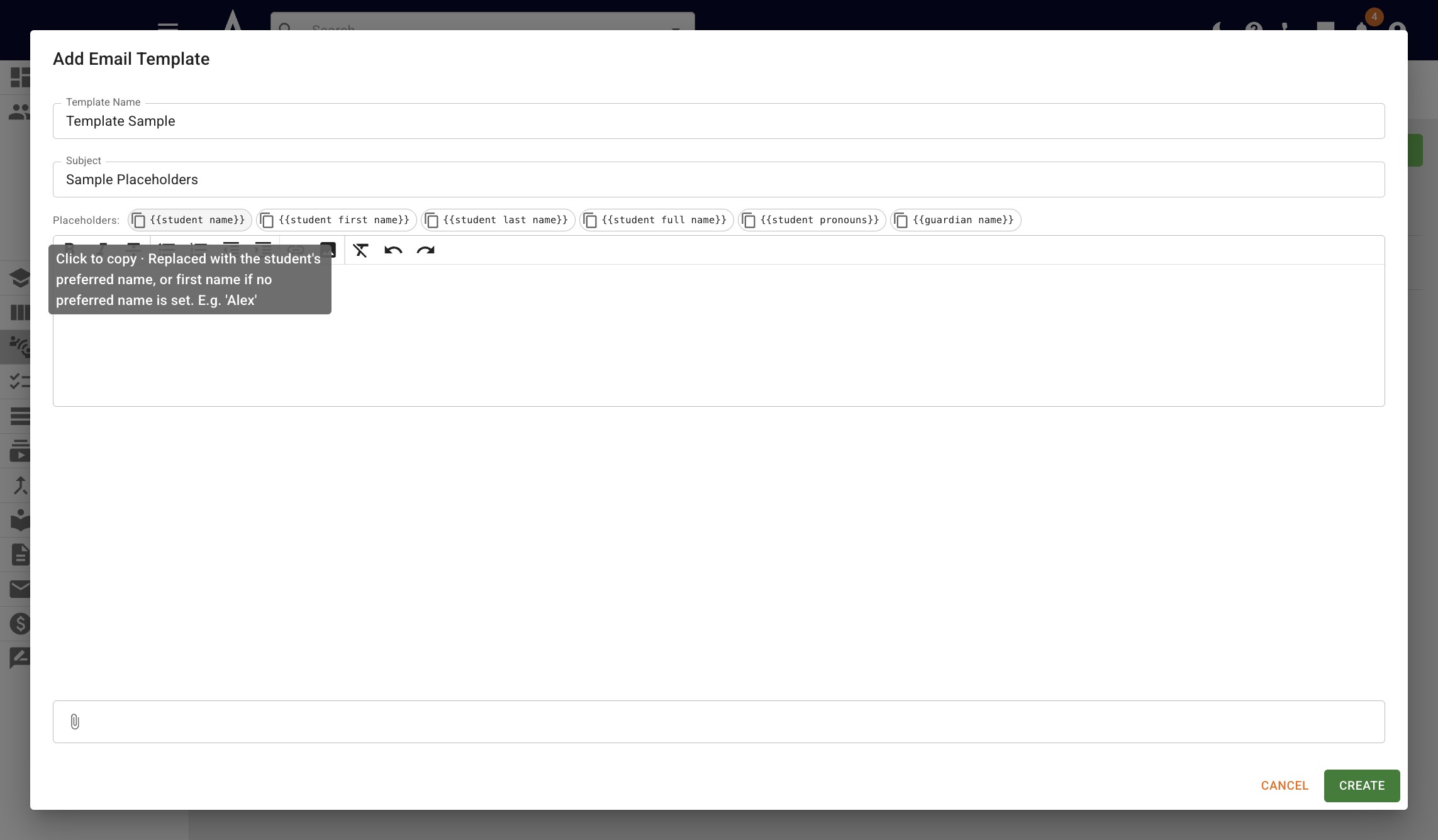
Click on the placeholder field you're looking to add to the template
4
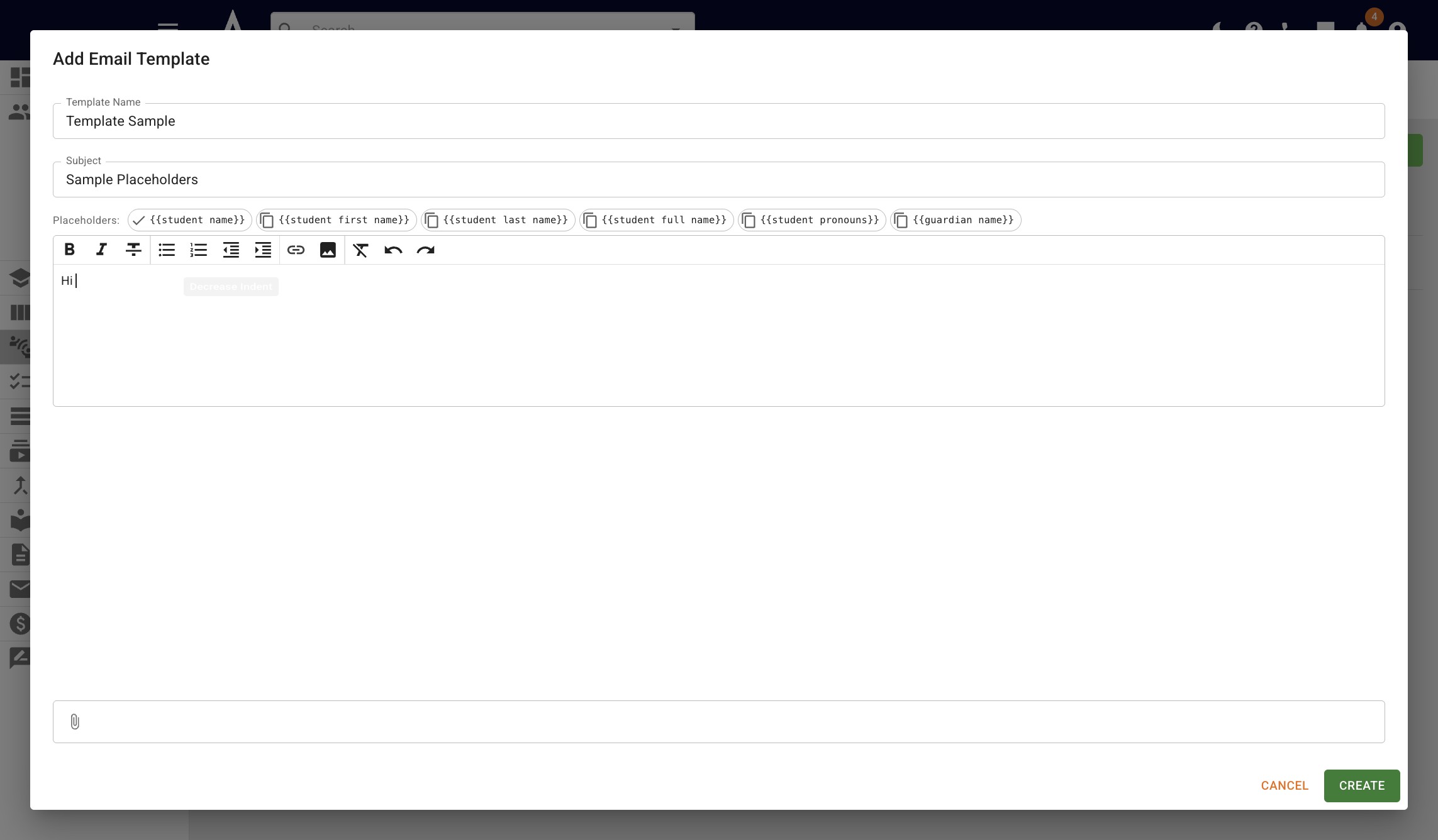
Paste it into the body of the email template
5
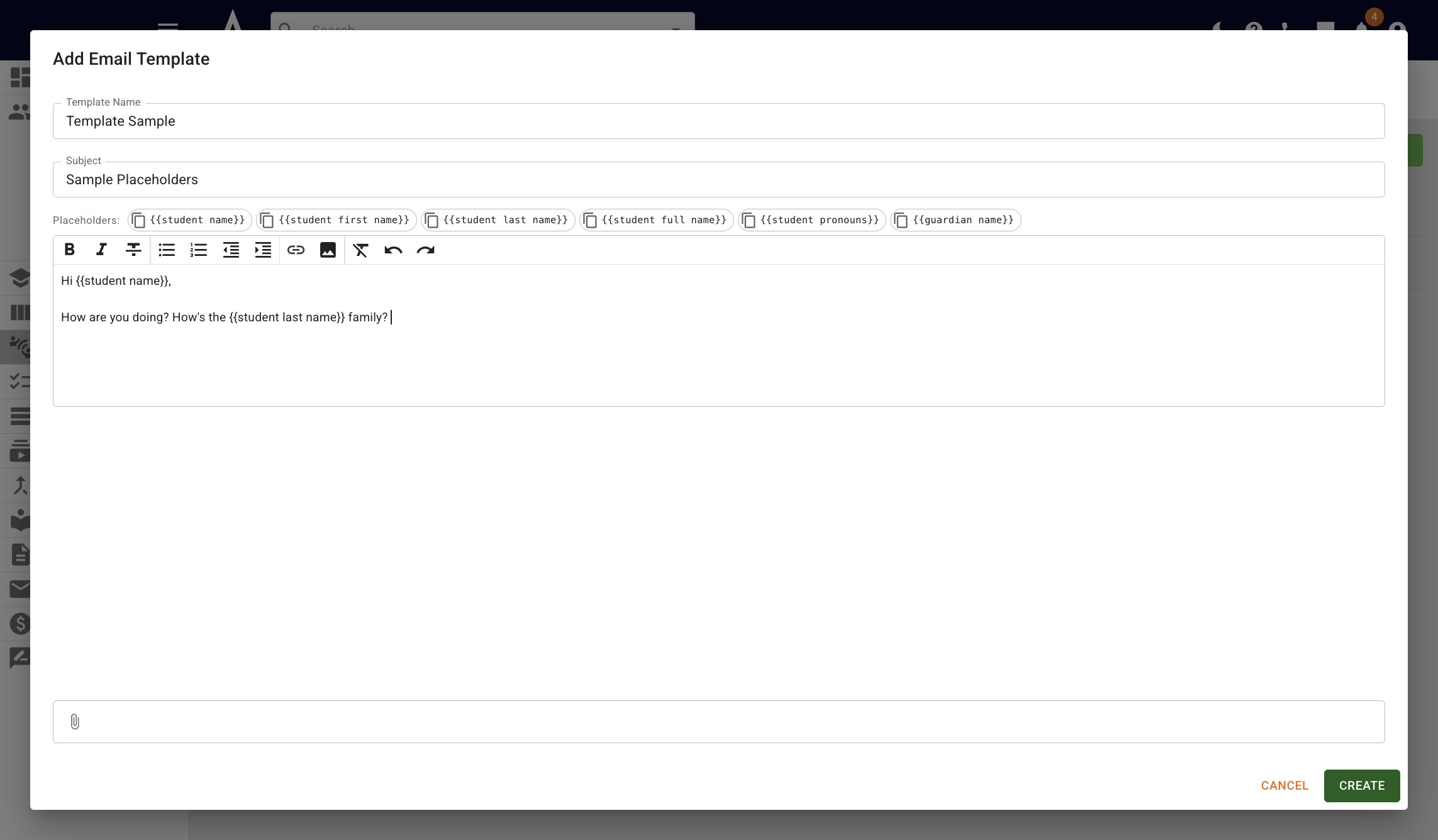
When you've created your template, press Create
6
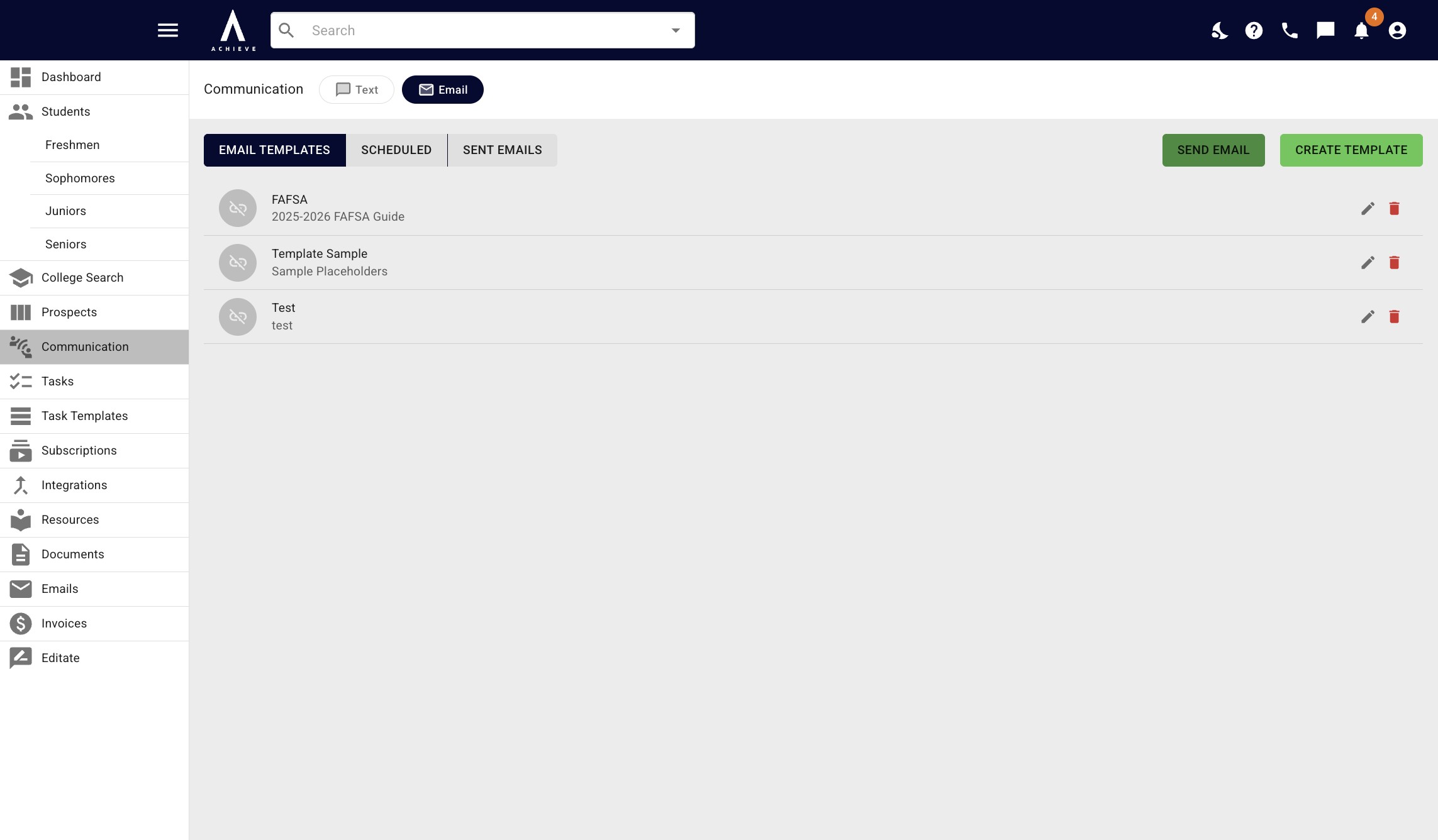
To use the template, press Send Email
7
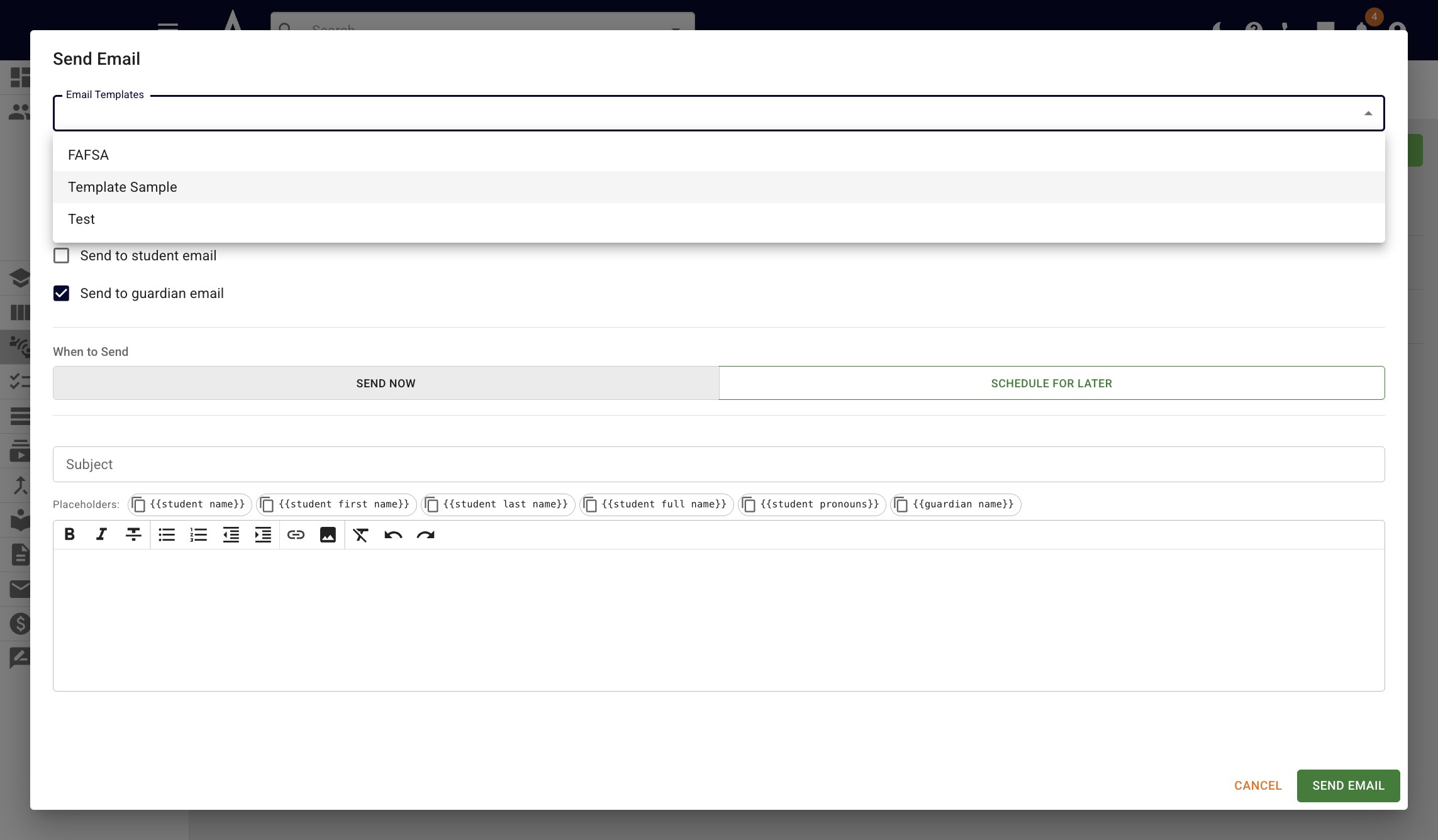
Click on the Email Template field and choose the appropriate template from the drop down
8
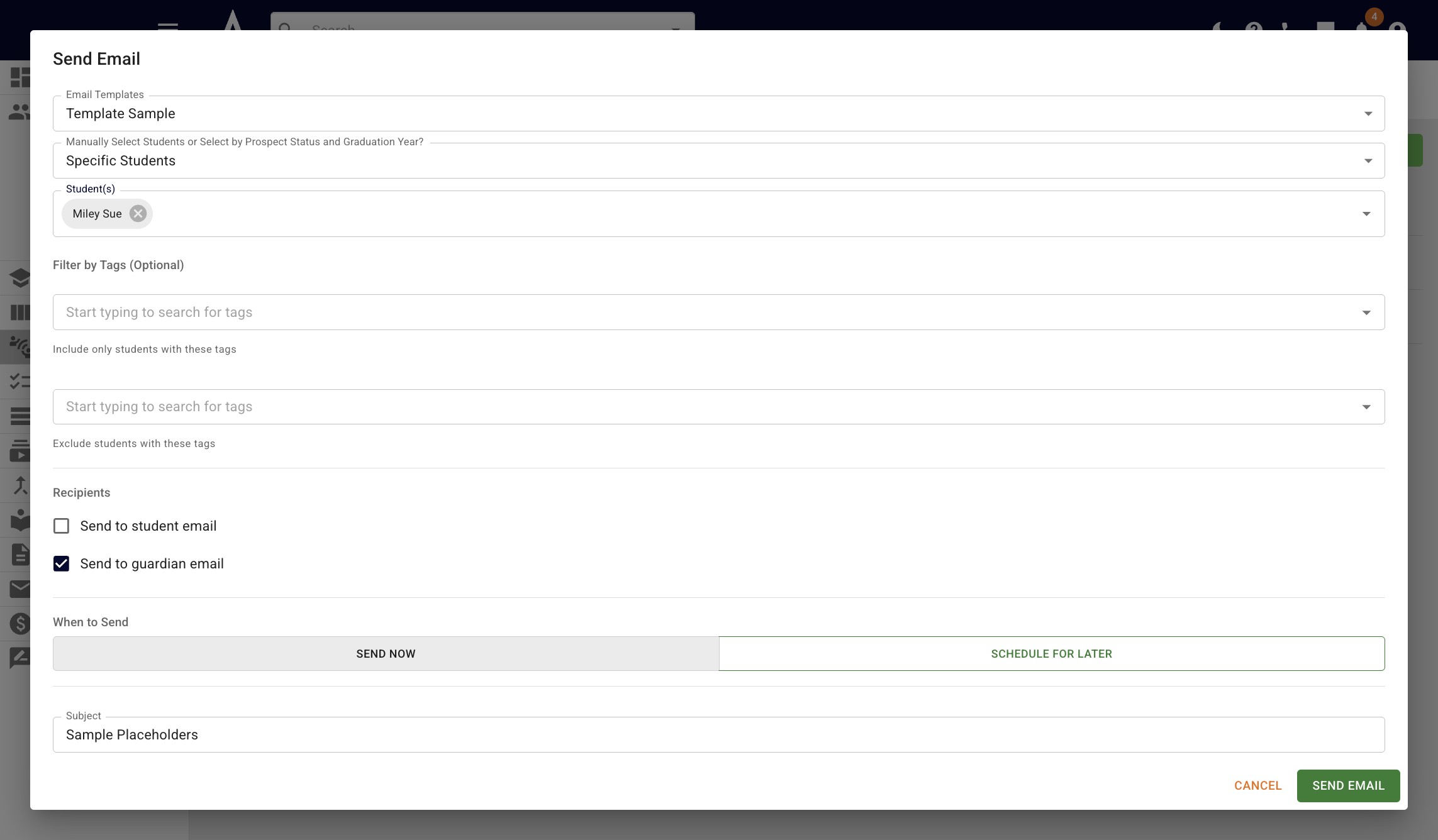
Choose the applicable recipient(s)
9
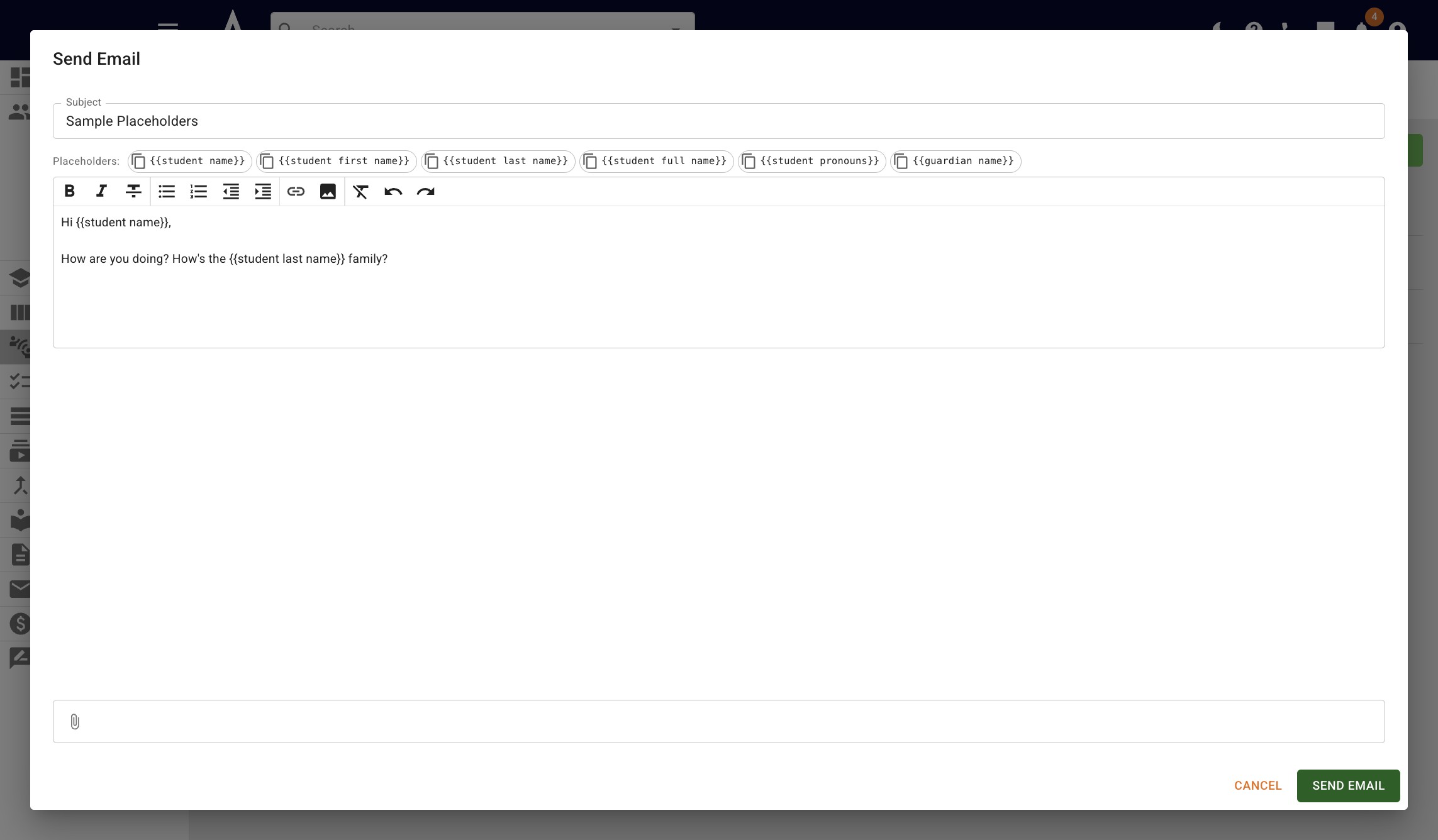
Click on Send Email
10
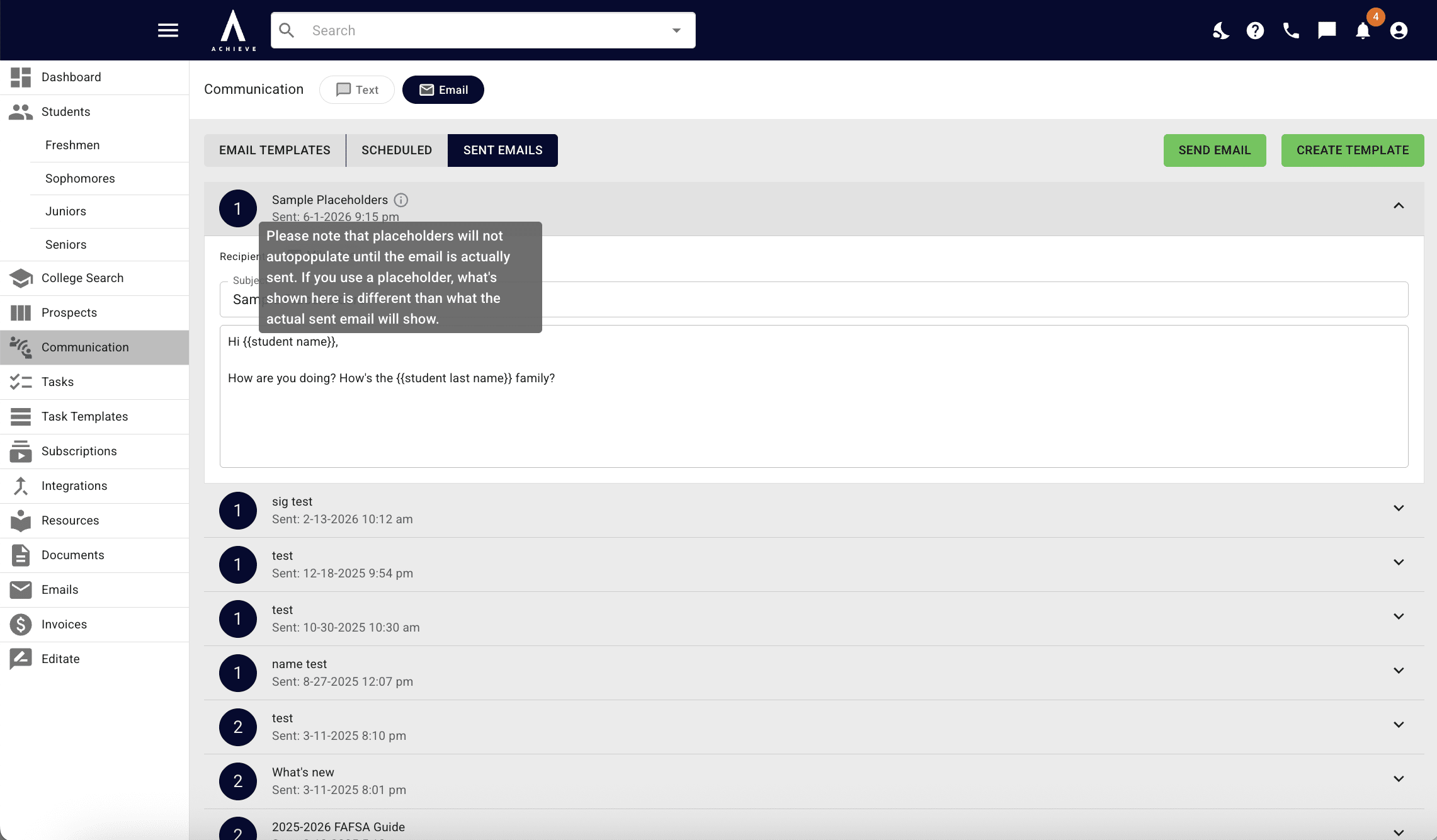
While you will see your email under the Sent Email section, it will still show the placeholders
11
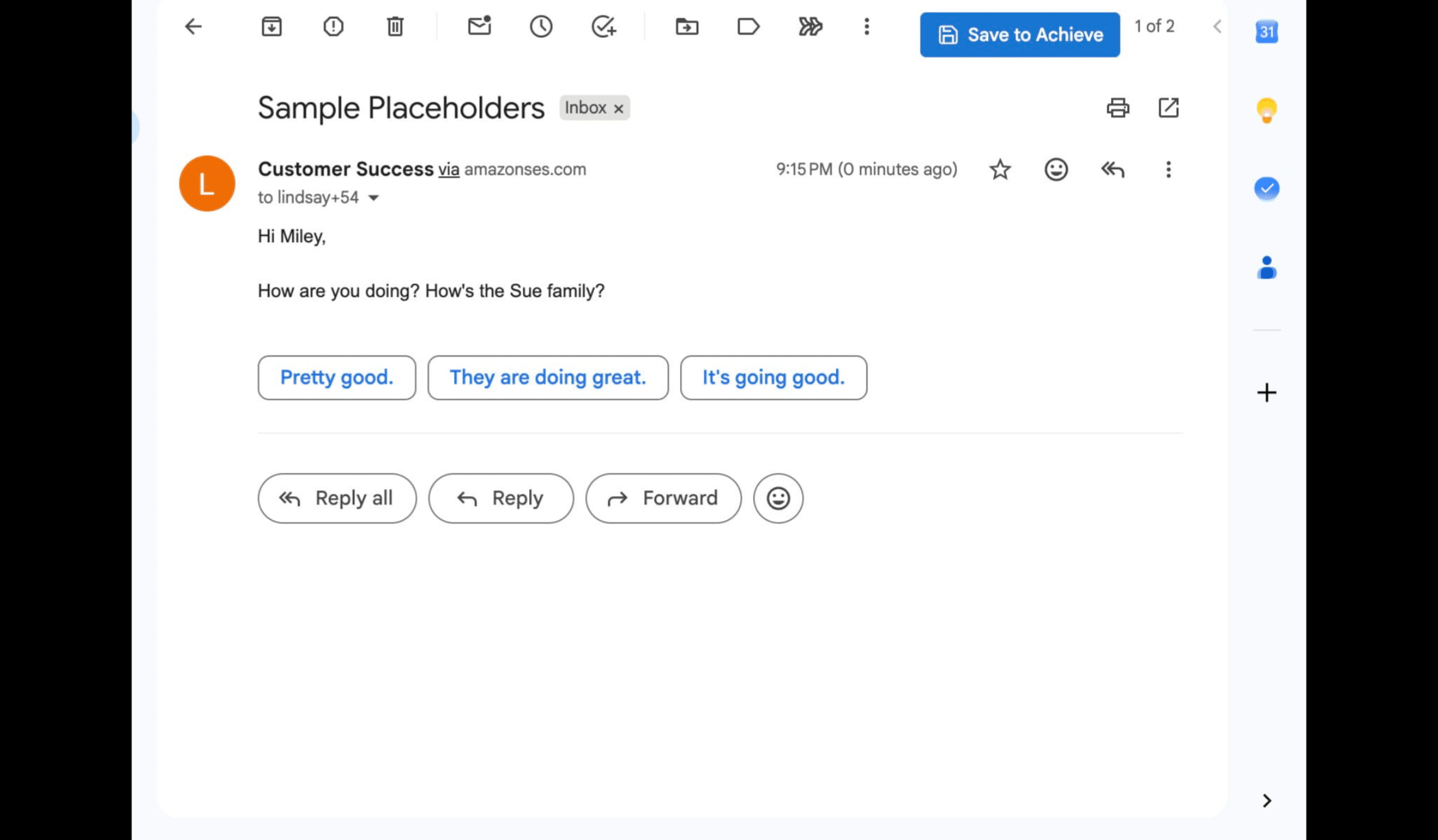
The actual email will have all of the applicable placeholders, as seen below
12
Done 🚀