
Creating Hourly Charges
This guide explains how to set hourly rates for individual students or a family, log and track hourly charges (manually or via a stopwatch), and manage Stripe-based invoicing.
If a student is a pay-as-you-go hourly student, they need an Hourly Rate connected to their account. One way to do that is to update the student's profile by pressing + Edit Details.
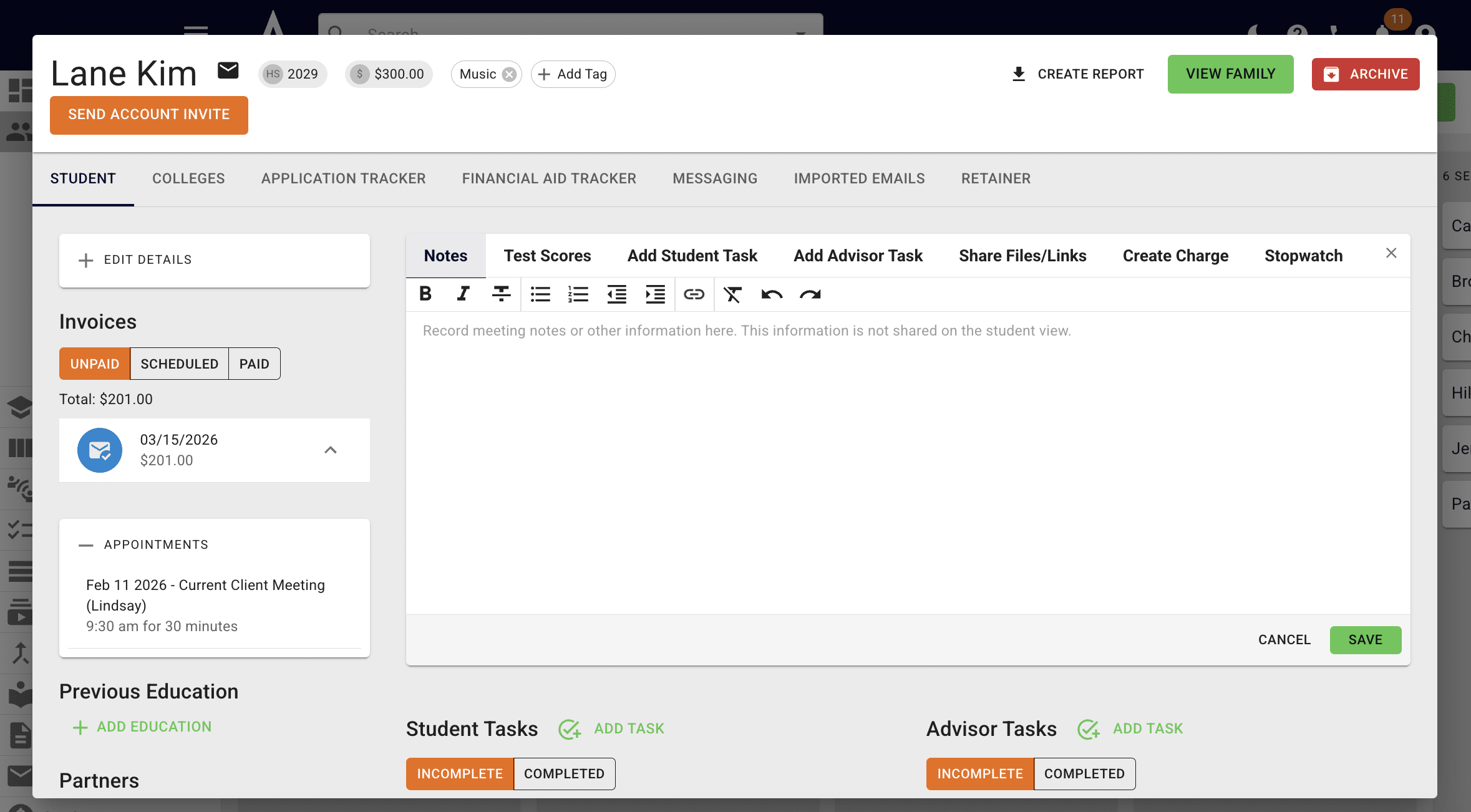
Then scroll down until you see the Hourly Rate field and add the applicable rate.
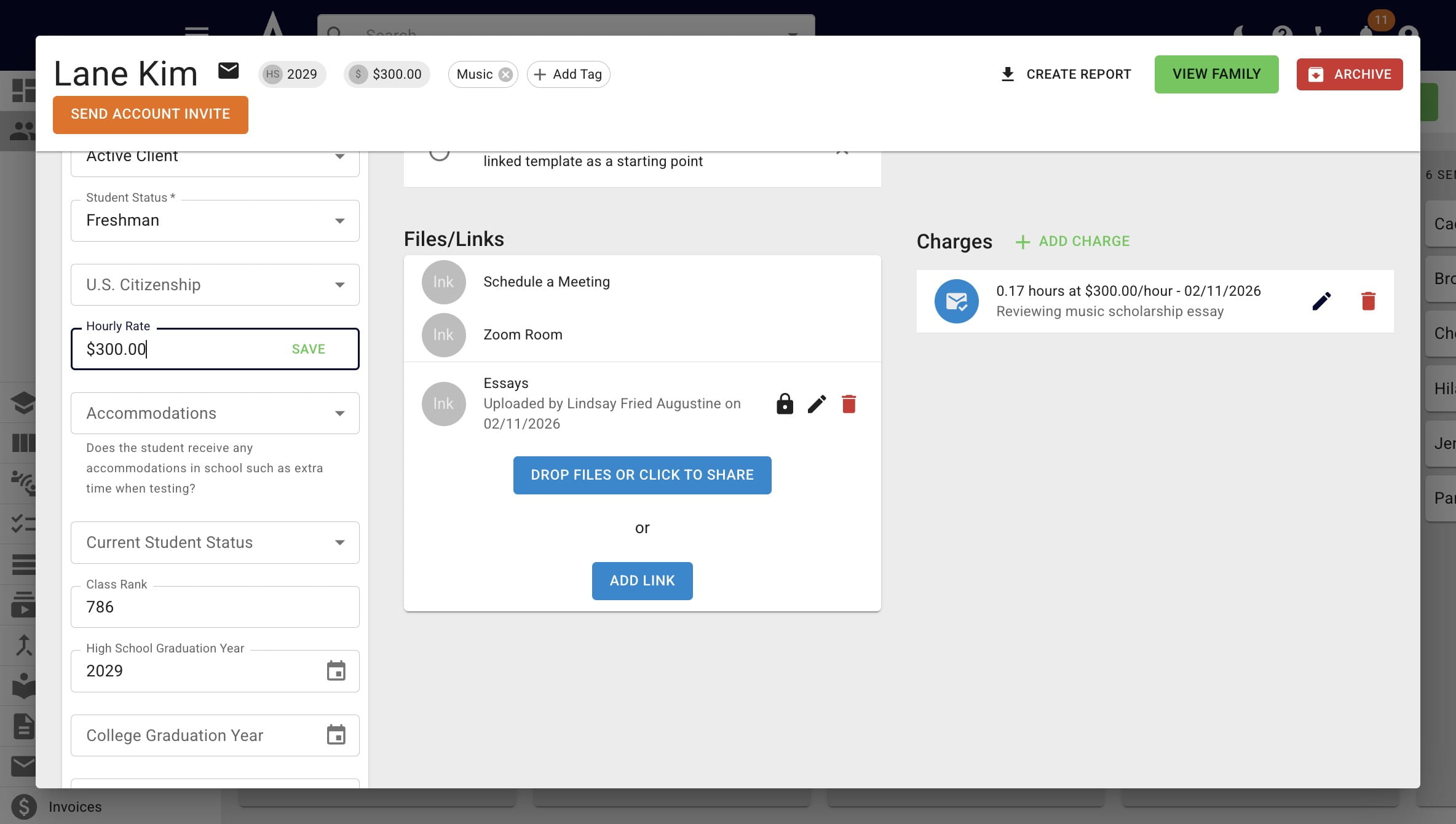
Once you save the hourly rate, you'll also see it on the top of student's profile.
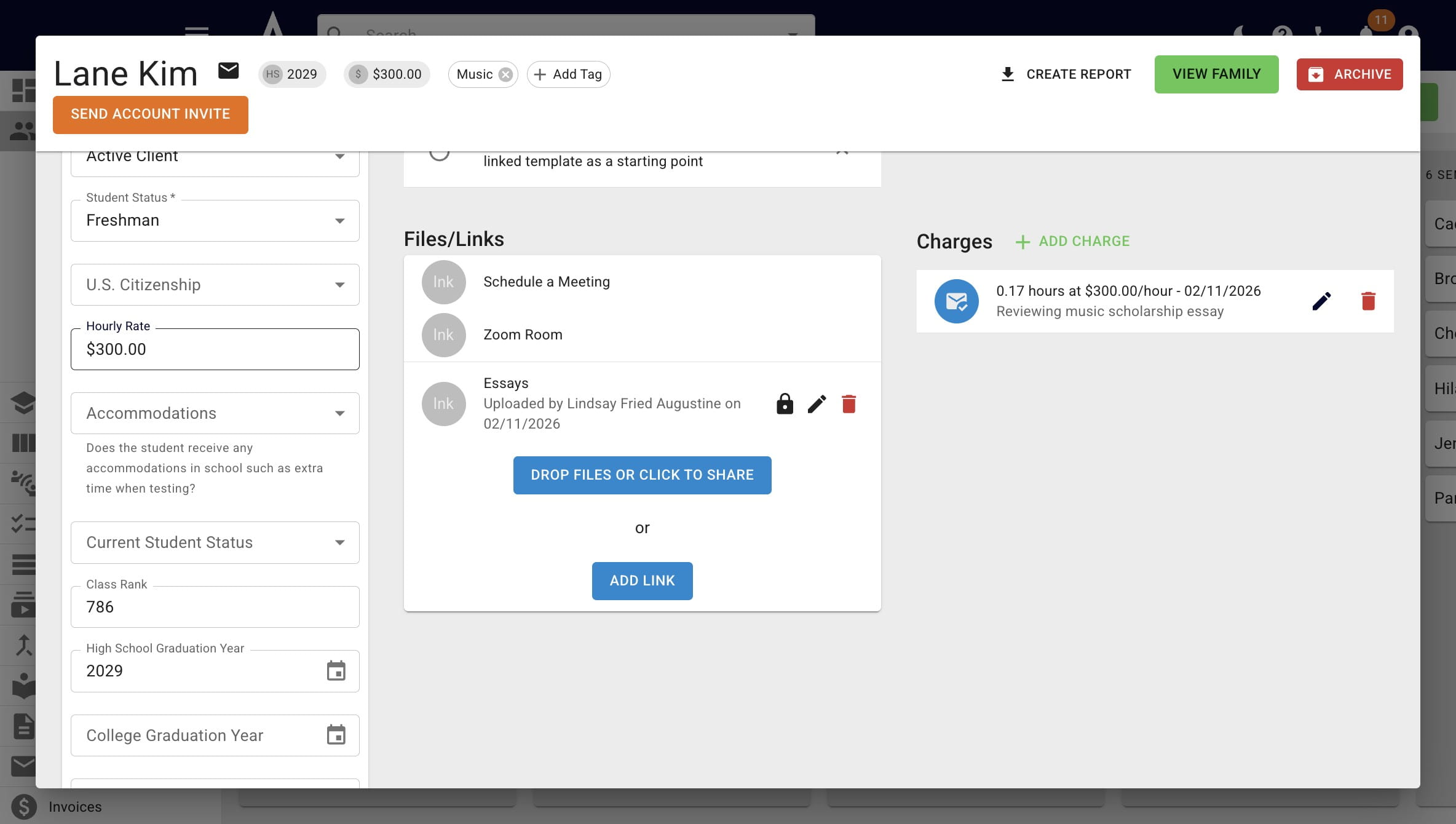
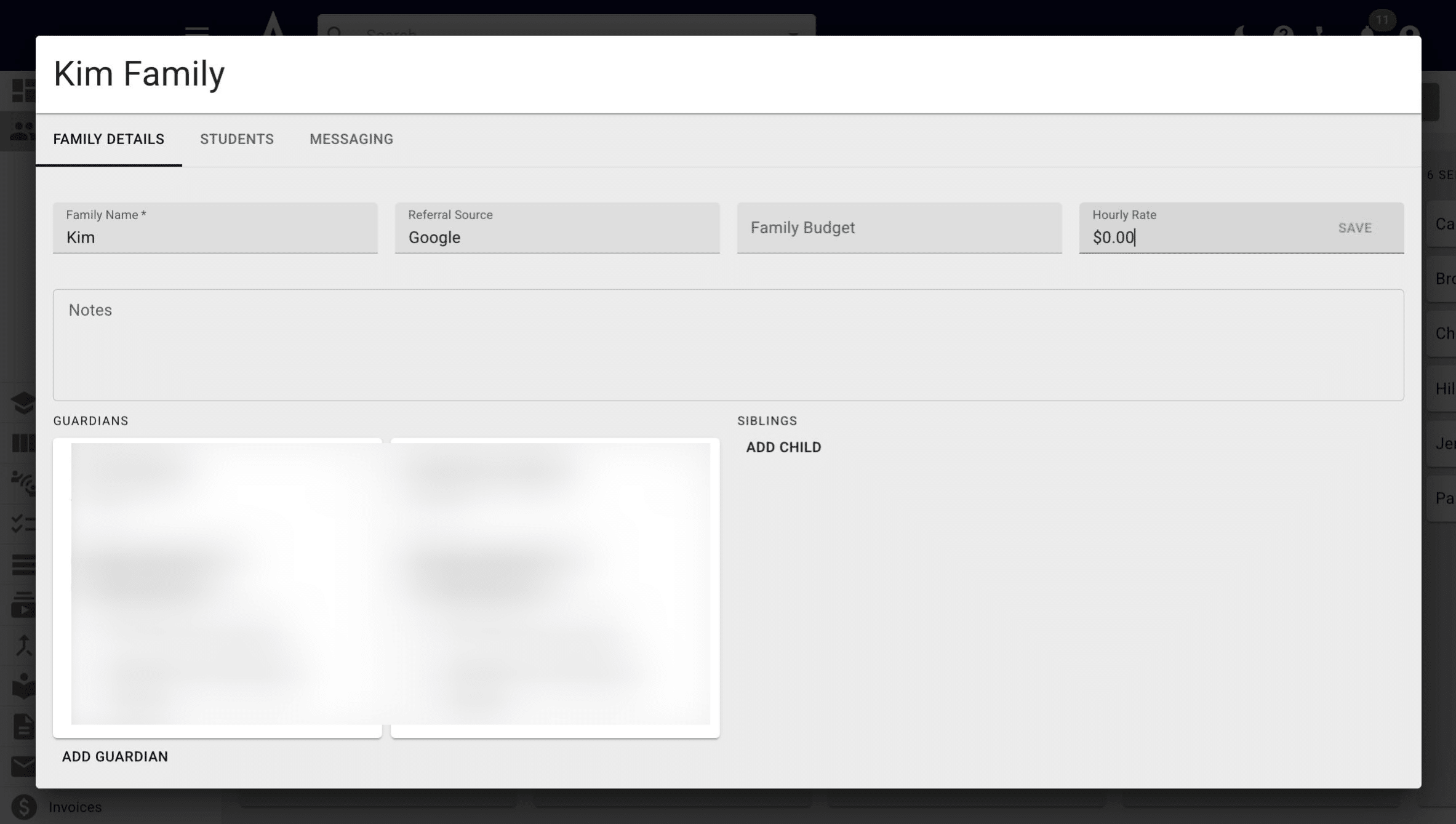
You can also add an hourly rate connected to the entire family. To do that, press View Family.
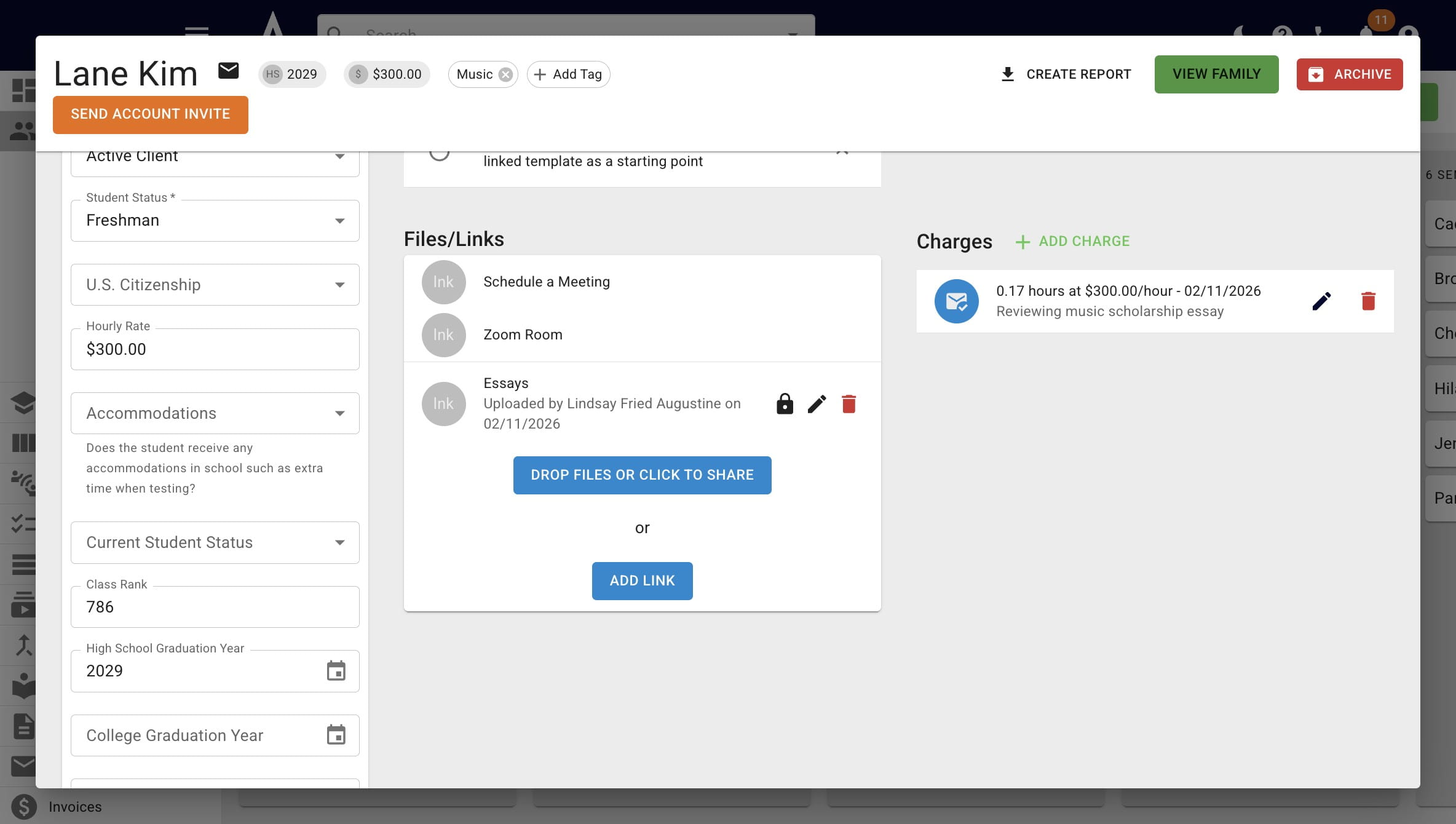
Then make any necessary changes under the Hourly Rate field. This will impact any current and future students within the family.
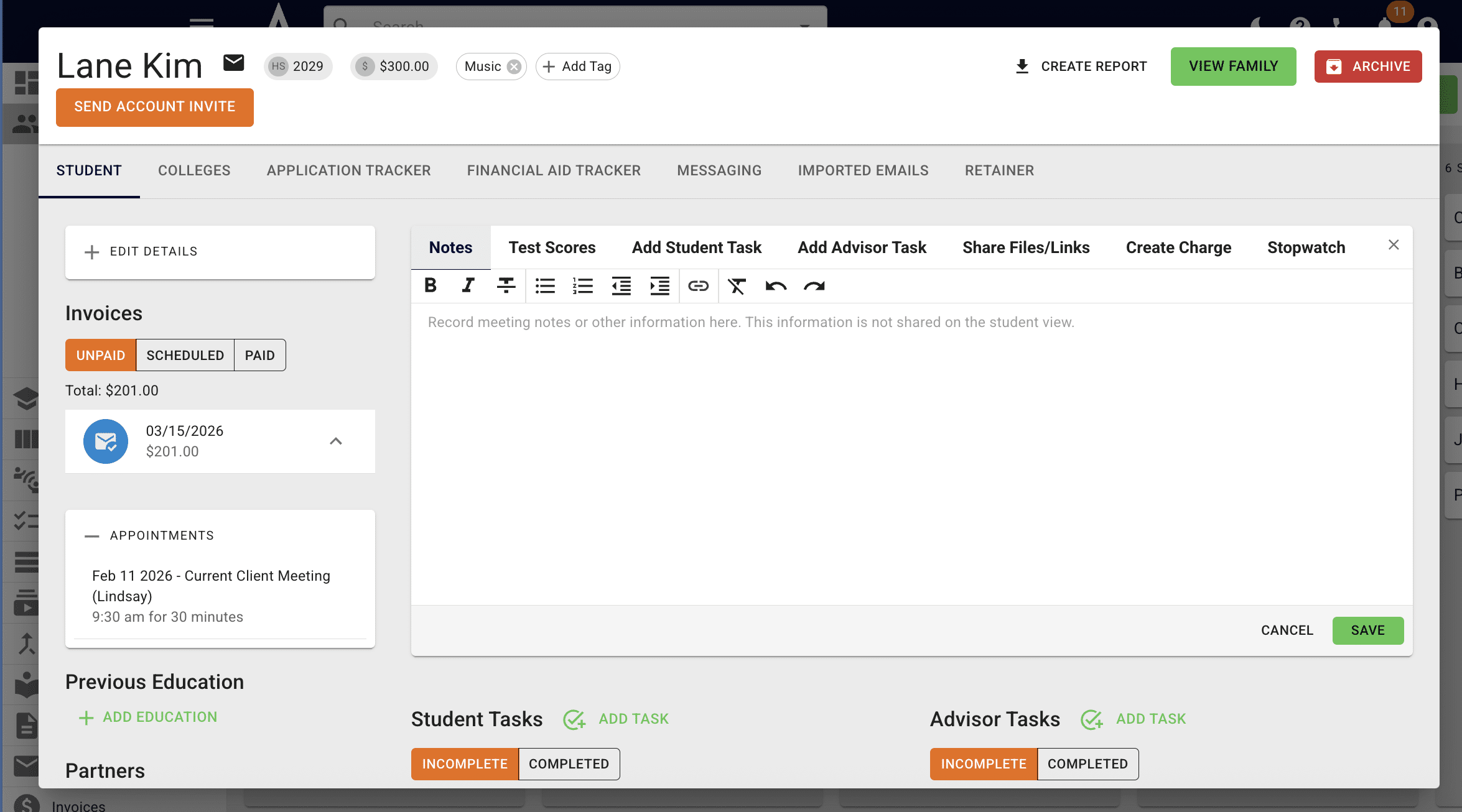
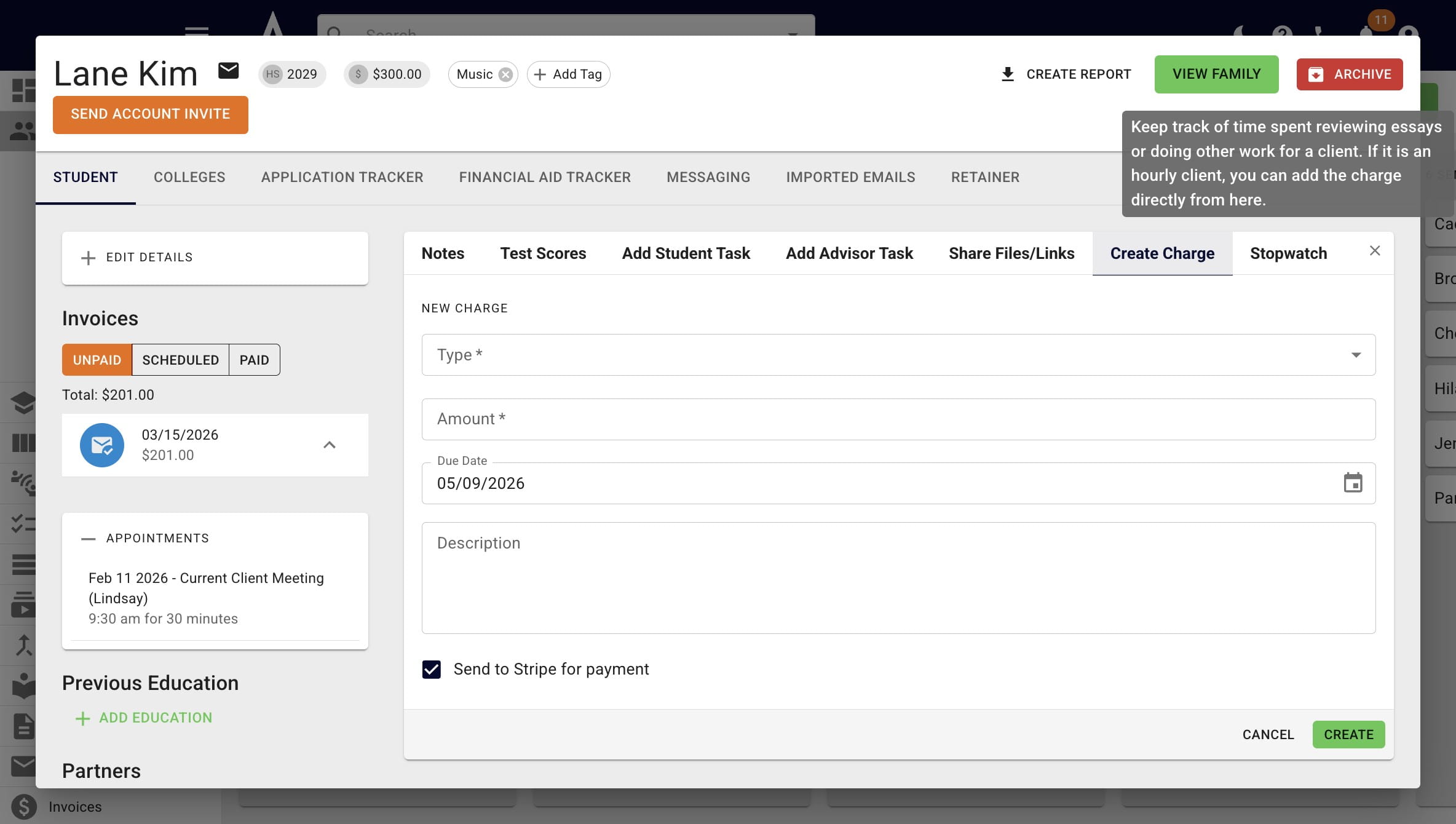
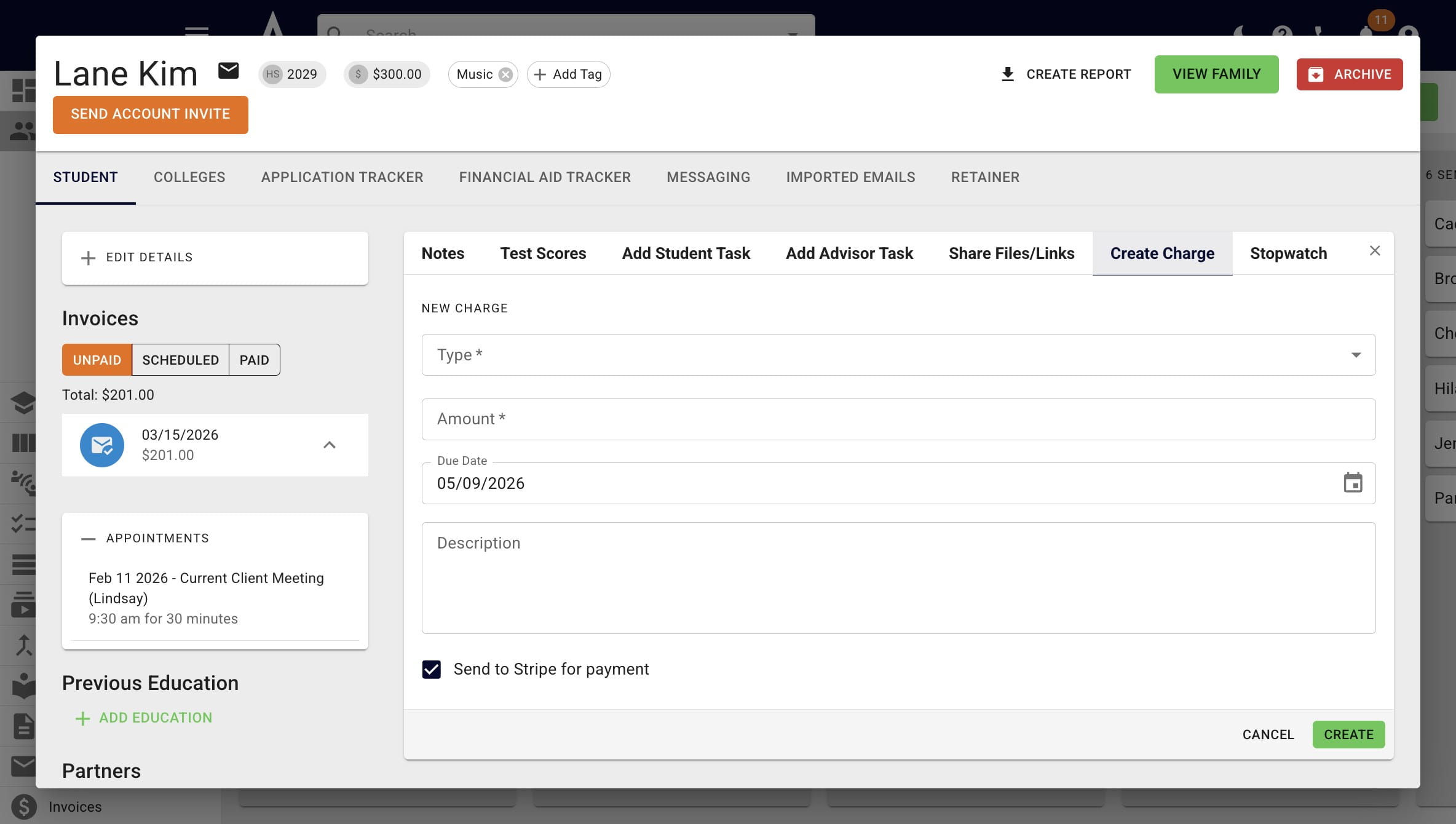
To manually add an hourly charge, click Create Charge.
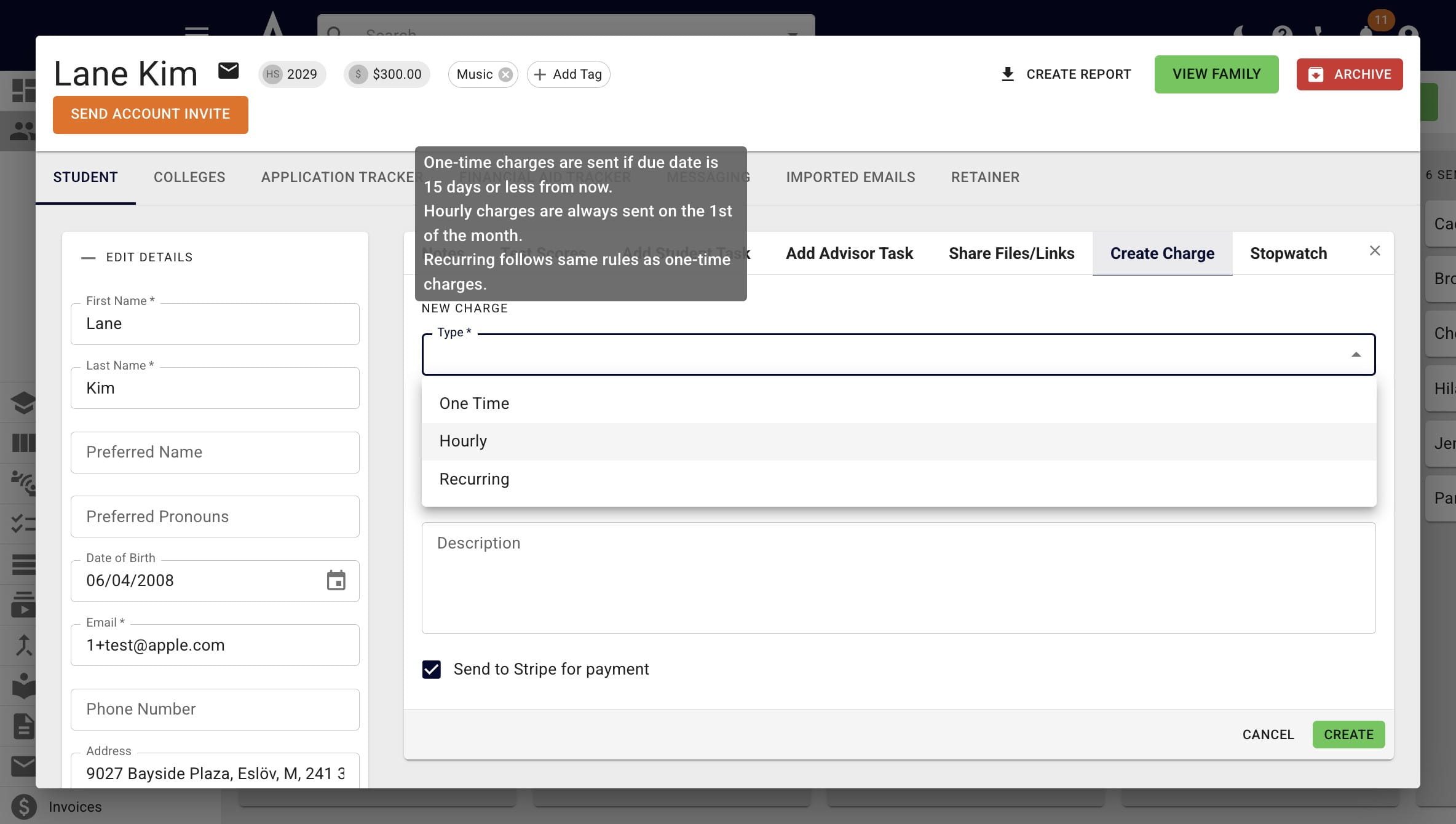
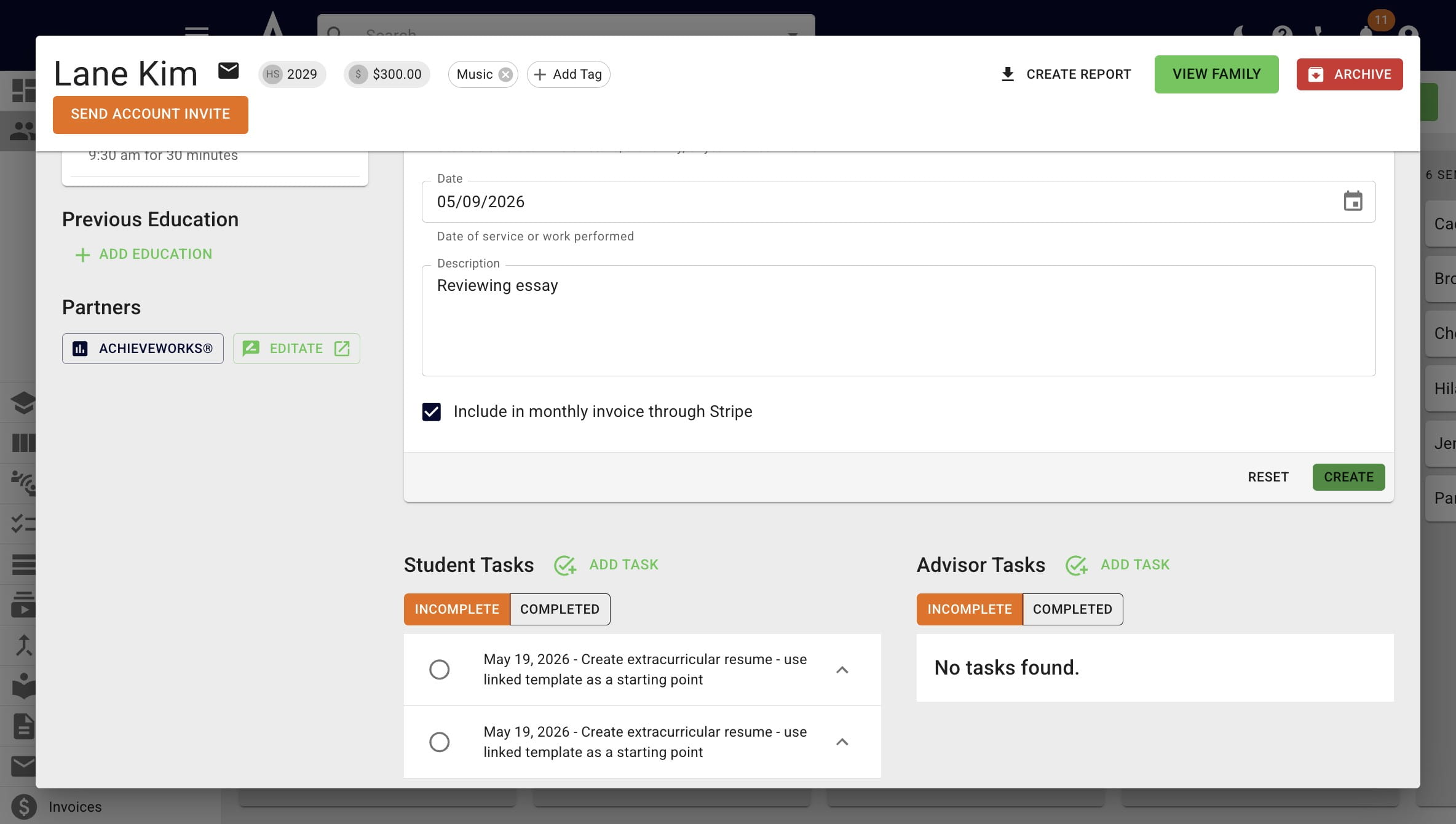
Within the Type drop-down, click Hourly.
Add in the length of time spent under Hours. This can be a fraction of an hour (i.e. 15 minutes = .25 hours).
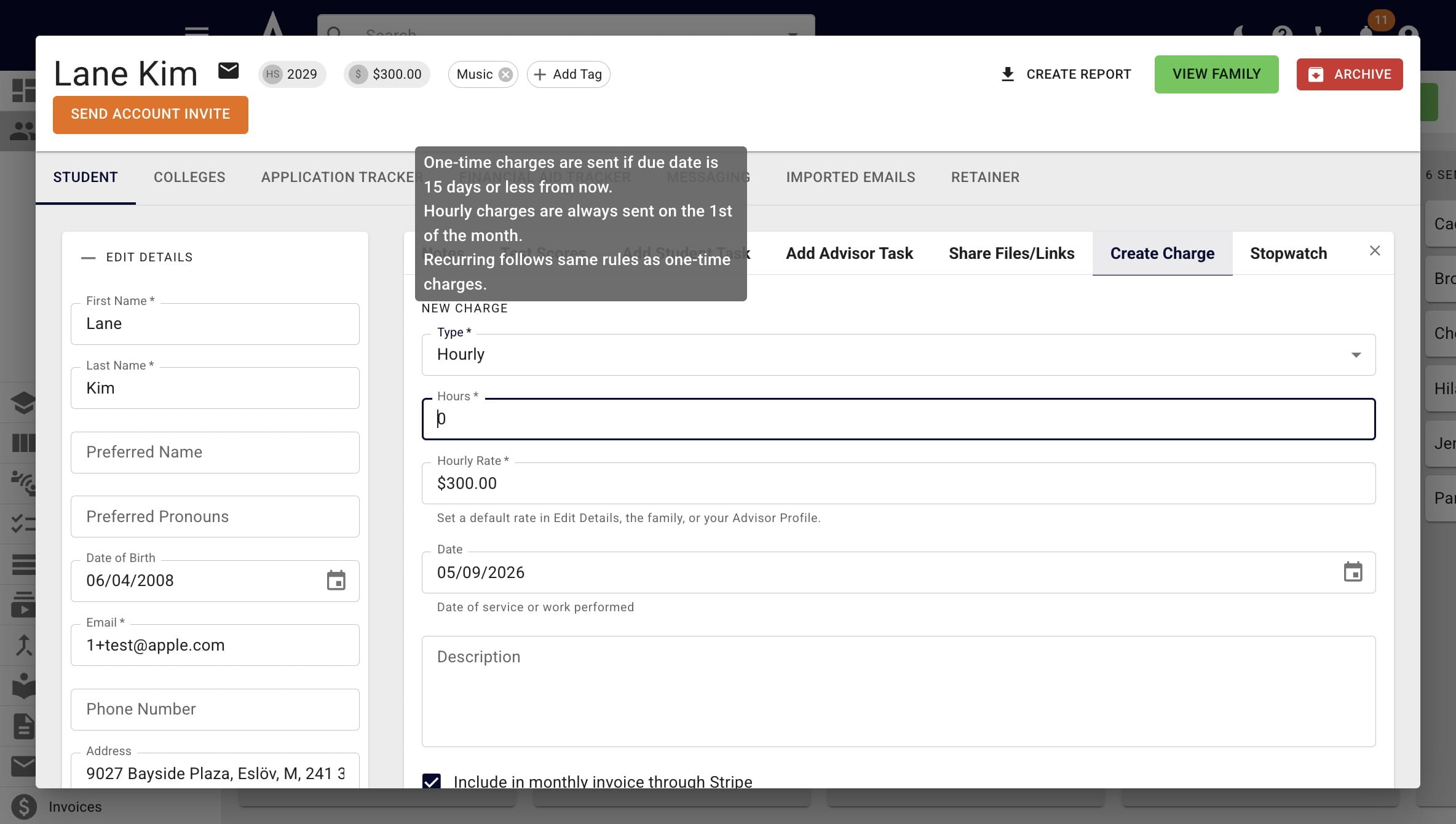
Add how the time was spent under Description.
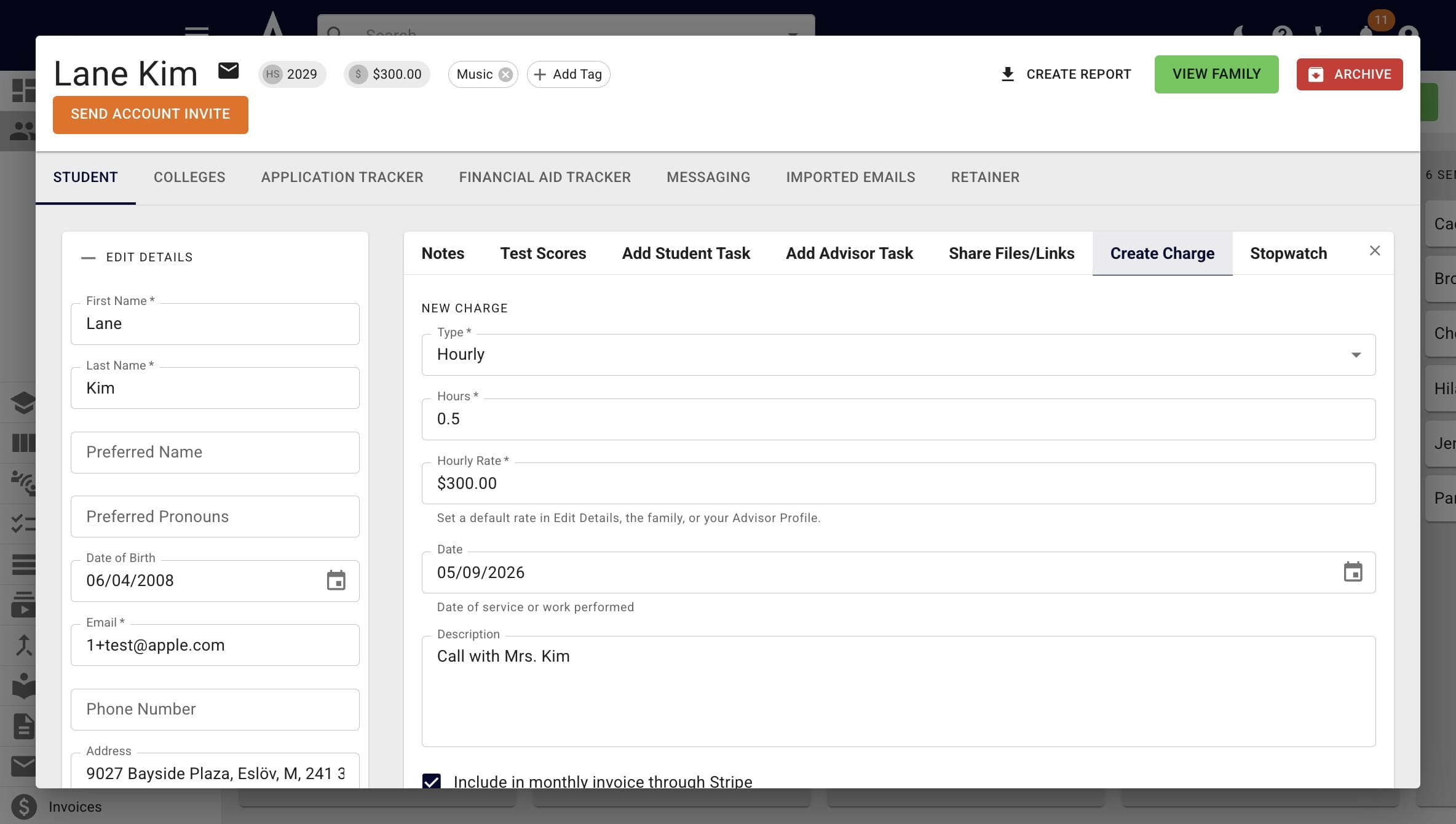
Right now, these hourly pay-as-you-go invoices need to be via Stripe. Keep the Include in monthly invoice through Stripe box checked or it may cause issues with the automations.
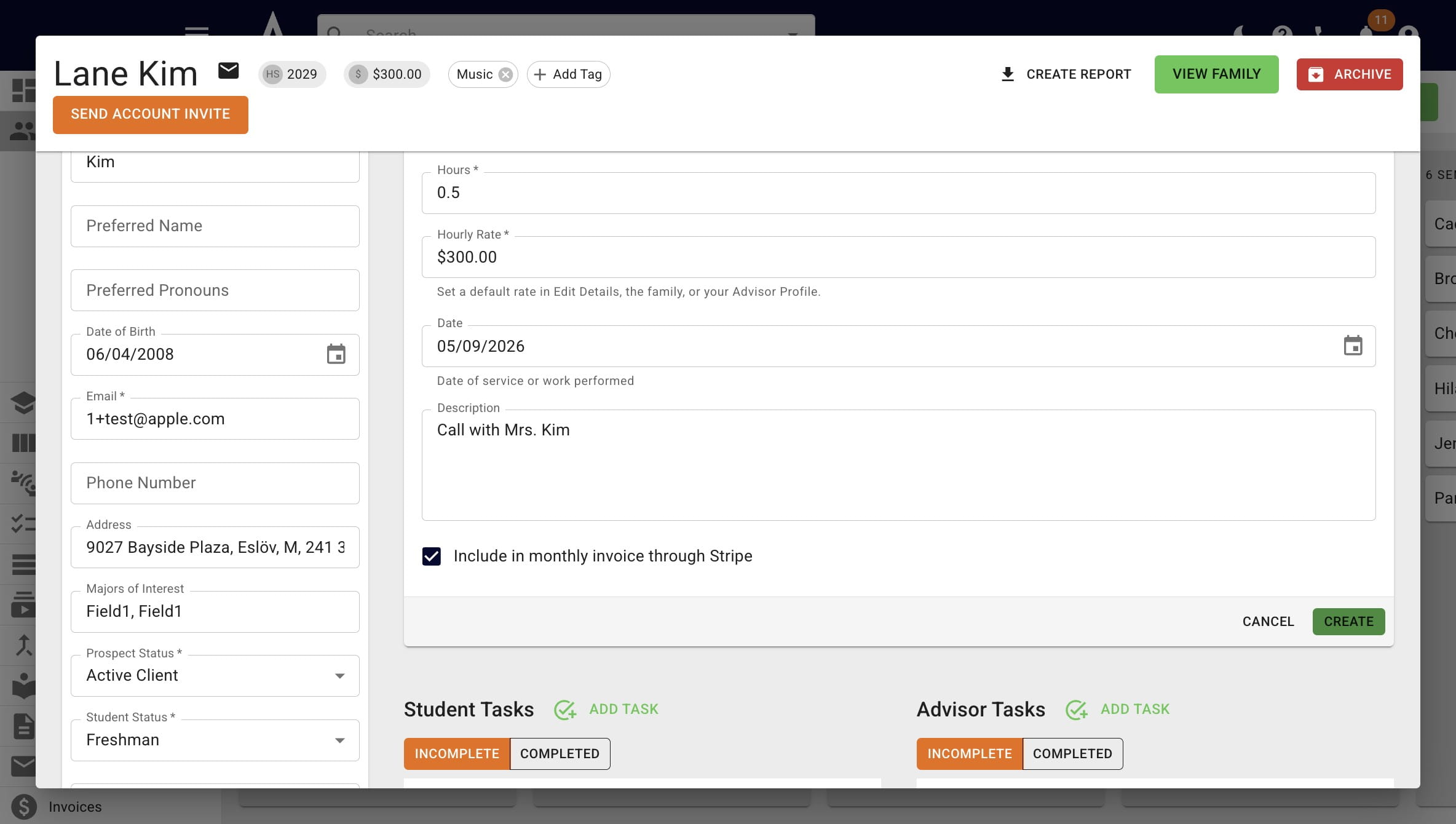
When all the applicable information is added, press Create.
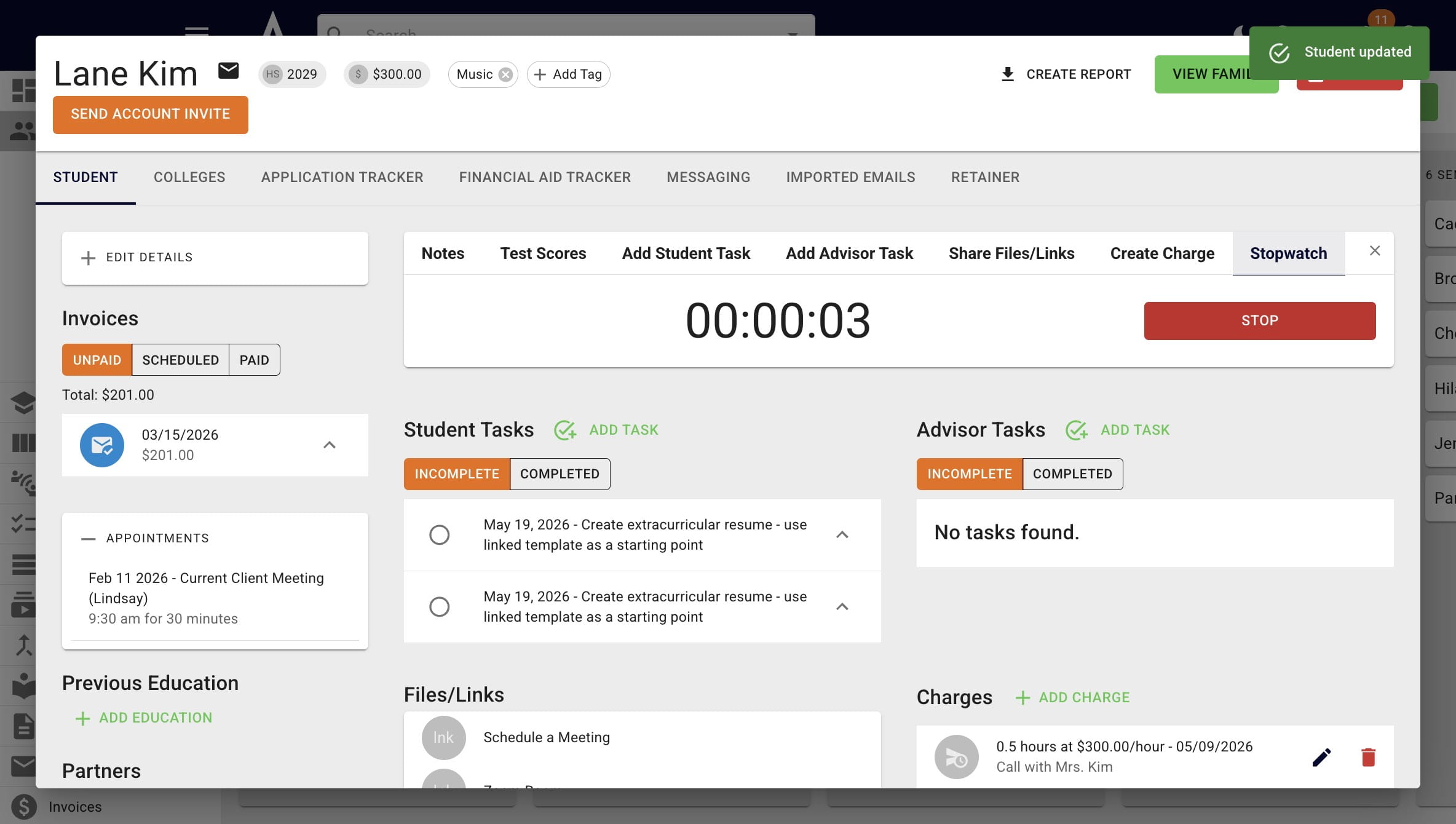
You can keep view, edit, and delete all pending hourly charges as they accrue under the Charges section of the student's Achieve profile.
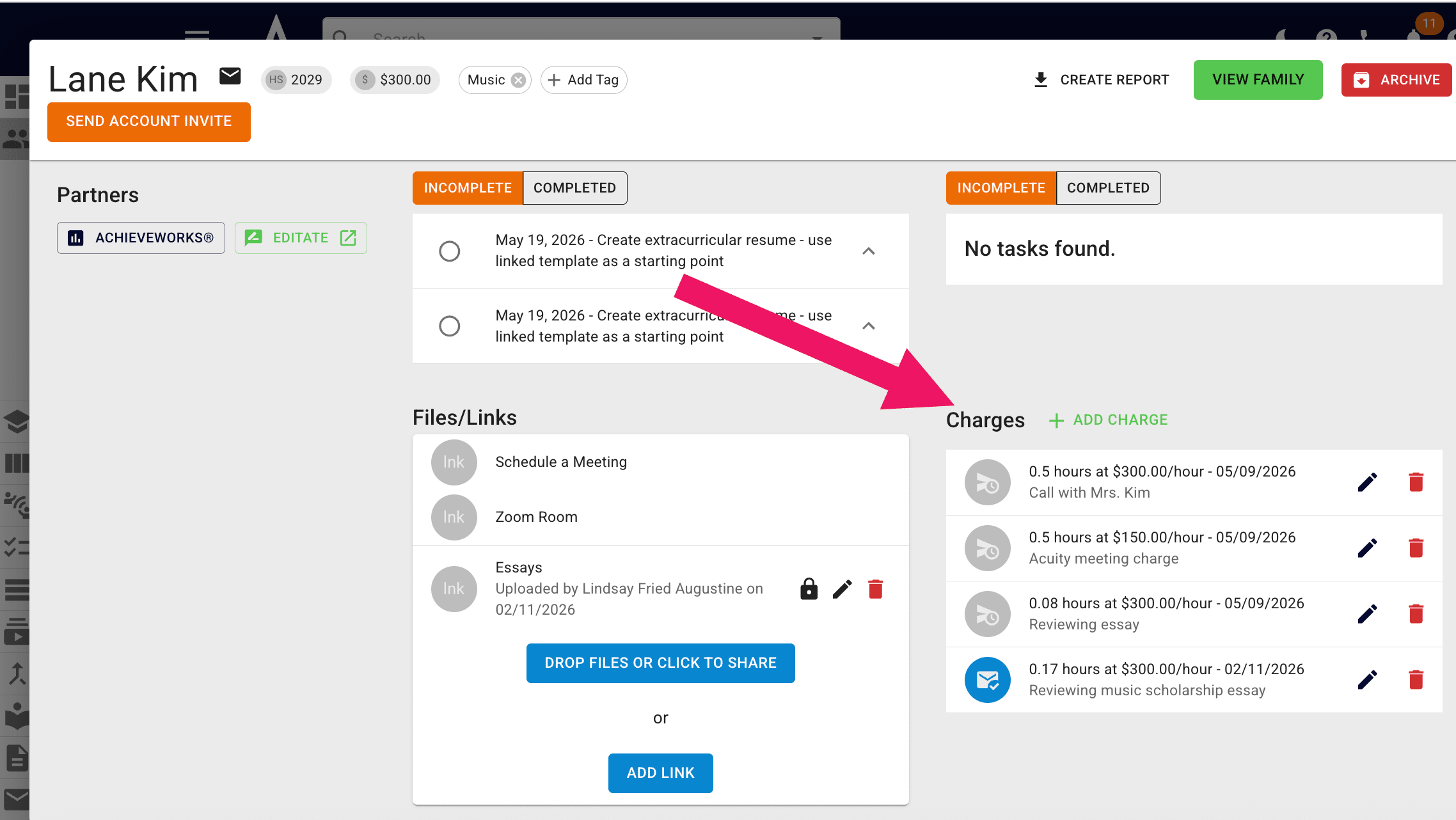
This is also where you'll see any automatic charges based on Acuity/Calendly meetings. They're calculated based on the meeting length & the hourly rate. In Lane's case, it was a $150 charge since we met for 30 minutes & my hourly rate is $300.
Another way you can add hourly charges is through the Stopwatch on the student's profile.
Click on Start when you're ready to begin tracking time.
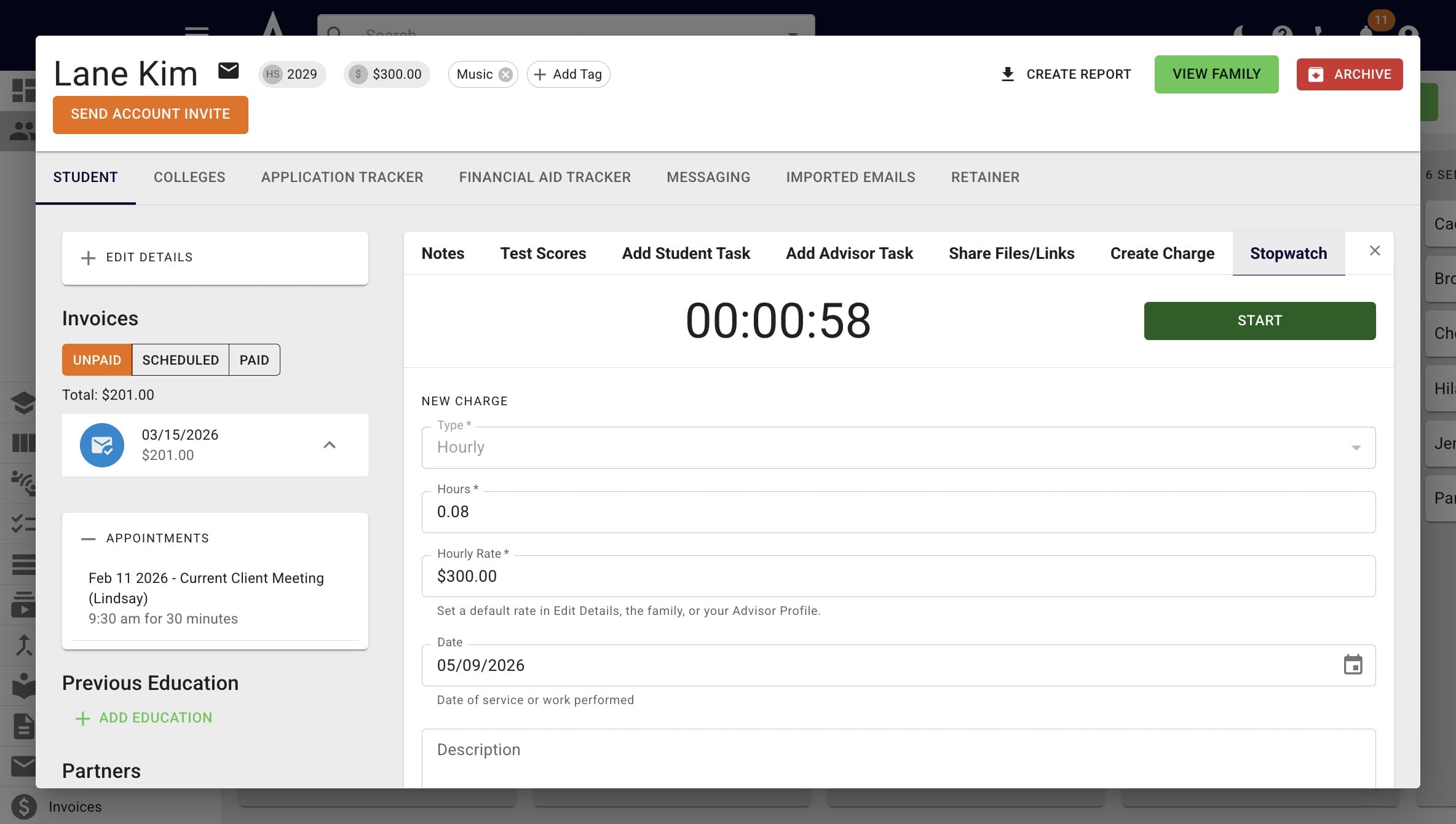
Click on Stop when you're done.
You're now able to override the hours spent as needed (i.e. if you round to the closest 15 minute interval) and add info about how the time was spent in the Description field.
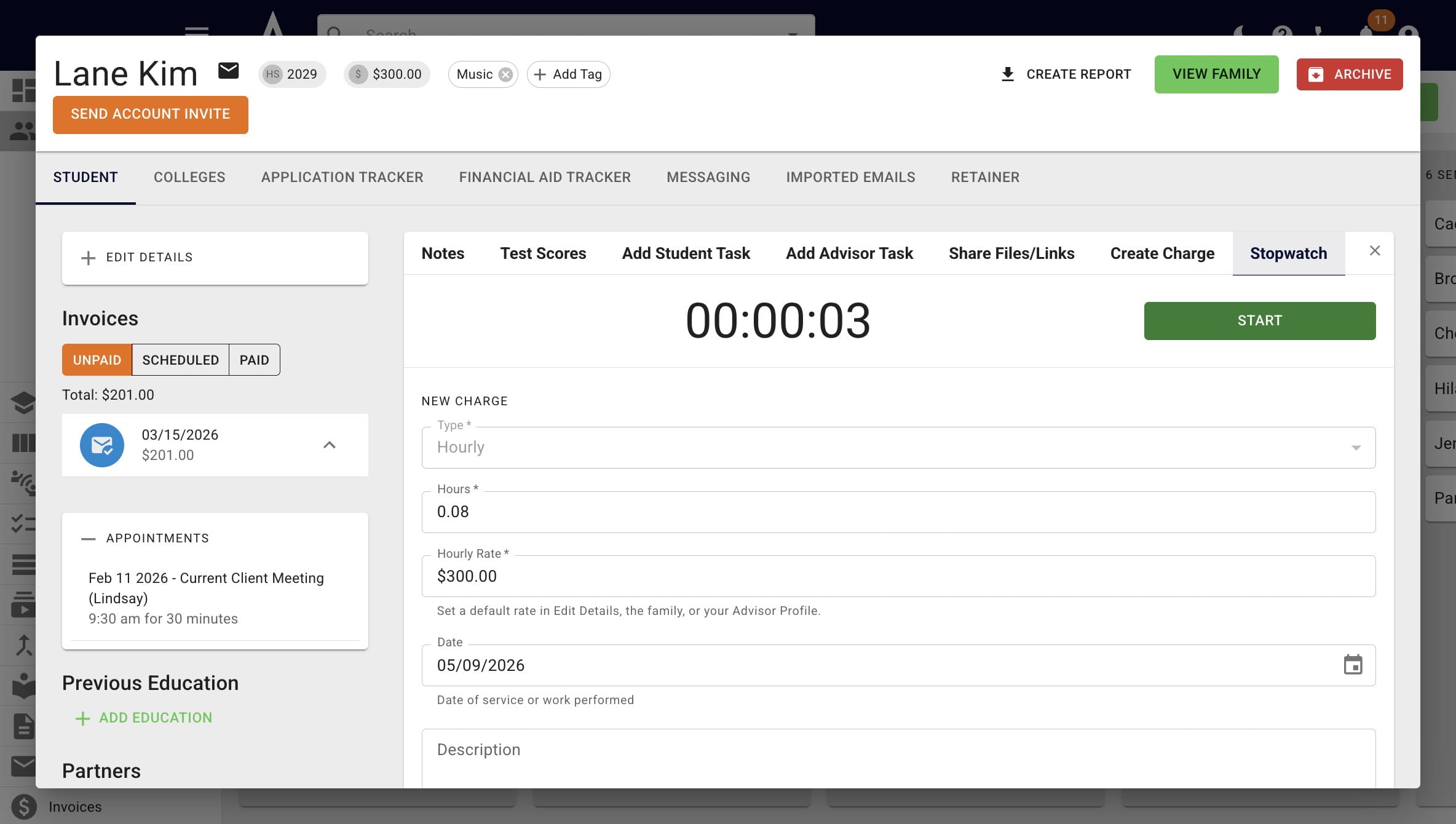
When all the applicable information is added, press Create.
On the first of each month, all the charges that accrued will be automatically combined in an itemized Stripe checkout link. It will be sent out as an invoice that is due on the 15th of the month.
Done 🚀