
Dashboard
This guide explains what is on the Achieve Dashboard
Navigate to https://app.achieveiec.com/
On the top left-hand side, you'll see the Contracted Students widget, which breaks down your active student by grade/student status. If you click View on Timeline, it will take you to the Student Pipeline.
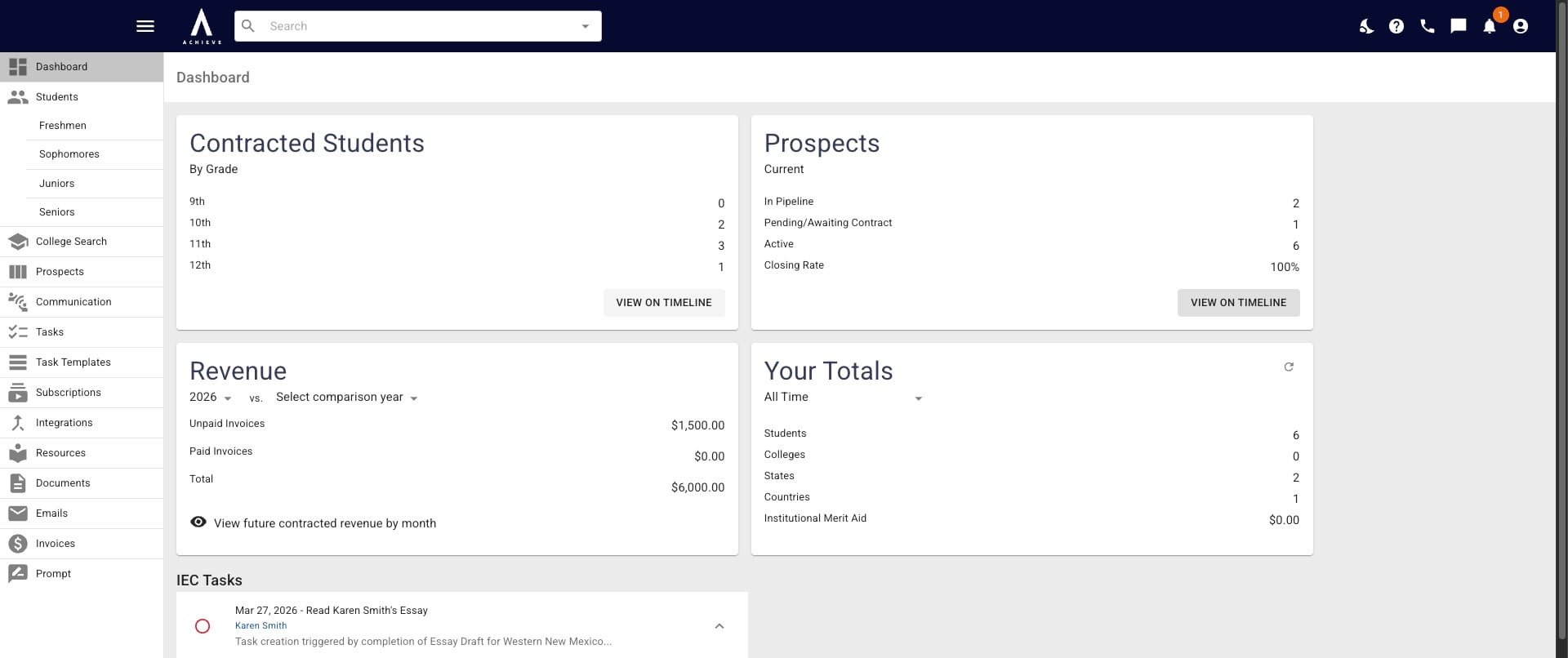
On the top right-hand side, you will see the Prospects widget. This shows you a breakdown of your prospects and the Closing Rate Achieve automatically calculates for you. If you click View on Timeline, you will be taken to your Prospect Pipeline.
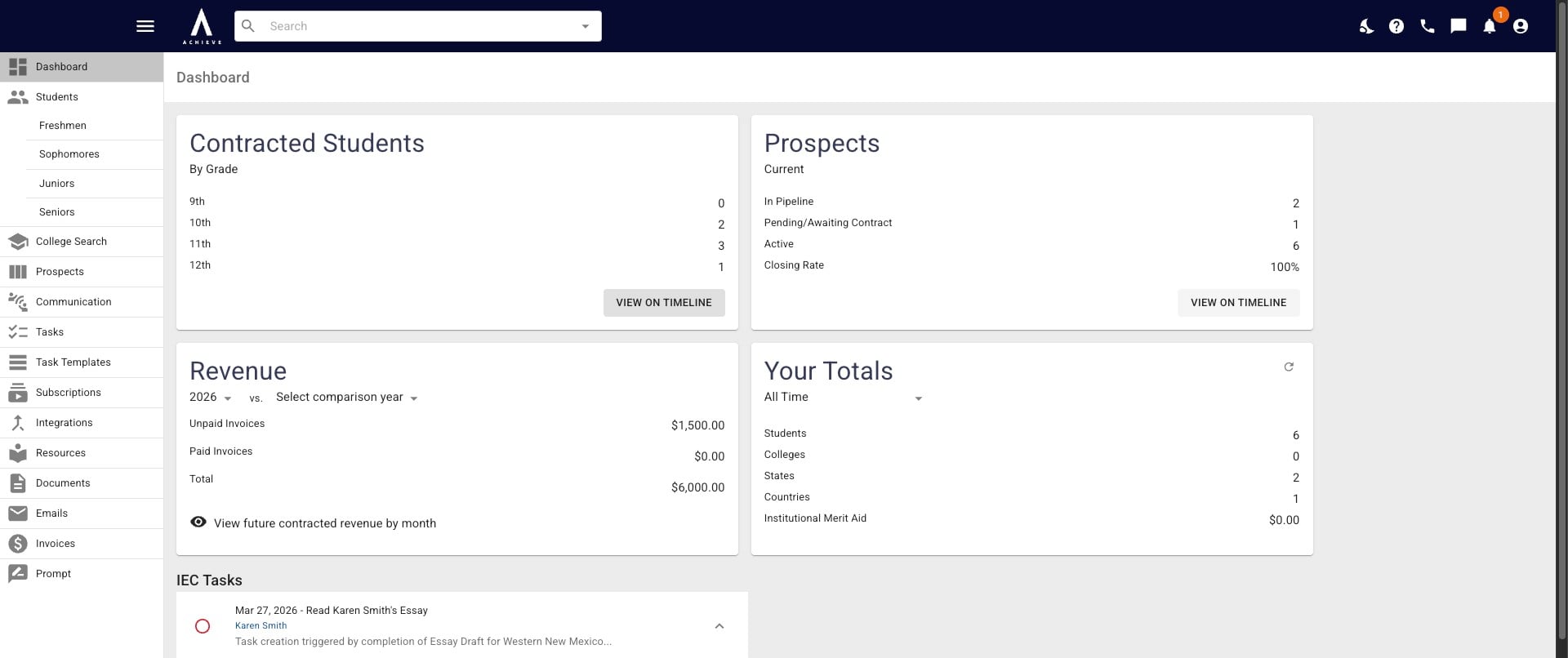
On the bottom left-hand side, you will see your Revenue widget. This shows you both Paid and Unpaid Invoices for the current year.
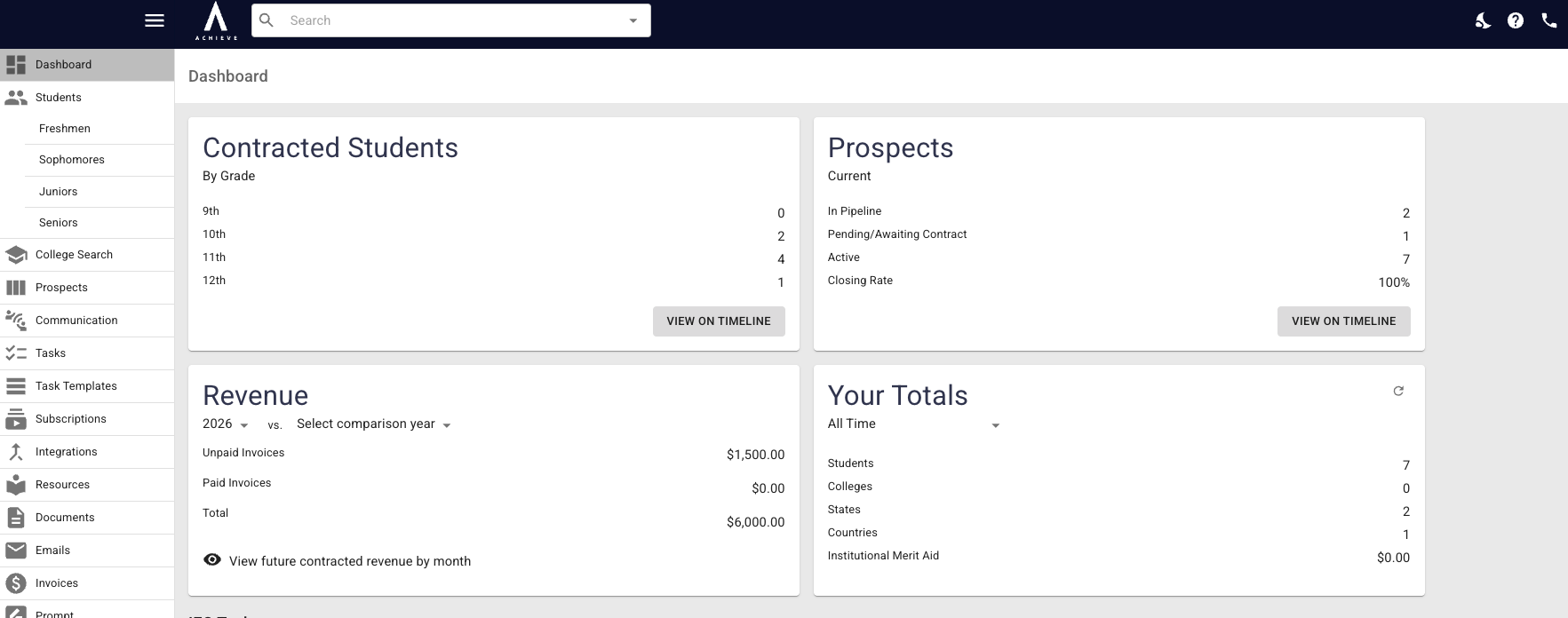
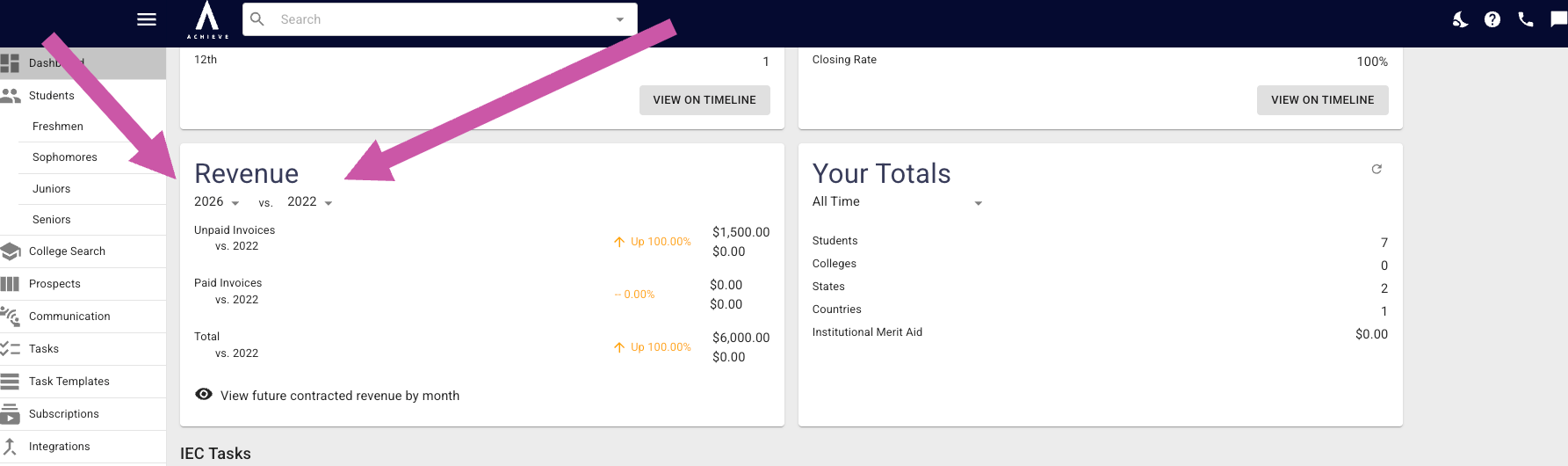
You can select two years to Compare Revenue.
If you select Show future contracted revenue by month it will display the upaid revenue breakdown by month for the rest of the year.
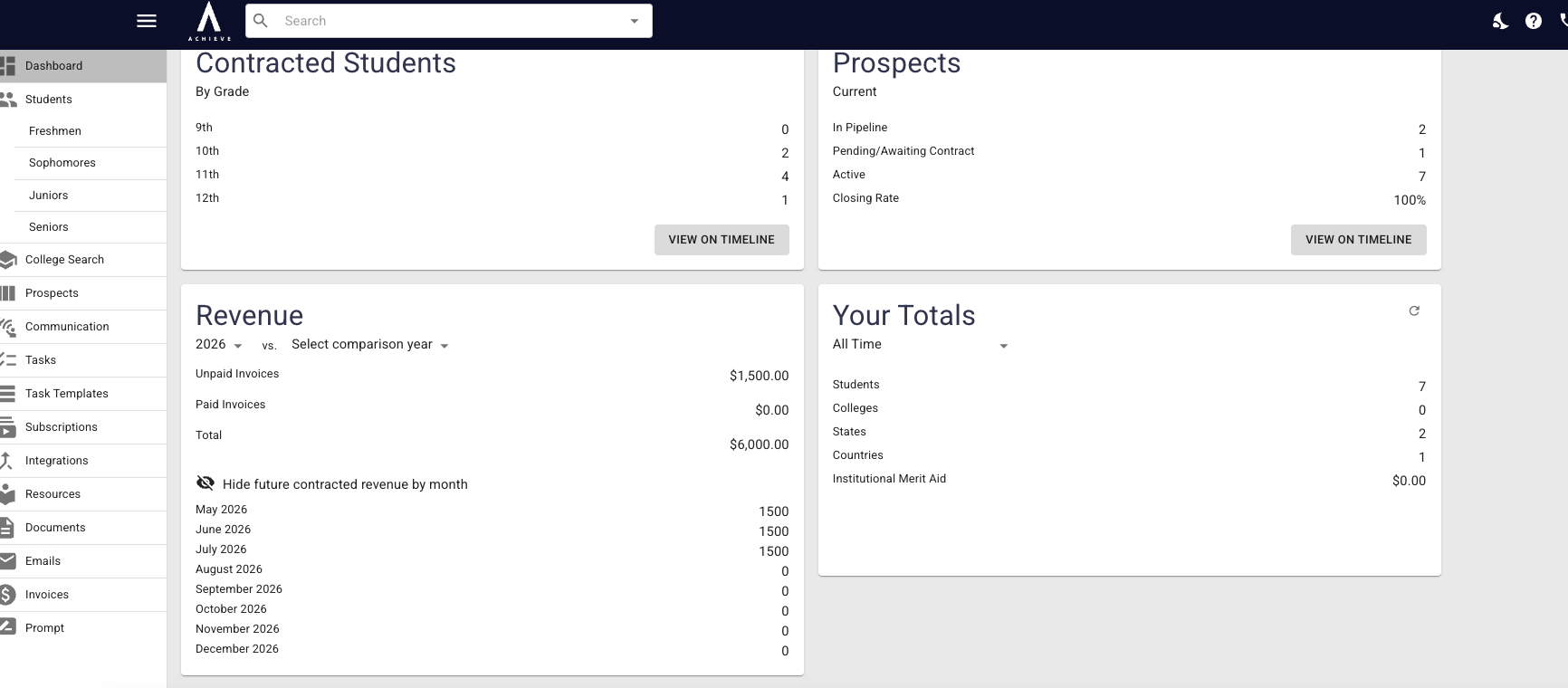
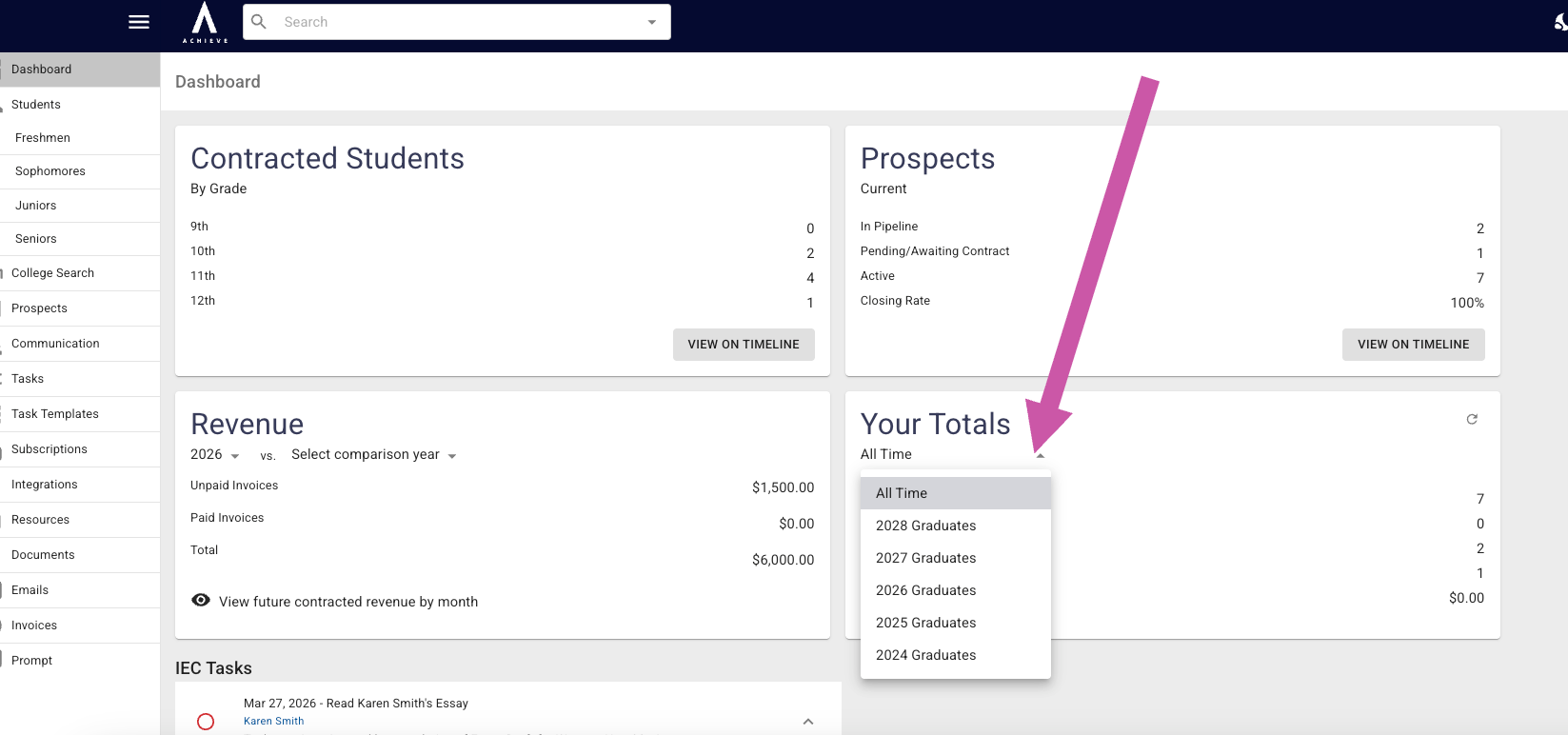
On the bottom right-hand side is the Your Totals widget. This shows how many different colleges your students got into, how many different states/countries those colleges are in, and how much merit aid they have received.
To view the Totals for a specific year, select the year from the drop-down menu.
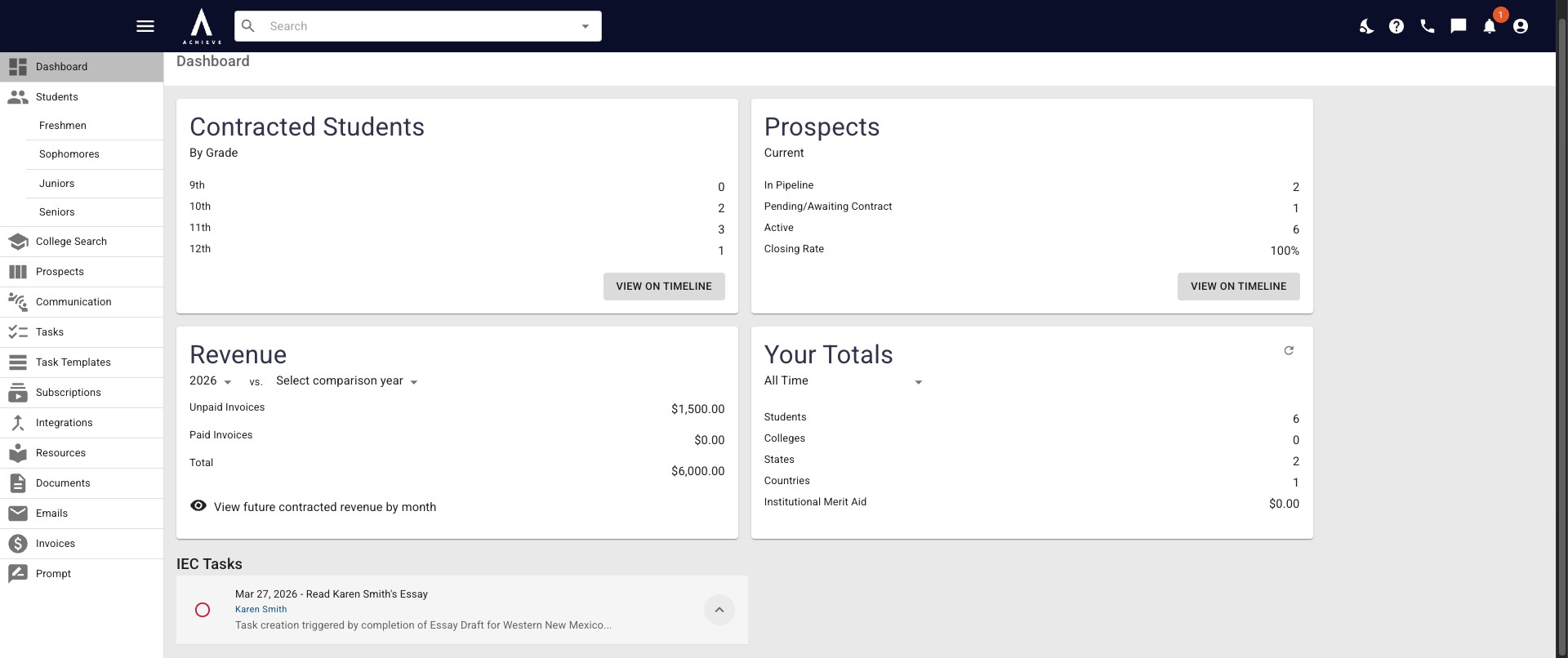
Under the widgets is the IEC Task section, which shows your pending tasks.
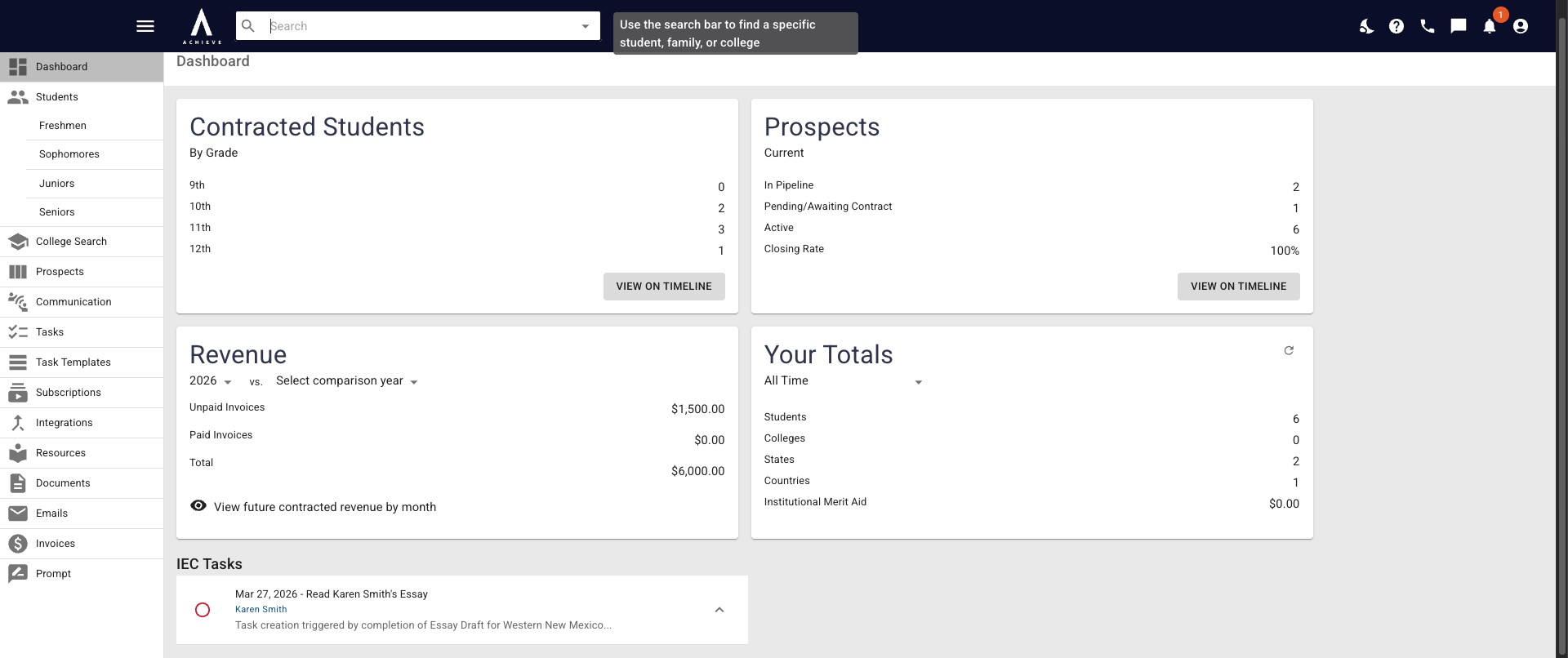
At the top of your dashboard and every screen in Achieve, you'll find the Search Bar. You can use this to search for students, families, and colleges.
Done 🚀