
Deleting Charges & Invoices
This guide explains how to manage deletions of charges and invoices within a student’s Achieve account.
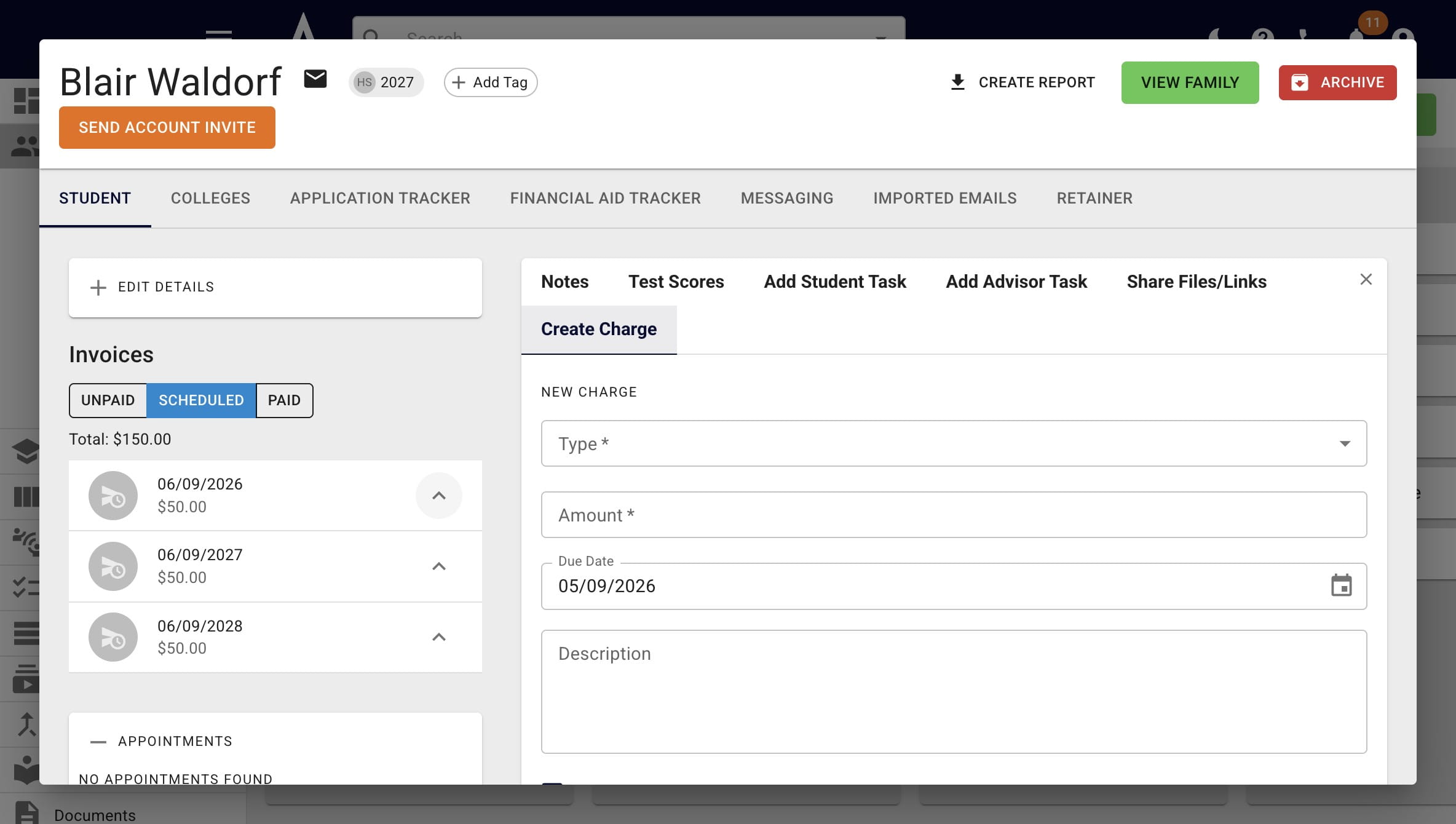
To delete an invoice in a student's account, expand the applicable invoice by pressing the up arrow icon.
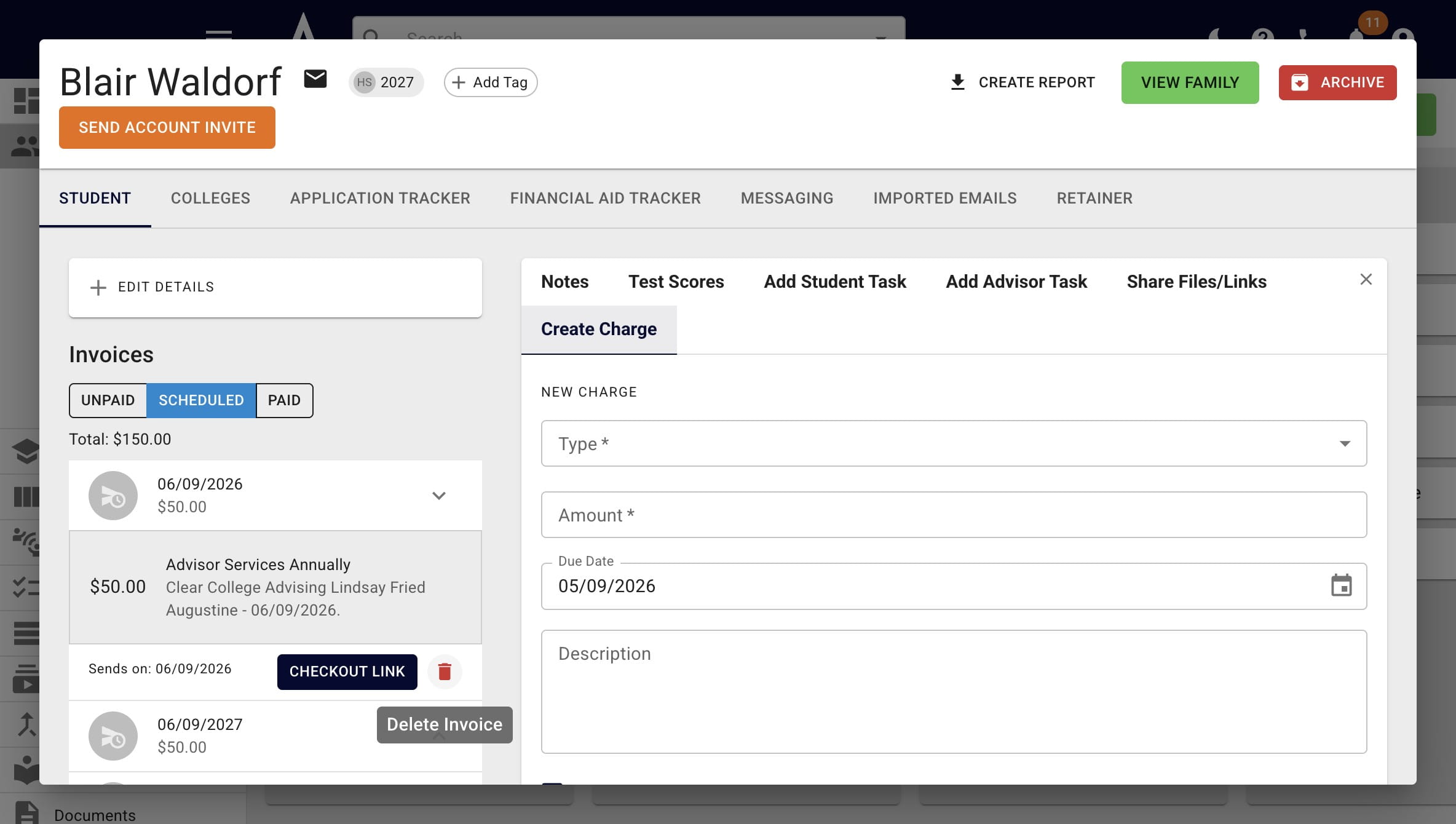
Then press the trash can icon.
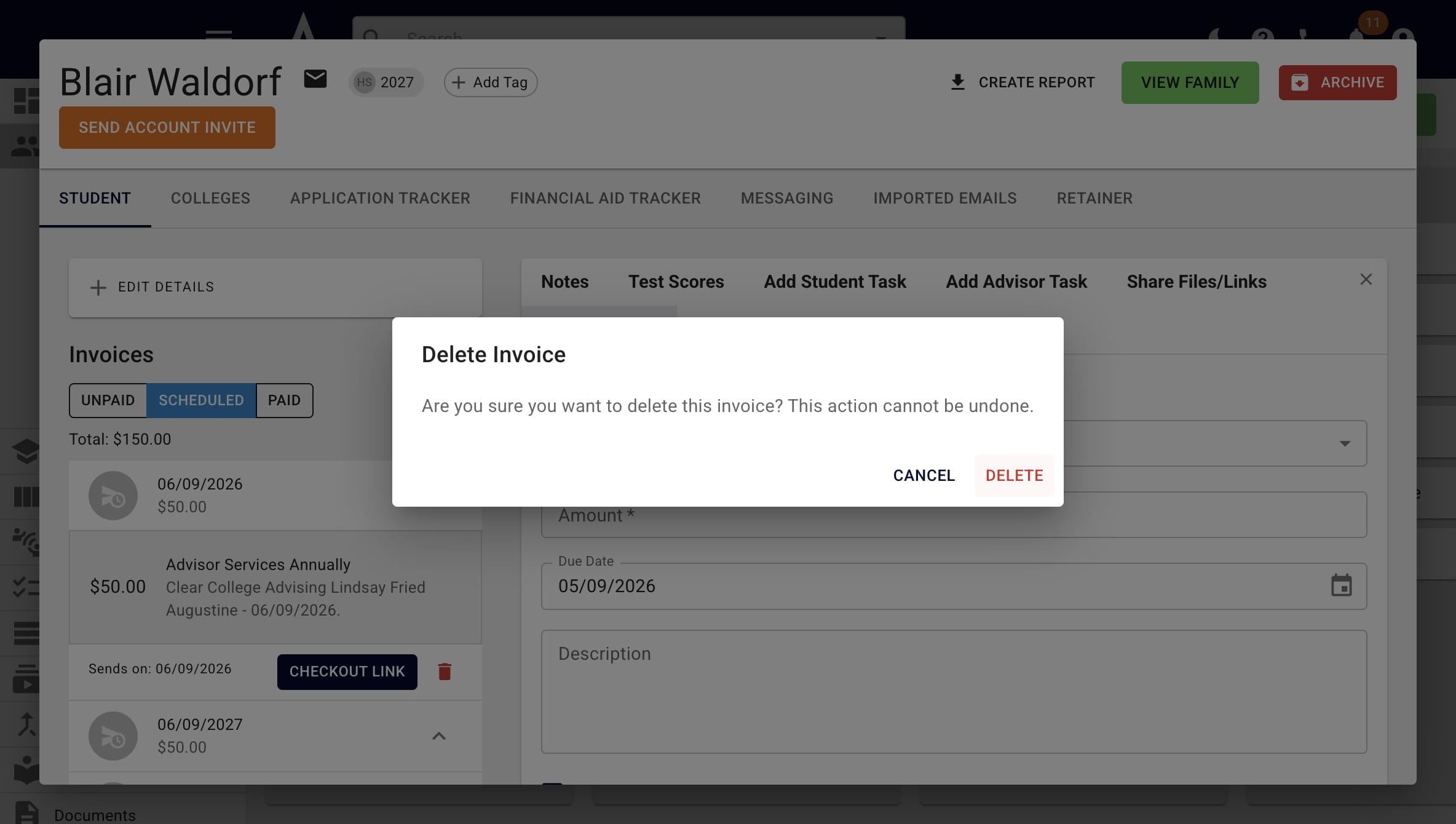
Click on Delete to confirm your request.
If you delete an invoice, you'll see that the charge is still listed under the Charges section of the student's account. You'll get the below error if you try to delete a charge that is no longer attached to an invoice.
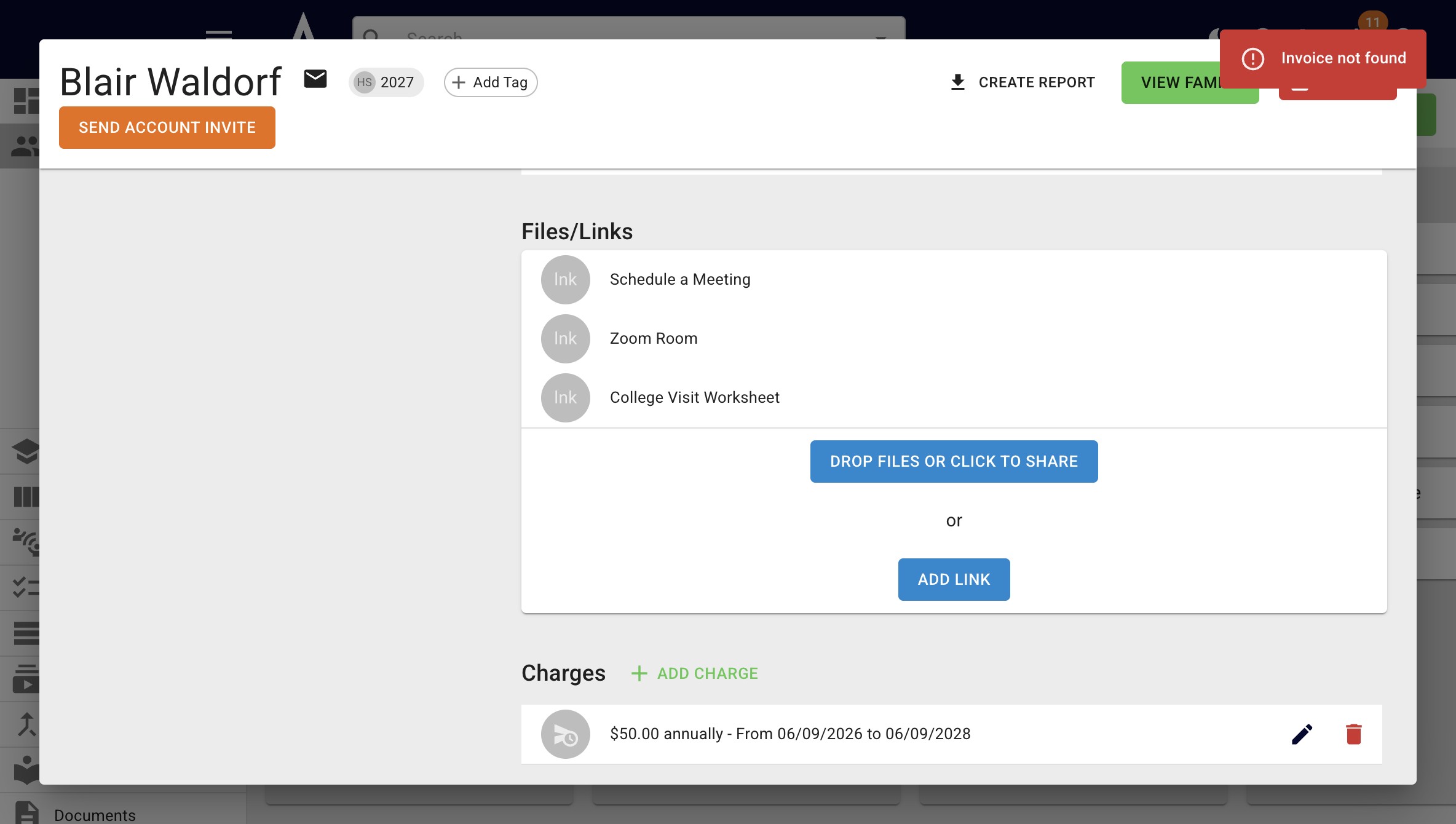
If you did delete an invoice and not a charge accidentally, no need to worry! While the info will still show up under Charges on your end, clients can't see any charges and do not receive an alerts about them.
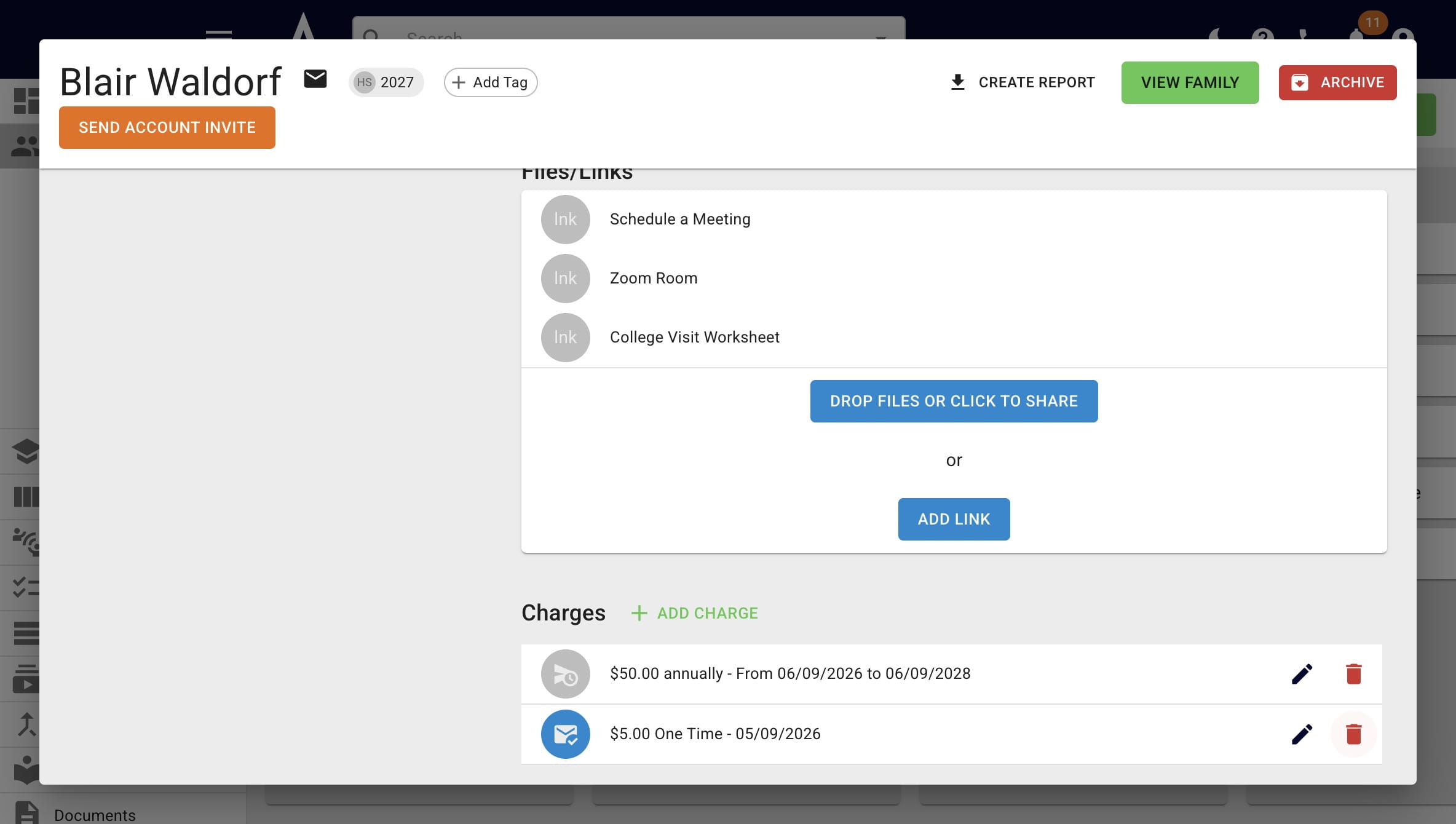
We recommend deleting the charge (rather than the invoice) whenever possible. Deleting a charge will automatically delete any connected unpaid or scheduled invoices. To do this, scroll down to the Charges section of the student's profile and press the trash can icon.
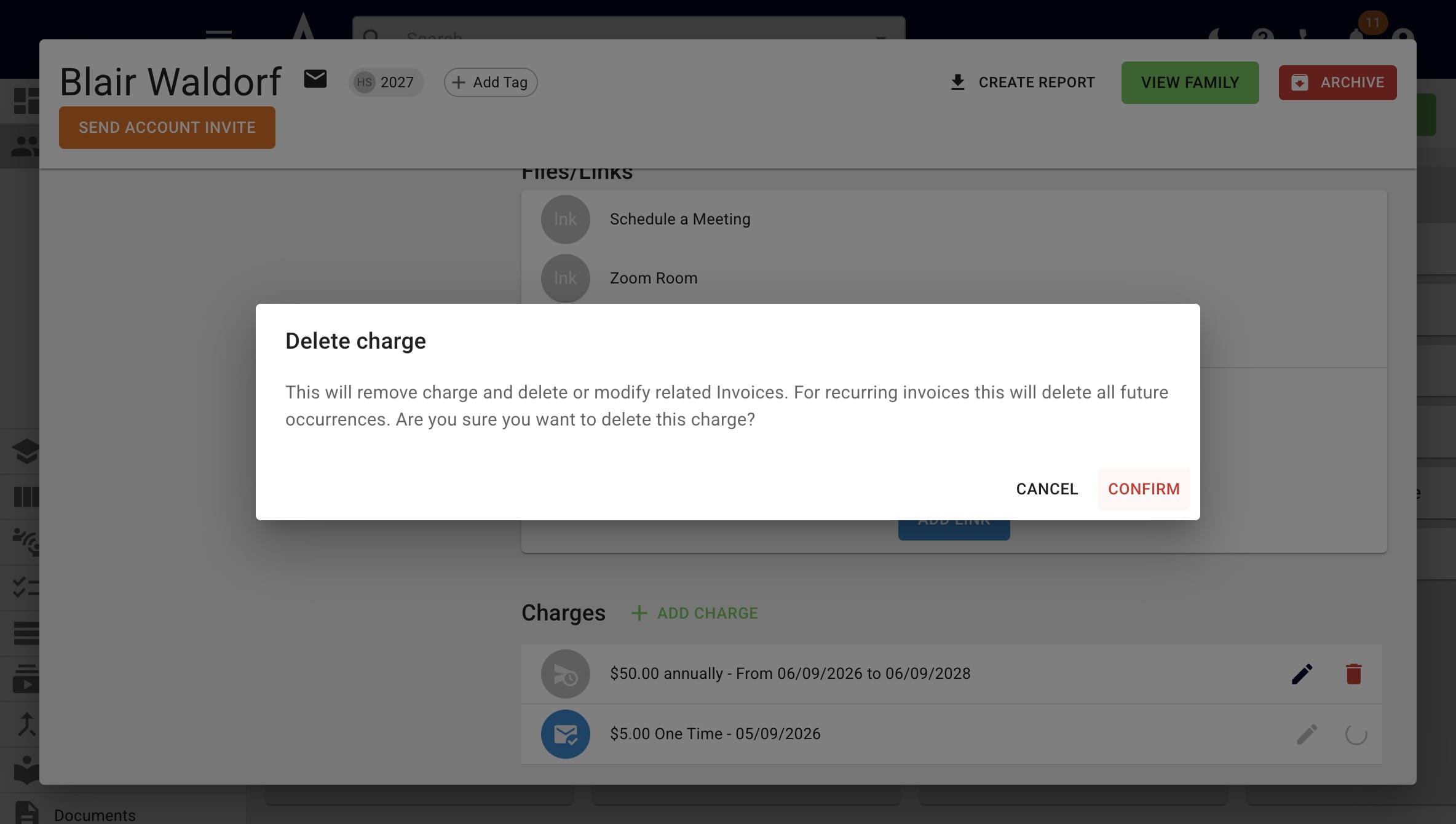
Click on Confirm to verify your request.
Done 🚀