
Editing & Deleting Contracts
This guide explains how to manage contracts by editing templates and permanently deleting contracts within Achieve.
May 05, 2026●
1
Navigate to https://app.achieveiec.com/documents
2
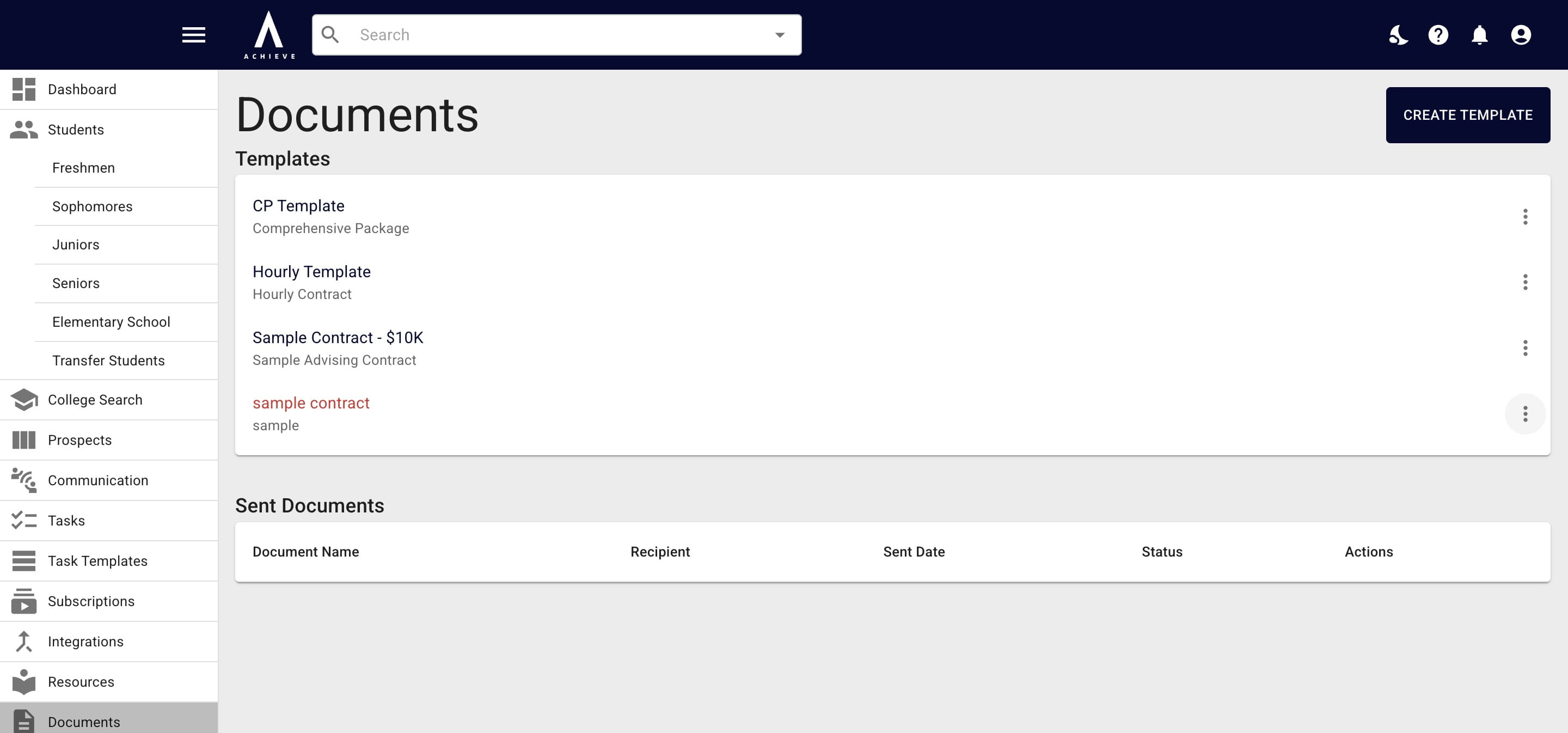
Click the three dots on the far right of the contract.
3
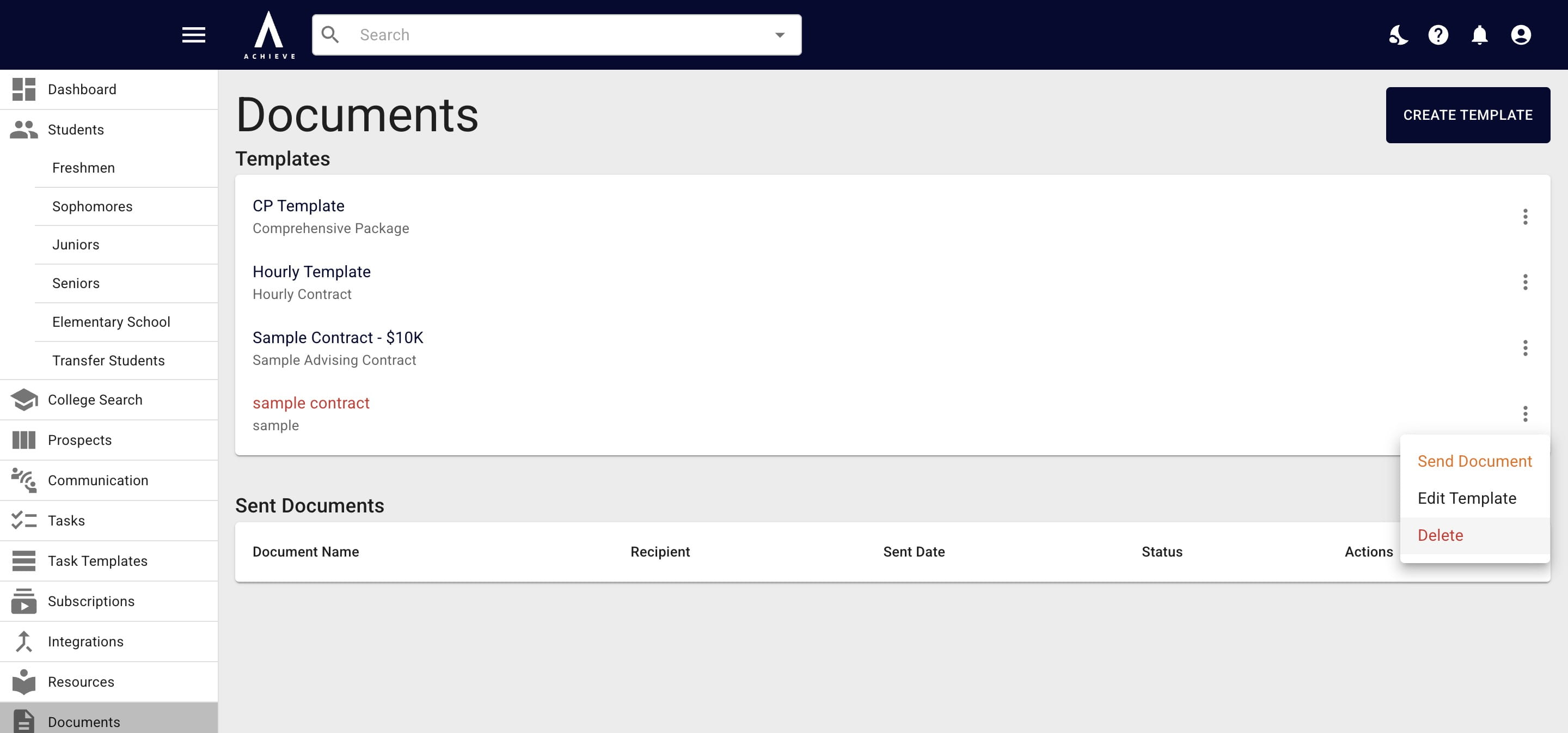
To permanently delete a contract, press the Delete option.
4
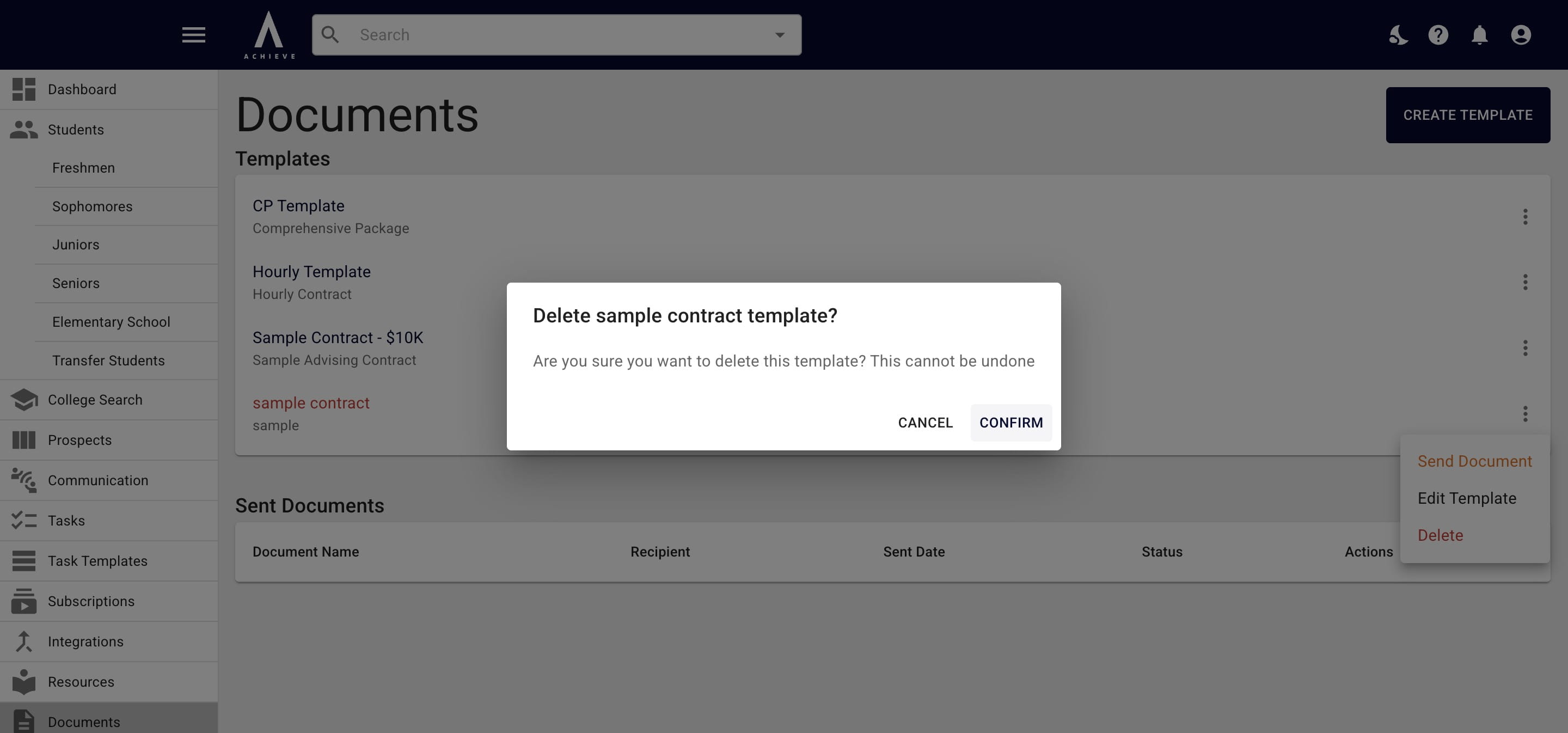
Then click on Confirm.
5
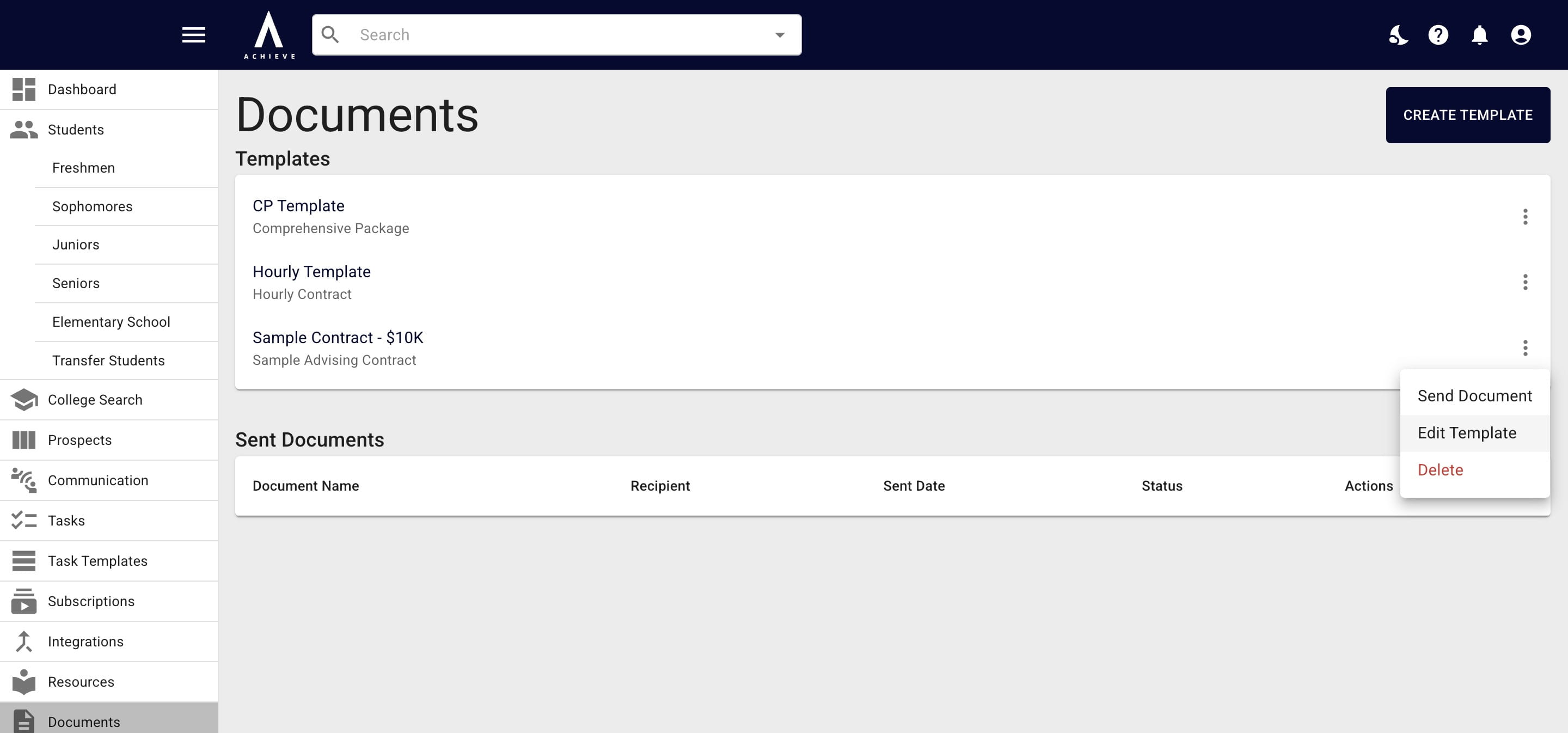
To edit a template, click on the Edit Template option.
6
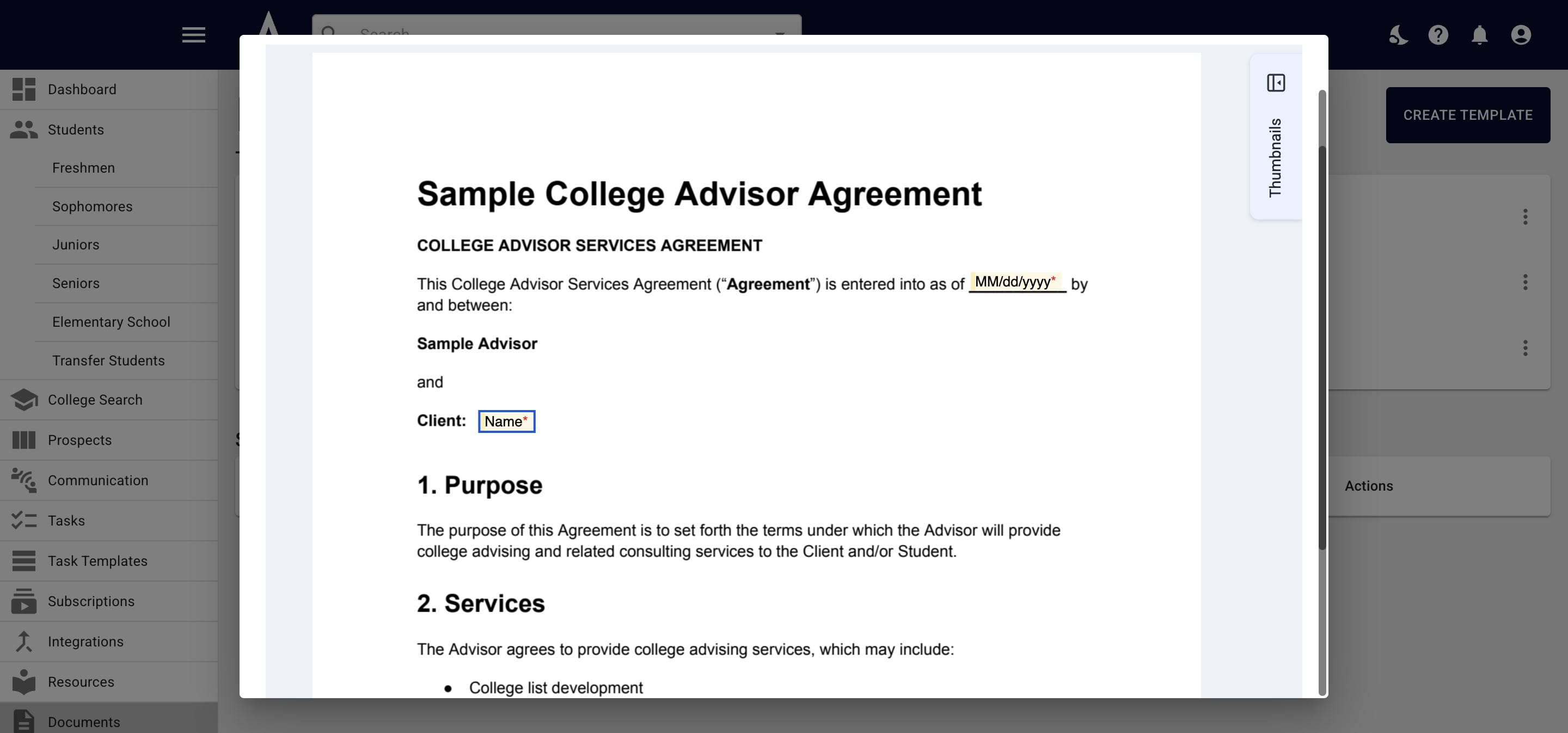
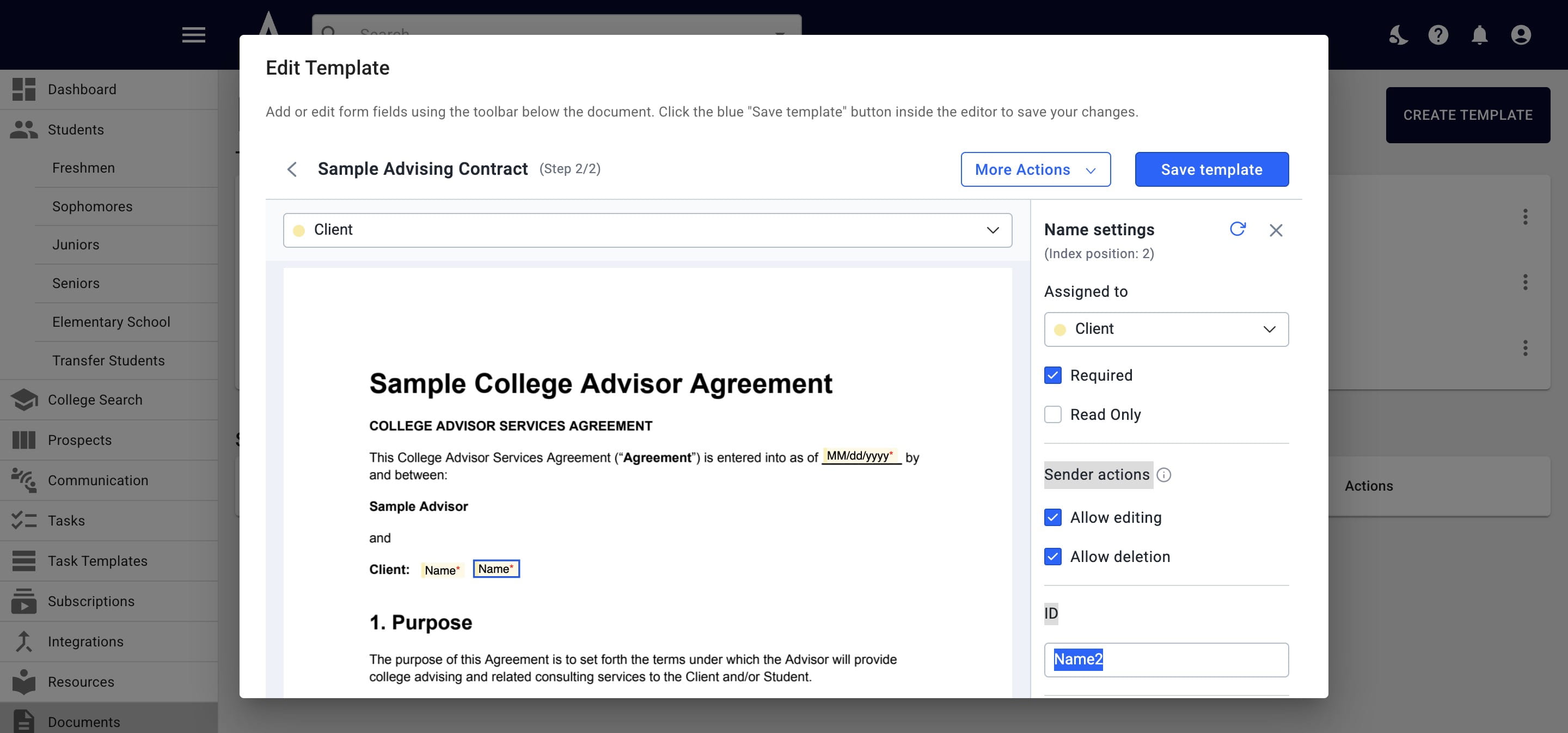
A pop up with the template will appear. You'll then be able to view the contract and/or make changes as needed.
7
When you're done, press Save Template.
8
Done 🚀