
Invoices Section
This guide explains how to use the Invoices section to view detailed invoice information and manage payments.
Navigate to https://app.achieveiec.com/invoices
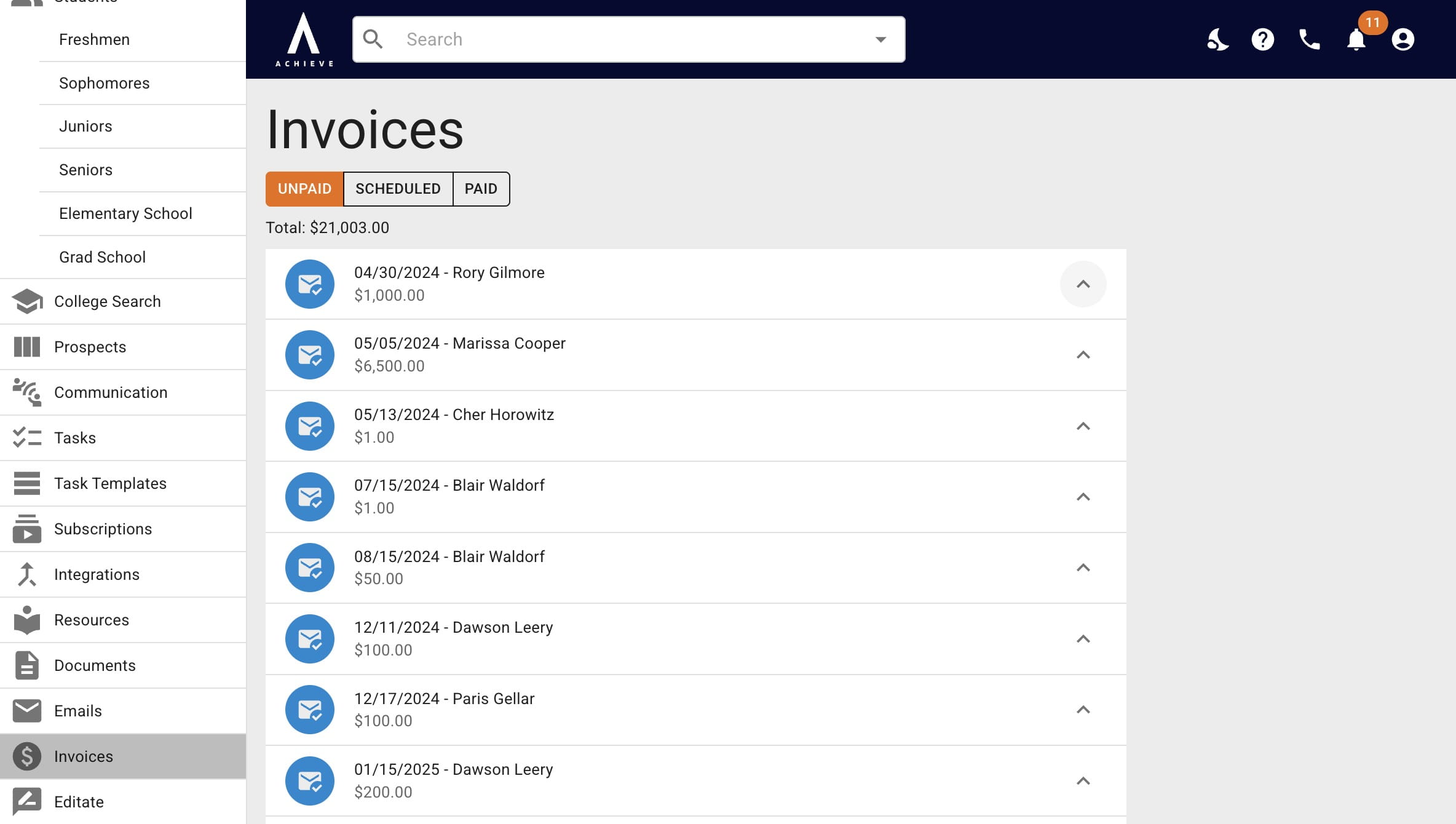
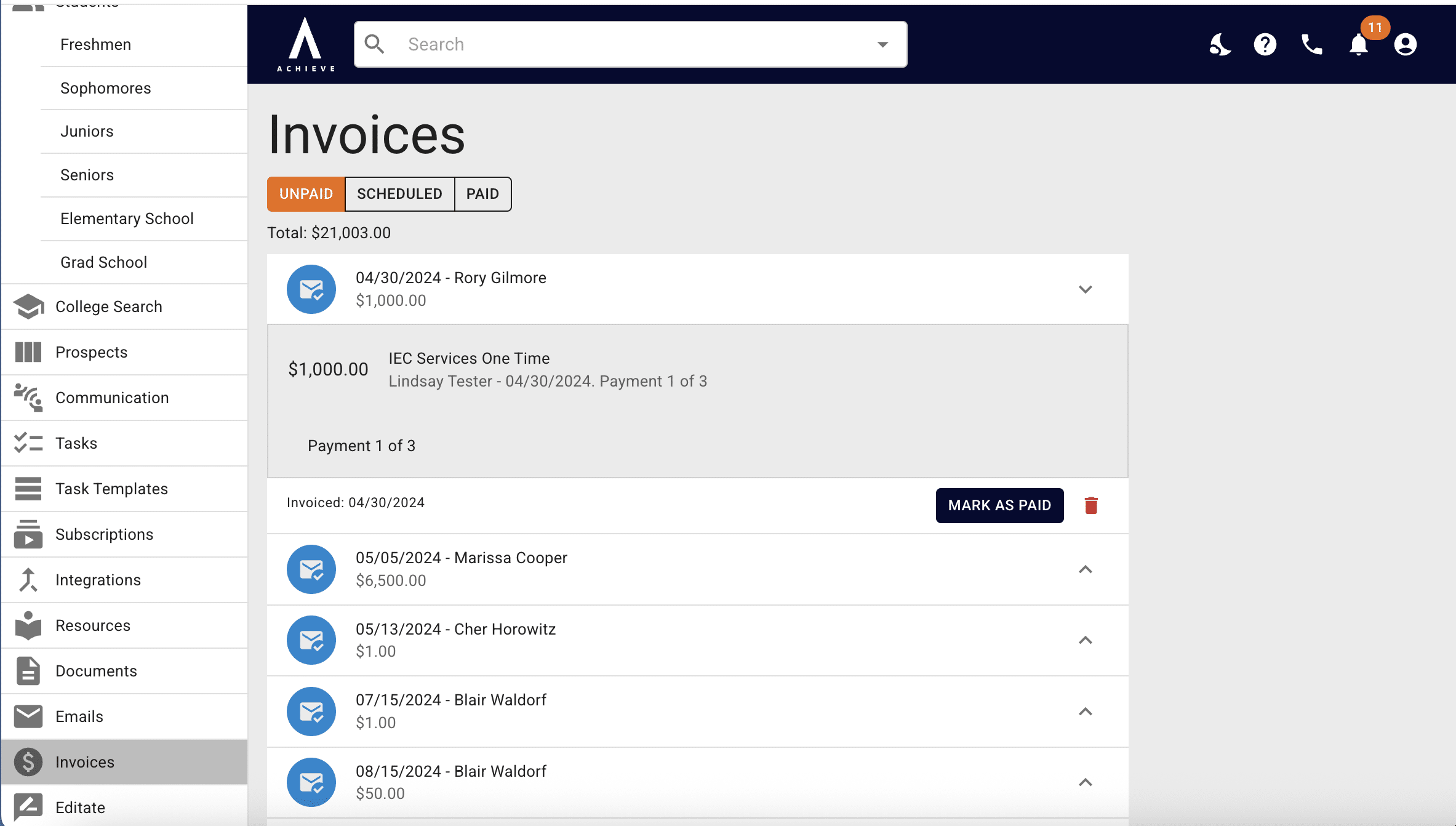
Click the up arrow icon to expand the invoice.
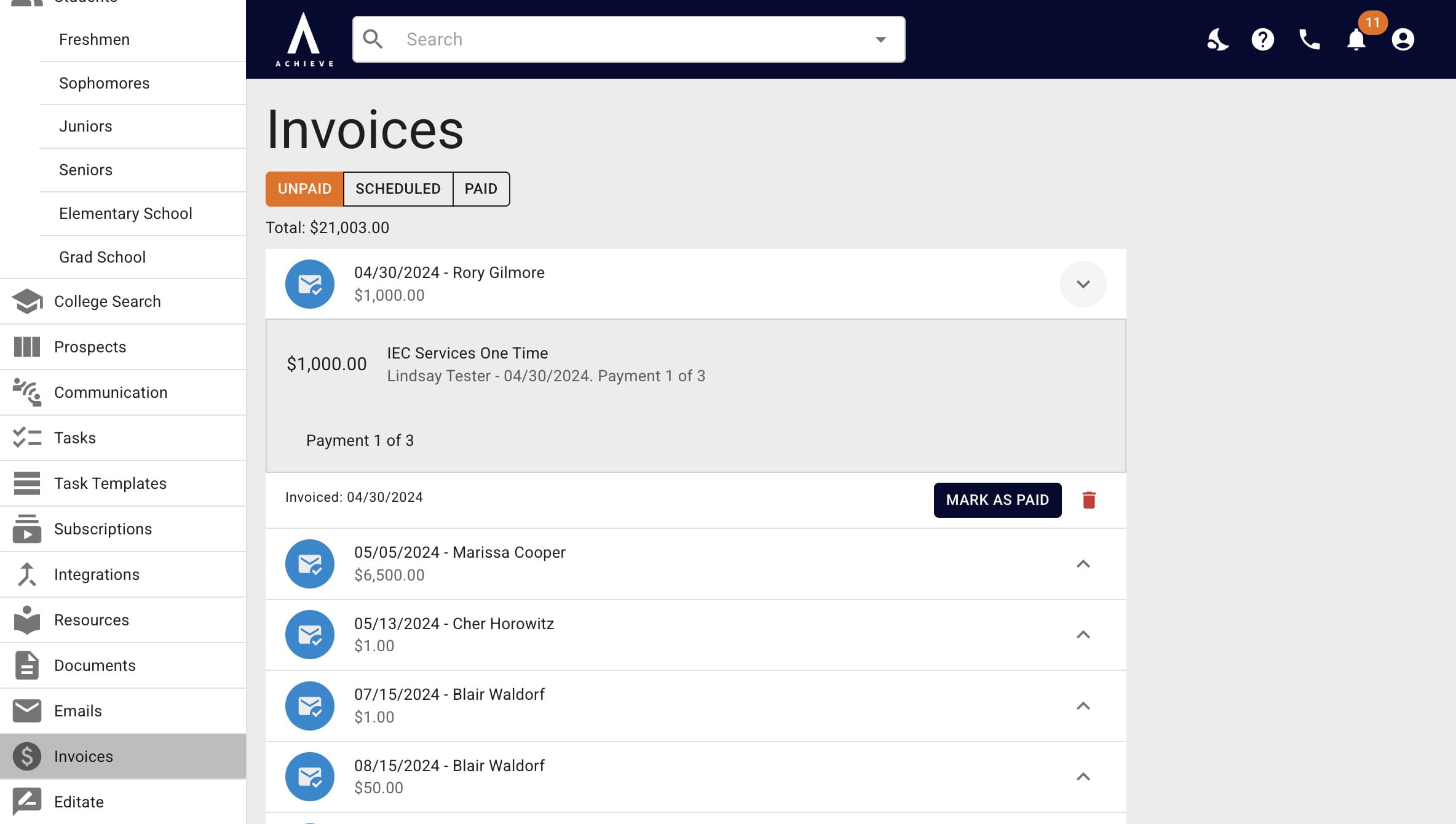
Once expanded, you can view more details about the invoice, mark non-Stripe invoices as paid, access Stripe invoice checkout links, and delete invoices. Click the down arrow icon to collapse an invoice.
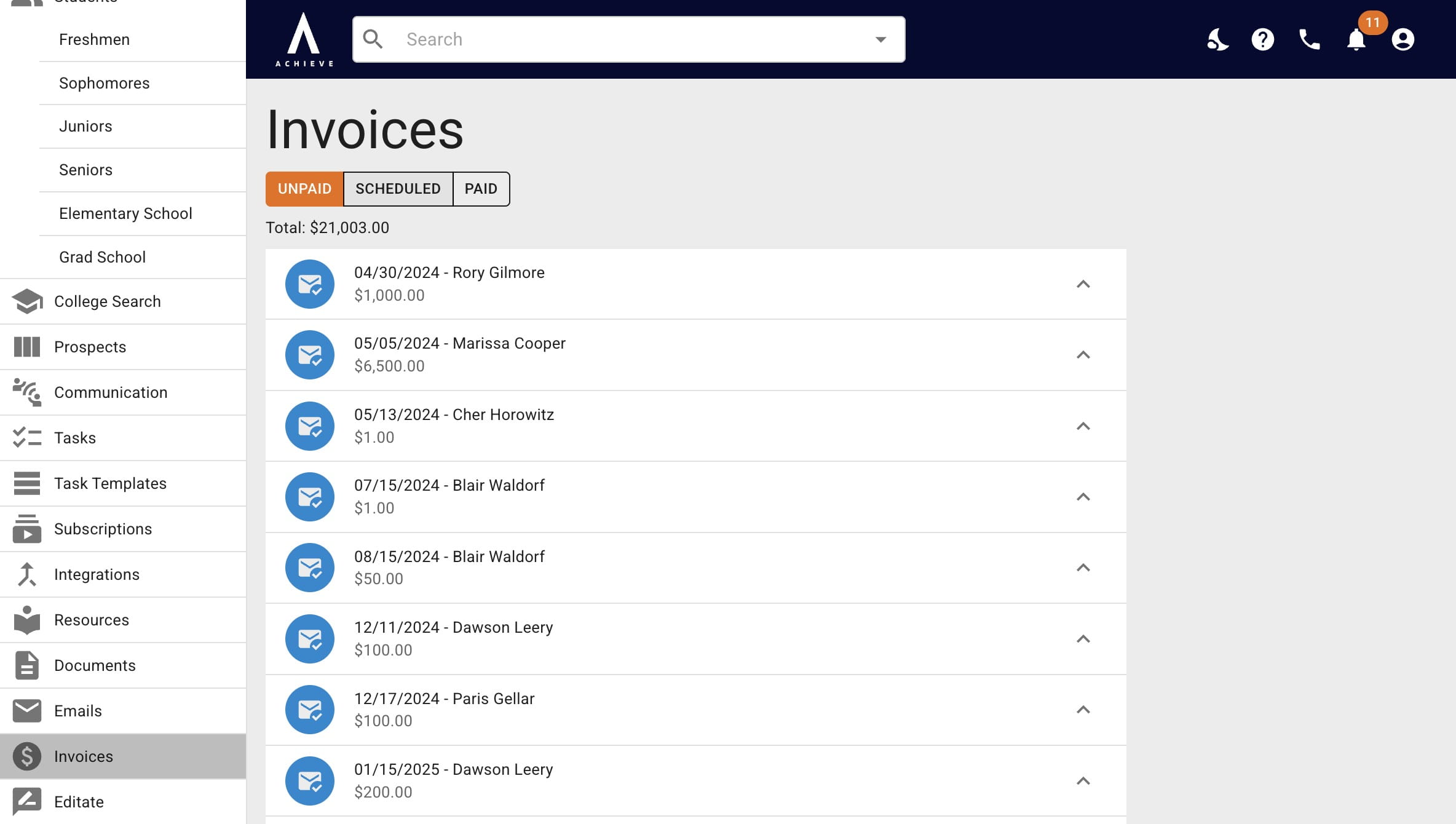
The Unpaid invoices heading show overdue invoices and invoices due within the next 15 days.
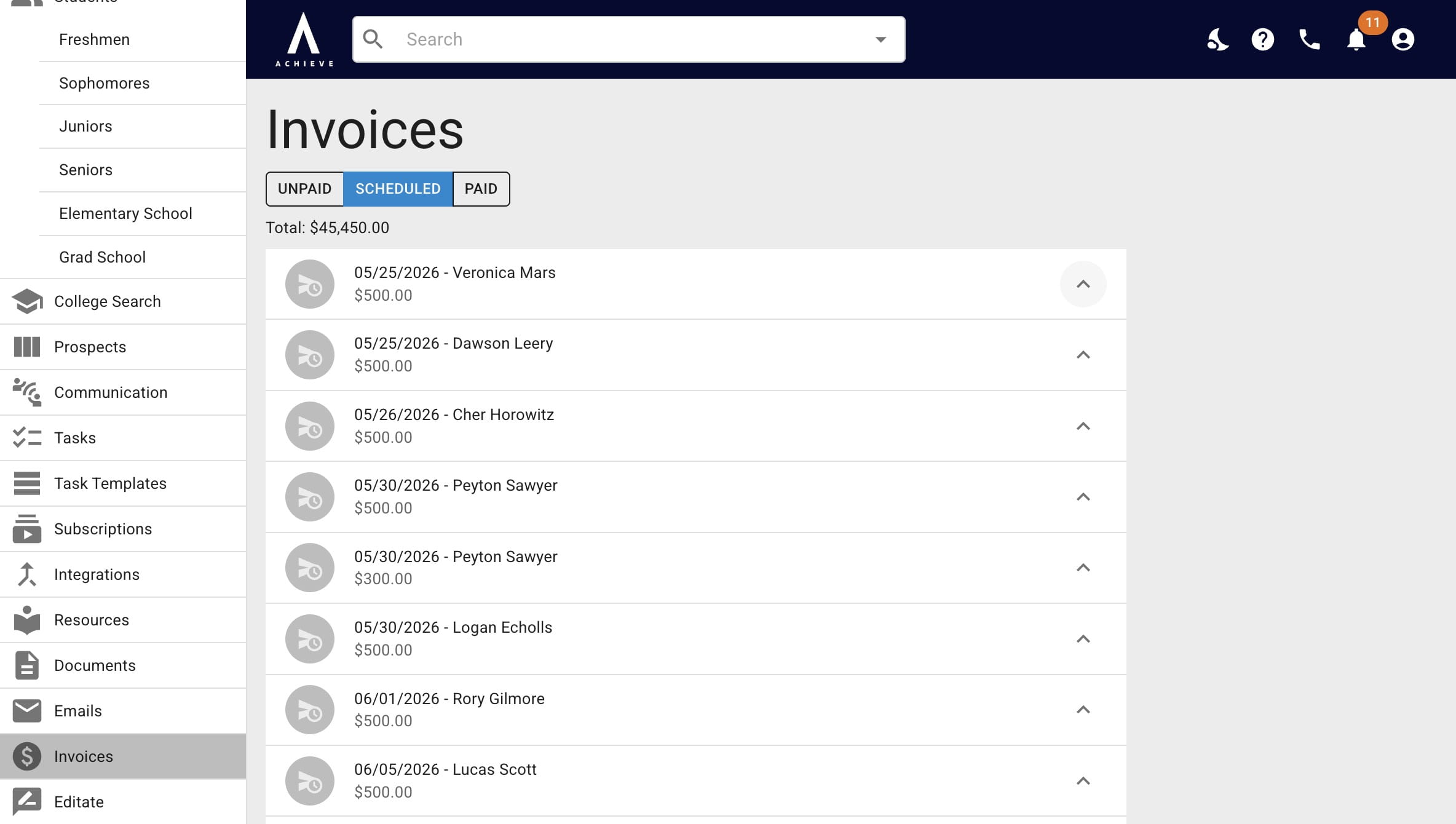
If you click Scheduled, you'll see all invoices that are due anytime after 15 days from today.
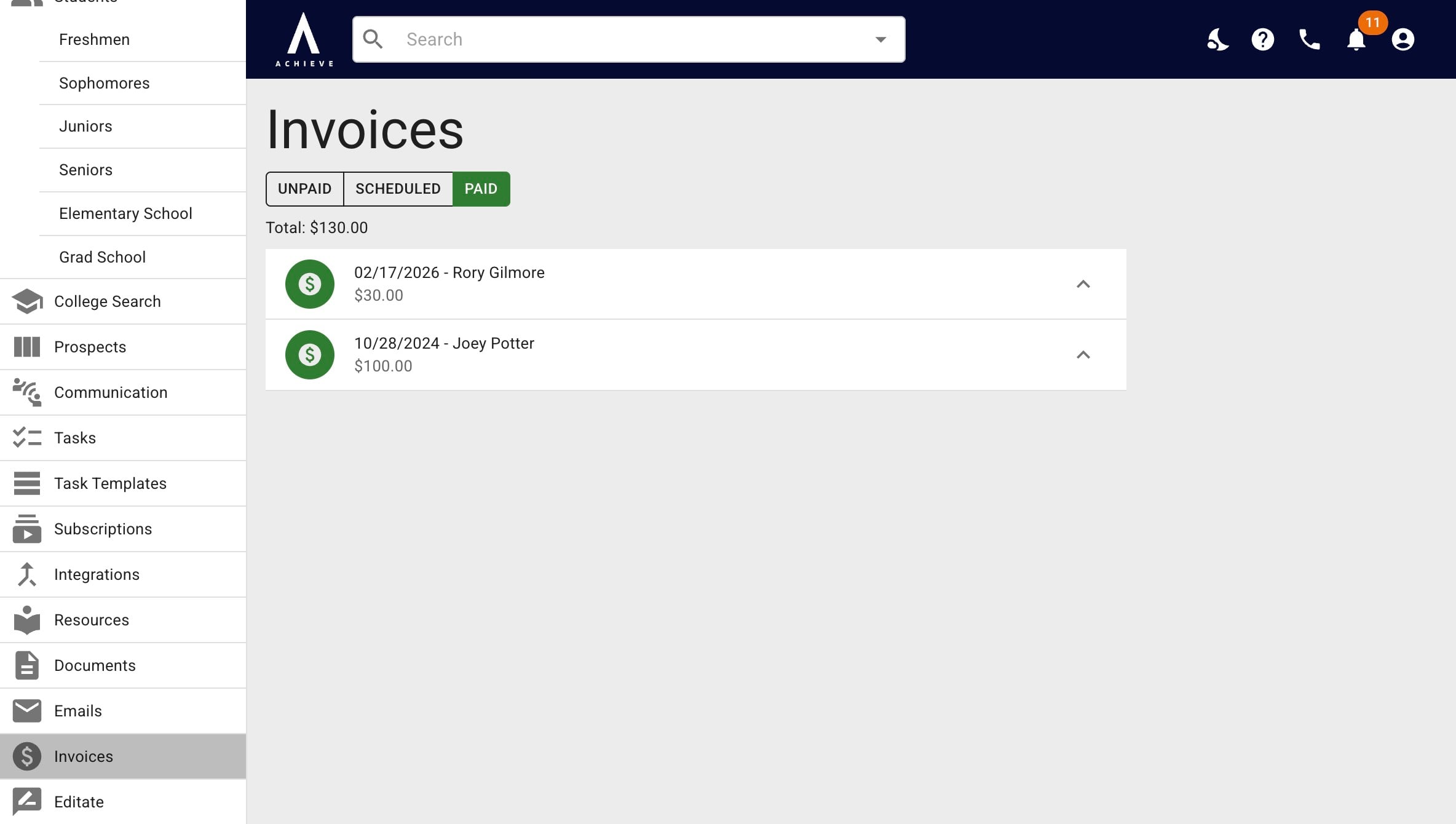
If you click Paid, you'll see all paid invoices.
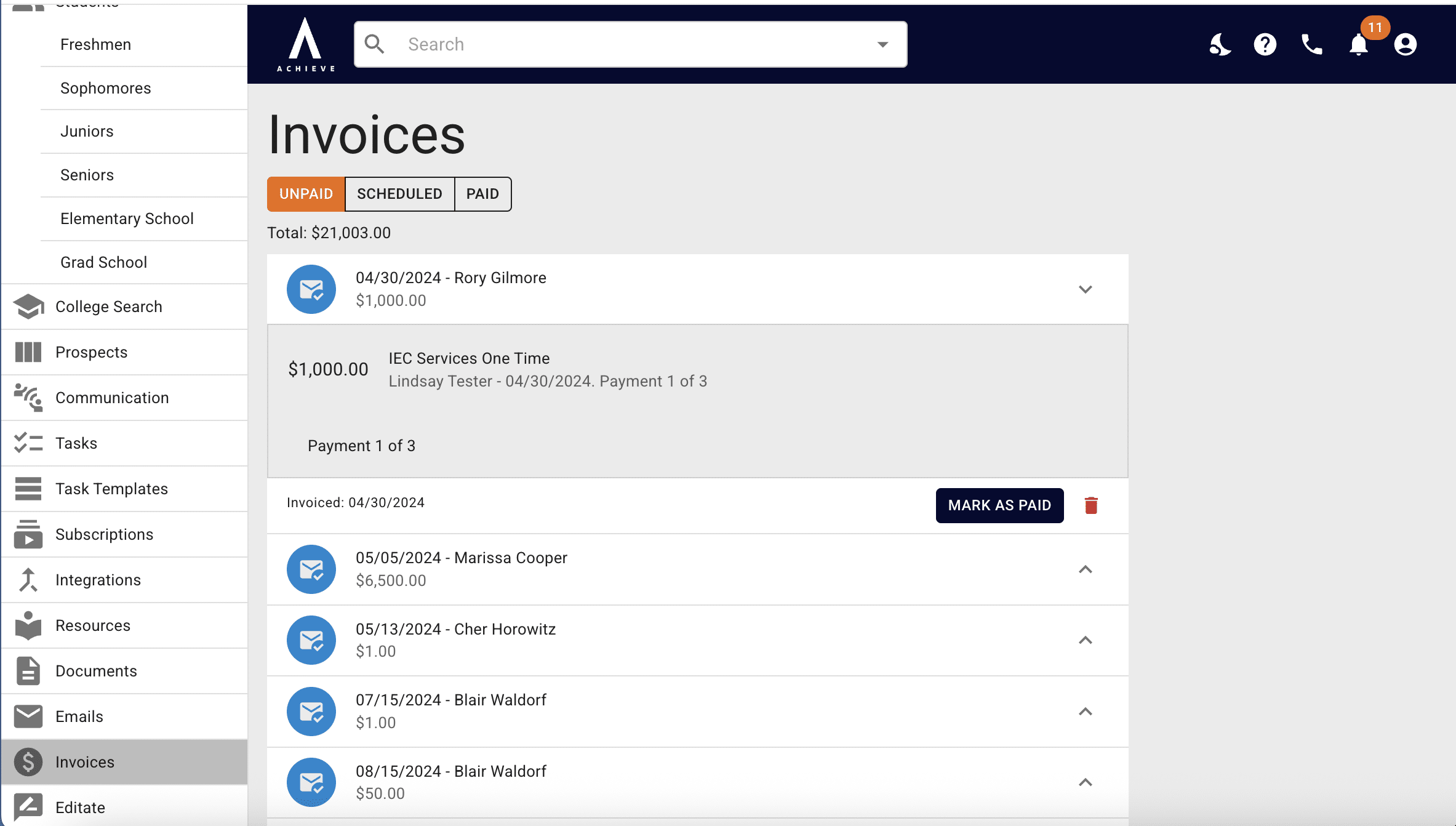
To mark a non-Stripe invoice as paid, press the Mark as Paid button.
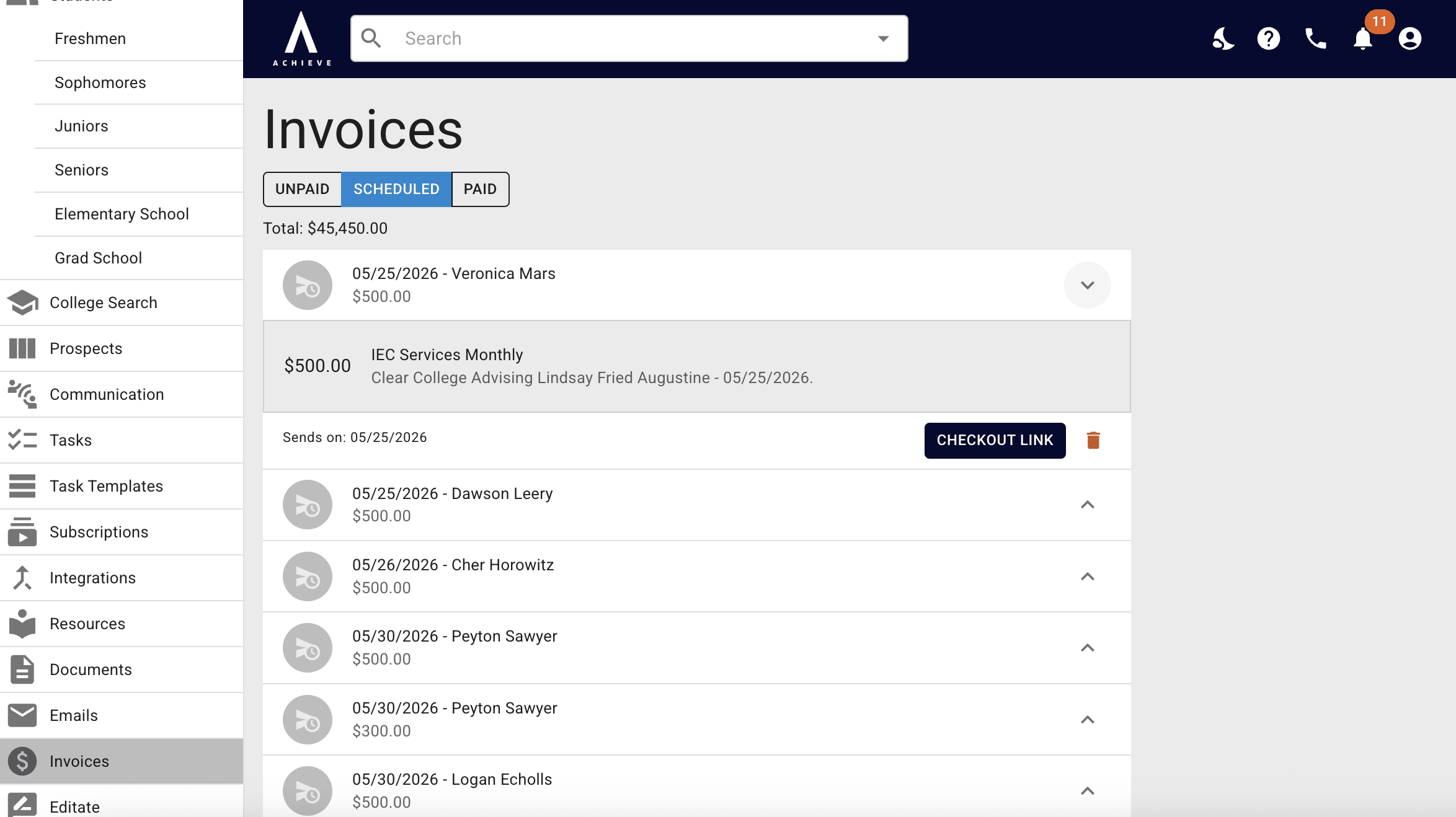
To access a Stripe checkout link for a Stripe invoice, click the Checkout Link button.
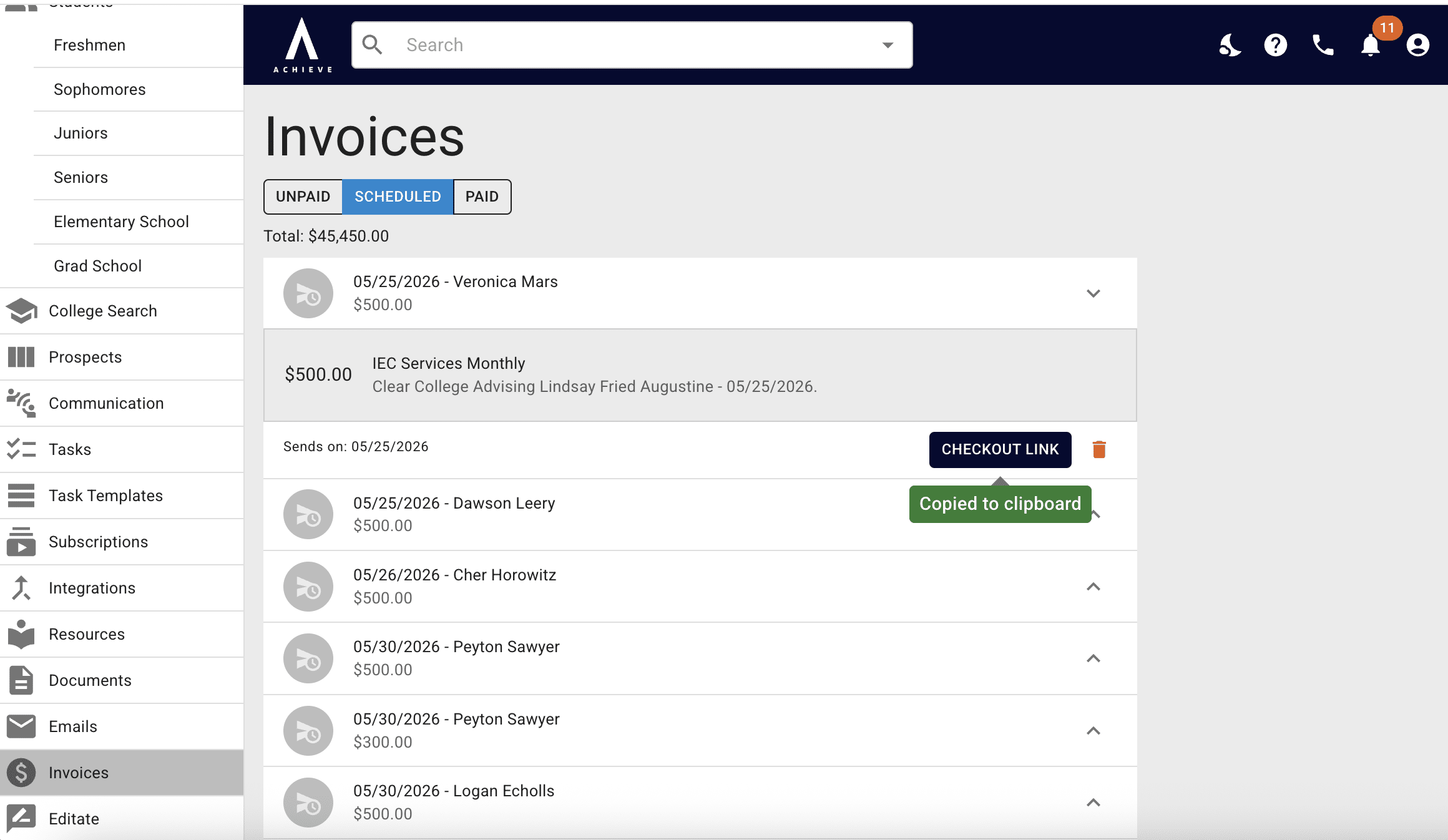
The link will then be copied to your computer's clipboard. You can paste the link into an email, text, a new browser tab, etc. The invoice is to be paid directly through that checkout link. Once the invoice is paid, you'll be notified and the invoice will be automatically marked as paid in Achieve.
To delete an invoice, click on the trash can icon.
Done 🚀