logo

Managing College Lists

Learn how to build and manage a student's college list in Achieve.

May 08, 2026â—Ź
1

Press on Colleges in a student's Achieve profile to see their college list.
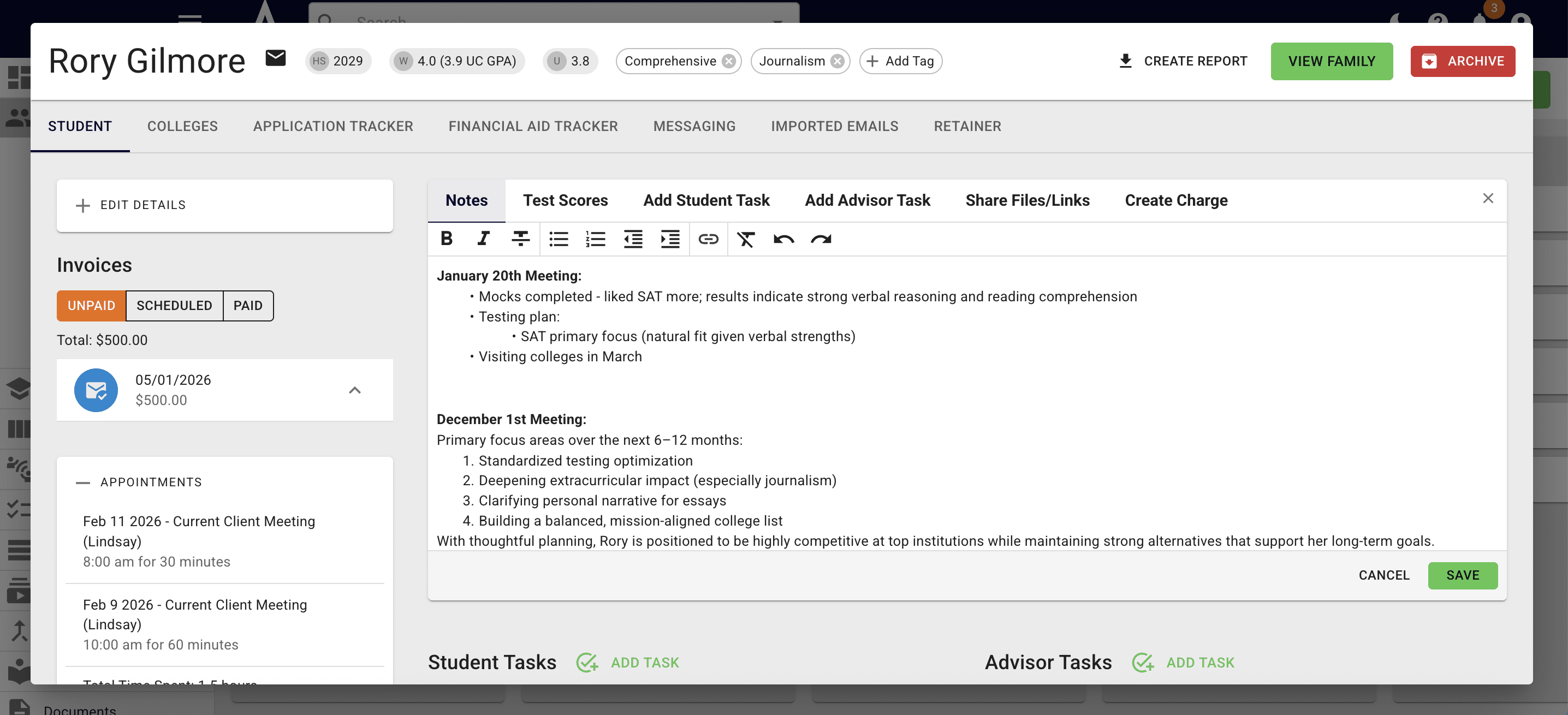
Press on **Colleges** in a student's Achieve profile to see their college list.
2

To use Achieve's college search tool press Search Colleges.
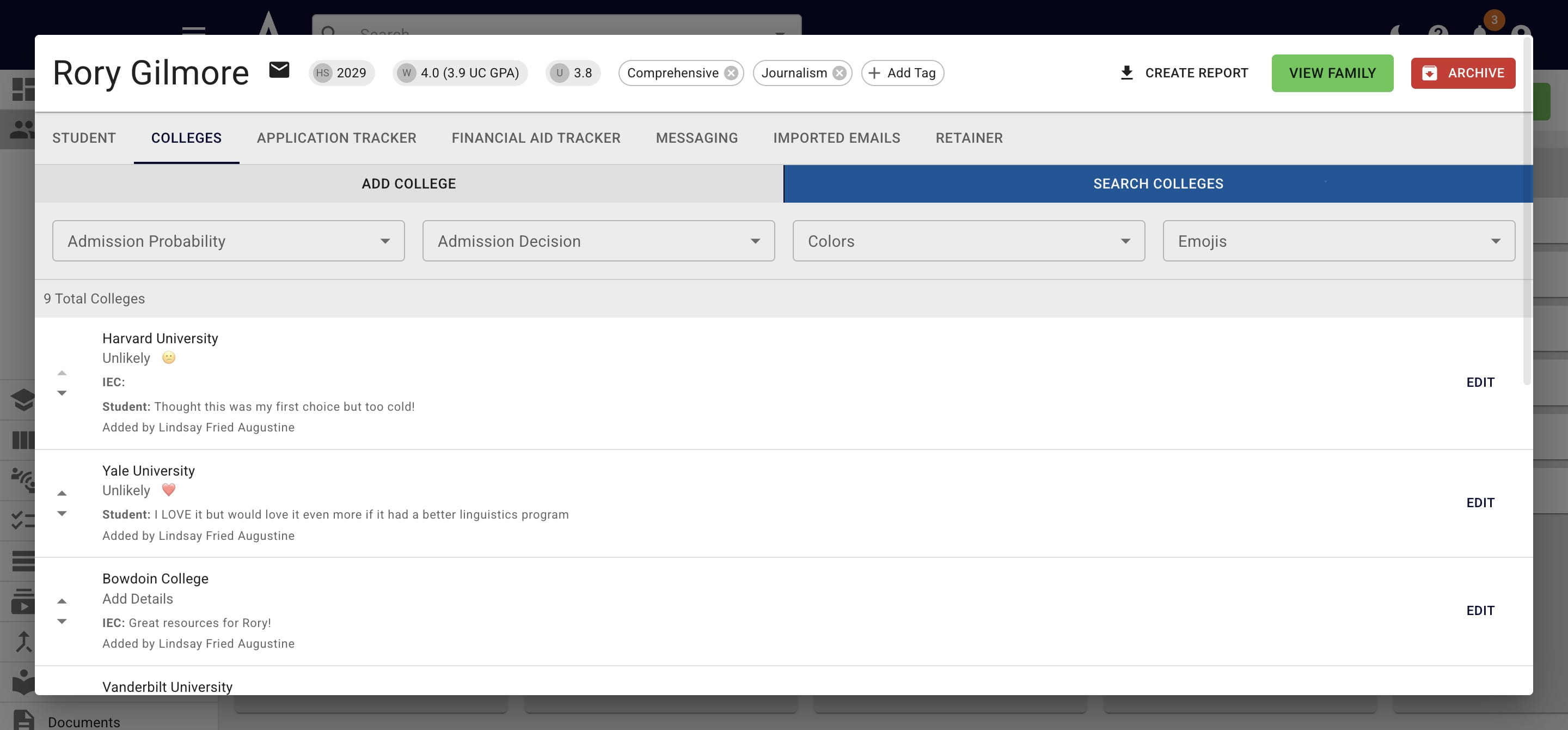
To use Achieve's college search tool press **Search Colleges.**
3

On the left-hand side, you'll see the fields you can currently search by. If there's a field that you're looking for that's not currently listed, please let us know.
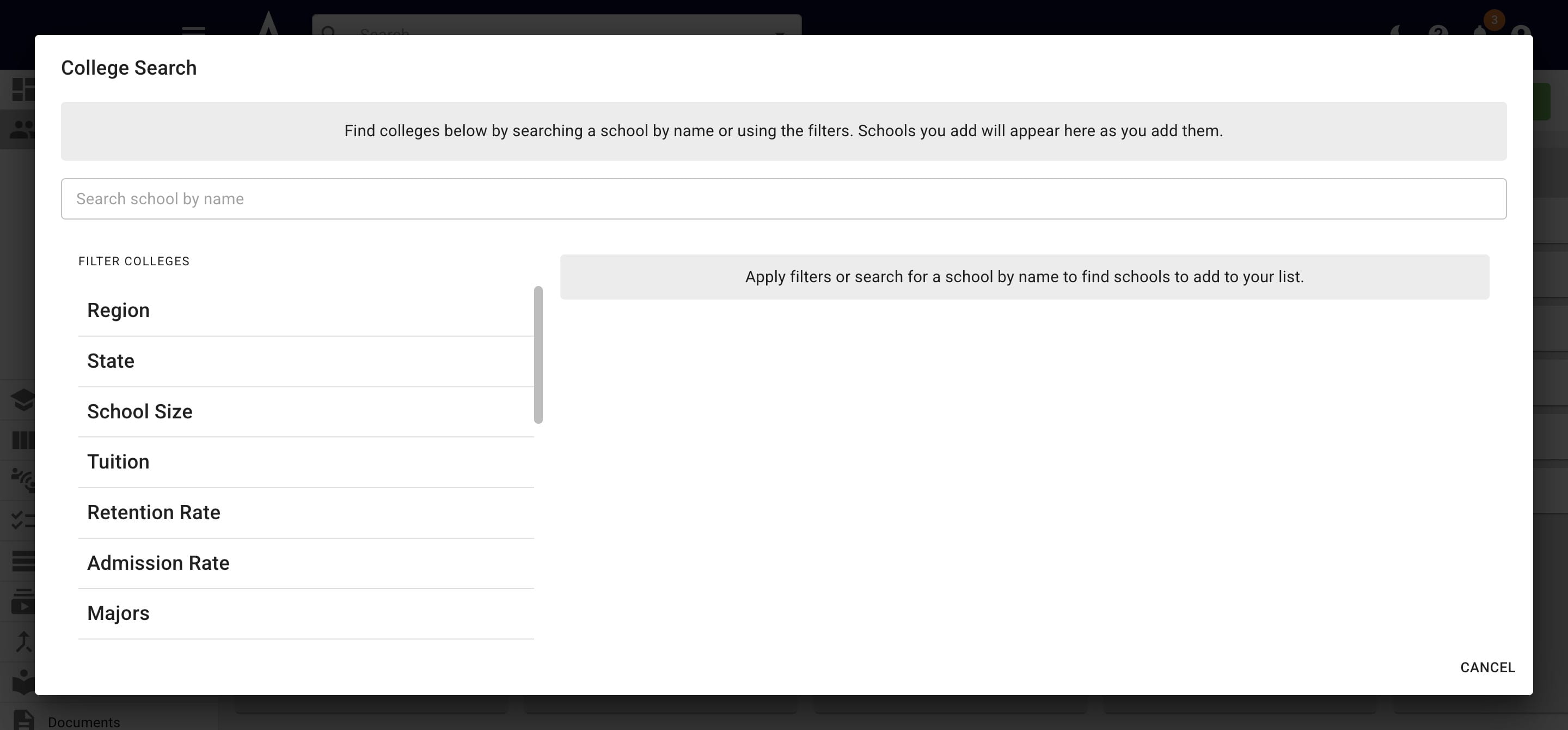
On the left-hand side, you'll see the fields you can currently search by. If there's a field that you're looking for that's not currently listed, please let us know.
4

As you put in different parameters, you'll see applicable colleges begin showing up on the right-hand side.
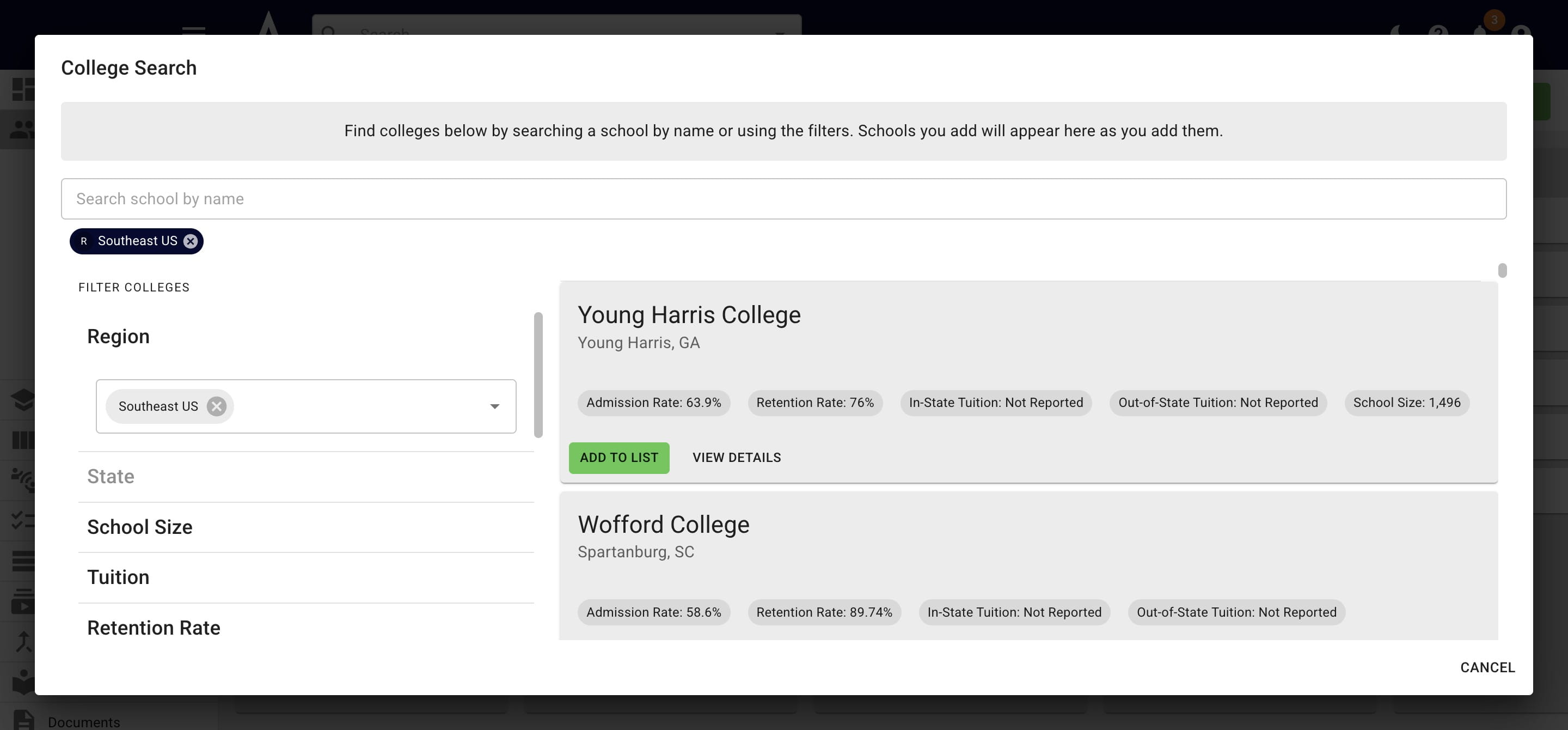
As you put in different parameters, you'll see applicable colleges begin showing up on the right-hand side.
5

If you click on View Details the college's full profile will appear.
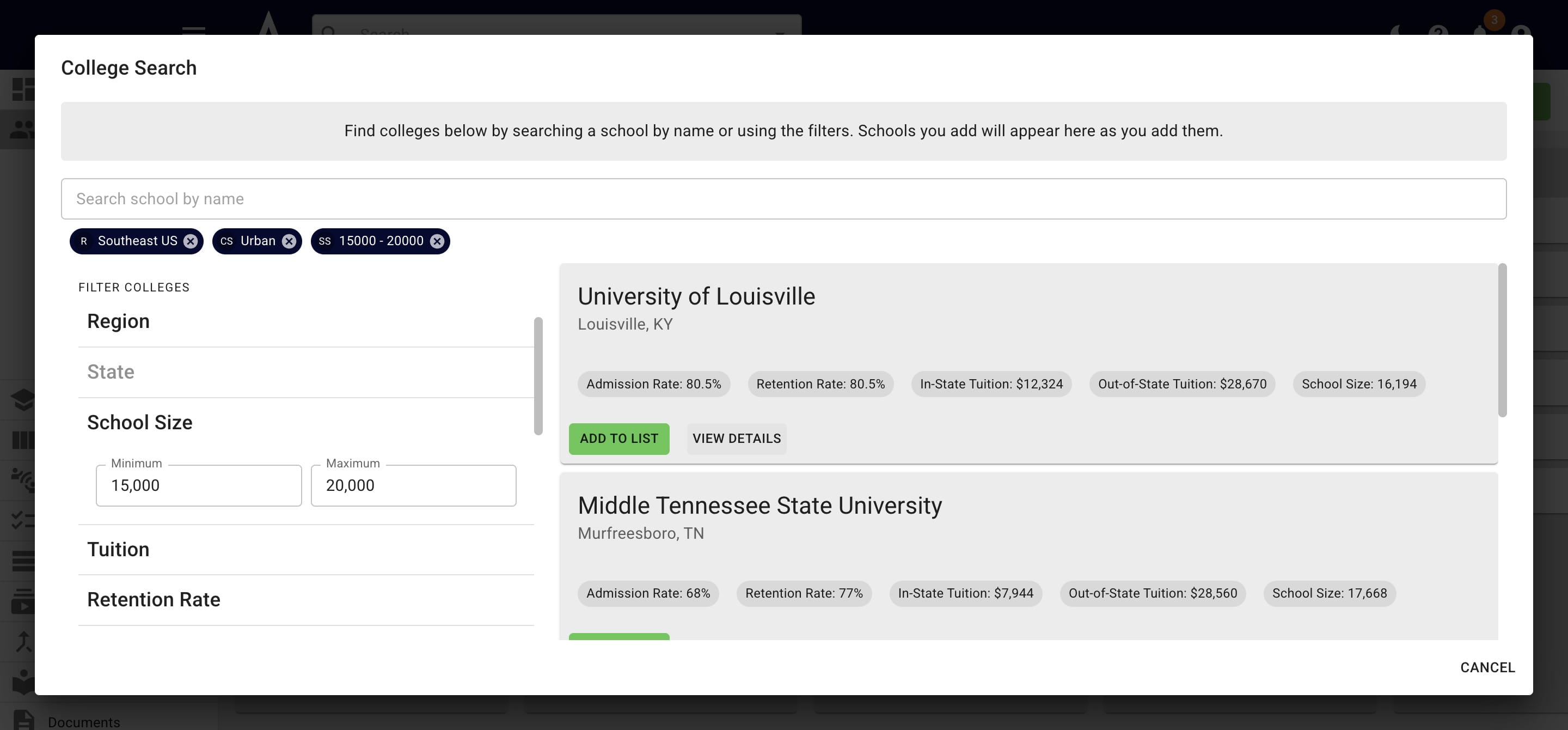
If you click on **View Details** the college's full profile will appear.
6

Click on Add to List to add it to the list of colleges that you feel would be a good fit for the student.
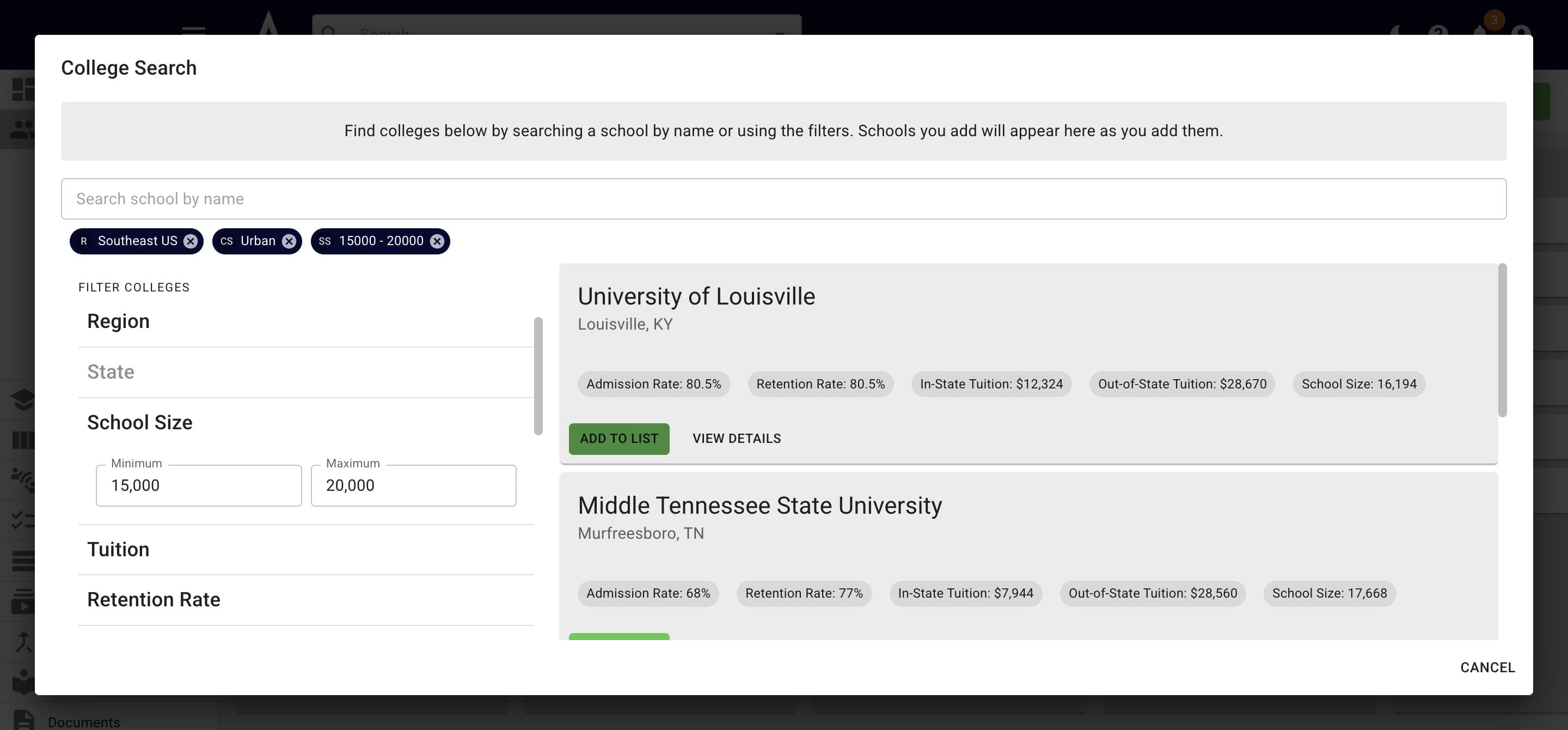
Click on **Add to List** to add it to the list of colleges that you feel would be a good fit for the student.
7

Press Click to View/Manage to see and/or edit the list of colleges currently being queued to add to the student's college list.
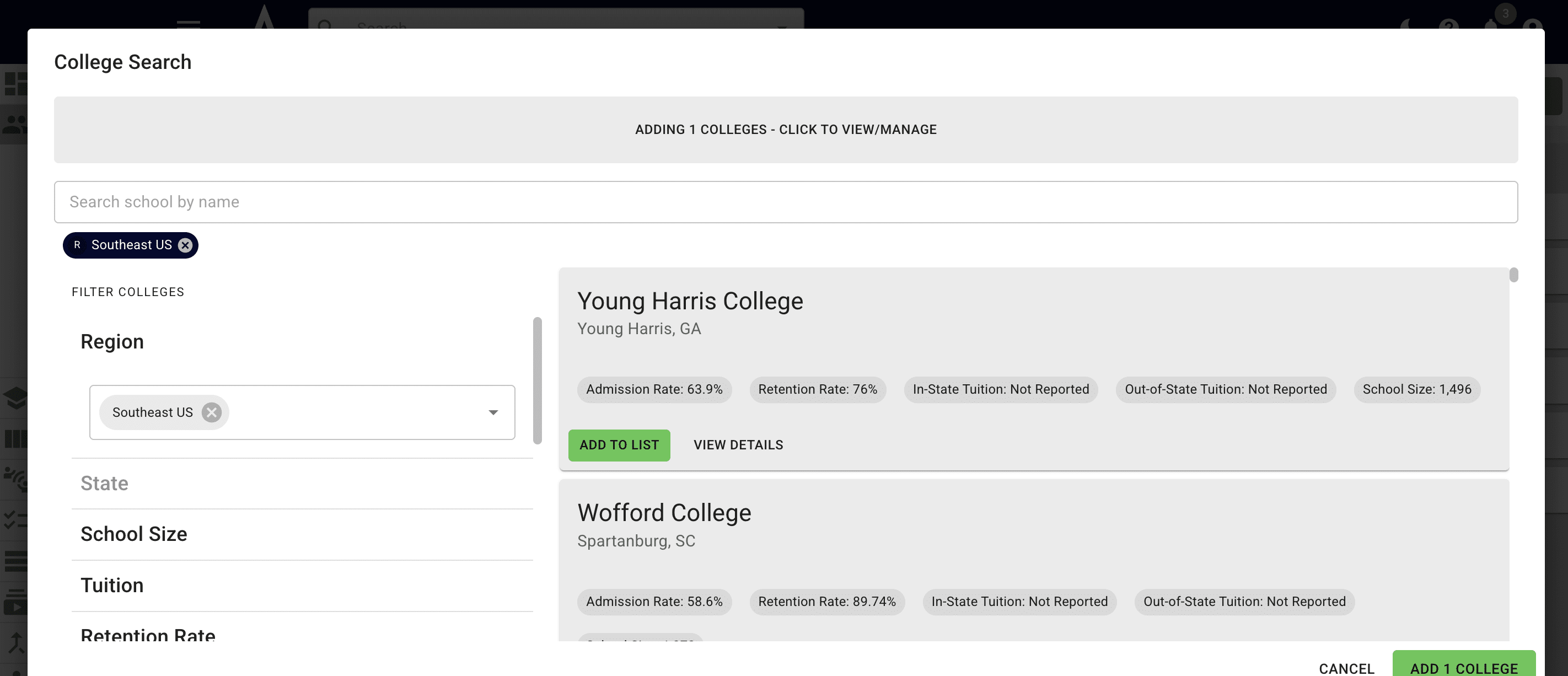
Press **Click to View/Manage** to see and/or edit the list of colleges currently being queued to add to the student's college list.
8

Click on Remove to remove a college from the group.
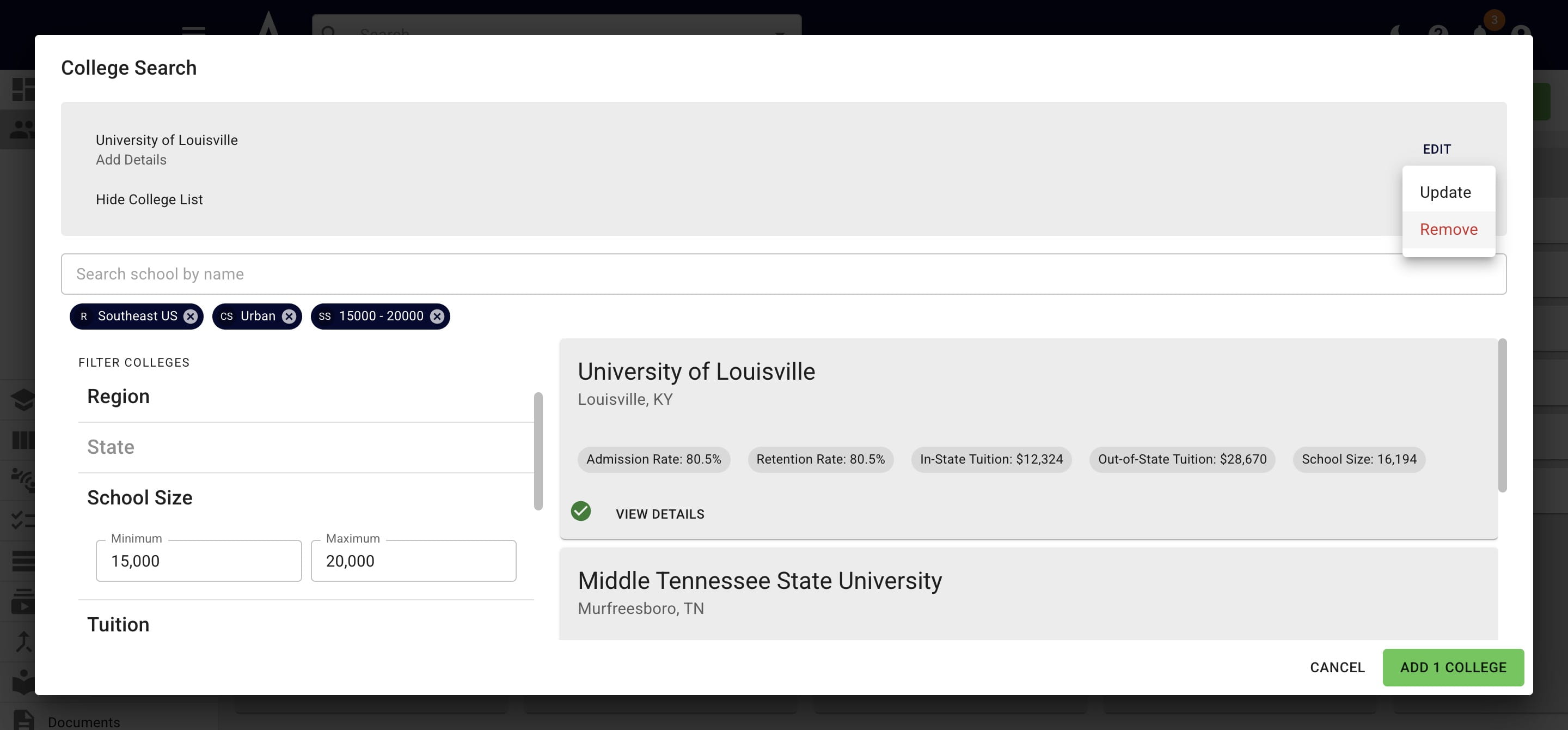
Click on **Remove** to remove a college from the group.
9

When you're ready to add colleges from the search to a student's list, press the Add button.
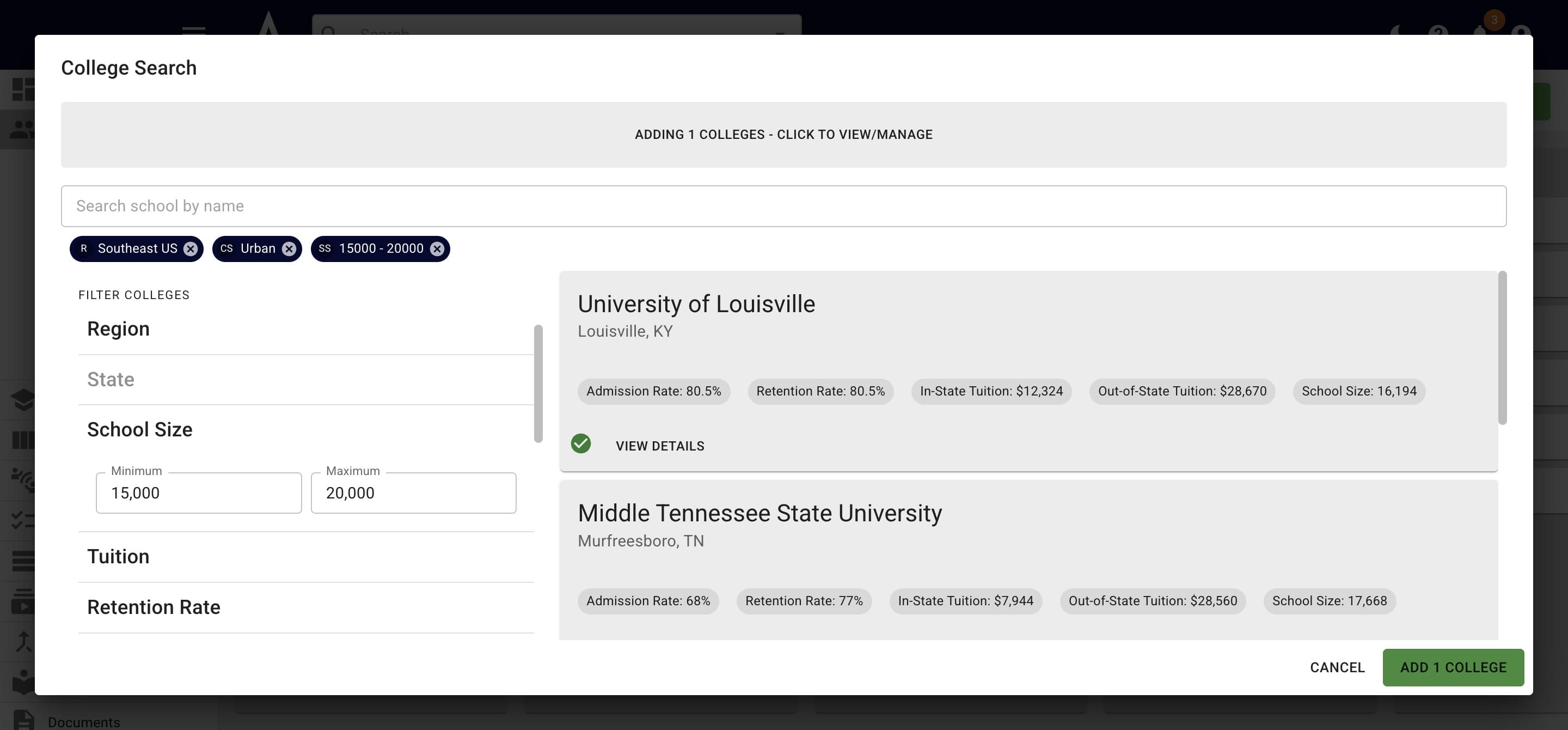
When you're ready to add colleges from the search to a student's list, press the **Add** button.
10

You can also press the Add College button to add 1 college at a time to a student's list.
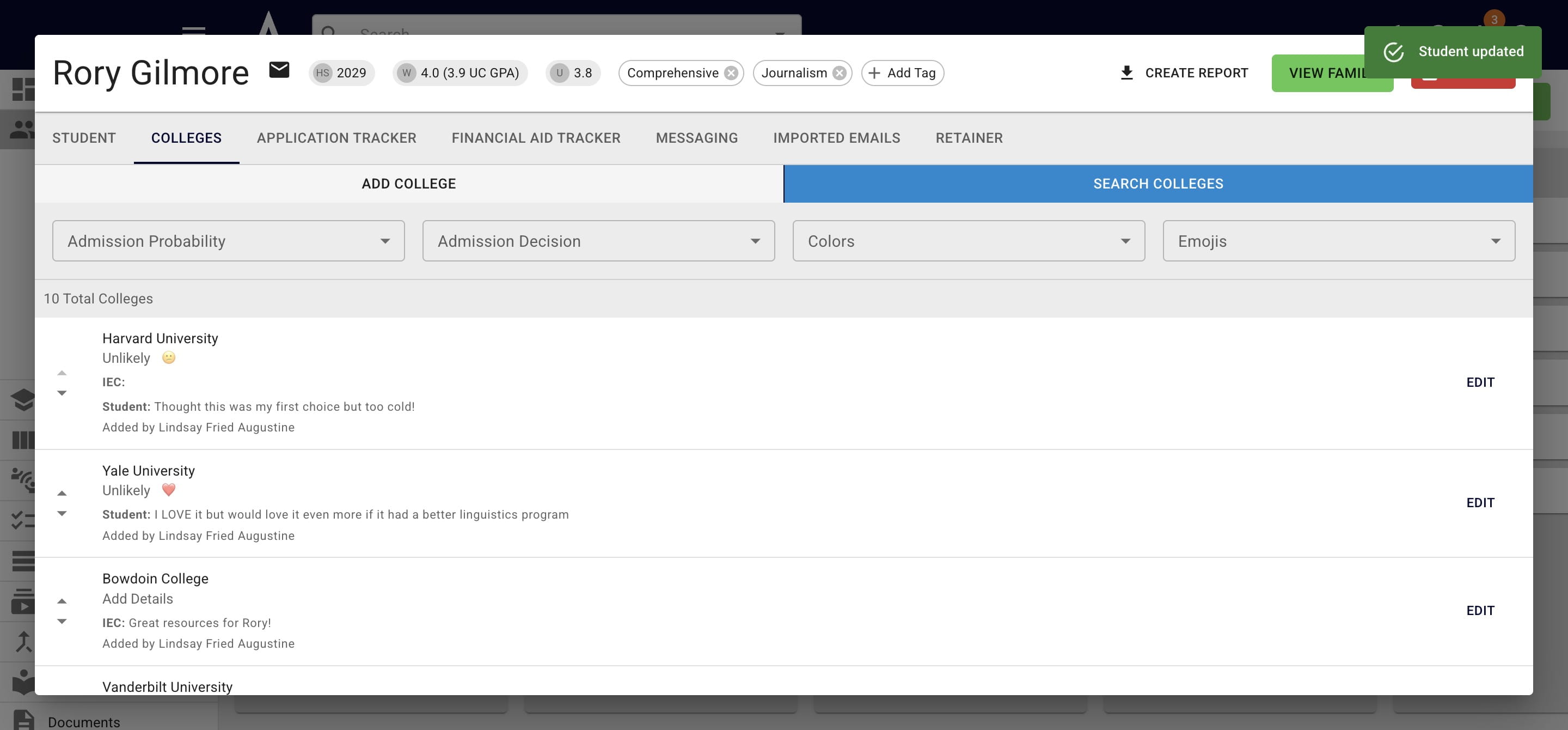
You can also press the **Add College** button to add 1 college at a time to a student's list.
11

When the pop up appears, start typing in the college's name (0r abbreviation - for example, UGA for University of Georgia). Then click on the college once it appears.
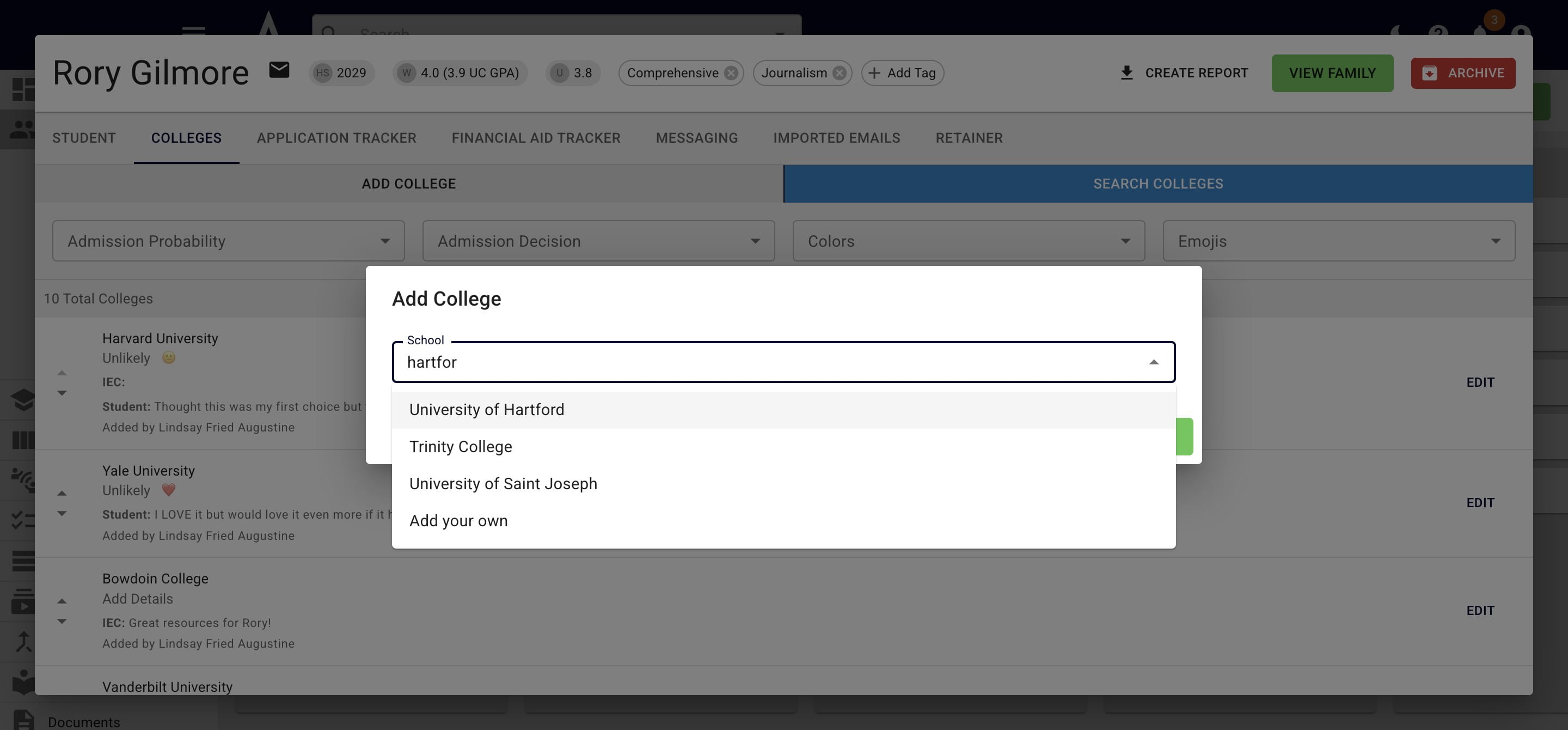
When the pop up appears, start typing in the college's name (0r abbreviation - for example, UGA for University of Georgia). Then click on the college once it appears.
12

New fields will pop up, including Admission Probability. This is an open text field; however, your previous entries will appear based on your browser's auto-fill settings.
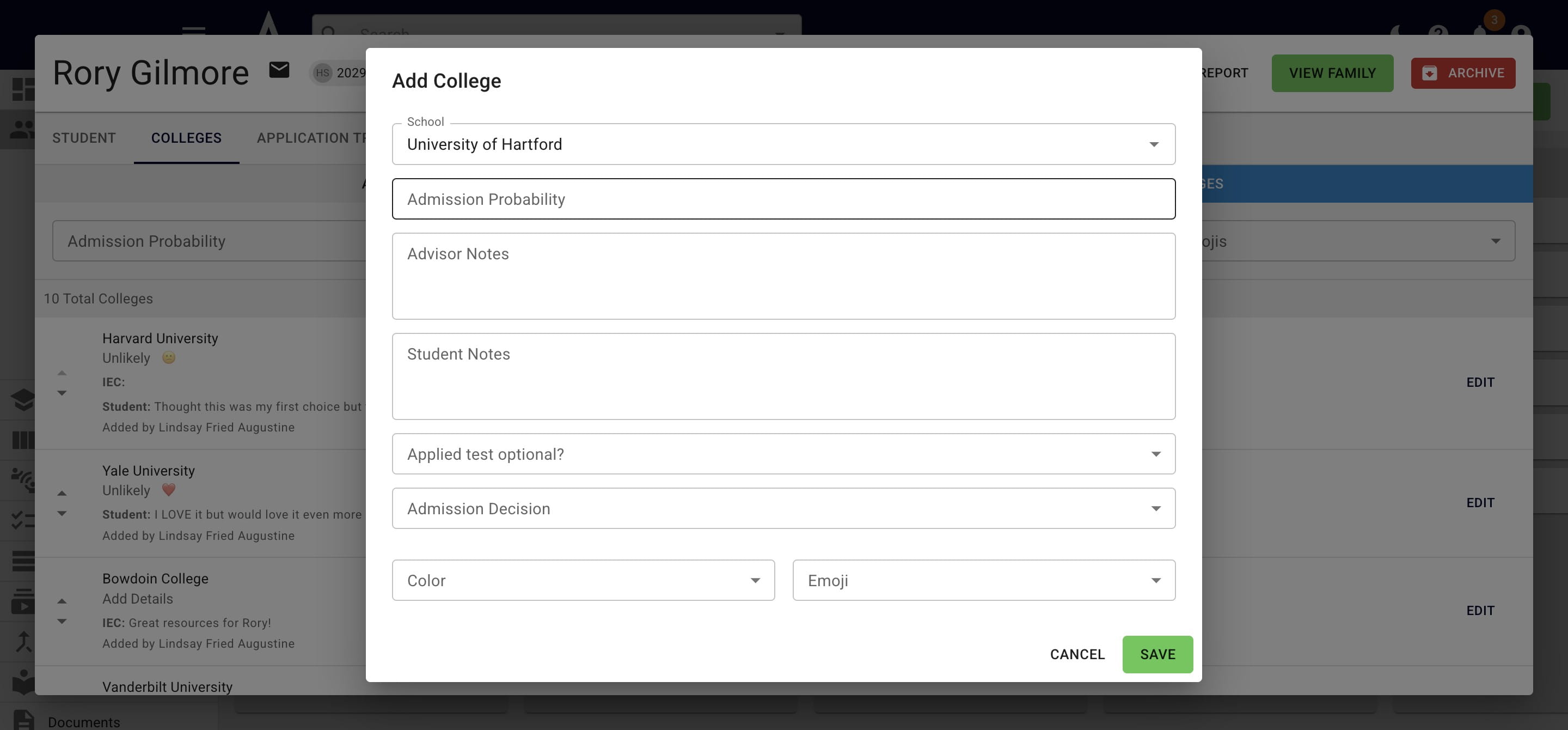
New fields will pop up, including **Admission Probability.** This is an open text field; however, your previous entries will appear based on your browser's auto-fill settings.
13

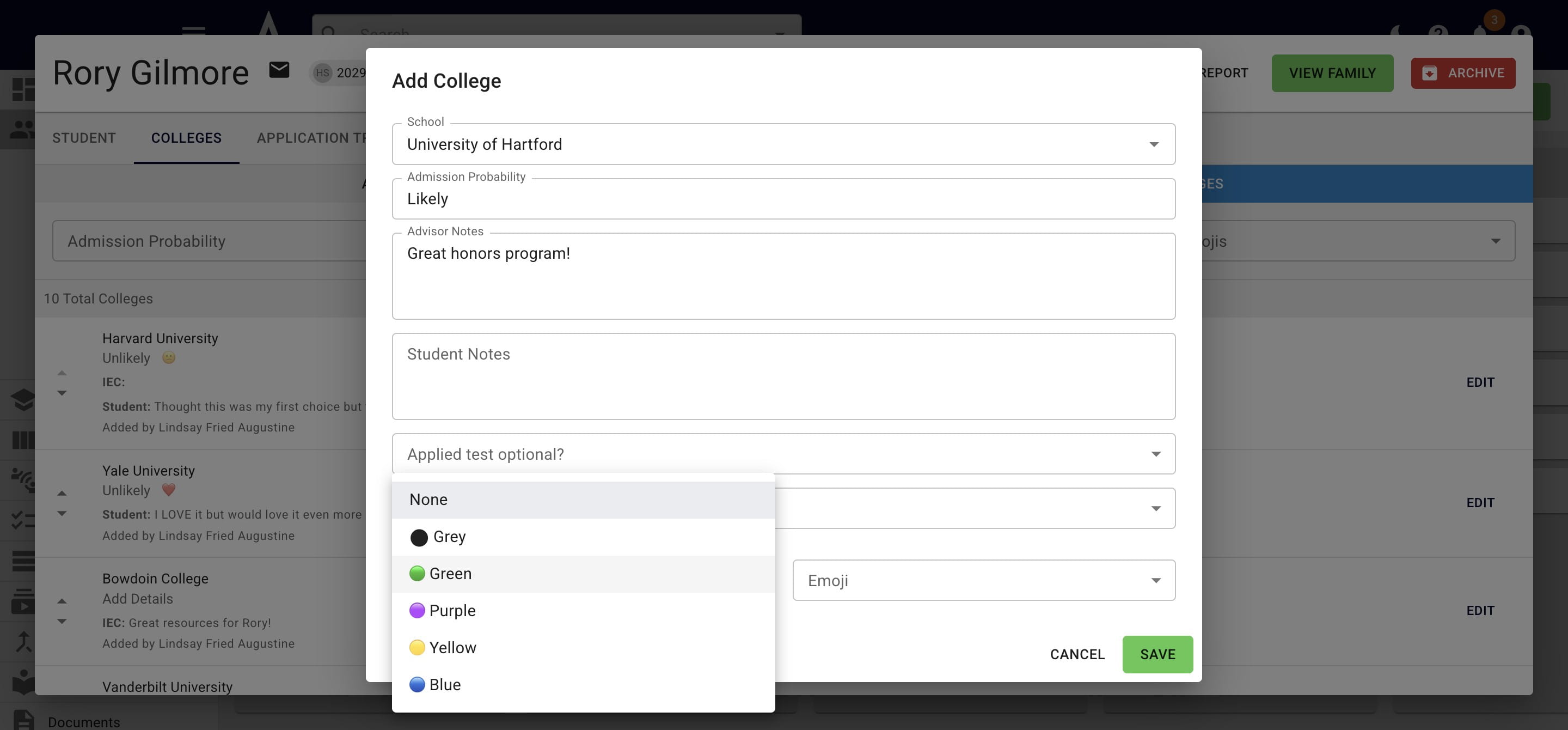
You also have the option to assign a color. Some users like to assign the color based on admission probability (i.e. Likely School = Green) or to group colleges together (i.e. "Research all the purple schools"). It's totally up to you!
You also have the option to assign a **color.** Some users like to assign the color based on admission probability (i.e. Likely School = Green) or to group colleges together (i.e. "Research all the purple schools"). It's totally up to you!
14

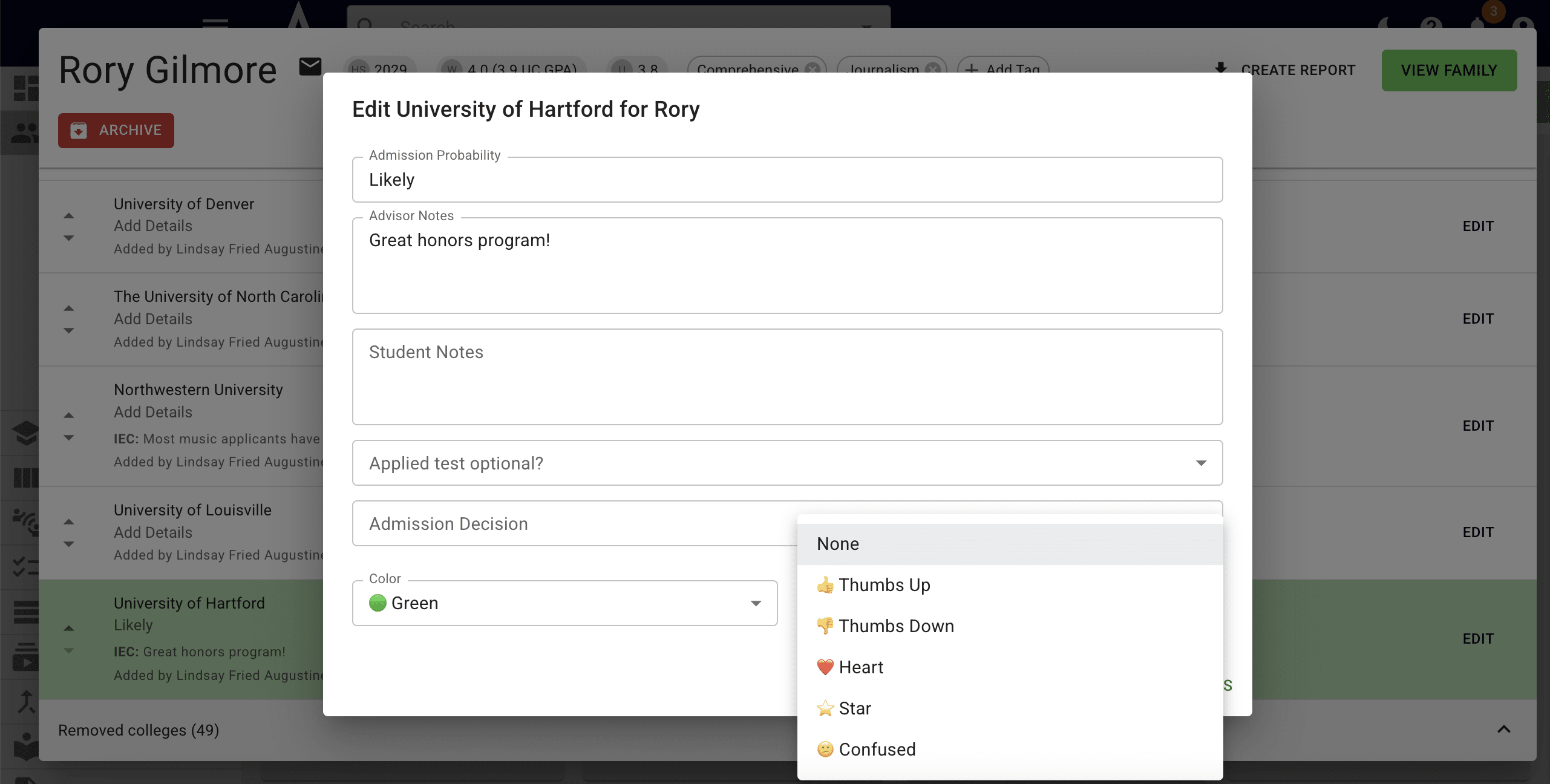
You also have the option to assign emojis. This is also based on preference and it could be something that you ask students to assign as part of their research (i.e. "Assign a thumbs up to any school you like and a confused face to any 'maybe' schools").
You also have the option to assign **emojis.** This is also based on preference and it could be something that you ask students to assign as part of their research (i.e. "Assign a thumbs up to any school you like and a confused face to any 'maybe' schools").
15

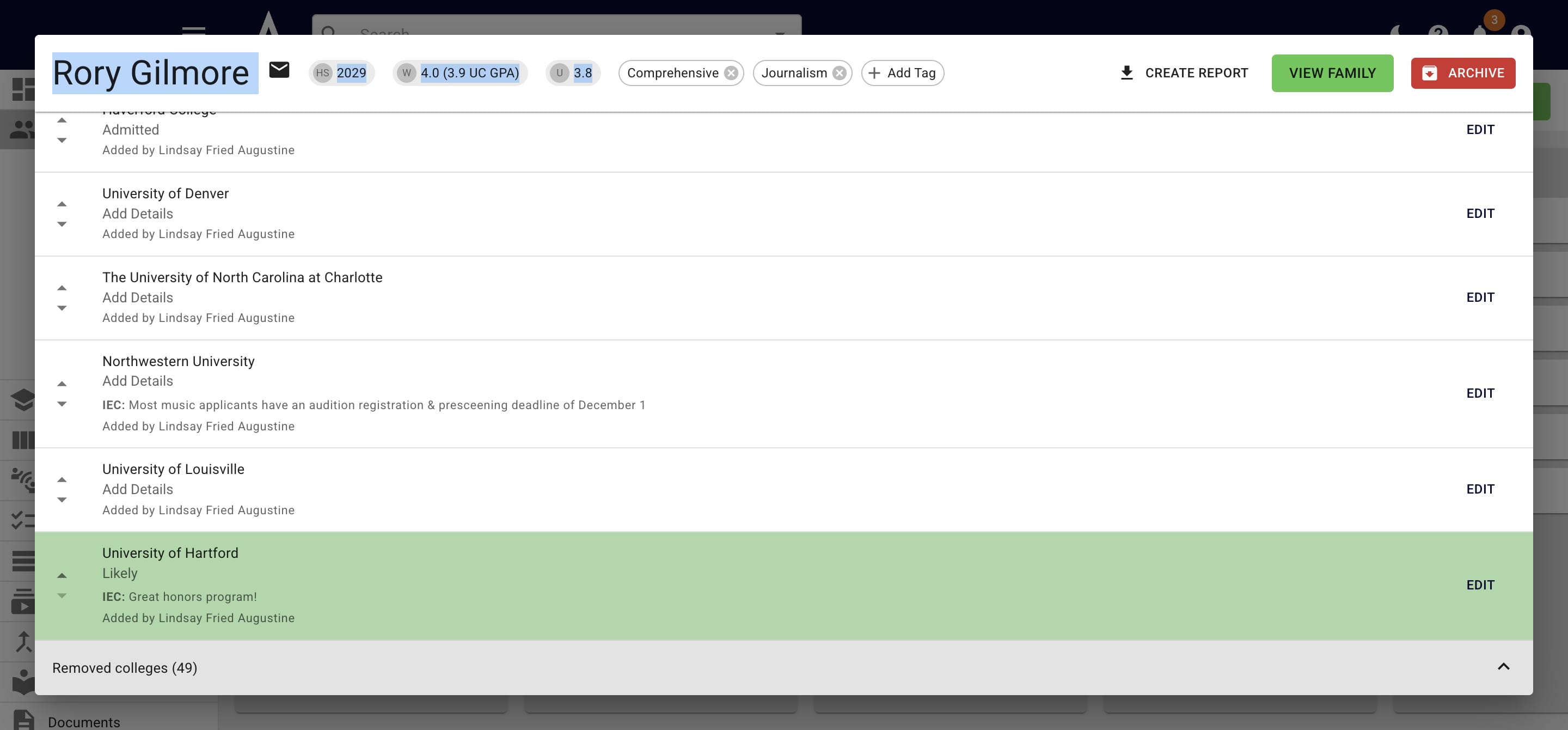
At the bottom of the current college list, you'll see the number of colleges that have been removed by you or the student. Press Removed Colleges to view which colleges have been removed.
At the bottom of the current college list, you'll see the number of colleges that have been removed by you or the student. Press **Removed Colleges** to view which colleges have been removed.
16

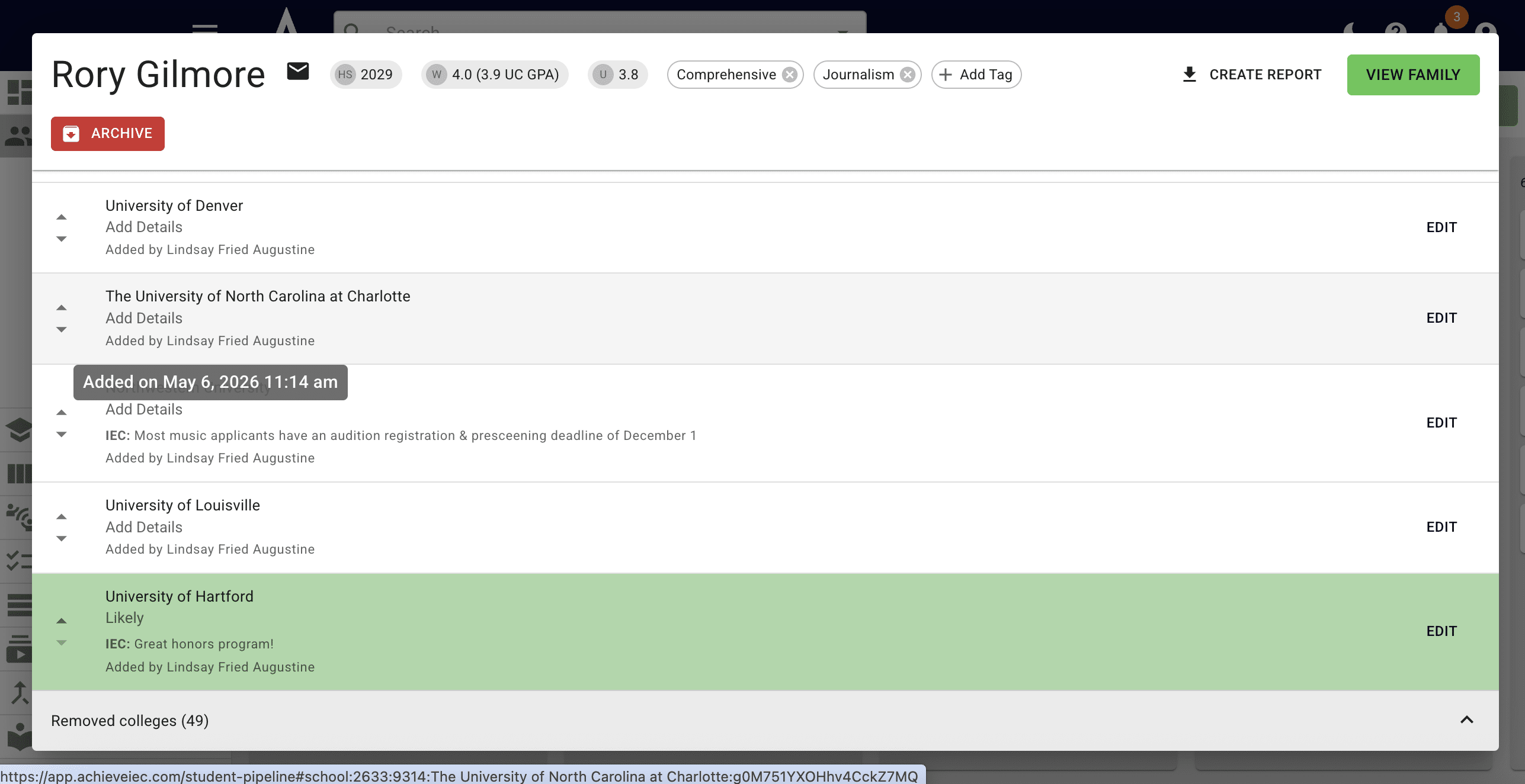
If you hover over a college on the student's list or that's been removed from the student's list, it will show when it was added (or removed).
If you hover over a college on the student's list or that's been removed from the student's list, it will show **when it was added (or removed).**
17

At the top, you'll see multiple fields that you can filter the list by (Admission Probability, Admission Decision, Colors, and Emojis).
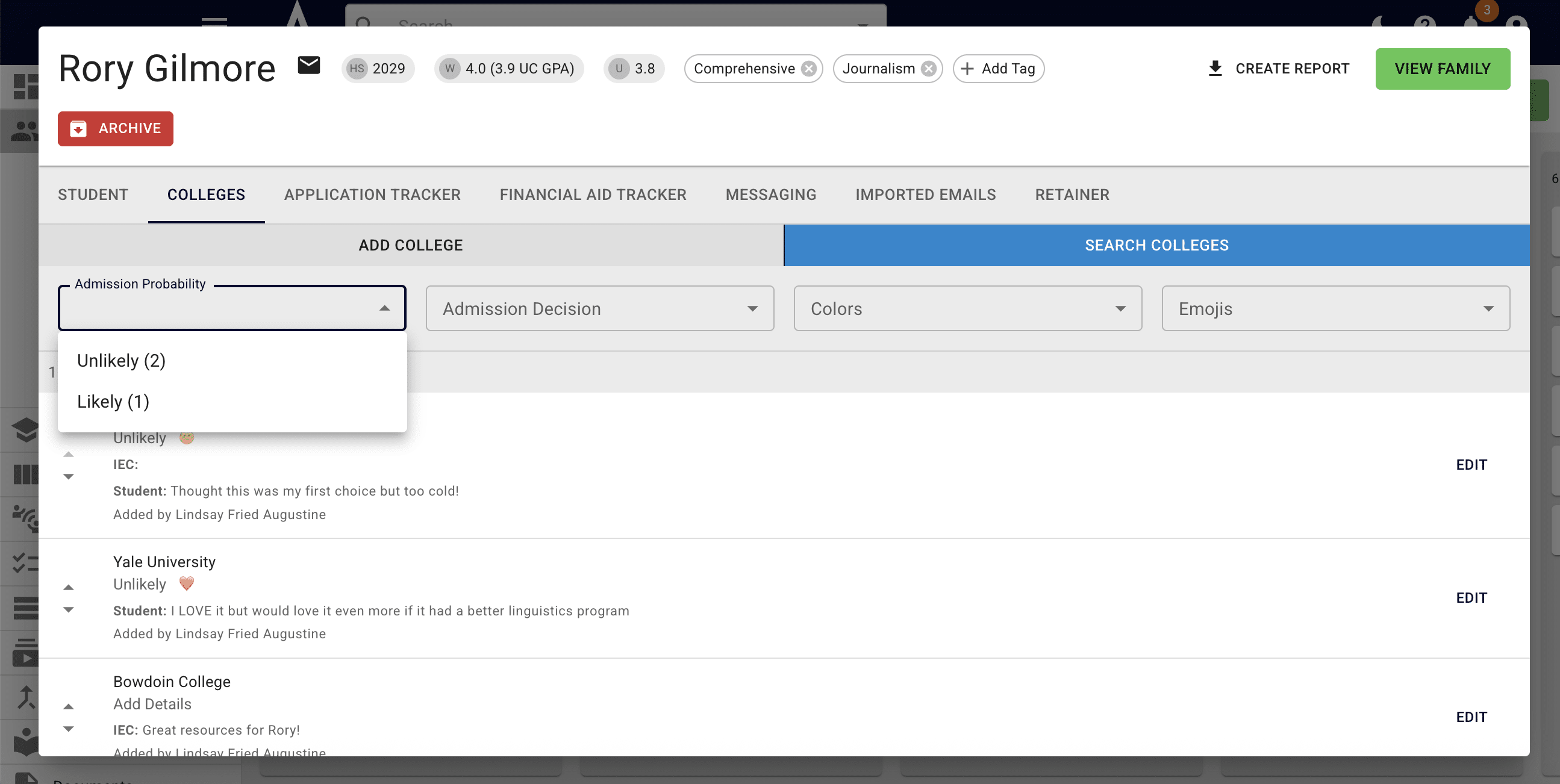
At the top, you'll see multiple fields that you can filter the list by (**Admission Probability, Admission Decision, Colors,** and **Emojis)**.
18

Press on the X to get rid of a filter field.
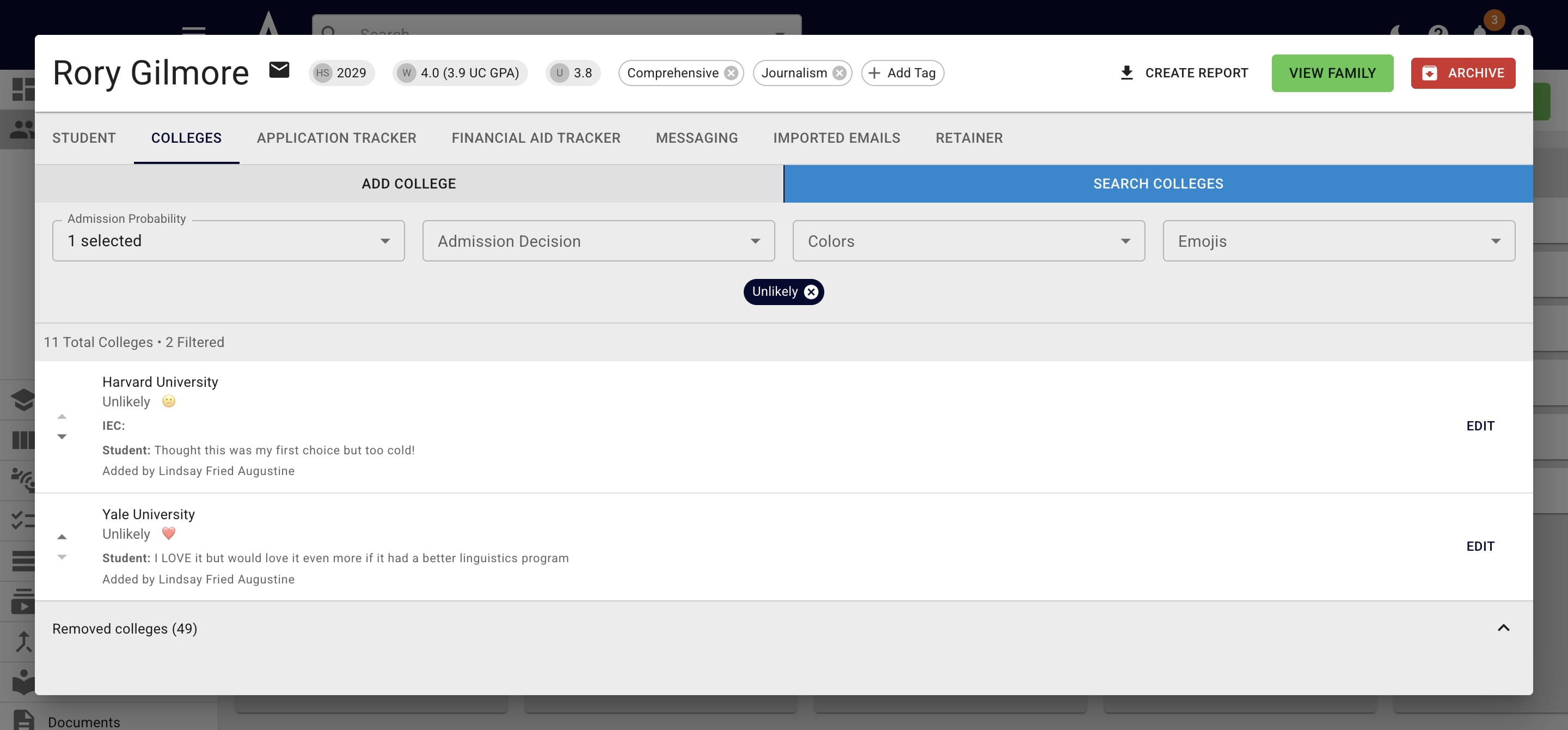
Press on the **X** to get rid of a filter field.
19

Done 🚀