
Recording Notes in Achieve
This guide explains how advisors record and organize notes inside a student’s Achieve profile.
Every student profile has a Notes section. This section is private to advisors (students & parents can't see it).
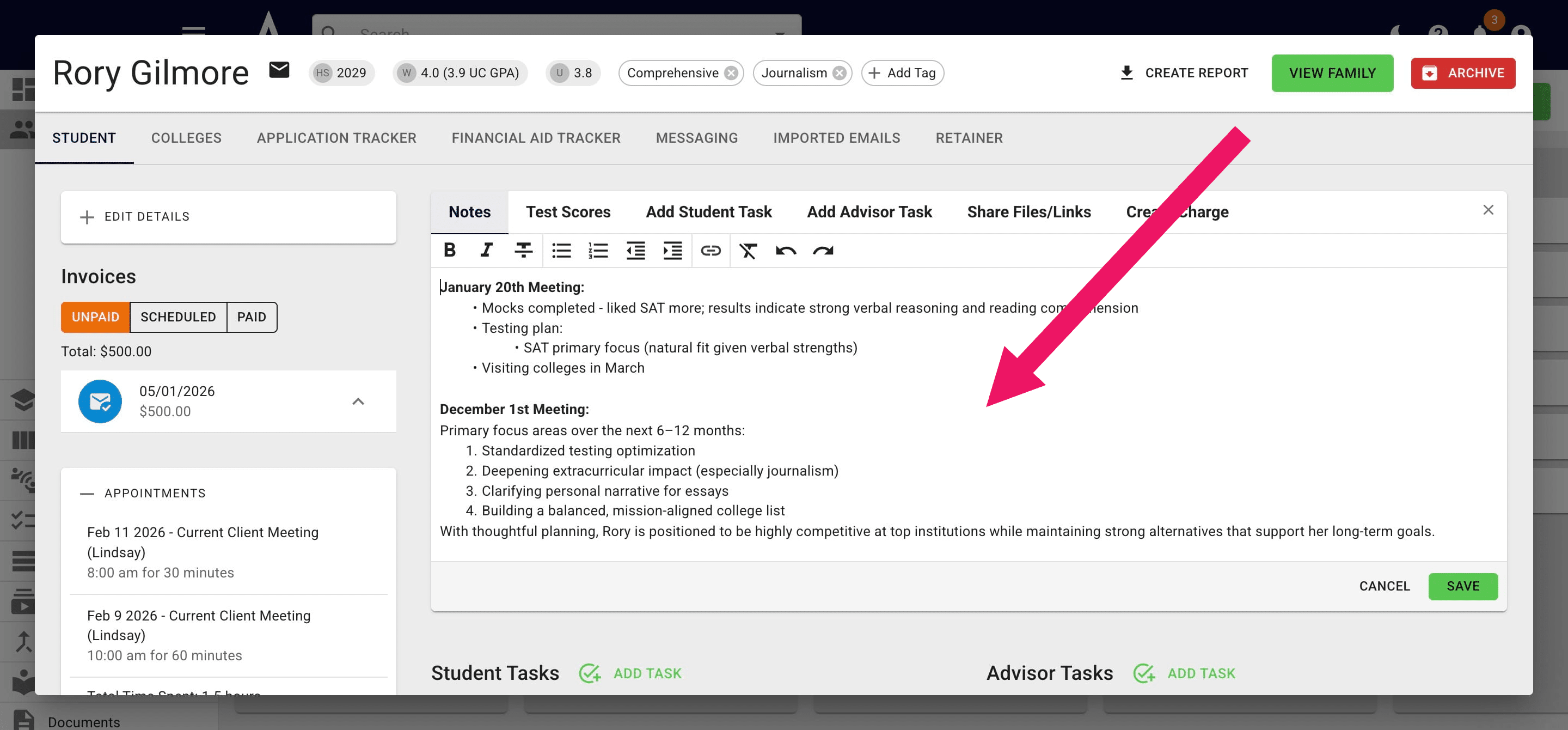
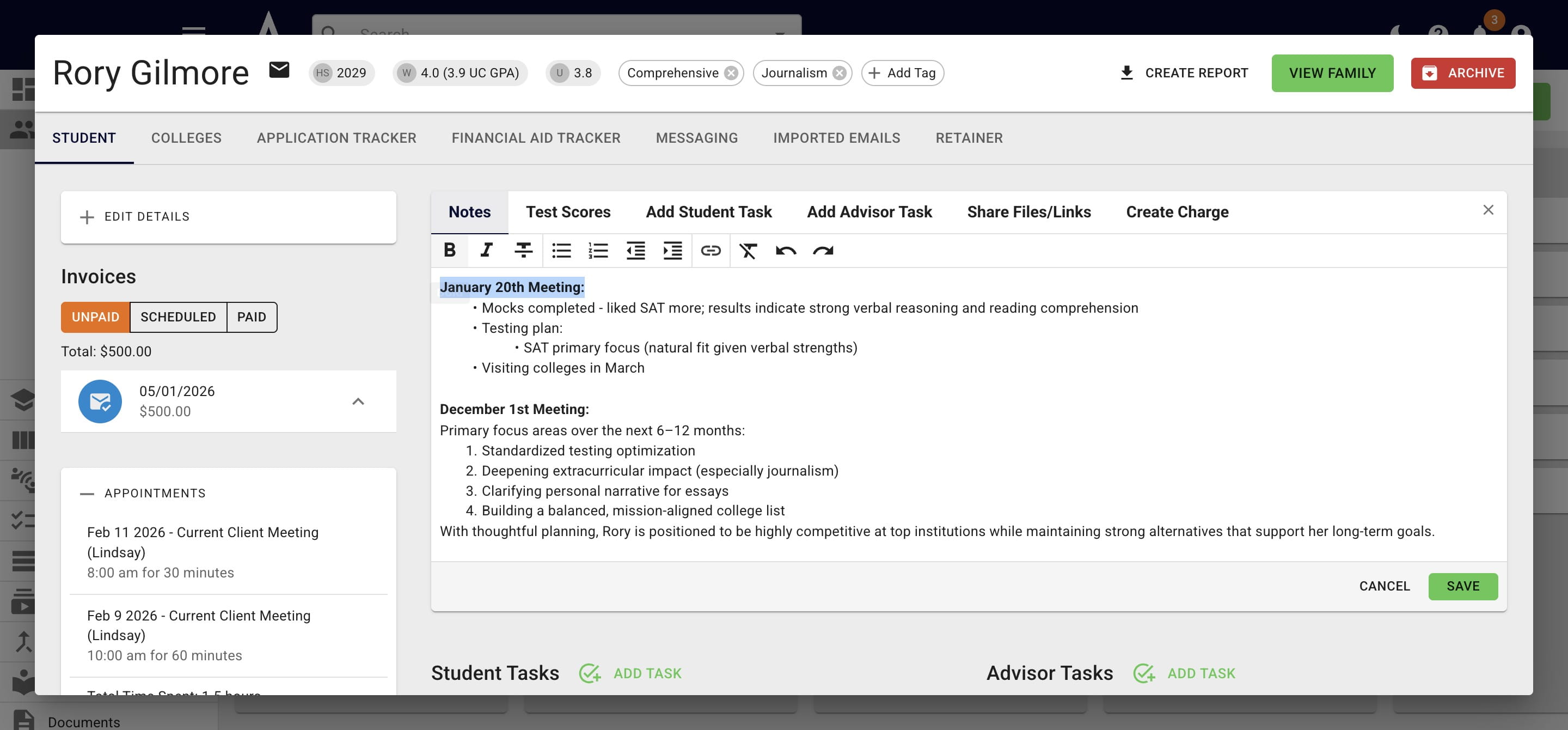
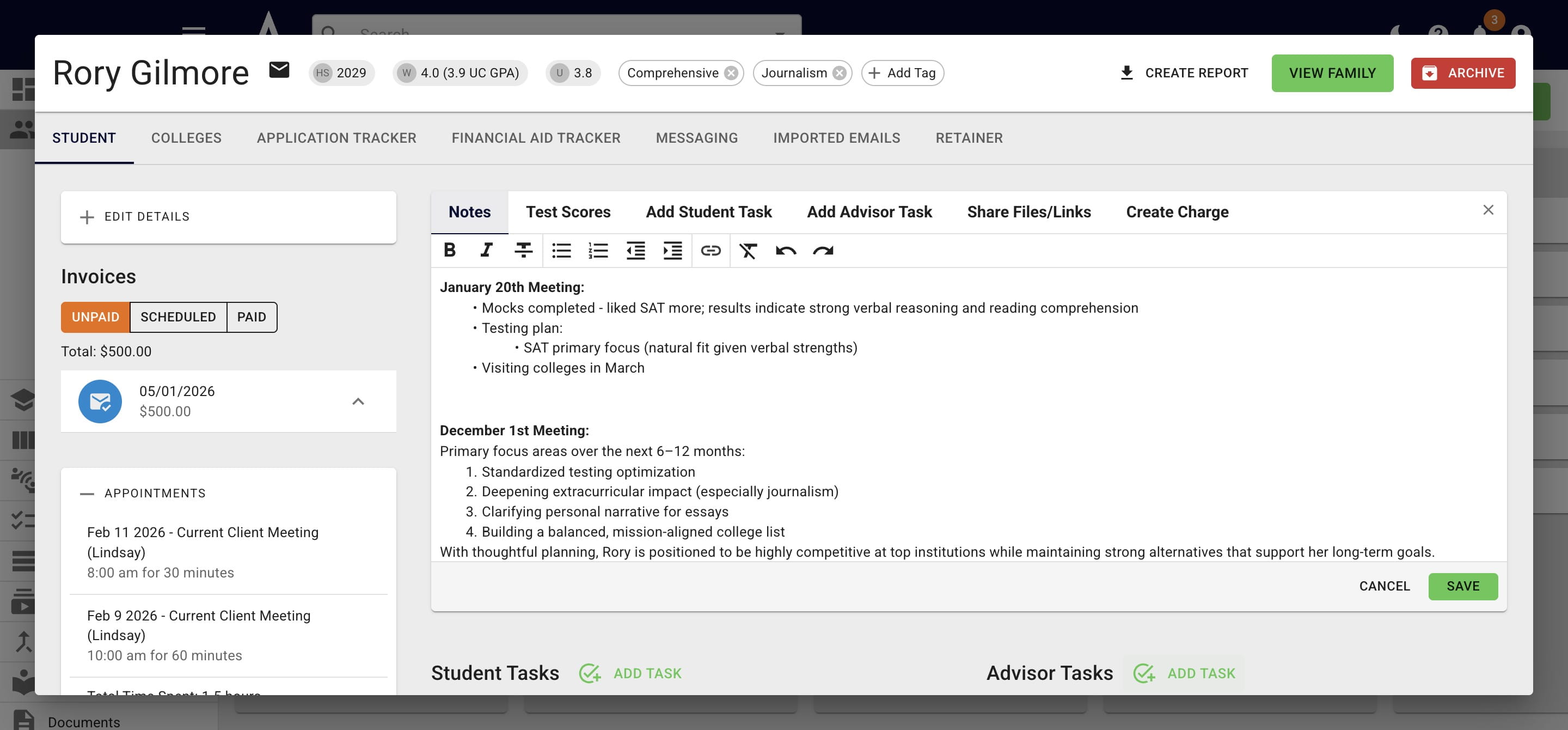
While it's one running note, you can differentiate between different meetings by using formatting, such as bold, italics, bullets, etc.
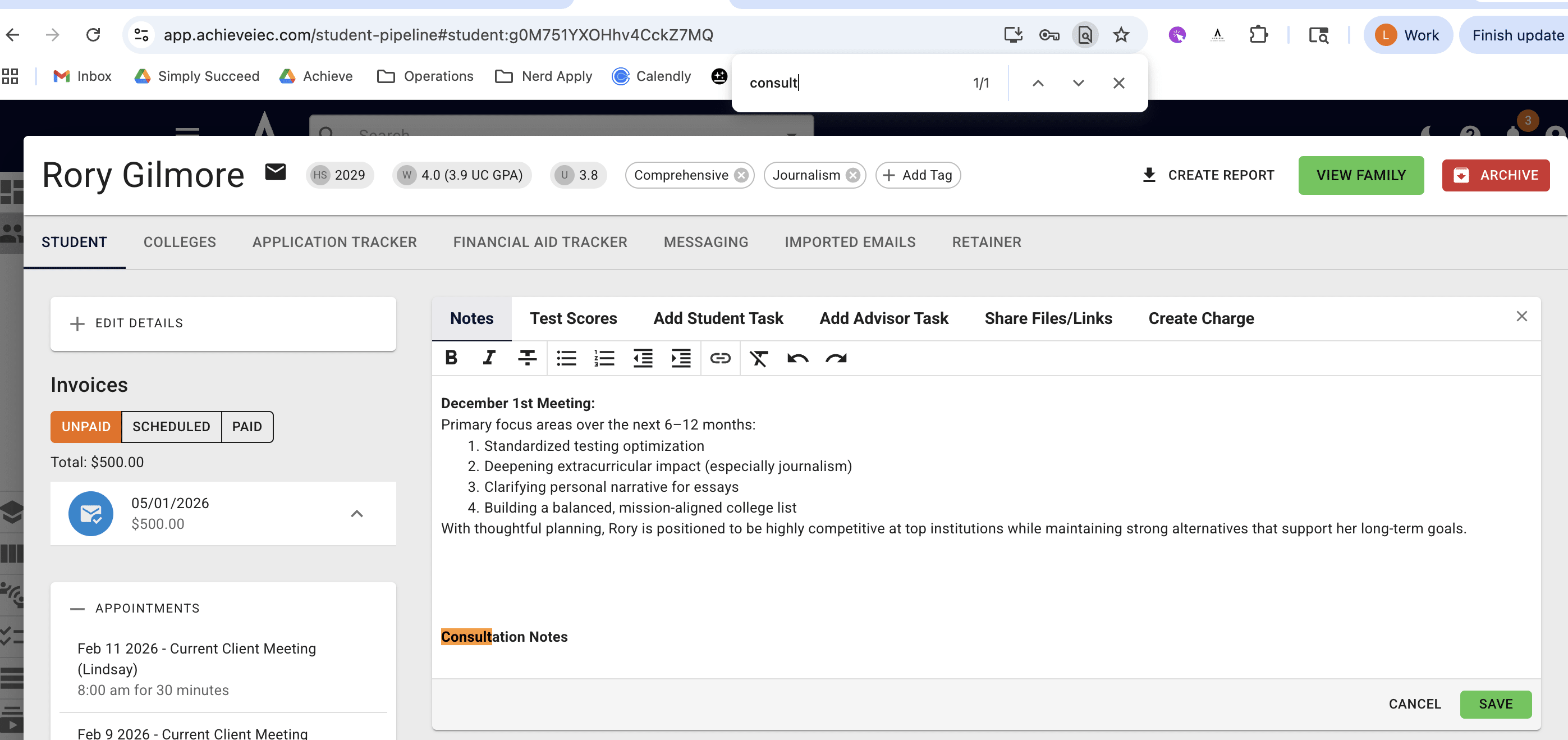
To find a specific note, use your computer's Find function (as seen below). For most computer's the shortcut is Command + F.
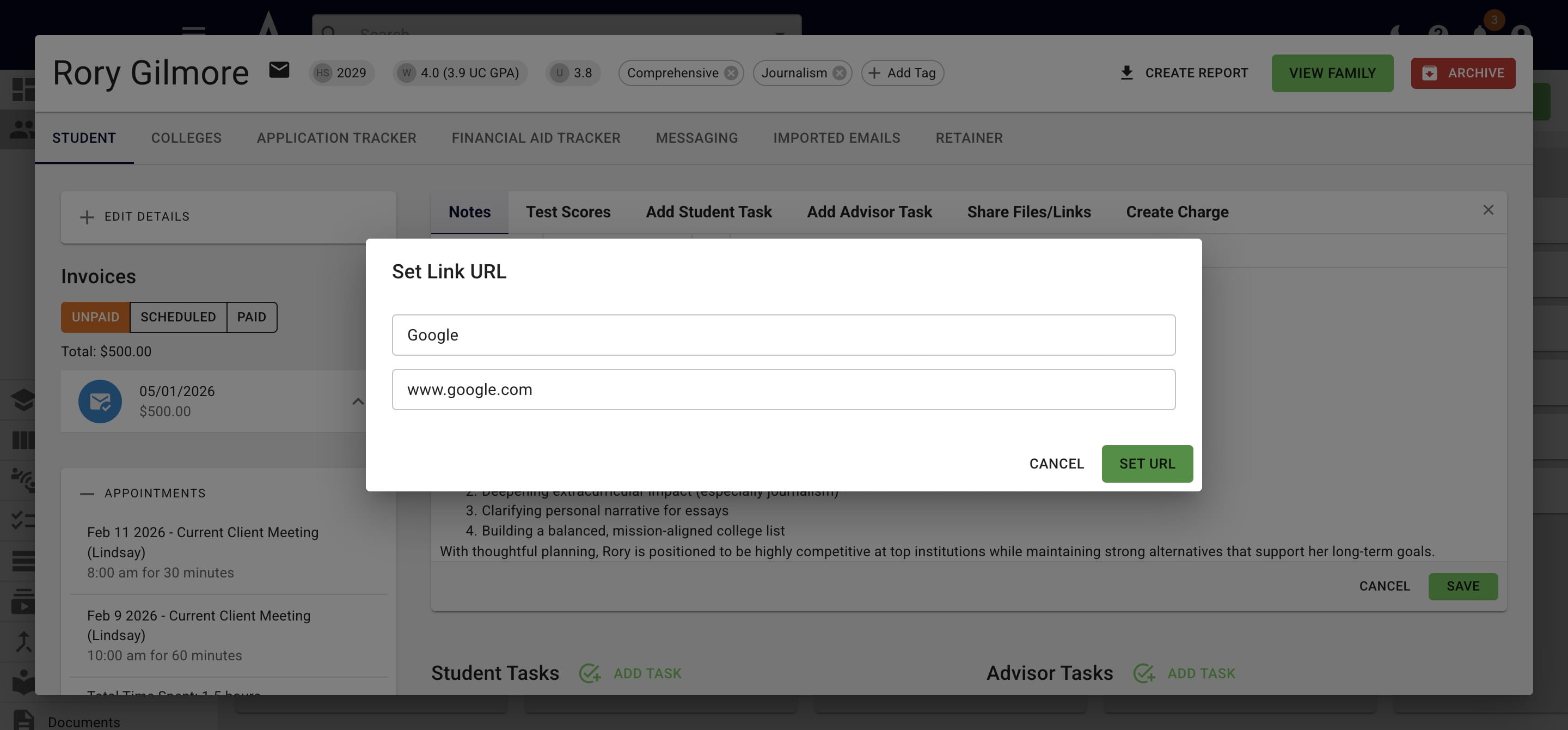
You can also add hyperlinks to your notes by pressing the link icon.
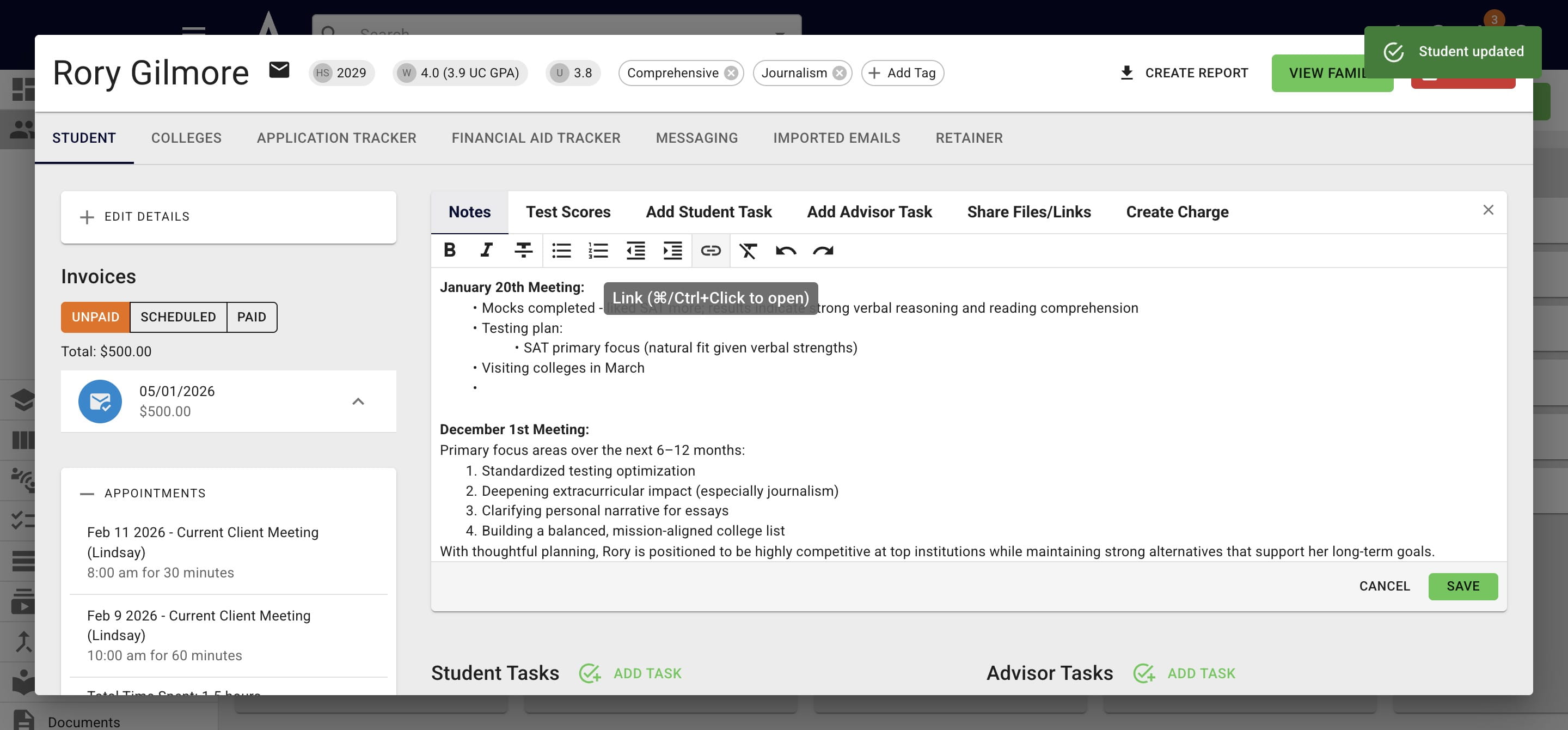
A pop up will appear that allows you to add a link and related text.
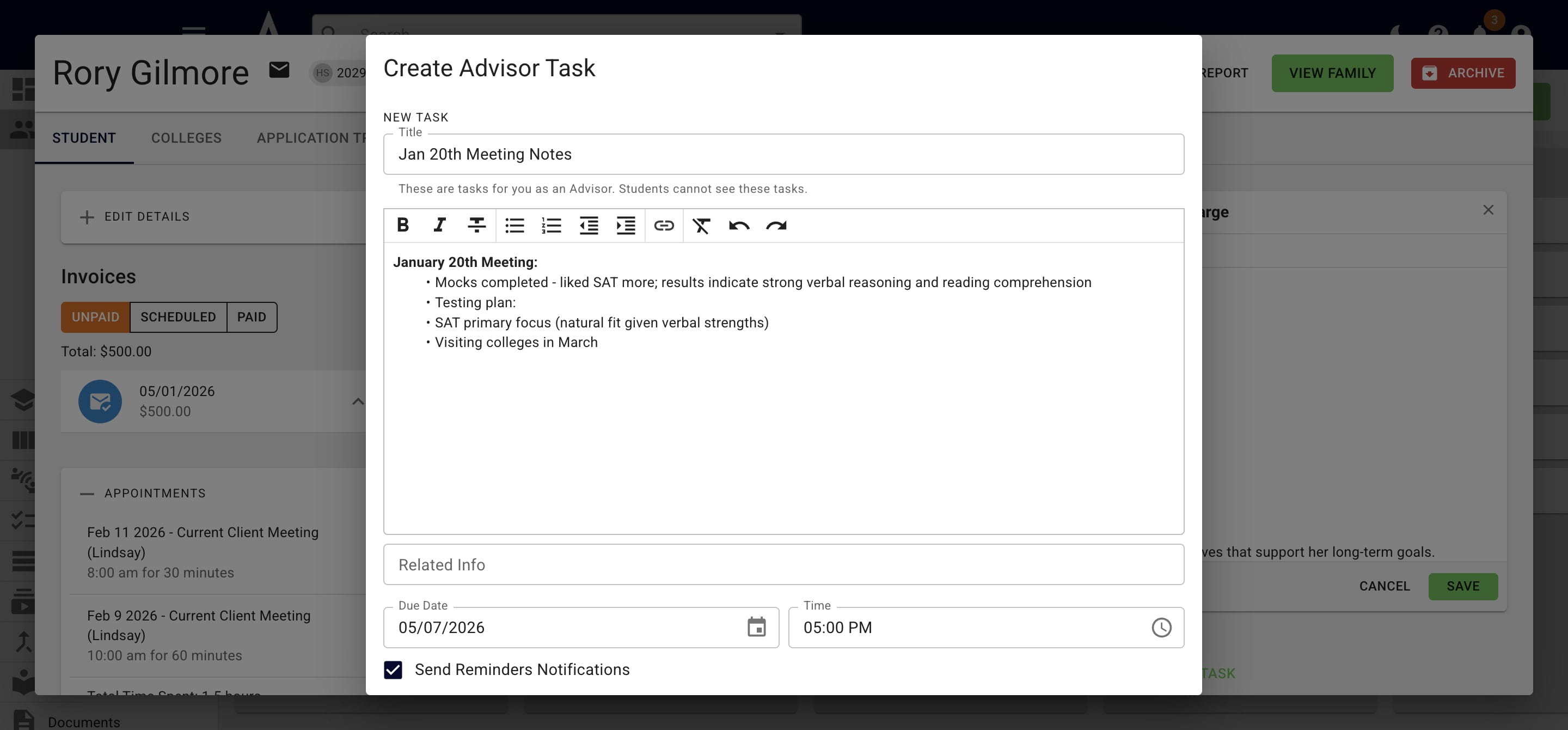
Alternatively, some users like to add an Advisor Task with the notes from each individual meeting.
You can uncheck the Send Reminders Notifications box if these notes are just for your reference.
Done 🚀