
Scheduling Emails
Learn how to draft emails, schedule them for a future delivery, and manage scheduled messages—from viewing and editing to canceling—within Achieve's email tool.
May 08, 2026●
1
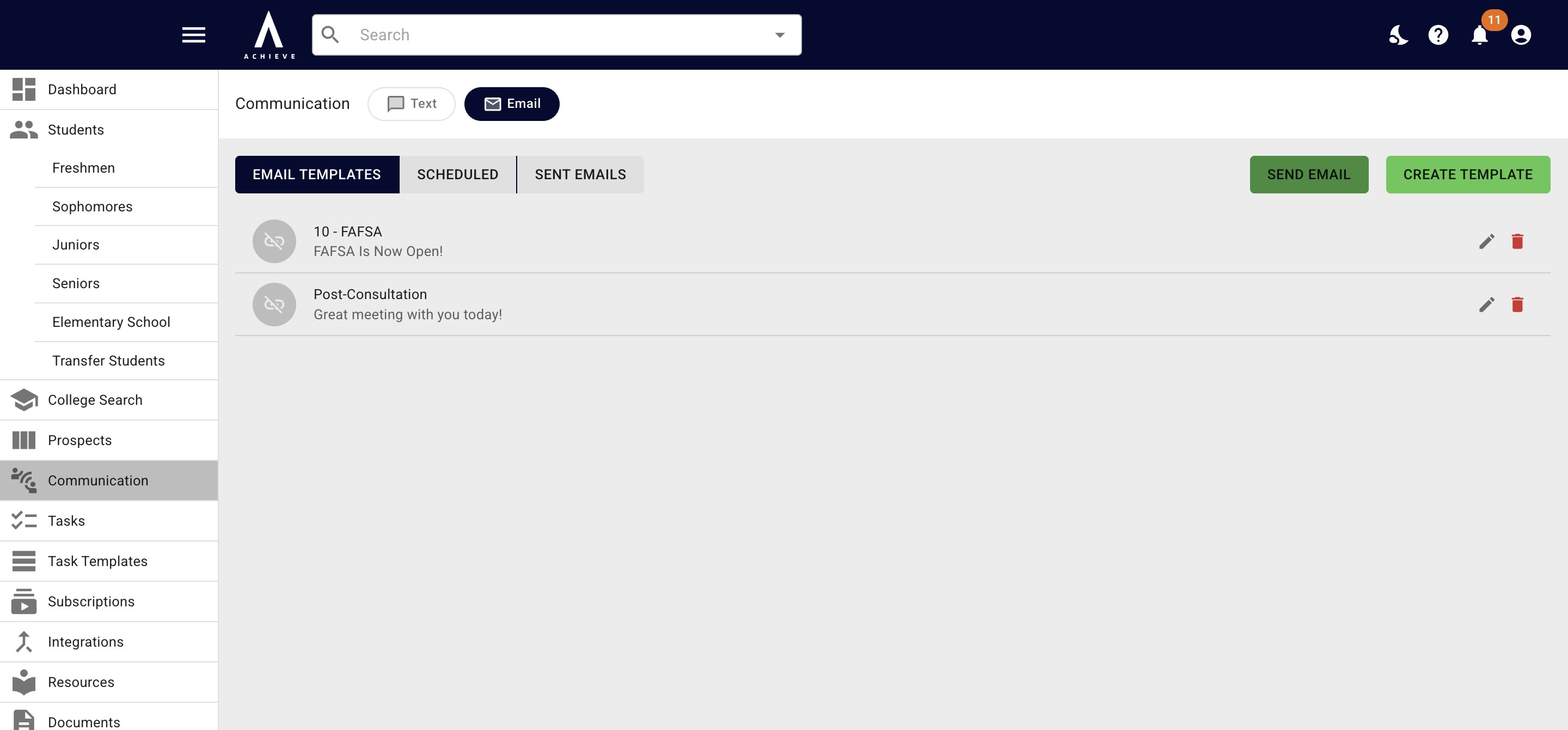
Navigate to https://app.achieveiec.com/communication/email
2
Click on Send Email.
3
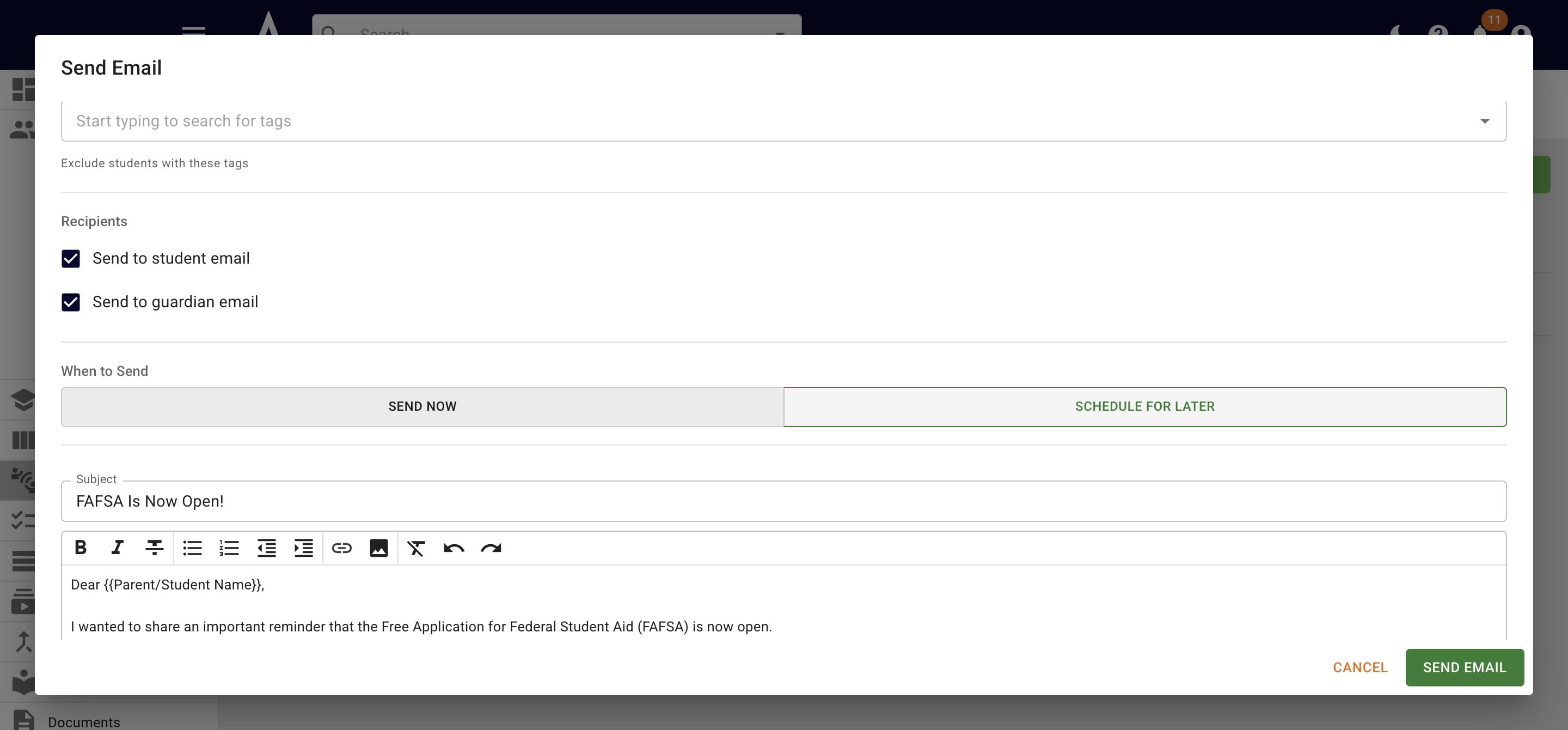
Once your email and recipients are sent press Schedule for Later.
4
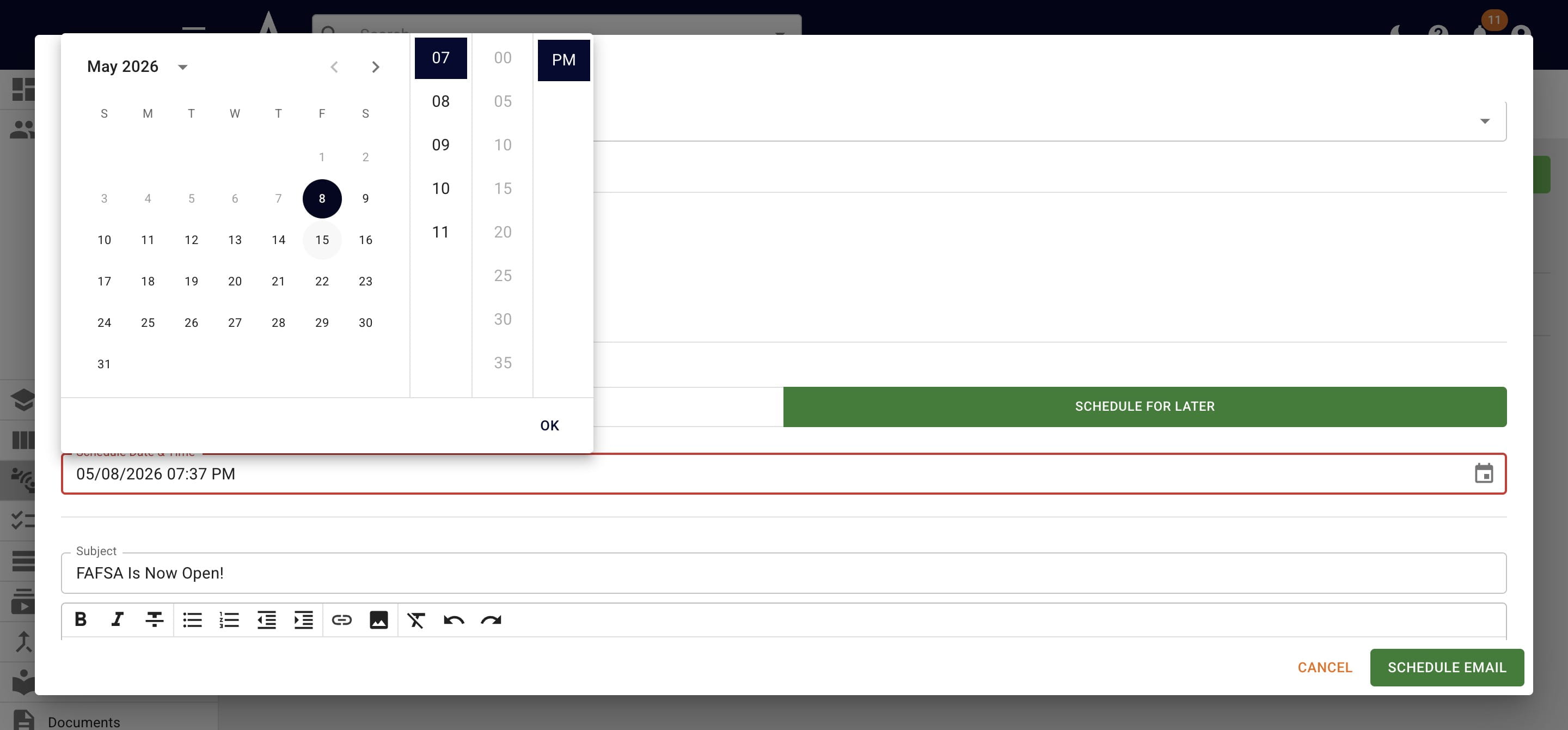
Change the time & date as needed and press OK once you're done.
5
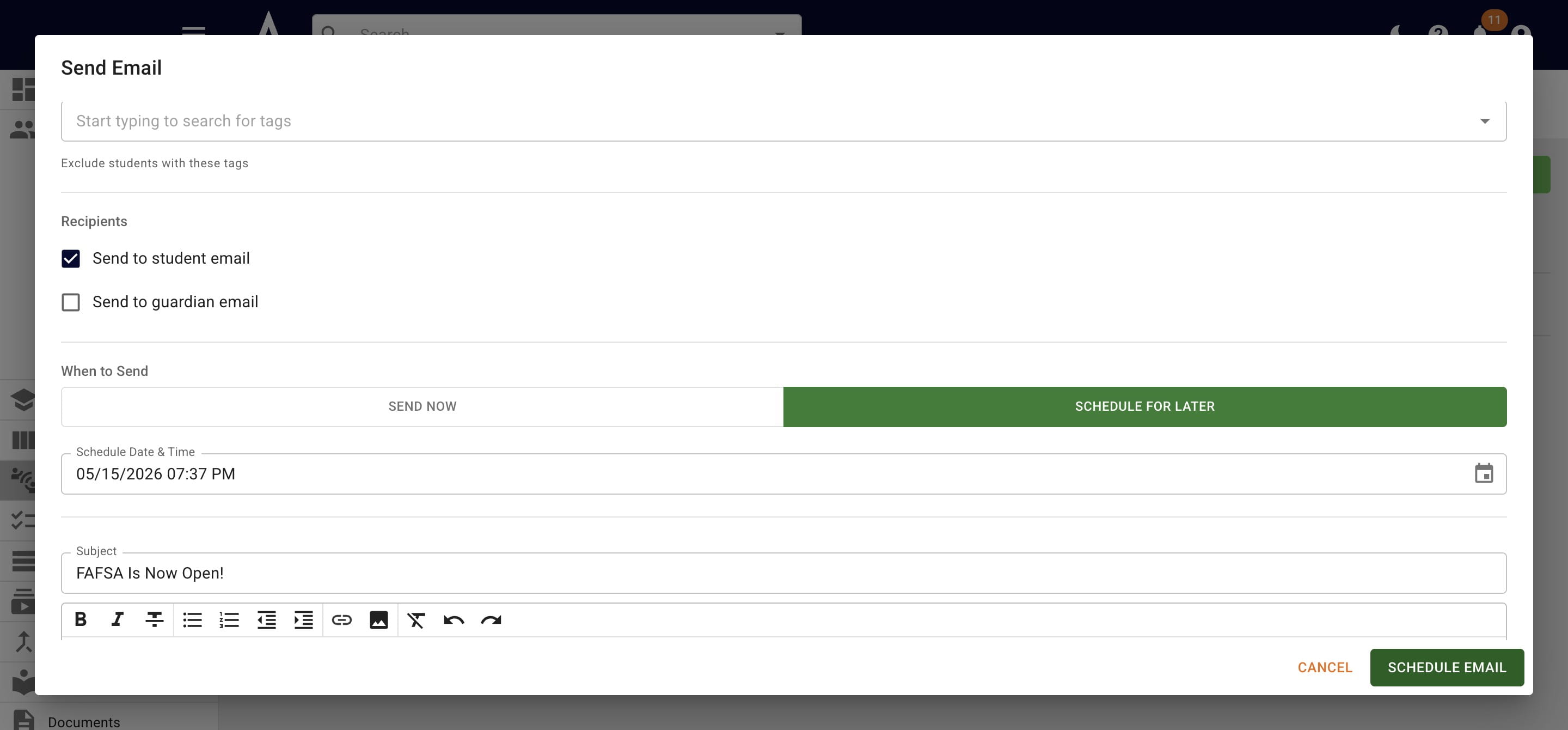
Click on Schedule Email.
6
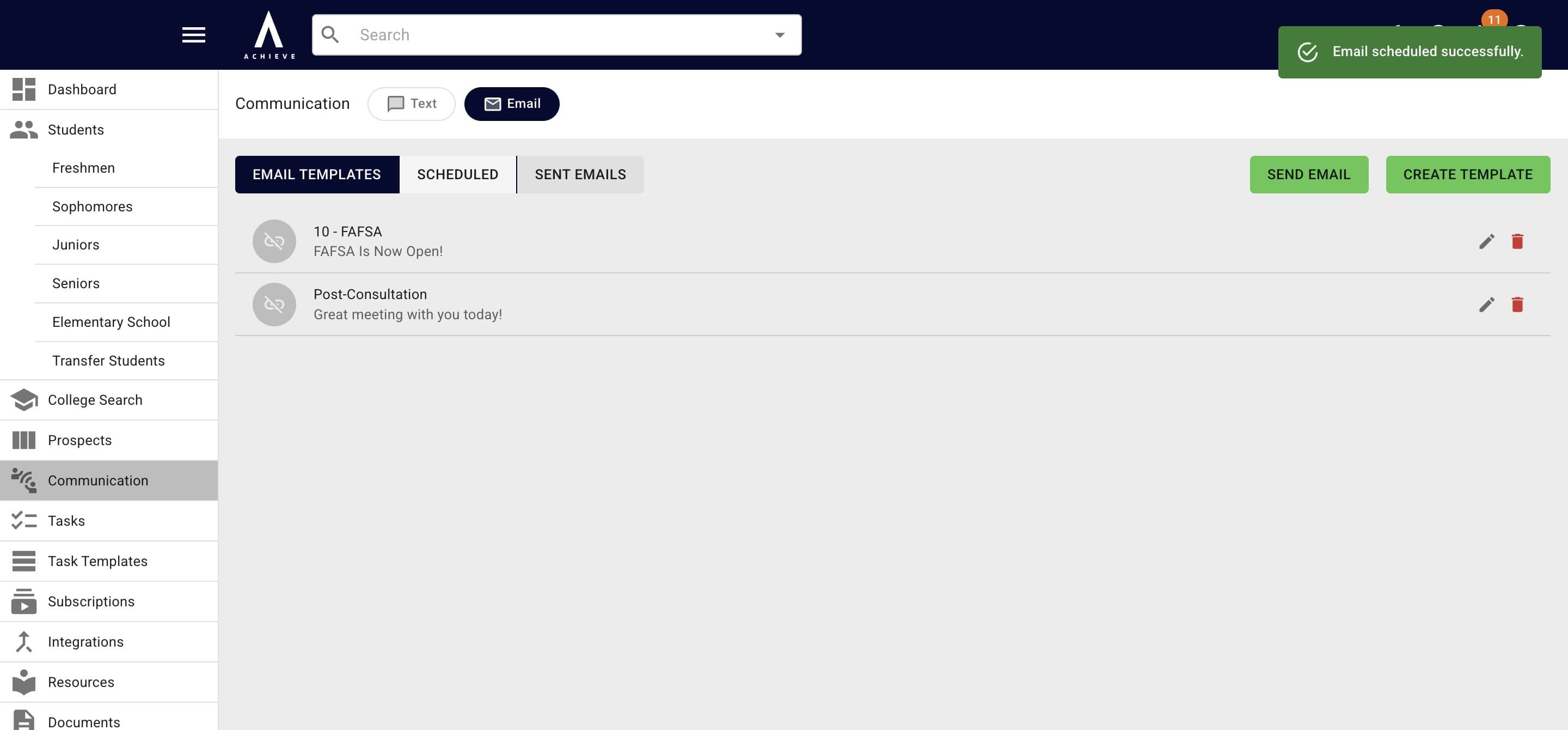
To view scheduled emails, click on the Scheduled heading.
7
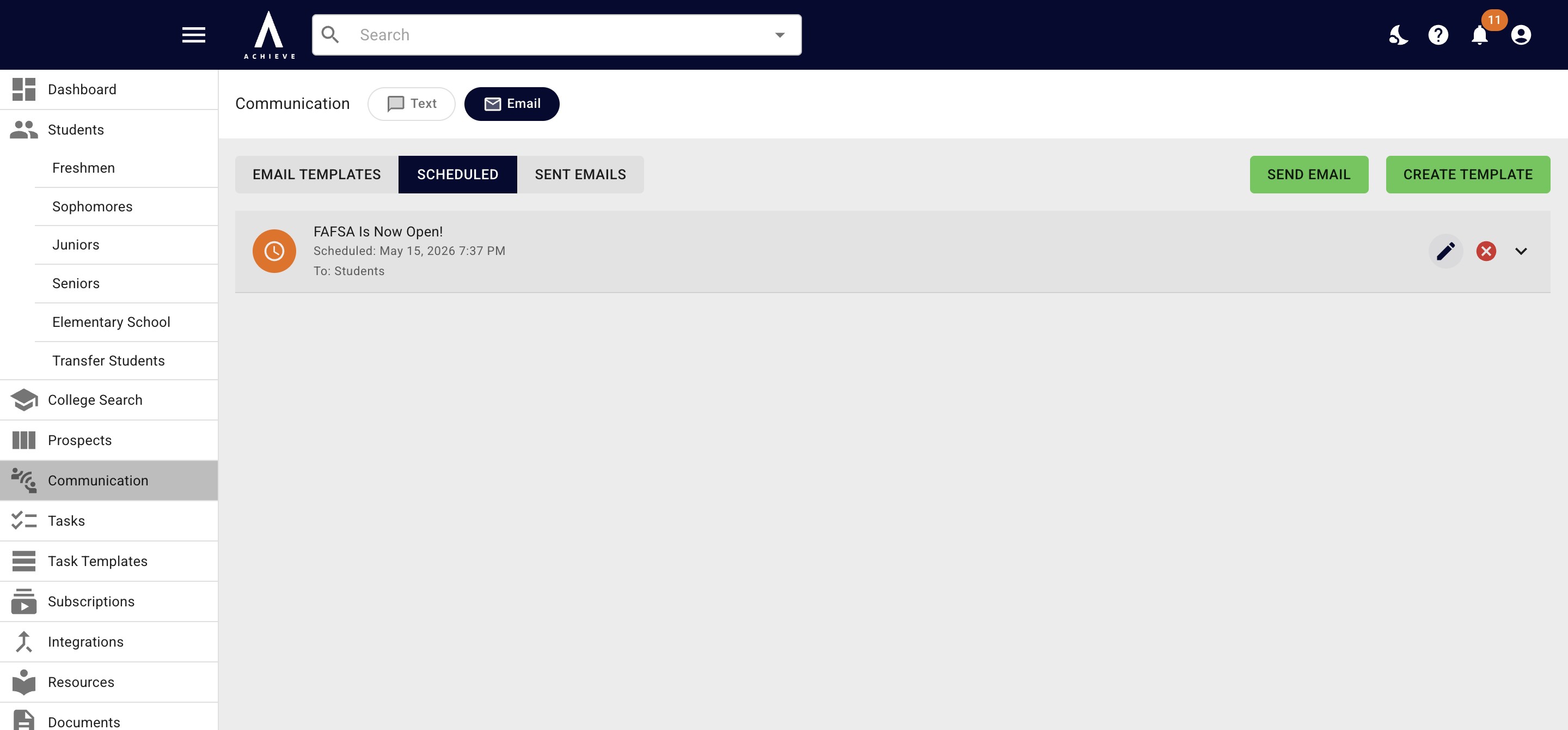
To Edit a scheduled email click on the Pencil icon.
8
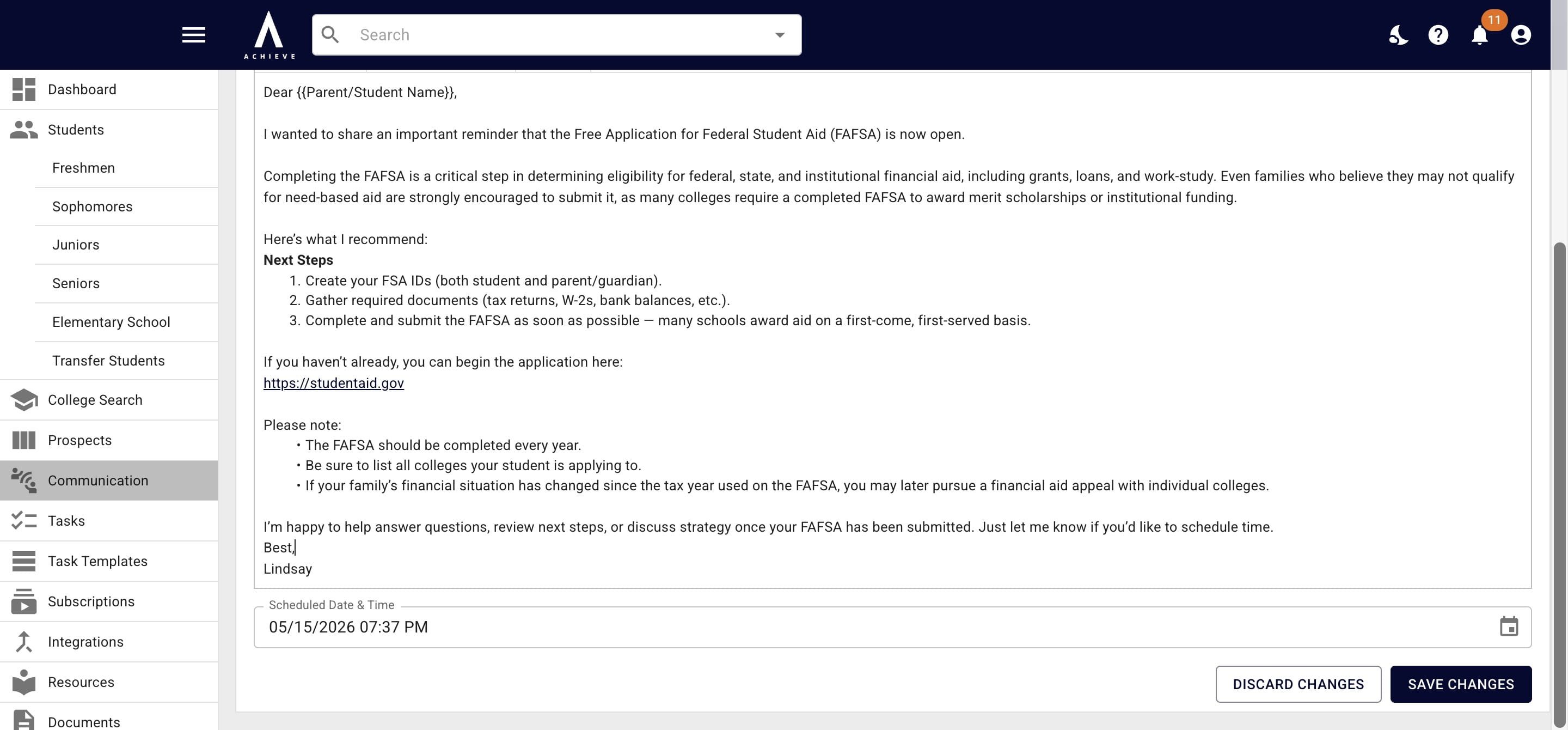
Once you're done, press Save Changes.
9
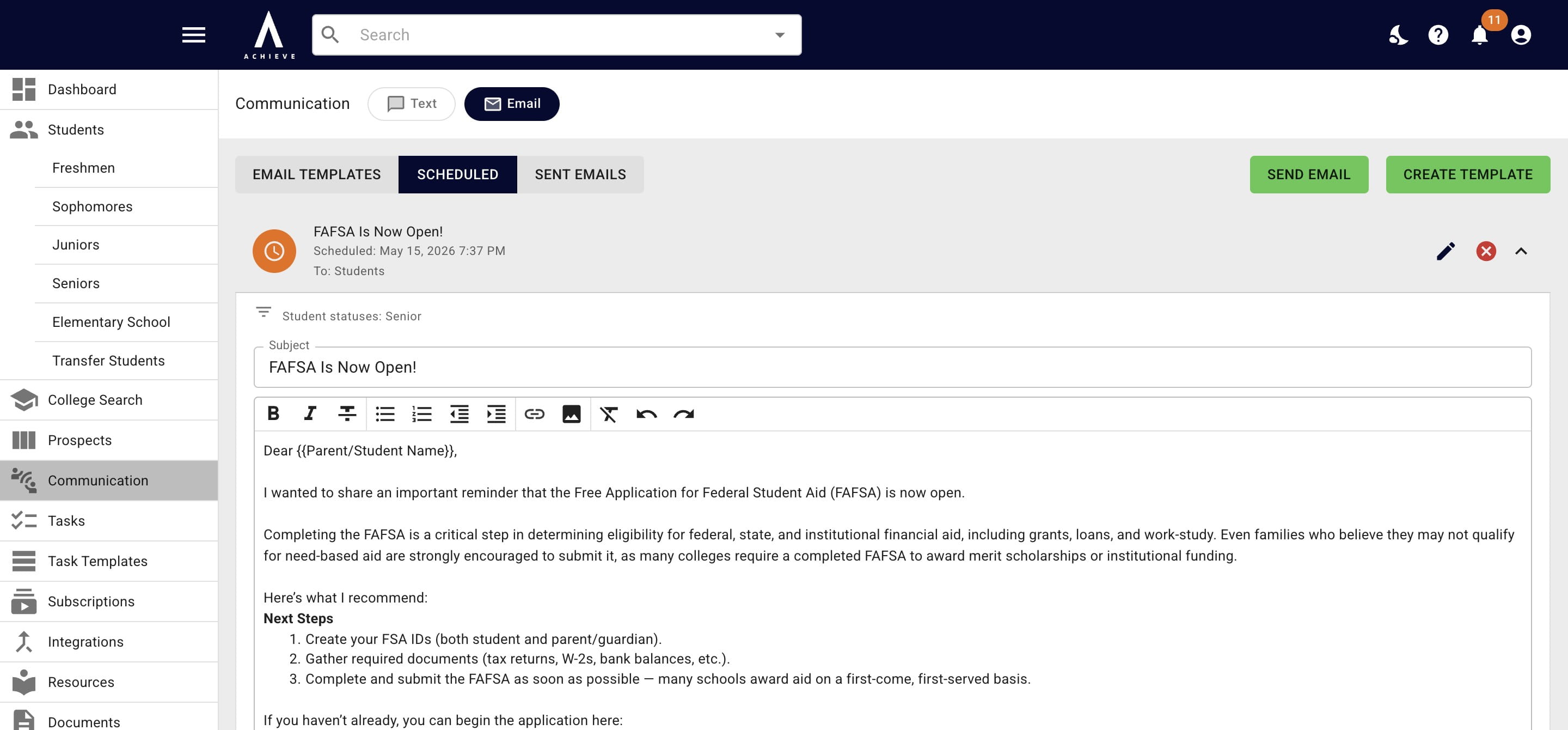
To cancel a scheduled email, press the red X icon.
10
Done 🚀