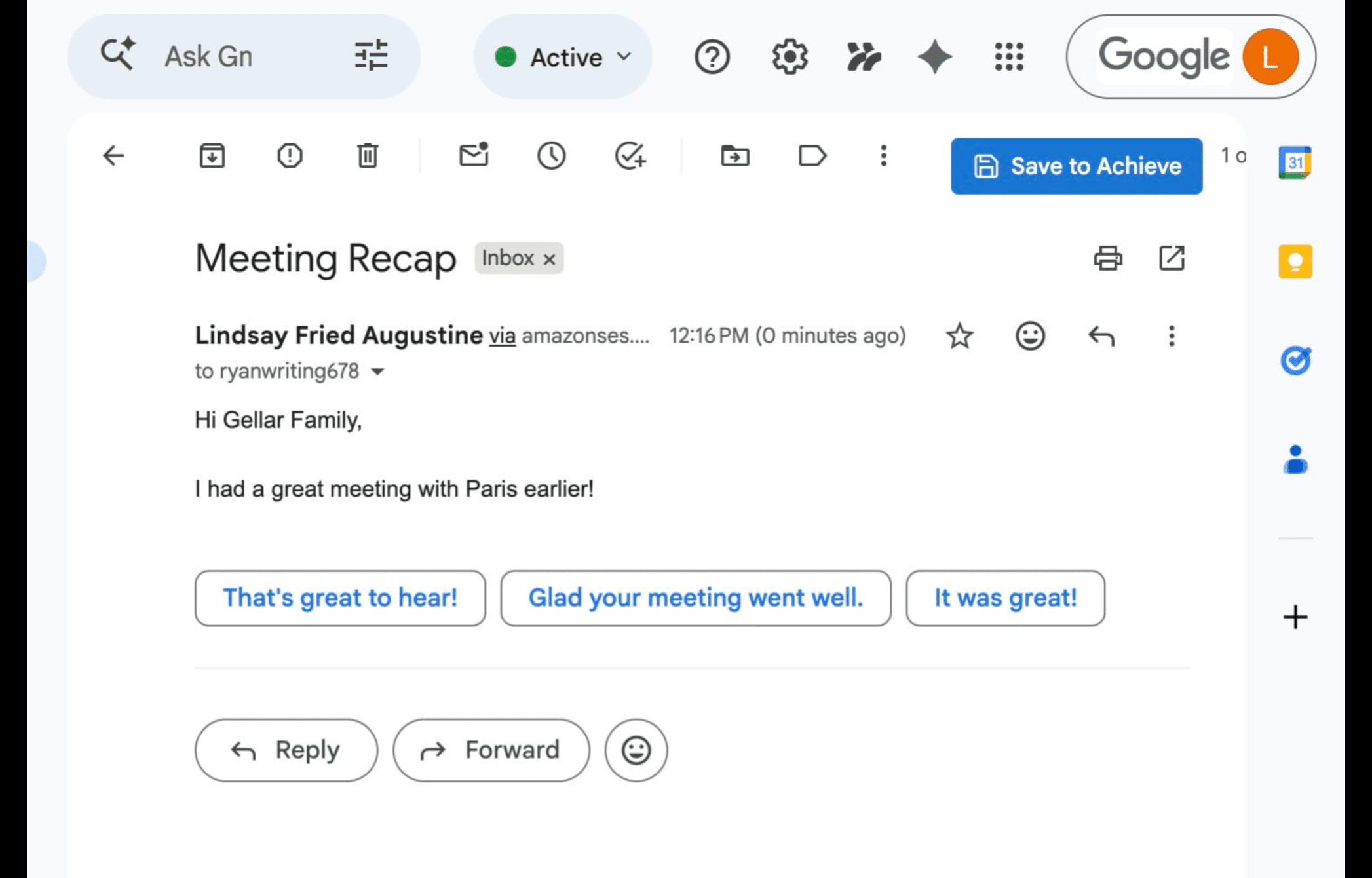
Sending an Email to One Student or Family
An overview of the two ways to send an email to a single student or their family using Achieve.
There are 2 ways to send an email to one student or family in Achieve. The 1st way is through the Communication section.
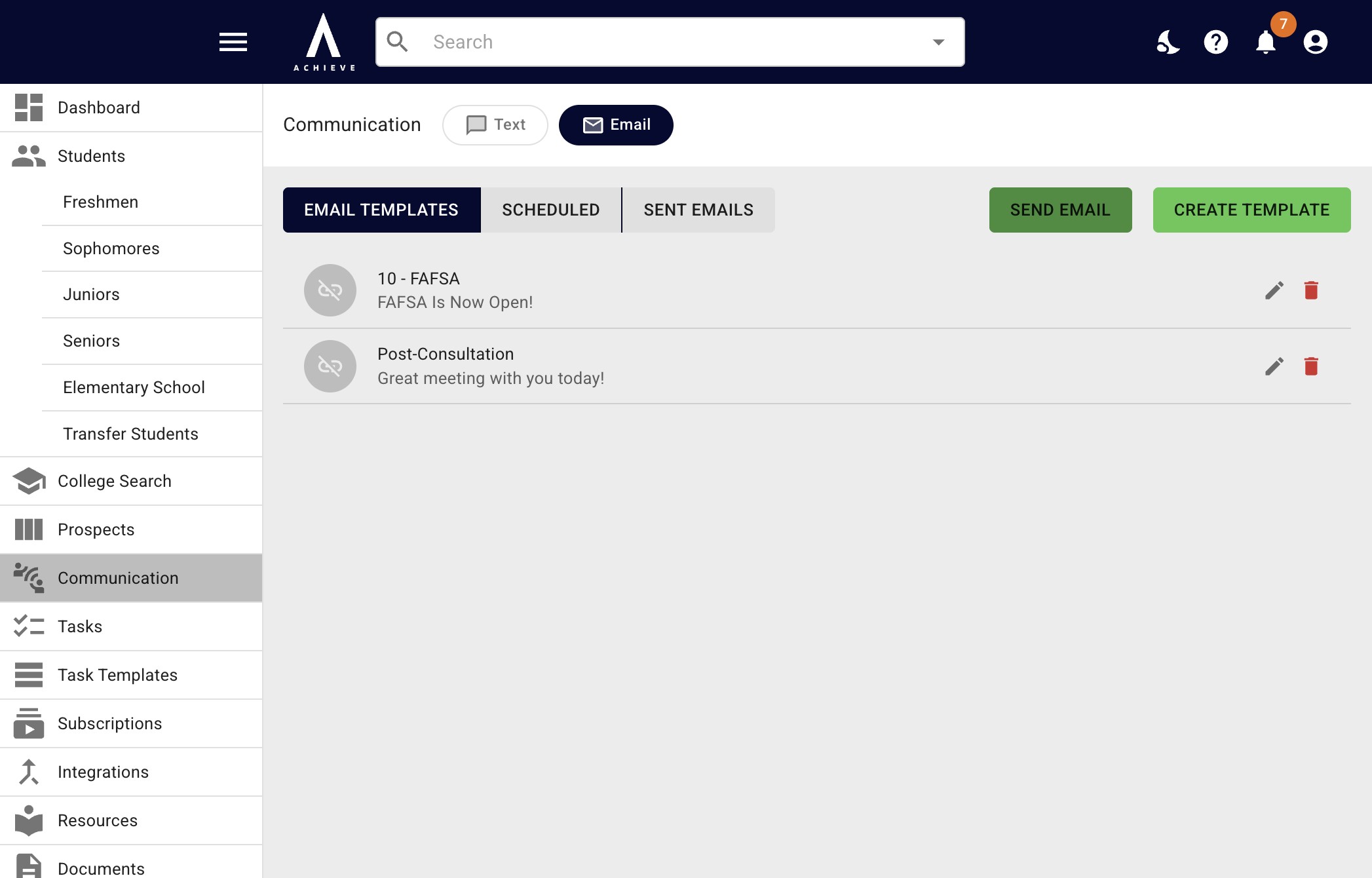
Navigate to https://app.achieveiec.com/communication/email
Click on Send Email.
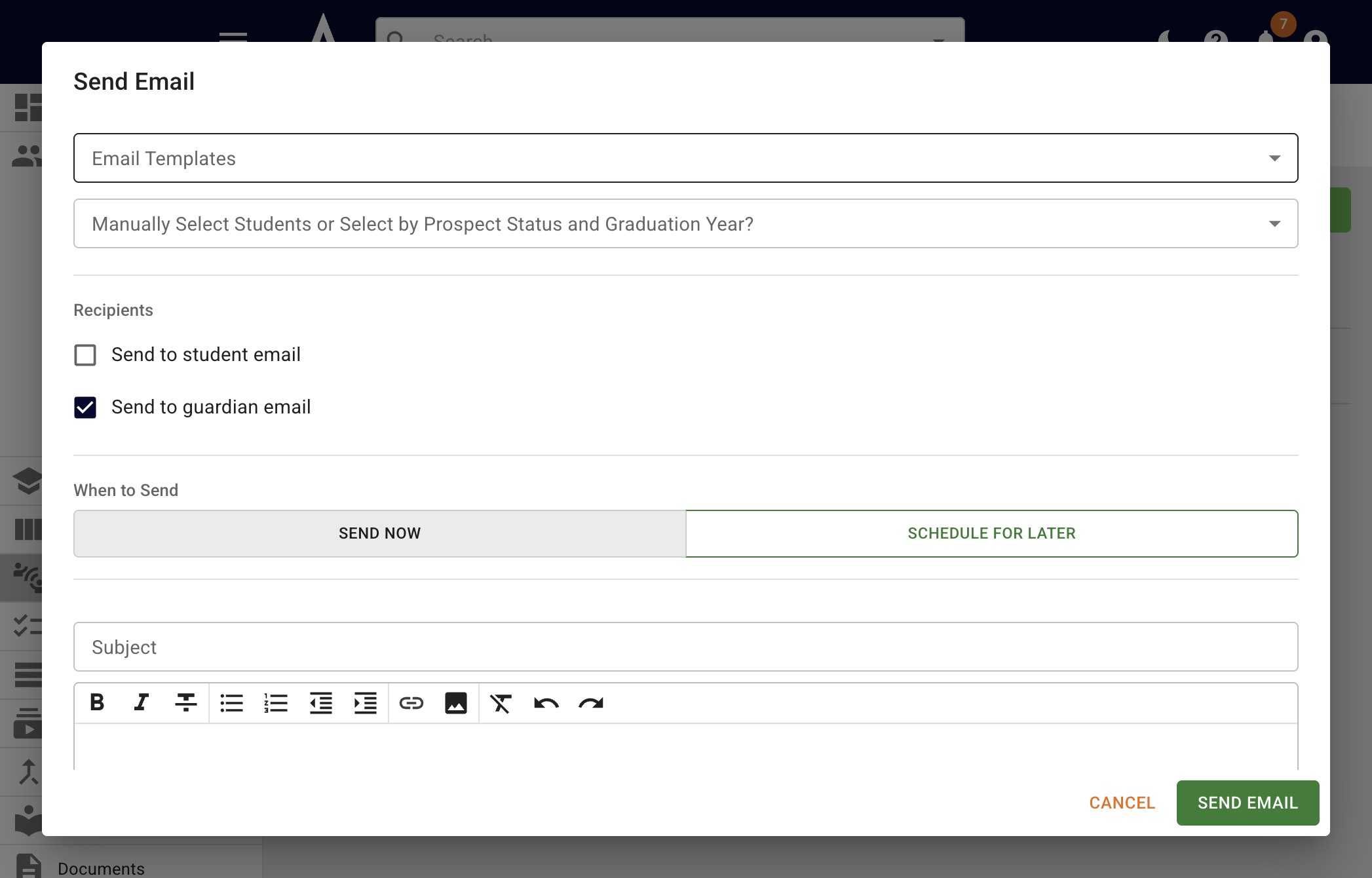
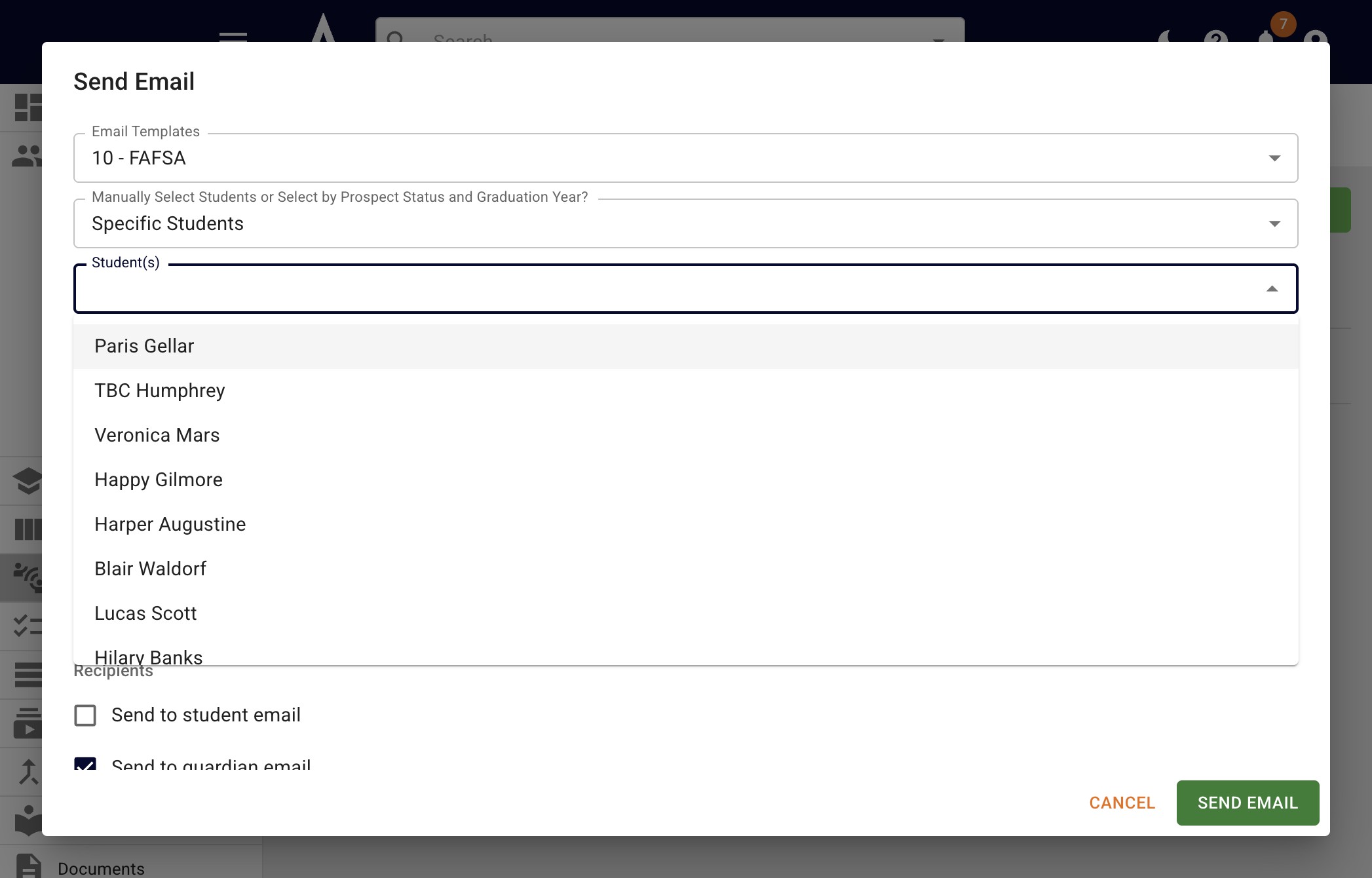
If you want to utilize an email template, click on the Email Templates field and choose one from the drop-down menu.
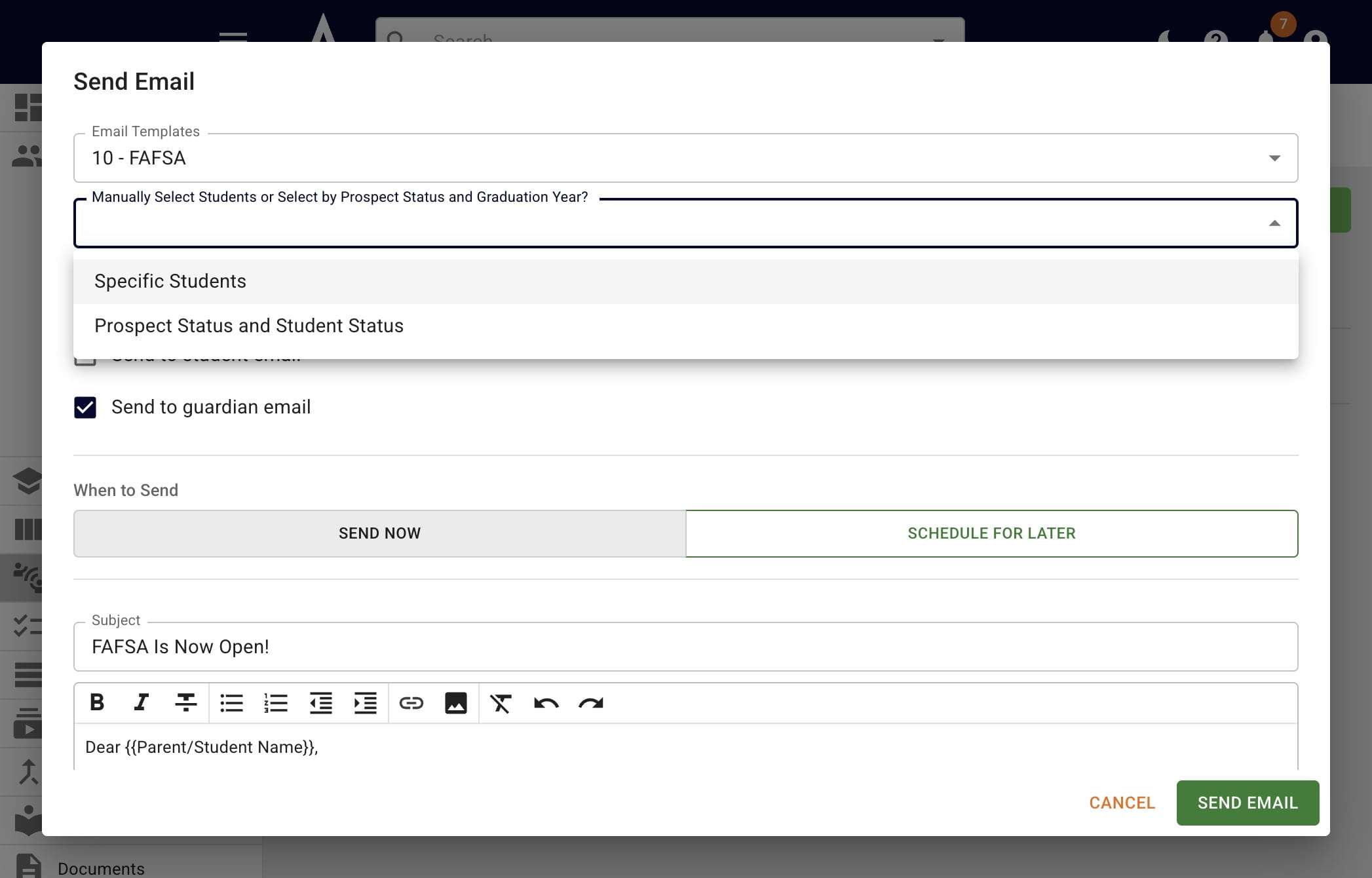
In the next field, click on Specific Students.
Click into the Student(s) field. When the drop down appears choose the applicable student.
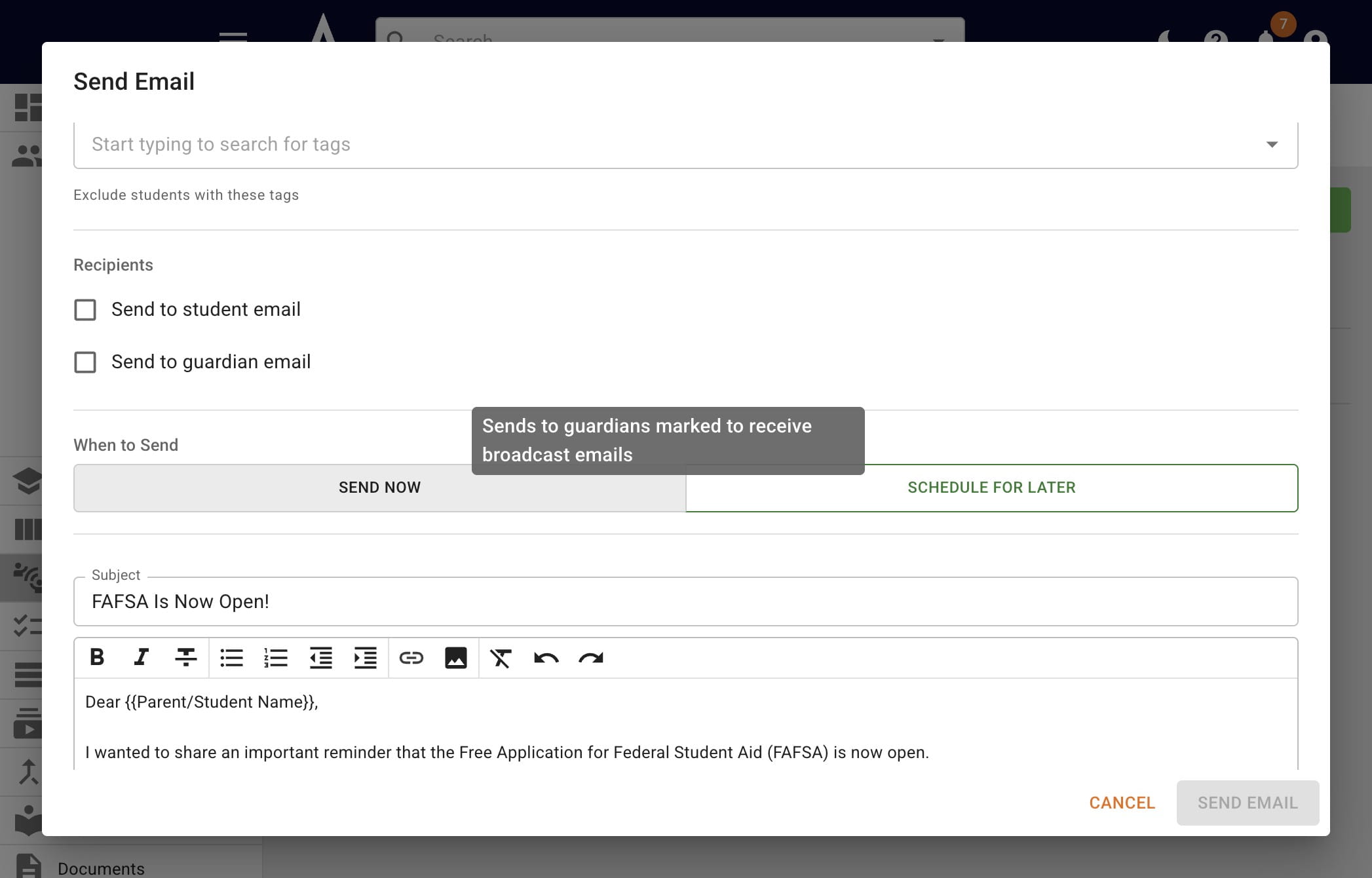
(Un)check the boxes as needed, depending on if the email is going to the student and/or parents/guardians
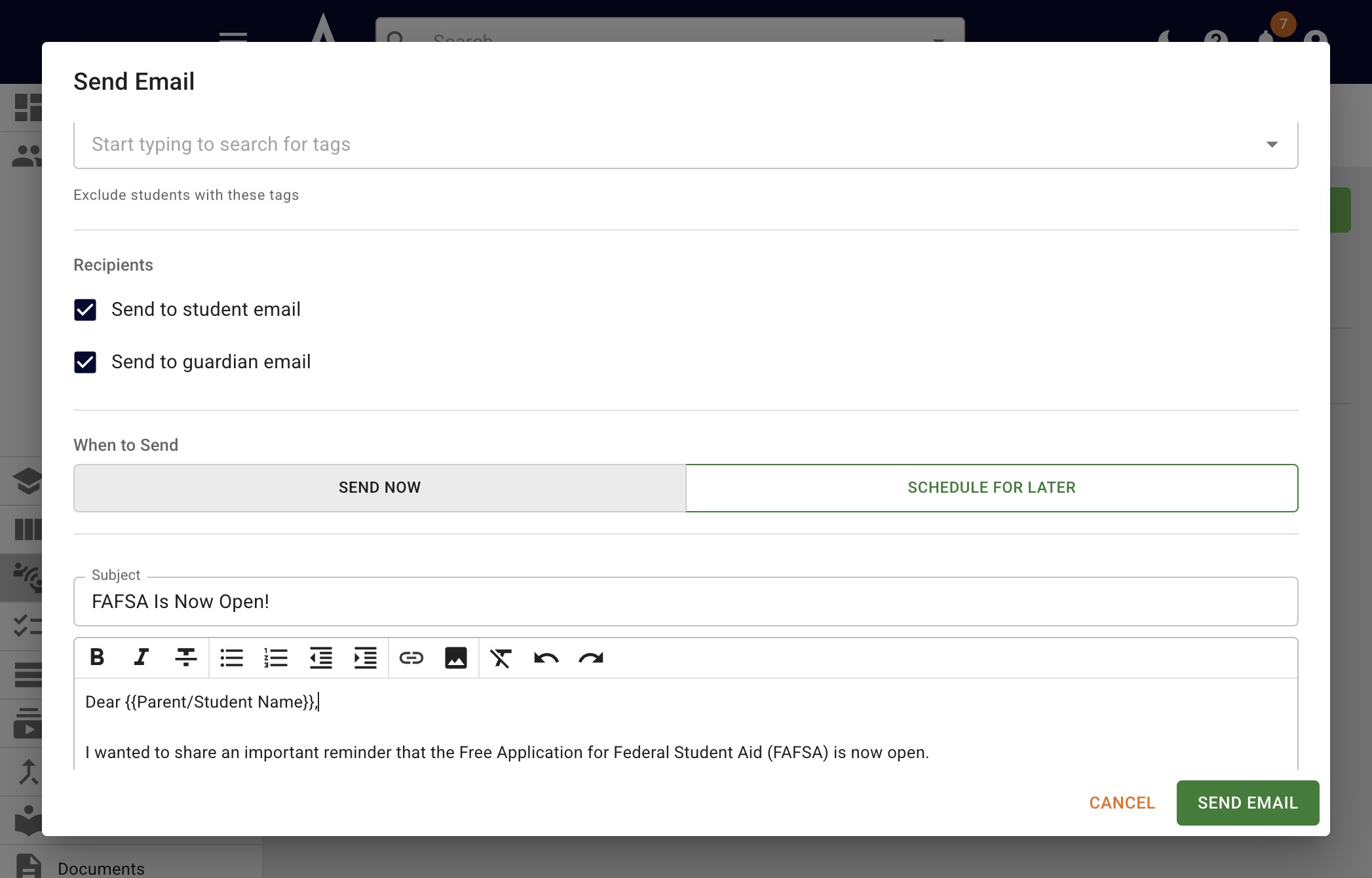
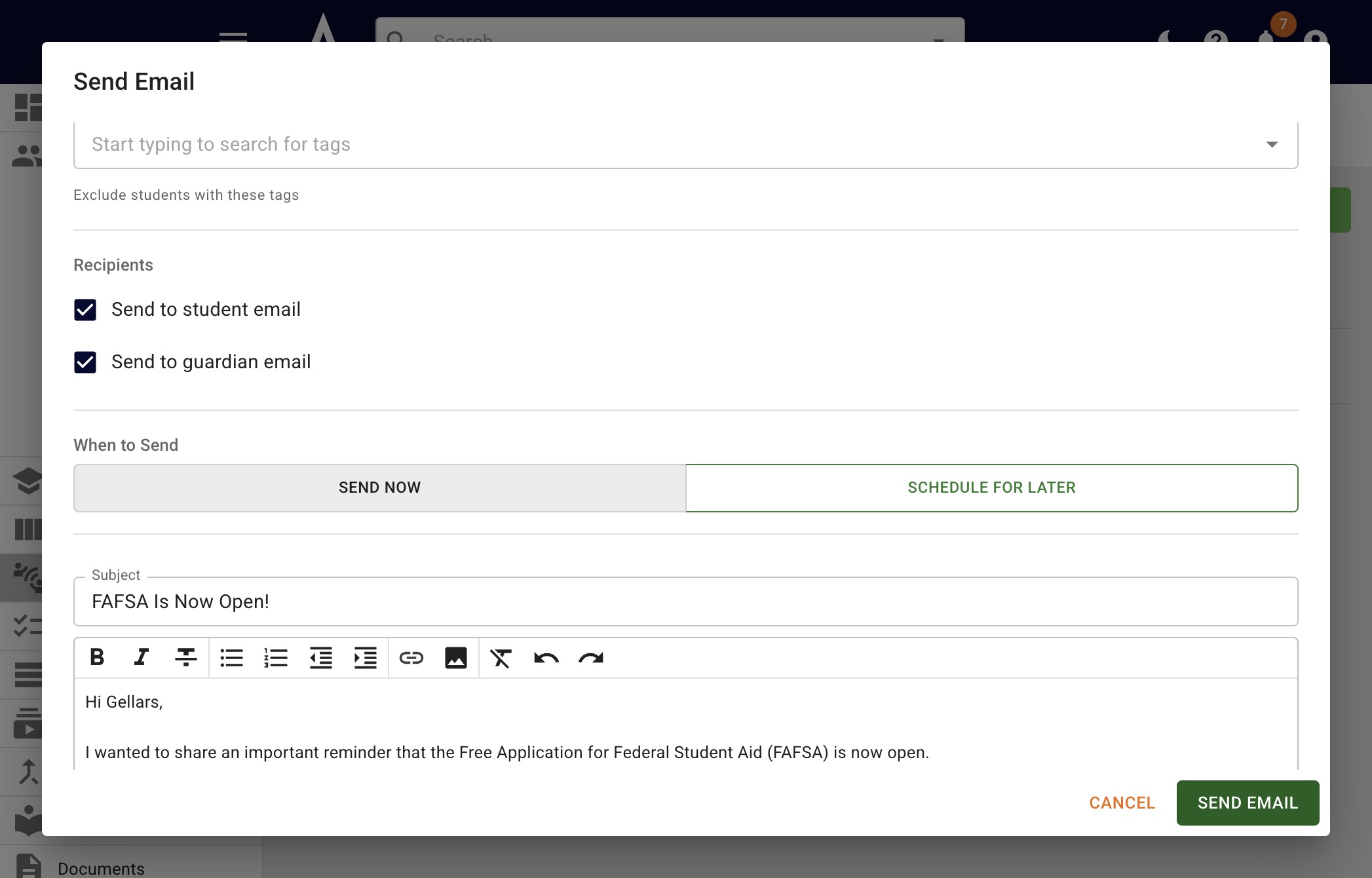
Personalize the email as needed.
When you're ready, click on Send Email.
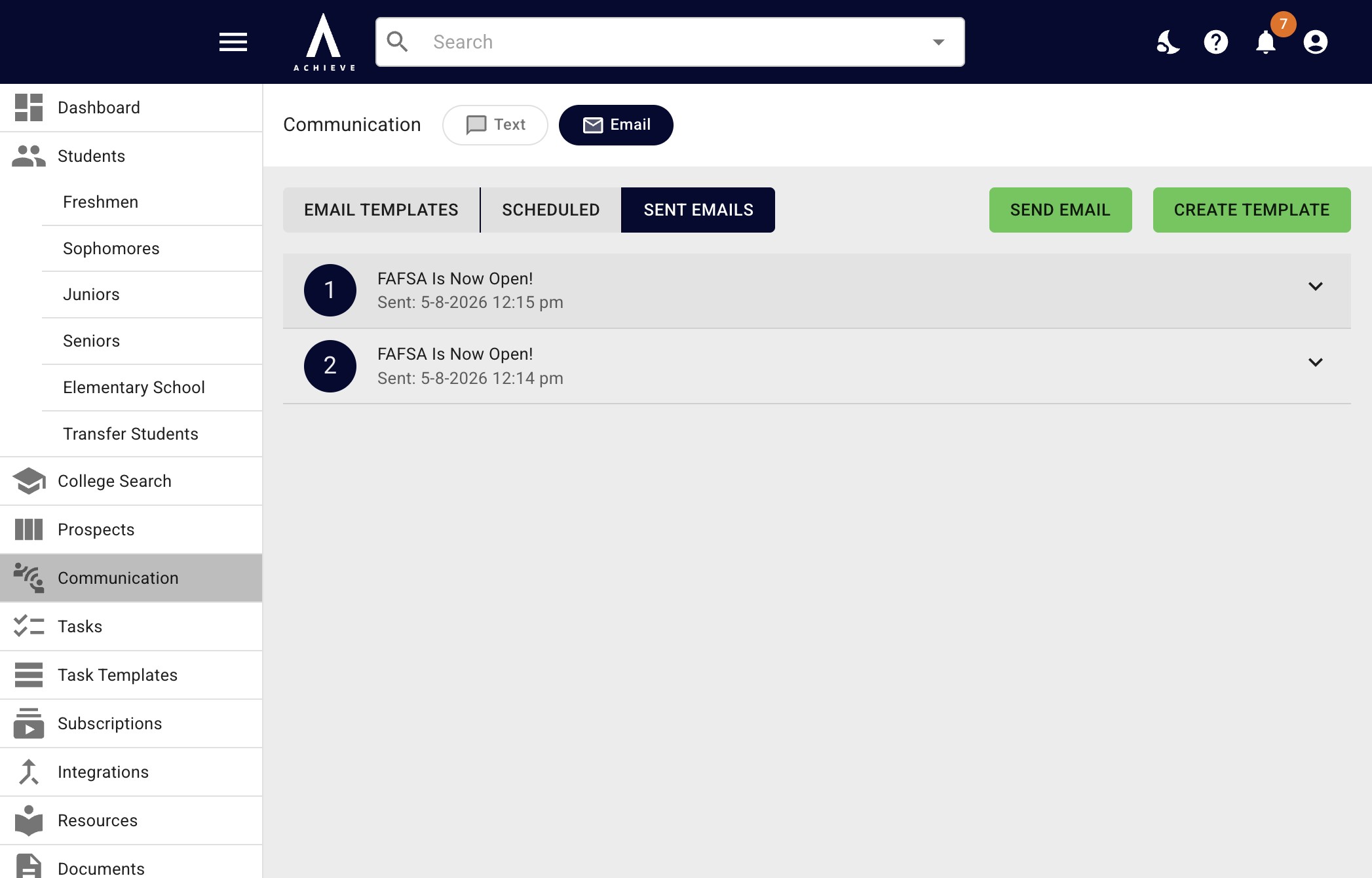
To view the sent email, click on the Sent Email heading.
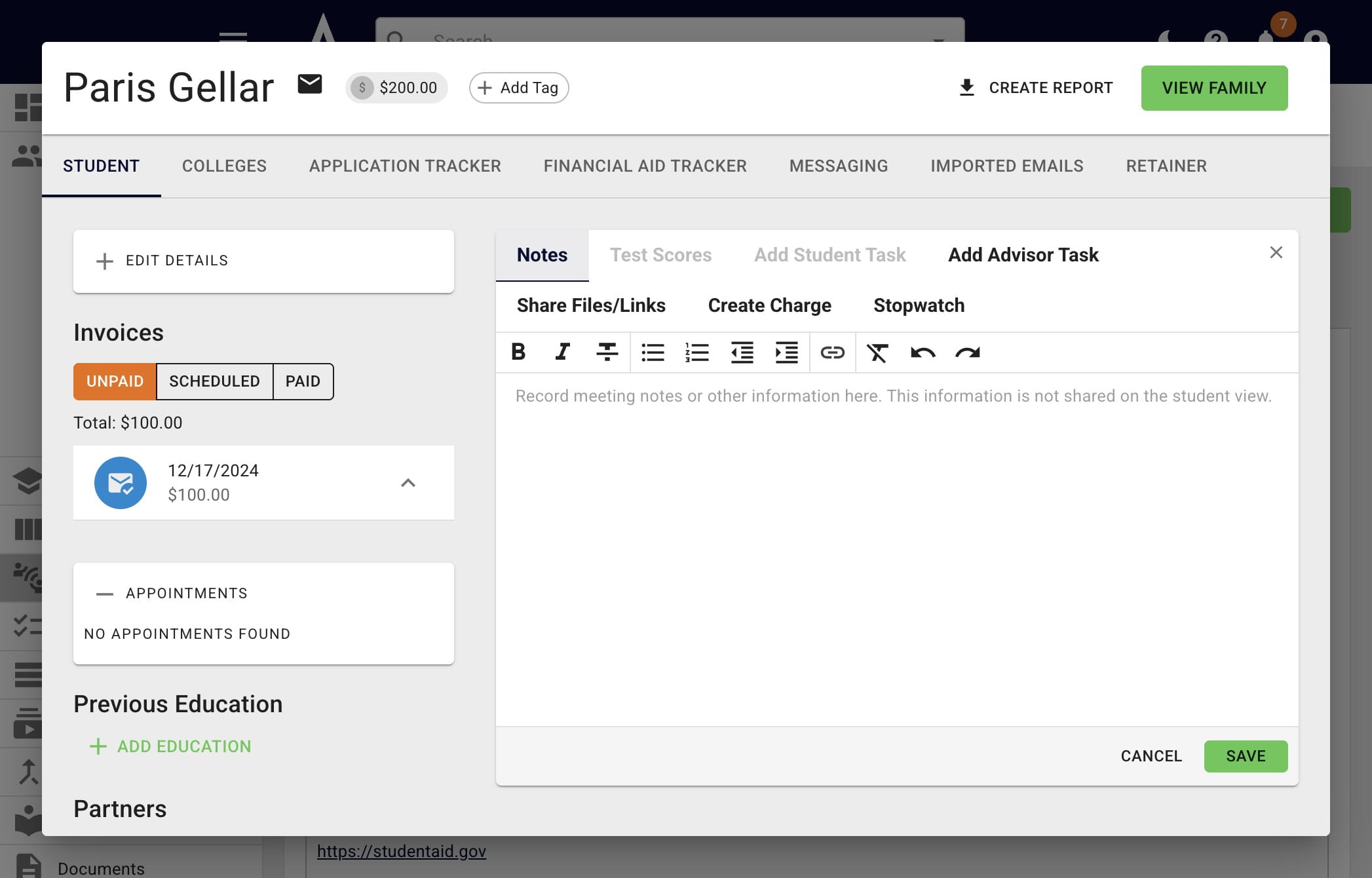
The 2nd way to view sent emails and/or send new emails to a specific family via the student's profile. Press Messaging to start.
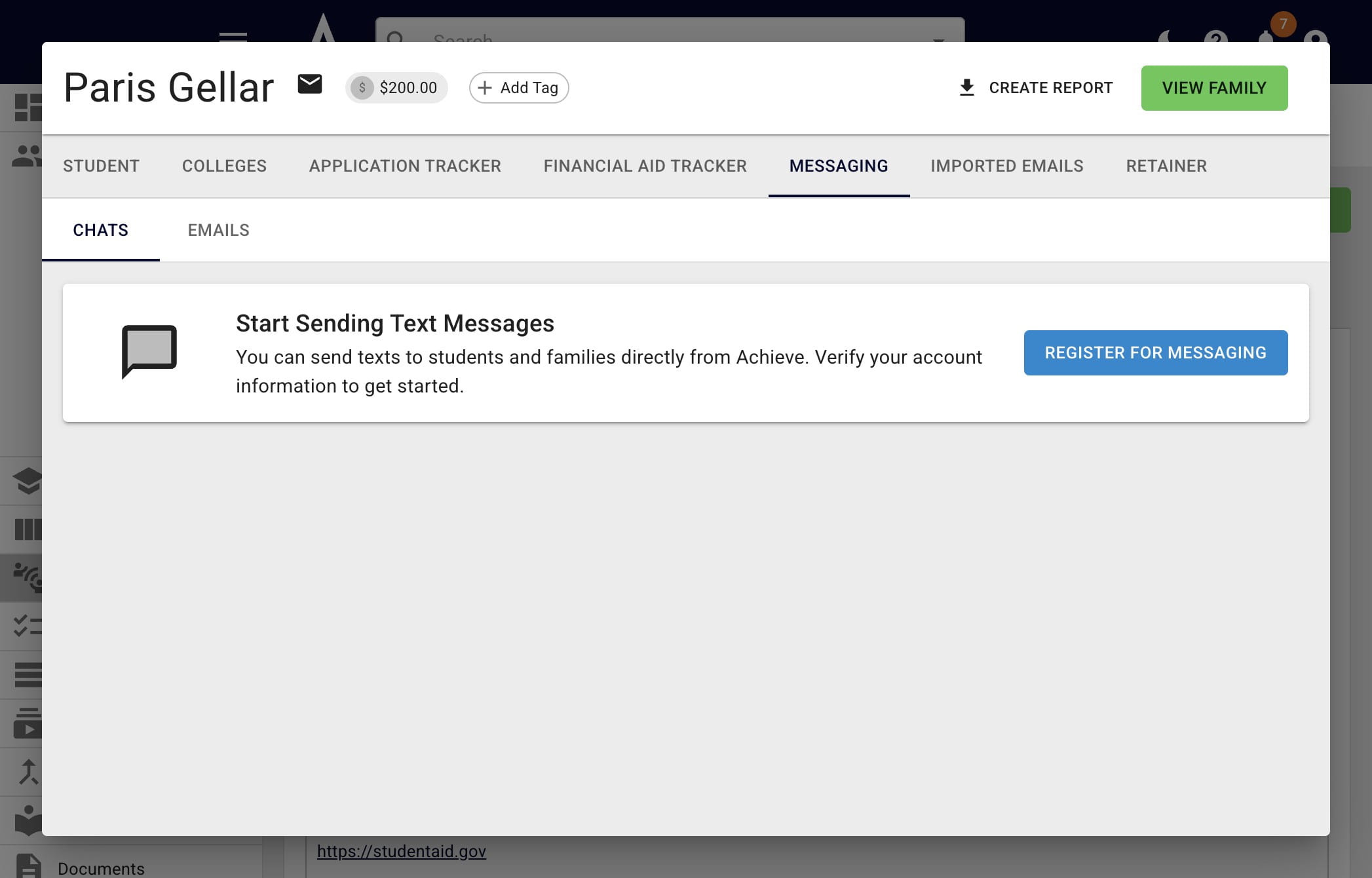
Click on Emails.
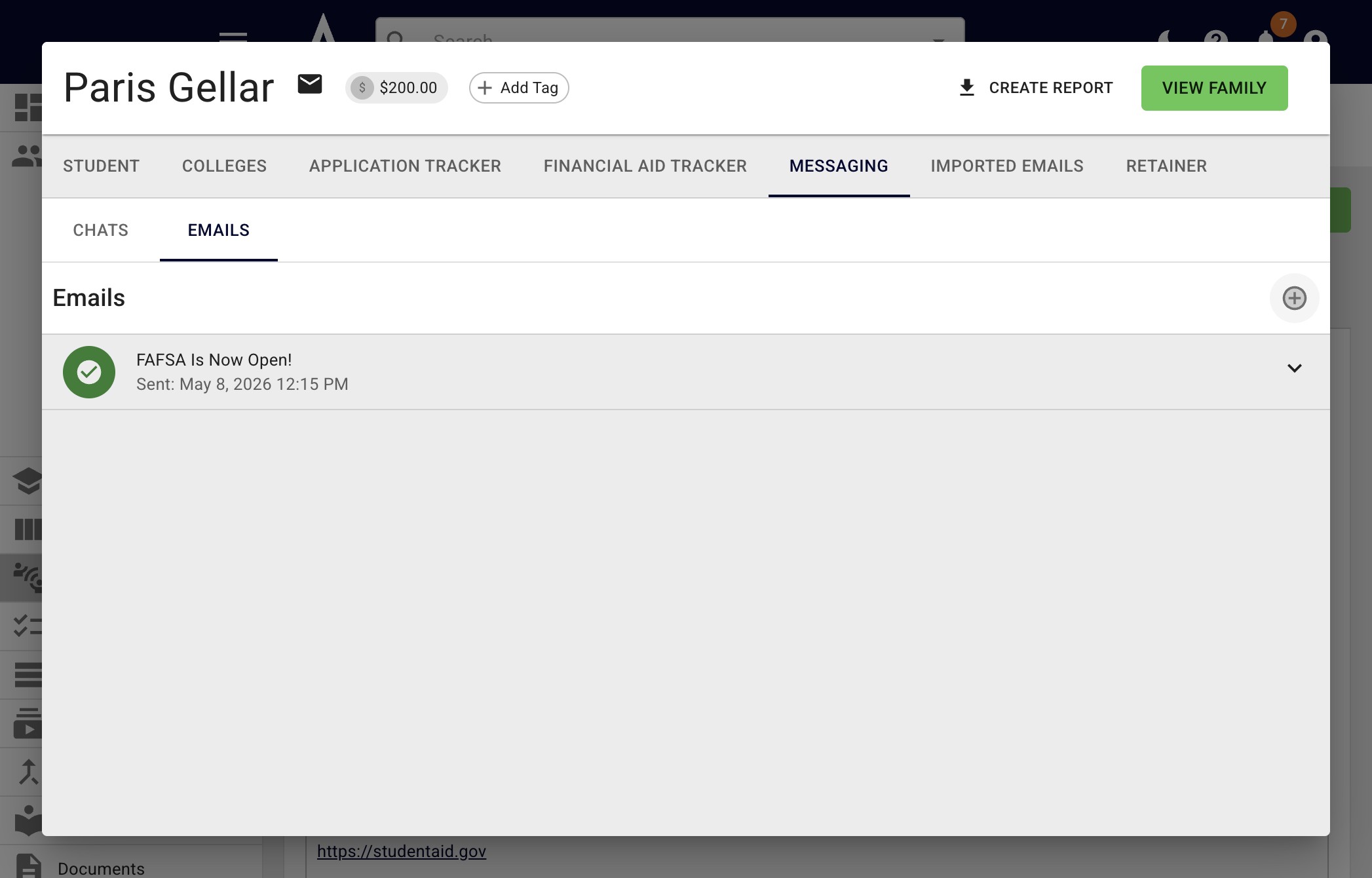
To send a new email click on the + button.
You'll see that the family's information is automatically added. Uncheck the boxes as needed to make sure the email goes to the correct recipients.
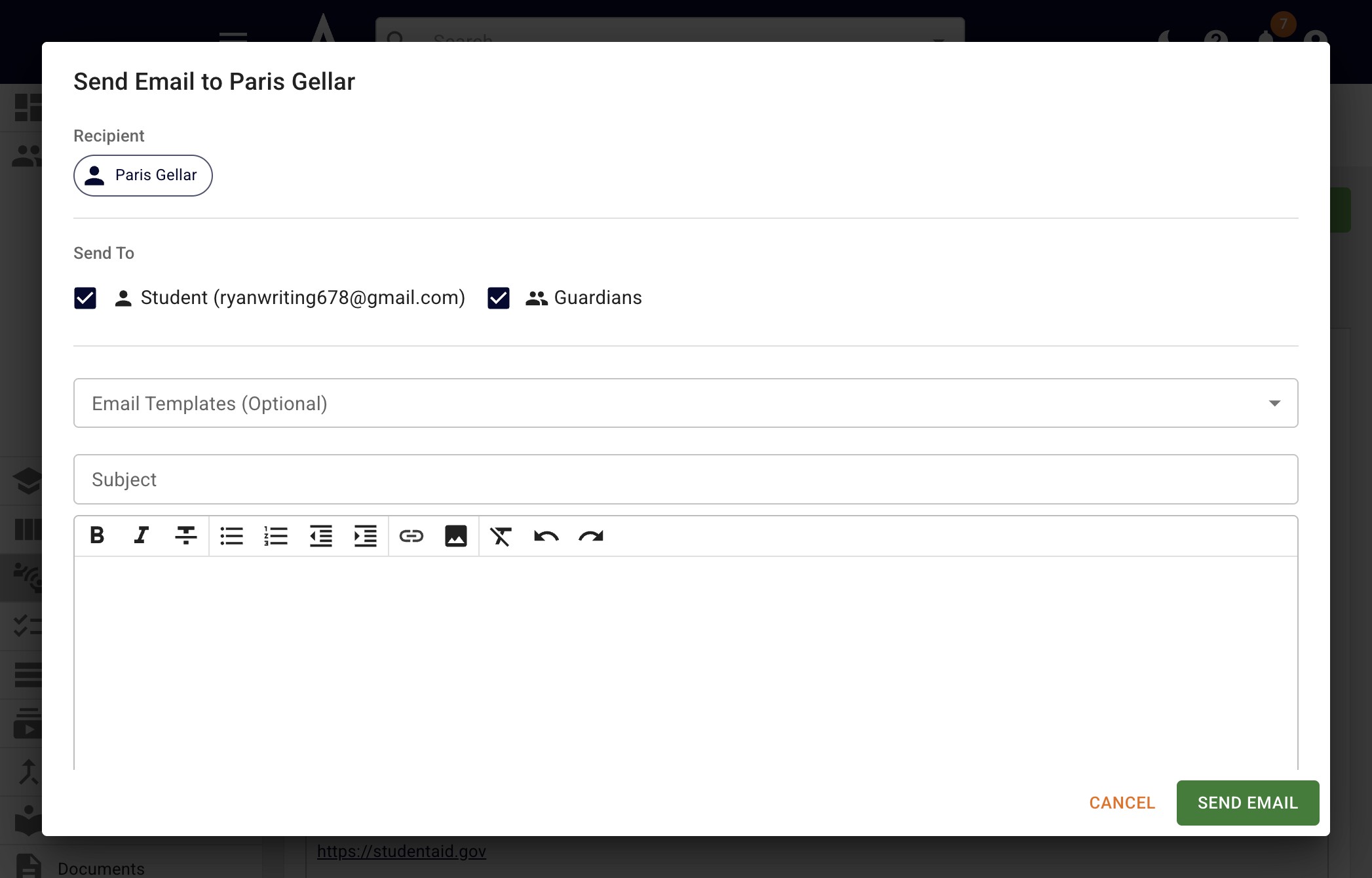
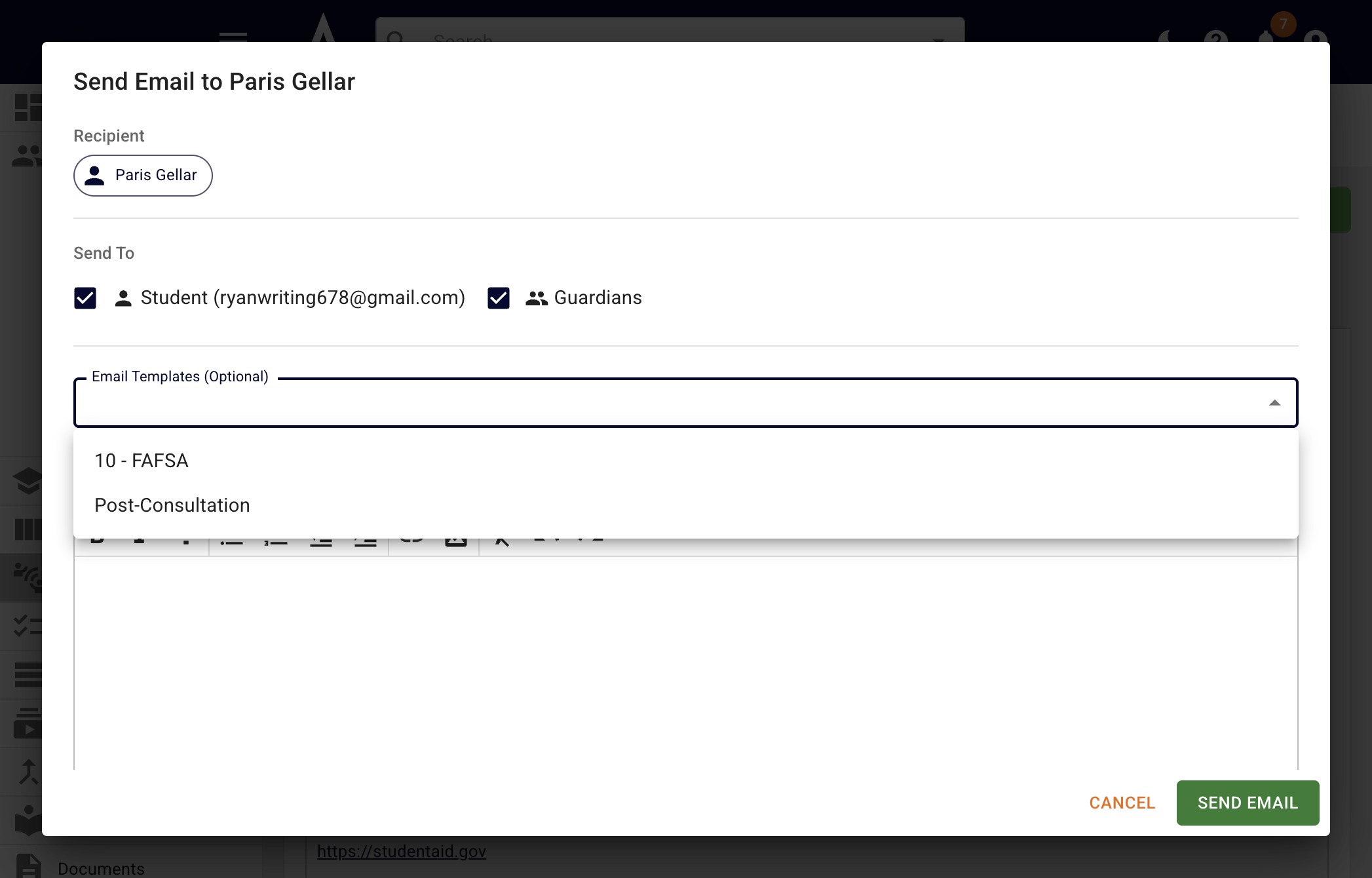
If you'd like to choose an Email Template, click on the field and select the applicable template from the drop-down.
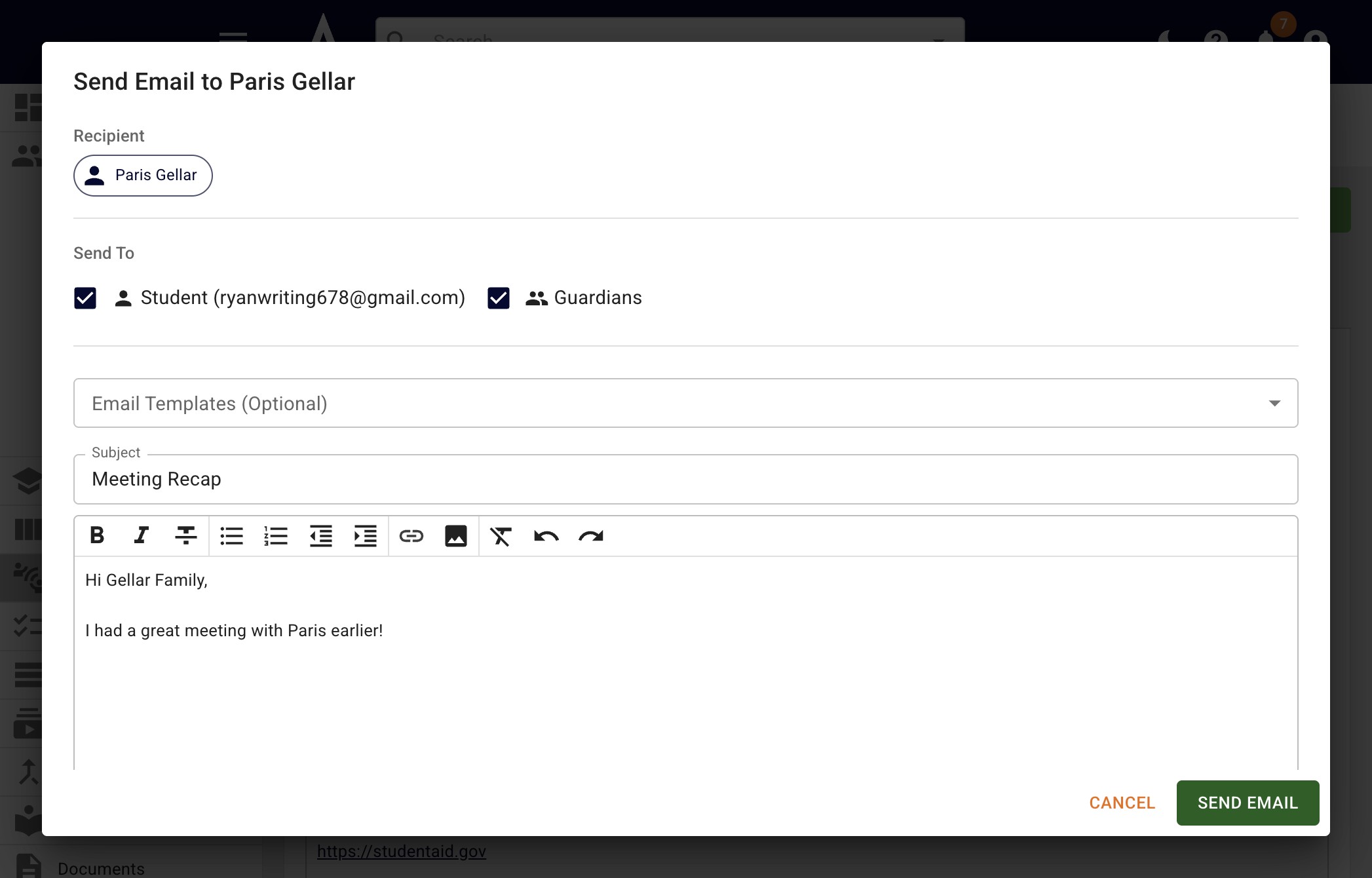
You can also write a one-off email. Click on Send Email when your email is ready.
Done 🚀