
Sending Contracts
How to send & track contracts and other documents through Achieve
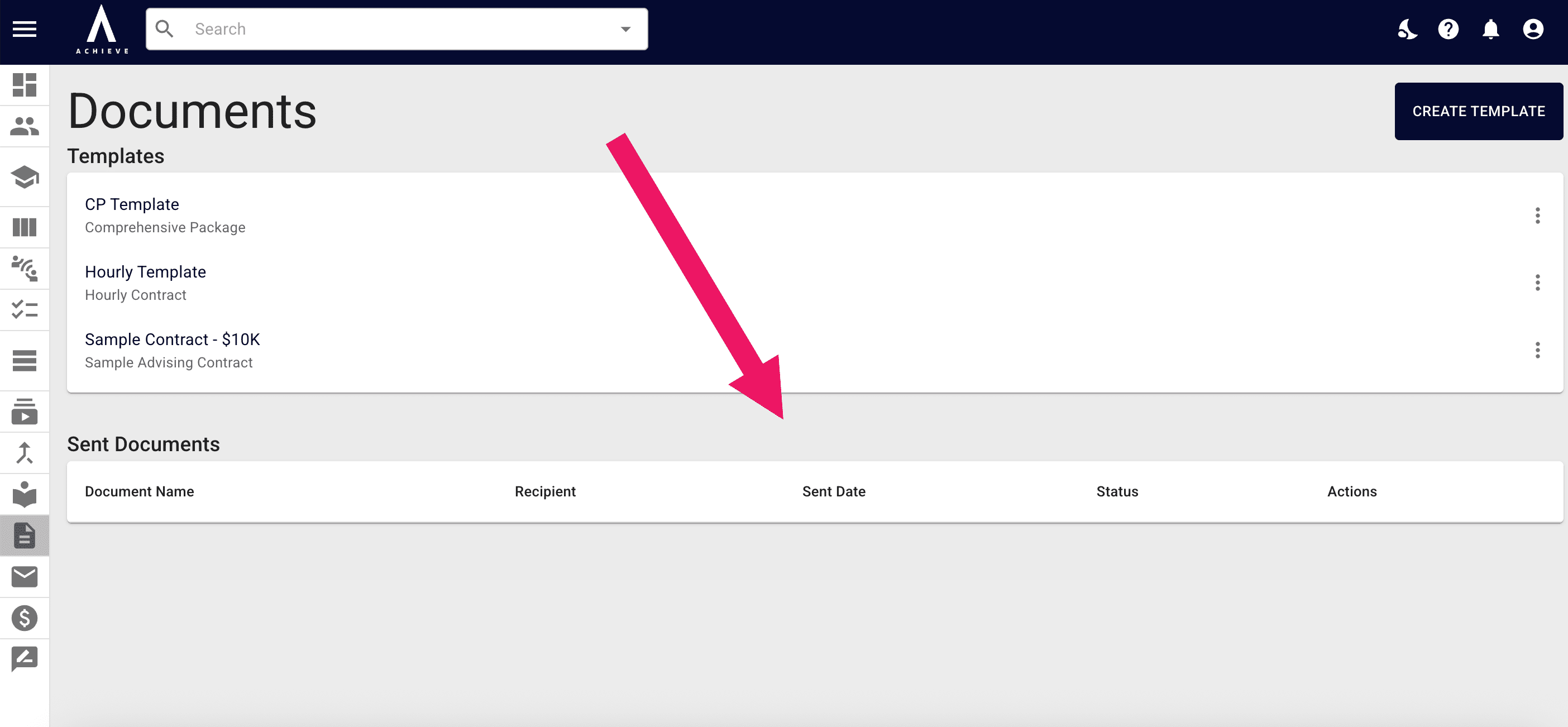
Navigate to https://app.achieveiec.com/documents
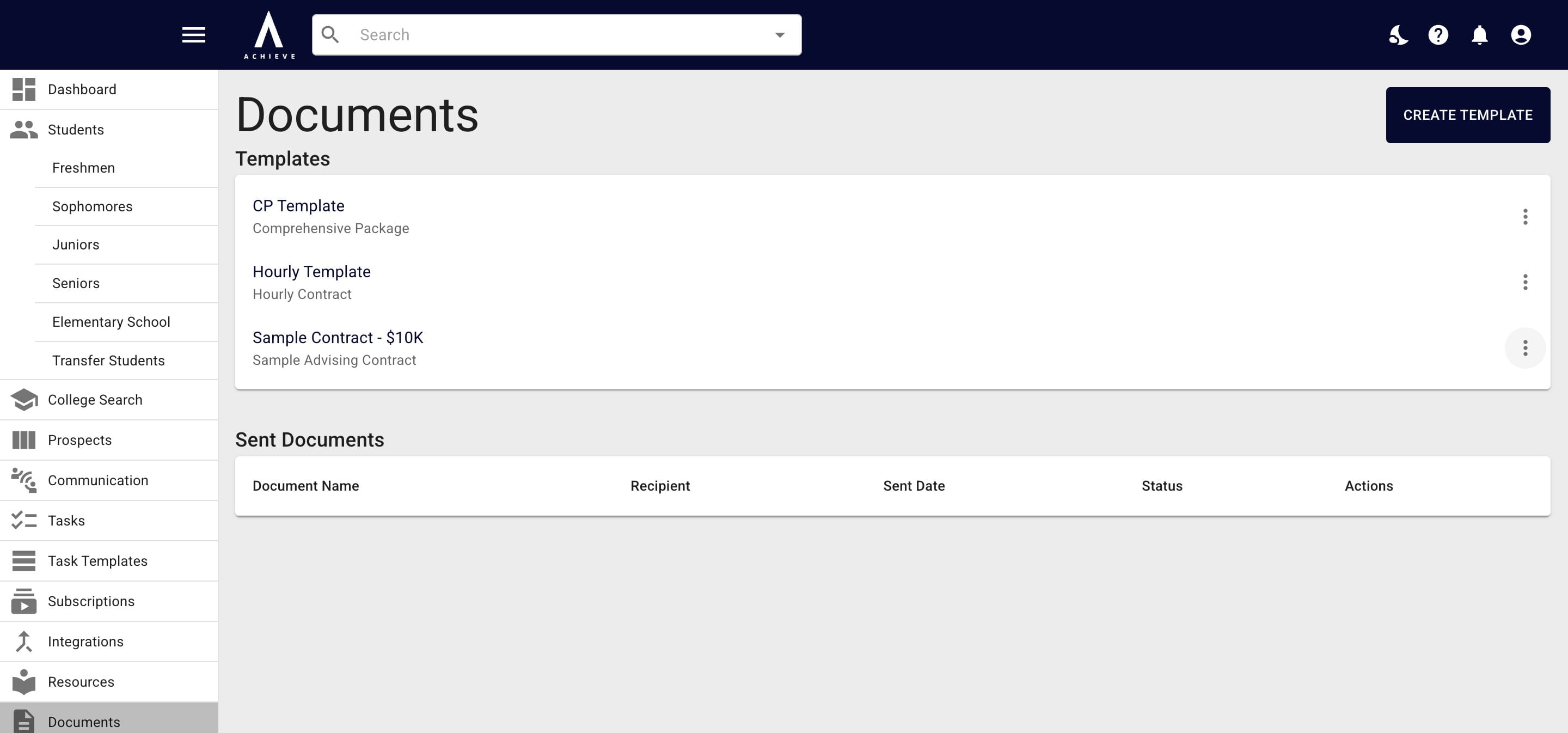
Click on the 3 dots to the right of the document you want to send.
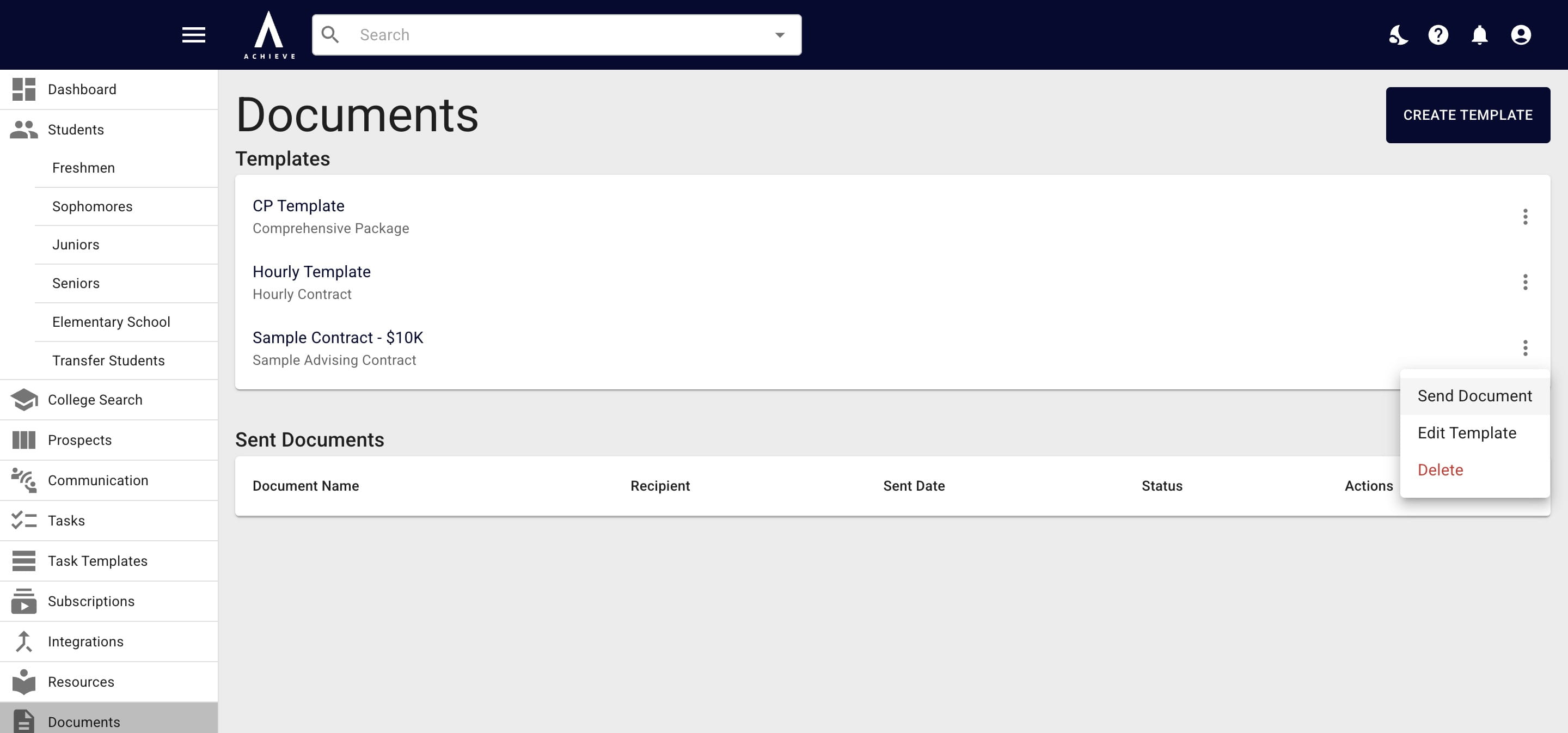
Click on Send Document.
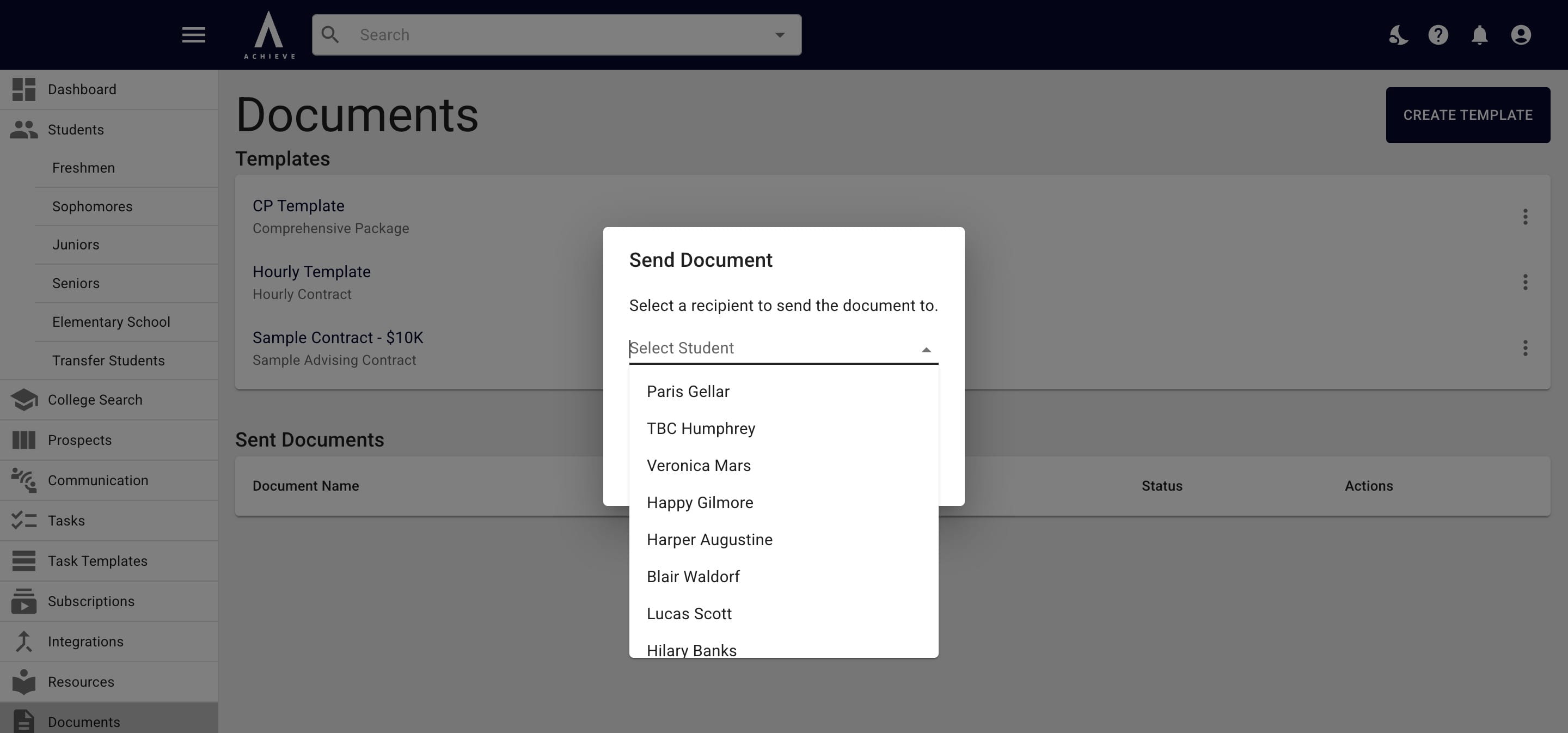
Start typing the applicable student's name where it say Select Student (even if the document is being sent to a parent/guardian).
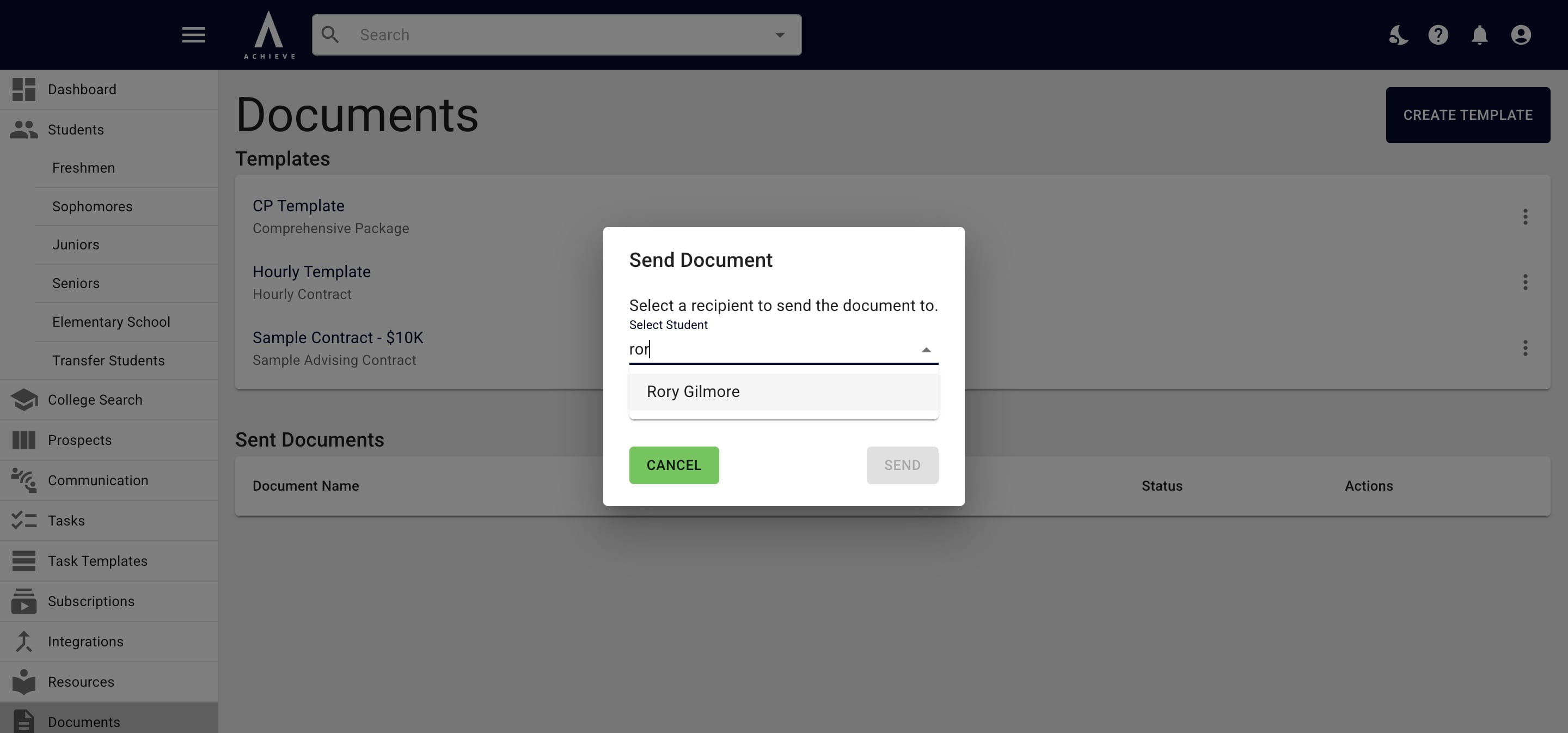
Click on the student's name once it appears in the drop down.
Click where it say Select Email and a drop down of all emails related to the student's family will appear.
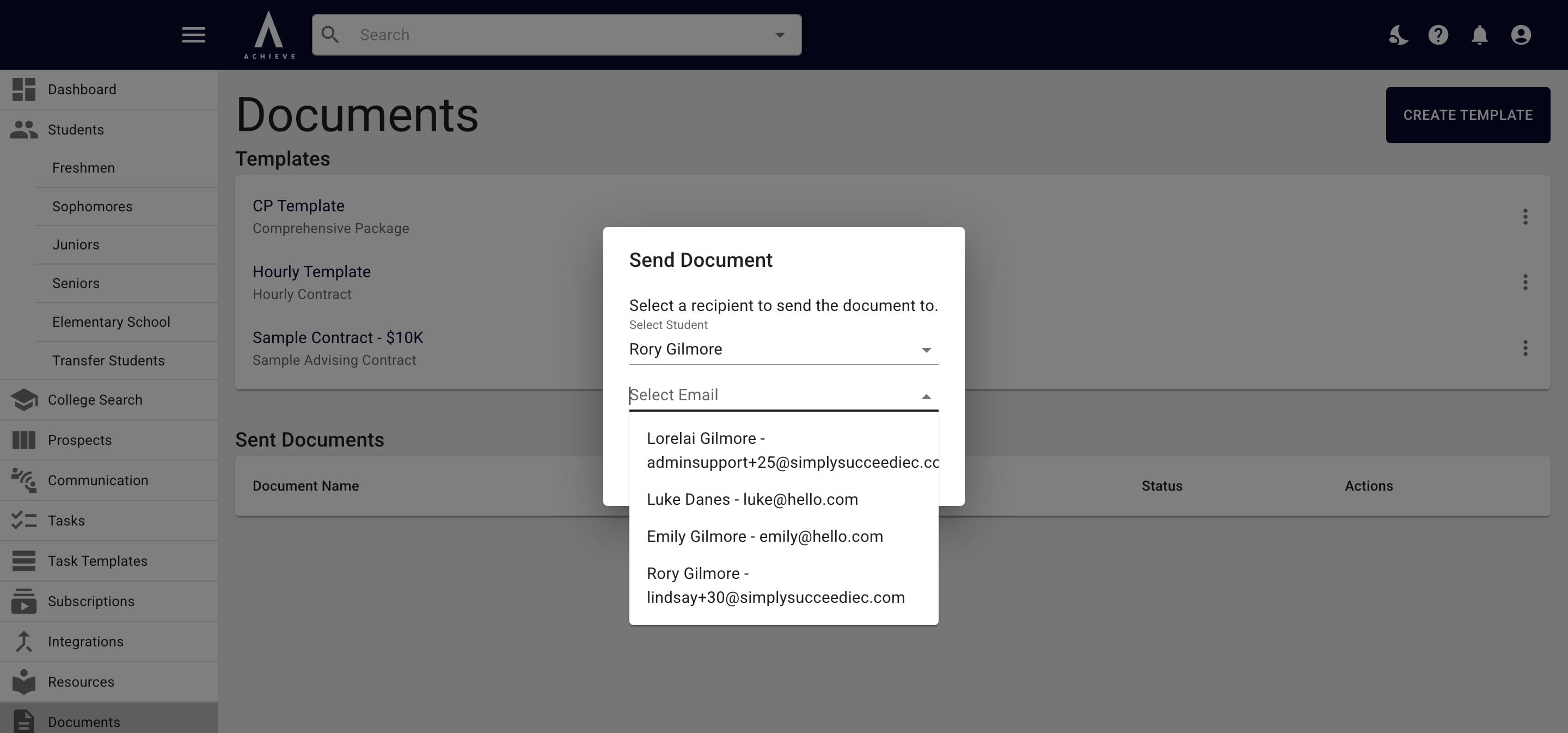
Choose the person you want to receive the document from the drop down.
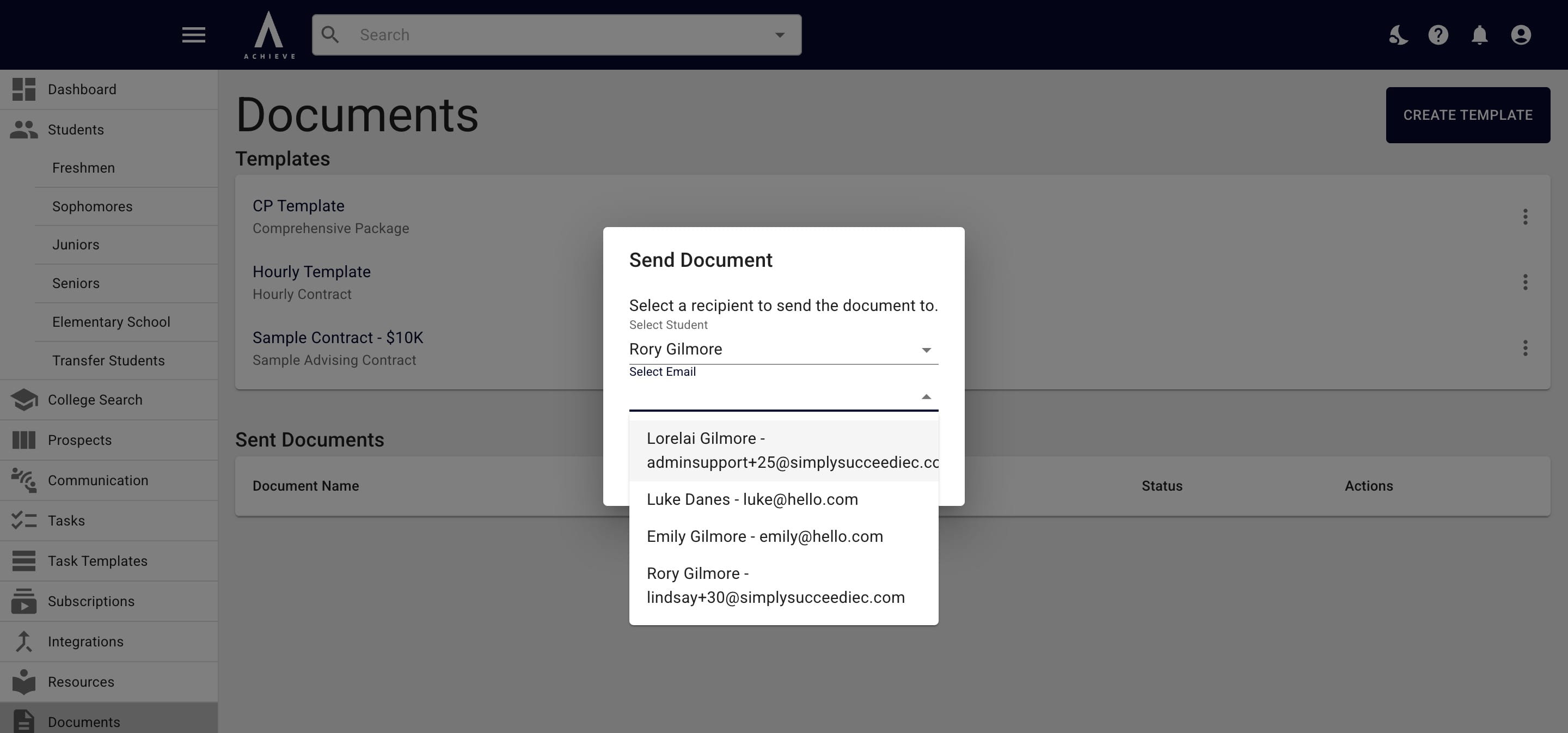
Click on Send.
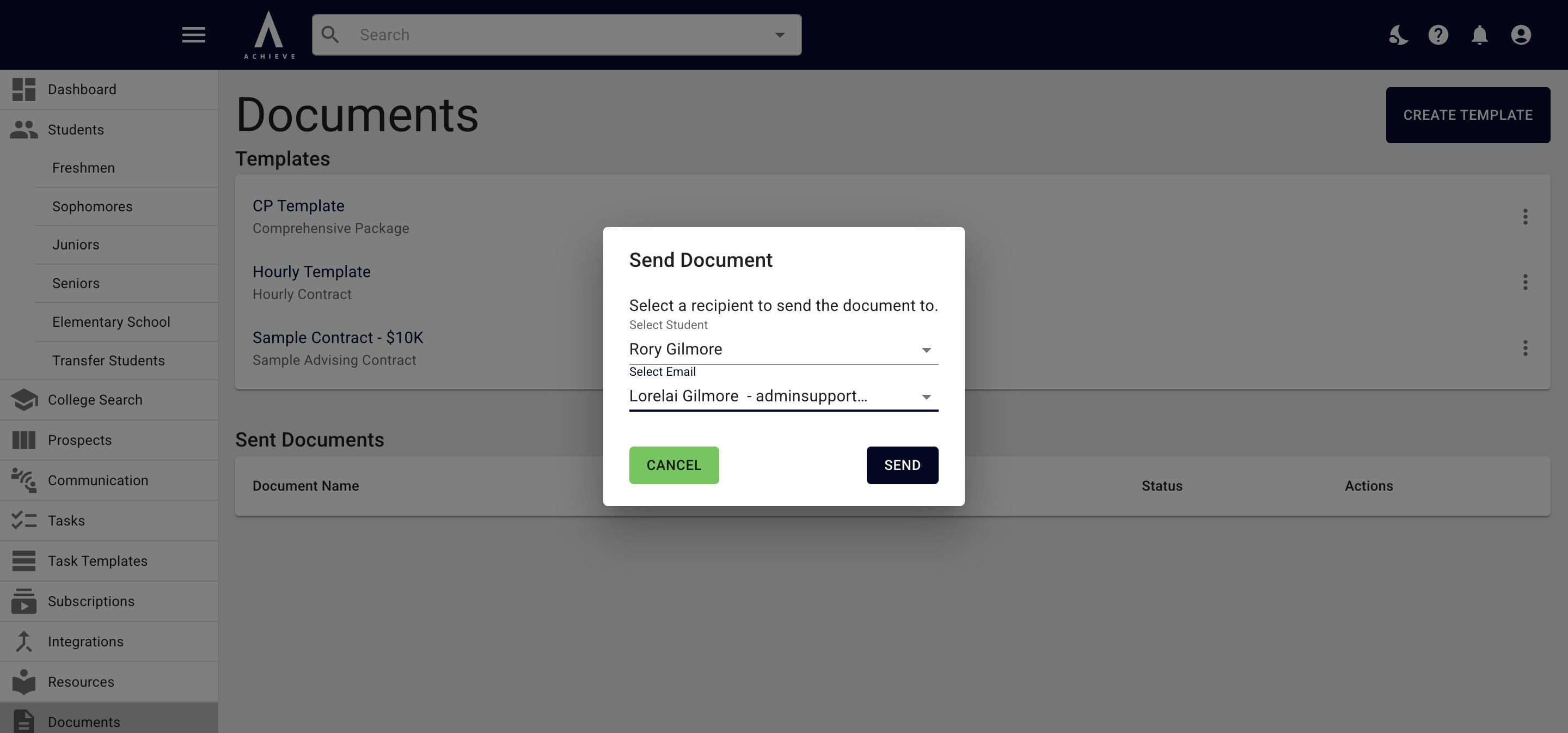
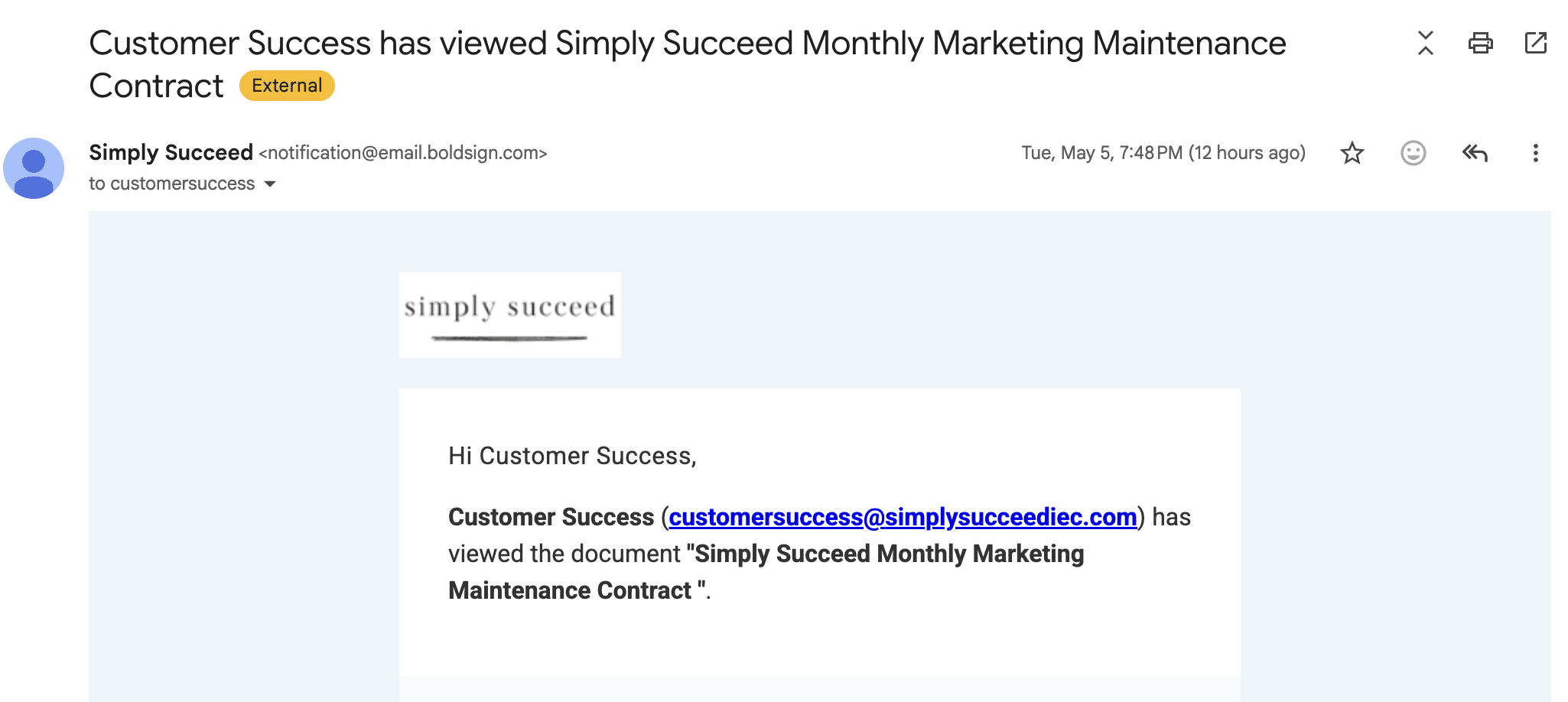
You will receive an email when the document is viewed by the recipient.
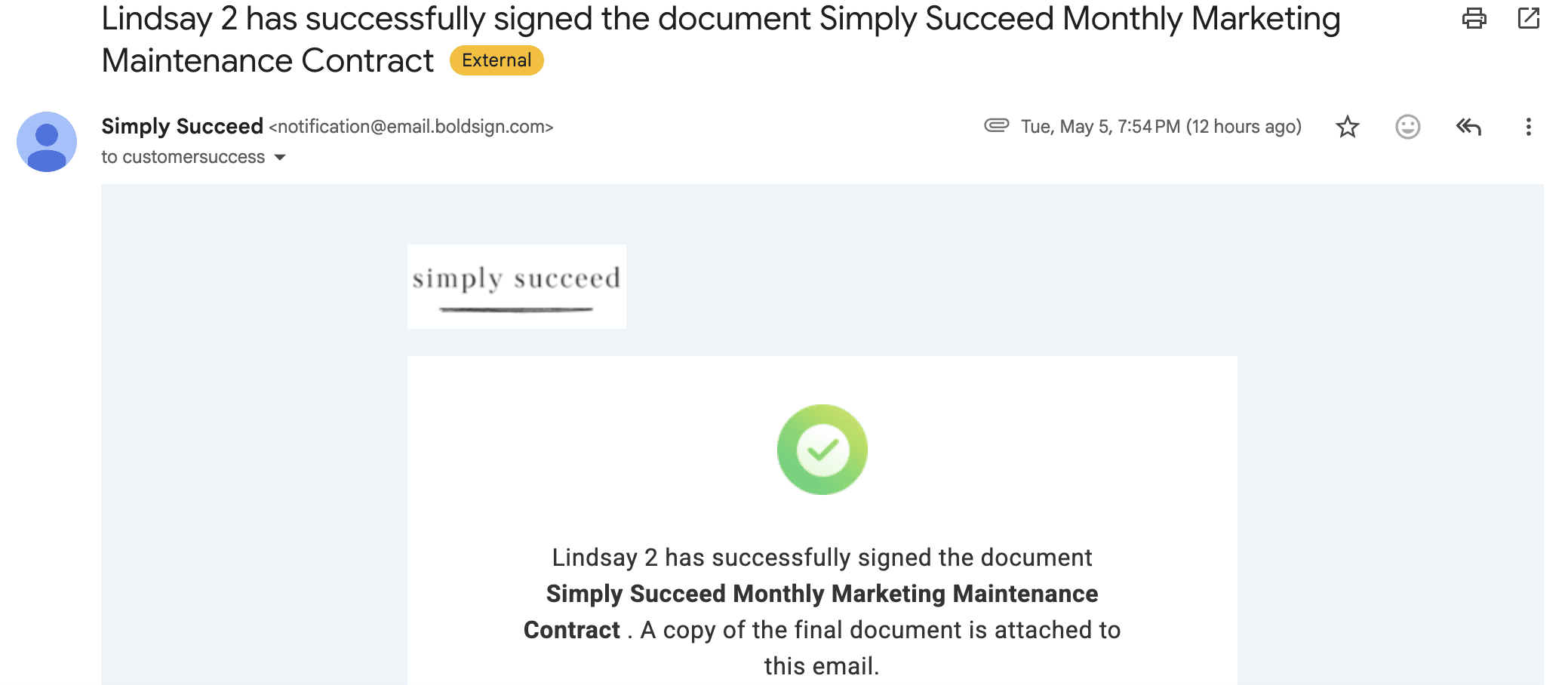
Y0u & the recipient will both receive emails with a copy of the executed document once it's completed.
You can keep track of all pending, completed, and revoked documents under the Sent Documents section.
Done 🚀