
Shared Notes Section
Guide to adding a Shared Note to a student’s Achieve profile, which can be emailed to their guardians or only displayed on the student’s dashboard.
Navigate to a student's profile in Achieve
Navigate to the Shared Notes section of a student's Achieve profile
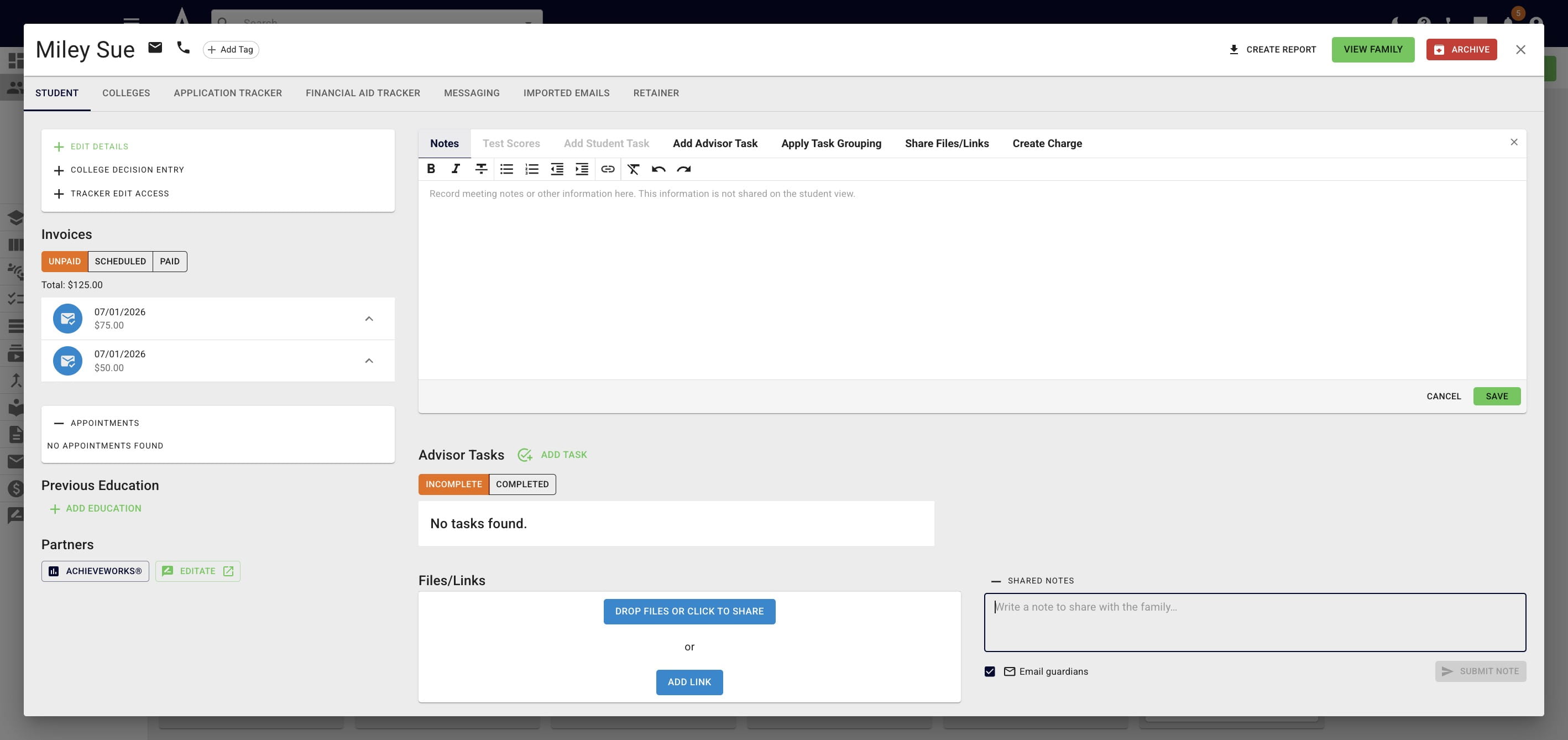
Once you've added the notes, make sure the Email guardians box is checked if you want the notes to be sent to them.
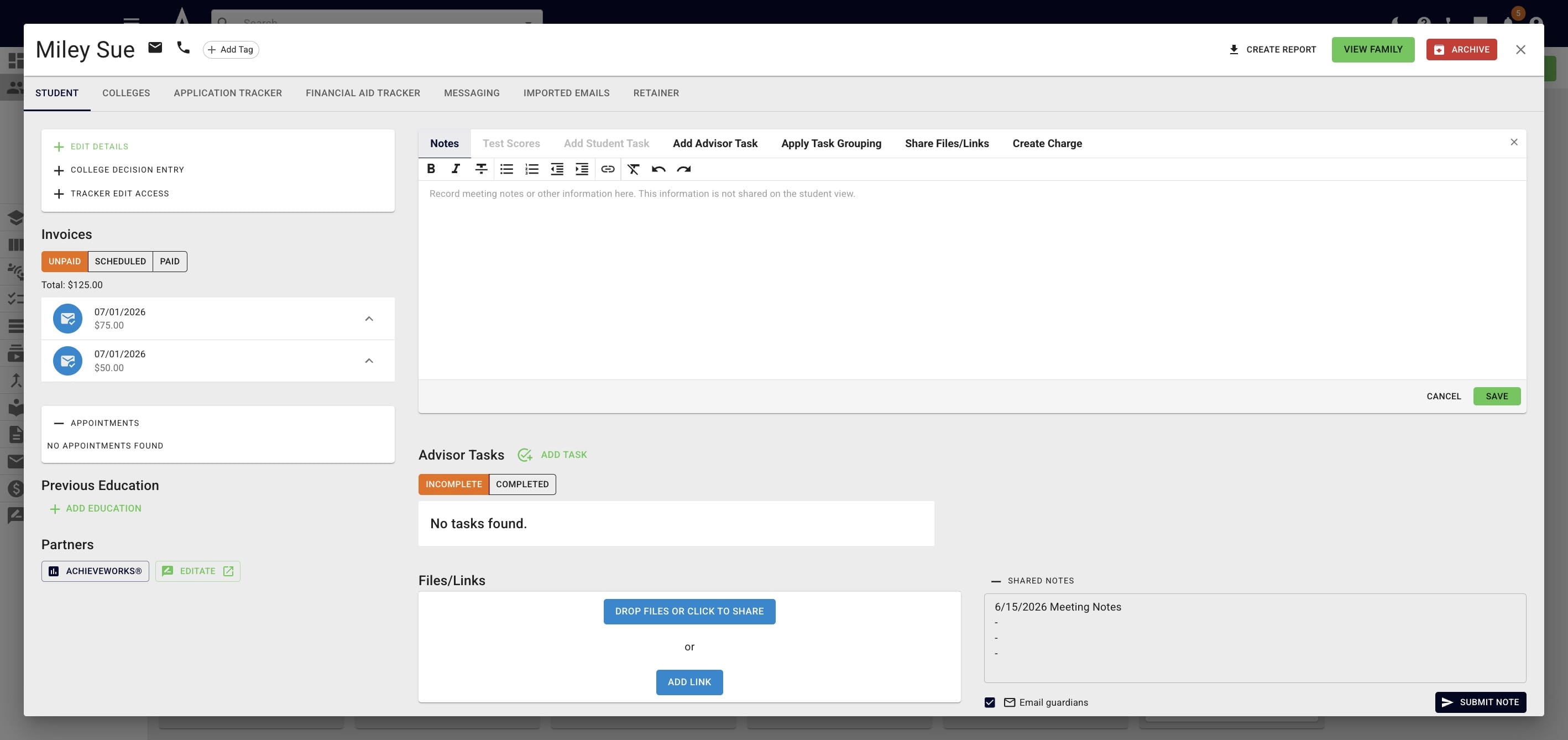
Then, press Submit Note
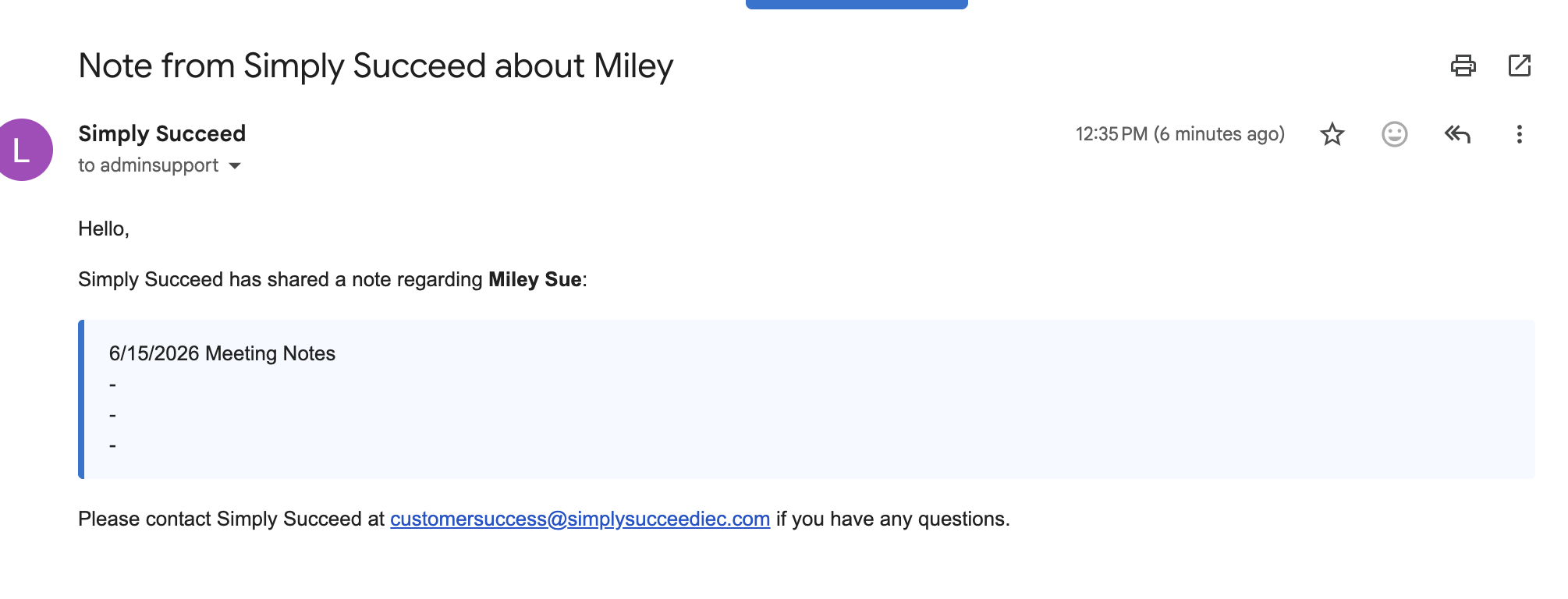
Below is an example of what the email will look like if it's sent to the students' parents & guardians.
If you want this shared note to only show on the student's Achieve dashboard, not be sent to guardians, uncheck the Email guardians box & then press Submit Note
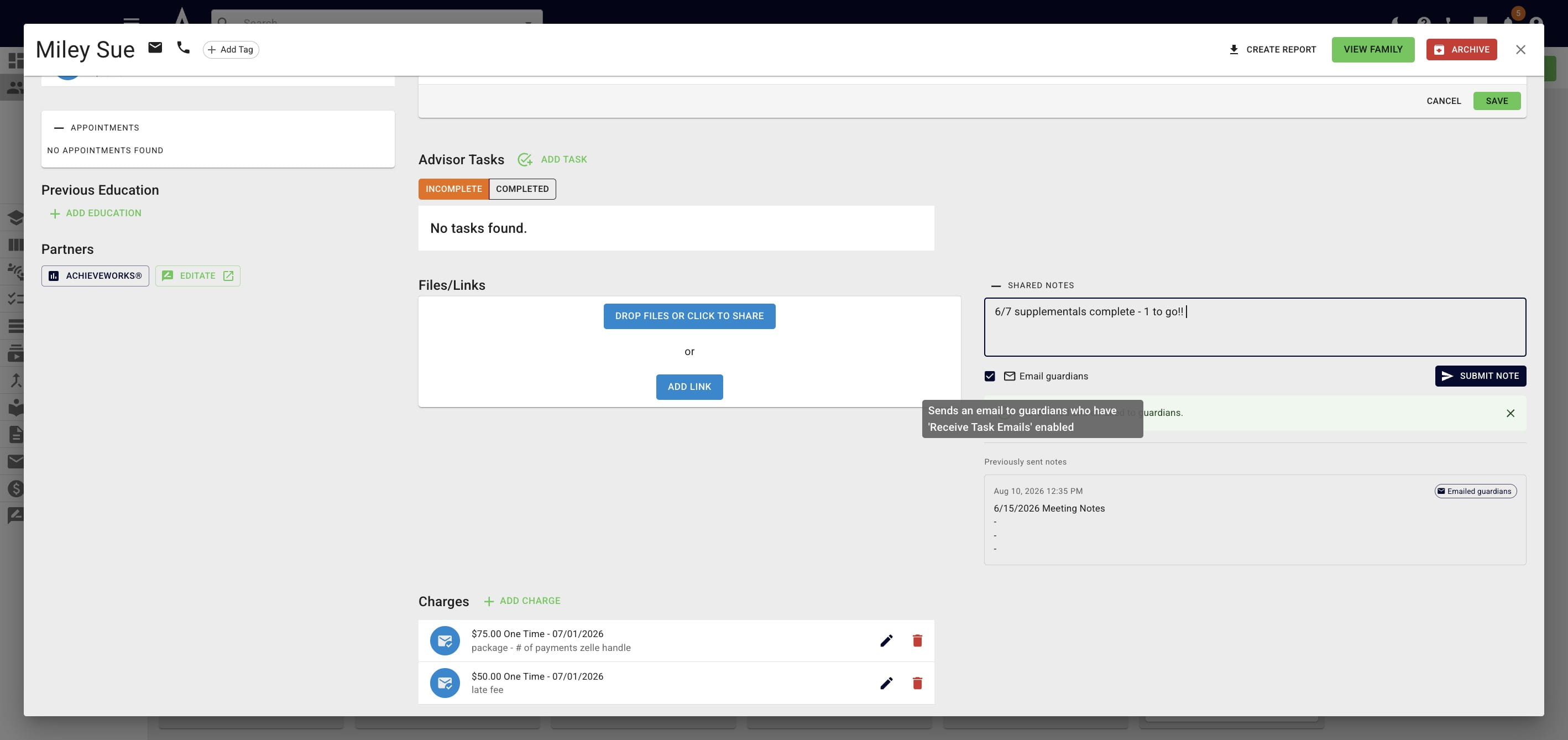
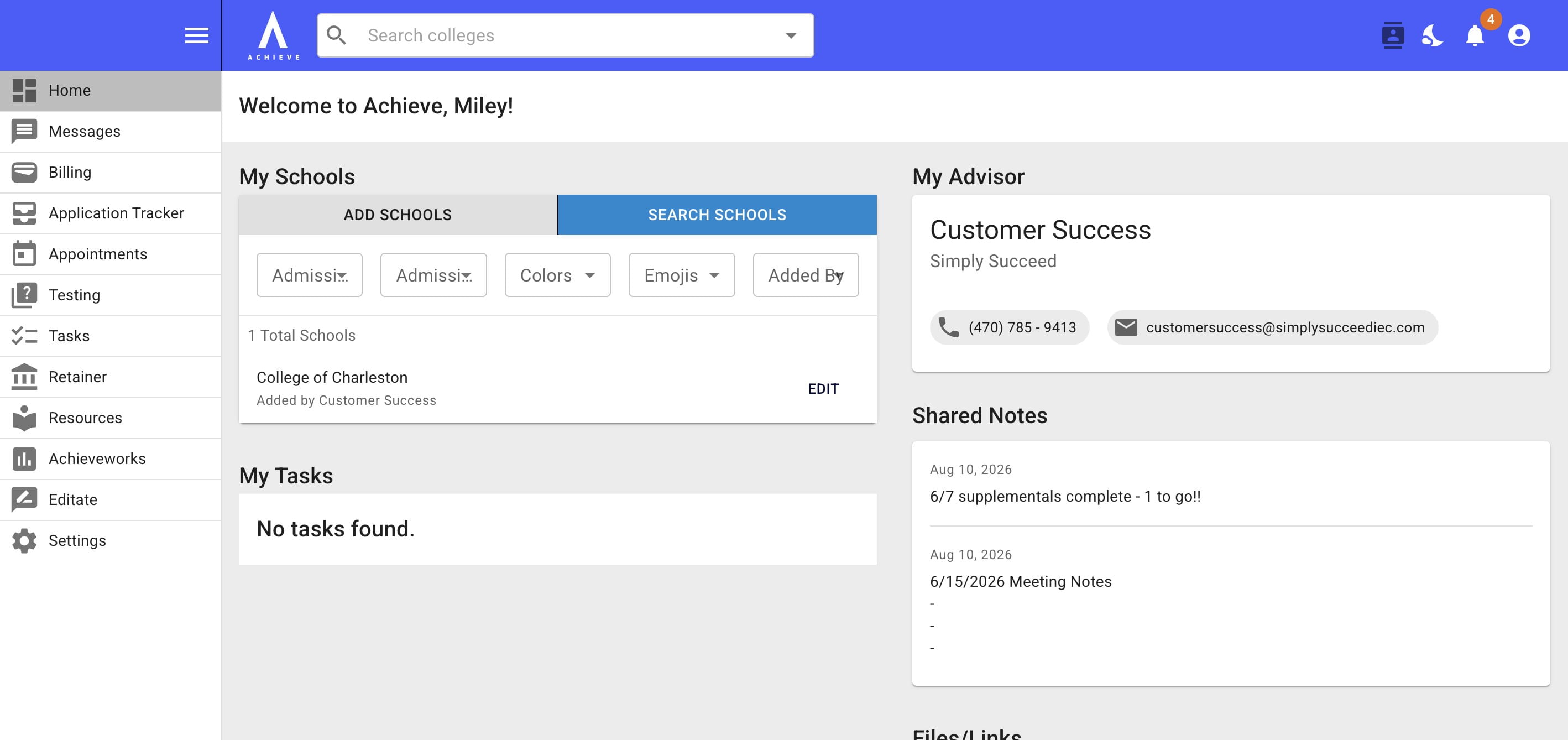
Below is what Shared Notes look like on the student's dashboard. It's a great spot to add meeting notes, announcements, or other updates!
Done 🚀