
Task Groupings
This guide explains how to create and apply student task groupings, creating a coordinated college-prep workflow.
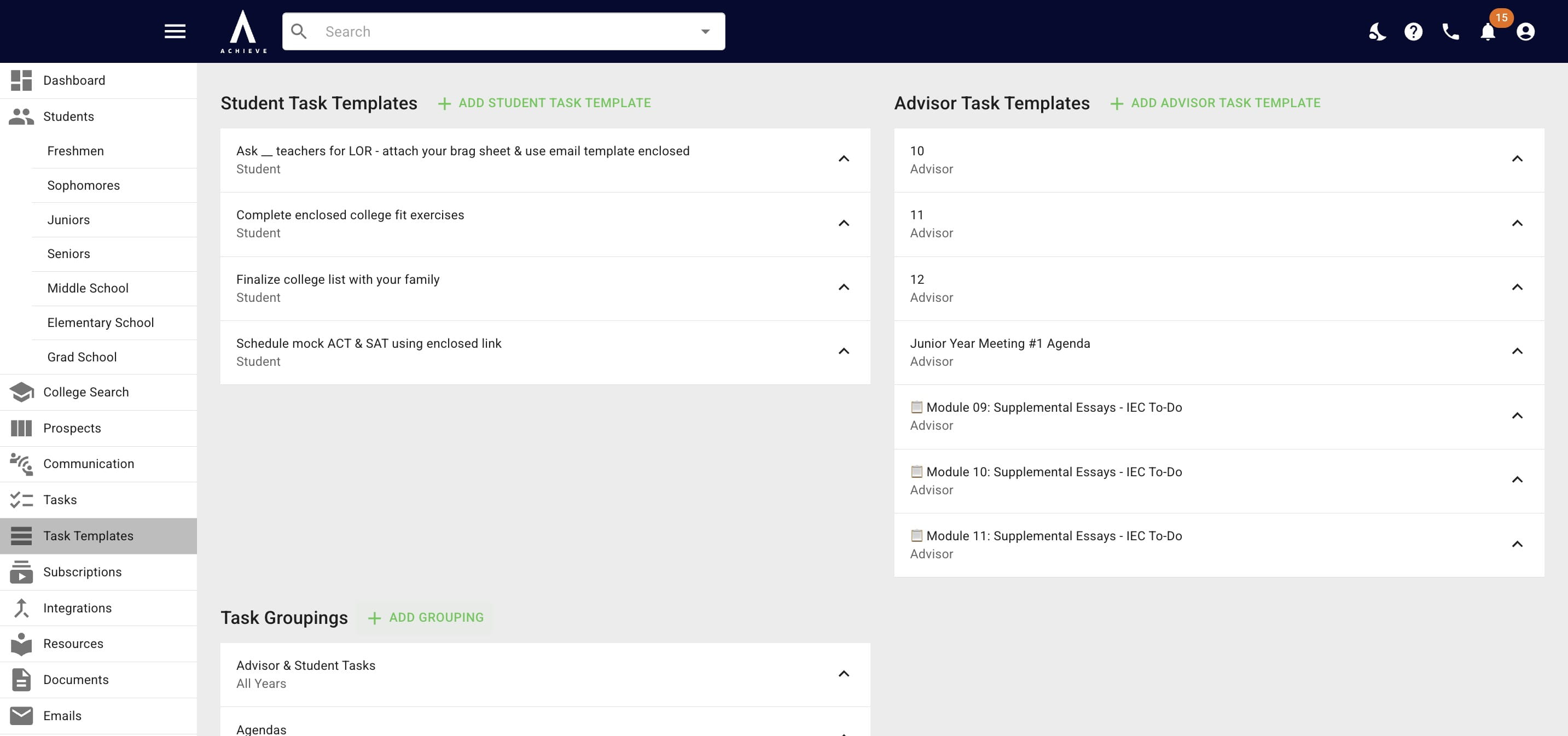
Navigate to https://app.achieveiec.com/task-templates
Click on Add Grouping
Type in the name for your task grouping.
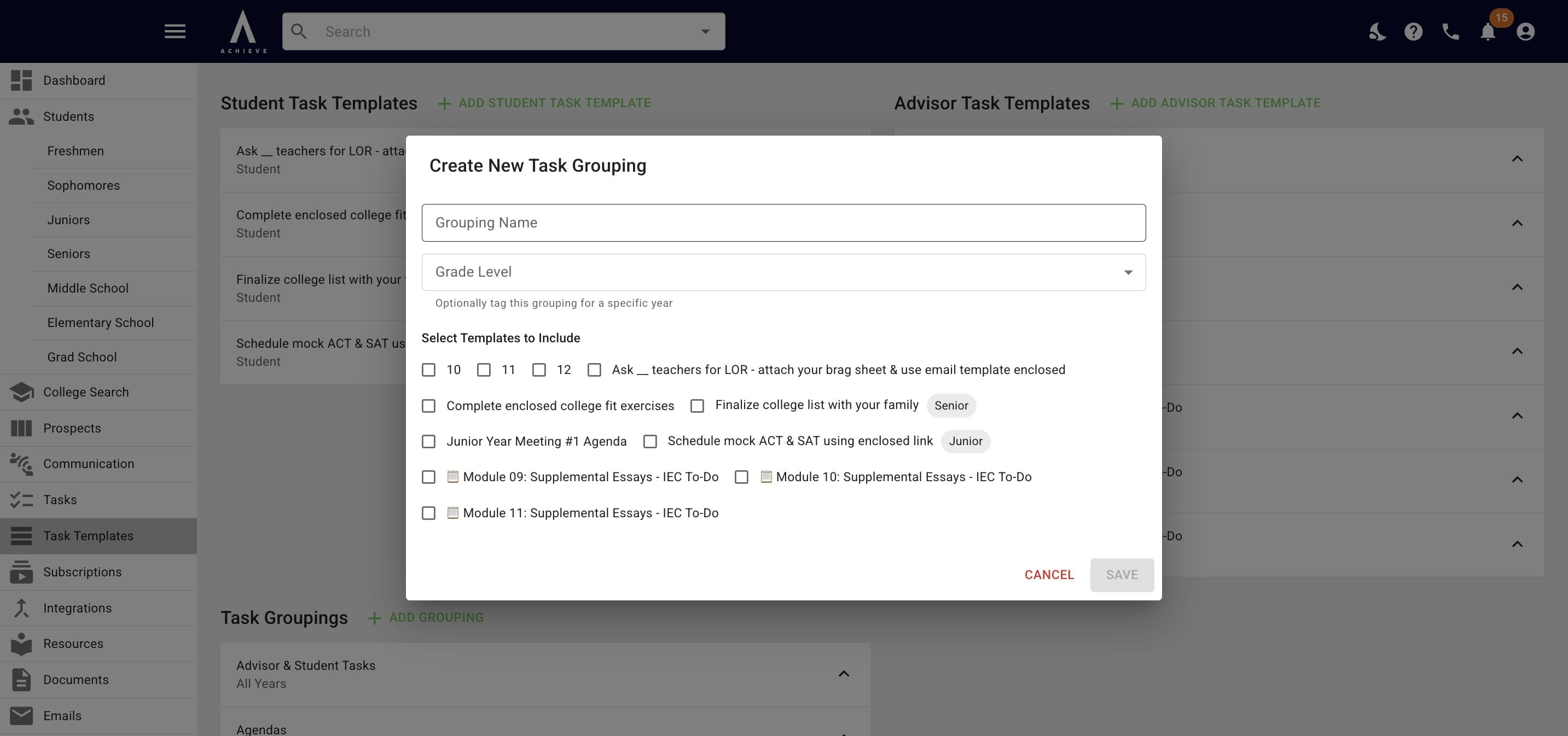
Choose all the task templates that should be included in the grouping. Common examples include:
- Grade-specific tasks (i.e. junior year tasks)
- Category-specific tasks (i.e. essay-related tasks, major exploration-related tasks)
- Stage-specific tasks (i.e. prospect-related tasks, onboarding tasks, etc.)
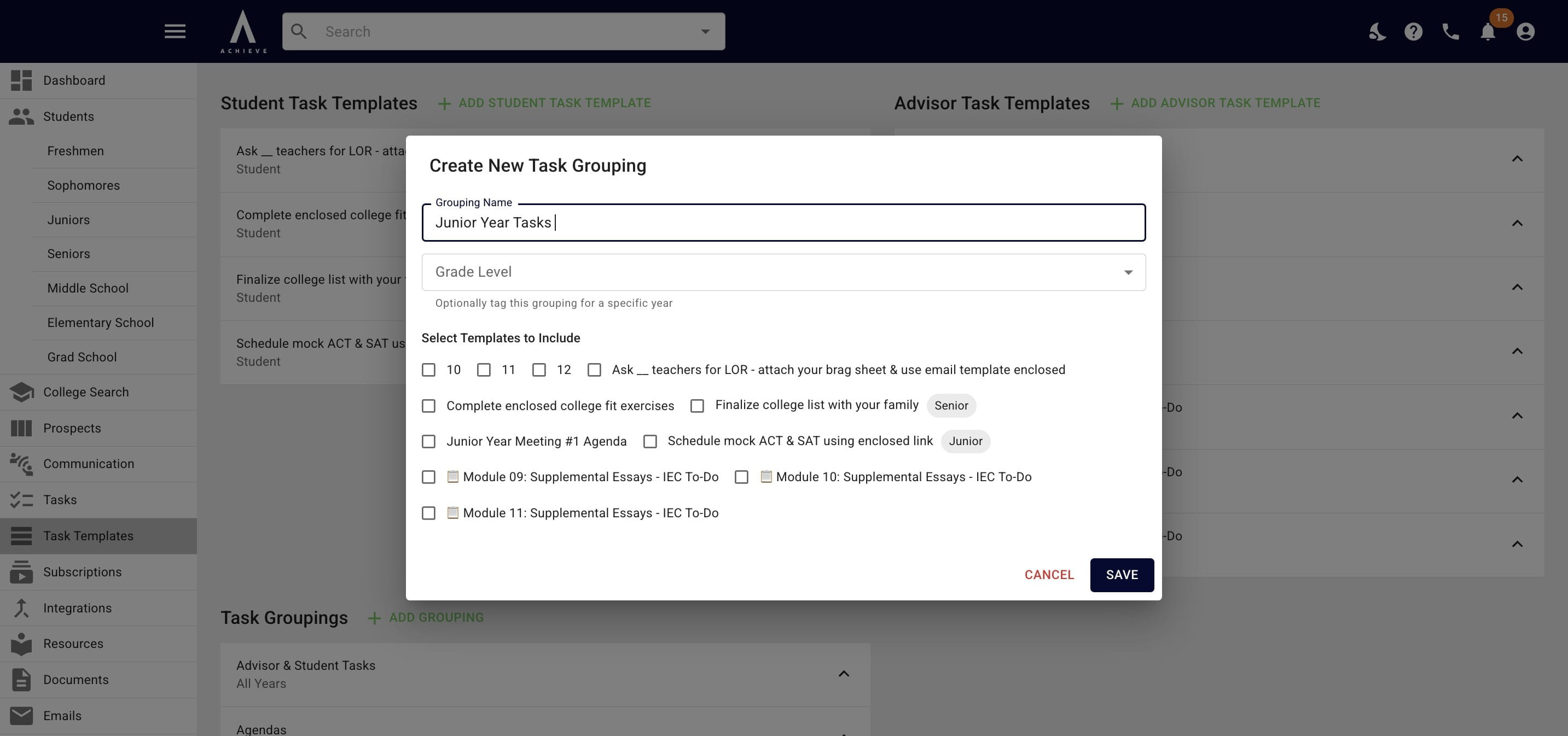
You can include advisor tasks, student tasks, or a mix of both in a task grouping!
When you're done adding in your tasks for this grouping, click Save
If you click on a task grouping, it will expand and show you all the included tasks.
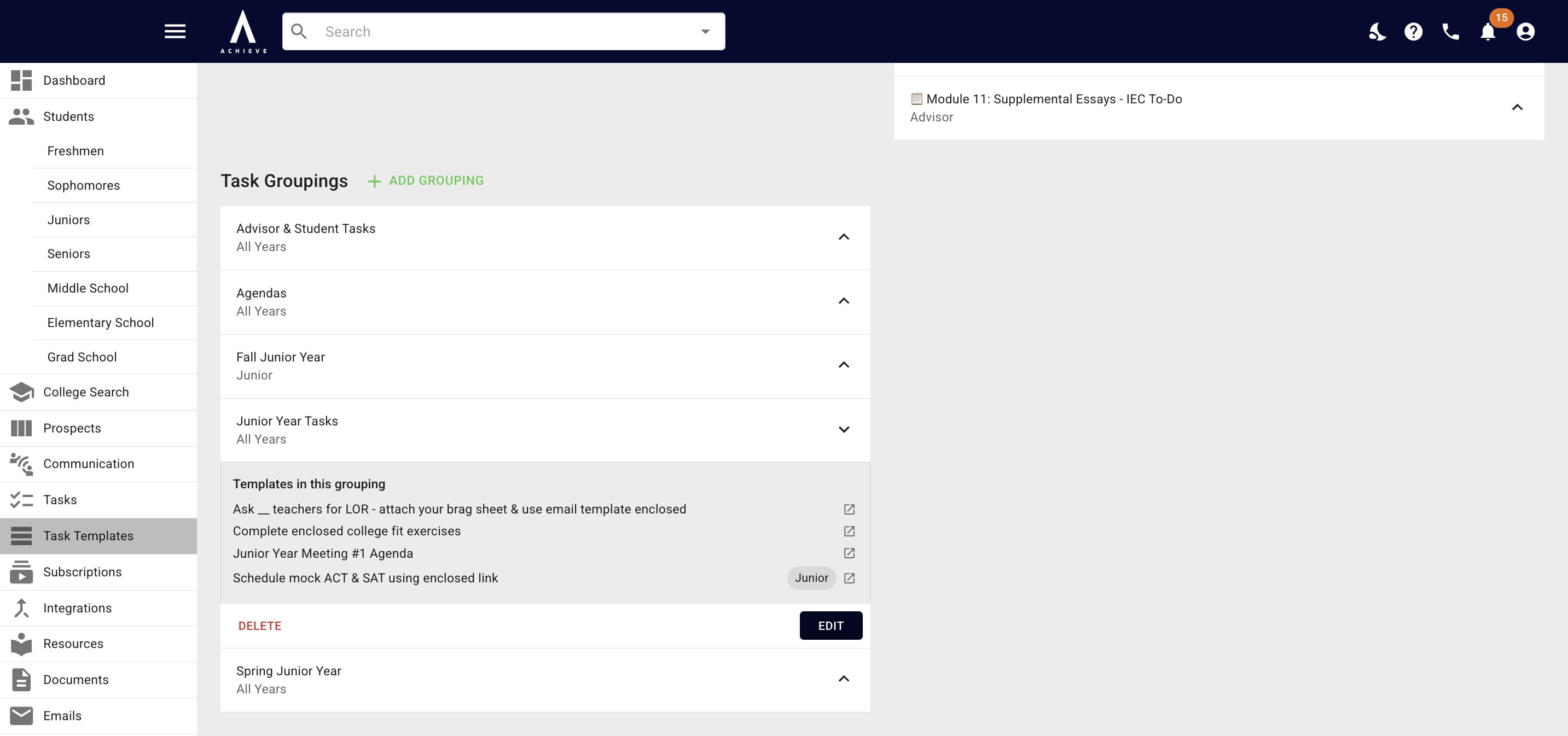
Click Edit to change add/delete tasks in the grouping
To view or edit the actual task template, click the pop up icon
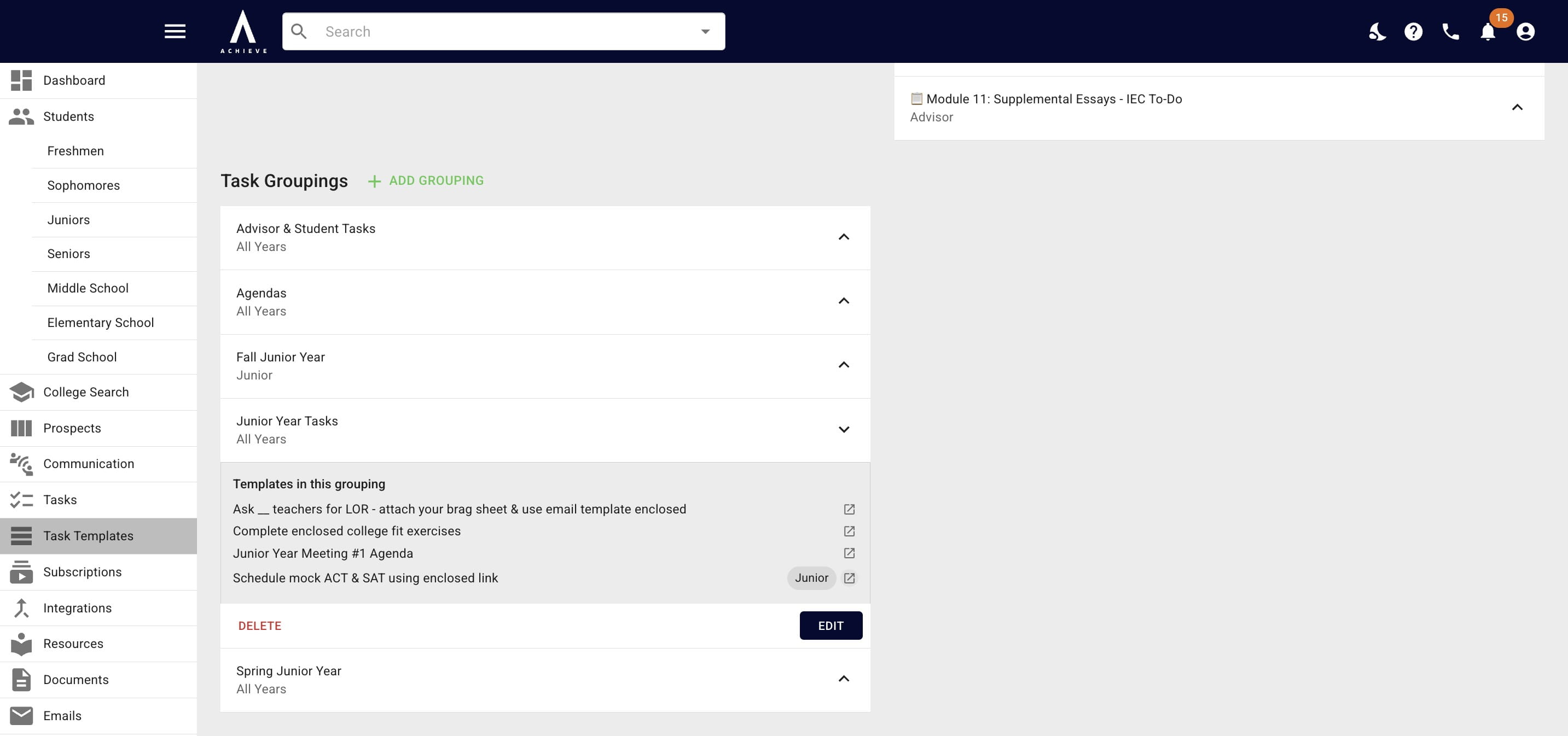
To assign the task grouping to multiple students or entire grade(s), navigate to https://app.achieveiec.com/tasks
Click Assign Task Grouping
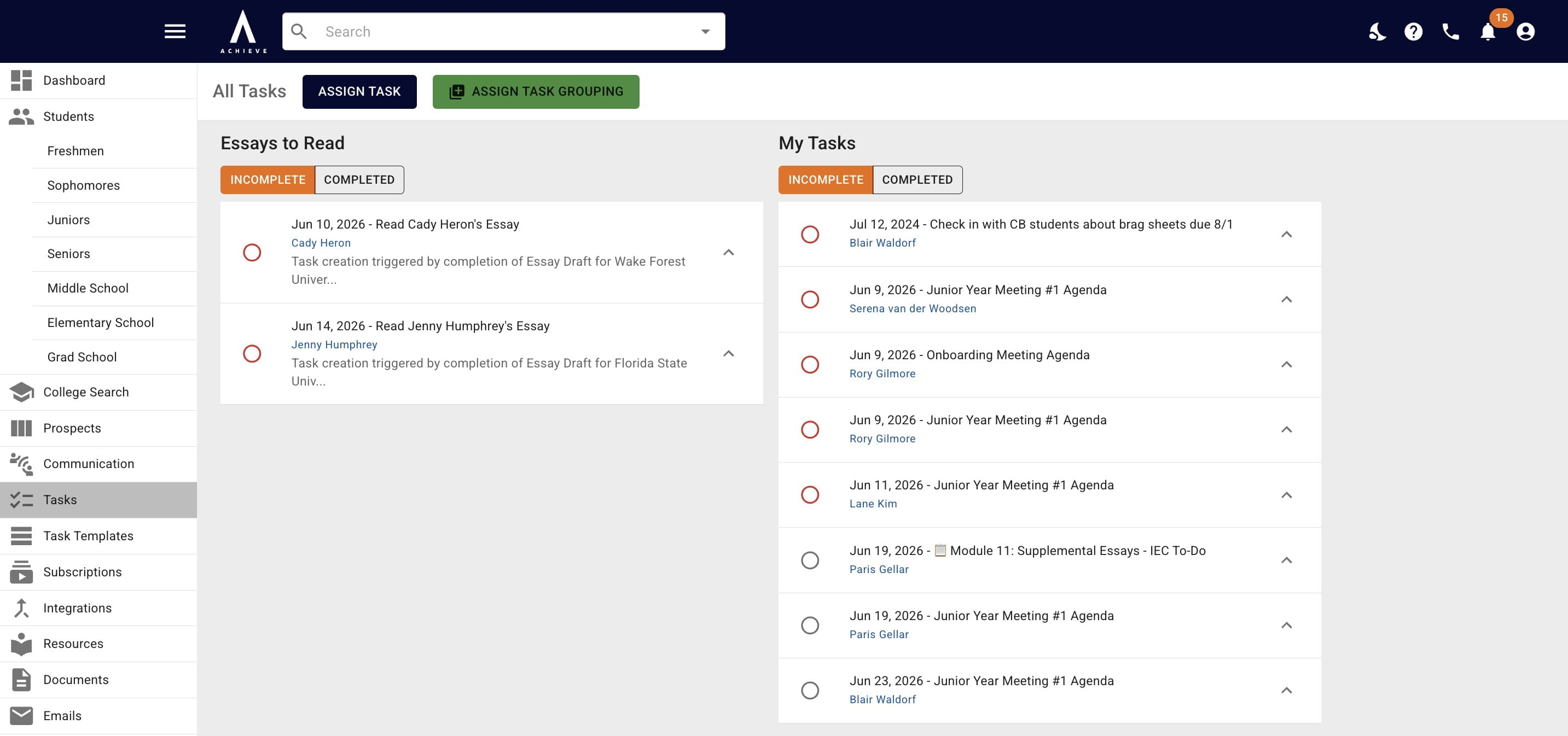
Follow the prompts to finish assigning the task grouping
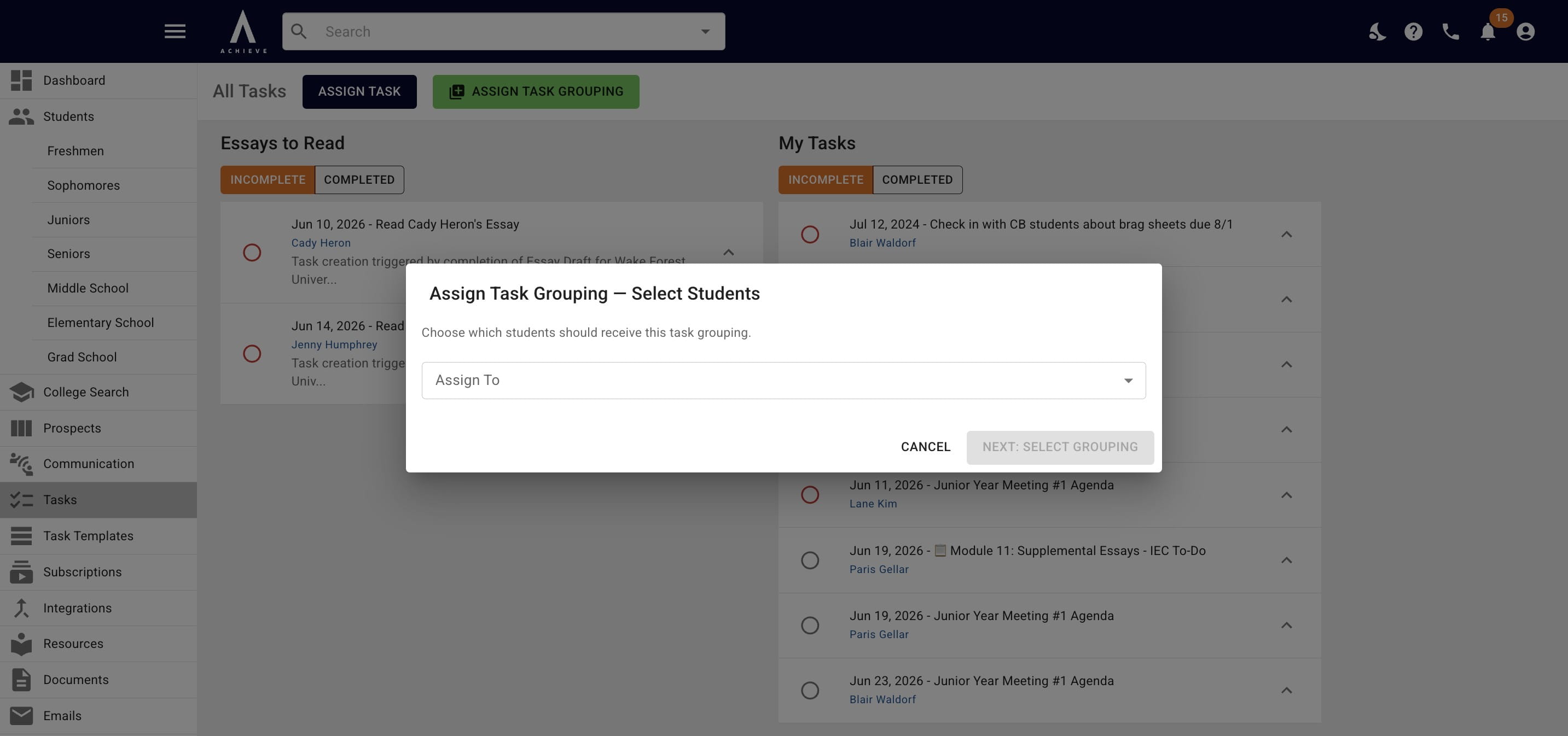
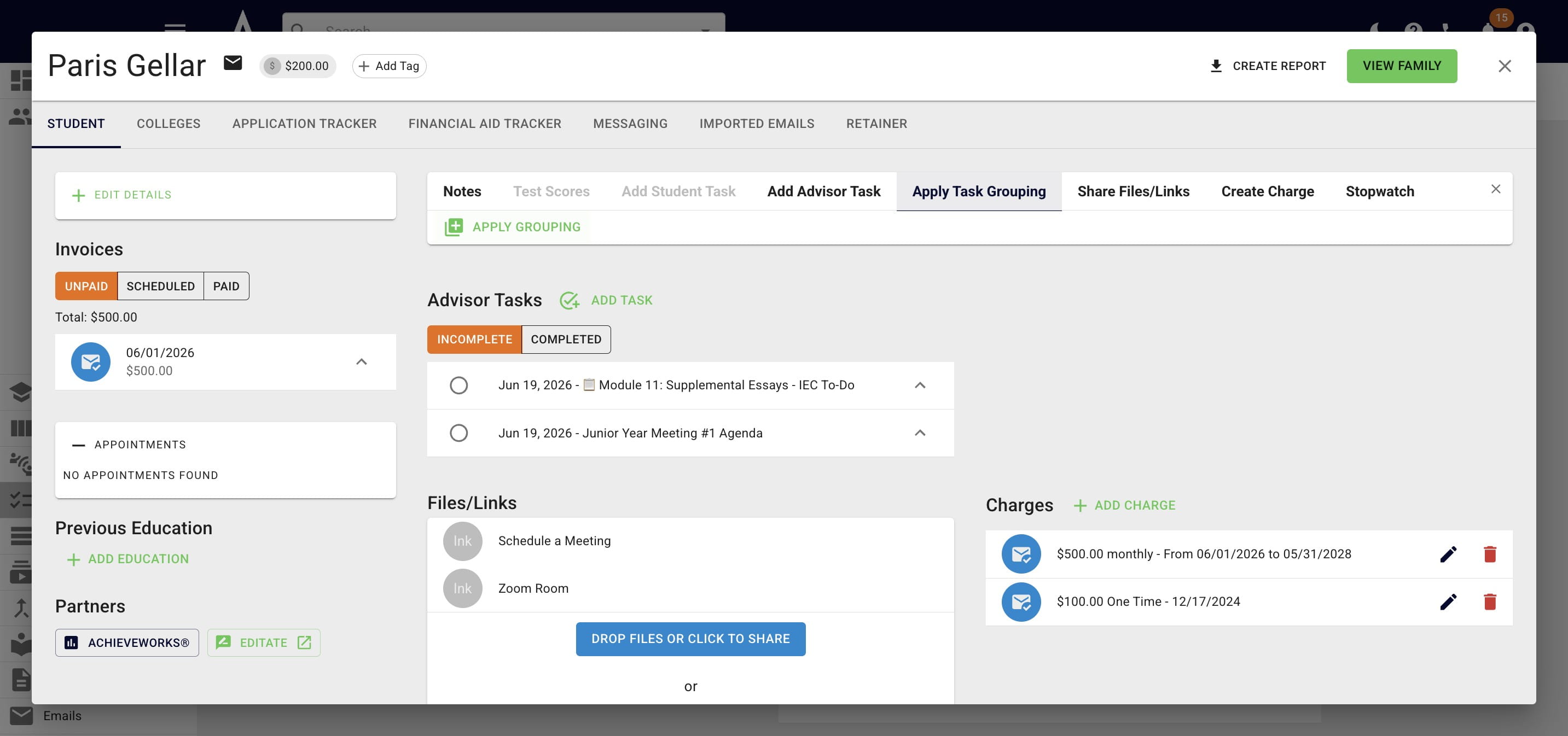
To assign a task grouping to a specific student, open up their Achieve profile and press Apply Task Grouping
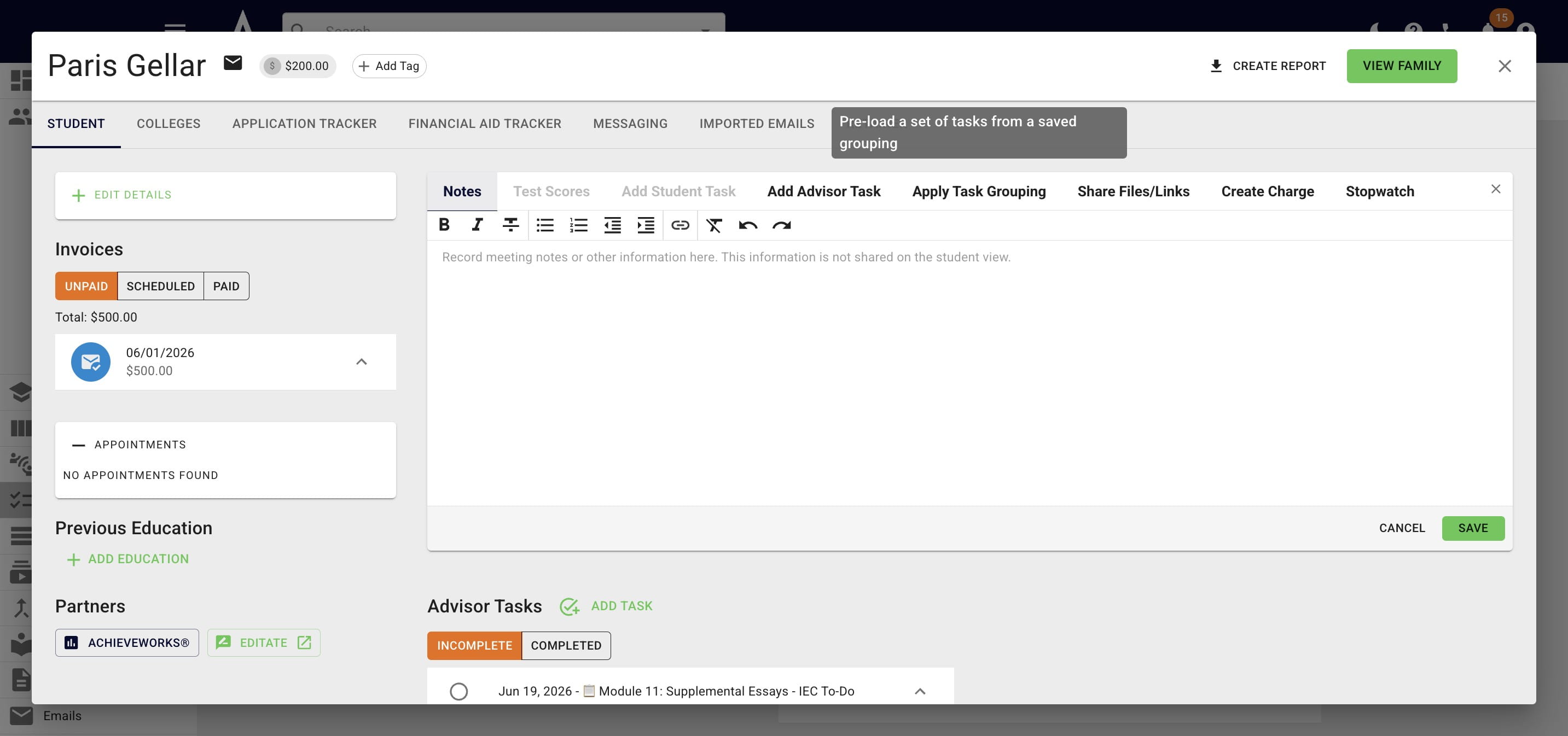
Click on Apply Grouping
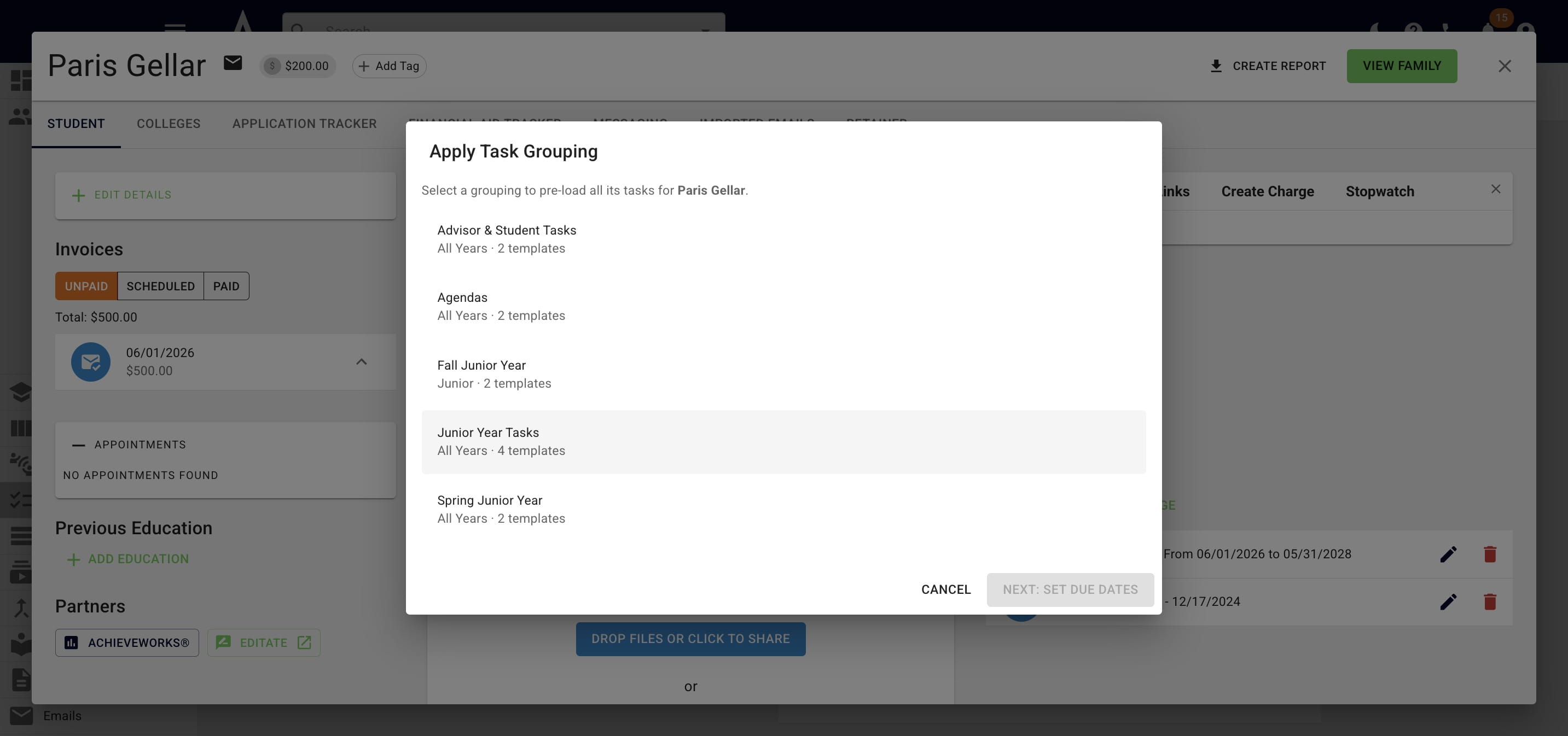
Choose the applicable task grouping
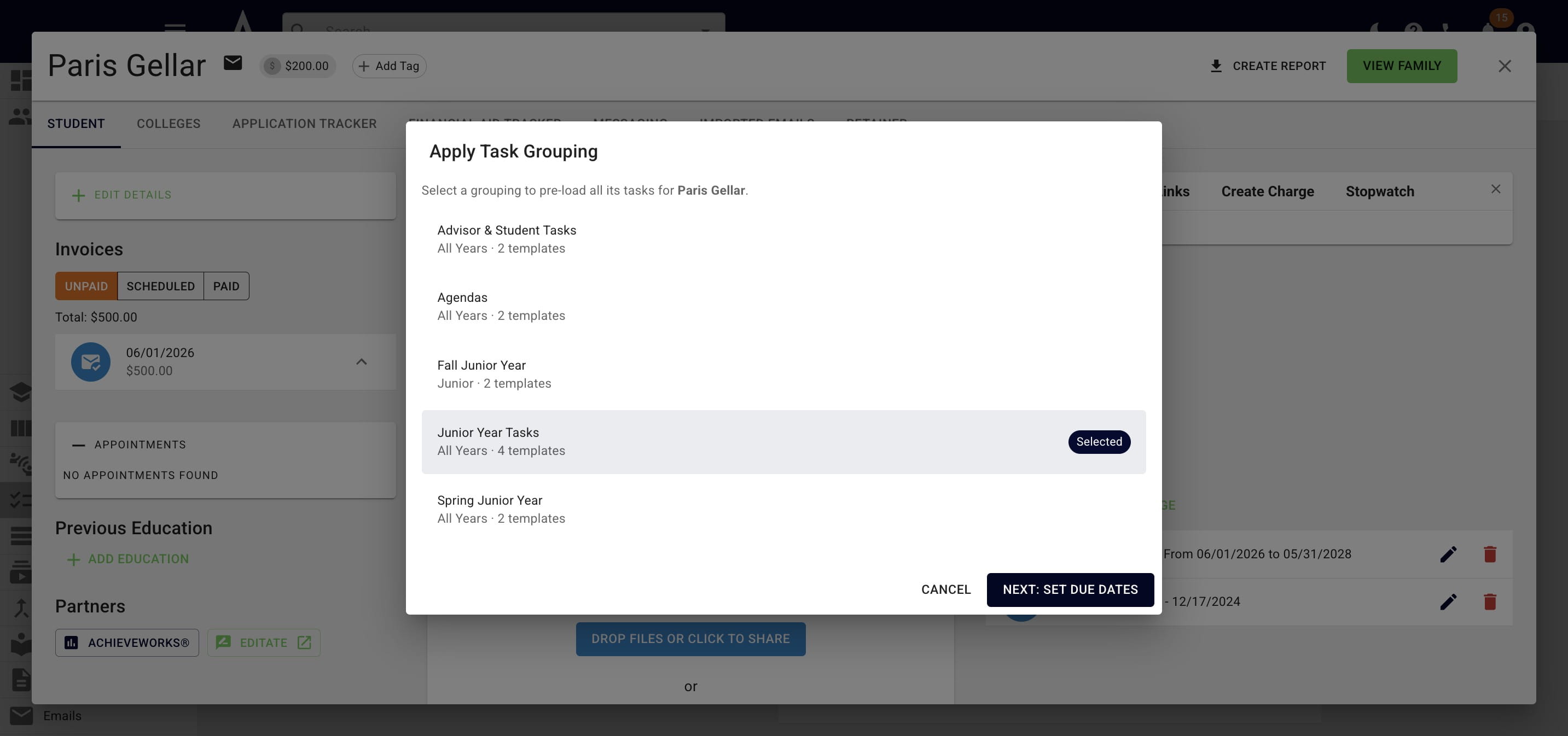
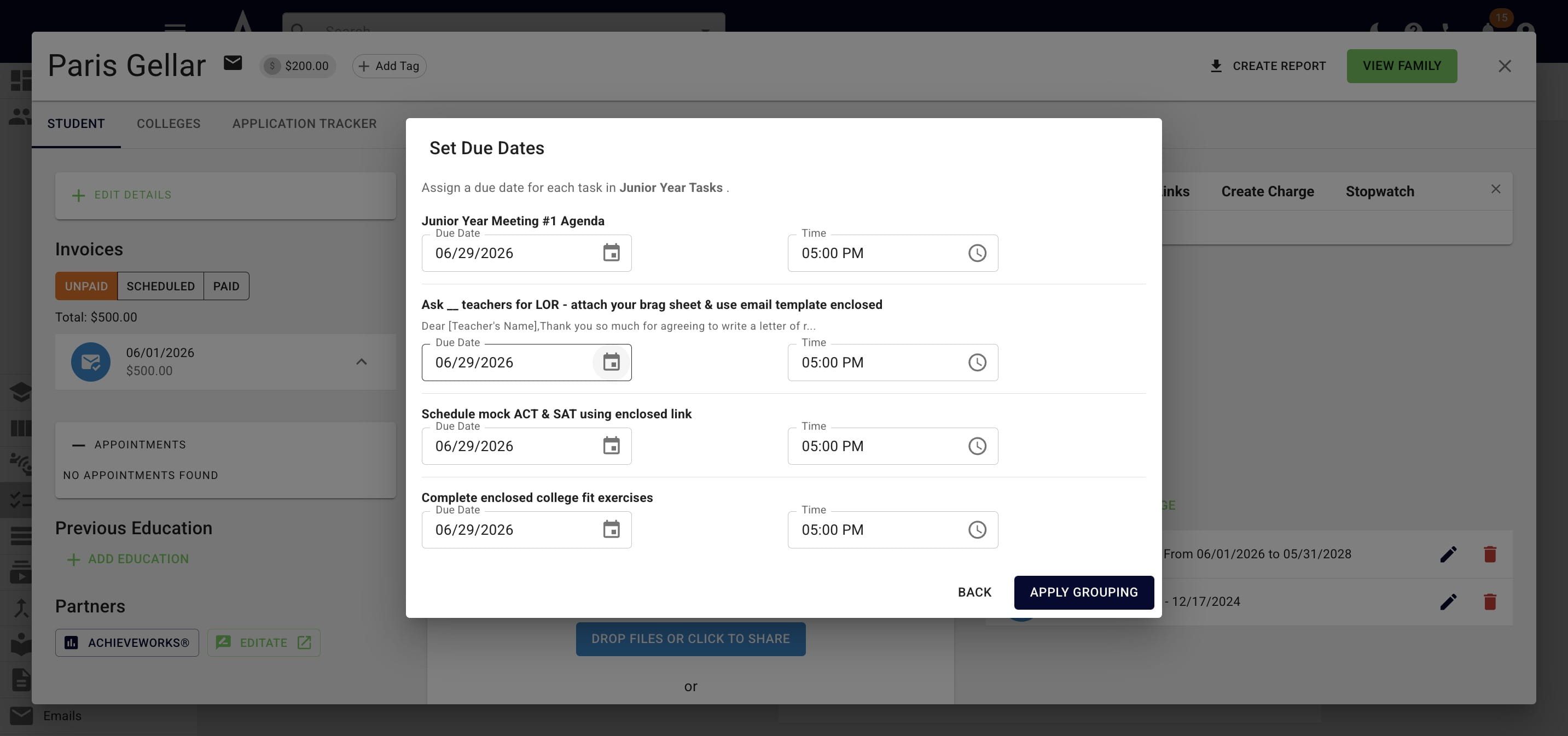
Click on Next: Set Due Dates
Change the due dates as needed and then press Apply Grouping
Done 🚀