
Test Score Section of Student Profile
This guide helps you manage a student's standardized testing data in the Achieve portal.
May 06, 2026●
1
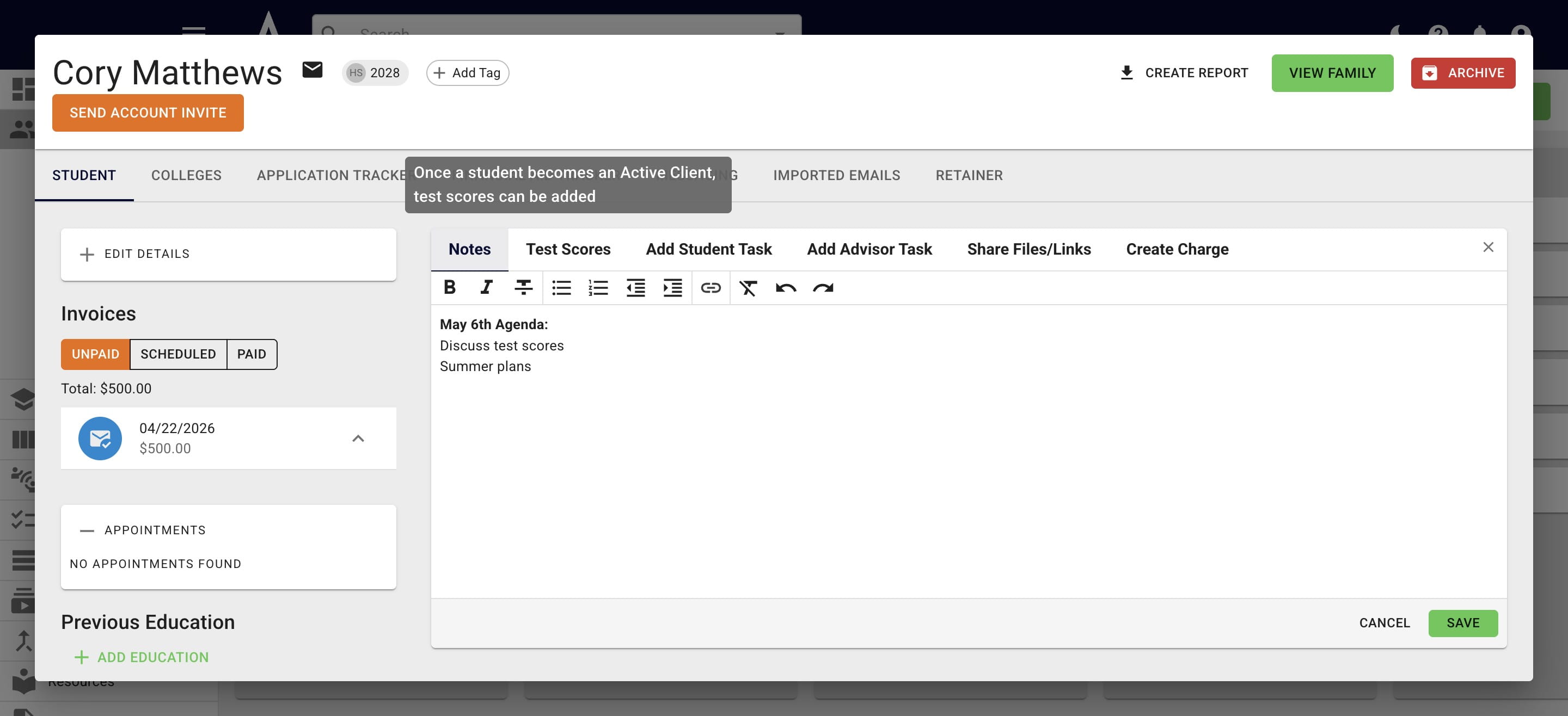
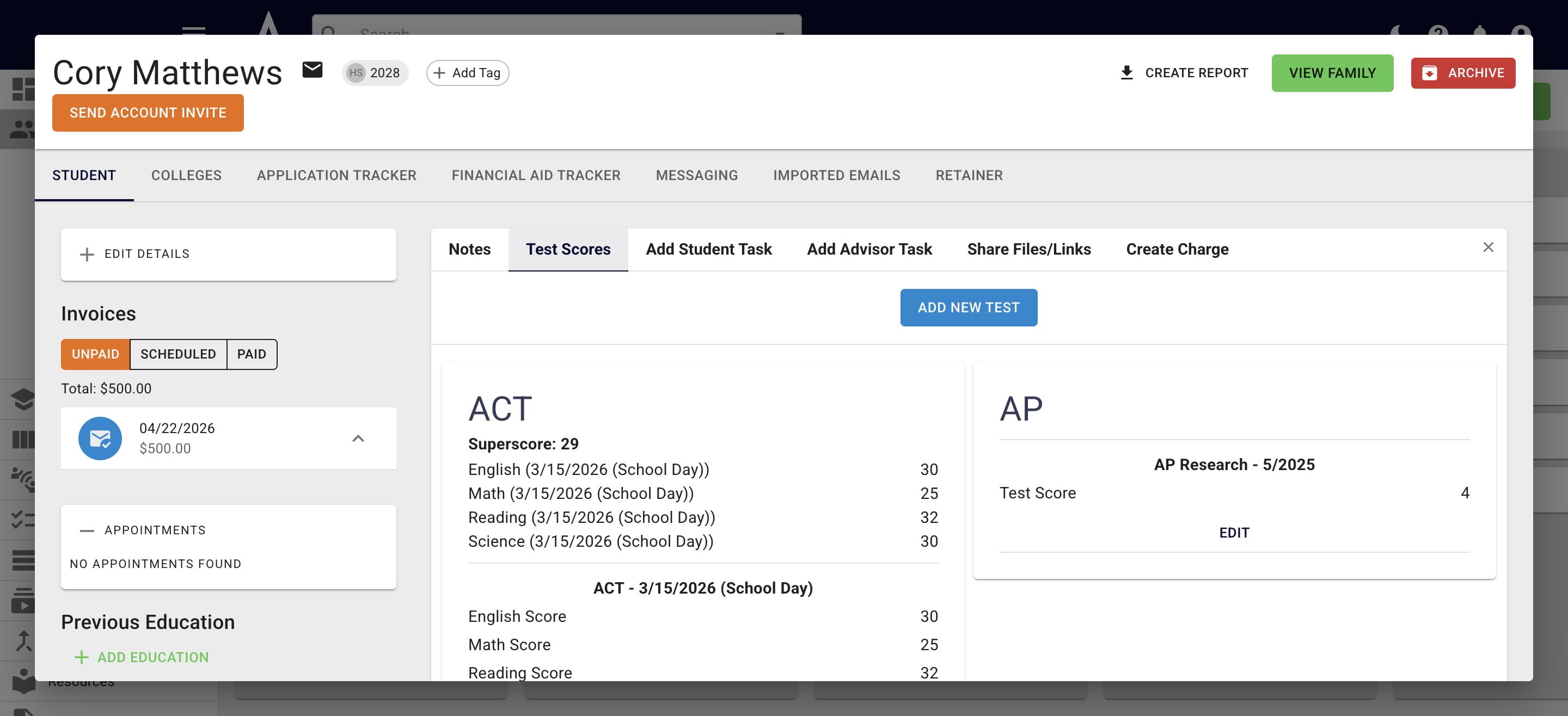
Within a student's Achieve portal, click on Test Scores.
2
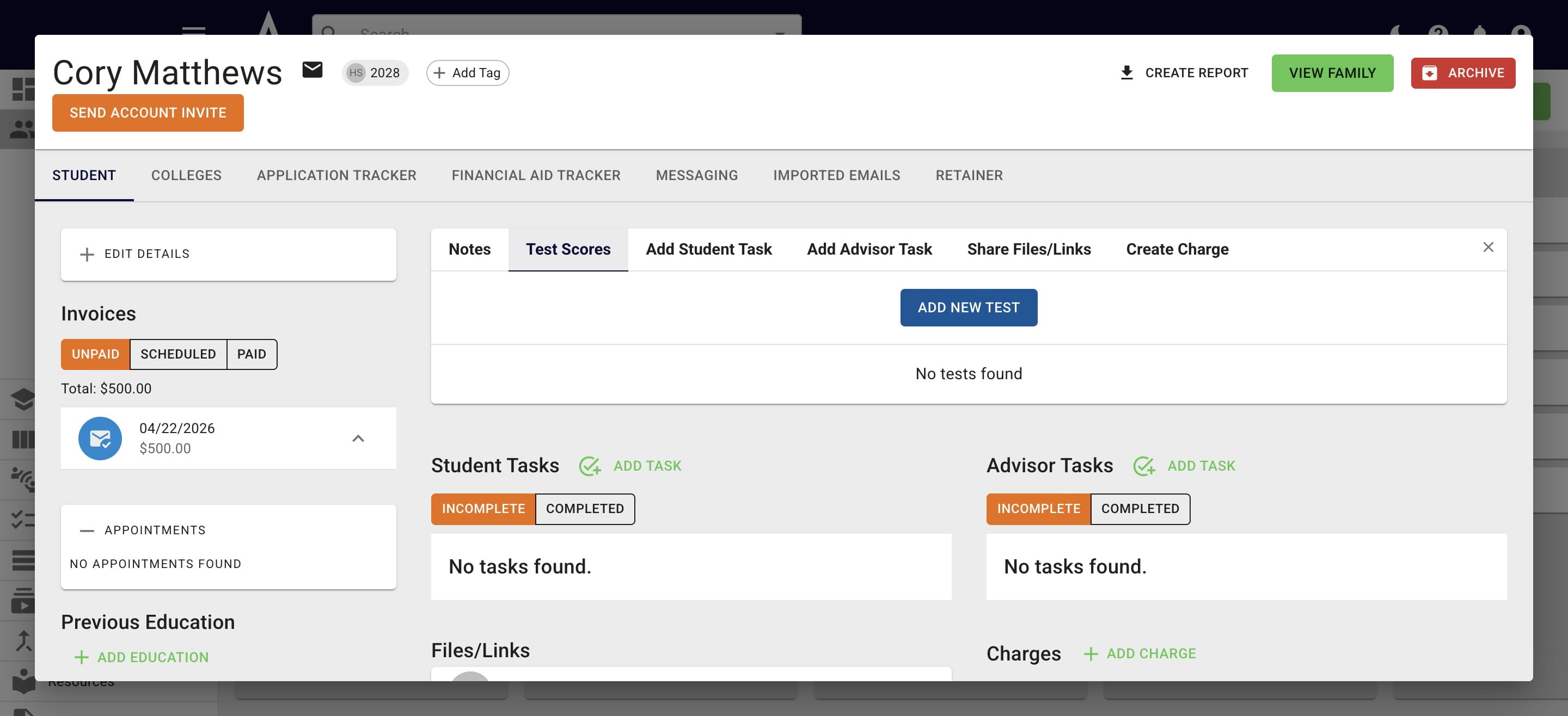
Click on Add New Test.
3
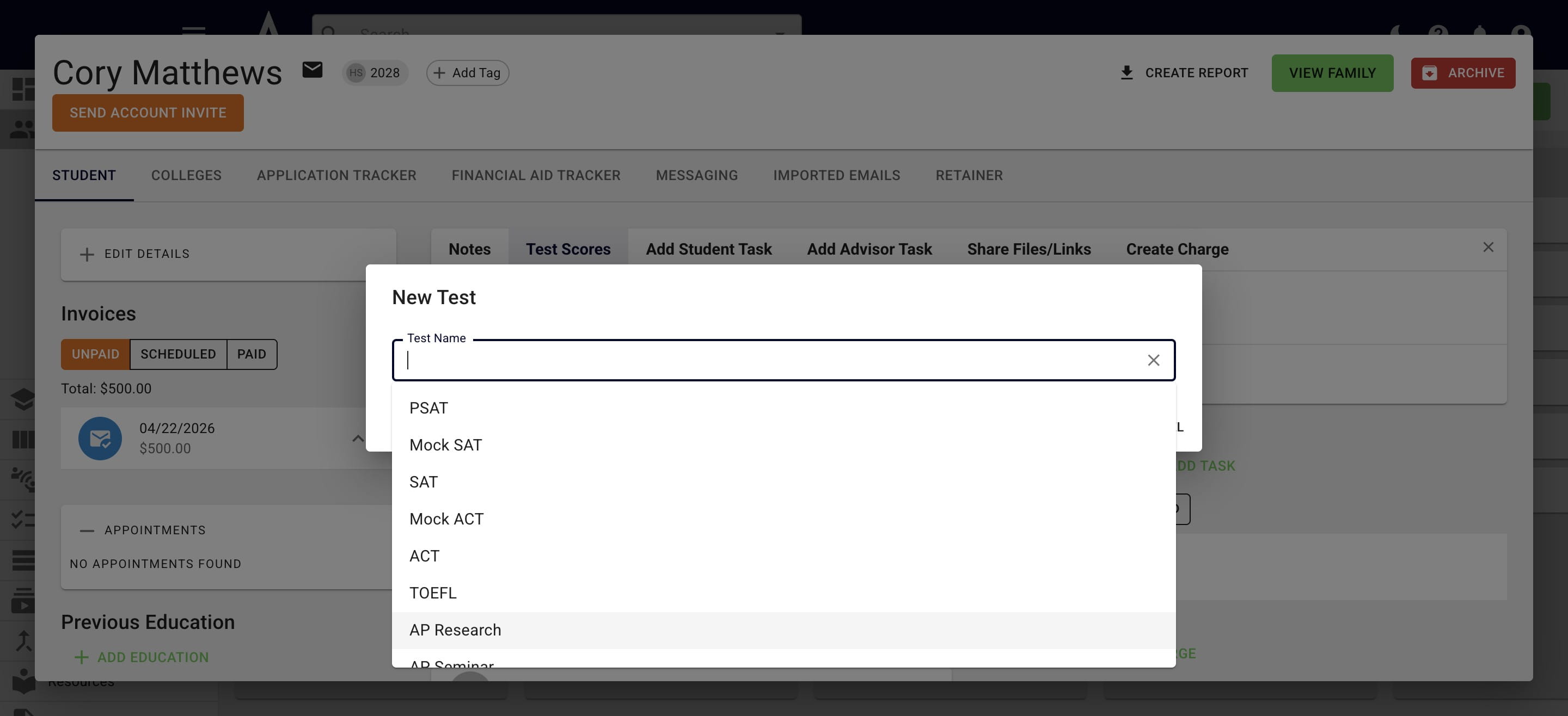
Once you click in the Test Name field, a drop down menu with different tests will appear. Start typing in the test name or scroll down to find it within the drop down.
4
Once you choose a test, you're able to add in the test date and applicable score(s). Then press Add.
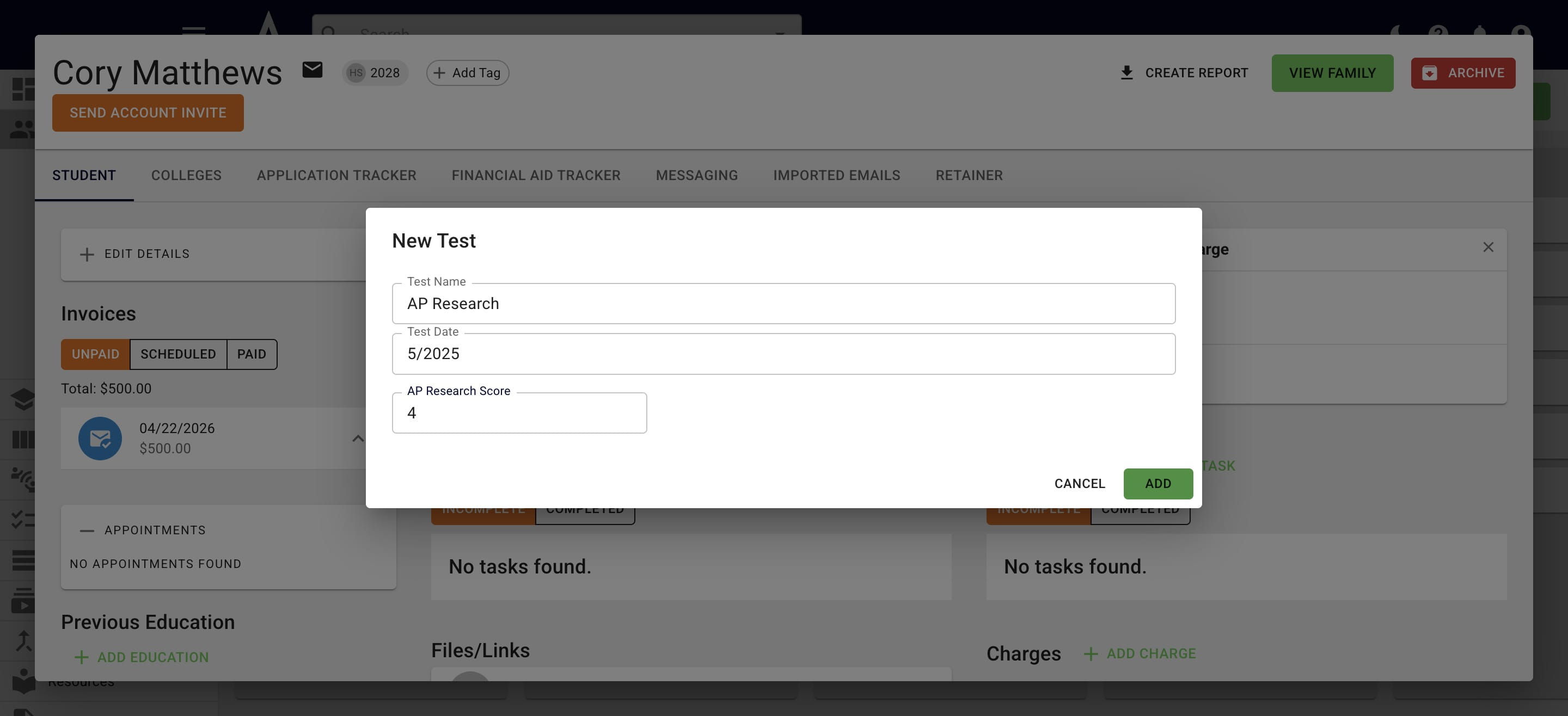
The Test Date Field is a open text field - use it to indicate if it's a School Day SAT, what type of mock test a student took, etc.
5
For the SAT & ACT scores, you will also see a superscore breakdown.
6
Done 🚀