Texting
This guide explains texting students via Achieve from sending texts to being notified of when someone texts you.
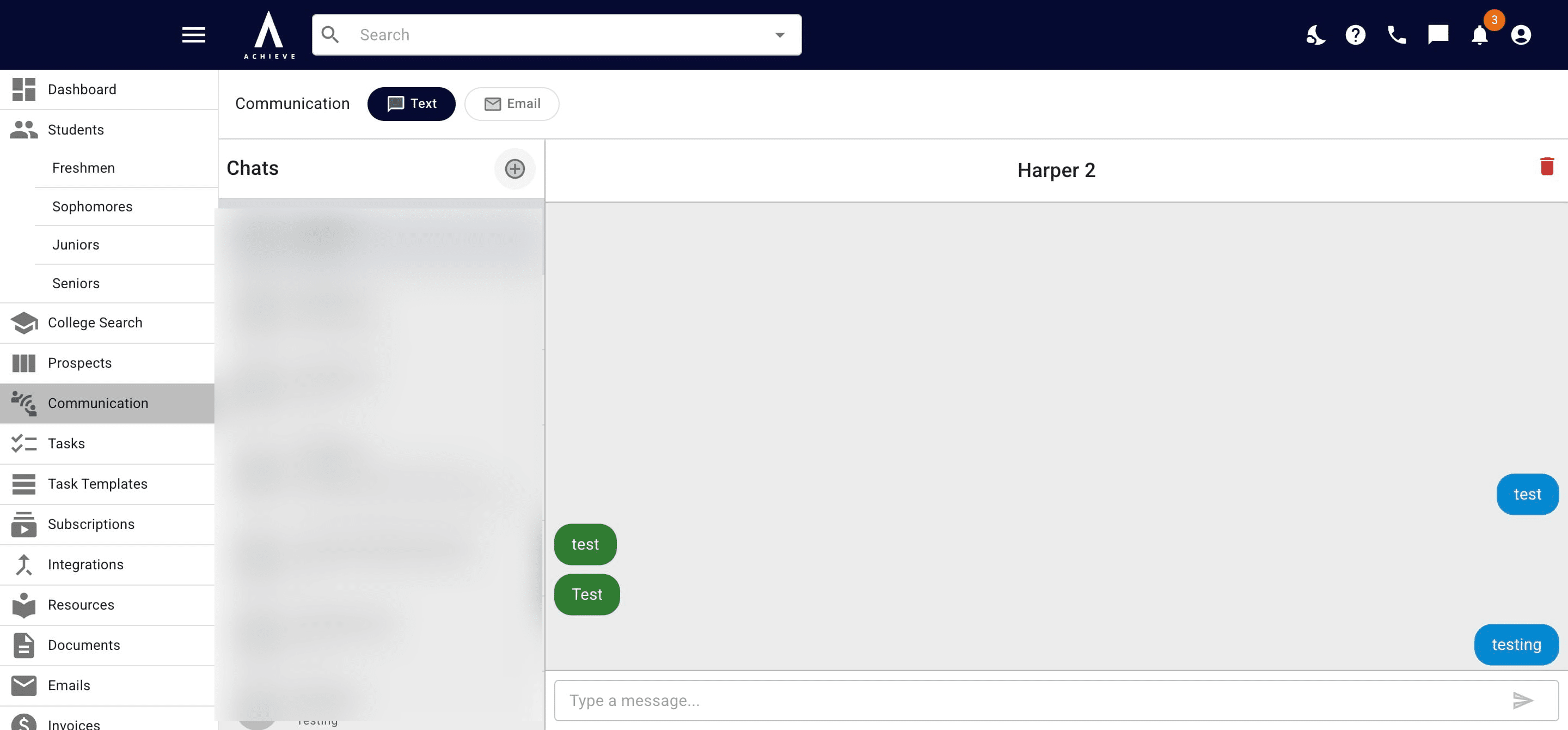
Navigate to https://app.achieveiec.com/communication/text
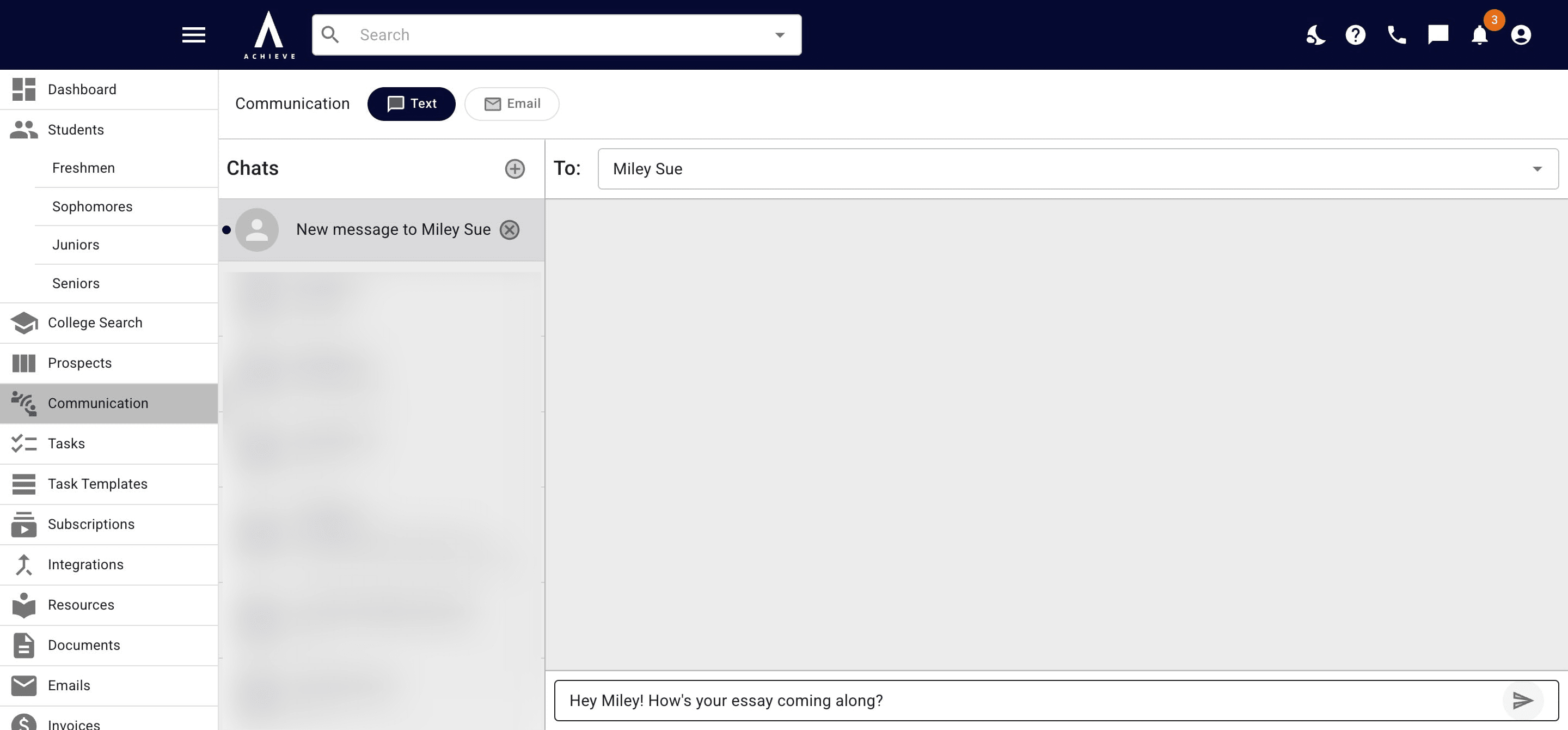
Click on the + icon to text a new student.
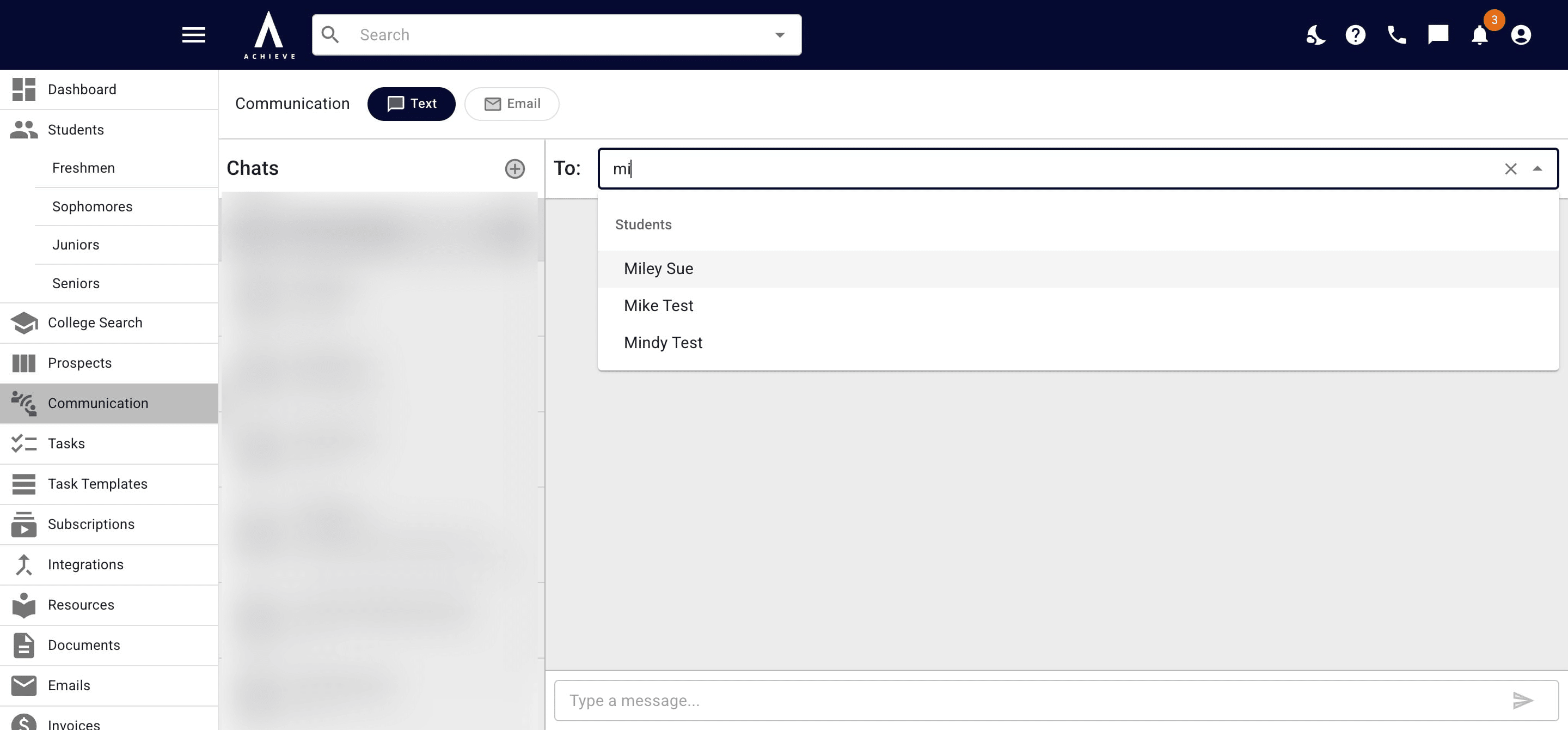
Click into the To field. Start typing the student's name and choose it when it appears from the drop-down menu.
Click your message into the Type of a Message field.
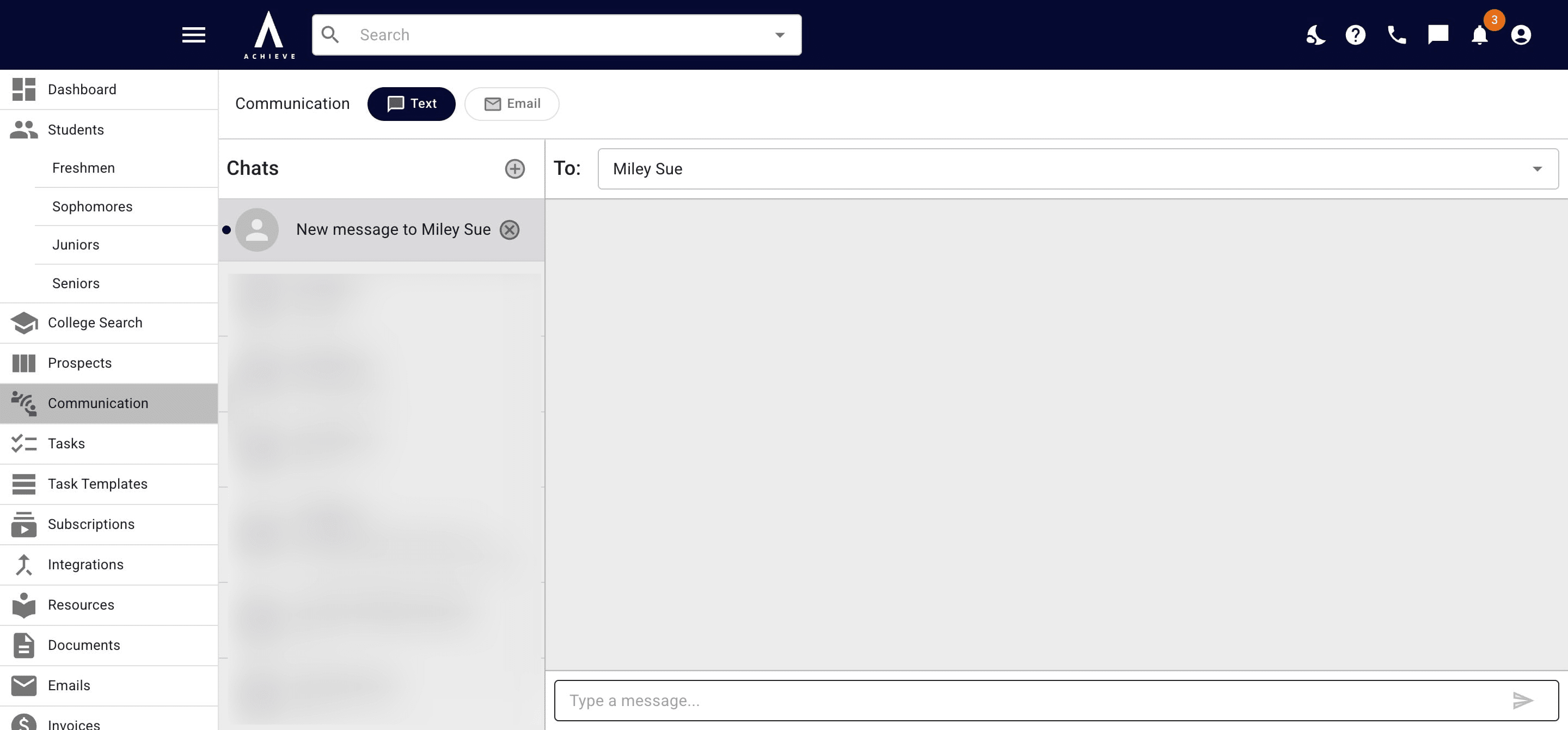
When you're ready to send your message, hit the Arrow icon.
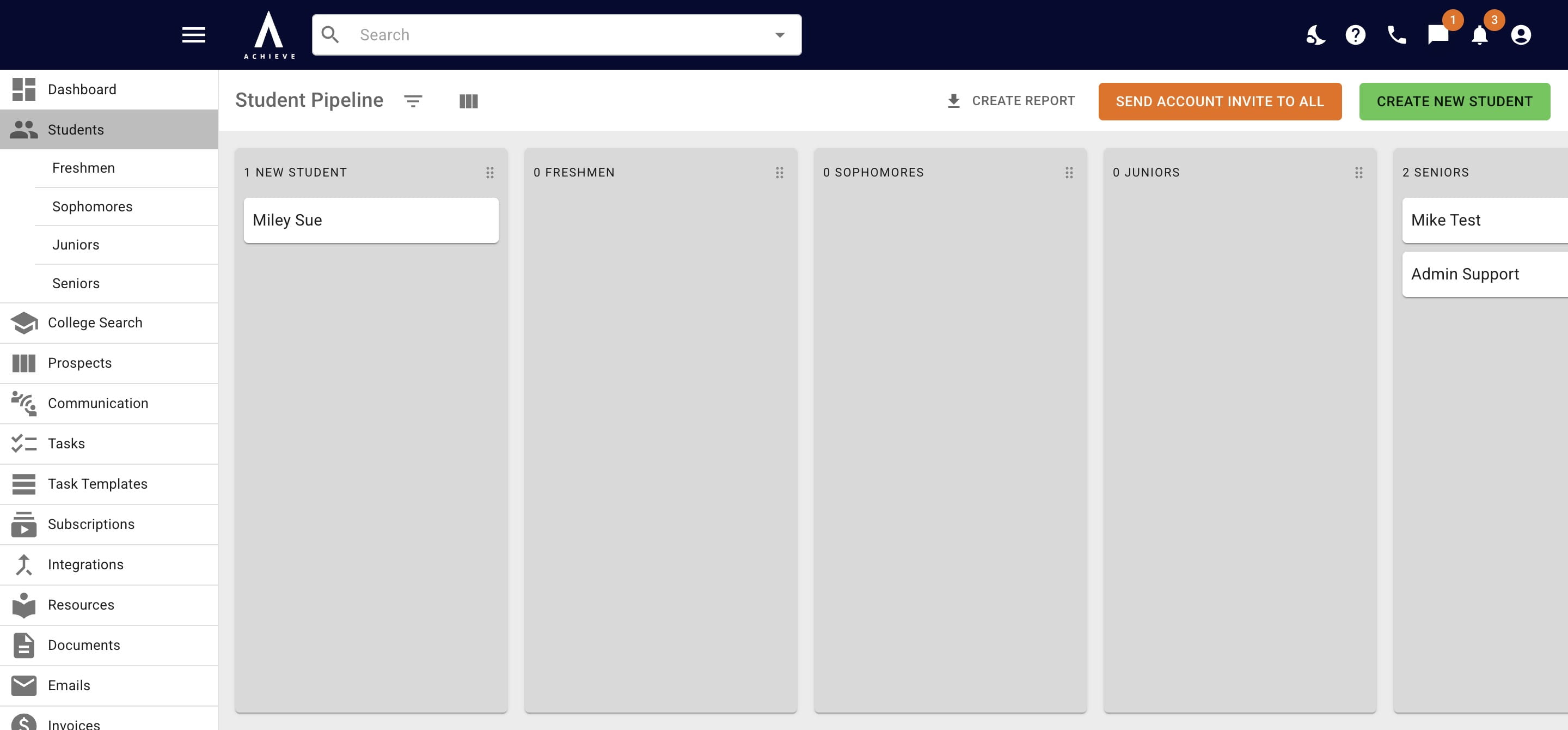
When you receive a text message, you'll be alerted in Achieve with a red notification in the Message icon.
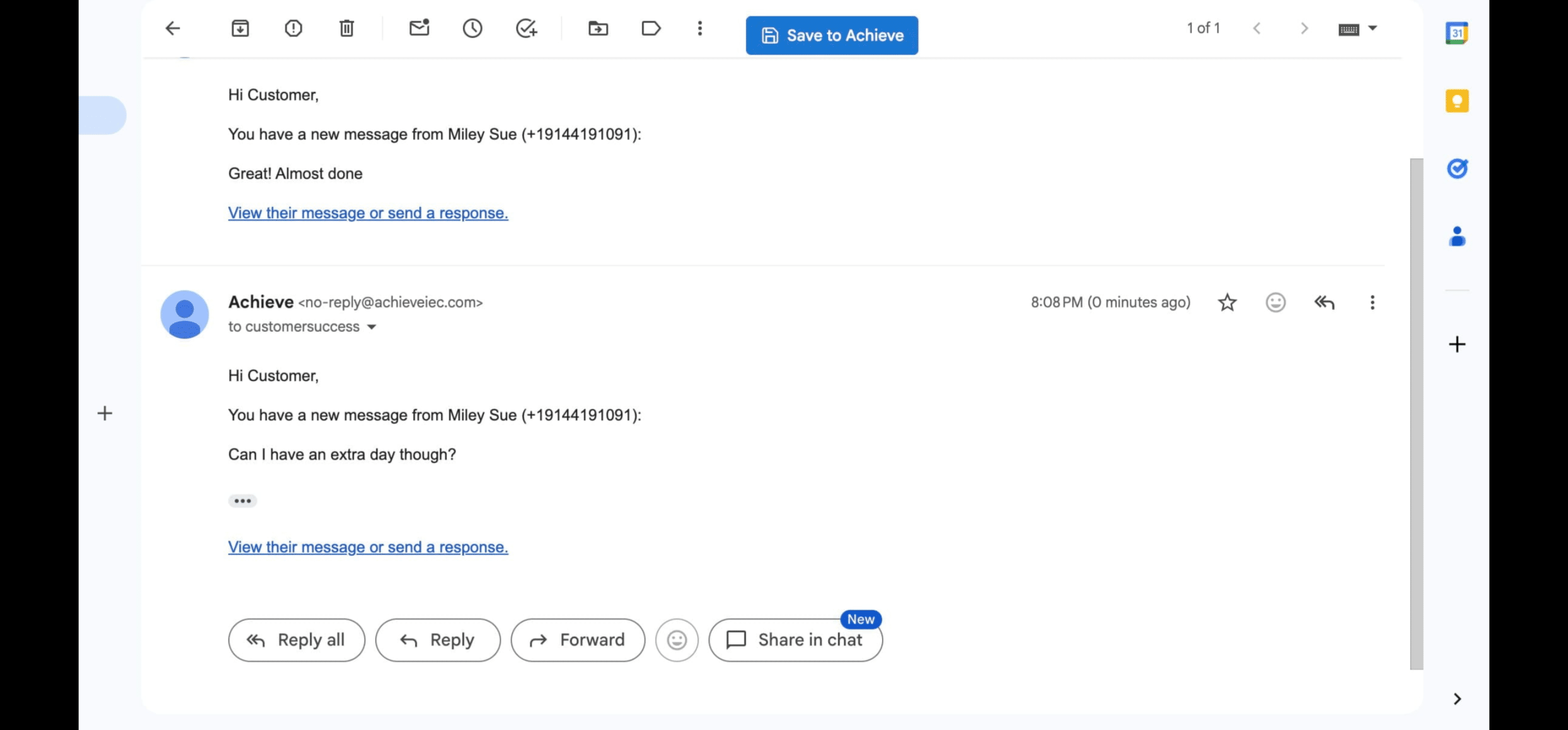
You'll also receive an email notification. To reply, press View their message or send a response.
If you click on the student's name it will take you directly to their Achieve profile.
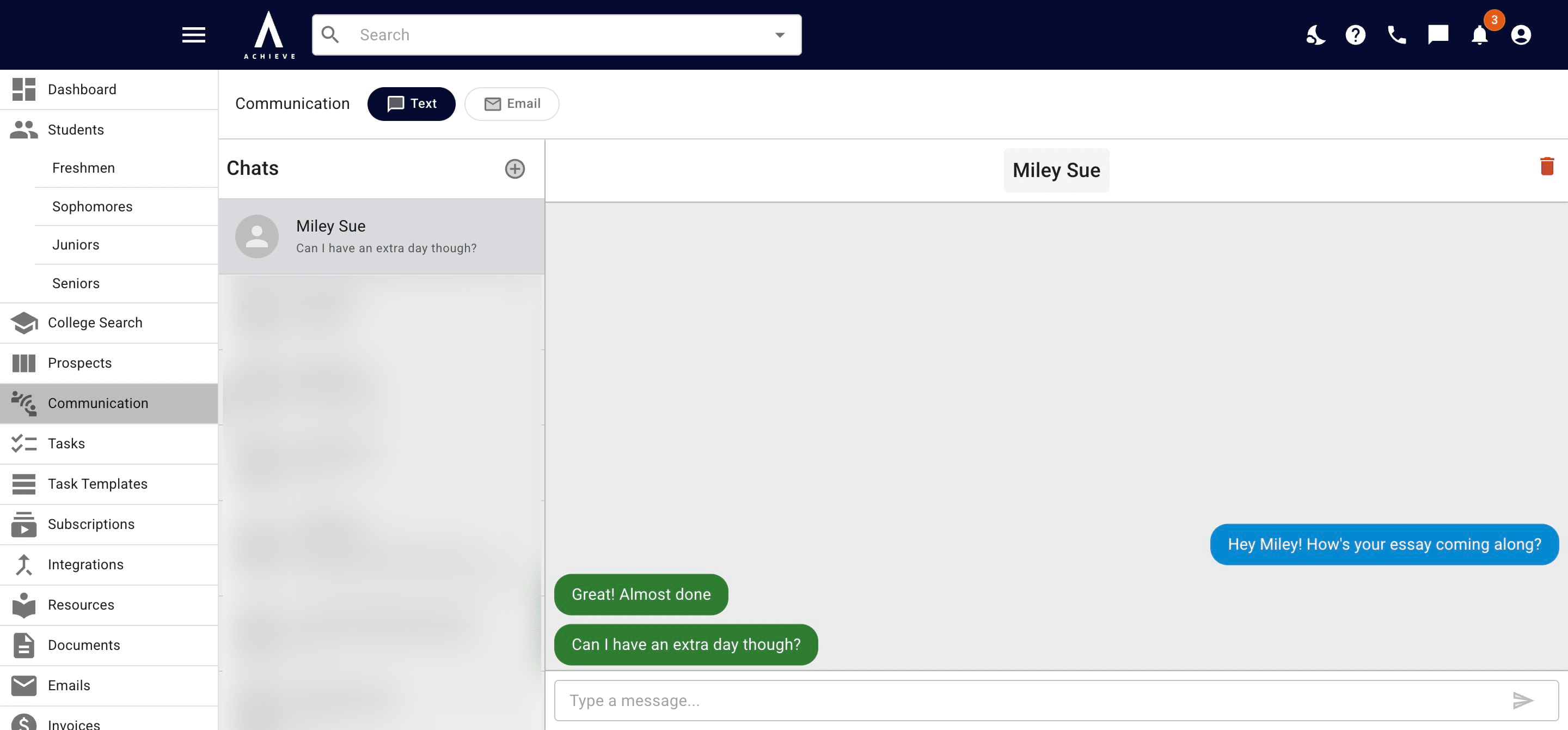
If you hover over a message, it will tell you the day & time it was sent.
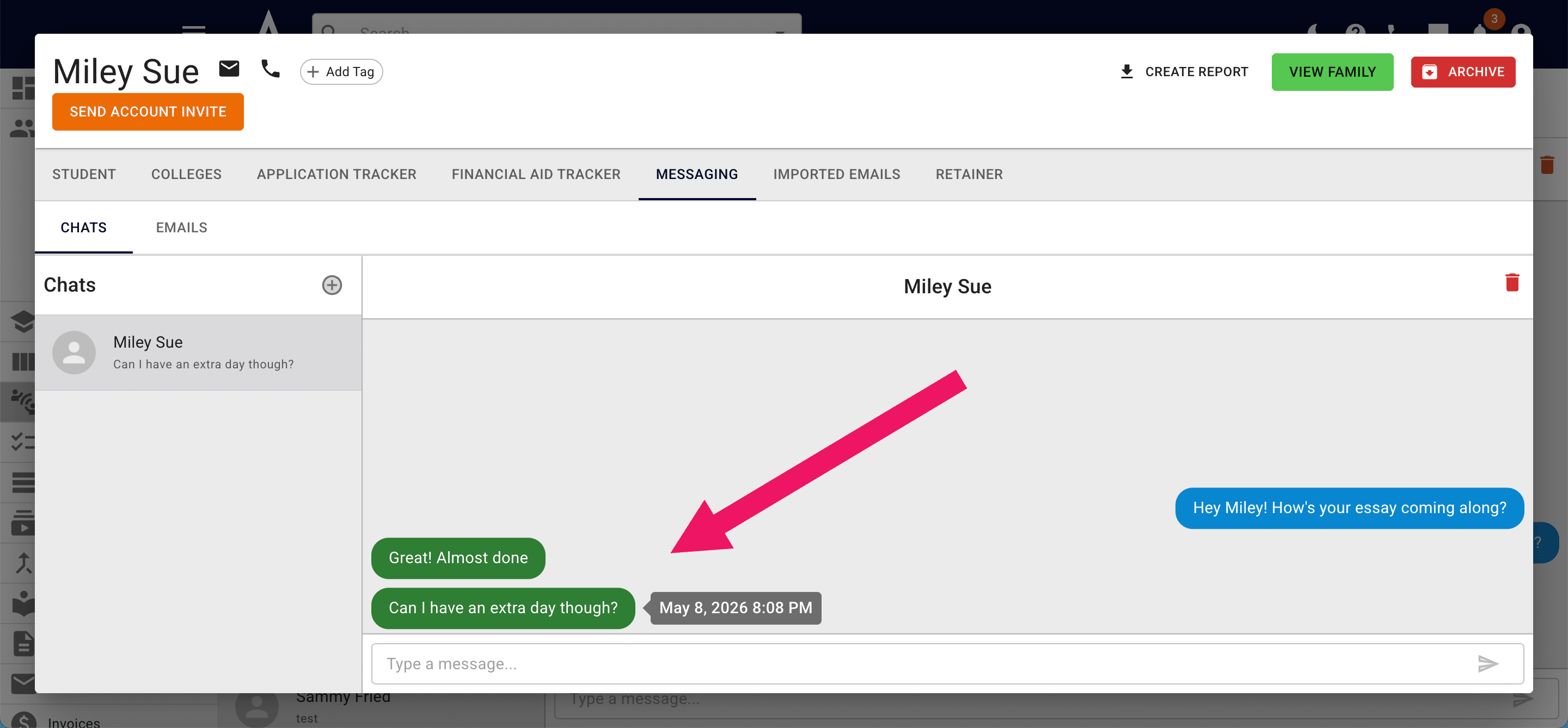
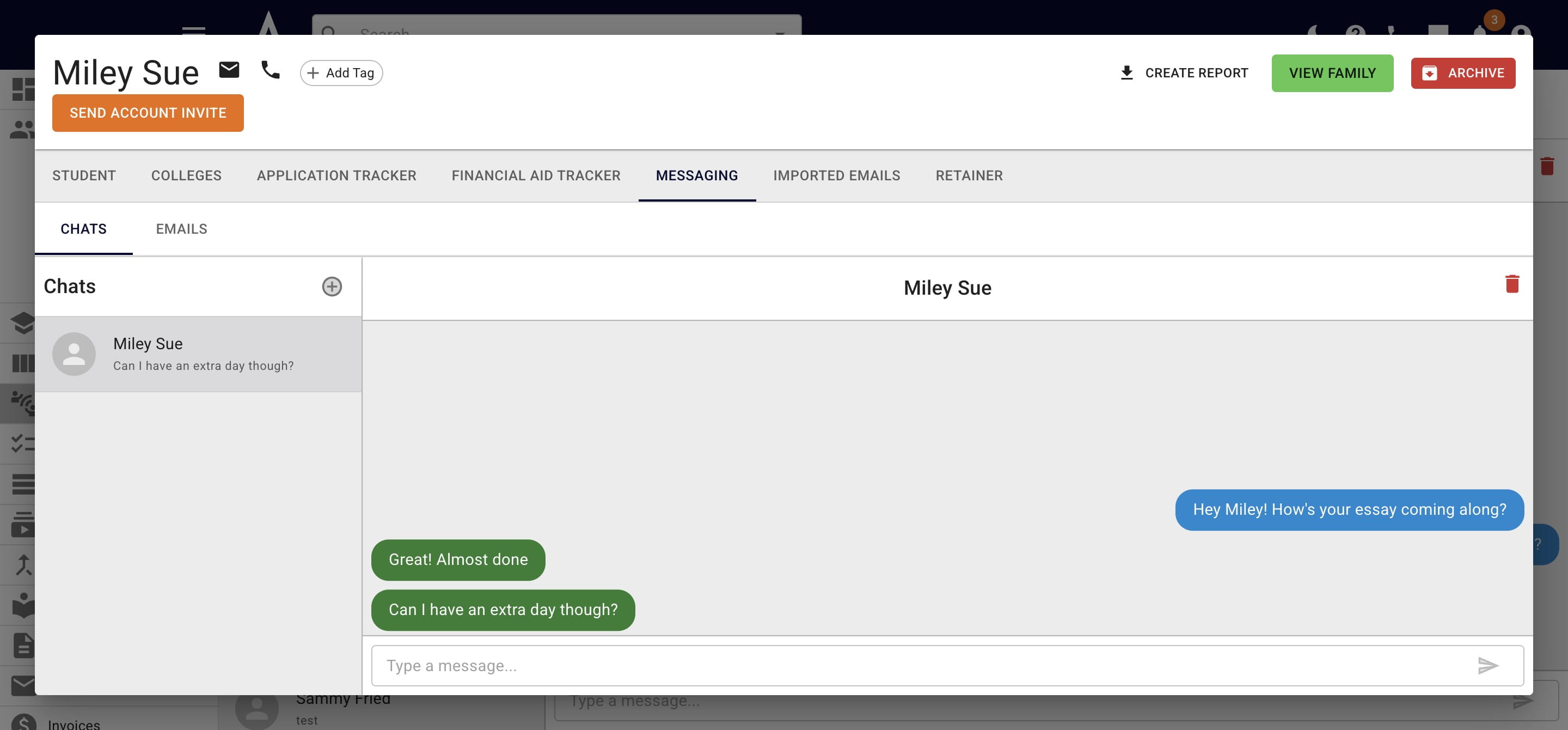
When you have a student's profile up, you can also click on Messaging to view text conversations.
Done 🚀