
Using Achieve's Internal Instant Messaging Feature
This guide explains how to use Achieve's internal instant messaging to connect with students, including accessing messages from the Communication area or a student’s profile, and sending texts and image attachments.
Navigate to https://app.achieveiec.com/
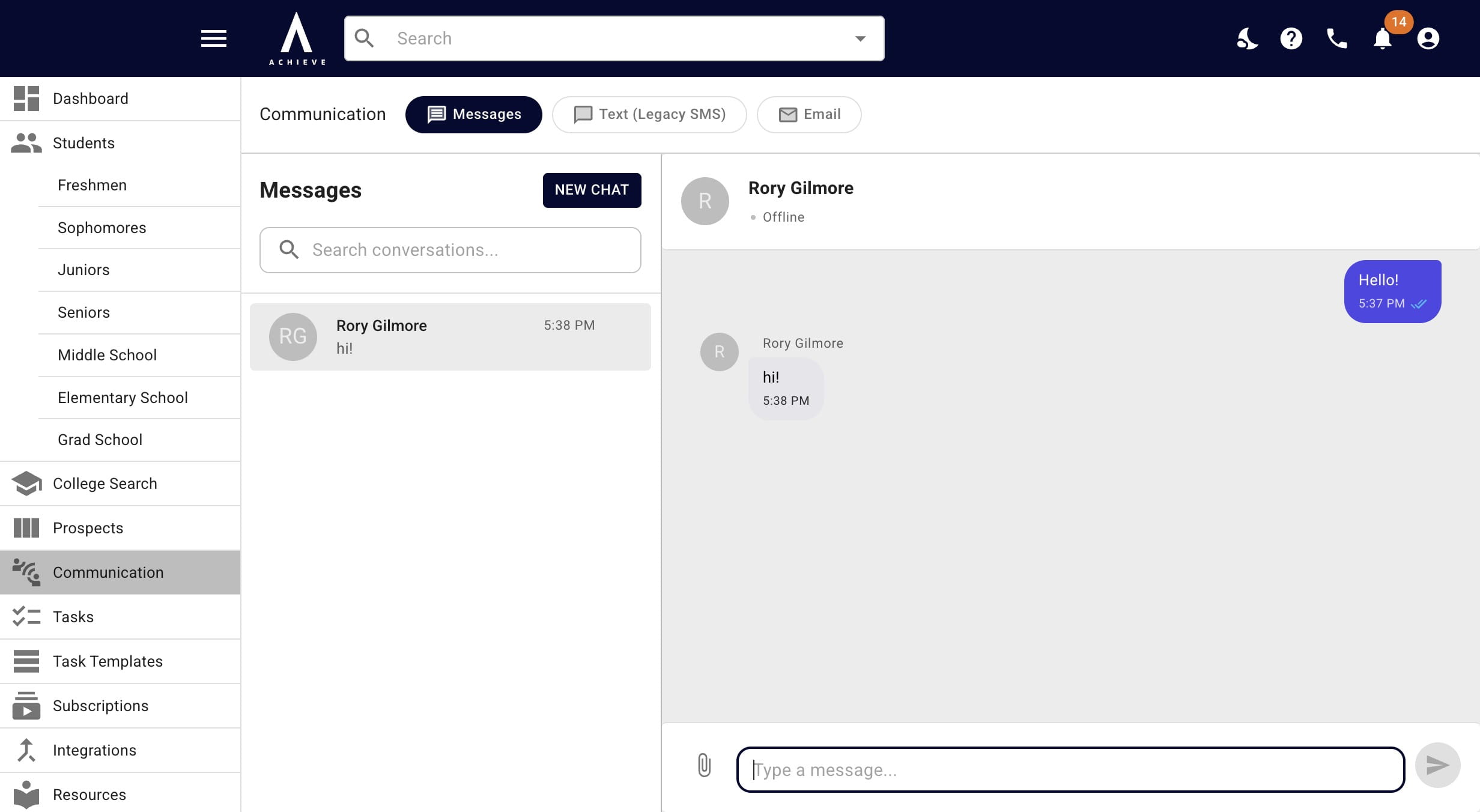
There are 2 ways to instant message with your students. The first is through the Communication section.
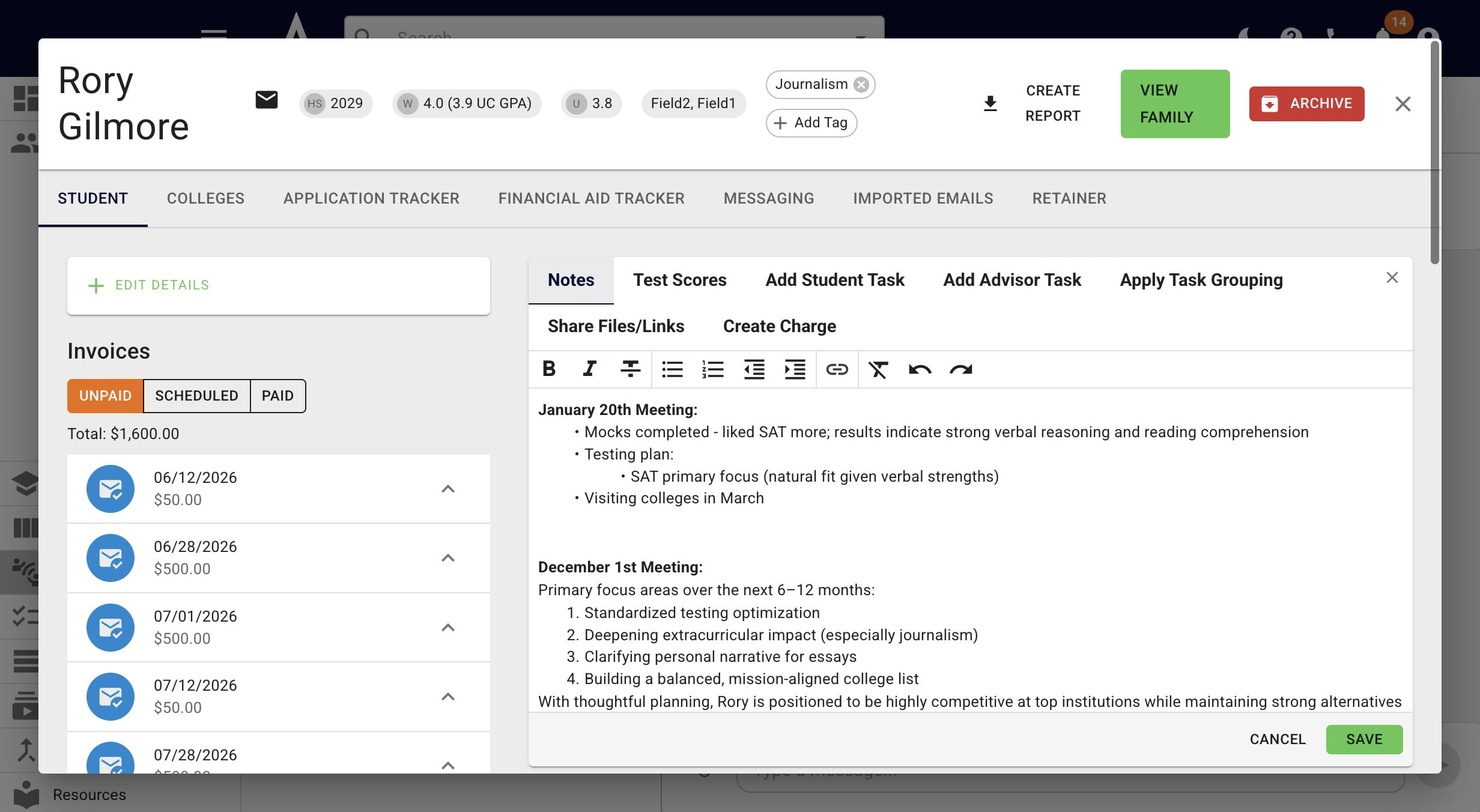
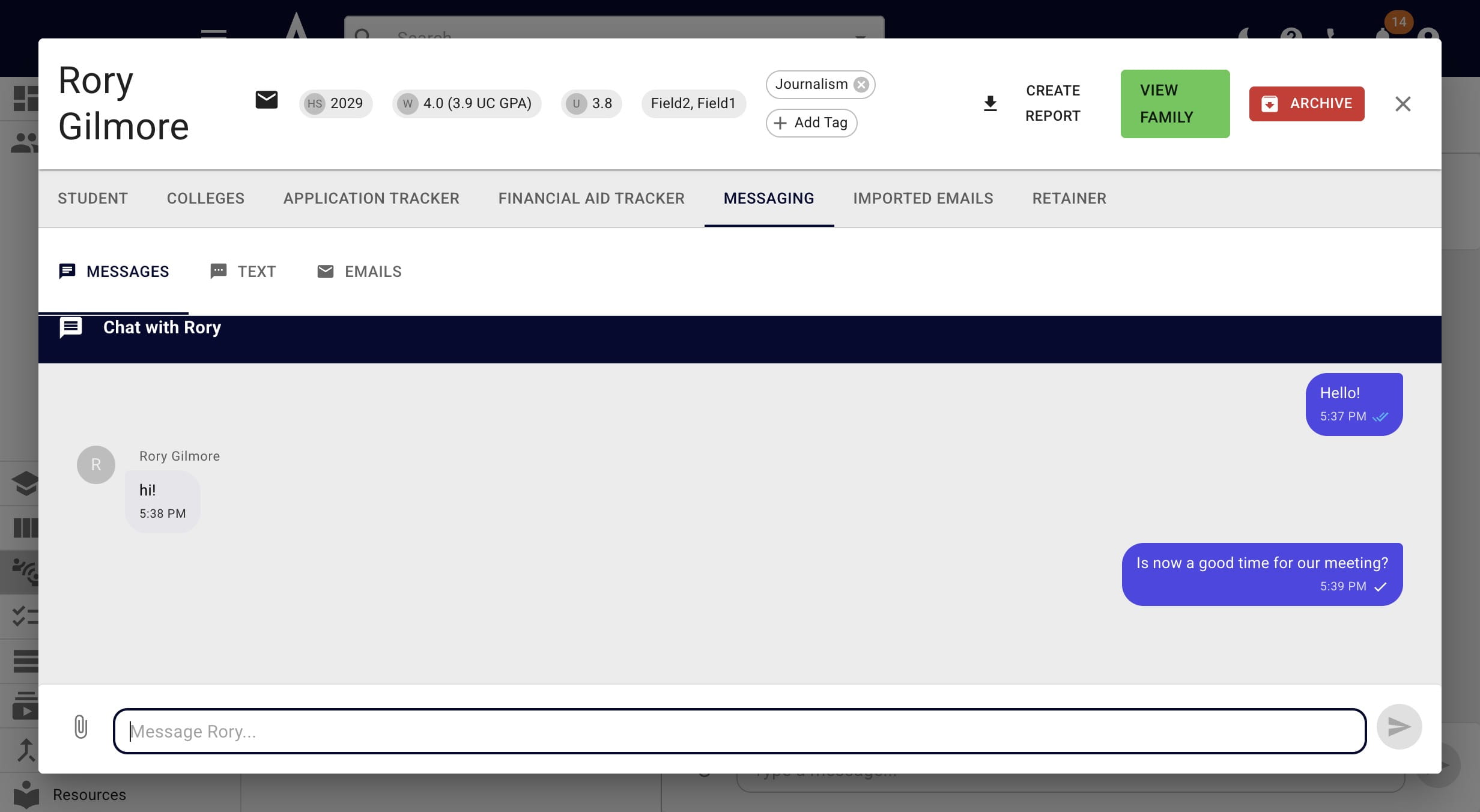
The other way is through the student's profile. Once the student's profile is pulled up, click on Messaging.
You'll then be able to send and receive texts from your student.
On the student side, they'll receive push notifications of messages and will be alerted on the left-hand navigation bar if there are unread messages.
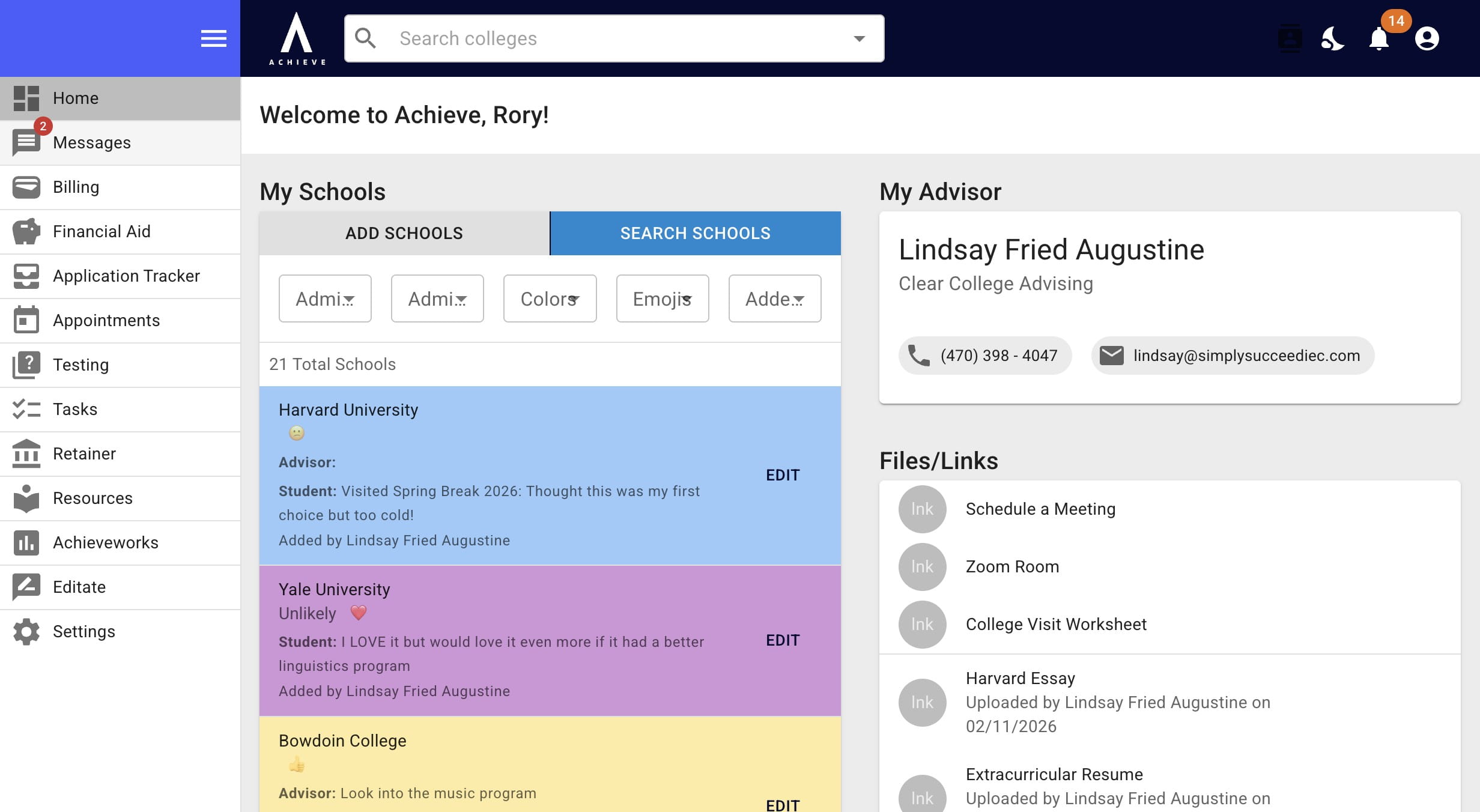
Once they click on Messages, they'll be able to receive and send messages.
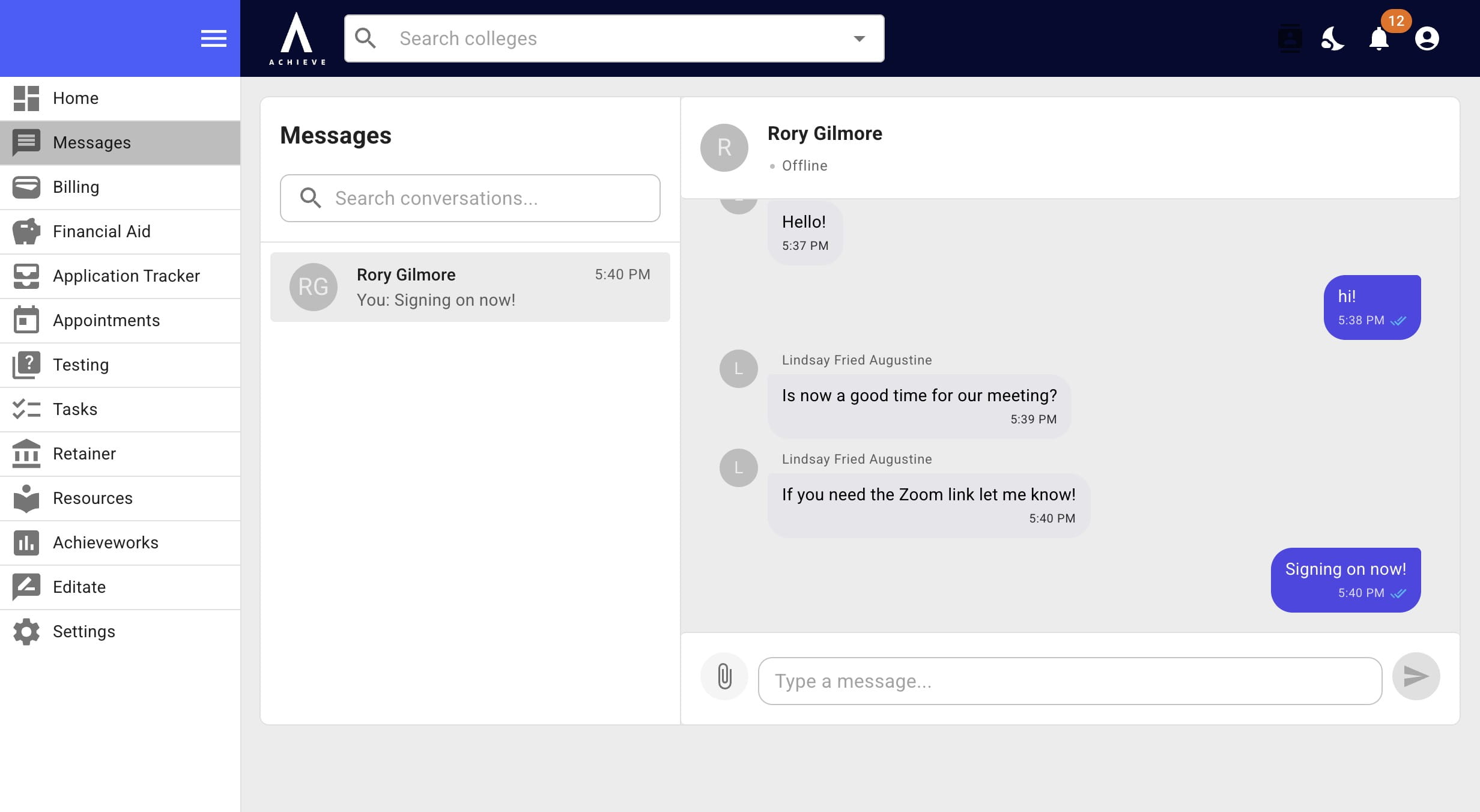
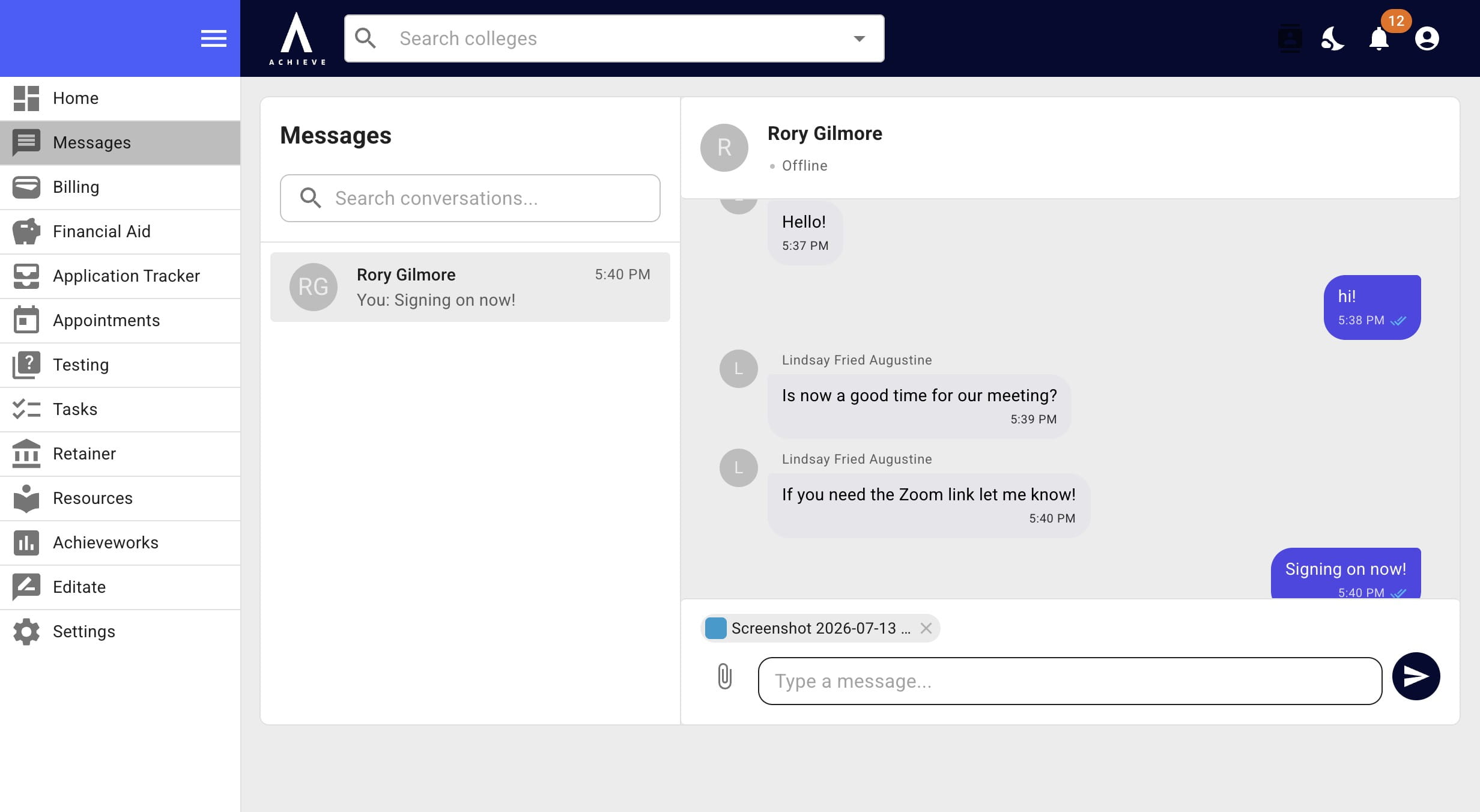
You and your students can also send images by clicking the paperclip icon and uploading images from your computer.
Done 🚀